Introduction:
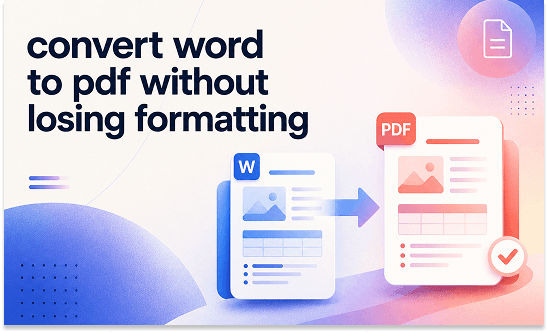
Do you want a perfect PDF duplicate of your Word document? Let’s learn how to convert Word to PDF without losing formatting. This guide will show you four easy methods to keep your pages looking perfect.
Way 1. The Best Free Way to Convert Word to PDF Without Losing Formatting
If you want a professional tool that is completely free, JOPDF is the absolute best choice. It is an amazing PDF converter because it is so easy to use. You do not need to be good with computers. Just one single click is needed to complete the conversion.
When you use JOPDF, you can convert Word to PDF without changing formatting. Your fonts, pictures, and margins will stay in the exact right place.
Features of JOPDF:
✅ Process Many Files at Once: If you have twenty Word documents, you do not have to do them one by one. JOPDF allows you to batch convert Word to PDF. You can even change a whole folder of documents all at the exact same time!
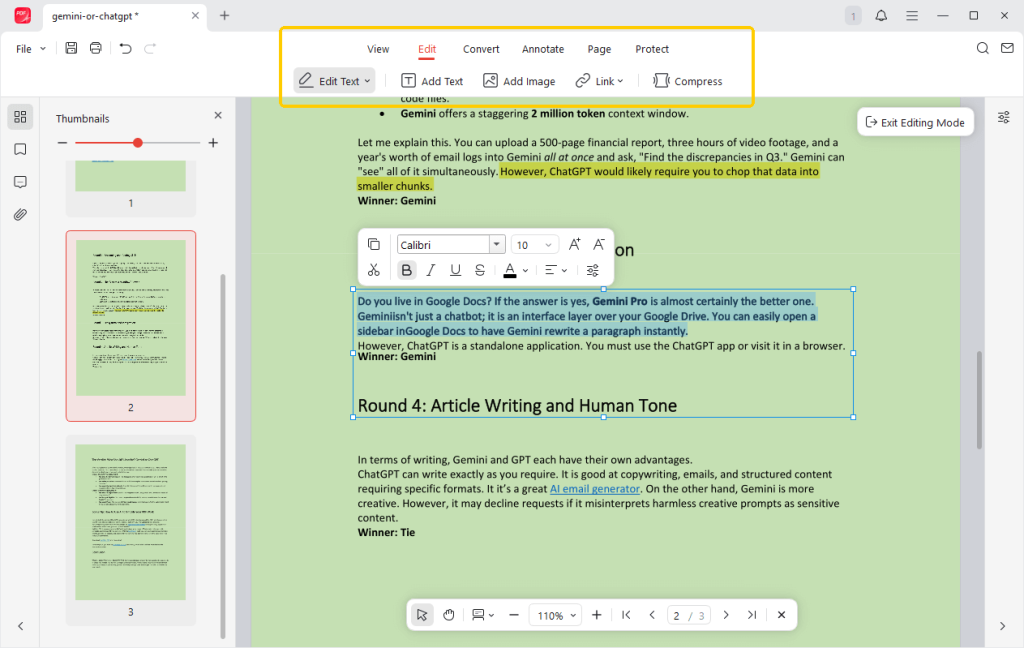
✅ Fix Mistakes Easily: JOPDF is not just a converter; it is also a complete PDF editor. If you spot a spelling mistake after the file is converted, you do not have to start over. You can continue to edit text in the PDF directly inside the software.
Let’s see how to use JOPDF:
- Download, install, and launch JOPDF on your computer.
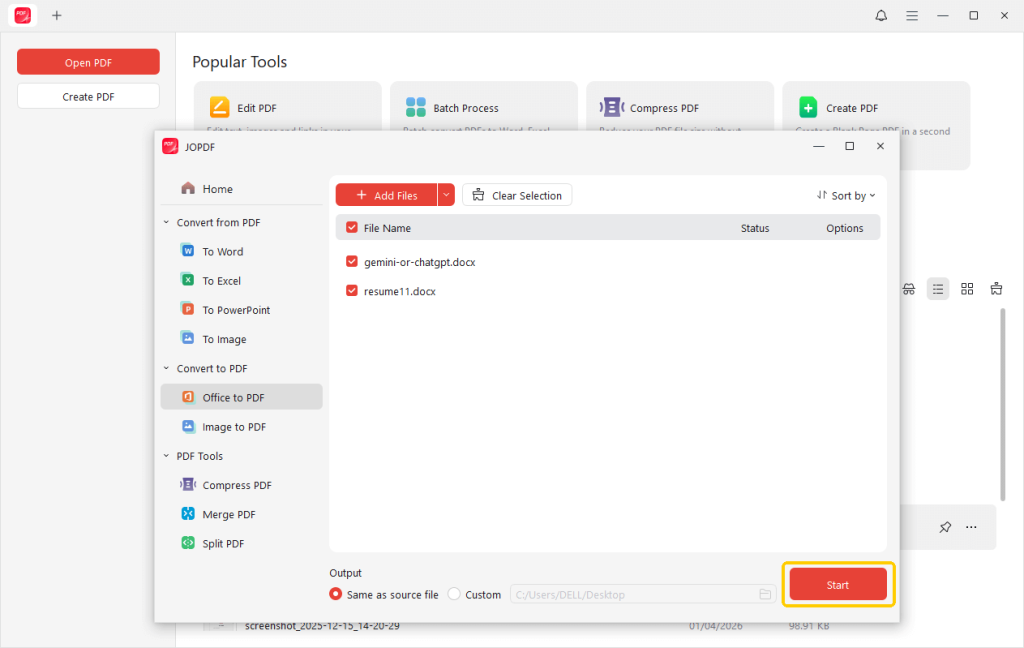
- On the home interface, click Batch Process, and then select Office to PDF.
- Next, please add all the documents you want to convert. You can click the +Add Files icon or simply drag and drop the files into the window.
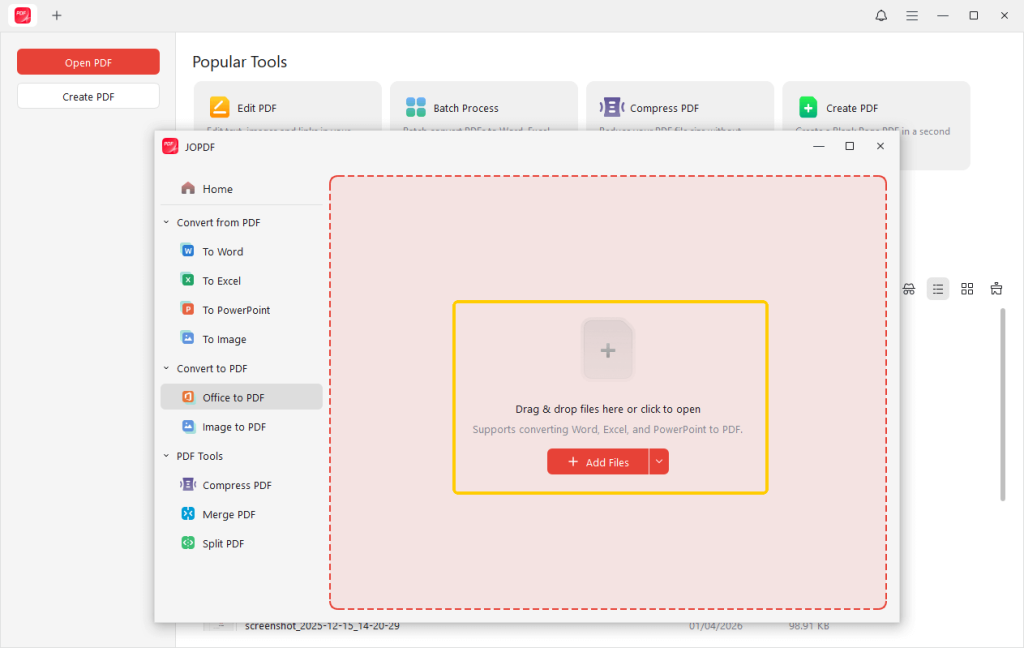
- Finally, select an output path and click Start.
When done, JOPDF will automatically open the PDF. Now, you can view and edit the PDF. It also lets you merge multiple PDFs into a single document. Very simple, right? Try it now!
👍 Best For: Everyday users and office workers who want a totally free, high-quality desktop tool that allows for fast batch conversions and easy editing later.
Way 2. Use an Online PDF Converter
Don’t want to install a desktop converter? In this case, you can choose to convert Word to PDF without losing formatting online.
The entire process will be completed within the browser, which is very convenient. Of course, you will need a network connection.
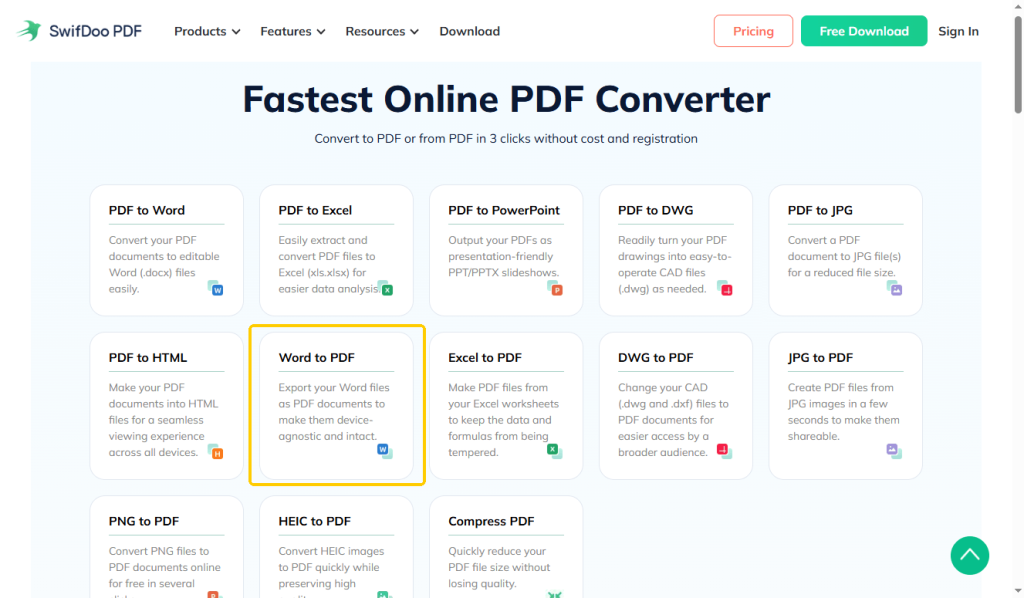
- Open your internet browser and go to a converting website, like SwifDoo PDF Online Converter.
- Select the Word to PDF option.
- Click and drag your Word document into the big box on the webpage.
- Let the website server convert the file automatically. It only takes a few seconds.
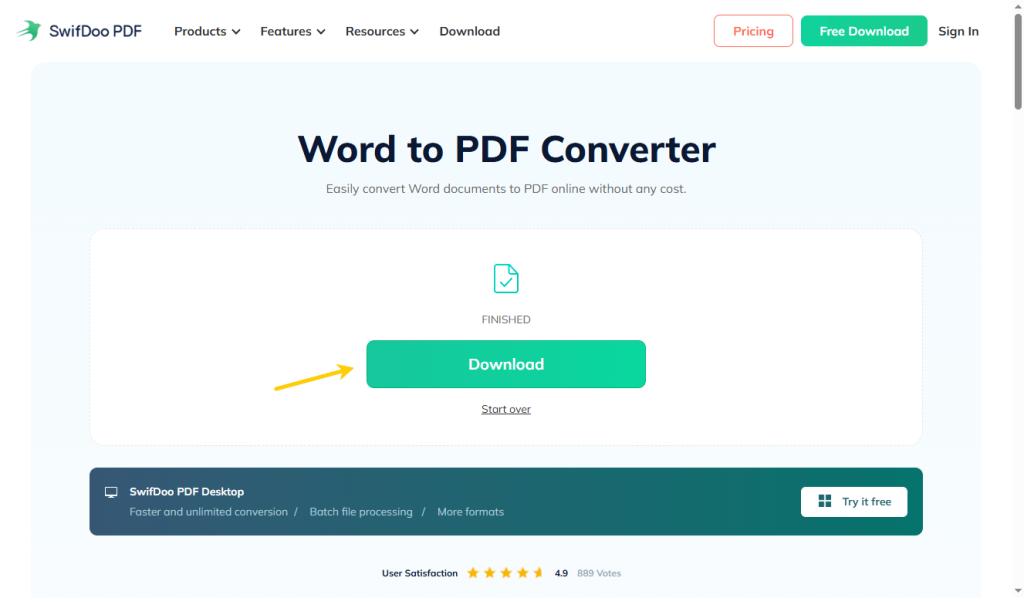
- When done, click the Download button.
👍 Best For: People using a mobile phone, a borrowed computer, or a public library network where they simply cannot download or install desktop software.
Way 3. Export PDF with Microsoft Word
If you typed your document using Microsoft Word, you already have a great tool built right into your screen.
There is no need to look anywhere else if you just want to quickly figure out how to convert Word to PDF without losing formatting. You can use the Export feature to get the job done. Check to learn the steps.
- Open your document in Microsoft Word.
- Look at the top left corner of your screen and click on the File menu.
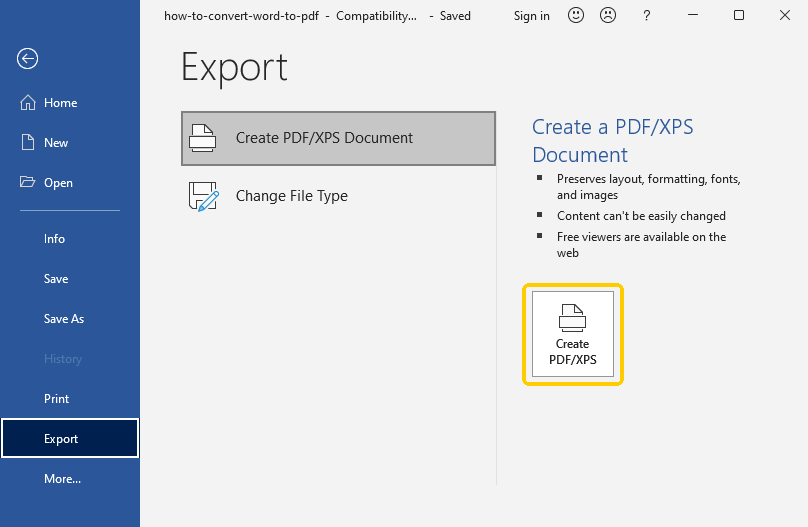
- Click on the word Export in the list.
- Click the big button that says Create PDF/XPS Document.
- Next, click Options to adjust the page range, the image quality, and more.
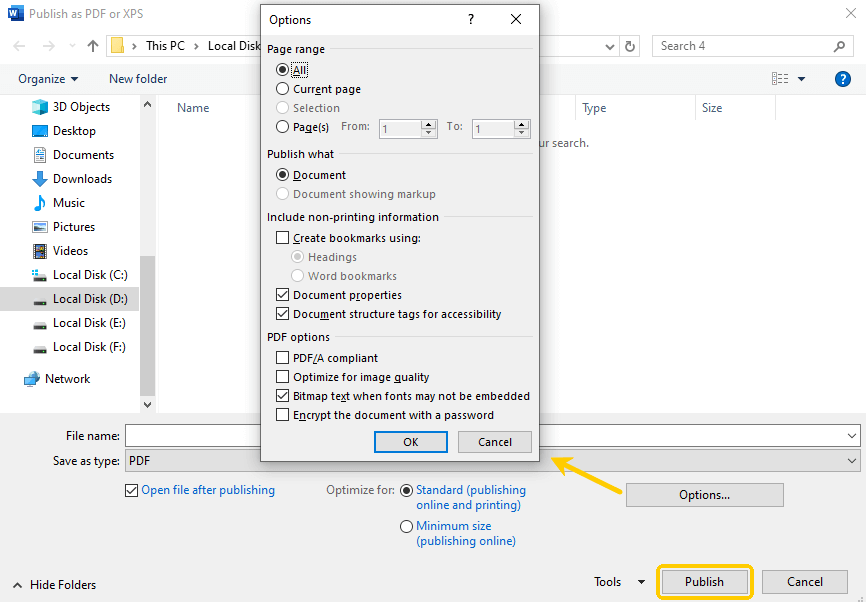
- Choose where you want to keep the file on your computer and click Publish.
Please note that Word is not very good at handling documents with overly complex formatting. If your document contains many elements, it is best to use a professional converter, such as JOPDF.
👍 Best For: Users who already own the Microsoft Office program on their computer and just need a fast, reliable conversion for a single text-based file.
Way 4. Use the Print to PDF Tool
In fact, every modern computer has a hidden “virtual printer.” Instead of printing ink onto real paper, it prints your document into a digital PDF file.
However, the “Print” trick will flatten the file completely. It acts like taking a photograph of the page. This will make the PDF totally uneditable. You will not be able to change the words or click the web links. If you really want to easily edit the PDF after conversion, you should skip this method and use JOPDF instead.
Steps to print Word to PDF:
- Open the document in Microsoft Word. Go to the File menu and click the Print option.
- You can also open the Word document in a browser and press Ctrl + P (or Cmd + P).
- Change the printer to Save as PDF or Microsoft Print to PDF.
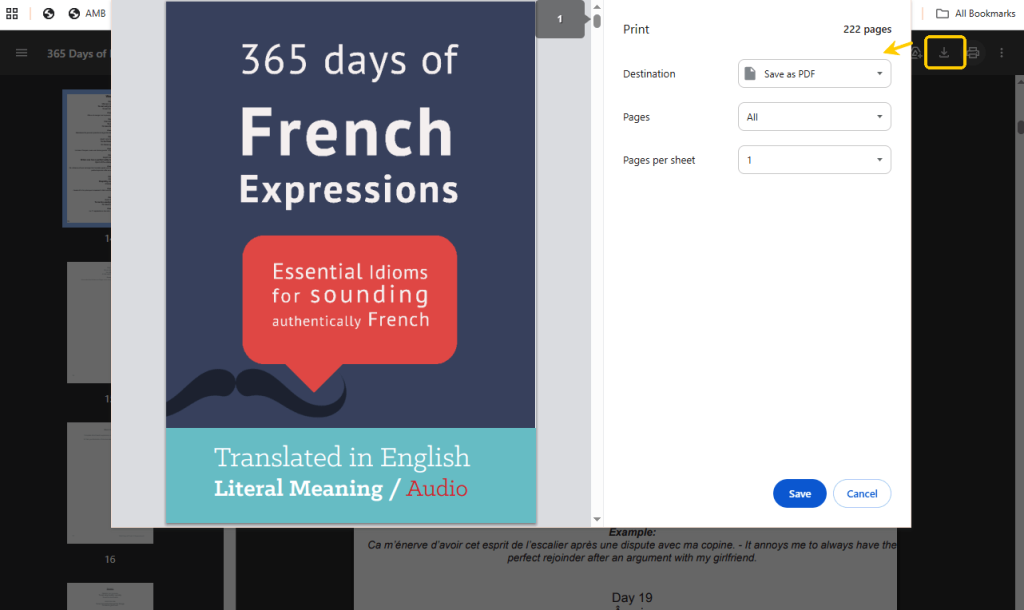
- Click the Print button and select a folder to save the file.
👍 Best For: Just the PDF version of this document is needed. There is no need to edit the file afterward.
Quick Tips to Keep Your Layout Perfect
Sometimes, even with excellent tools, you still need to set up the files properly before converting them. This will further ensure that you obtain high-quality files. Try out these simple tips:
- Use Normal Fonts: Stick to common fonts like Arial or Times New Roman. Rare fonts might not convert correctly and can change your text.
- Use Page Breaks: Do not press the “Enter” key 20 times to start a new page. Click “Insert” and then “Page Break” to safely lock the page in place.
- Lock Your Pictures: Stop photos from moving around. Click your picture, find the “Wrap Text” menu, and choose “In Line with Text.”
- Stop Spamming the Spacebar: Do not press the spacebar 50 times to line up words. Use the “Table” tool to keep your text neat and perfectly still.
Conclusion
That’s all about how to convert Word to PDF without losing formatting. For a one-time task, the built-in tool and conversion websites are sufficient. However, if you want the highest quality and the ability to correct errors later, JOPDF is the best choice! It is an all-in-one solution for your daily work.
FAQs
Table of Contents

Your Best Free PDF Expert in PDF editing, compressing, converting, annotating, protect, organizing, and more.
Free DownloadWindows · macOS · Linux

Queena
Editor
“As a staff editor for JOPDF, Queena excels at guiding users to the optimal tools and solutions. When she's not analyzing the latest PDF solutions, she enjoys spending her free time playing with her four cats.”