Summary :
Microsoft Word documents are widely used for creating and editing content, but they may not preserve formatting across devices. Converting them to PDF ensures consistency, security, and easy sharing. A reliable PDF converter makes this simple. This guide explains how to convert Word to PDF in Google Drive using three easy methods.
Way 1. Convert Word to PDF in Google Drive via Download
For a fast and reliable solution, exporting your file as a PDF is one of the simplest ways to do so in Google Drive. Let’s go through converting your Word file to PDF via the download method.
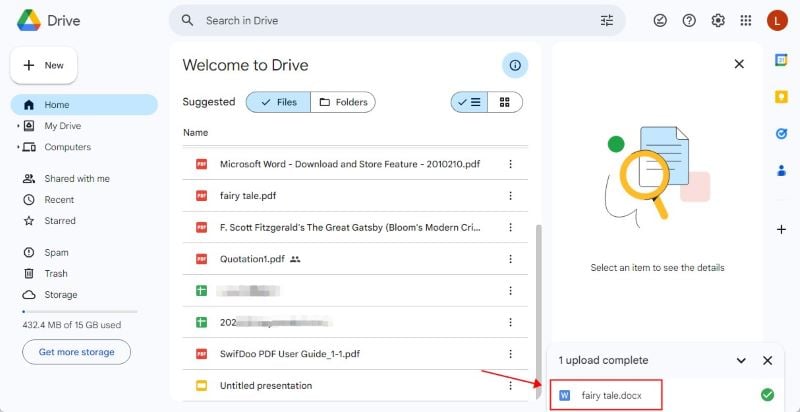
Step 1. Open your browser, go to Google Drive, and sign in. Click + New and select File upload to upload the Word document.
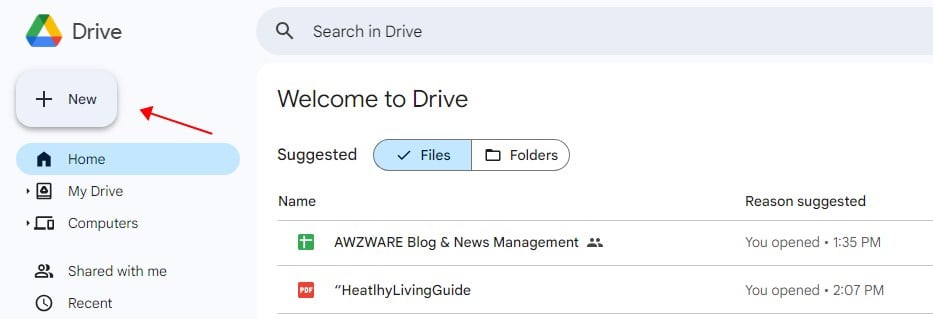
Step 2. Open the uploaded file by clicking it, or right-click in Drive and pick Open with > Google Docs.
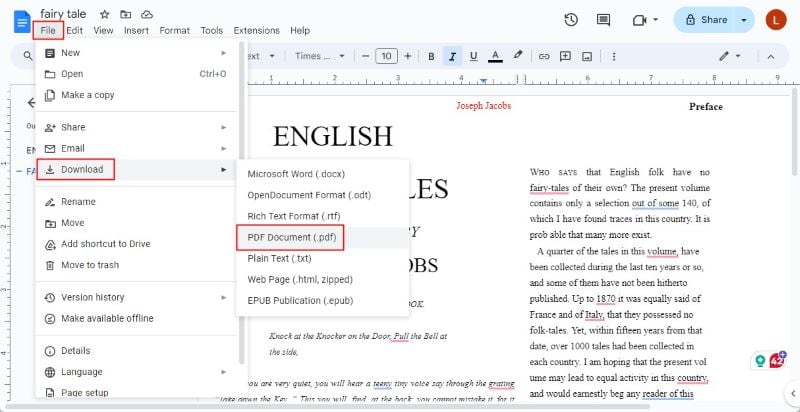
Step 3. Go to File > Download > PDF Document (.pdf) in Google Docs. Your PDF will be stored in your browser’s Downloads folder right away.
Way 2. Convert Word to PDF in Google Drive via Print
Easily convert your document to PDF by choosing the Print option in Google Drive. This method is quick, built-in, and gives you control over layout and settings.
Follow these steps to learn how to convert Word to PDF using Google Docs via Print.
Step 1. Go to Google Drive and add your Word document using the steps outlined in the previous method.
Step 2. Click the uploaded file to open it, or right-click and pick Open with > Google Docs.
Step 3. Open File > Print in Google Docs and set Destination to Save as PDF or Save to Google Drive.
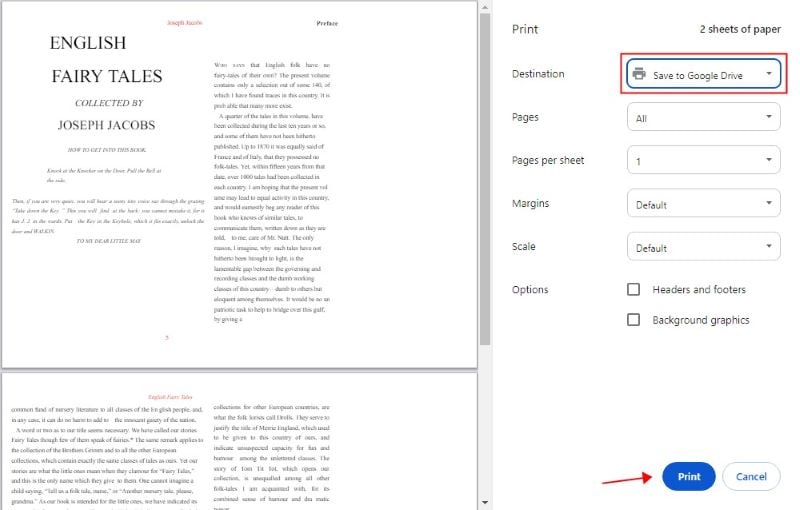
Step 4. Modify page options if required, and click Print to create your PDF.
Way 3. Convert Word to PDF in Google Drive on Phone App
With the Google Drive mobile app, converting Word documents to PDF is fast and easy. This approach works anytime, anywhere, without needing a computer.
Follow these steps to learn how to convert Word to PDF using Google Drive on your smartphone.
Step 1. Start Google Drive on your mobile device and log in as necessary.
Step 2. Tap the + icon, select Upload, and choose the Word file you want to convert from your device.
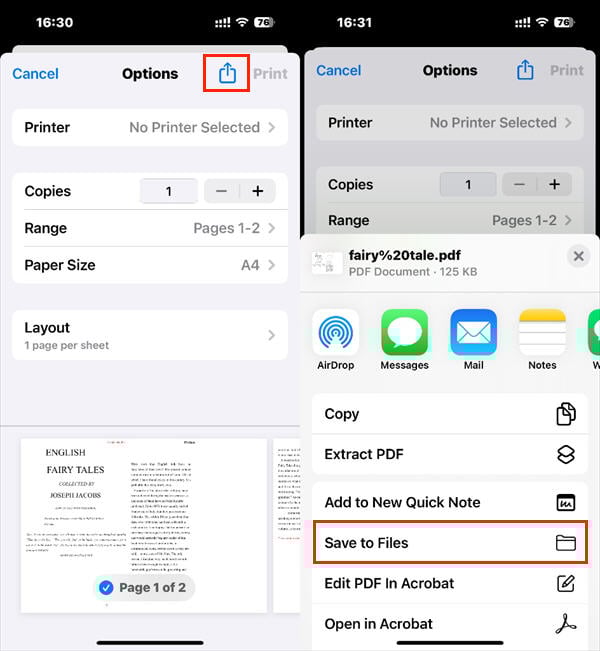
Step 3. Tap the three-dot menu under your file and select Print.
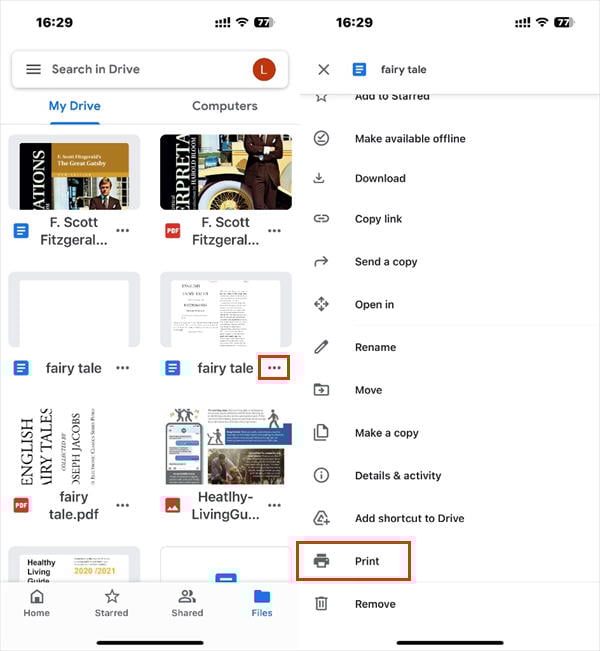
Step 4. Review and adjust page settings if needed, then press Share.
Next, choose Save to Files, pick a location on your phone, and your Word document will be saved as a PDF.
Bonus Tip: Another Easy Way to Convert Word to PDF
The methods above provide a smooth and easy way to convert files. While these methods can convert Word documents to PDF in Google Drive, each has its limitations.
Using download or print options can be time-consuming and affect formatting, whereas the mobile app may feel limited and less accurate. These challenges emphasize the importance of a dependable desktop tool. In these situations, JOPDF is for smooth, high-quality conversions.
You can easily batch convert Word to PDF using JOPDF, preserving formatting that Google Drive may occasionally disrupt. It functions without an internet connection, produces consistent, high-quality results, and supports fast, reliable conversions.
With its intuitive interface, speed, and advanced tools, JOPDF is ideal for students, professionals, and anyone who needs an efficient and dependable PDF conversion solution.
Let’s see how to convert Word to PDF on Windows and Mac using JOPDF:
Step 1. Download and set up JOPDF on Windows or Mac. Once launched, the home interface displays all the main tools.
Step 2. On the home screen, click Batch Process, then choose Office to PDF.
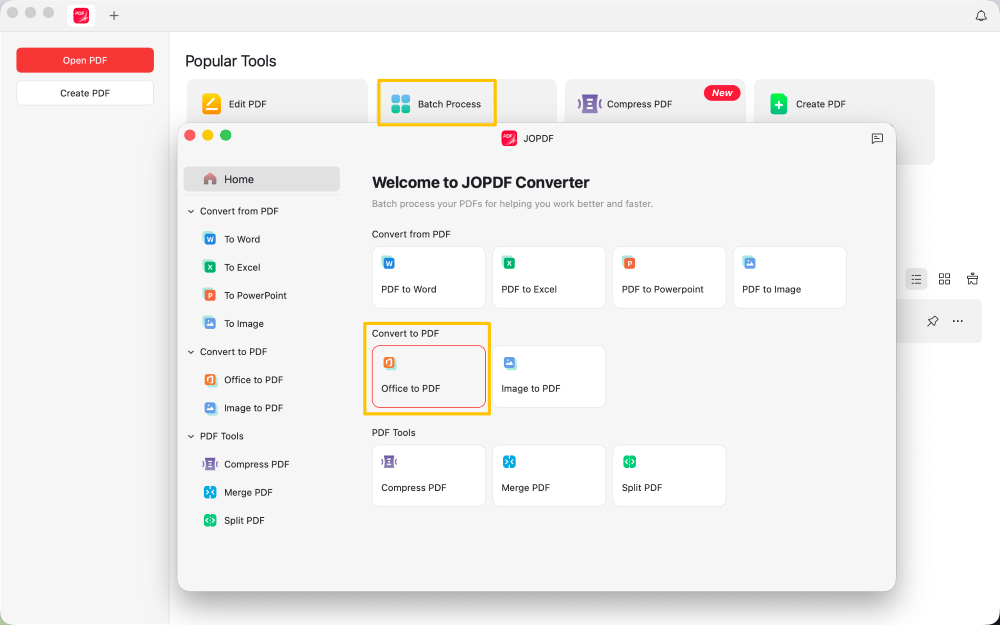
Step 3. Use +Add Files to browse and pick your Word documents.
Alternatively, you can drag and drop files directly into the conversion window. You can add as many files as you want to batch convert.
Step 4. Select a destination folder for your PDFs, and click Start to start the conversion.
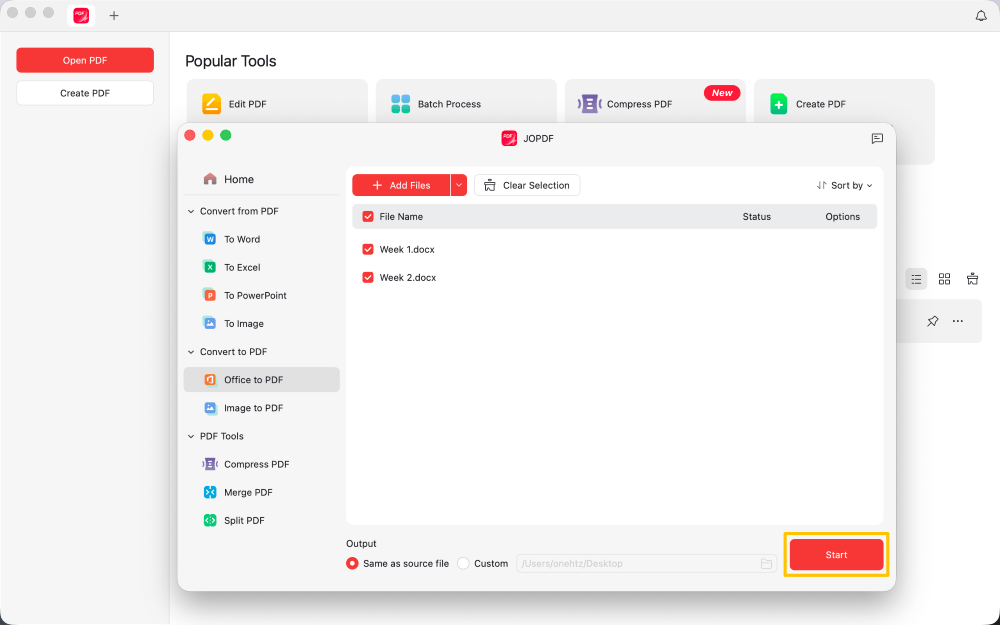
Wait a moment for the conversion to complete. Once the process is complete, your PDFs are ready.
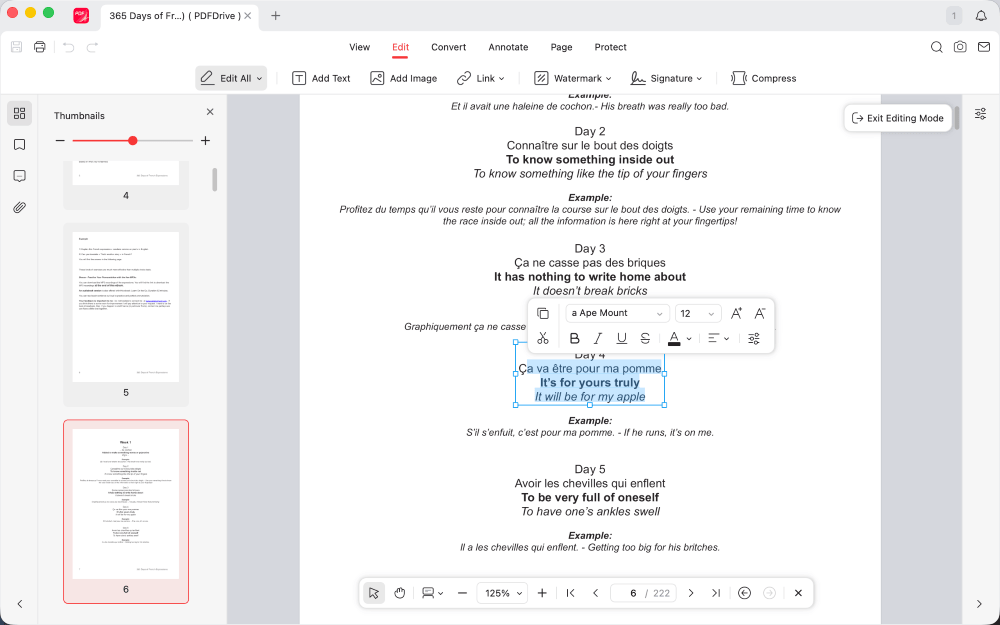
JOPDF can also be your best free PDF editor. You can open PDFs in JOPDF to edit, save for sharing, and manage your files using its full PDF toolkit. Install JOPDF today for seamless, professional, and dependable PDF management!
Conclusion
Turning Word documents into PDFs preserves formatting, fonts, and images, making them easier to share, print, and store securely. Whether you use the download method, the print option, or the Google Drive mobile app, these 3 easy ways simplify the process.
Plus, try JOPDF for fast, high-quality PDF conversions with batch support and advanced editing features. Use these options today to convert Word to PDF in Google Drive and organize your files in JOPDF!
FAQs
Table of Contents

Your Best Free PDF Expert in PDF editing, compressing, converting, annotating, protect, organizing, and more.
Free DownloadWindows · macOS · Linux

Queena
Editor
“As a staff editor for JOPDF, Queena excels at guiding users to the optimal tools and solutions. When she's not analyzing the latest PDF solutions, she enjoys spending her free time playing with her four cats.”