Introduction:
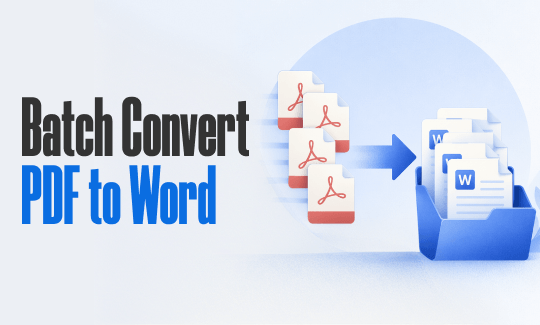
Changing just one PDF into a Word document is very easy. But what if you have 20, 50, or even 100 files? Doing it one by one takes too much time and energy. Instead of wasting your whole day, you need a way to batch convert PDF to Word. This guide will show you how to do this quickly.
1. The Best Free Way to Batch Convert PDF to Word
If you want to know how to batch convert PDF to Word for free, your absolute best choice is a program called JOPDF.
JOPDF is totally free and incredibly easy to use, even if you are not good with computers. Many people consider it the best alternative to Adobe Acrobat because it gives you professional results without asking for a credit card. It handles the heavy work for you in just a few clicks.
Let’s see how to use JOPDF to convert multiple PDFs to Word:
- Click the button below and install JOPDF on your computer.
- Open JOPDF and click on the Batch Process option. Then, go to PDF to Word.
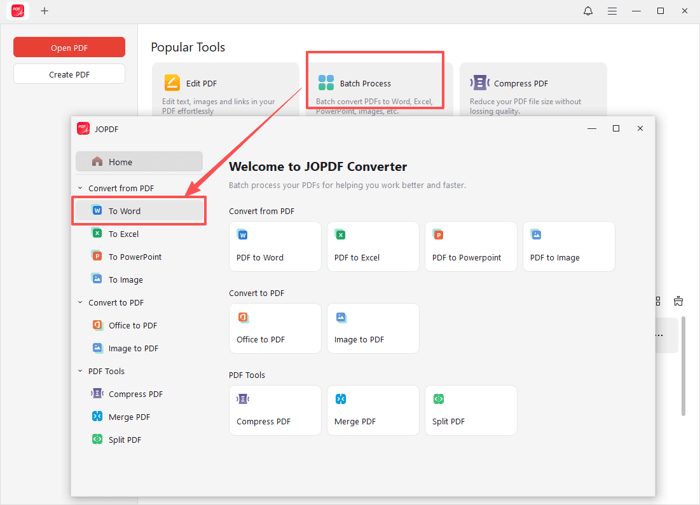
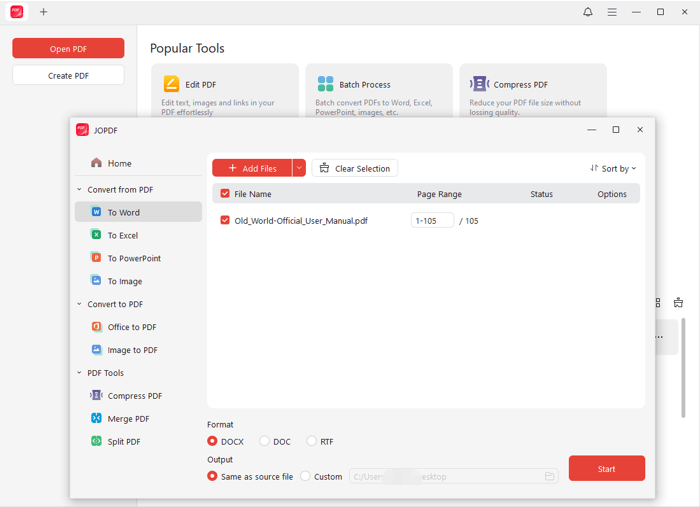
- Click the Add Files button. You can select all the PDF documents you want to change at once.
- Choose exactly where you want your new Word documents to be saved on your computer.
- Finally, hit the Start button. The software will process all your files at the exact same time.
JOPDF is much more than just a PDF converter. It is a complete, all-in-one PDF editor. You can use it to fix spelling mistakes, merge different pages together, make large files smaller, or even electronically sign a PDF contract.
Just try JOPDF today to save time and make your work easier!
2. Use Adobe Acrobat Pro
Adobe Acrobat Pro is a very famous program, but it comes with a major catch: you have to pay a very expensive monthly subscription fee to use its PDF converter and many other features.
If you just need to do this task one time, you can sign up for their 7-day free trial. However, if you find signing up and canceling subscriptions annoying, just skip Adobe entirely and use JOPDF instead.
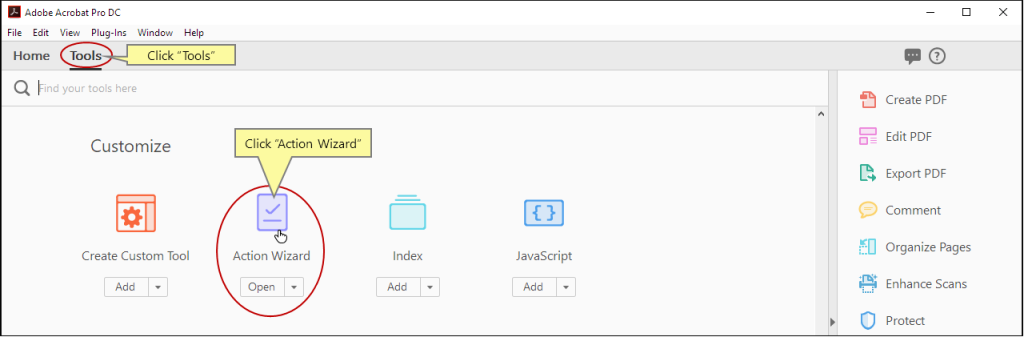
If you already pay for the Adobe software, it is very easy to batch convert PDF to Word in Adobe Acrobat using a special tool called the Action Wizard. Check the steps below.
- Open your Adobe Acrobat Pro. Go to the Tools tab at the top and select Action Wizard.
- Click on New Action in the top menu bar.
- Look on the left side of your screen under “Files to be Processed.” Click the little plus (+) icon to add the computer folder that holds all your PDFs.
- Look on the left side again and click Save & Export. Click Save to add it to your action list.
- Click the small gear icon next to the word Save. Select Export File(s) to Alternate Format, and choose Word Document.
- Save this new rule, give it a name like “Batch PDF to Word,” and click the Start button to let the computer run the task.
3. Batch Convert PDF to Word Online
What if you are using a borrowed computer, or you just do not want to download any software? You can use a website to do the work for you. A very easy online converter is Online2PDF (https://online2pdf.com/). Let’s see the details.
- Open your internet browser and go to the Online2PDF website.
- Scroll down the page and click the grey Select files button. Upload all the PDF files you want to change.
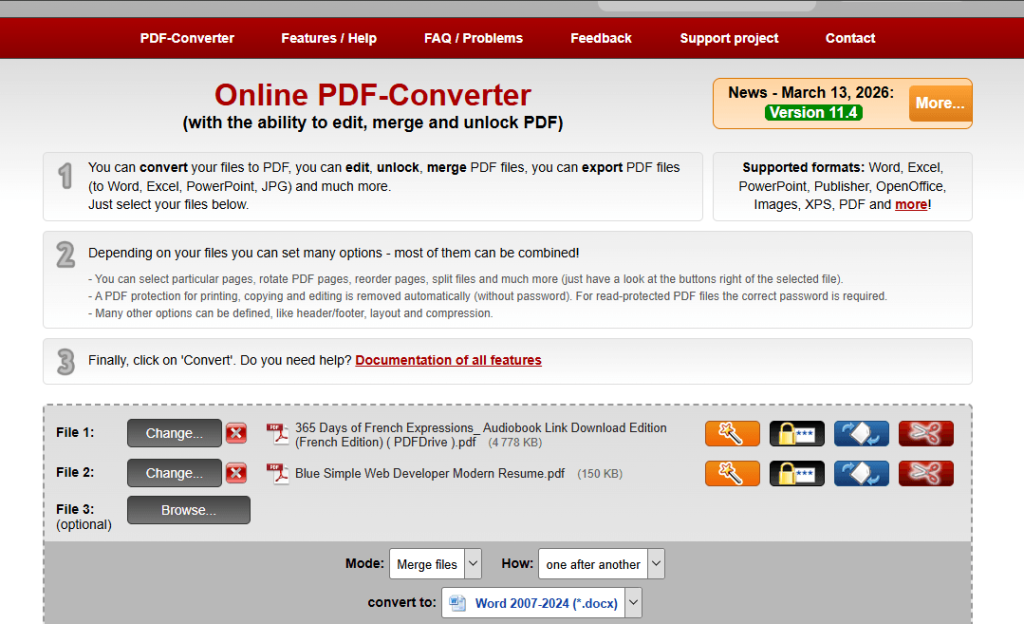
- Look for the convert to box and select Word as the format.
- Click the red Convert button. Wait a while, then choose a location to save the document.
A Quick Safety Warning: Online tools are very fast and easy to use. However, you must upload your files to the public internet. If you have highly sensitive business documents, private bank statements, or personal records, it is much safer to use an offline program like JOPDF.
Conclusion
That’s all about how to batch convert PDF to Word.
- If you are in a big rush and do not mind using the internet, web tools like Online2PDF are very convenient.
- If your office already pays for Adobe Acrobat Pro, the Action Wizard is ready to help you.
- However, if you want the safest, most efficient, and completely free way to do it right on your own computer, JOPDF is clearly the best choice.
As long as the appropriate method is chosen, the conversion will be very simple. Hope this guide is helpful.
FAQs
Table of Contents

Your Best Free PDF Expert in PDF editing, compressing, converting, annotating, protect, organizing, and more.
Free DownloadWindows · macOS · Linux

Queena
Editor
“As a staff editor for JOPDF, Queena excels at guiding users to the optimal tools and solutions. When she's not analyzing the latest PDF solutions, she enjoys spending her free time playing with her four cats.”