Introduction :
What can you do if you are reading a long PDF document and need to locate certain words or phrases? Read this PDF document word by word? Absolutely not, don’t do that! What you need is a reliable PDF tool to help you search in a PDF. How to search for a word in a PDF? You can use JOPDF to search in a PDF for free. In addition, try other effective ways mentioned in this comprehensive post.
Recommended Free Way to Search in PDF with JOPDF
Compatible OS: Windows and Mac
JOPDF is a 100% free PDF viewer, supporting viewing PDF documents in various modes. For instance, its Two Page View mode enables you to view a PDF document like a book. Additionally, it offers viewing modes, including Single Page View, Single Page Scrolling, Two Page Scrolling, and Separate Cover Page. To facilitate finding specific words or phrases, JOPDF provides a search feature to search in PDFs.
Other Main Features of JOPDF:
- Can create a PDF document from a blank.
- Annotate PDF files, such as highlighting text or adding underlines.
- Rearrange PDF pages.
- Insert or remove PDF pages.
- Password-protecting PDFs from viewing, printing, or editing.
- Decrypting PDFs without a password.
Pricing: It’s free!
Exact Steps to Search in a PDF with JOPDF for Free
Step 1. Download and install JOPDF on your PC first. Simply click the button below. Once installed, launch this free PDF viewer.
Step 2. Click the Open PDF button to open your target PDF file in JOPDF. Alternatively, you can open the PDF file in JOPDF by directly dragging and dropping it into JOPDF.
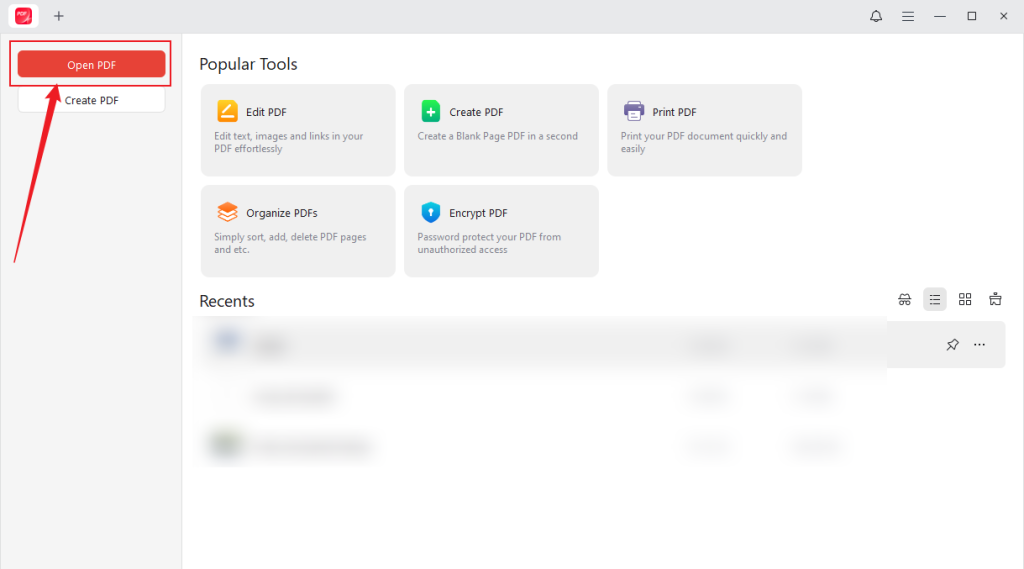
Step 3. Click the Search option (a magnifying glass icon) at the top right. Also, you can press Ctrl + F.
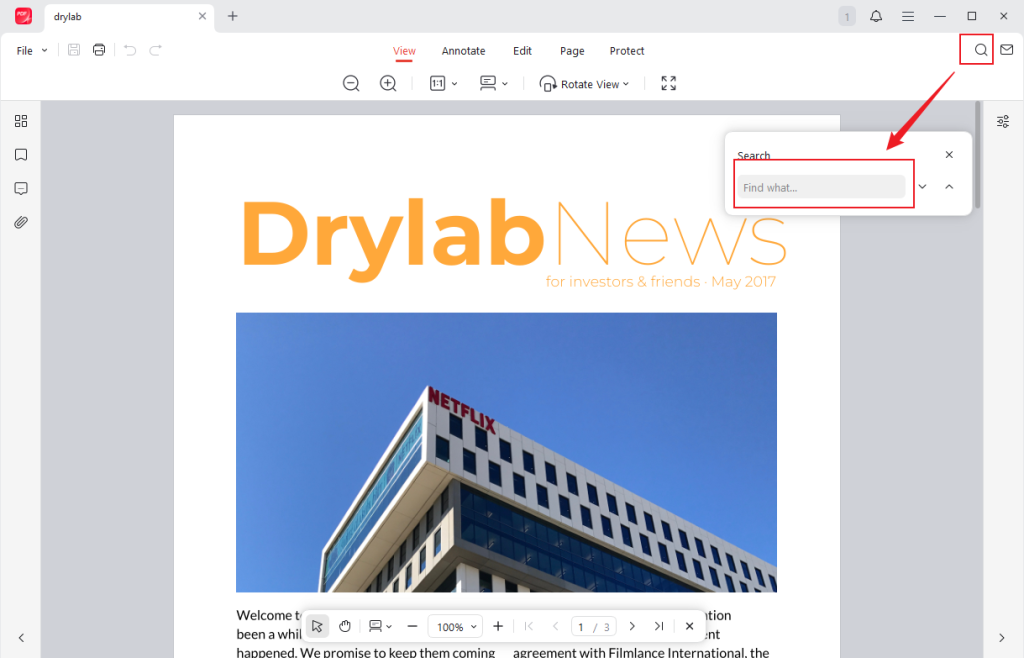
Step 4. Then, the Search box will appear. Type in the words, phrases, or sentences you want to search and press Enter. JOPDF will highlight the words that match your search content. You can click the down or up arrow to find the right one.
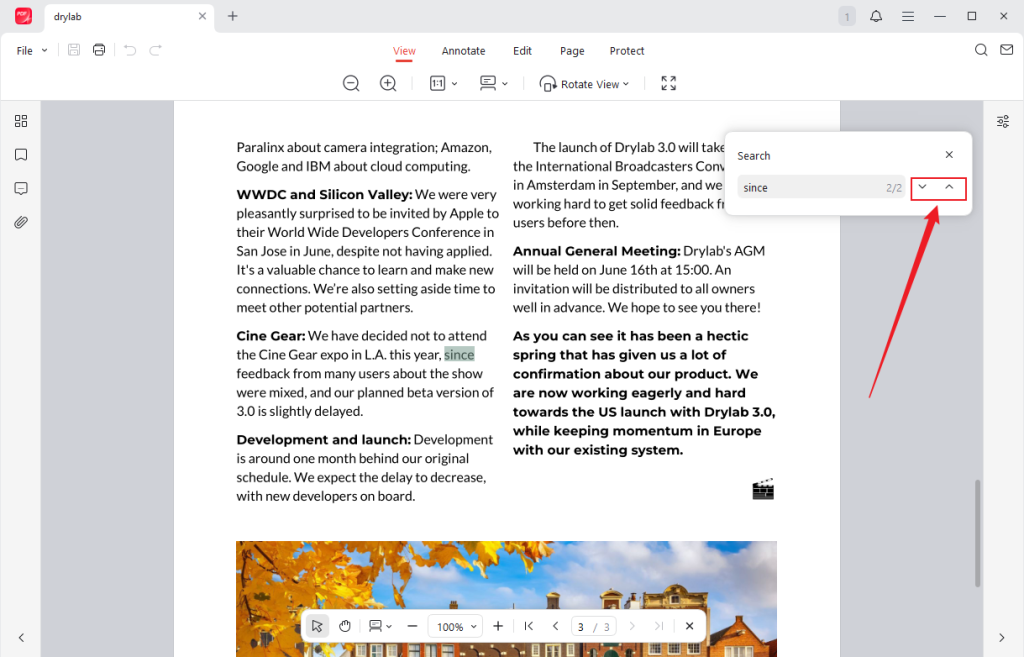
It is quite easy and effective to search in PDFs using JOPDF!
How to Search for a Word in a PDF with Preview
Compatible OS: Mac
How to search for words in a PDF on Mac without downloading or installing any software or plugins? In addition to using online tools, Preview is your best choice, which is a built-in application for Mac.
What is Preview used for? It is mainly used for viewing and editing PDFs and images. With it, you can easily open, view, edit, and annotate PDF files. Working as a qualified PDF viewer, Preview enables you to search for words and phrases in PDFs.
Other Key Features of Preview:
- Add annotations to PDFs, like text boxes, lines, circles, arrows, notes, and more.
- Provide a markup toolbar to directly draw or highlight on PDFs or images.
- Support rotating, cropping, or resizing PDF pages.
- Export PDF files as PNG or JPEG files.
- Protect PDF files with passwords.
Pricing: Free
If you are interested in Preview, let’s learn the detailed steps to search for words in a PDF with it.
Step 1. Locate the long PDF you want to search for words, right-click on it, and choose to open it with Preview.
Step 2. Then, the PDF file will be displayed in Preview. Click the search box in the upper-right corner or hit Command + F to open the search bar.
Step 3. Type in the words you want to search for and press Enter. Then, all the matched words will be highlighted. If you search for a phrase or sentence, Preview will search for the exact one. If you are not entirely sure how this sentence should be phrased, you can click the search icon and select the Any Match option. Then, Preview will search for any words contained in this sentence.
How to Search in PDF Using SwifDoo PDF
Compatible OS: Windows, Mac, iOS, iPadOS, and Android
SwifDoo PDF is a good tool to search in PDFs, which supports searching for words, phrases, or sentences with advanced settings. In addition to searching within the body of a PDF document, it enables you to search for words in annotations and bookmarks. What’s more, it can search for words based on case sensitivity. More importantly, if you need to search and replace words in PDFs, SwifDoo PDF can also meet your needs.
To your surprise, SwifDoo PDF supports searching in scanned PDF files since it is equipped with an OCR engine.
Other Highlights of SwifDoo PDF:
- Edit text, images, and links in PDFs with a multitude of features.
- Convert PDF to editable Word format and other formats, like PPT, TXT, and Markdown.
- Support adding digital or handwriting signatures to PDFs.
- Offer a feature to search and redact sensitive or private information.
- Provide the feature to OCR PDFs.
Pricing: Offer a 7-day free trial. For a single-platform plan on Windows, it requires $16/month for a quarterly plan, $2.88/month for a 2-year plan, and $96.75/perpetual for the perpetual plan. For detailed pricing plans for different OS, you can go to the pricing website of SwifDoo PDF.
Once you have enough budget, SwifDoo PDF is worth a try. Just refer to the steps below and search words in the PDF with SwifDoo PDF.
Step 1. After installing SwifDoo PDF, launch it and open your PDF in it.
Step 2. Click the Search icon in the left sidebar or go to View and click the Search option.
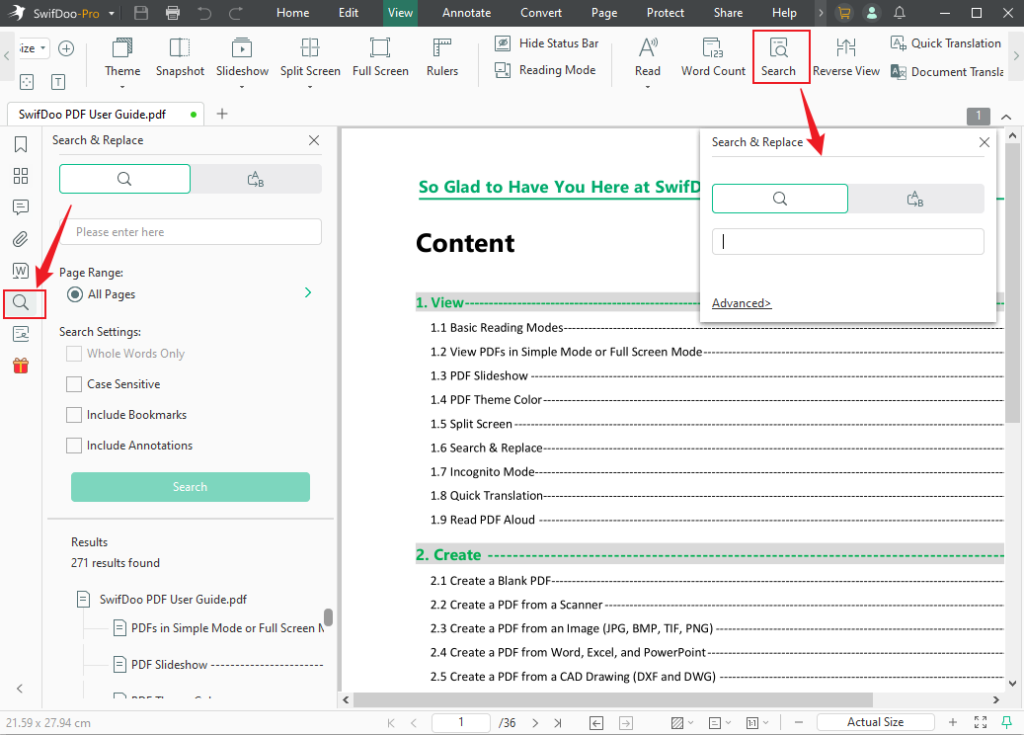
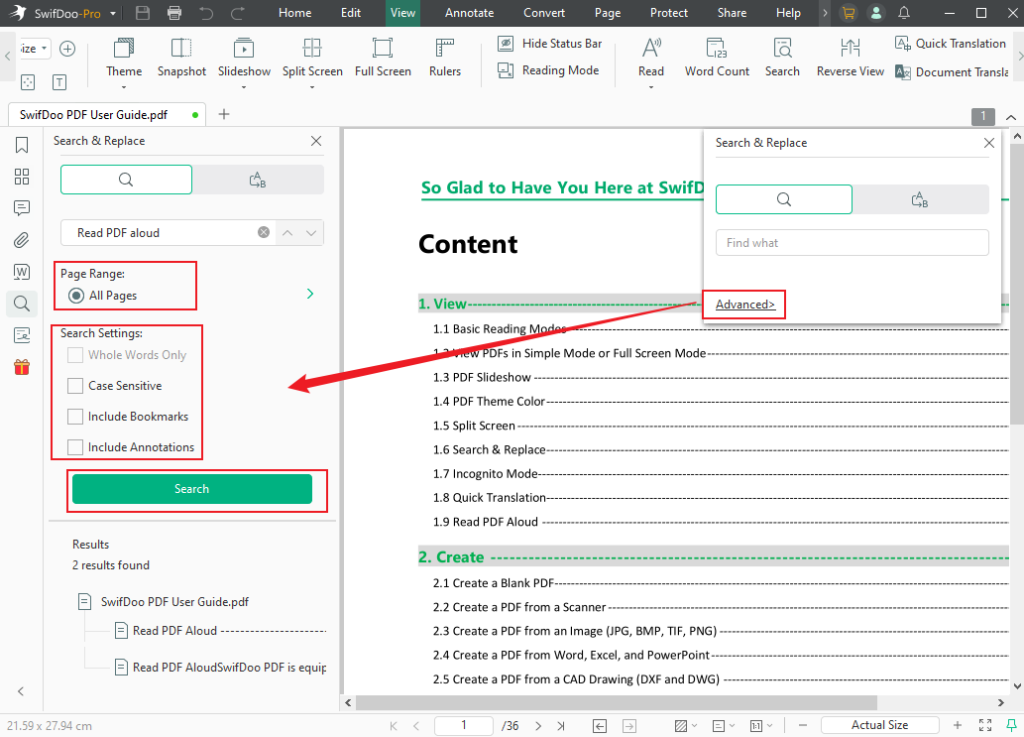
Step 3. Enter the content you want to search and hit the Enter button. If you need to use its advanced searching feature, click the Advanced option. Then you can customize the searching page range and other search settings. Next, click the Search button.
Advanced Way to Search for Words in a PDF via Adobe Acrobat
Compatible OS: Windows, Mac, iOS, and Android
Adobe Acrobat is a renowned PDF editor and viewer. You can use it to make both basic and advanced PDF searching tasks. It enables you to search for words in the main body, annotation, and bookmarks in a PDF with the option to set it to match the exact words or capitalization. What’s more, Adobe Acrobat can search for word variations.
Other Features of Adobe Acrobat:
- Provide many editing features for PDF editing.
- Support filling and signing PDF forms.
- Convert PDF to or from various formats.
- Make scanned PDF searchable and editable.
Pricing: For Individuals: $12.99/month for Acrobat Standard, $19.99/month for Acrobat Pro, and $24.99/month for Acrobat Studio. For other pricing plans for Business and Students & Teachers, refer to the pricing website of Adobe Acrobat.
Learn the guidance below on how to search for a word in a PDF with Adobe Acrobat.
Step 1. Run Adobe Acrobat on your PC and open your PDF in it.
Step 2. Simply press Ctrl + F and enter the word you want to search. Hit Enter and click the next and previous buttons to find the matched word. Optionally, you can click the arrow next to the search bar to adjust other search settings, including Whole Words Only, Include Bookmarks, Include Comments, and Case-Sensitive.
Step 3. (For Advanced Search) Click the Edit tab and choose the Advanced Search option. Here, you can type in the content you want to search, set the specified scope, and click Show More Options to adjust more search settings.
How to Search a PDF in Google Chrome
Compatible OS: Windows, Mac, Linux, iOS, iPadOS, Android
Google Chrome is a multi-platform web browser that offers a built-in feature to view PDFs. You can use it to make a basic search in PDF files.
Other Features of Google Chrome for PDF:
- Support adjusting PDFs to fit width or height.
- Can rotate PDF pages.
- Provide drawing tools to draw on a PDF.
Pricing: Free.
Step 1. Find the target PDF, right-click on it, and select to open it in Google Chrome.
Step 2. Press Ctrl + F to open the search box.
Step 3. Simply type in the word you need to search and press Enter. Then Google Chrome will highlight all the matched words.
How to Search for Words in a PDF with Apple Books
Compatible OS: Mac, iOS, iPadOS
Apple Books is a good option for iPhone users to search in PDFs. It is pre-installed on your iPhone without the need for program downloading and installation. You can use it to search for words and phrases in PDFs easily on an iPhone.
Other Features of Apple Books for PDFs:
- View PDFs in different modes.
- Sync PDFs across devices via iCloud.
- Offer markup tools to highlight or draw on PDFs.
- Support bookmarking PDF pages for quick reference.
Pricing: Free.
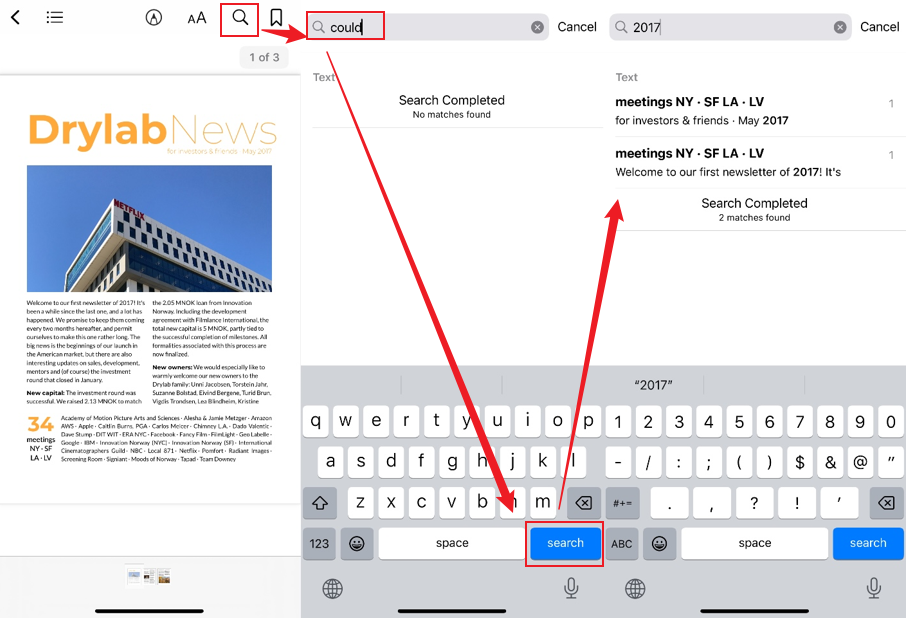
How to search for a word in a PDF on iPhone using Apple Books.
Step 1. Run Apple Books, tap the Library option, hit Collections, select PDF, and choose your target PDF file. If your target PDF file is not saved in Apple Books, you can find the PDF file and choose to open it with Apple Books.
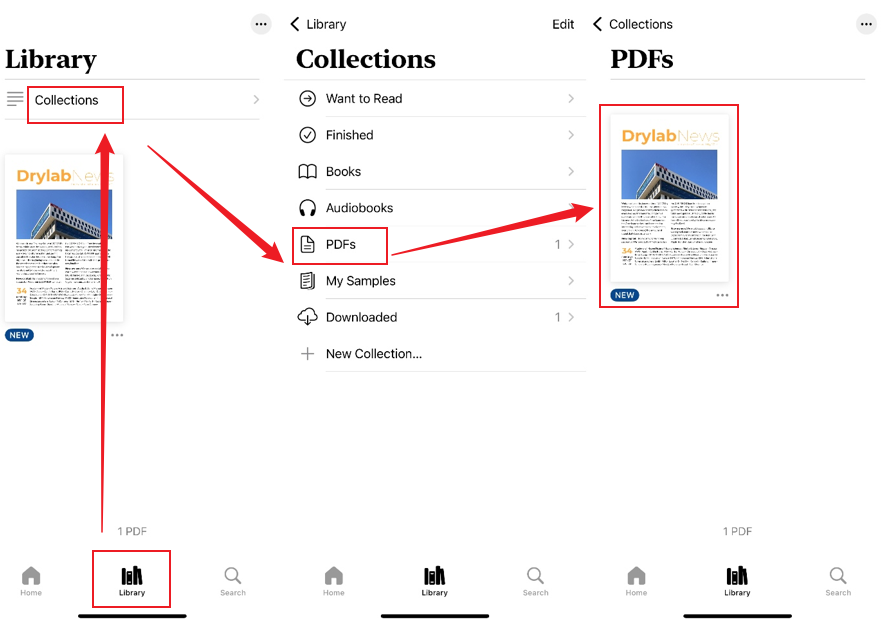
Step 2. Tap the Search icon in the top right, type in the word you want to search, and hit the search button.
To Wrap Things Up
How to search for a word in a PDF? If you are looking for a free way, JOPDF, Preview, Google Chrome, and Apple Books are good choices. If you need to make both basic and advanced searches in PDFs, SwifDoo PDF and Adobe Acrobat are worth trying. Compared with Adobe Acrobat, SwifDoo PDF is a more cost-effective way. Hopefully, this article can be helpful to you!
FAQs
Table of Contents

Your Best Free PDF Expert in PDF editing, compressing, converting, annotating, protect, organizing, and more.
Free DownloadWindows · macOS · Linux

Olivia
“Olivia is an editor at JOPDF, where she writes practical guides and insightful articles on managing PDFs—covering topics like editing, annotating, converting, and organizing files efficiently. Passionate about clear communication and digital productivity, Olivia enjoys spending her free time cooking, watching movies, and hiking to unwind and find inspiration for her writing.”

![8 Best Manga Reading Sites to Read Manga Online [Full Review]](https://b.jopdf.com/wp-content/uploads/2026/09/best-manga-reading-sites.png)