
Introduction:
Want to remove blank white space around the edges so the document looks better? No problem! This guide will show you how to crop a PDF on Windows 11/10. There are four methods that can help you get the job done.
Way 1: Crop a PDF on Windows for Free Using JOPDF
When you need to know how to crop a PDF on Windows for free, JOPDF is the very best choice. JOPDF is a friendly, free PDF editor for Windows that is perfect for beginners.
Maybe you need to cut out parts of a page to make the main text larger. Or, you might need to resize a PDF for printing so it fits perfectly on standard paper without huge white borders. JOPDF makes both of these tasks very simple.
Here are the easy steps to use JOPDF:
- First, click the download button and install the program on your computer. It is small and will not slow down your PC.
- Open the JOPDF program. Click Open PDF, then choose the PDF document you want to crop. Or, you can drag and drop the document into JOPDF.
- Look at the menu at the top of the screen. Click the Page tool, then select Crop Page.
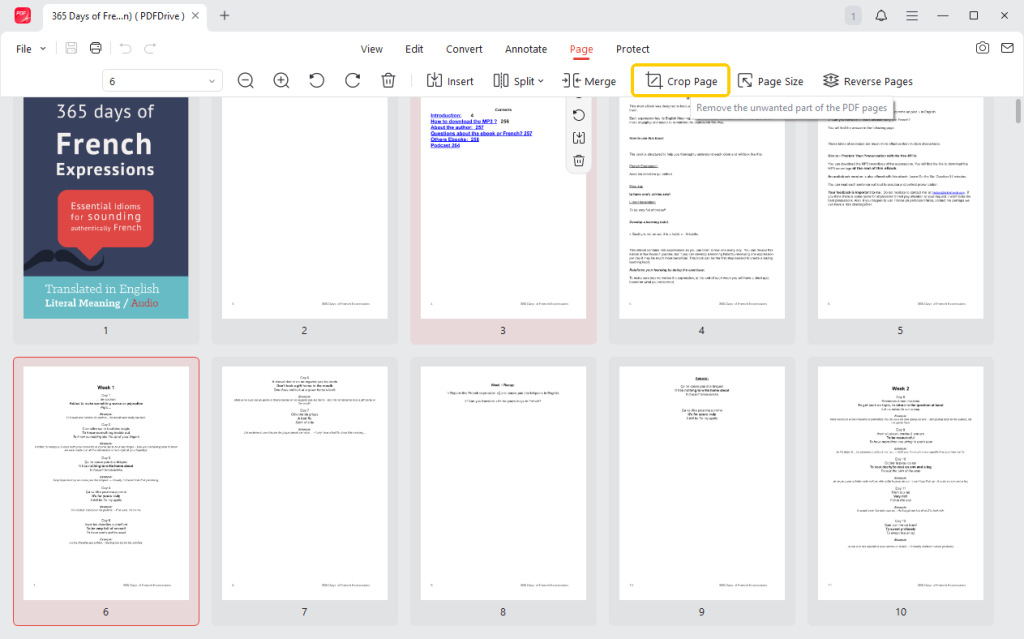
- You will see a box appear over your page. You can use your mouse to click and drag the edges of this box. Only the part of the page inside the box will be saved. Everything outside the box will be cut away.
- If you want to be very precise, JOPDF lets you enter specific numbers for the top, bottom, left, and right sides. This is helpful if you want all the margins to be exactly the same size.
- Next, go to the Page Range section to specify which pages to crop.
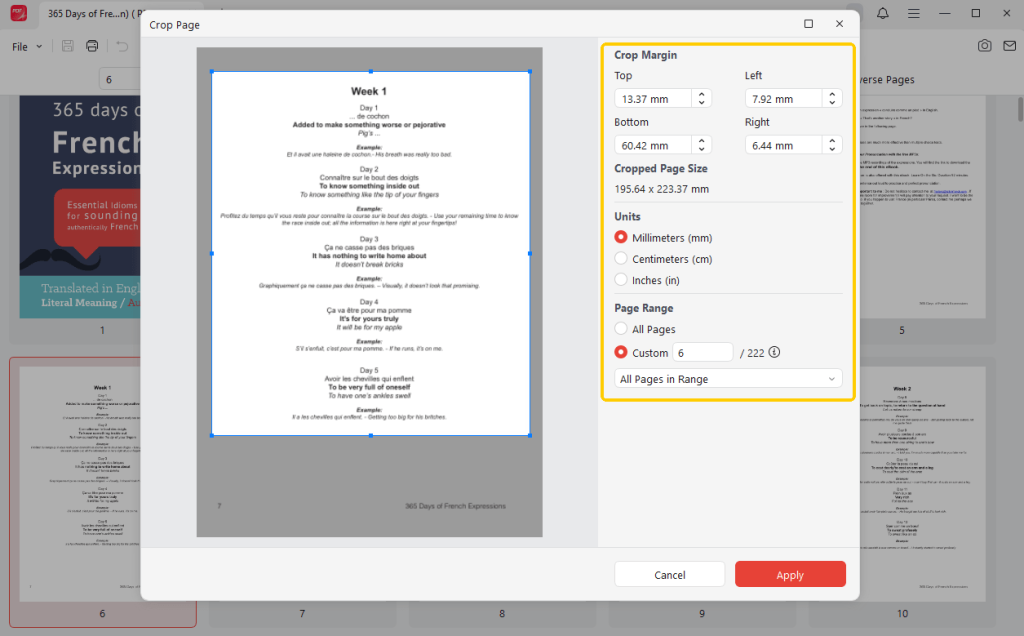
- Once you are happy with how it looks, click the Apply button. Then, save your new file to your computer.
As you can see, JOPDF is very easy to use. In addition to cropping, it can help you split a PDF into two separate files, add text, insert new pictures, or set a password to keep your file safe.
Want a completely free helper for your PDFs? Just download JOPDF!
Way 2: Crop a PDF on Windows with Acrobat
Adobe Acrobat is a very famous program. Many people use it for office work. However, there is a catch. The free version, called Acrobat Reader, only lets you look at PDFs. It does not let you crop pages.
To crop a PDF, you must pay for a subscription to the more expensive version called Acrobat Pro.
If you already pay for Acrobat Pro, here is how you do it:
- Open your file in Adobe Acrobat Pro.
- Go to the Tools tab and click the Edit PDF button.
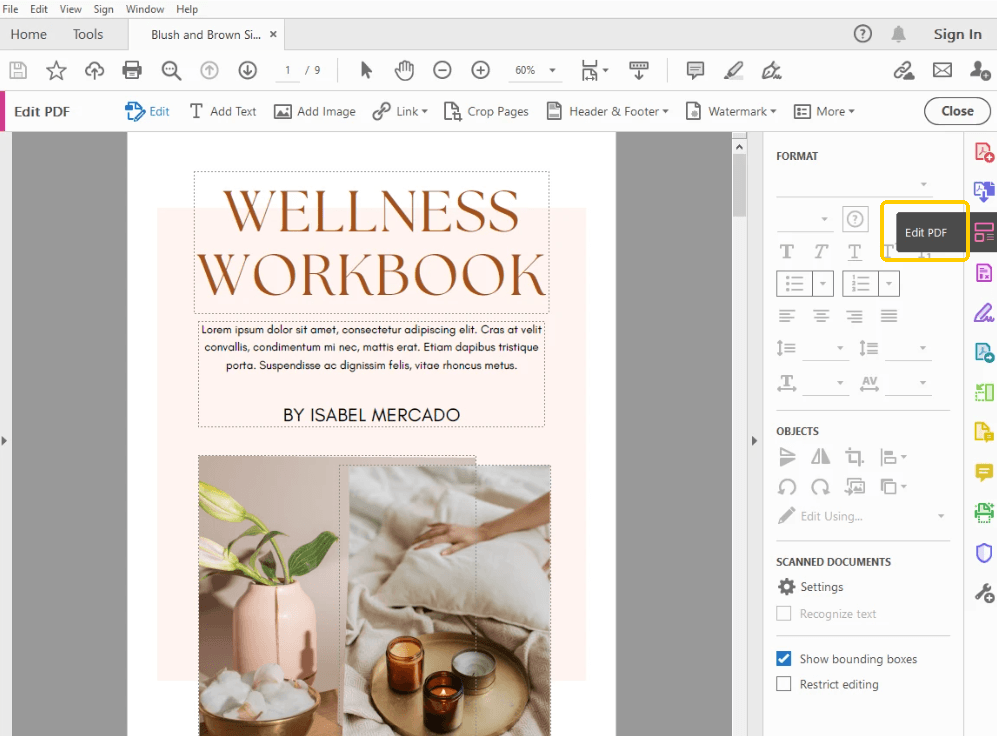
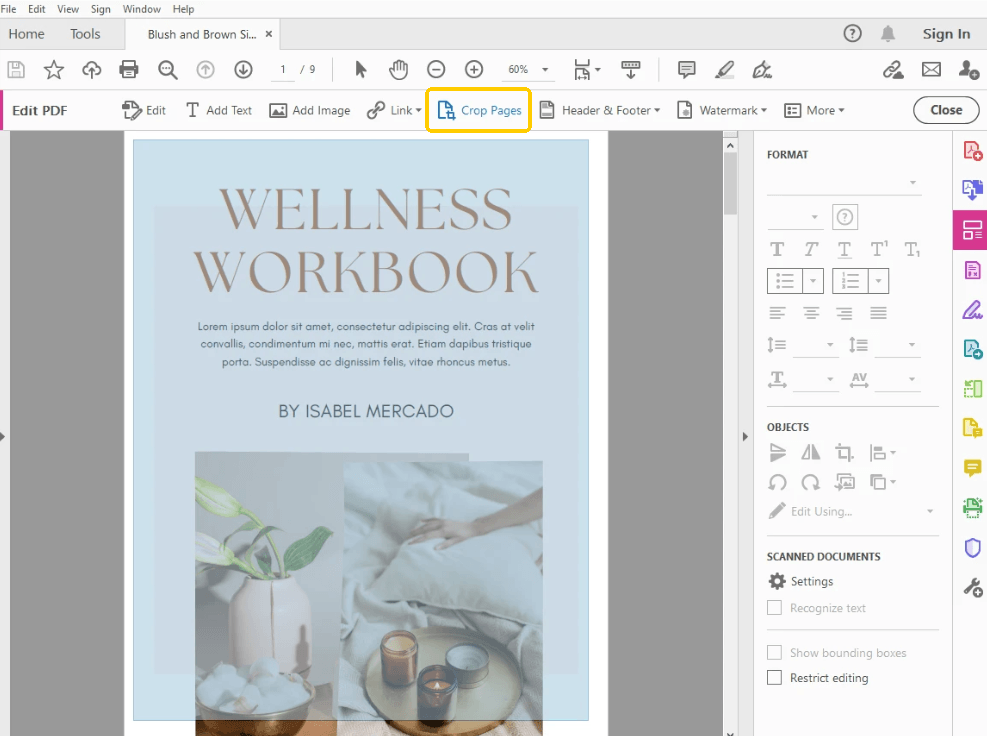
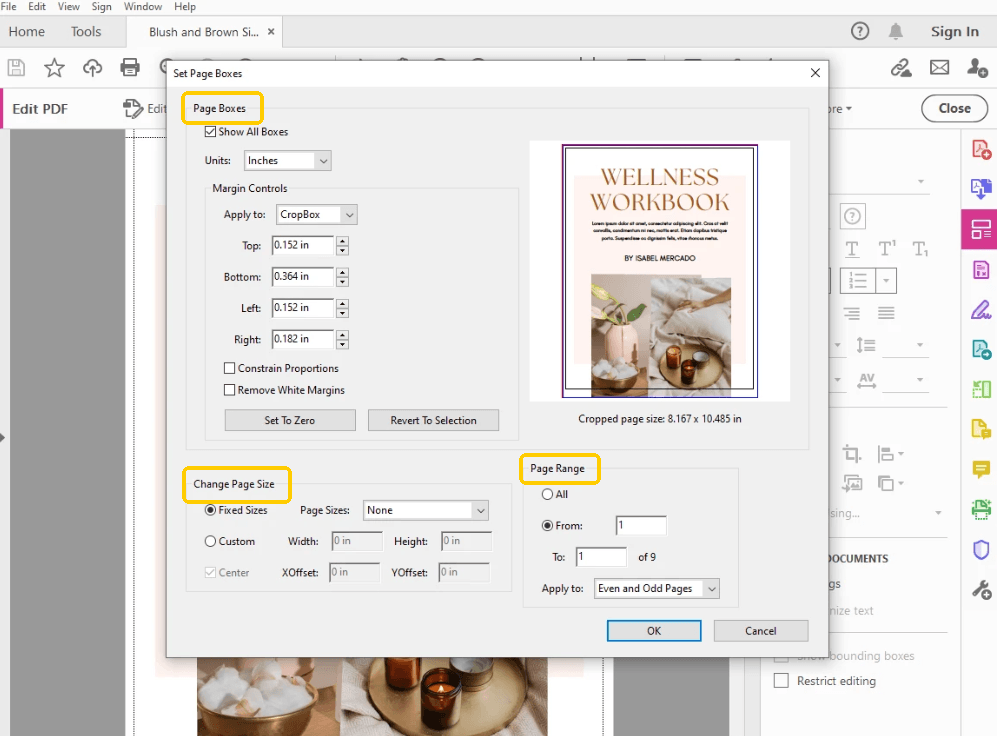
- Then click the Crop Pages option. Use your mouse to draw a box around the part you want to keep. Next, you can double-click inside the box to open the Set Page Boxes.
- Now, you can adjust the page boxes, page size, and page range.
- Finally, click OK and save the changes.
Adobe Acrobat is a powerful tool, but it costs a lot of money each month. If you want to save money and need a great alternative to Adobe Acrobat, we suggest going back to Way 1 and using JOPDF instead.
Way 3: Crop a PDF on Windows via Screenshot
If you only need to crop a single page and do not want to download any new programs, you can use a built-in Windows trick. You can take a picture of your screen. The details are as follows.
- Open your PDF file and make it big on your screen. (You can open a PDF in Chrome if you do not have a PDF reader.)
- On your keyboard, press three keys at the same time: Windows Key + Shift + S.
- Your screen will turn dark. Use your mouse to draw a box over the part of the PDF you want to keep. This takes a picture of your screen.
- Click on the pop-up window that appears at the bottom right corner to open this screenshot.
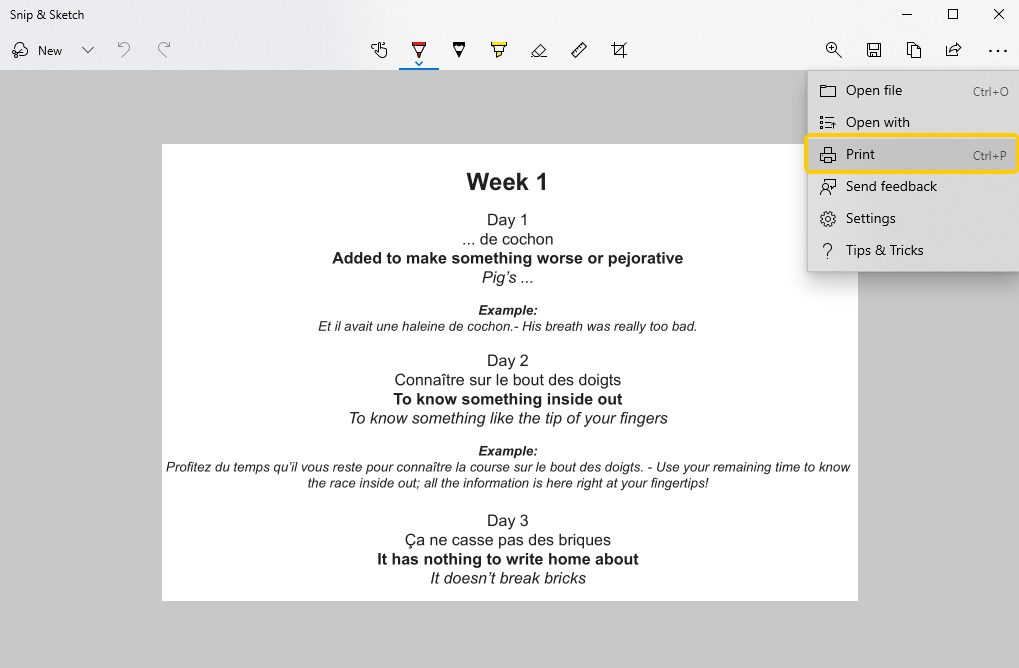
- Then press Ctrl+P or choose the Print option.
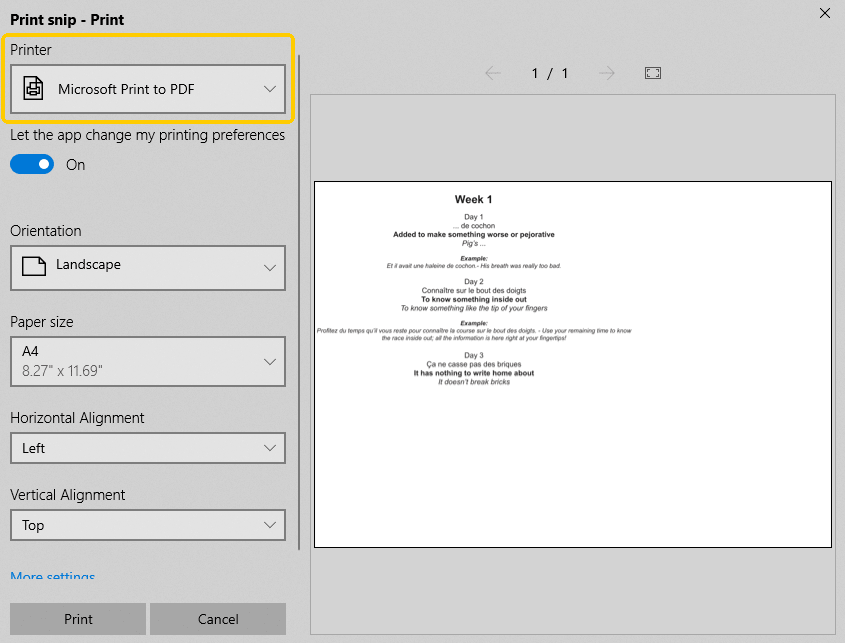
- Choose Microsoft Print to PDF under Printer and click the Print button. By doing so, it will save the screenshot as a PDF document.
This way is fast, but it is not perfect. It will flatten all text and elements in the file, so you won’t be able to edit them. Plus, it takes way too long if your PDF has many pages because you have to repeat the steps over and over.
Try JOPDF to avoid those issues!
Way 4: Crop a PDF on Windows via an Online Tool
Another easy way is to use an online tool. You don’t need to download any tools. Just having an internet connection is sufficient. This is particularly suitable for one-time tasks.
Here is how online tools usually work:
- Open a browser and go to a PDF cropping website, such as iLovePDF, Smallpdf, and Sejida.
- Click the button to upload your file from your computer to their website.
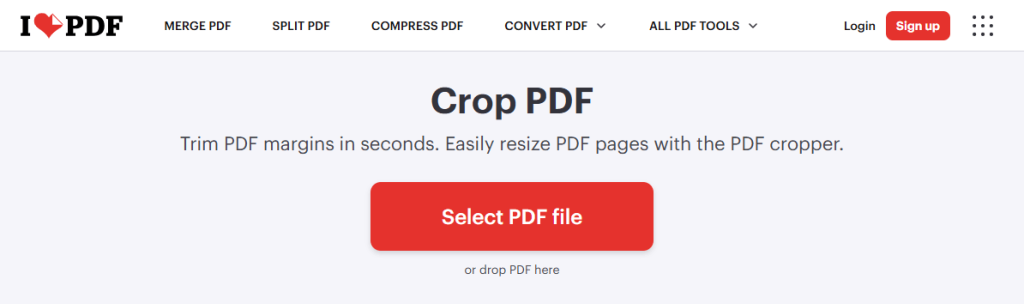
- Next, use your mouse to draw a box to crop the page, just like in JOPDF.
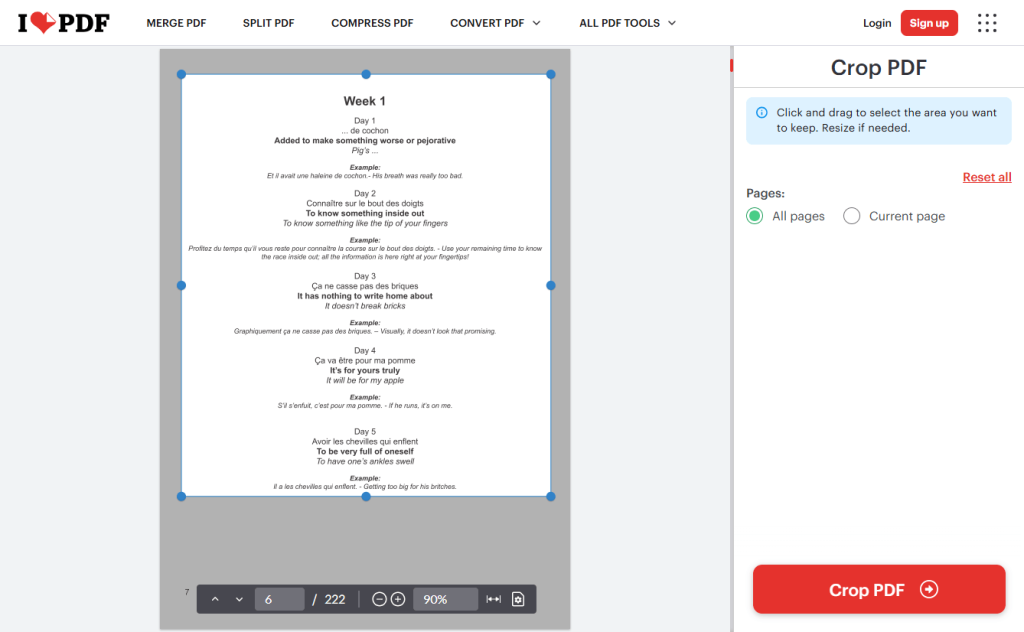
- When OK, click the Crop PDF or Apply button.
- Download the finished file back to your computer.
While online tools are easy to use, they have a few drawbacks. First, you must have a good internet connection. Second, many websites do not allow you to upload very large files. Third, if your document has private or secret information, it is not safe to upload it to a random website on the internet.
For privacy and safety, a desktop tool like JOPDF is much better.
Conclusion
That’s all about how to crop a PDF on Windows 11/10. Removing extra blank space from your documents does not have to be hard. We have looked at four different ways to do this. Taking a screenshot is okay for one page, and online tools are fine if you have internet access. Adobe Acrobat works well, but costs a lot of money.
Overall, JOPDF is the clear winner for Windows users. It is free, safe, and very easy to learn. It gives you the power to make your documents look perfect in just a few clicks. Try it now!
FAQs
Table of Contents

Your Best Free PDF Expert in PDF editing, compressing, converting, annotating, protect, organizing, and more.
Free DownloadWindows · macOS · Linux

Queena
Editor
“As a staff editor for JOPDF, Queena excels at guiding users to the optimal tools and solutions. When she's not analyzing the latest PDF solutions, she enjoys spending her free time playing with her four cats.”



