
Introduction :
Are you struggling to find a free Adobe Acrobat alternative to delete PDF pages? You are not alone. Whether you don’t have or don’t want to pay for Adobe Acrobat, you can find effective methods to delete pages from a PDF without Adobe Acrobat. In this JOPDF article, I will walk you through a detailed guide on how to delete pages from a PDF without Acrobat using free and easy alternative methods.
Quick Answer: Delete PDF Pages Without Acrobat
Here are the easiest ways to delete pages from a PDF, even without Adobe Acrobat.
- Use an offline PDF editor like JOPDF
- Use an online tool like Smallpdf or iLovePDF
- Use built-in apps like Preview
- Use the Print to PDF trick
If you highly value privacy, use JOPDF or other offline PDF page removers. If speed matters, try online tools. Also, you can use other tools introduced in this article. Now, let’s dive into.
Method 1. Delete Pages from PDF Offline via JOPDF
Adobe Acrobat is a professional desktop PDF editor for Windows and Mac. How to delete pages from PDF without Acrobat? If you don’t want to upload files to the Internet, offline tools are a good option. Among various offline PDF editors, I strongly recommend JOPDF.
JOPDF is a completely free PDF editor without any hidden costs, available on Windows, Mac, and Linux. You can use it to delete pages from a PDF with ease. Meanwhile, it enables you to rearrange PDF pages, insert blank pages, or extract pages from a PDF. Here, let’s learn how to delete PDF pages for free using JOPDF.
Step 1. Click the button below to download and install this free PDF page remover on your computer.
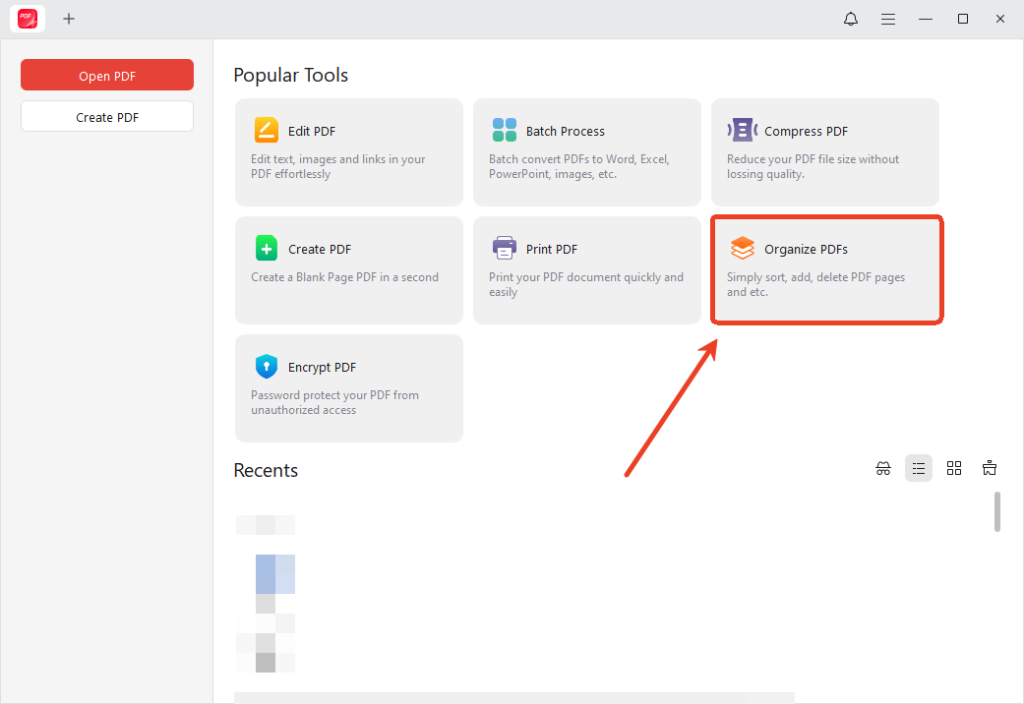
Step 2. Run this free Adobe Acrobat alternative, click Organize PDF to select the target PDF, and click Open to import it.
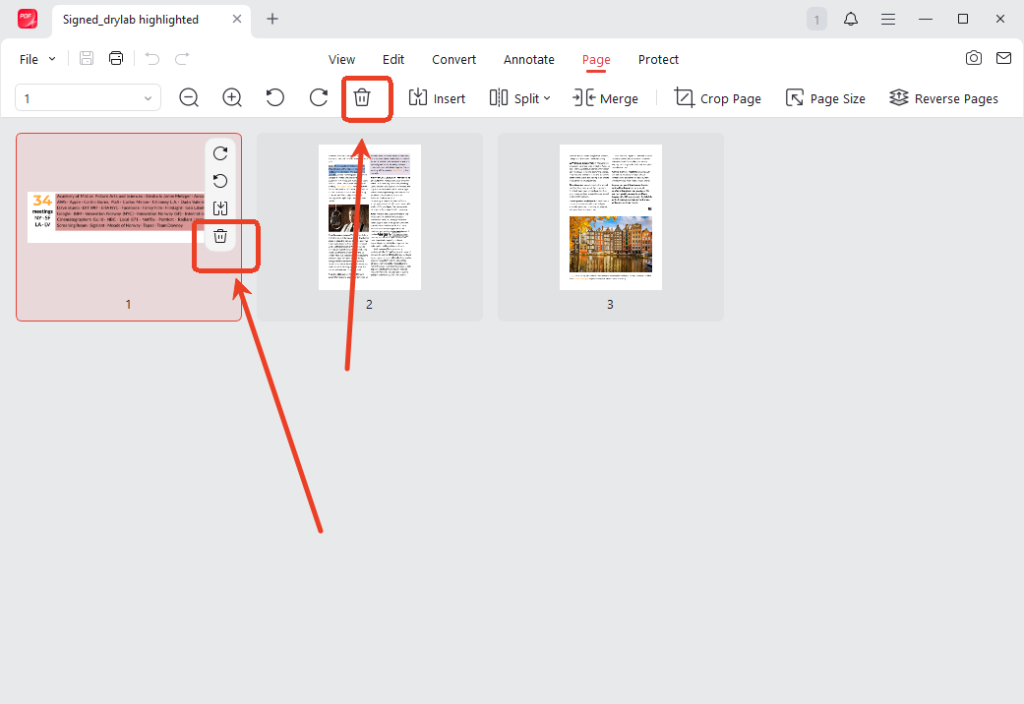
Step 3. Under the Page tab, hover over the PDF page you want to remove and click the Delete icon. If you need to delete multiple PDF pages at once, press Ctrl or Cmd to select PDF pages and click the Delete icon in the toolbar.
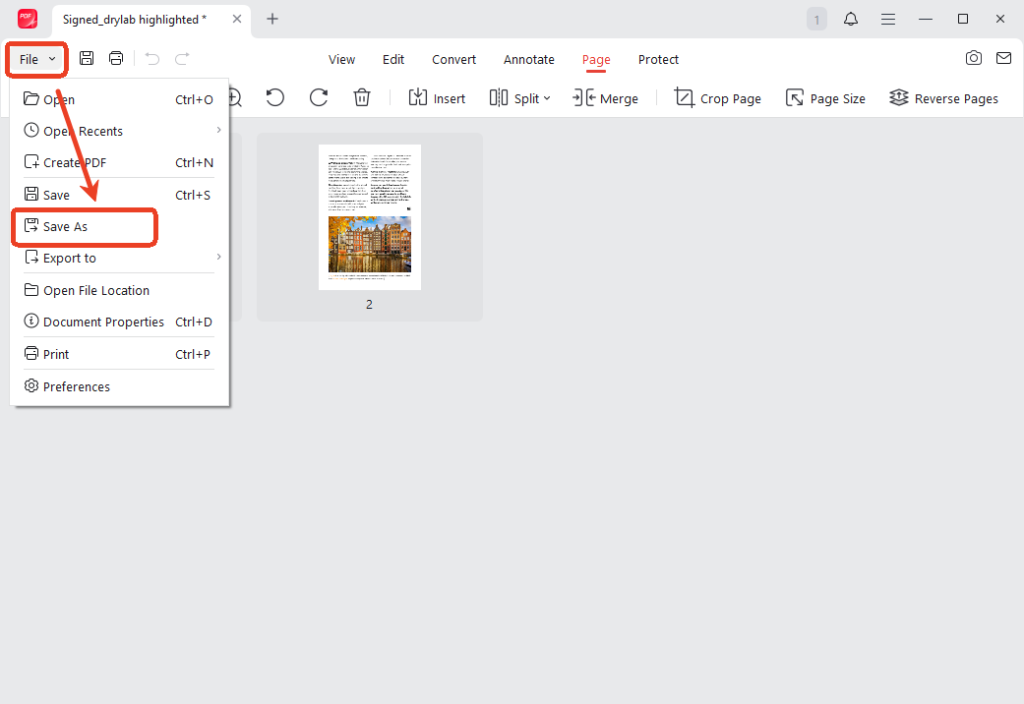
Step 4. Once finished, click File in the upper-left corner and select Save As to export the updated PDF.
❓Why Choose JOPDF?
Why is JOPDF recommended at first? I have used JOPDF many times and am drawn to its simplicity and range of features. In addition to the organizing features for PDFs, JOPDF offers features for viewing, editing, annotating, converting, compressing, and protecting PDFs. With this full-featured PDF tool, you can make the following edits:
- Offer a set of annotation tools, such as adding sticky notes, underlining text, or adding attachments.
- Lock PDFs from editing, copying, or printing.
- Work as the best free PDF converter to convert PDFs to or from other formats.
- Edit images embedded in a PDF.
- Print a PDF without margins.
Method 2. Delete Pages from PDF Without Acrobat via Online Tools
If you want a quick way to delete pages from a PDF without installing software, use online tools. Smallpdf is a good choice to remove pages from a PDF online. You can use it in browsers on both PCs and phones. What’s more, Smallpdf is a safe online tool that is ISO/IEC 27001 certified. Below are the steps to delete PDF pages online with Smallpdf.
Step 1. Visit Smallpdf’s official website and select the Delete PDF Pages option from the top Tools list.
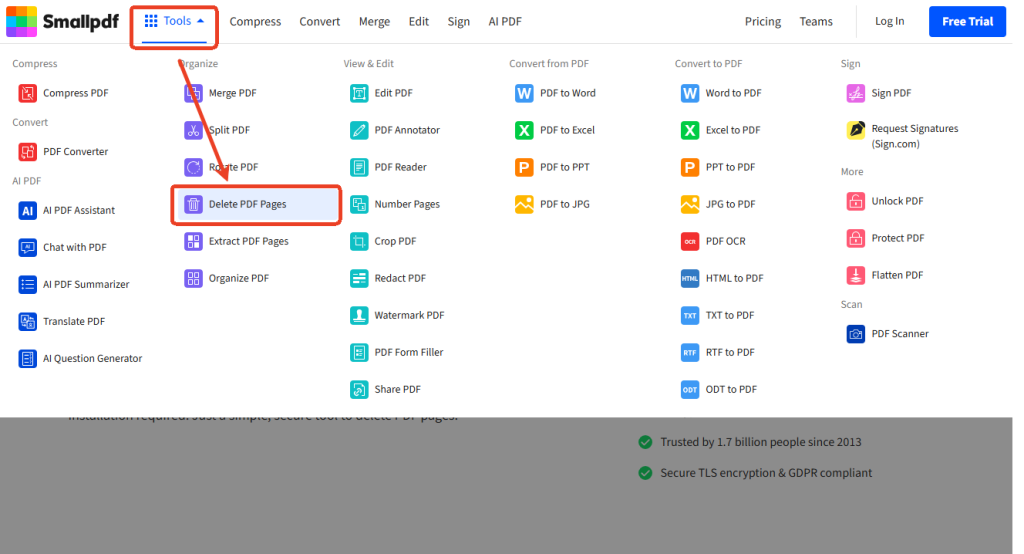
Step 2. Then, drag and drop your target PDF file into Smallpdf.
Step 3. Click the Delete icon over the target PDF page to delete it. To delete several pages in bulk, select the target PDF pages and click the Delete icon on the top toolbar.
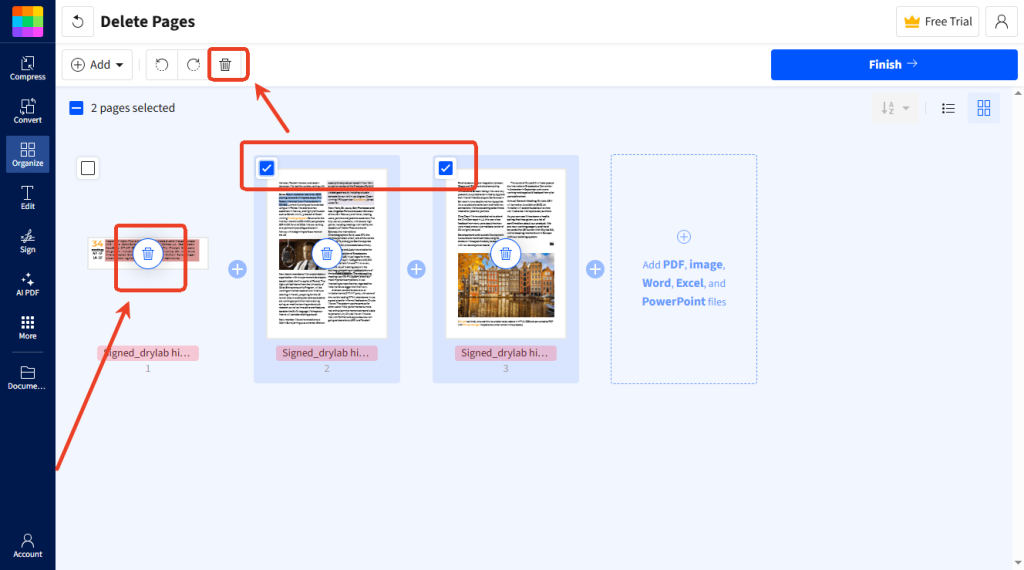
Step 4. Click the Finish button to process. Finally, click Download to save the PDF.
In addition to Smallpdf, there are other safe online PDF editors you can choose from.
- iLovePDF
- Canva
- PDF24 Tools
- PDF Candy
- Sejda
Method 3. Delete PDF Pages on Mac Using Preview
How can you delete PDF pages on Mac without Adobe Acrobat? JOPDF can be your best choice. If you don’t want to install any software, the built-in tool, Preview, is the best way to delete PDF pages on Mac offline.
In addition to removing pages from a PDF, you can also crop in Preview and make other basic edits. Follow the instructions below to delete PDF pages in Preview, even if you don’t have Adobe Acrobat.
Step 1. Locate the PDF file on your Mac, right-click it, and select Open With Preview.
Step 2. Click View and select Thumbnail to show the page thumbnails on the left side of the window.
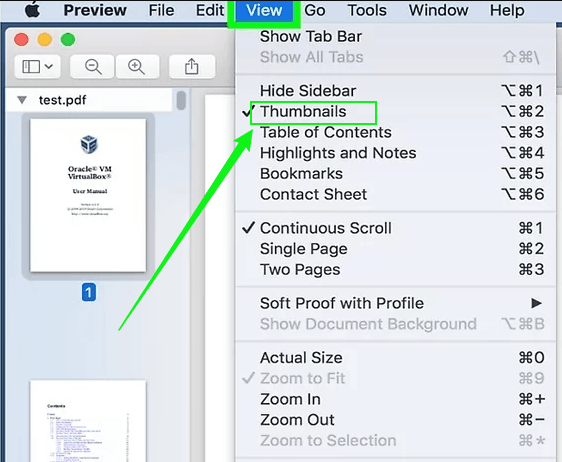
Step 3. Click a single page thumbnail to select it. Or you can press Command to select multiple PDF pages. Next, press the Delete key on the keyboard to remove PDF pages.
Step 4. Finally, press Command + S to save the updated PDF file.
Method 4. Print to PDF Trick (No Software Required)
The last method I want to recommend is the Print to PDF trick. You don’t need to install anything. With this method, you can remove PDF pages quickly. Now, let’s learn how to do it with this workaround.
Step 1. Open the target PDF in Chrome, Microsoft Edge, or other PDF viewers.
Step 2. Press Ctrl + P or Command + P to enable the Print dialog.
Step 3. Open the Printer list and click the Save as PDF option. Open the Pages list and choose the pages you want to keep.
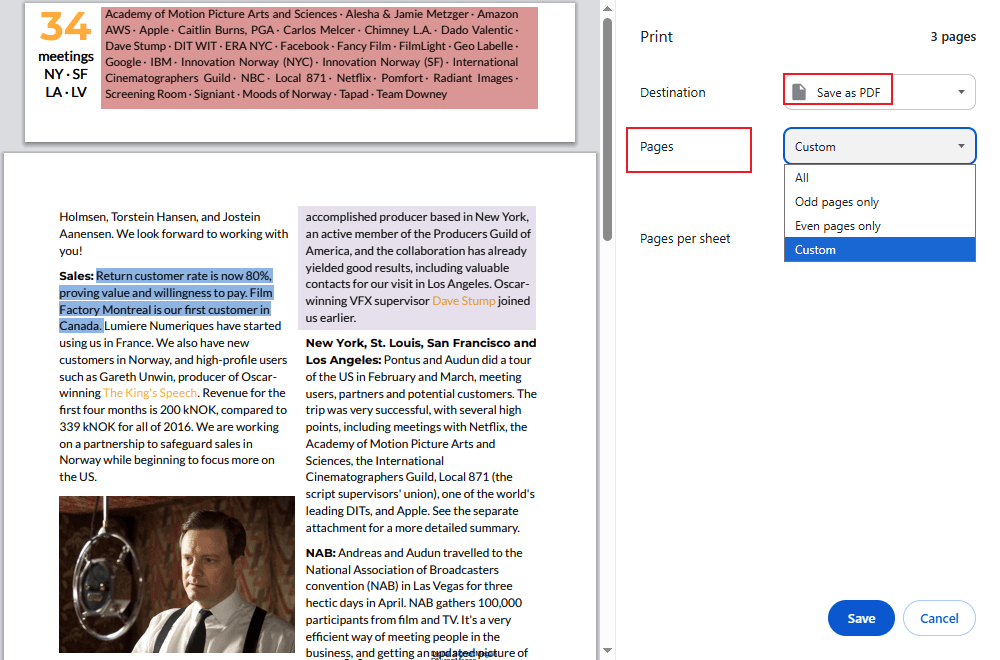
Step 4. At last, click the Save button to choose a folder to save the updated PDF file.
Comparison: Best Way to Delete PDF Pages Without Adobe Acrobat
Here’s a quick comparison table of the methods for deleting PDF pages mentioned above. You can refer to it and select a PDF page remover.
| Method | Free | Offline | Ease of Use | Best For |
| JOPDF | Yes | Yes | Easy | Privacy + full control |
| Online tools | Yes | No | Very Easy | Quick edits |
| Preview (Mac) | Yes | Yes | Easy | Mac users |
| Print to PDF | Yes | Yes | Easy | Basic tasks |
👉 Best overall:
- Use JOPDF for reliability and privacy
- Use online tools for speed
Final Thoughts
For most of us, the subscription fee for Adobe Acrobat is expensive. Moreover, Adobe Acrobat requires a steep learning curve for beginners. How to delete pages from a PDF without Acrobat? Neither offline nor online tools are available. Additionally, you can use built-in tools such as Preview to remove PDF pages. Among them, JOPDF is the most trustworthy one owing to its free and simple nature. With those methods, you can remove unwanted PDF pages in minutes.
FAQs
You are using a viewer-only tool.
The PDF file has restrictions or security settings.
The PDF file is read-only or locked.
Table of Contents

Your Best Free PDF Expert in PDF editing, compressing, converting, annotating, protect, organizing, and more.
Free DownloadWindows · macOS · Linux

Olivia
“Olivia is an editor at JOPDF, where she writes practical guides and insightful articles on managing PDFs—covering topics like editing, annotating, converting, and organizing files efficiently. Passionate about clear communication and digital productivity, Olivia enjoys spending her free time cooking, watching movies, and hiking to unwind and find inspiration for her writing.”



