
Introduction:
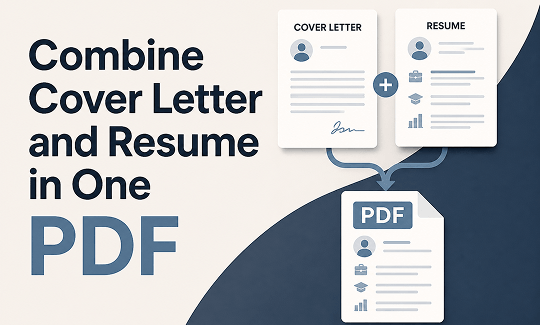
Hiring managers are very busy. They prefer to open just one file instead of clicking on many different attachments. This guide will show you how to combine cover letter and resume in one document. In this way, you can send a clean and neat application to make a great first impression.
Way 1. Use JOPDF to Merge Existing PDFs
Do you already have your files saved as PDFs? If so, using a tool like JOPDF is a great choice. It is a free, very easy-to-use tool.
You do not need any special technical skills. JOPDF helps you get the job done in just a few clicks. It is a great way to combine PDFs on Windows and Mac computers.
One of the documents is in PDF format, and the other is in Word format? It doesn’t matter. JOPDF is also a PDF converter. You can first convert it to PDF format, and then proceed with the merging.
Here are the simple steps on how to combine cover letter and resume in one document using JOPDF:
Step 1. Click the button to download JOPDF. Follow the prompts to install it on your computer.
Step 2. On the home page, click the Batch Process button. Then, select the Merge PDF option.
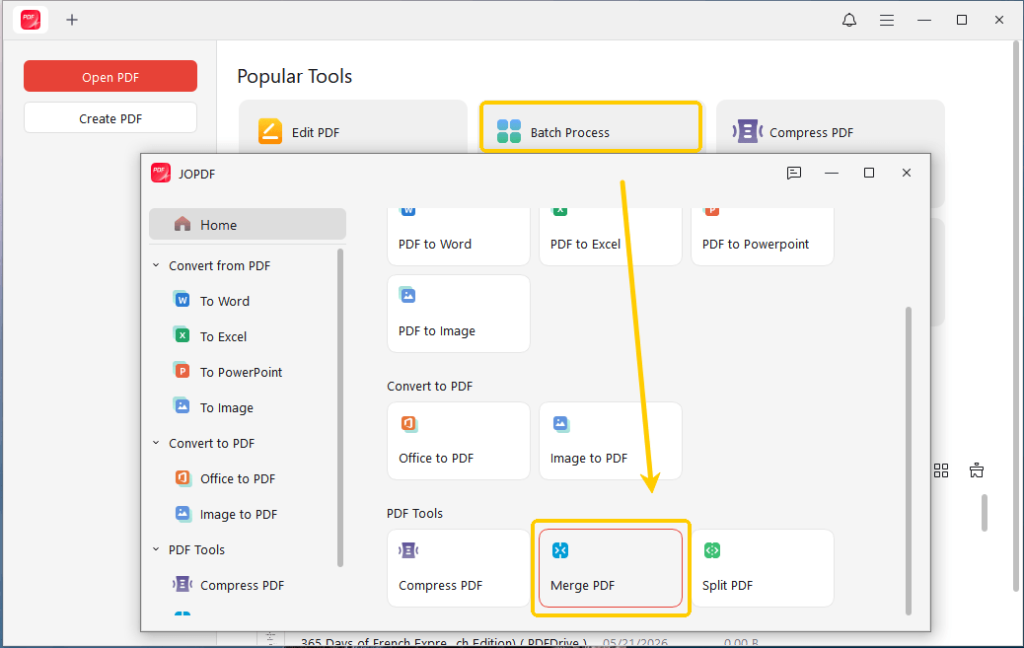
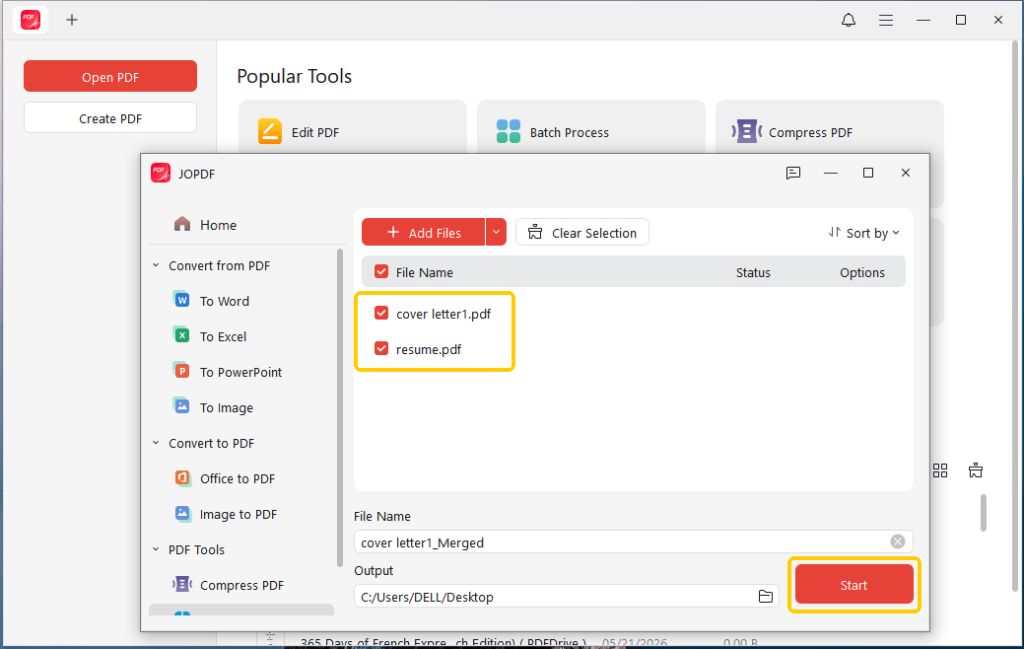
Step 3. Add your cover letter file first. Then, make sure your resume file is second.
Step 4. Give the new file a name, and choose an output path. Click Start, and that’s it!
JOPDF is not just for putting files together. It is a comprehensive, free PDF editor and converter that offers many helpful tools for handling your resume and other PDFs in daily life.
For example, if you find a spelling mistake at the last minute, you can use JOPDF to edit text in PDF files directly. You do not have to go back to Word to fix it. You can also use JOPDF to add notes and highlights, add a professional signature, or protect your PDFs with a password.
With JOPDF, you can definitely make your job application look great. Download JOPDF today and give it a try. It is free, fast, and powerful!
Way 2. Use Microsoft Word
You might still be writing or fixing your application. If your files are still in Microsoft Word (.docx), you can use this second method. This is a very simple method if you want to know how to put a cover letter and resume together before you save them as a final file.
Here are the easy steps to follow in Microsoft Word:
Step 1. Open your resume file in Microsoft Word.
Step 2. Put your mouse cursor at the very top of the page: before the first letter.
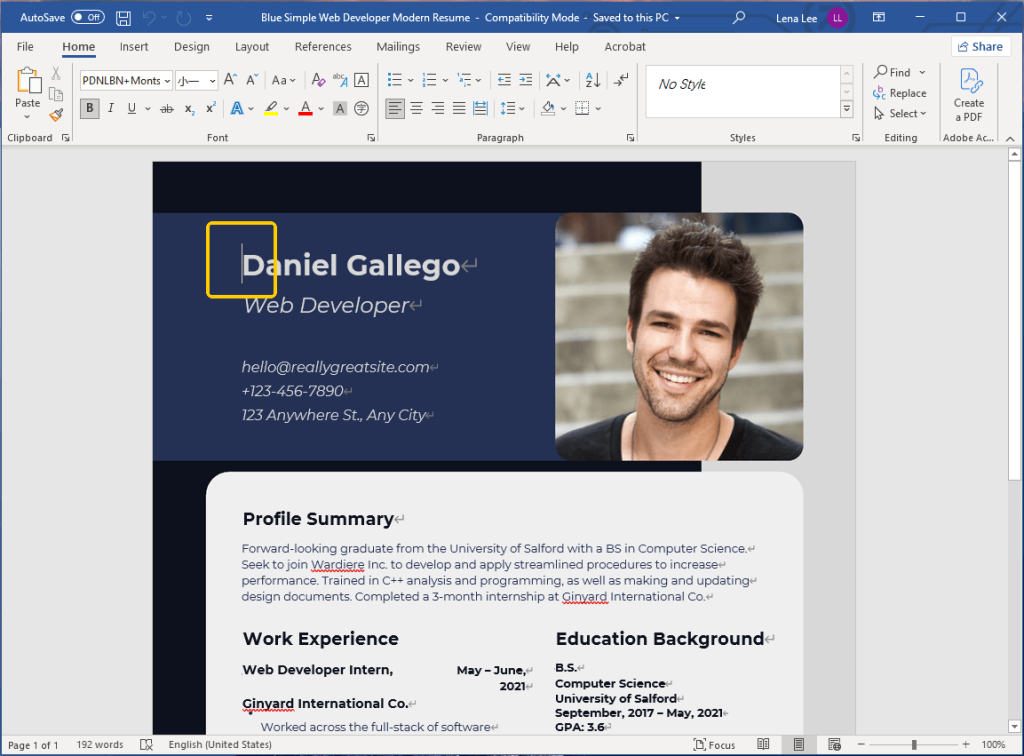
Step 3. Next, you should create a blank page at the beginning of your file. You can do this by pressing the Ctrl and Enter keys on your keyboard at the same time. If you use a Mac, press Command and Return.
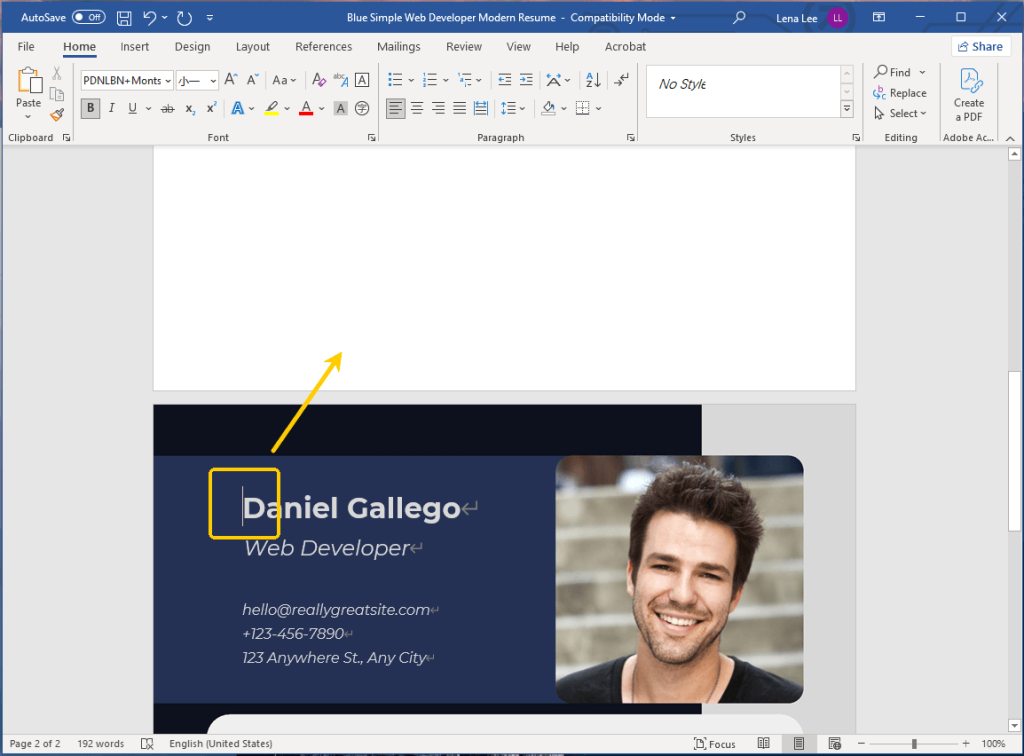
Step 4. Open your cover letter file. Highlight and copy all the words.
Step 5. Go back to your resume file. Paste the words onto that new blank first page.
Step 6. Check that the fonts and sizes match across all pages.
Once you are happy with how it looks, you must save it as a PDF. Why? Because Word documents can look messy on other people’s computers. PDFs always look exactly the same, no matter who opens them.
You can use JOPDF for this step, too! JOPDF is a professional converter tool. It will help you convert Word to PDF without losing formatting. This means your margins, bullet points, and fonts will stay perfectly in place. Plus, you can continue editing the document in JOPDF if you need to make changes later.
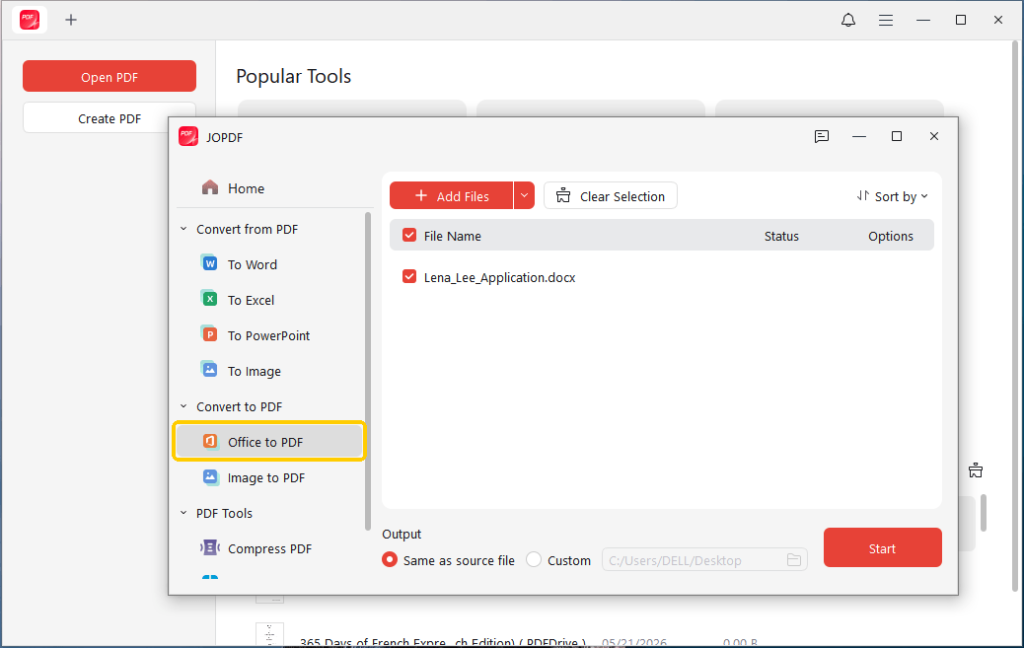
Of course, you can go to File > Export > Create PDF/XPS Document to save your document as a PDF.
Best Practices for the Final Document
Before you send your application to a company, there are a few important rules to keep in mind. Following these simple tips will help you look very professional to the hiring manager.
✅ Put Things in the Right Order
First, the order is very important. Always put the cover letter on page one. Your resume should always start on page two. The hiring manager should read your introduction letter before they read your long work history.
✅ Make Everything Match
Second, make sure everything matches nicely. Use the same font type for both pages. For example, if you use Arial for your resume, use it for your cover letter as well. The text size should also match.
Your name and contact information should look exactly the same at the top of both pages. This makes the whole file look like it belongs together.
✅ Give It a Clear Name
Third, give your file a clear and professional name. Do not name it something confusing, such as “document1.pdf” or “myresume_final.pdf”. The person hiring might get hundreds of emails. They might lose your file easily.
Instead, use your real name in the title. A good example is “John_Smith_Application.pdf”. This tells them exactly whose file it is right away.
✅ Watch the File Size
Finally, keep the file size small. If your file is too large, it might not be delivered properly via email. A small PDF is easy to send and easy for the company to open.
Using a tool like JOPDF with a compressor ensures your file is the right size while still looking clear and professional.
More info: Reduce PDF File Size Without Losing Quality
Conclusion
That’s all about how to combine cover letter and resume in one document. You now know two easy ways to do this. You can use JOPDF to merge existing PDF files quickly, or you can copy and paste your text into Microsoft Word if you are still writing.
Both ways are fast and simple, but JOPDF is highly recommended because it is free, keeps your layout perfect, and offers many extra tools to make your document even better. Good luck with your job search!
FAQs
Table of Contents

Your Best Free PDF Expert in PDF editing, compressing, converting, annotating, protect, organizing, and more.
Free DownloadWindows · macOS · Linux

Queena
Editor
“As a staff editor for JOPDF, Queena excels at guiding users to the optimal tools and solutions. When she's not analyzing the latest PDF solutions, she enjoys spending her free time playing with her four cats.”



