Introduction :
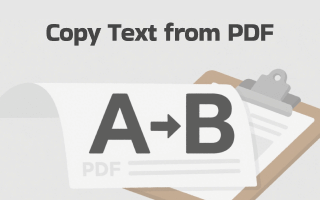
Is it easy to copy text from a PDF file like copying text from a Word file? Due to the inherent nature of PDF files, copying text from them is inherently more complex than copying text from Word documents, especially for locked or scanned PDFs. How can you copy text from different types of PDF files, like scanned PDFs, image-based PDFs, and secured PDFs? Don’t worry, in this JOPDF post, I’ll show you a step-by-step guide on how to copy text from a PDF document.
Directly Copy Text from Normal PDFs
How to copy and paste from a PDF? If your PDF file is a normal PDF, you can open it in any PDF reader and copy the text. Adobe Acrobat Reader, Preview, or even your web browser can be your choice. The steps are generally almost the same. You can take the following steps as a reference.
Step 1. Right-click on the PDF, move to Open With, and choose your PDF reader. Then the PDF will be opened in the selected PDF reader.
Step 2. Use the mouse cursor to highlight the text you want to copy. Right-click it and select the Copy option. Or, press Ctrl + C or Command + C to copy the selected text.
Step 3. Later, you can paste the copied text.
However, this way only works perfectly when the PDF isn’t locked and contains actual text instead of scanned images. In the following content, let’s continue exploring how to copy text from PDFs that are protected or scanned.
Copy Text from Protect PDFs
If you’ve tried copying text and received an error or found the option disabled, you’re likely dealing with a protected PDF. These files have restrictions set by the creator to prevent copying, editing, or printing. Here’s how you can work around this:
Option 1: Use JOPDF to Unlock the Protected PDF
JOPDF is a free and robust PDF tool that can help you protect and unlock PDFs. It enables you to unlock PDFs for copying, editing, or printing. Serving as a useful PDF editor, JOPDF offers various features to edit PDFs. Before copying text from PDFs, you can edit the text, change the text font, add hyperlinks, and more. Its interface is intuitive, and the steps are straightforward, so even if it’s your first time using it, you’ll quickly get the hang of it.
Let’s check the steps below to unlock a PDF and copy text from it in JOPDF.
Step 1. Download JOPDF by clicking the button below. Next, install it on your PC and run it.
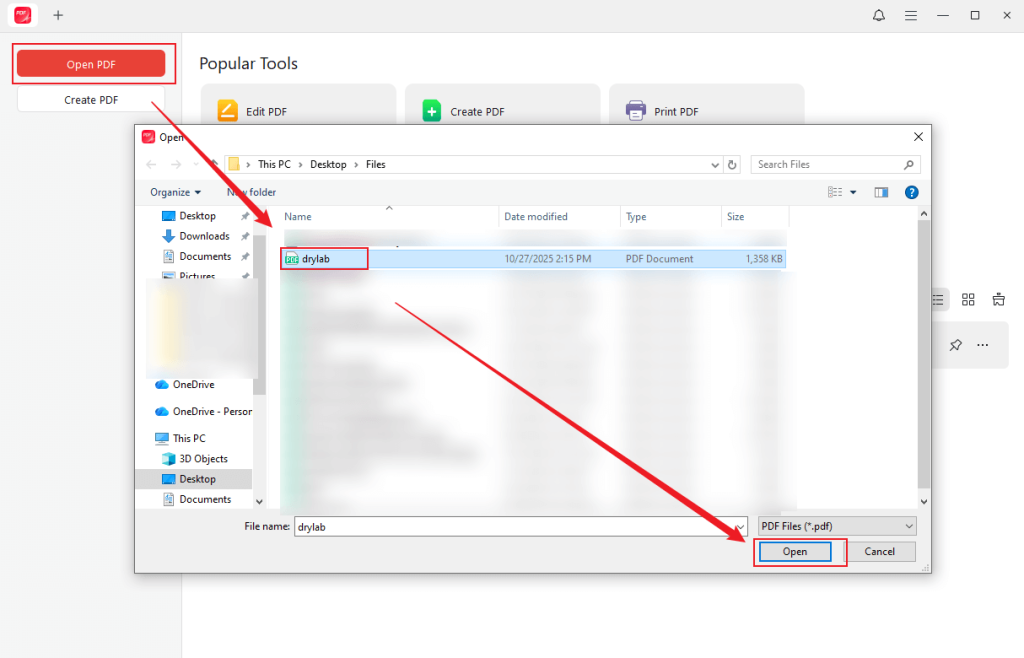
Step 2. Click Open PDF to locate your PDF file, choose it, and click Open to import it into JOPDF.
Step 3. Click the Protect tab from the above 5 tabs and hit the Decrypt option. If you have the permission password, enter the password and click the Decrypt button. If you don’t know the password, click on “Don’t have the permission password?” and click Remove. Choose a folder to save the unlocked PDF, and then it will automatically open in JOPDF.
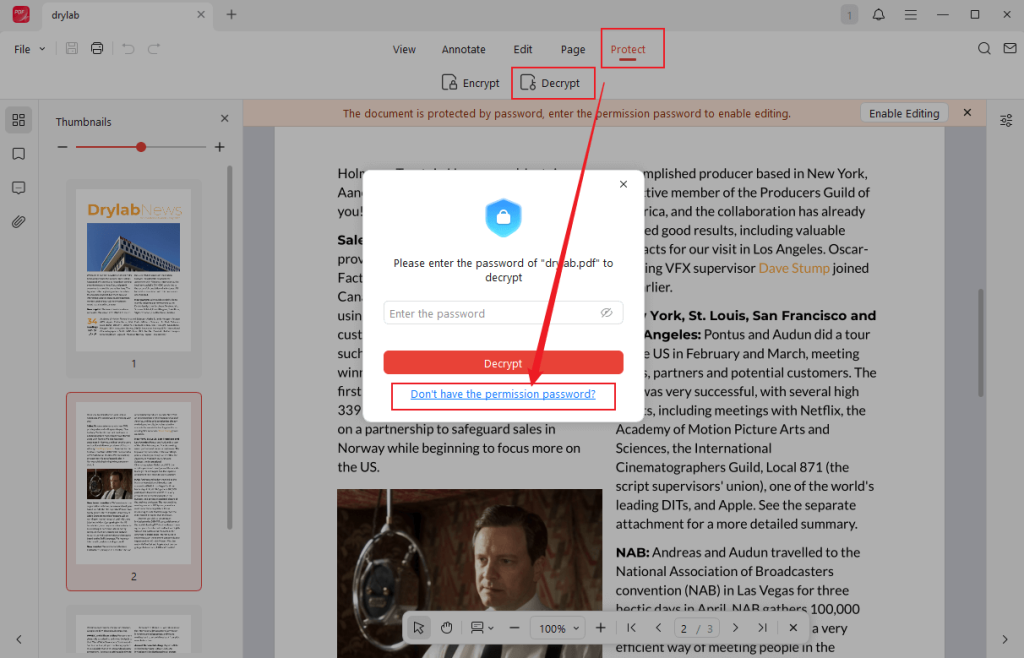
Step 4. Finally, you can copy text just like you would from a normal PDF file by pressing the copy shortcut keys.
Option 2: Utilize the Print to PDF Option
You can also utilize the Print to PDF option to bypass certain PDF restrictions. Here, you can refer to the steps below to bypass the copy restrictions in a PDF.
Step 1. Open your PDF file in Google Chrome browser.
Step 2. Click the Print icon or press Ctrl + P to activate the Print window.
Step 3. Open the Destination list and choose the Save as PDF option.
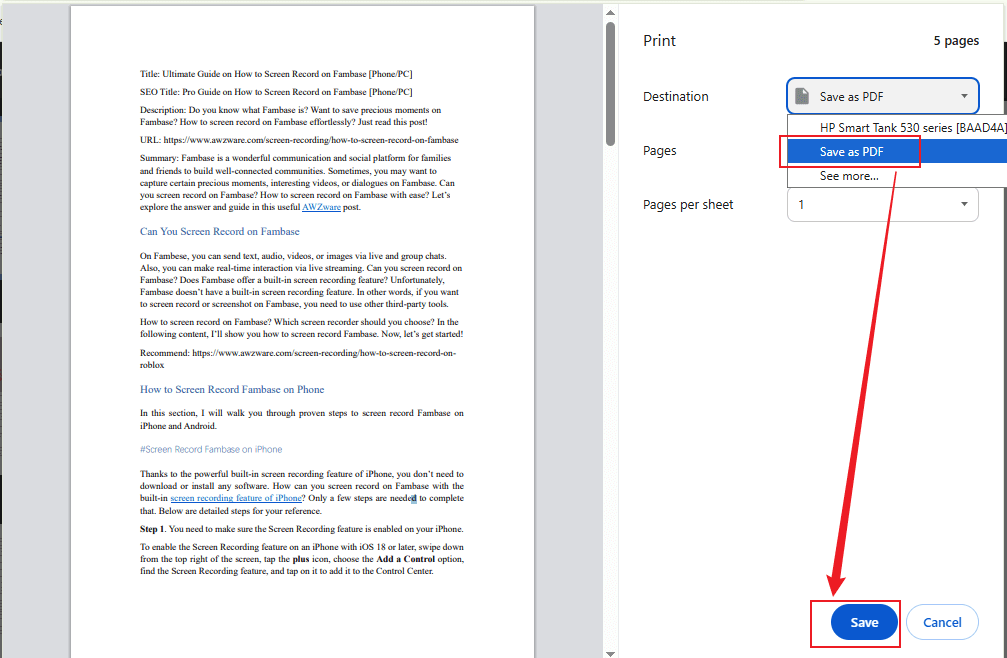
Step 4. Click the Save button. Later, reopen the saved PDF file in any PDF reader and copy text from it.
Copy Text from Scanned PDFs
If this PDF was created from a scanner or image, then it behaves like an image file. All elements on it, including text, are non-editable, non-copyable, and non-selectable. To make a scanned or image-based PDF editable, copyable, and selectable, you need to use a PDF editor with OCR to OCR it. SwifDoo PDF is highly recommended.
SwifDoo PDF is a robust PDF editor and viewer with a wide range of features, equipped with an OCR engine that supports converting image-based PDFs or scanned PDFs to searchable and editable PDFs. Theoretically speaking, the text, images, and other elements on a scanned or image PDF are non-editable. With the help of OCR technology, you can copy and edit text in the scanned or image-based PDF. Let’s learn how to do that.
Step 1. Download, install, and launch this PDF editor with OCR.
Step 2. Click Open to import your PDF file. Or, you can directly drag and drop the PDF into SwifDoo PDF.
Step 3. Click the OCR option under the Home or Edit tab, and then customize the OCR settings according to your needs. Once done, click Apply to start the process. Once finished, the converted PDF file will automatically open in SwifDoo PDF.

Step 4. You can go ahead and copy the text from the PDF in SwifDoo PDF now!
Conclusion
Copying text from a PDF doesn’t have to be frustrating once you know the right approach. Try copying directly at first. If that fails, identify whether your PDF is scanned or secured and use the right tool to unlock or OCR it. By following the steps above, you can extract text quickly and efficiently. Hopefully, this post is helpful to you. Now, it’s your time to copy text from PDF files!
FAQs
Table of Contents

Your Best Free PDF Expert in PDF editing, compressing, converting, annotating, protect, organizing, and more.
Free DownloadWindows · macOS · Linux

Olivia
“Olivia is an editor at JOPDF, where she writes practical guides and insightful articles on managing PDFs—covering topics like editing, annotating, converting, and organizing files efficiently. Passionate about clear communication and digital productivity, Olivia enjoys spending her free time cooking, watching movies, and hiking to unwind and find inspiration for her writing.”
![Discover How to Make a Fillable PDF in Word [Detailed Guide]](https://b.jopdf.com/wp-content/uploads/2026/10/how-to-make-a-fillable-pdf-in-word.png)