Introduction:
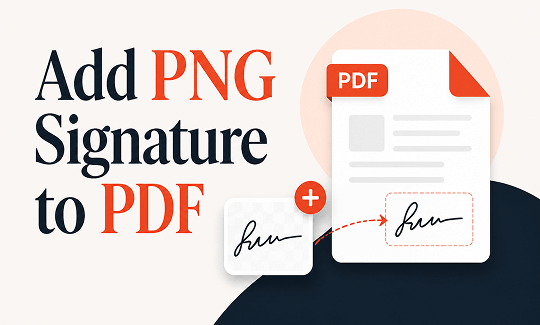
Confused about how to add a PNG signature to a PDF? Don’t worry. You can finish your work in just a few seconds. This simple guide covers 3 easy methods to do this using free JOPDF, Adobe Acrobat, and a quick online tool.
Way 1. Add a PNG Signature to a PDF with JOPDF (Free & Quick)
If you are looking for a free and professional tool, you should use JOPDF. It is an all-in-one and incredibly easy-to-use PDF editor.
JOPDF is designed for ease of use, so there is no learning curve. You do not need any special technical skills to use it. You can seamlessly add a signature to a PDF with just a few simple clicks.
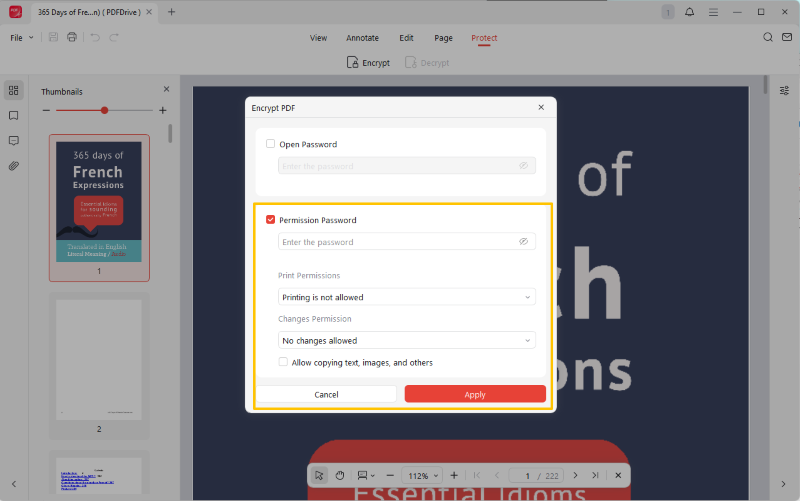
Even better, JOPDF takes your privacy very seriously. After you place your signature, you can use the software to password protect a PDF. This locks the file so that strangers cannot open it or change your important words.
Here is how to add a PNG signature to a PDF using JOPDF:
- Click the button below to download the free JOPDF to your computer.
- Open the JOPDF program. Click Open PDF, then select the document you need to sign.
- Look at the menu bar at the very top of your screen. Click on the Edit tab and choose Signature. Then, select the Create Signature option.
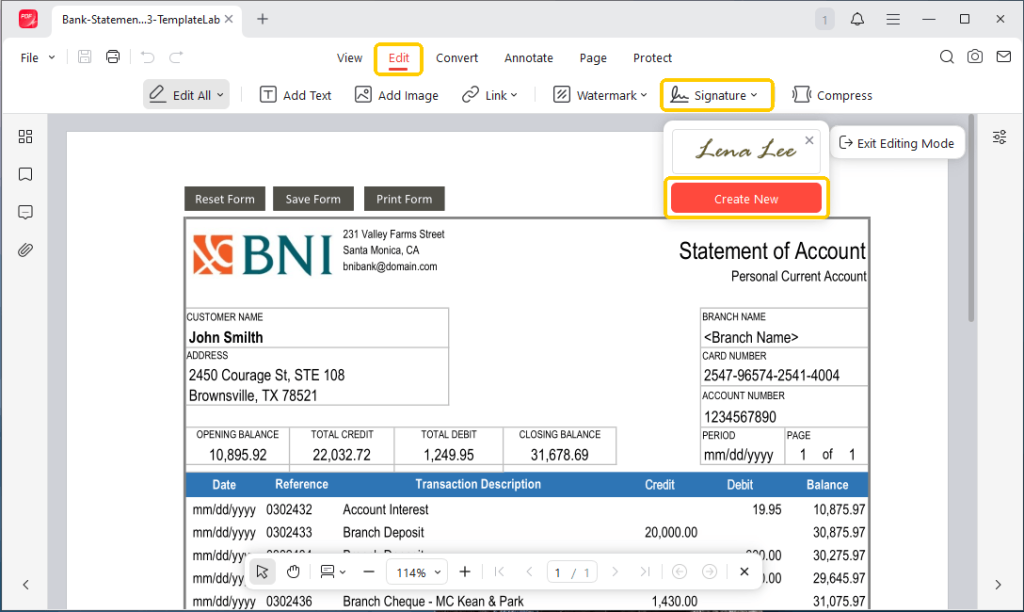
- In the new pop-up window, select Image, then upload your signature. If needed, you can remove the background or convert it to black and white. Click Create to confirm.
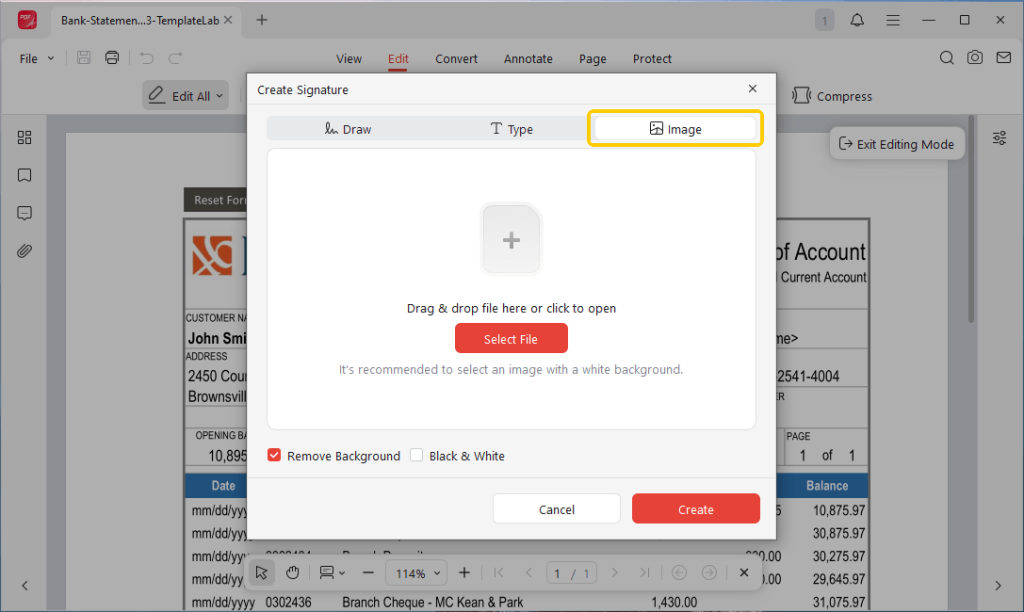
- Next, place the signature in the appropriate position. Click the Save button, and your document is now ready to send!
If you also want to lock your PDF from editing, copying, and printing, go to Protect > Encrypt to set the password.
JOPDF is much more than just a simple signing tool. As a comprehensive PDF editor, JOPDF offers many other useful tools. You can use it to edit text, merge multiple files, or delete unwanted pages. Why not give it a try for easy work!
Way 2. Add a PNG Signature to a PDF with Adobe Acrobat
Adobe Acrobat is one of the most famous office programs in the world. When people need to handle PDFs, they often think of Adobe first, even though many of its features are chargeable.
The good news is that the free version, called “Adobe Acrobat Reader,” can help users add a picture signature.
Check to learn how to put a PNG signature on a PDF using Adobe Acrobat:
- Open your PDF in the Adobe Acrobat program.
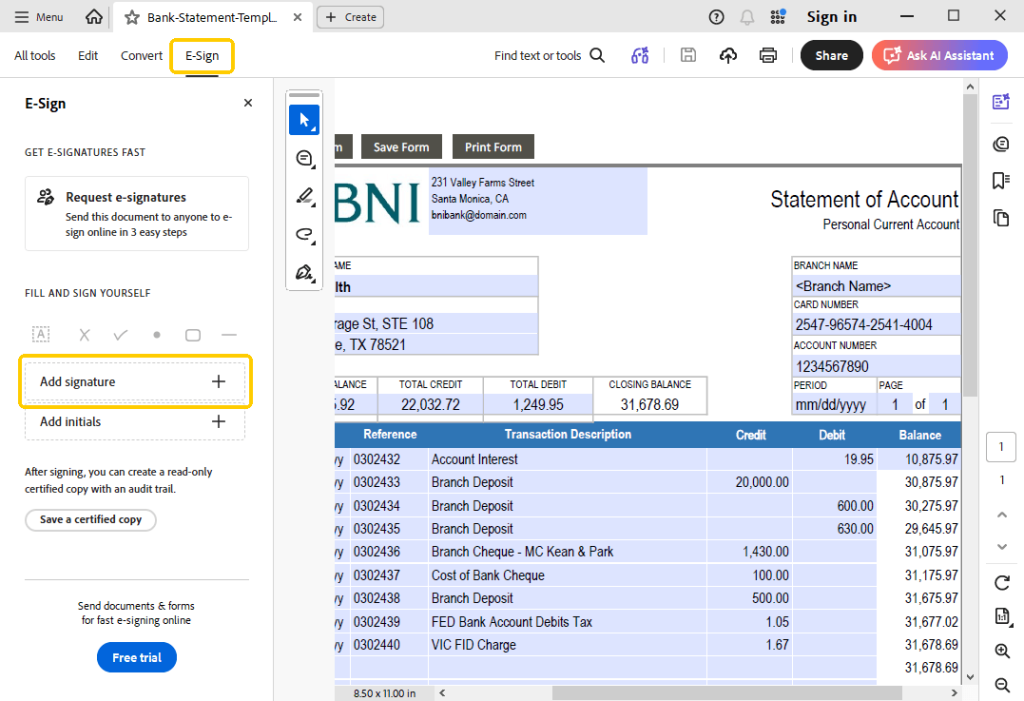
- Go to All Tools, then click the Fill & Sign tool. Or, you can use the E-Sign button at the top.
- Next, choose the Add signature option.
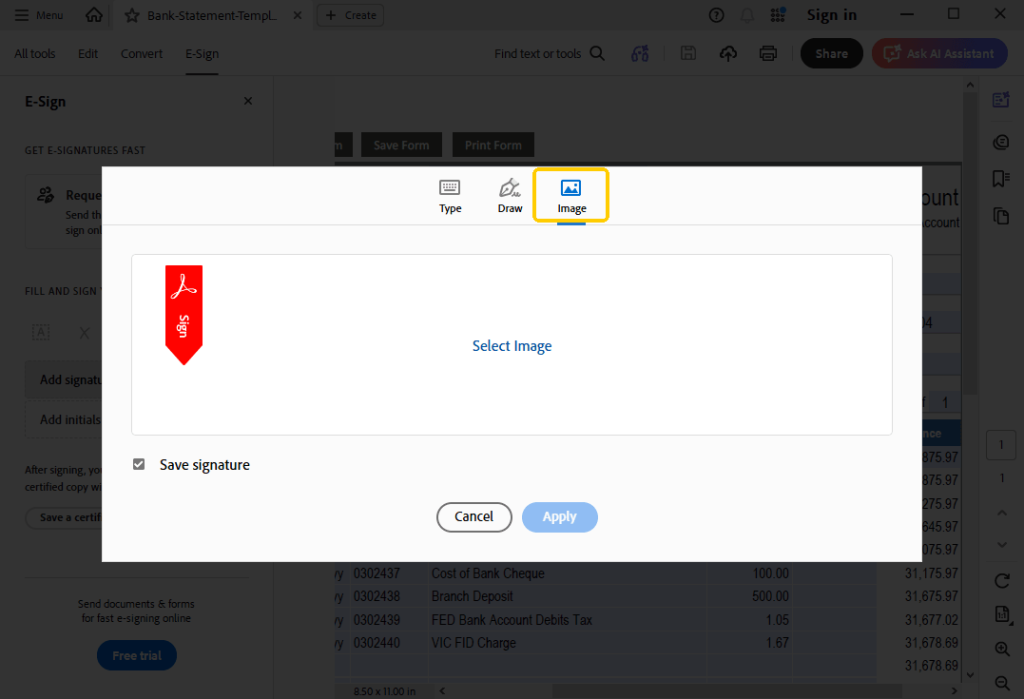
- A small box will pop up. Click the Image icon. This lets you browse your computer files to find and upload your PNG picture. Click Apply.
- Now, use your mouse to move the signature and drop it onto the correct line on the page.
- Click the Save button to finish your work.
The Big Limitation:
The free Adobe Acrobat Reader is very basic. It can help you place an image signature, but that’s where it stops. If you need to fix a spelling mistake, change a sentence, or organize your pages, you will need to pay for a very expensive monthly subscription.
If you do not want to pay high fees and you want a completely free solution packed with amazing editing tools, you should try JOPDF. It is widely considered the best free alternative to Adobe Acrobat on the market today.
Way 3. Add a PNG Signature to a PDF Online
Perhaps you are unable to download the new software at the moment. Maybe you are using a borrowed laptop at the public library. Maybe you are working from your mobile phone.
Don’t worry. In these situations, an online tool can be helpful. You can simply use a website to do the heavy lifting. We will take iLovePDF as a great example.
- Open your web browser (such as Chrome or Safari). Go to the iLovePDF signing tool (https://www.ilovepdf.com/sign-pdf).
- Click the big red button to upload your PDF document to the website.
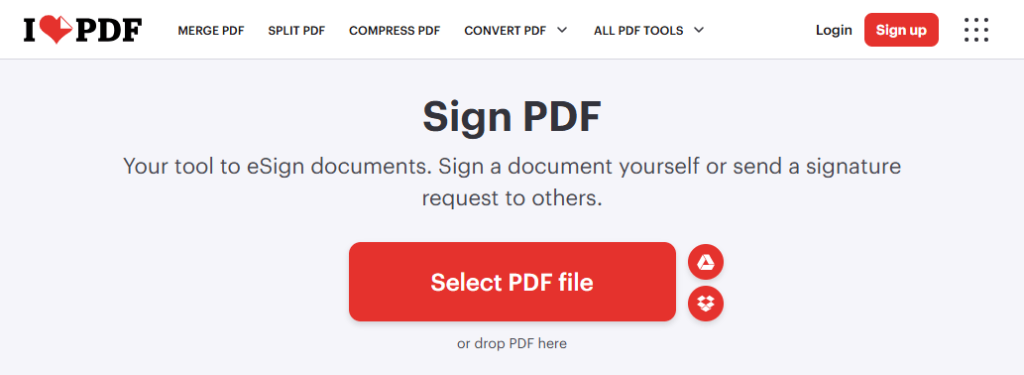
- Next, choose Only me to continue. If you also want others to sign the document, please choose Several people.
- Click Upload, then select your PNG signature file from your device.
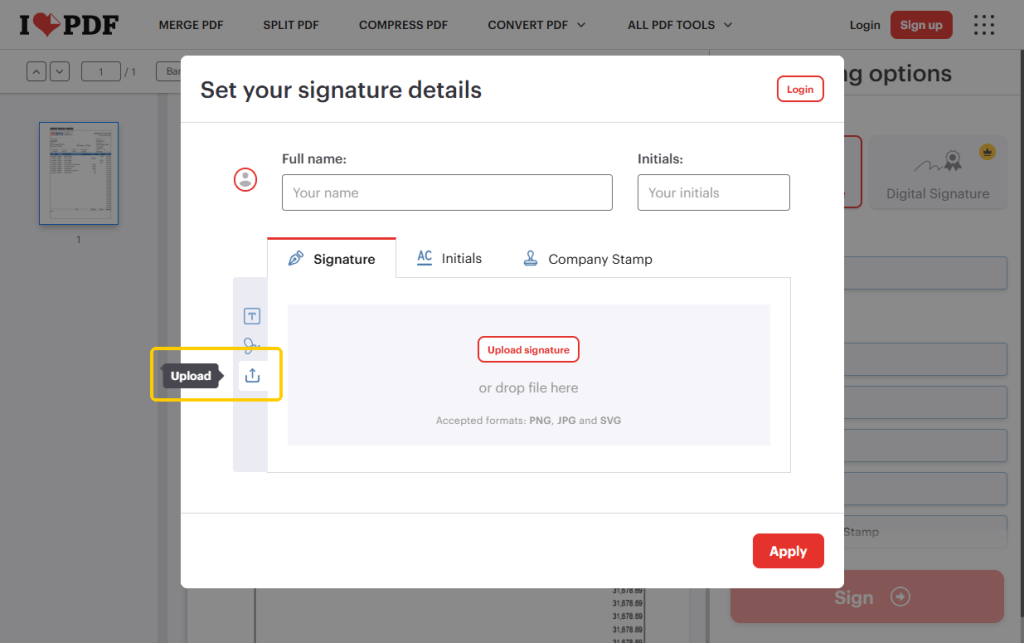
- The signature will appear on your screen. Drag the signature to the correct place on the document.
- Click the large Sign button. The website server will process the file quickly.
A Quick Safety Note:
Online tools are fantastic if you are in a major rush. However, please remember that you are uploading your data to the public internet.
If you are handling highly sensitive business contracts or private tax forms, it is always safer to use an offline program like JOPDF.
Conclusion
That’s all about how to add a PNG signature to a PDF. As long as you choose the right tools, you will complete the task very quickly. Which of the tools mentioned in this article do you prefer?
Anyhow, a free, professional, and highly secure desktop editor like JOPDF is clearly the best choice. It not only enables you to easily sign PDF files, but also helps you manage, edit, and protect documents. What’s more, it is completely free!
FAQs
Table of Contents

Your Best Free PDF Expert in PDF editing, compressing, converting, annotating, protect, organizing, and more.
Free DownloadWindows · macOS · Linux

Queena
Editor
“As a staff editor for JOPDF, Queena excels at guiding users to the optimal tools and solutions. When she's not analyzing the latest PDF solutions, she enjoys spending her free time playing with her four cats.”