Introduction:
How to add a hyperlink to a PDF without Acrobat? Don’t worry. This guide will tell you how to use a free professional PDF editor, an online editor, and built-in tricks to get the job done quickly.
1. The Professional Way to Add a Hyperlink to a PDF
If you want the most professional and easiest tool, your best choice is to download a computer program. Our top recommendation is JOPDF.
As one of the free and best PDF editors, JOPDF allows you to seamlessly draw a clickable box over any existing text or picture in your document.
You can send people to a web address or link to a specific page in a PDF. This is perfect if you want to create a clickable table of contents for a very long book!
How to add a hyperlink to a PDF without Acrobat, but with JOPDF:
1. Click the download button to get JOPDF.
2. Open the JOPDF software and add the document you want to edit.
3. Click the Edit tab from the top. Then, go to Link > Add Link.
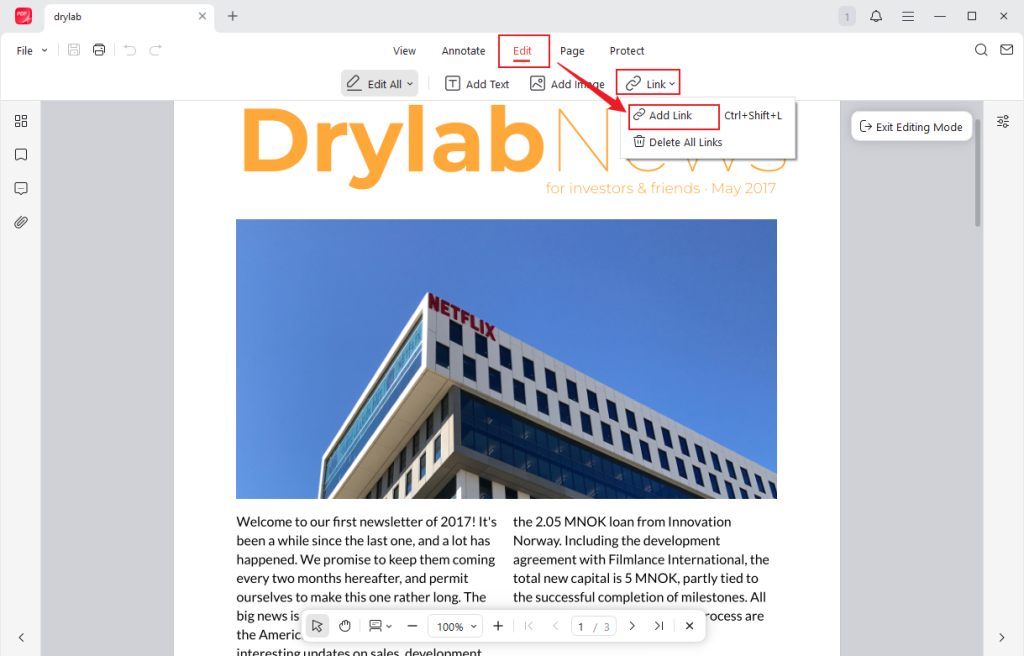
4. Use your mouse to draw a rectangle over the word, sentence, or image you want to make clickable.
5. Type or paste your destination website address (URL) into the box.
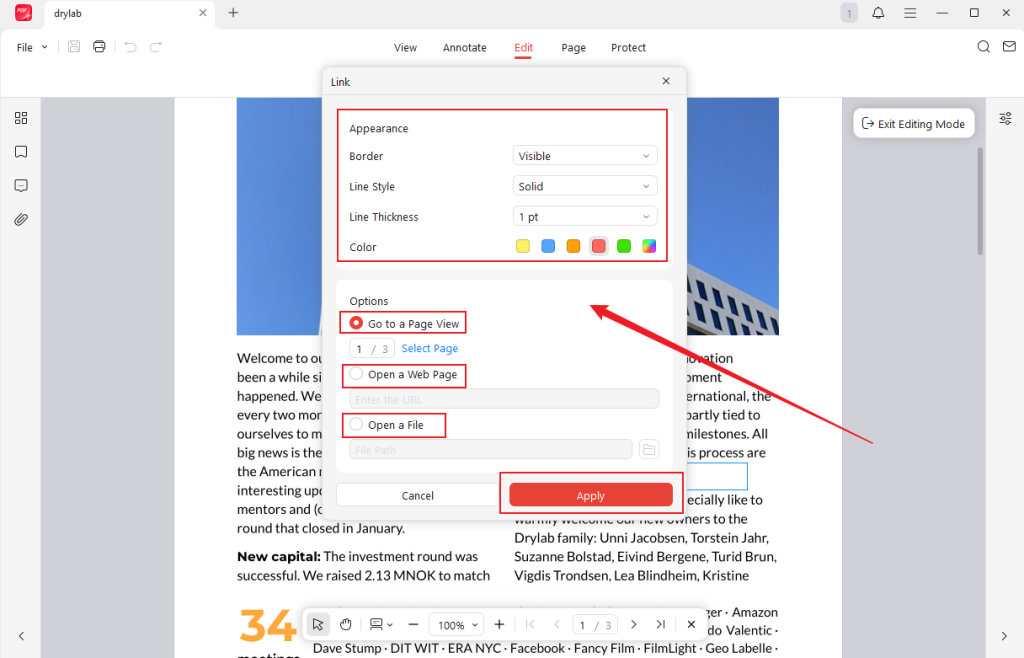
6. Click the Apply button. Finally, save your document.
JOPDF is a complete, all-in-one helper. Aside from adding helpful links, you can also easily edit existing text on the page, merge multiple files, reduce PDF file size so it fits in a small email, and add passwords to protect highly sensitive data.
We strongly encourage you to download JOPDF today and try it for the most reliable, secure, and professional offline document editing experience!
2. Add Hyperlink to PDF with Online PDF Editor (Sejda)
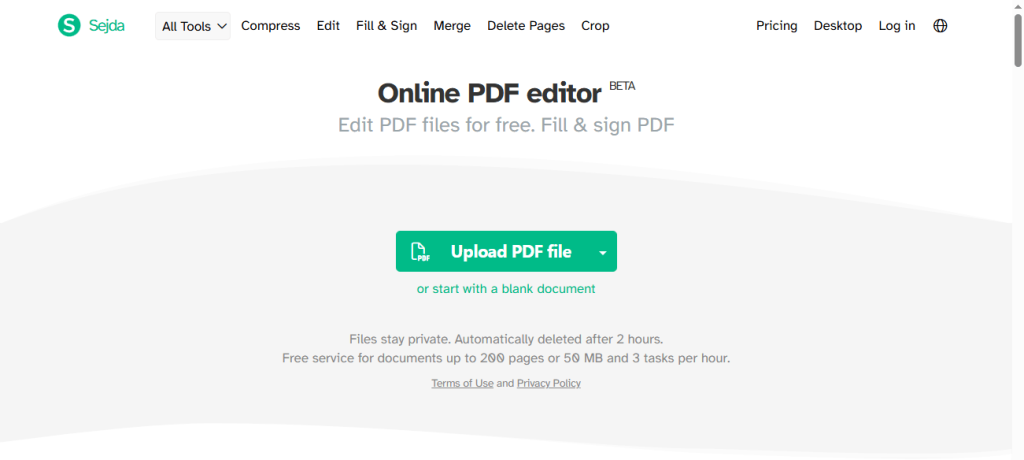
Do not want to install any new software on your laptop? In this case, a web-based tool is a fantastic choice because it requires zero installation. It is easy to add a link to a PDF without Adobe by using a highly reliable online editor called Sejda PDF.
Steps to use Sejda PDF editor:
1. Open your internet browser and go to the Sejda editor (https://www.sejda.com/pdf-editor).
2. Click the upload button to securely put your file on the website.
3. Look at the menu at the top of the page and select the Links tool.
4. Drag a box over the text you want to link.
5. Paste your website URL into the pop-up box. Click Close to continue.
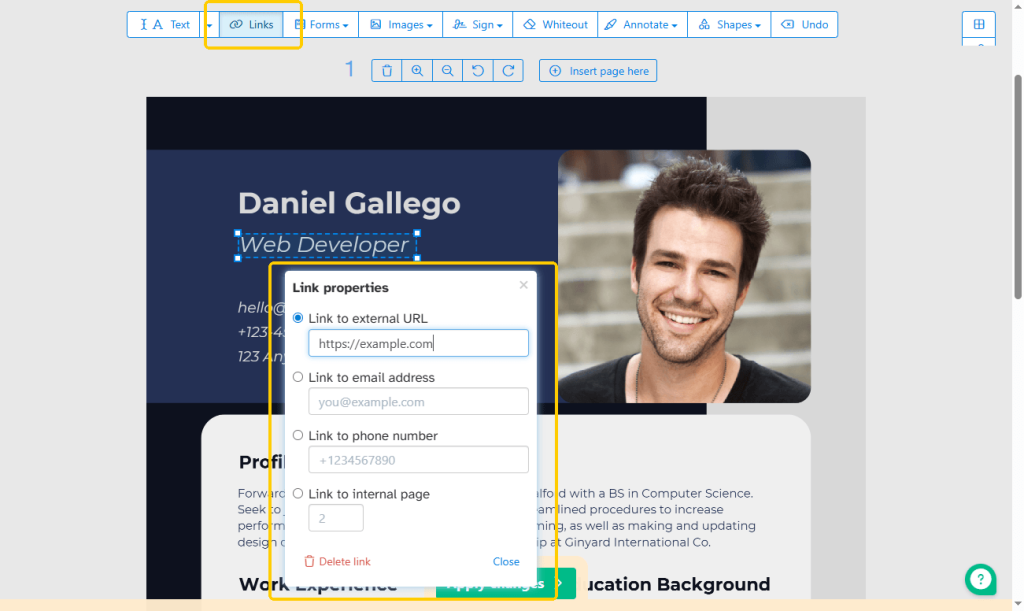
6. Click Apply changes, and then download the document.
Using an online editor is very fast and works on any internet browser. However, if your PDF contains secret business numbers, medical information, or bank details, you should never upload it to the internet.
For confidential files, you should always return to using offline computer software like JOPDF.
3. Add Hyperlink to PDF in Preview
If you use an Apple Mac computer, you already have a helpful built-in program called Preview. Many Apple fans wonder if it is the best PDF editor for Mac. While it is very helpful, it has significant limitations when it comes to editing files.
Preview does not have a built-in tool to magically turn existing plain text into a custom, hidden hyperlink. You cannot make a plain word like “Click Here” take someone to a website.
However, there is a simple workaround. Mac users can use Preview to add a visible link instead:
1. Double-click your file to open it in the Preview app.
2. Go to the top menu, click Tools, then Annotate, and choose Text to add a new typing box to the page.
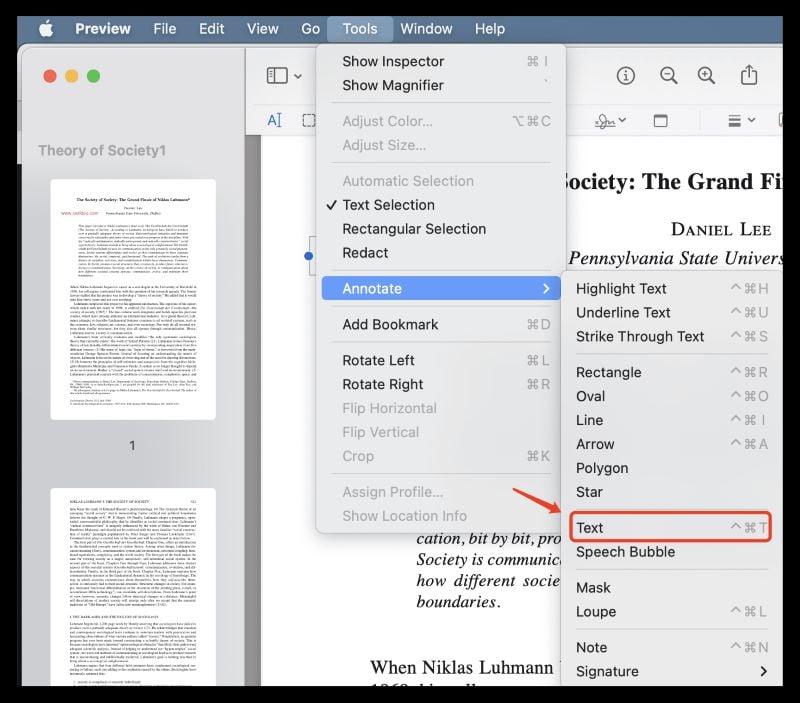
3. Type the full, exact web address directly into the box.
4. Save your document.
It’s possible to use Preview to get the job done, but if you truly want to hide a link behind a specific word to make it look professional, you must know how to add a hyperlink to a PDF without Acrobat using a true, powerful editor like JOPDF.
4. Add a Hyperlink to a PDF Using Microsoft Word
Almost everyone has Microsoft Word installed on their computer for work or school. Because of this, it serves as a fantastic “backdoor” method for editing your documents on both Windows and Mac computers without buying new software.
Steps to use Microsoft Word:
1. Open the Microsoft Word program on your computer.
2. Go to File > Open, then select your PDF file. Word will automatically convert your file into an editable Word document.
3. Select the text, picture, or other element you want to link.
4. Right-click the highlighted section and select Link.
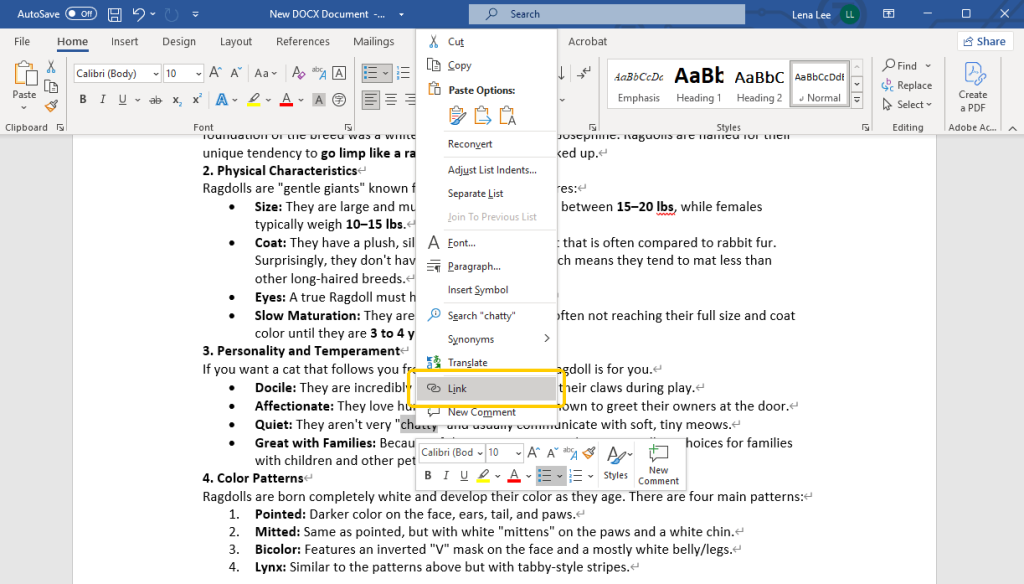
5. Type your destination website address into the address box and click OK.
6. Now, go to File, then Save As. In the file type menu, make sure you change it back to PDF. Save the file.
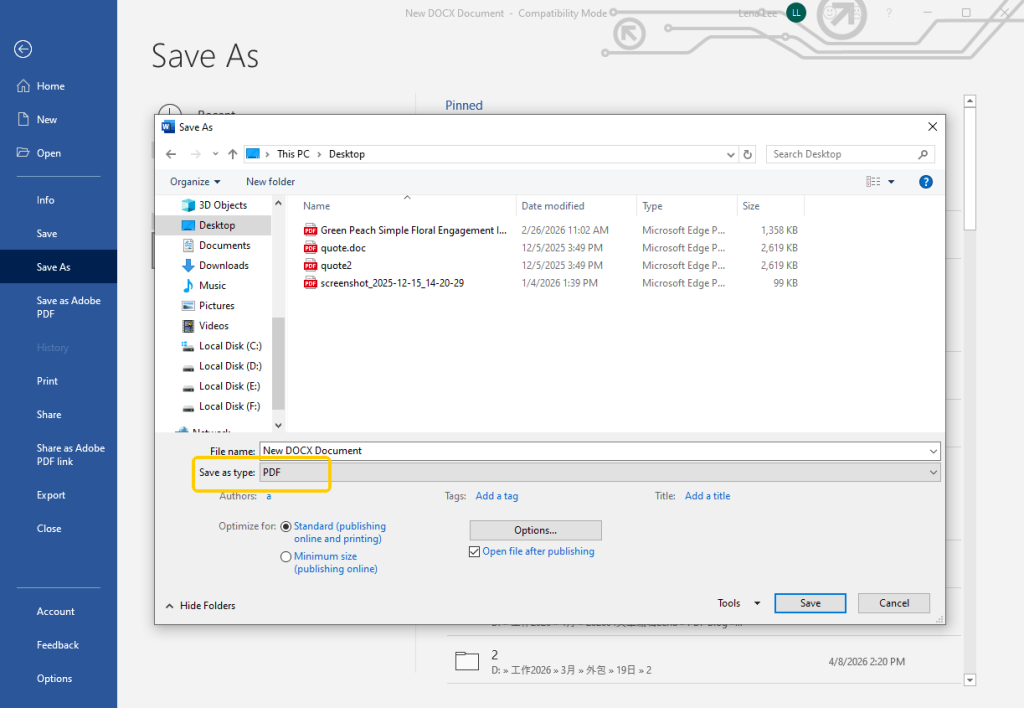
This method is more suitable for those PDF documents that are based on documents. Why? Because converting a complex document to Word format and then back again may sometimes result in changes to the formatting.
Conclusion
Now you know how to add a hyperlink to a PDF without Acrobat. Just choose the best tool for your needs.
However, if you want to do it professionally, JOPDF is the best choice. This tool lets you easily add links anywhere in a PDF. Moreover, it can also assist you with other types of editing. More importantly, it is completely free! There is no reason not to give it a try.
FAQs
Table of Contents

Your Best Free PDF Expert in PDF editing, compressing, converting, annotating, protect, organizing, and more.
Free DownloadWindows · macOS · Linux

Queena
Editor
“As a staff editor for JOPDF, Queena excels at guiding users to the optimal tools and solutions. When she's not analyzing the latest PDF solutions, she enjoys spending her free time playing with her four cats.”
![Full Guide on How to OCR a PDF in Adobe Acrobat [Newest]](https://b.jopdf.com/wp-content/uploads/2026/10/how-to-ocr-a-pdf-in-adobe.png)