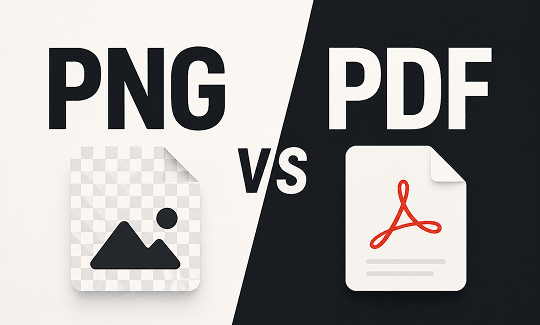
PNG and PDF are two of the most common file formats you will encounter. But they are designed for different purposes. Understanding the difference between PNG and PDF helps you choose the right format for every project. So, is PNG and PDF the same? Absolutely not. In this guide on JOPDF, we compare PNG vs PDF across 8 key areas and show you exactly when to use each one. By the end, you will know which format is better PNG or PDF for your needs.
Summary :
What Are PNG and PDF?
What is a PNG file vs PDF? PNG stands for Portable Network Graphics. It is a raster image format designed for web use. PNG uses lossless compression, which means it keeps all image data without losing quality. It supports transparent backgrounds, making it ideal for logos, icons, and web graphics.
PDF stands for Portable Document Format. It was created by Adobe to share documents consistently across any device. PDF preserves layout, fonts, and formatting. It supports multiple pages, searchable and editable text, and interactive elements like forms and signatures. This is a core difference between PDF and PNG – PNG is for images, PDF is for documents.
Advantages and Disadvantages of PNG
Advantages:
- Supports transparent backgrounds, essential for logos and icons
- Lossless compression preserves image quality
- No quality loss when edited and saved multiple times
- Opens directly in all web browsers
- Handles sharp edges, text, and graphics well
Advantages:
- PNG vs PDF file size: PNG can be large, especially for complex images
- Only supports single images – no multiple pages
- Not ideal for photographs (JPG is more efficient)
- Uses RGB color, not suitable for professional printing
Advantages and Disadvantages of PDF
Advantages:
- Preserves layout, fonts, and formatting across devices
- Supports multiple pages in one file
- Text is searchable and selectable
- Supports professional printing (CMYK color)
- Offers security features: passwords, encryption, digital signatures
- Industry standard for business and legal documents
Advantages:
- File size can be large, especially with images
- Does not support transparent backgrounds well
- Requires a PDF reader or plugin to view
- Editing requires specialized software
PNG vs PDF: Head-to-Head Comparison
| Feature | PNG | |
| File Size | Often large (keeps all image data) | Varies; text-only is small, image-heavy can be large |
| Image Quality | Lossless, pixel-perfect | Varies; text stays crisp, images depend on resolution |
| Transparency | Excellent support | Limited support |
| Multi-Page | Single image only | Multiple pages |
| Printing | Not ideal (RGB color, fixed resolution) | Best choice (CMYK color, scalable) |
| Editing | Pixel-level editing | Text, images, page layout |
| Security | None | Password protection, encryption, signatures |
| Web Use | Opens in browsers, supports transparency | Not browser-native, requires download |
This table highlights the difference between PNG and PDF in a clear, side-by-side format. It also shows why the PNG vs PDF for printing debate ends with PDF as the winner for professional print jobs.
PNG vs PDF: 8 Key Differences
The difference between PNG and PDF becomes clear when you examine how each format handles different tasks. This PNG vs PDF comparison covers the most important distinctions.
1. File Structure
PNG has a simple structure. It stores a single image as a grid of pixels. Each pixel contains color information, and the image is read as one continuous block of data.
PDF has a complex structure. It can store text, images, fonts, and multiple pages as separate objects. Each page is independently structured, and elements can be reused across pages. This is a key difference between PDF and PNG – PDF files are built like databases of content objects.
2. Image Quality
PNG keeps images sharp and clear with lossless compression. Every pixel is preserved exactly as it was created. When you zoom in, details remain intact.
PDF maintains quality for text and images but prioritizes document consistency over pixel-perfect precision. Text stays crisp at any size because it is stored as vectors or fonts, not pixels. However, images inside a PDF are limited by their original resolution.
3. File Size & Compression
PNG files can be large because they keep all image data. The file size depends on image complexity – more colors and higher resolution mean larger files. This is a major factor in the PNG vs PDF file size comparison.
PDF file size varies widely. A text-only PDF is small. A PDF with many high-resolution images can be larger. PDF also offers multiple compression options, letting you balance quality and size.
4. Multi-Page Support
PNG supports only one page or image. If you need to share multiple images, you must send separate files.
PDF supports multiple pages in one file. This makes it ideal for reports, contracts, ebooks, and presentations. Page navigation, numbering, and bookmarks are built into the format.
5. Printing Compatibility
PDF is better for printing. It supports CMYK color, which professional printers use. It also supports vector graphics that scale without losing quality. When comparing PNG vs PDF for printing, PDF is the reliable choice.
PNG is designed for screens and uses RGB color. Print a PNG at a large size and it may appear pixelated because its resolution is fixed. Colors may also shift because RGB and CMYK are different color spaces.
6. Professional Use
PDF is the standard for business, legal, and professional documents. Contracts, invoices, resumes, and official forms are expected to be PDFs. The format supports digital signatures, password protection, and audit trails.
PNG is not considered a professional document format. It is used for images, not documents. Submitting a PNG resume or contract is usually not acceptable.
Also See: Forgot PDF Password? Free Way to Unlock PDF Files in 2026
7. Editing Flexibility
PNG editing requires pixel-level work in image editors. You can change colors, crop, resize, or remove elements – but these changes work at the pixel level.
PDF editing allows changes to text, images, and page layouts. You can add, delete, or rearrange pages. You can also modify text content directly, which is not possible with PNG.
8. Security Features
PDF offers built-in security: password protection, encryption, and digital signatures. You can restrict printing, copying, or editing.
PNG does not have built-in security features. Anyone can view, copy, or edit a PNG file without restrictions.
When Should You Use PNG?
When to use PNG vs PDF? In the PNG vs PDF decision, choose PNG when:
- You need a transparent background. PNG is the best format for logos, icons, and overlays that sit on different colored backgrounds.
- You are designing for the web. In the PDF vs PNG for web comparison, PNG wins because it loads directly in browsers and maintains sharp quality.
- You are sharing a single image. PNG is widely accepted for social media, messaging, and email.
- You need to preserve pixel-level detail. For screenshots, design mockups, or graphics with text, PNG keeps everything crisp.
When Should You Use PDF?
In the PNG vs PDF decision, choose PDF when:
- You are printing professionally. PNG vs PDF for printing? PDF supports CMYK color and scalable graphics, making it the standard for professional printing.
- You have multiple pages. PDF keeps reports, contracts, or presentations in one file.
- You need searchable text. PDF text is selectable and searchable—PNG text is just pixels.
- You are submitting official documents. Resumes, applications, contracts, and forms are expected to be PDFs.
- You need security. PDF offers password protection, encryption, and digital signatures.
PNG vs PDF vs JPG: Which Format Is Best for Photos, Graphics, and Documents?
| Format | Best For | Compression | Transparency | Multi-Page |
| PNG | Graphics, logos, icons, screenshots | Lossless | Yes | No |
| JPG | Photos, images with gradients | Lossy | No | No |
| Documents, reports, printing, forms | Varies | Limited | Yes |
- Photos – JPG (smaller file size, good quality)
- Web graphics – PNG (transparency, sharp edges)
- Documents – PDF (multi-page, print-ready, searchable)
Which Is Better for Email, Printing, and Web?
| Use Case | Recommended Format | Why |
| Email attachment | PDF for documents, PNG for images | PDF keeps formatting; PNG is small for images |
| Professional printing | CMYK support, scalable graphics, layout preservation | |
| Web display | PNG | Opens in browsers, supports transparency |
| Social media | PNG | Widely accepted, sharp quality |
| Archiving | Long-term readability, PDF/A standards |
How to Convert Between PNG and PDF
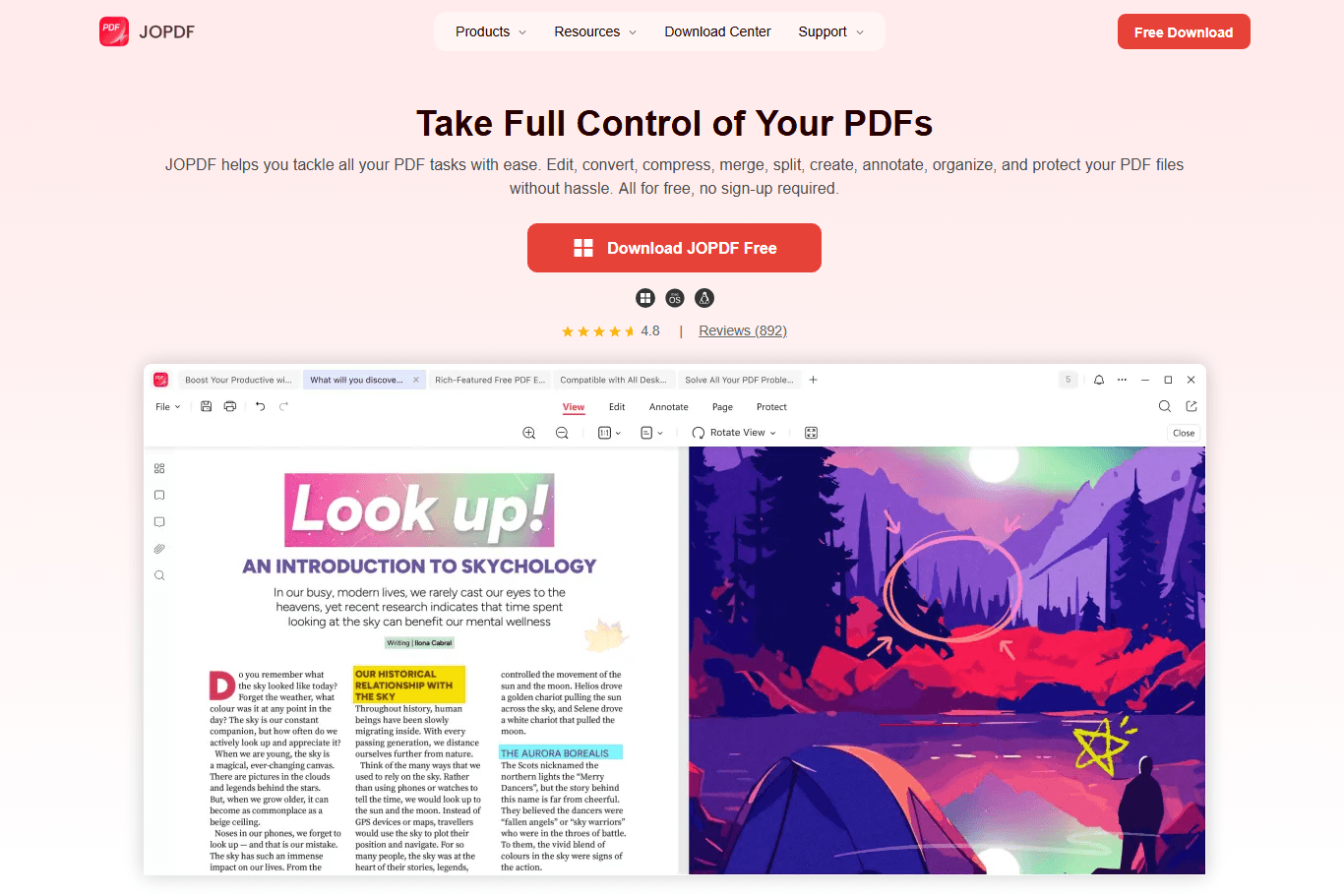
Sometimes you need to switch between PNG and PDF. JOPDF is a free desktop PDF editor for Windows, Mac, and Linux that handles PNG-to-PDF and PDF-to-PNG conversions. It works offline and requires no sign-up.

JOPDF – The Best Free PDF Editor
 User Rating: 4.8
JOPDF Is a 100% free POF editor for Windows, macOS, and Linux. Edit text, add images, annotate, sign, and more. No limits, no ads, no subscriptions, Fast, simple, and powerful, take full control of your PDFs in seconds!
Tips
Beyond conversion, JOPDF also lets you edit, merge, compress, and annotate PDFs. It is a practical tool for anyone who regularly works with documents and images. And it is completely free – no watermarks, no hidden charges.
How to convert between PNG and PDF using JOPDF:
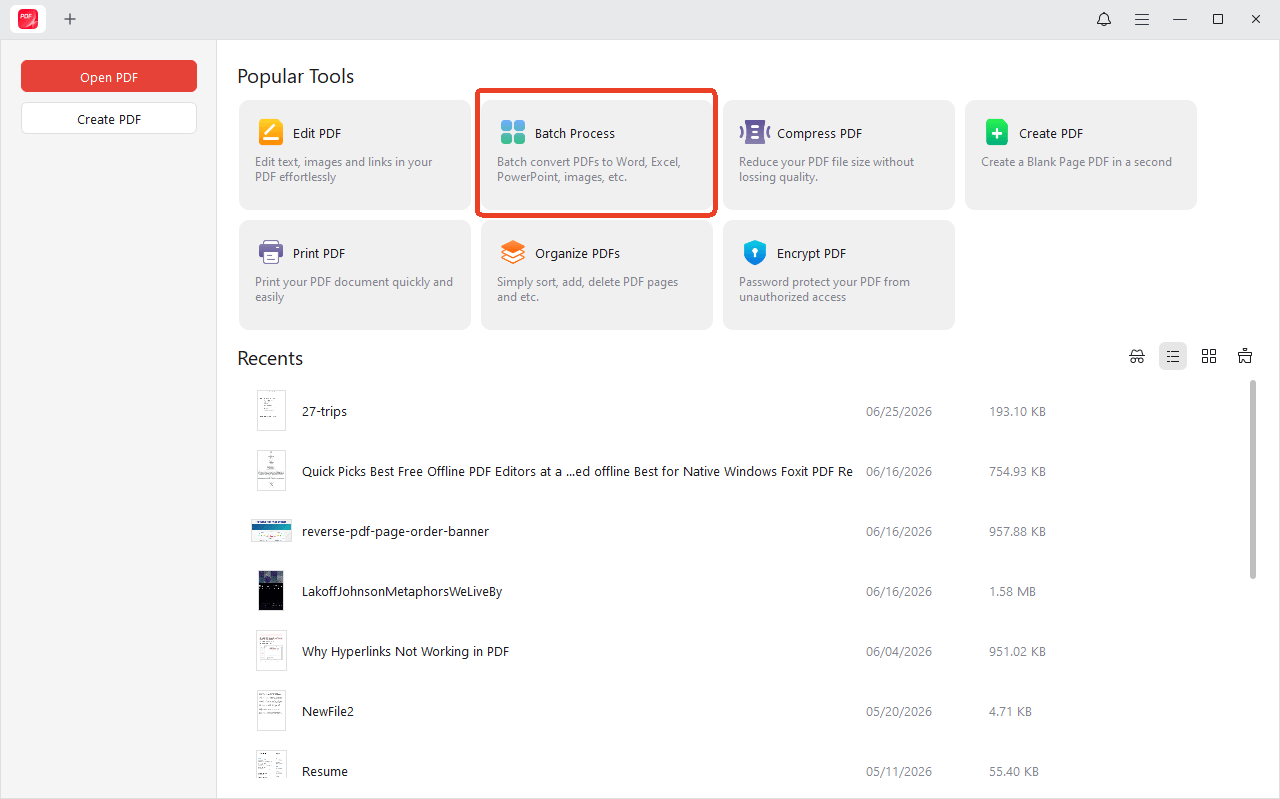
Step 1: Open JOPDF and choose Batch Process from the main page.
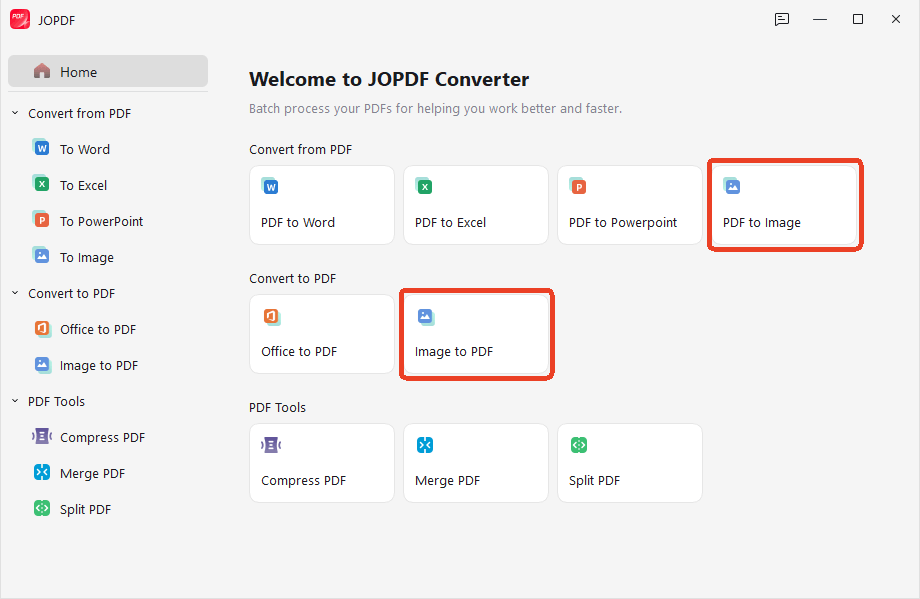
Step 2: Choose Image to PDF if you want to convert PNG to PDF or select PDF to Image when you need to convert PDF to PNG.
Final Verdict
The difference between PNG and PDF comes down to what you are creating and how you plan to use it. PNG is the best choice for web images, logos, and anything with transparency. PDF is the best choice for documents, professional printing, and multi-page files.
Now you know which format is better PNG or PDF for your specific needs. Pick the right format for your project. If you need to convert, JOPDF makes it quick and easy.
FAQs
PDF is better. In the PNG vs PDF for printing comparison, PDF supports CMYK color and scalable graphics. PNG uses RGB and has a fixed resolution.
PNG is better for web images. In the PDF vs PNG for web comparison, PNG loads directly in browsers, supports transparency, and keeps quality intact.
Yes, PNG images can be embedded inside PDFs while preserving transparency.
Converting PNG to PDF does not reduce quality. The PDF acts as a container and preserves the image as it is. This is useful when you need to combine multiple PNGs into one file.
Table of Contents

Your Best Free PDF Expert in PDF editing, compressing, converting, annotating, protect, organizing, and more.
Free DownloadWindows · macOS · Linux

Anna
Editor
“Anna, Editor-in-Chief and PDF expert, delivers deep insights into PDF document technology trends. She is dedicated to helping readers optimize their digital lives. When not writing, Anna loves exploring local cafes and reading, blending her technical expertise with a love for storytelling.”