Introduction:
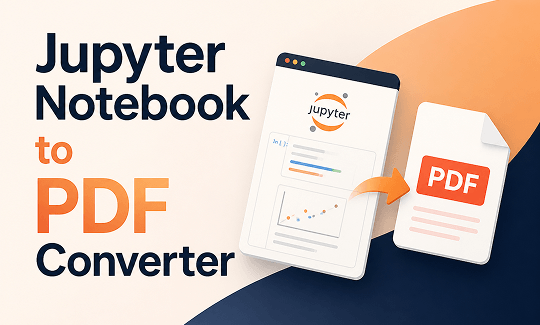
If you want to know how to download Jupyter Notebook as PDF, you are in the right place. A good Jupyter Notebook to PDF converter makes your work easy to read for anyone, even without technical skills. Let’s look at six simple ways to do this quickly.
3 Online Jupyter Notebook to PDF Converters
If you want a fast solution, an online Jupyter Notebook to PDF converter is your best choice. You do not need to install anything on your computer. You just upload your file and get your new document in seconds. Here are three great options you can try.
RunCell
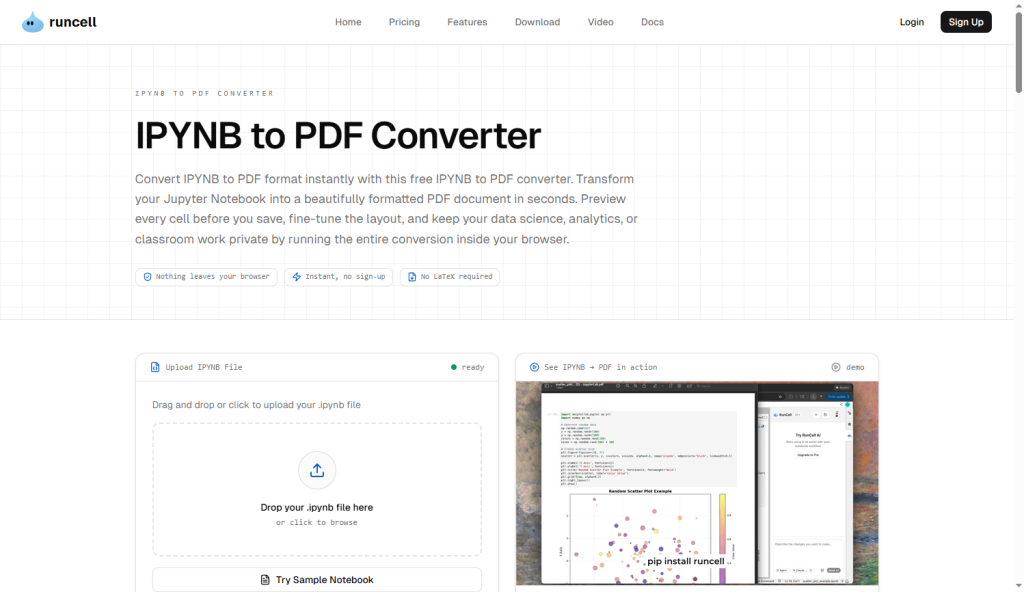
RunCell is a fast website made just for this job. It is very simple to use and keeps your information private.
- First, go to the RunCell website.
- Second, upload your notebook file from your computer.
- Wait a few seconds for the site to process it.
- Finally, click the download button to get your file.
Rare2PDF
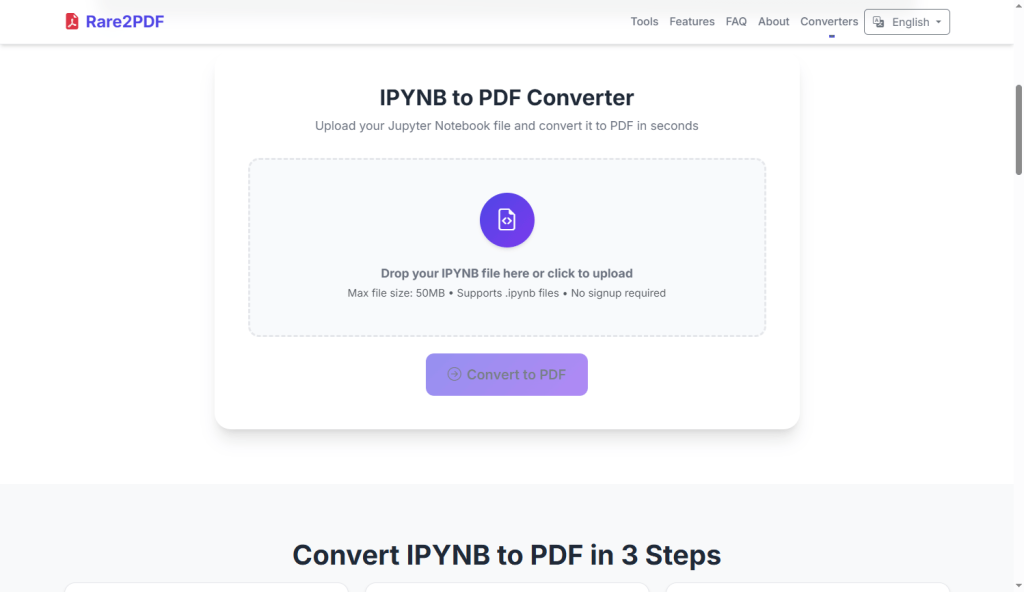
Rare2PDF is another helpful tool. It is great because it keeps your code and charts looking neat and tidy.
- To use it, simply drag your file onto the web page.
- Click the button to start the conversion process.
- When it finishes, save the new document directly to your computer.
Vertopal
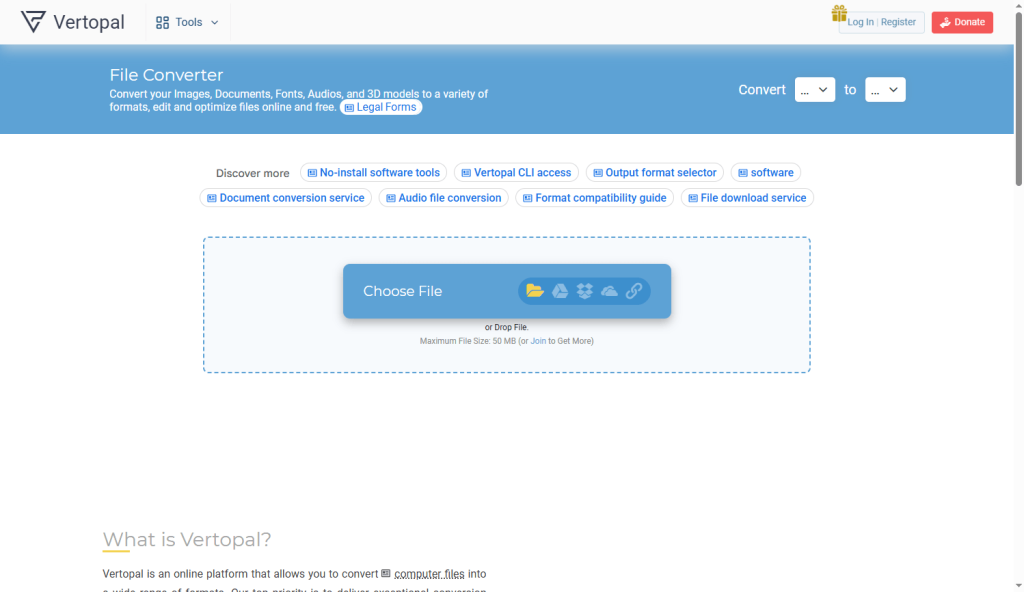
Vertopal is a flexible converter. It can change many types of files, making it very useful for different projects.
- Click to select your .ipynb file from your device.
- Choose PDF as the final format you want to create.
- Click convert and download your finished file.
Other 3 Ways to Download Jupyter Notebook as PDF
Sometimes you might not want to use a website. Here are three other ways to download Jupyter Notebook as PDF using tools you might already have on your computer.
Export as HTML and Convert
You can use your web browser to do the work. This is very reliable because it saves exactly what you see on your screen.
- Open your file in Jupyter Notebook.
- Click on “File” in the menu, and choose “Download as HTML“.
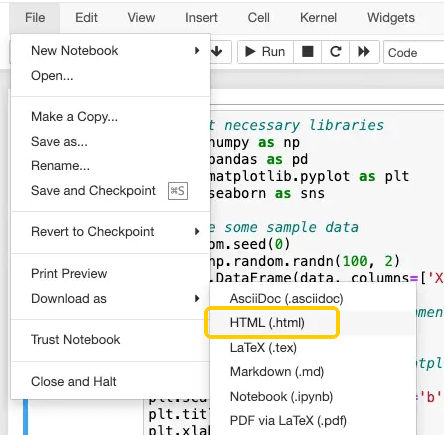
- Open that new HTML file in a browser like Chrome or Edge.
- Press the print button (Ctrl + P on Windows or Cmd + P on Mac) and choose “Save as PDF” instead of sending it to a real printer.
The nb2pdf VS Code Extension
If you like using Visual Studio Code for your work, this is a great approach. You just need to add a small tool called an extension.
- Open VS Code and search for “nb2pdf” in the extensions menu.
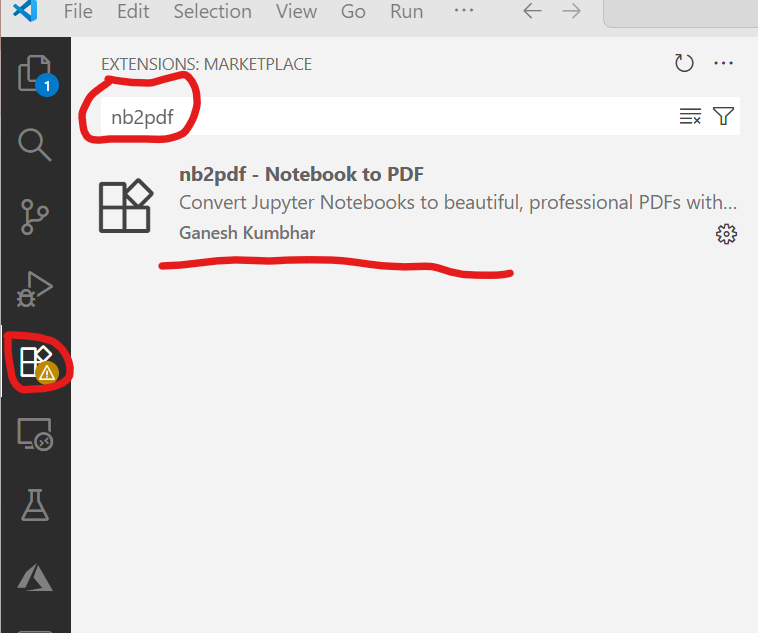
- Click to install it.
- After that, right-click your file and choose the option to convert it. It is very fast and easy.
Use Command Line
If you do not mind typing text commands, you can use the command line. This is a quick text instruction you give to your computer without using a mouse.
Open your terminal and type a simple command using the built-in tool nbconvert. It instantly turns your file into a clean document.
How to View, Edit, and Manage Downloaded PDFs
After you convert your file, you might need to review it or make changes before sharing it with your team. This is where a good tool comes in. We recommend JOPDF.
It is an amazing free PDF editor that helps you handle your documents easily. Here is what it can do for you:
✅ Various Reading Modes. Reading should be comfortable for your eyes. With JOPDF, you can zoom in to see small text clearly. You can also put PDF in full screento hide your desktop and focus completely on reading your work.
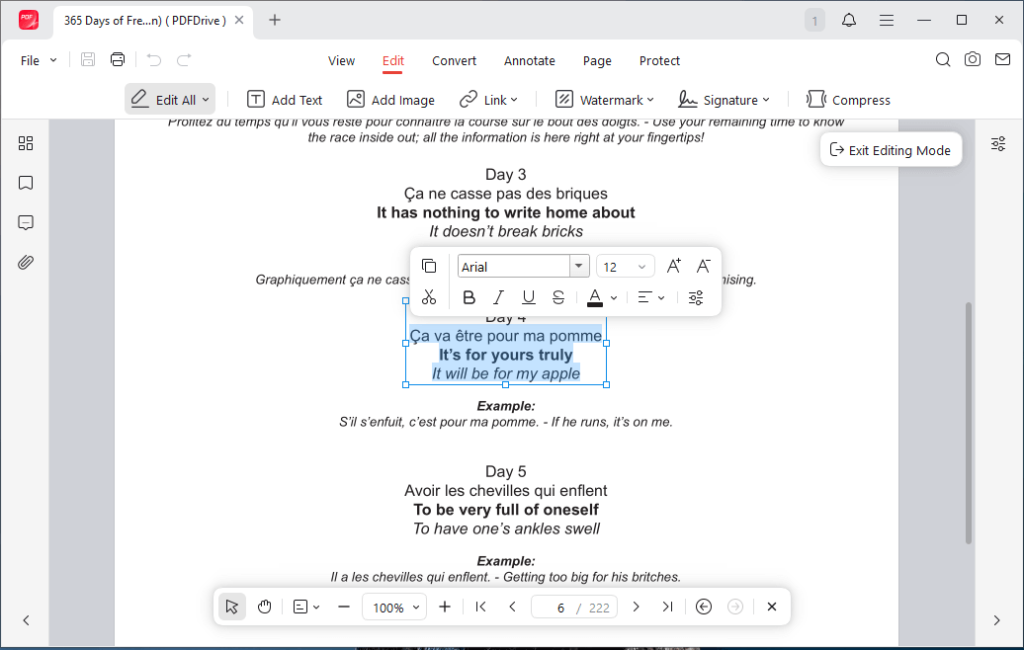
✅ Editing Features. Sometimes you spot a mistake after converting. JOPDF lets you add, change, or delete text and pictures directly. It works just like a normal word processor.
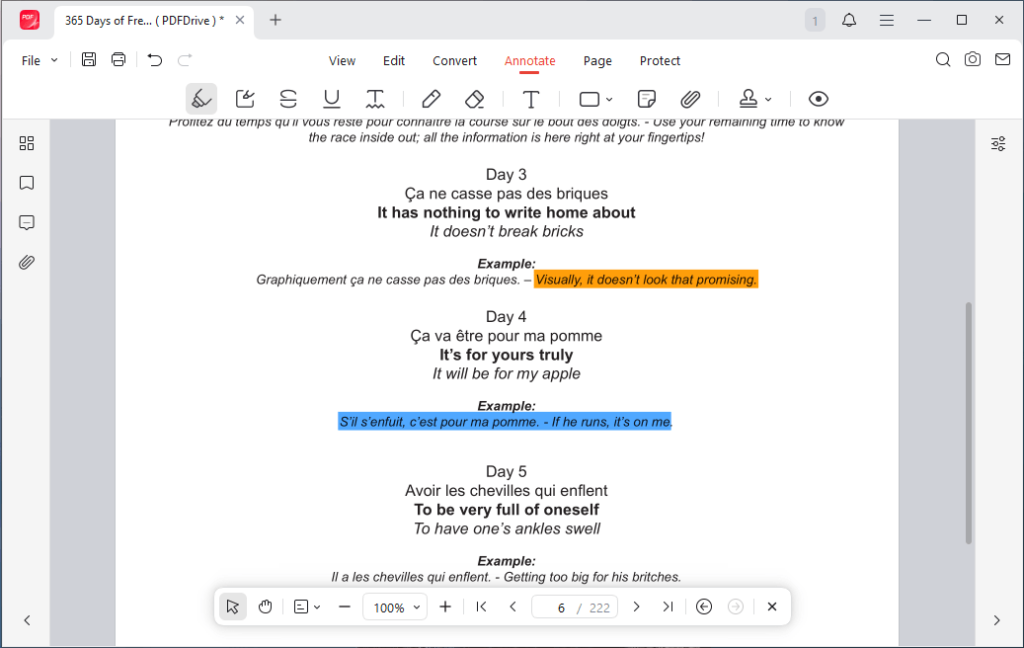
✅ Annotate. When you share work with a team, adding notes is very helpful. You can use the PDF highlighter to mark important lines of code with bright colors. You can also add sticky notes or draw shapes on the page.
✅ Page Management. If your document is too long, you can fix it quickly. You can drag and drop pages to change their order. You can also delete pages you do not need or split a big file into smaller pieces.
✅ Password-Protection. Security is very important. If your document has private data, JOPDF lets you add a password. This means only people who know the password can open and read it.
Do not struggle with hard-to-read files. Try JOPDF today. It is fast, safe, and completely free to use!
Conclusion
That’s all about the Jupyter Notebook to PDF converter. Turning your code into a normal document is not hard at all. Whether you use a website or a simple tool on your computer, getting a clean file is easy.
Once you have it, a tool like JOPDF makes it simple to read, mark, and share with others. Try these simple methods today and make sharing your work easy for everyone!
FAQs
Table of Contents

Your Best Free PDF Expert in PDF editing, compressing, converting, annotating, protect, organizing, and more.
Free DownloadWindows · macOS · Linux

Queena
Editor
“As a staff editor for JOPDF, Queena excels at guiding users to the optimal tools and solutions. When she's not analyzing the latest PDF solutions, she enjoys spending her free time playing with her four cats.”