Introduction:
Figuring out how to download view-only PDF from website might sound like a job for a computer expert. But do not worry! You do not need any special tech skills to get this done. In this guide, we will walk you through five proven methods to save these restricted files.
Way 1. Download View-Only PDF via Print
The easiest way to download view-only PDF from website is to use a trick with your computer’s Print menu. Usually, the Print button sends a file to a physical printer. However, your computer has a hidden feature that lets you “print” a file directly into a new PDF.
Here are the simple steps:
- Go to the website where the view-only PDF is located. Make sure the document is fully loaded on your screen.
- On your keyboard, press the Ctrl key and the P key at the same time. If you are using a Mac, press the Cmd key and the P key together.
- A new window will pop up showing your print options. Look for the section that says Destination or Printer. Click on the drop-down menu and select Save as PDF (or Microsoft Print to PDF).
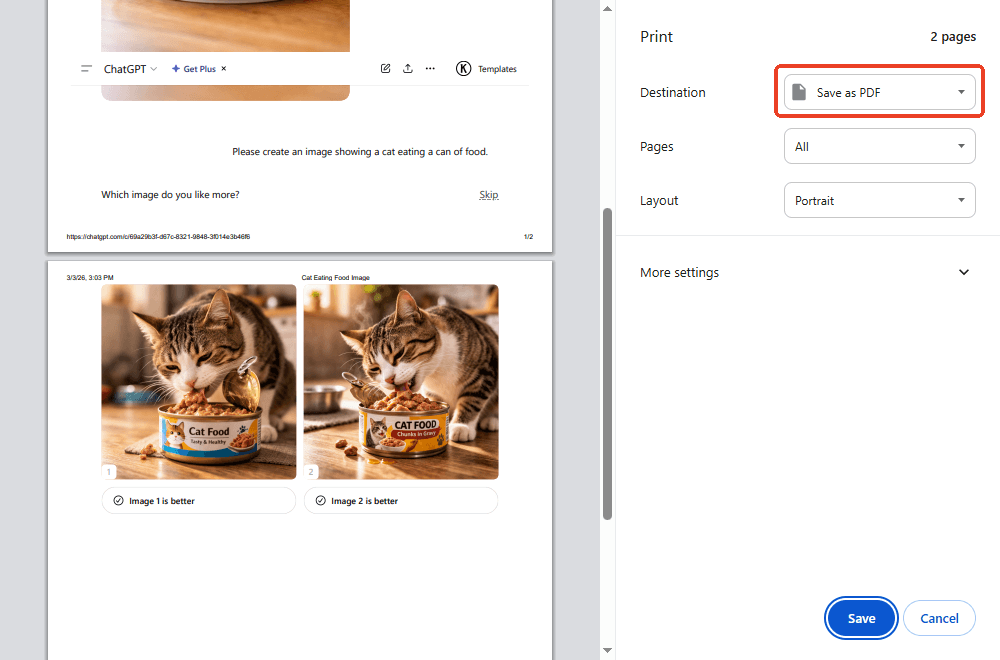
- Click the blue Save or Print button at the bottom.
- Your computer will ask you where you want to keep the new file. Pick a folder, give it a name, and you are done!
Website owners may use smart tricks to block the print menu. If you try this method and get a completely blank page, do not panic. Just move on to the next method.
Way 2. Find the PDF via Developer Tools
If the print trick did not work, we can look at the webpage’s source code. Every website is built using background code. When you look at a PDF on a website, the direct link to that file is usually hidden inside that code.
We can use something called “Developer Tools” to find it. The name sounds highly technical, but it is actually very easy to use if you follow these steps. This is a great way to download view-only PDF from any website that tries to hide the download button.
The steps:
- Go to the webpage and right-click anywhere on the blank space of the page.
- A menu will appear. Select Inspect from the pop-up menu. In this way, a panel with lots of text and code will open on the side or bottom of your screen.
- At the top of this new code panel, look for a tab called Network and click on it.
- Right now, the Network tab might be empty. Please press the F5 key to reload the page so the computer can track the files.
- As the page reloads, a long list of items will appear in the Network panel. Look for a small search box inside that panel and type .pdf.
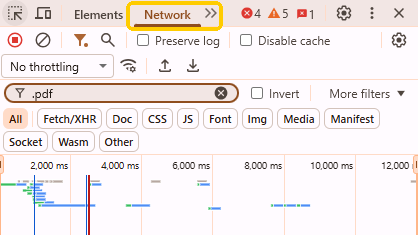
- If the website uses a real PDF file, it will appear in the search results. Right-click on the file name and select Open in new tab.
- Now, you can click the download button in the top-right corner to save the file.
Way 3. Screenshot Webpage and Convert to PDF
Some websites are very strict. They lock the document so tightly that you cannot print it, and you cannot find it in the background code. In these cases, the best and most reliable method is to take screenshots of the webpage and then use a PDF converter to convert them into PDF format.
To make things easy, you can try JOPDF. It is a professional and easy-to-use PDF converter and editor. The great thing is that it can combine screenshots into a single PDF at once.
Let’s learn the details:
- Go to the webpage. Use your computer’s screenshot tool to capture the first page. On Windows, please press Windows + Shift + S. On Mac, please press Cmd + Shift + 4.
- Scroll down and take a picture of the next page. Do this for all the pages you need.
- Then, launch JOPDF. Go to Batch Process and select Image to PDF.
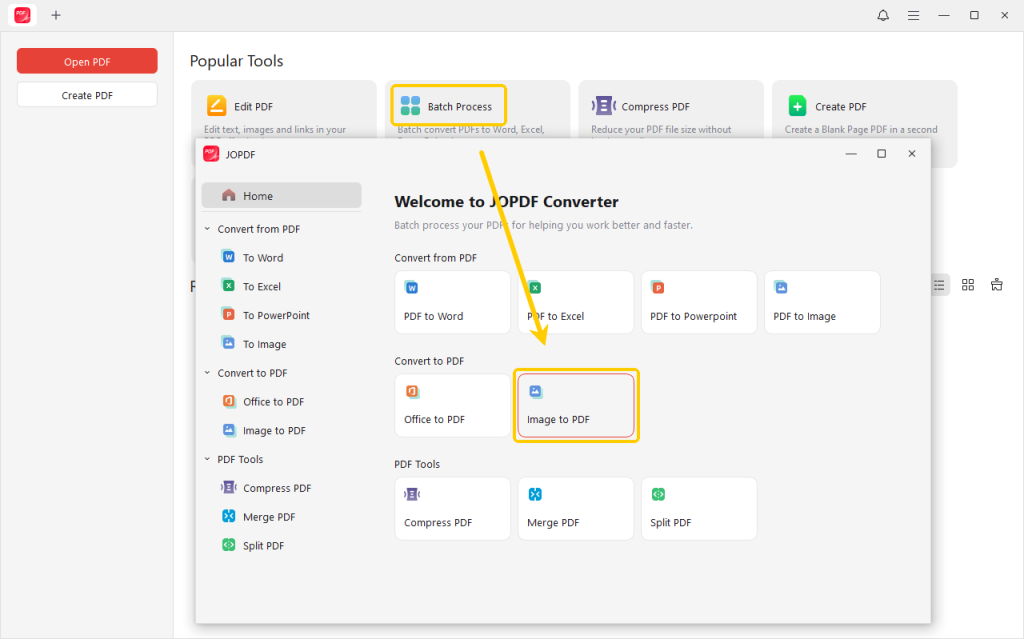
- Select all the screenshots you just took and drag them into the JOPDF window.
- Make sure your pages are in the correct order. Then, select the conversion method, page size, and location.
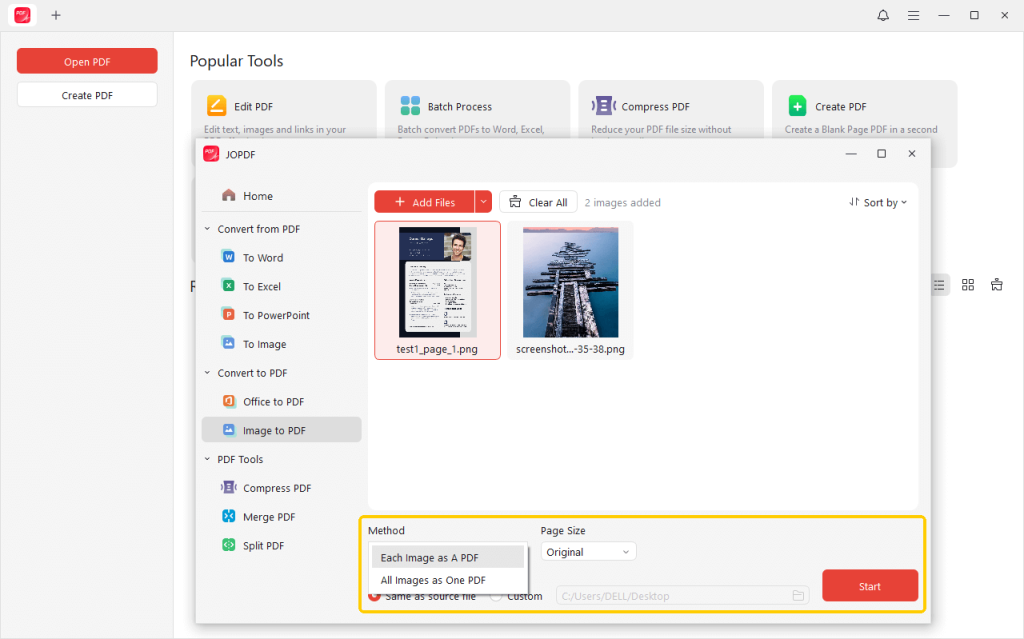
- Finally, click the Start button. JOPDF will instantly convert all your images together into one single, neat document.
Because JOPDF is a comprehensive PDF editor, it does much more than just convert images. After conversion, you can easily read and edit the PDF, such as highlighting text, adding personal notes, or deleting unnecessary pages.
If you want a tool that solves all your document problems, just try JOPDF today!
Way 4. Use Browser Extensions
A browser extension is a small, safe add-on program you can install directly into your web browser. These little helpers give your browser new powers. Luckily, there are extensions built specifically to download read-only PDFs from web pages with just one click.
How to use a browser extension to download a locked PDF:
- Open your browser and go to the Web Store.
- In the search bar, type words like “PDF downloader.”
- Look through the results. Find one with lots of positive reviews and five-star ratings. Click the Add to Chrome button.
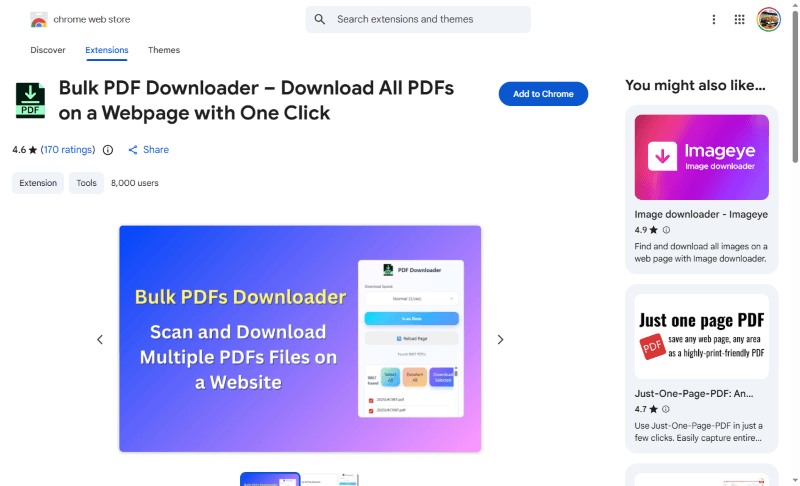
- Go back to the website that has the view-only PDF. Look at the top right corner of your browser screen (next to the address bar). You will see a new little puzzle piece or icon for your extension. Click it.
- The extension will scan the page, find the hidden PDF file, and give you a simple button to download it right to your computer.
Way 5. Try Website to PDF Converters
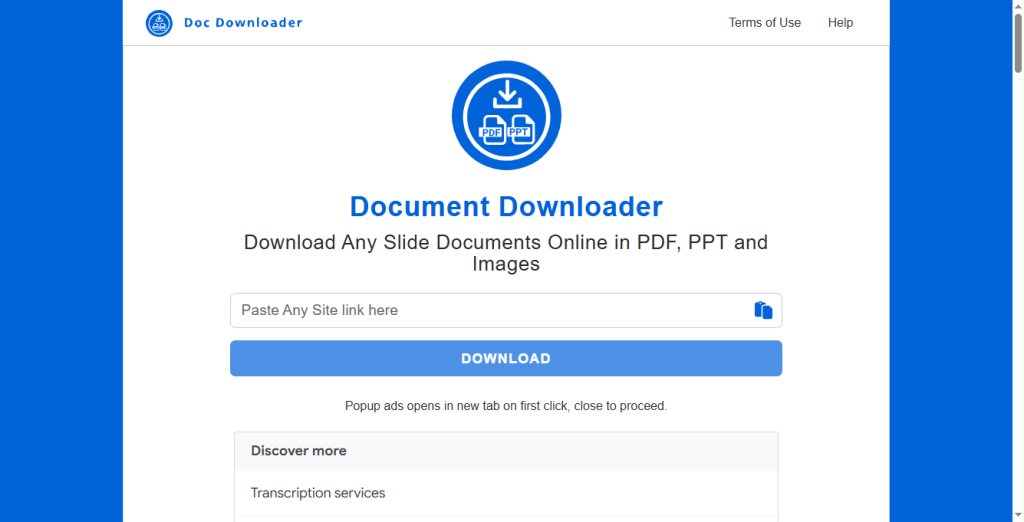
If you do not want to install any software or extensions, you can use some special websites to do the hard work for you. All you need to do is provide the website address, and these websites will conduct the analysis and extract the PDF documents for you.
This method is especially useful if you are trying to download AnyFlip to PDF or save files from similar flipbook-reading websites that present documents as web pages.
Here are the simple steps:
- Go to the website where your view-only document is located. Highlight the entire web link, then right-click and select Copy.
- Open a new tab in your browser and search for a downloader. Choose a popular, free site from the results.
- On the converter website, you will see a big empty text box. Right-click inside the box and select Paste to put your link there.
- Click the Convert or Download button. The website will process the link for a few moments. When it is finished, a download link will appear. Click it to save your new PDF.
Tips for Downloading a View-Only PDF from Website
Before you start downloading files, there are a few important tips to keep in mind to make the process easier and safer:
🔶 Log In First:
If the document is on a school website, a work portal, or a paid site, make sure you are fully logged in to your account first. If you try to use Developer Tools or online converters without being logged in, the computer will only see a locked login screen instead of your document.
🔶 Respect the Creator:
You can download read-only files for offline reading or for personal study. However, without the permission of the original author, do not sell, copy, or share others’ works.
🔶 Try Your Phone:
Websites usually set up complex access barriers for computers, but they may neglect mobile phones. If all other methods fail, you can try opening the webpage in your smartphone’s browser to see if you can save it from there.
Conclusion
That’s all about how to download view-only PDF from website. While website owners use different tricks to keep you from saving their files, you now have five easy ways to solve the problem.
You can start by trying the simple “print as PDF “trick. For the most difficult websites, taking screenshots and using a PDF converter is a reliable method. Try these steps today, and you will never be stuck with only viewable documents again!
FAQs
Table of Contents

Your Best Free PDF Expert in PDF editing, compressing, converting, annotating, protect, organizing, and more.
Free DownloadWindows · macOS · Linux

Queena
Editor
“As a staff editor for JOPDF, Queena excels at guiding users to the optimal tools and solutions. When she's not analyzing the latest PDF solutions, she enjoys spending her free time playing with her four cats.”