Introduction:
If you need to know how to download a protected PDF from a website, you have come to the right place. This guide will show you 5 easy ways to bypass the limit, from simple computer tricks to taking screenshots.
Way 1. Use the “Print to PDF” Function
Many website owners want to prevent users from saving files. To do this, they remove the standard “Save As” button from the screen. However, they very often forget to block the computer’s printing feature.
You can use a simple “Print” trick to save a protected PDF from website pages directly to your hard drive. This method is extremely fast and works on most standard websites.
Follow these simple steps:
1. Open the protected document on the website.
2. Press Ctrl+P on a Windows computer. If you use an Apple Mac, press Cmd+P. This opens the print menu.
3. Change the printer destination to “Save as PDF” or “Microsoft Print to PDF.”
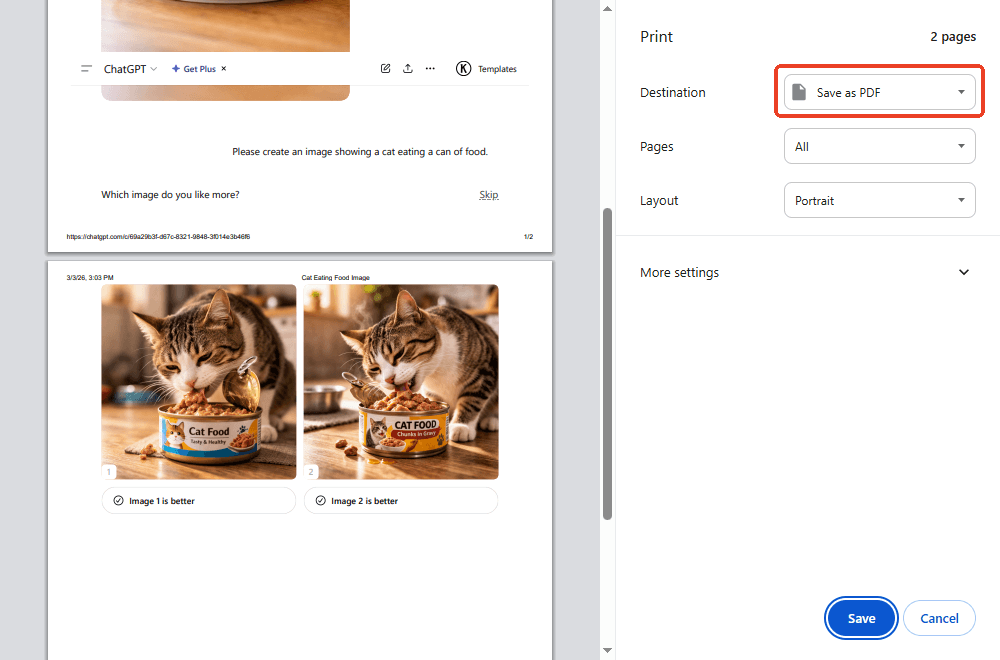
4. Click the Save button. Your computer will ask you where you want to keep the new file. Choose a folder and click Save.
Way 2. Screenshot and Convert to PDF
Sometimes, websites use very strong security. They might completely block the printing trick. If this happens, the absolute best way to download a PDF that is not downloadable is to take high-quality pictures of your computer screen. You can take a screenshot of every page you need to read.
After you have your pictures, you will need a powerful PDF converter to put them all together like a real book. In this case, you can try JOPDF. It is a fantastic, easy-to-use program that does this perfectly.
How to capture and convert your pages:
1. Open the document on the website.
2. Use your computer’s built-in screenshot tool (like the “Snipping Tool” on Windows or Cmd + Shift + 4 on Mac) to take a clean picture of the first page. Repeat this for all the pages you want to save.
3. Next, download and open the JOPDF on your computer.
4. Go to Batch Process and select the Image to PDF tool.
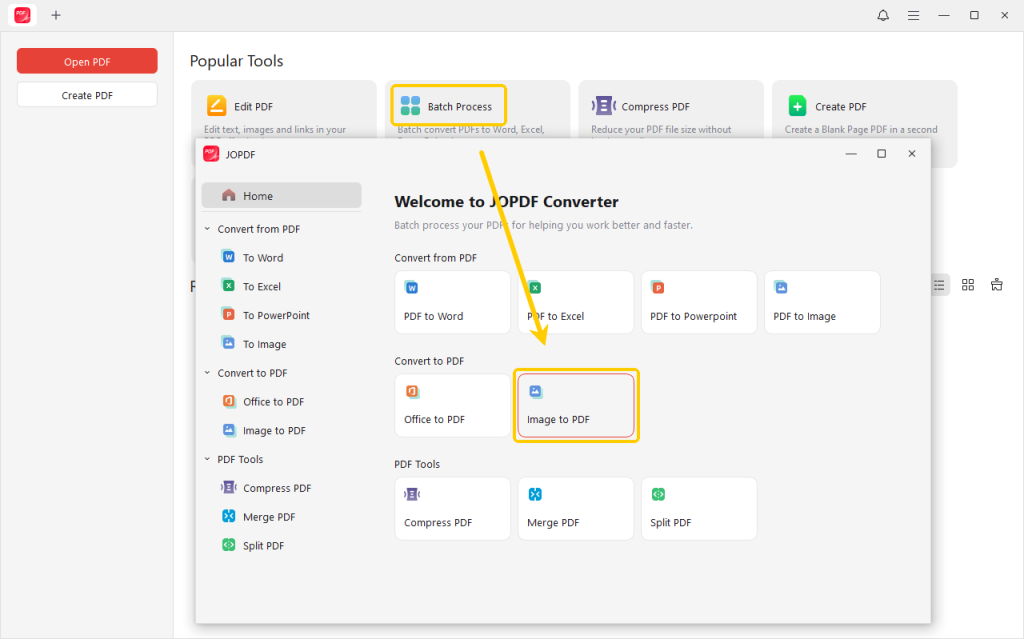
5. Upload all the screenshots you just took into JOPDF.
6. Select the conversion method.
You can choose to convert all images into one PDF. This is perfect if you are copying a continuous book or a long article. Or, if you prefer, you can save each image as a single PDF file.
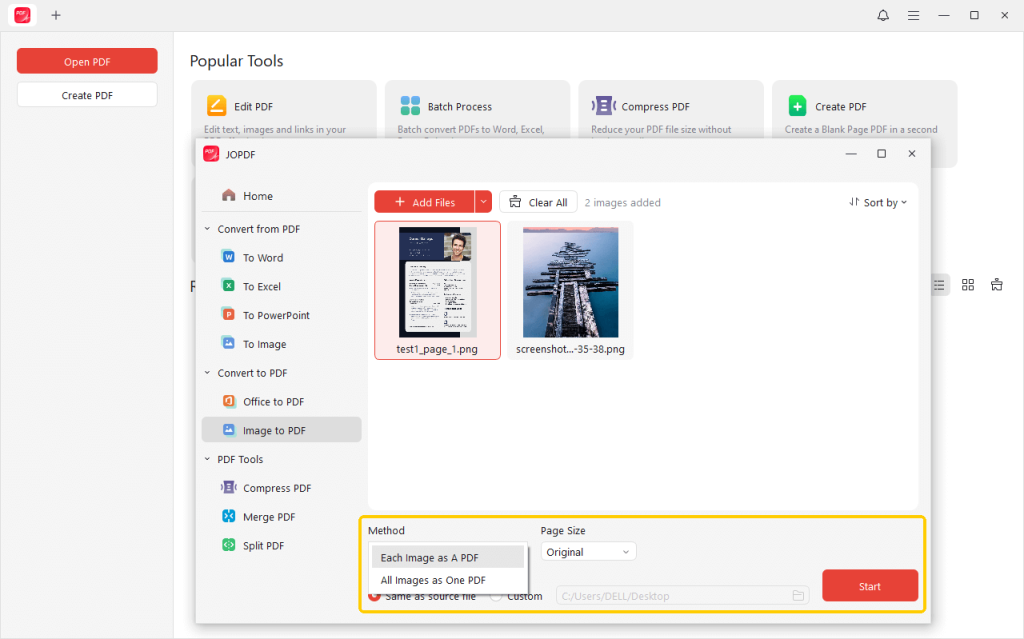
7. Finally, click the Start button, JOPDF will instantly convert the image to PDF format, giving you a clean, readable document to keep forever.
Way 3. Use the Browser’s Developer Tools
This method sounds a little bit technical, but it is actually very easy once you try it.
In fact, every single document displayed on the internet has a real, hidden web address. The website just puts a “frame” over it to hide the download button.
You can use a hidden menu in your web browser to find this secret address. This helps you easily download a protected PDF from a website.
Check the steps:
1. Open the website with the document. Right-click any empty space on the webpage, then click Inspect.
2. A panel with lots of confusing computer code will open on the side of your screen. Do not worry about the code. Just look at the top of this panel and click the Network tab.
3. Look for the small search bar inside the Network panel and type “.pdf“. Press the F5 key on your keyboard to refresh the web page.
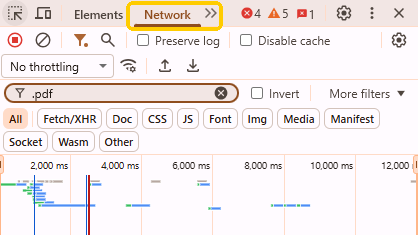
4. A file name will appear in the list. Right-click on that file name and select “Open in new tab.”
5. The document will now open in a clean, new window. Now, you can save the PDF easily.
Way 4. Disable JavaScript
Many modern websites use a special type of computer code called JavaScript. They use this code to actively block your mouse. For example, if you try to right-click a page to save it, JavaScript displays a message saying “Right-click disabled.”
Turning this code off is another clever way to download a locked PDF from a website.
How to do this in Google Chrome or Microsoft Edge:
1. Look at the very top of your web browser, where the website address is typed. Click the small “Padlock” or “Tune” icon right next to the web address.
2. Click the Site settings in the menu that drops down.
3. A new settings page will open. Scroll down the list until you find the word JavaScript.
4. Change the setting box from “Allow” to “Block.”
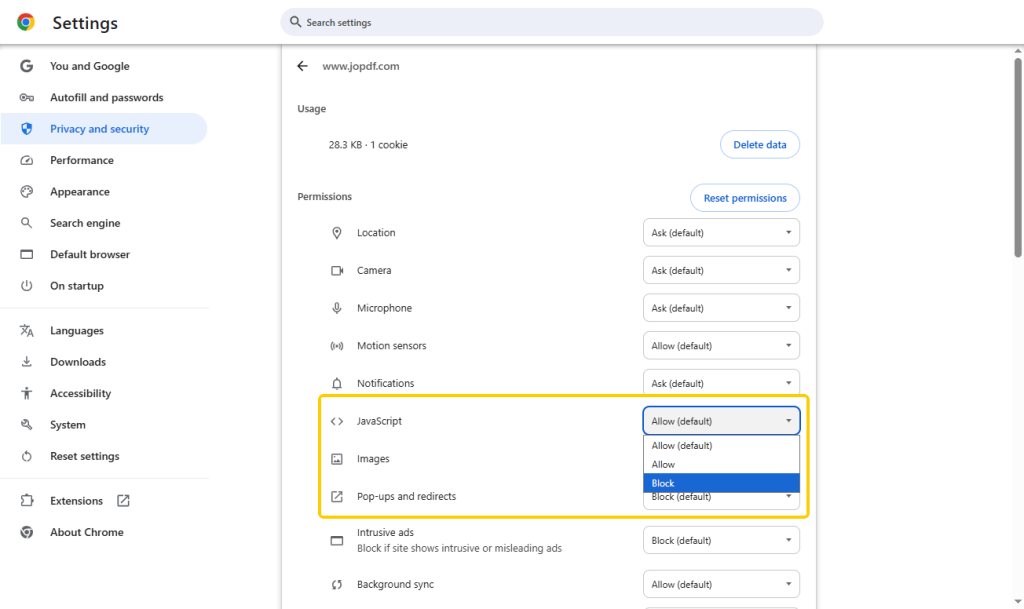
5. Go back to the website and refresh the page. Try right-clicking your mouse again. The block should be gone, and you can click Save As to save the PDF.
Way 5. Try Online Website to PDF Converters
Sometimes, a document is not actually a separate file. Sometimes, a long manual or guide is embedded directly on the webpage, making it impossible to download normally. When this happens, you can use a web-based tool to download a protected PDF from a website online.
These special tools capture the entire long website and turn it into a digital document for you.
How to use online converters:
1. Highlight and copy the web address (URL) of the page you want to save.
2. Open a new tab and visit a trusted online converter, such as Sejda or Web2PDF.
3. Paste your copied web address into their large search box.
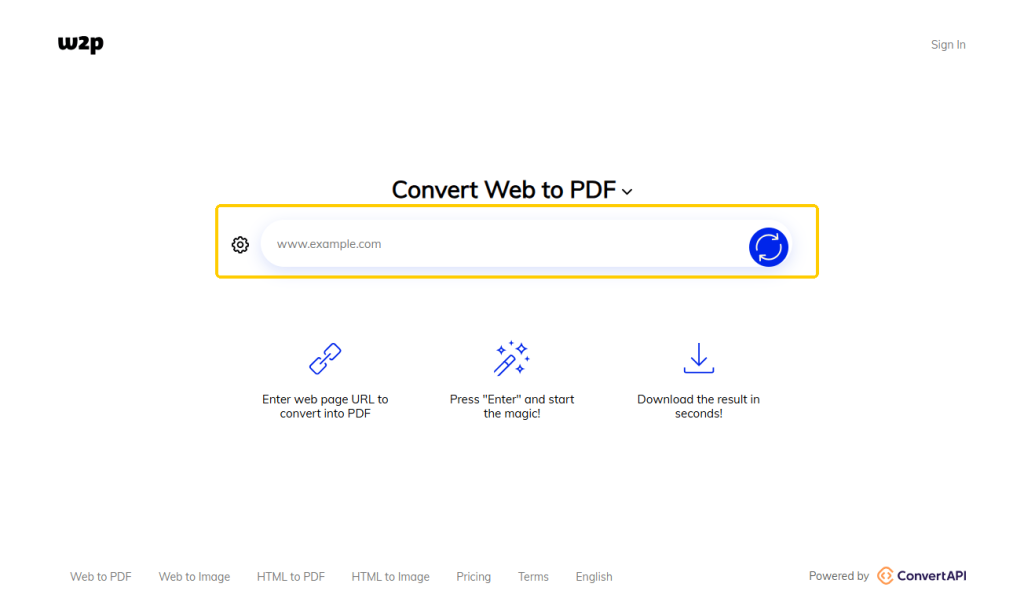
4. Click the Convert button.
Bonus Tip: How to View and Manage PDFs Easily
Once you successfully bypass the website locks and save your files, you need a great program to read and organize them. You can try using JOPDF to view the PDF after downloading it. It is much more than just a converter tool; it is a premium reading program.
Key Features for Better Reading:
✅ Various Reading Modes: JOPDF makes reading on a screen very comfortable. You can easily put PDF in full screen to hide your computer taskbar and focus entirely on your reading without distractions.
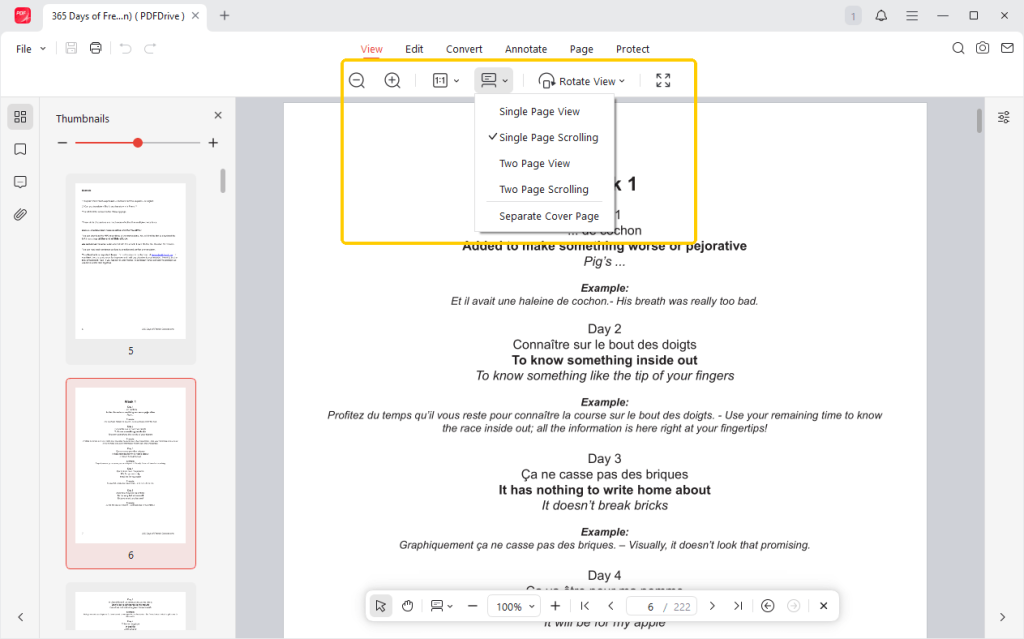
✅ Annotation Tools: JOPDF lets you highlight important sentences, add yellow sticky notes, and even draw on the PDF with a digital pen tool to circle key images.
✅ Page Management: You can easily split large files into smaller pieces. You can merge three different downloaded documents into one big folder, or simply delete blank, useless pages to save space on your computer.
Click the download button to get JOPDF and enjoy reading!
Conclusion
It can be very annoying when website owners try to lock down educational content or important manuals. Thankfully, you can easily download a protected PDF from a website using the Print to PDF trick, hidden developer menus, or the JOPDF image converter, so you can read it offline.
However, we must share a very strict and important warning. You can do this for your own personal reading and private research. But the downloaded PDFs should not be used for commercial purposes. You absolutely cannot sell, post, or share these files for profit; otherwise, it will be against the law. Always respect the original author’s copyright.
FAQs
Table of Contents

Your Best Free PDF Expert in PDF editing, compressing, converting, annotating, protect, organizing, and more.
Free DownloadWindows · macOS · Linux

Queena
Editor
“As a staff editor for JOPDF, Queena excels at guiding users to the optimal tools and solutions. When she's not analyzing the latest PDF solutions, she enjoys spending her free time playing with her four cats.”
![4 Free and Proven Methods to Convert PDF to ODS [Detailed]](https://b.jopdf.com/wp-content/uploads/2026/10/convert-pdf-to-ods.png)