Introduction :
A PDF Portfolio is a convenient way to package multiple files, such as PDFs, Word, and images, into a single container. However, not all PDF editors support PDF Portfolio. How to convert a PDF Portfolio to a single PDF? Fortunately, you’re in the right place! In this JOPDF guide, you’ll learn 3 effective ways to convert a PDF Portfolio to one PDF using Adobe Acrobat and alternative methods. Now, let’s get started!
A PDF Portfolio is a collection of multiple files bundled into a single PDF container. Meanwhile, it doesn’t combine all files into one continuous document. However, sometimes you may need to print all content once, share files with others who don’t use Adobe Acrobat, or archive documents in a single file. How to convert a PDF Portfolio into one PDF? Keep reading for proven methods.
Can You Convert a PDF Portfolio to One PDF?
Yes, you can. But whether it is possible depends on the contents of the Portfolio. If the PDF Portfolio contains only PDF files, you can extract those PDFs and combine them into one continuous PDF. In that case, you can use software like Adobe Acrobat.
However, if your Portfolio includes non-PDF files, such as Word documents and Excel spreadsheets, you need to convert those files to PDF first before merging them. In the following content, let’s learn how to save a PDF Portfolio as a PDF using 3 effective methods.
Method 1: Convert a PDF Portfolio to a Single PDF Using Adobe Acrobat Pro
If your PDF Portfolio mainly contains PDF documents, Adobe Acrobat Pro offers the most reliable way to convert it into a standard PDF. It can detect a PDF Portfolio and pull its component files into the Combine Files tool automatically. Here are the exact steps to convert a Portfolio to a single PDF using Adobe Acrobat Pro.
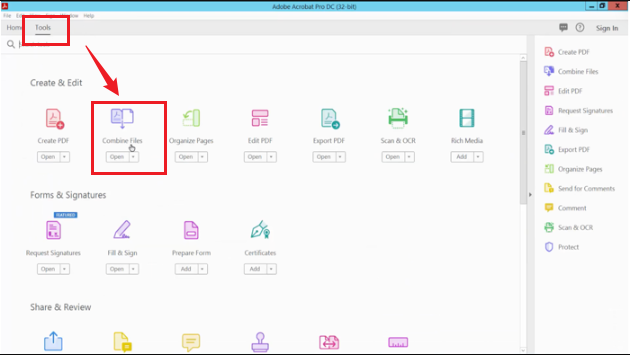
Step 1. Launch Adobe Acrobat Pro, go to Tools, and click Combine Files. Alternatively, go to File > Create and select Combine Files into a Single PDF.
Step 2. In the Combine Files window, click Add Files to import your target PDF Portfolio.
Step 3. Then click and drag the thumbnails to rearrange the page order. Next, click the Options icon and uncheck “Save as PDF Portfolio”.
Step 4. Now, click the Combine button. Adobe Acrobat Pro will process the files and open a new single PDF.
Step 5. Finally, click File and select Save As to save the new single PDF file.
Pros
- It can preserve the original PDF quality.
- It can handle large files efficiently.
- It allows page reordering.
- It supports bookmarks and metadata.
Cons
- It requires Adobe Acrobat Pro.
- It doesn’t convert embedded Word or Excel to PDF automatically.
Method 2: Extract Files from the PDF Portfolio and Merge Them
Additionally, you can also extract files from the PDF Portfolio and merge them. This method is quite useful when you want to inspect, convert, or selectively include files. Additionally, if your Portfolio includes non-PDF files, you can extract them first, convert them to PDF, and merge them into one PDF.
In this method, you can use JOPDF to merge multiple PDF files into a single document. Additionally, it allows you to convert Word documents, Excel spreadsheets, images, or other files into PDFs. What’s more, JOPDF offers additional tools for editing and managing PDFs. Now, let’s learn how to save a Portfolio as one PDF.
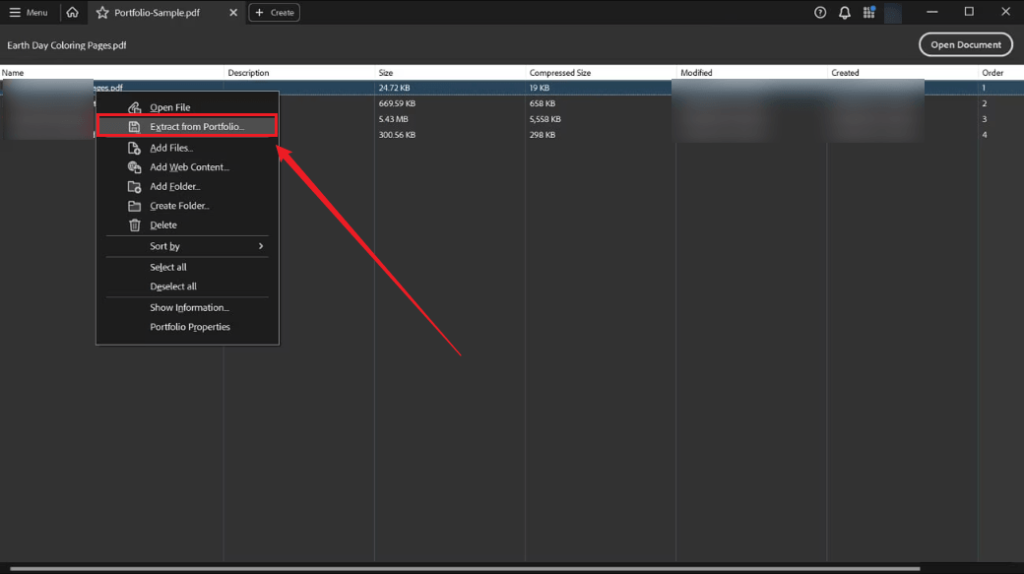
Step 1. Open the PDF Portfolio in Adobe Acrobat or another compatible viewer and then select the target files for extraction. Next, right-click the selection and select the “Extract from Portfolio…” option.
Step 2. Launch JOPDF on your computer. If the extracted files are non-PDF files, go to Batch Process and select the corresponding feature to convert non-PDF files to PDFs.
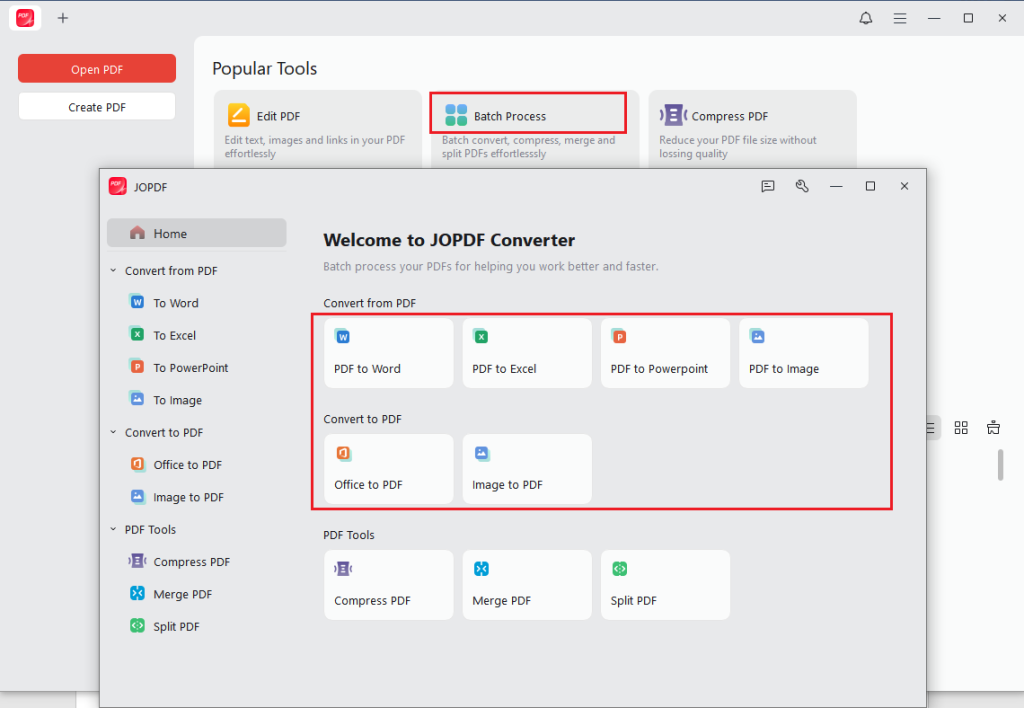
Step 3. Then go to Batch Process > Merge PDF and click Add Files to upload the converted PDF files.
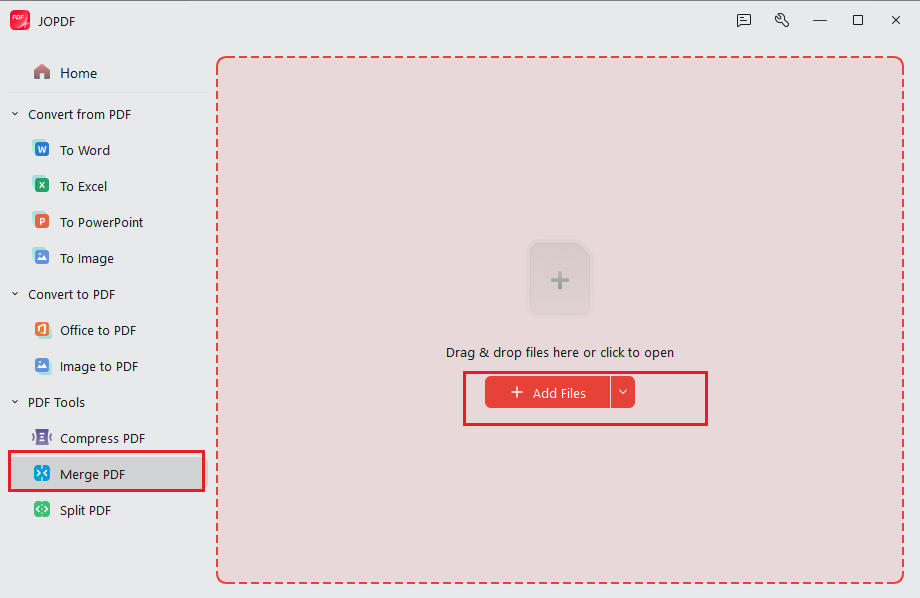
Step 4. Finally, click Start to merge the PDFs into one PDF.
Pros
- It is easy to merge extracted PDF files.
- It can annotate PDFs with comments and highlights.
- It can convert non-PDF files to PDFs and vice versa.
- It allows you to manage and reorder PDF pages.
- It can extract pages from a PDF.
Cons
- You’ll still need to extract the files from the Portfolio first.
- Non-PDF files must be converted before merging.
Method 3: Convert PDF Portfolio to a Single PDF with Acrobat Plugin
What’s more, you can try Adobe Acrobat plugins for Portfolio conversion. AutoPortfolio is a specialized plug-in developed by Evermap for Adobe Acrobat. It enables you to extract, convert, manage, and process PDF Portfolios. How to convert a PDF Portfolio to one PDF with AutoPortfolio? Below is the step-by-step guidance for your reference.
Step 1. Install the AutoPortfolio plug-in for Adobe Acrobat. Then launch Adobe Acrobat and don’t open the PDF Portfolio directly.
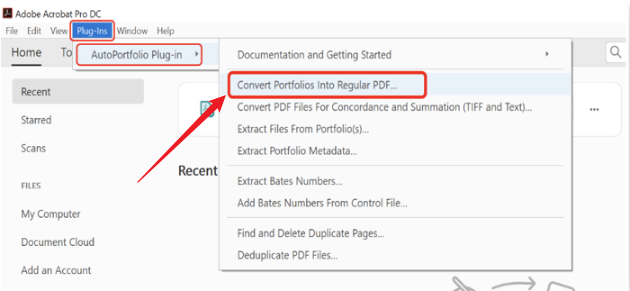
Step 2. Go to Plug-ins > AutoPortfolio Plug-in > Convert Portfolio into Regular PDF. Then a conversion dialog will open.
Step 3. Click Add Files to import your Portfolio file. Then in the Specify Sort Order dialog, choose which components to include, such as Select All or Toggle Selection.
Step 4. Click Browse to choose an output folder and configure the output options, such as “Extract and process attachments” and “Convert non-PDF attachments into PDF format”. Meanwhile, you can click the “Conversion Options” button for finer control. Next, click OK to close the options dialog.
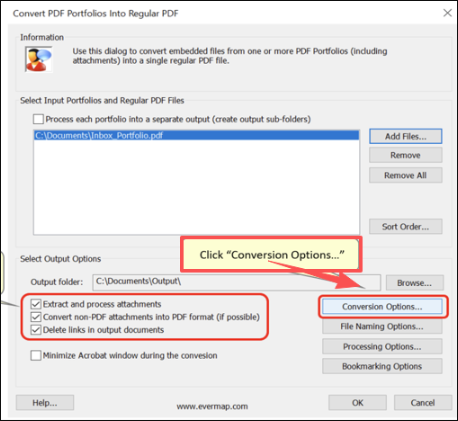
Step 5. Finally, click OK on the main conversion dialog to start the conversion.
Pros
- It supports converting multiple PDF Portfolios to a single PDF.
- It has strong attachment handling capability.
- It can export metadata to CSV format or generate detailed HTML or CSV reports.
- It offers extra features for Professional use.
- It offers a 30-day unrestricted trial.
Cons
- It requires Adobe Acrobat Pro.
- It is not a simple one-click tool for casual use.
Tips Before Converting a PDF Portfolio
To prevent data loss, formatting issues, or unnecessary rework, you can take some precautionary steps before you convert a PDF Portfolio to a single PDF. Here, let’s have a look.
- Backup the original PDF Portfolio
- Check the embedded file types
- Decide on the page order
- Preserve important elements
- Optimize the final PDF
To Wrap Things Up
A PDF Portfolio is an excellent way to package multiple related files. However, it is not always the most convenient format for sharing, printing, or archiving documents. In that case, PDF is the better format, with better compatibility and ease of management. How to convert a PDF Portfolio to a single PDF? Adobe Acrobat Pro provides the most reliable workflow for extracting files from a Portfolio and combining them into a single PDF. You can also use SwifDoo PDF to combine extracted files into one PDF. Hopefully, this guide can be helpful to you.
Also Read:
FAQs
Table of Contents

Your Best Free PDF Expert in PDF editing, compressing, converting, annotating, protect, organizing, and more.
Free DownloadWindows · macOS · Linux

Olivia
“Olivia is an editor at JOPDF, where she writes practical guides and insightful articles on managing PDFs—covering topics like editing, annotating, converting, and organizing files efficiently. Passionate about clear communication and digital productivity, Olivia enjoys spending her free time cooking, watching movies, and hiking to unwind and find inspiration for her writing.”
![4 Free and Proven Methods to Convert PDF to ODS [Detailed]](https://b.jopdf.com/wp-content/uploads/2026/10/convert-pdf-to-ods.png)