Summary :
You created or received a password-protected PDF, and you can open or edit it with your password. Now you may wish to use the file later without having to type the password 100 times. Or, you need to share the file with others who do not have the password. Those in the same situation would love this article with simple PDF password-removal methods. Go over how to remove a password from a PDF, possibly a bank statement, or other sensitive document, in 5 ways.
Way 1: How to Remove a Password from a PDF with JOPDF
Using JOPDF to remove PDF passwords is super straightforward and effort-saving. The free PDF editor is available for Windows and Mac. It combines all the essential and even advanced editing tools in one place. You can annotate, modify, organize pages, and protect PDFs at no cost. Its UI is intuitive and friendly. It is great for handling PDF unlocking issues.
How to remove a password from a PDF with JOPDF:
#1. How to Remove Owner Password from PDF
Step 1: Download and install the JOPDF application for Windows or Mac.
Step 2: Open the PDF you need to remove the password with the JOPDF.
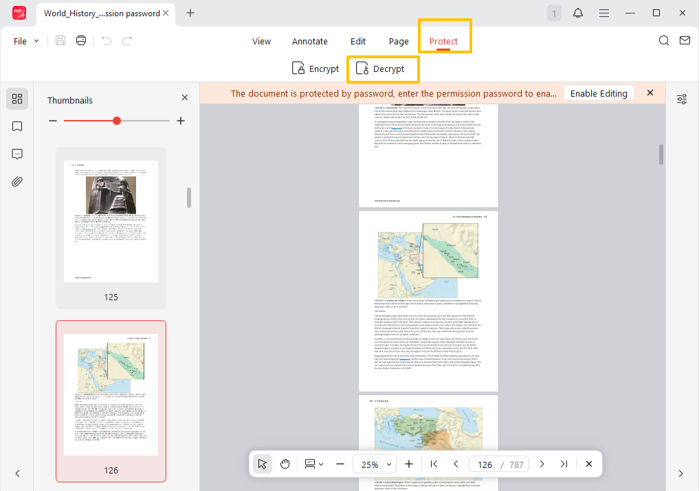
Step 3: Click Protect > Decrypt from the top menu bar.
Step 4: Enter the password in the pop-up window and click the Decrypt button.
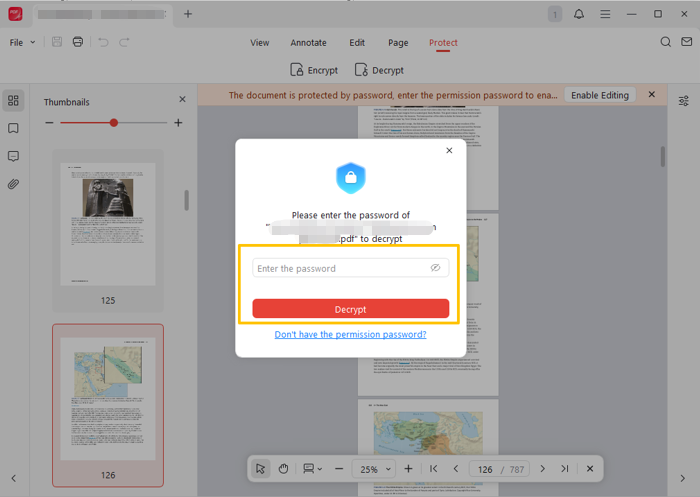
Step 5: If you don’t have the password, click Don’t have the permission password. Then, proceed to remove the permissions password from the PDF according to the on-screen instructions.
To remove a password from a PDF so it opens without a password, follow the steps below.
#2. How to Remove a User Password from a PDF
Step 1: Download, install, and launch JOPDF.
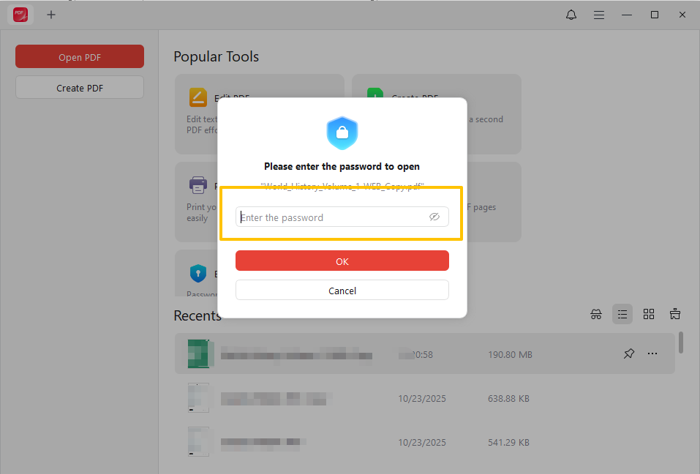
Step 2: Click Open PDF to select the PDF to remove the password from.
Step 3: Type the password and select OK to open and access the PDF.
Step 4: Go to Protect > Decrypt, and click Remove in the window that appears.

Step 5: In a flash, JOPDF can remove the password protection from the PDF document without losing data.
Way 2: How to Remove a Password from a PDF File in Adobe Acrobat
You can remove a password from a PDF using Adobe Acrobat Pro on a Mac or Windows. It is an excellent way if you are already a user or have a sufficient budget. Popular PDF software provides all the security features for PDFs. It can add signatures, watermarks, redactions, and many more.
Here is how to remove a PDF password in Adobe Acrobat Pro.
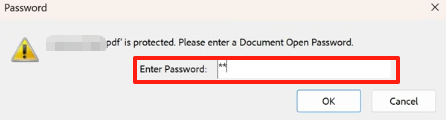
Step 1: Open your password-protected PDF with Acrobat.
Step 2: Enter the correct password and click OK.
Step 3: Go to the Menu in the top-left corner and select Protection > Security properties.
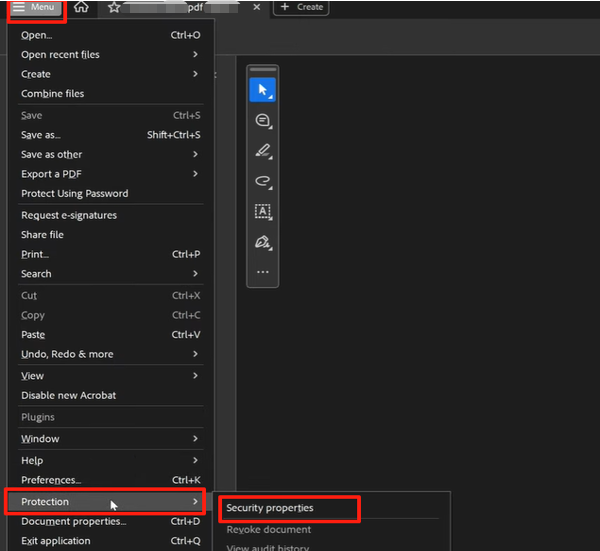
Step 4: Hit the drop-down arrow next to Security Method, then select No Security.
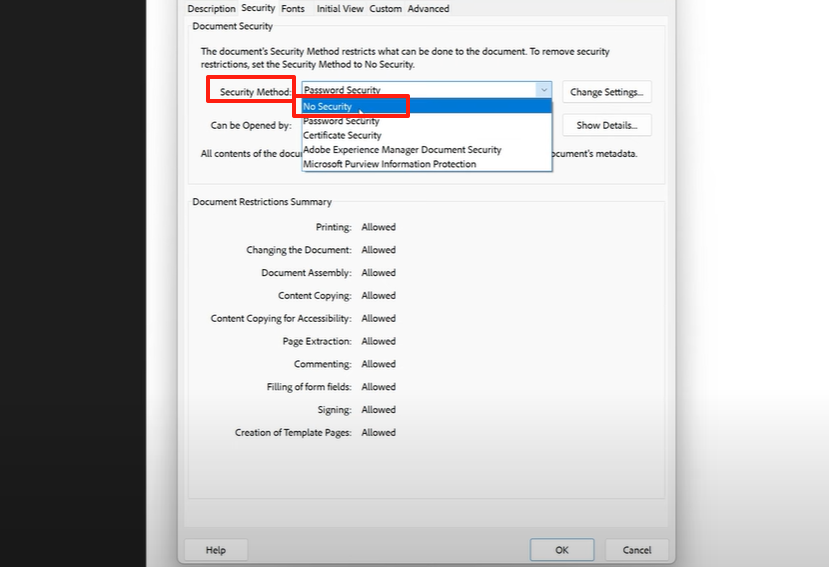
Step 5: Click OK in the confirmation window, then click OK again. Step 6: Save the file with a different name to complete the password removal from the PDF.
Way 3: How to Remove Password Protection from a PDF in Preview
There is a built-in way to remove a password from a PDF for free on Mac: use Preview. The preinstalled Preview application is a reliable PDF viewer and annotator for Mac users. It lets you perform basic PDF highlighting and note-taking. Moreover, it can merge PDF files. It requires you to know the open password.
Learn how to remove password protection from a PDF file for free after opening it using Preview.
Step 1: Right-click the PDF you desire to remove passwords from and choose the open program as Preview.
Step 2: Provide the password to open the file, and then go to File > Export.
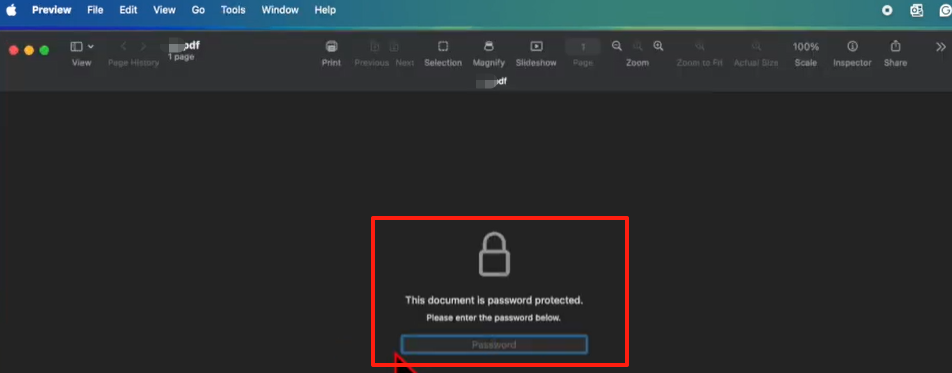
Step 3: Click the Permissions button to open the settings window.
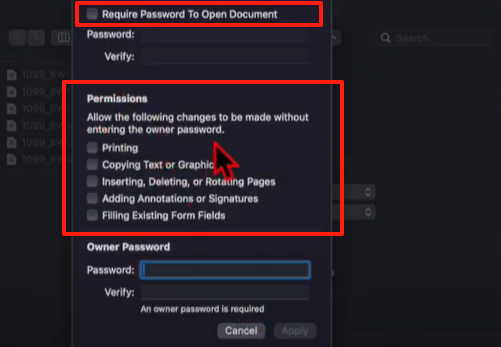
Step 4: Uncheck the Require Password To Open Document box.
Step 5: Check the permission boxes you want to allow, and enter the owner’s password if there is one. Step 6: Click Apply and save the file to start removing passwords from the PDF.
Way 4: How to Remove PDF Password in Google Chrome
Regardless of whether you are a Windows or Mac user, you can remove a password from a PDF document in Chrome. The print and save-as-PDF feature in the browser is a great trick for removing a user password. As a result, next time anyone with the PDF can open it without a password. This way doesn’t involve paid apps.
Step 1: Drag and drop the password-protected PDF file to the tab bar in Google Chrome.
Step 2: Enter your password in the required field and submit to open the PDF.
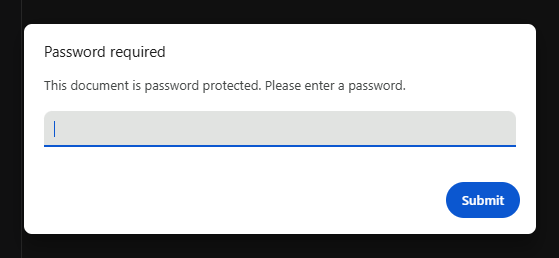
Step 3: Tap the Print button in the upper-right corner, then select Save as PDF in the Destination menu.
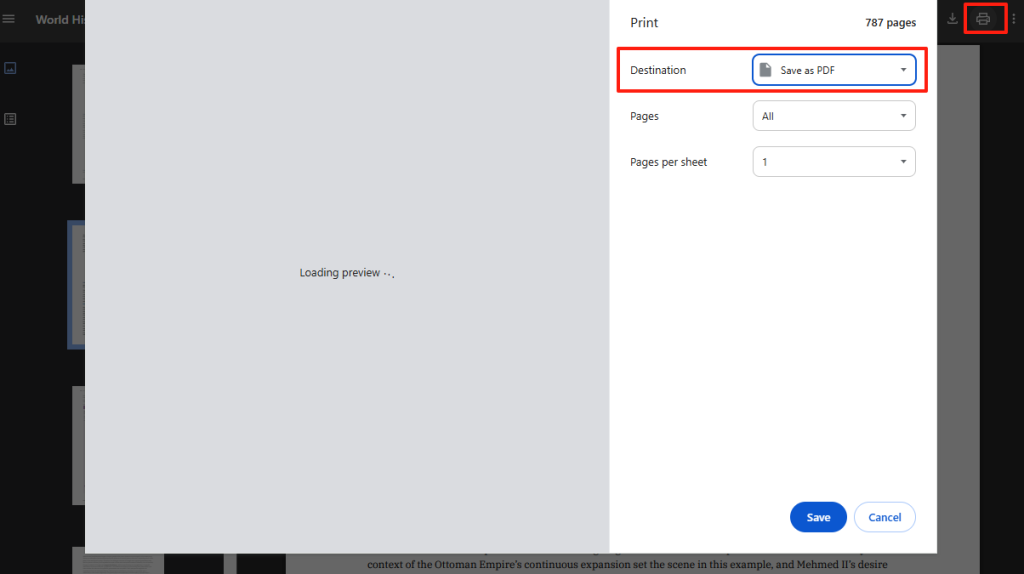
Step 4: Hit Save and save the PDF to your preferred location to remove the password from the PDF.
Way 5: How to Remove a Password in a PDF with iLovePDF
If you don’t refuse to use online resources, you can remove passwords from PDF files using iLovePDF. It is very easy, and you don’t have to click through many annoying ads on its website. This online platform even lets you remove security from a PDF without the password for editing. It has no registration and can process a larger file.
Refer to the steps to remove a password from an Adobe PDF with iLovePDF.
Step 1: Navigate to the Unlock PDF page on iLovePDF.com.
Step 2: Click Select PDF file to upload your PDF file.
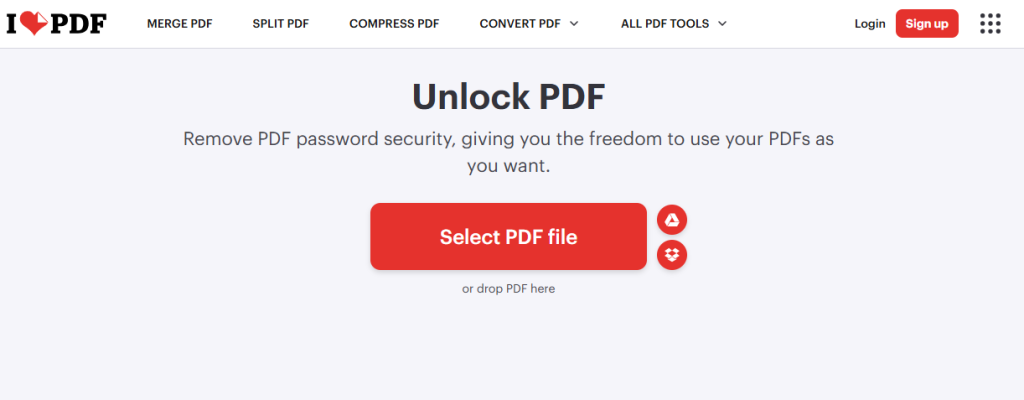
Step 3: Click the Unlock PDF button, paste or type the open password, and click Send.
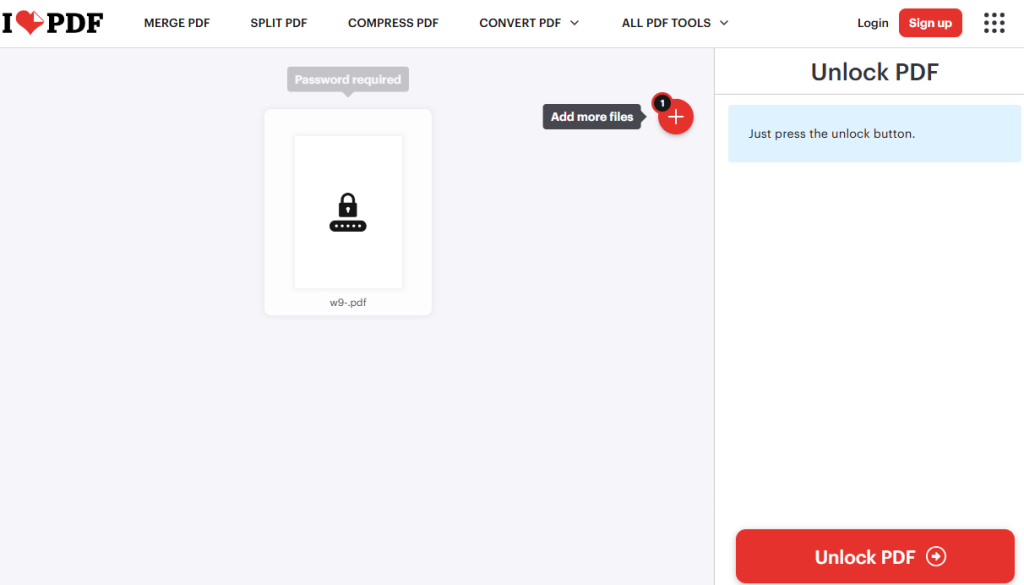
Step 4: Wait for the web tool to remove password encryption from the PDF, and then download the unprotected version.
How Can I Remove a Password from a PDF without the Password?
You may be looking for assistance with a PDF protection issue, where you unfortunately forgot the PDF password. You are facing the challenge of how to remove an unknown password from a PDF to view or make changes.
What you should be aware of is that it can lead to legal problems to remove permissions from a PDF without the password. If you’re not the document owner or are not authorized, unlocking the document might violate copyright or other security laws. But if you created or keep the files legally and just lost the password, you can try a password recovery. Software tools such as iSeePassword Dr.PDF are good, and you can provide clues to help retrieve the password.
Final Words
Do you want to be able to open, print, or edit a PDF file in the future without having to type your password? The 5 best ways outlined in this article are worth praise for their free service, ease of use, convenience, and reliability. There is also an extra tip to explain how to remove security from a PDF without a password.
FAQs
• Open the password-protected and signed PDF in Adobe Acrobat Pro.
• Click the upper left "Lock" icon.
• Click “Permission Details” > “Security Method”, and select “No Security”.
• Please enter the password you saved, and confirm the action to remove it.
Table of Contents

Your Best Free PDF Expert in PDF editing, compressing, converting, annotating, protect, organizing, and more.
Free DownloadWindows · macOS · Linux

Selena
Staff Editor
“Selena is a staff editor working for JOPDF, passionate and committed to providing how-to and round-up articles. Over 8 years of specialized skills and experience in PDF solutions, hoping to help users ease their lives and solve whatever they encounter. "Work smarter, not just harder!"”