![Expert Guide on How to Print Bank Statement [Exact Steps]](https://b.jopdf.com/wp-content/uploads/2026/06/how-to-print-bank-statement.png)
Introduction :
Printing a bank statement is a common need in our daily lives. When you are applying for a loan, filing taxes, verifying income, or keeping personal financial records, you need to print a copy of your bank statement. Fortunately, most banks allow you to download and print statements directly from online banking platforms or mobile apps. How to print a bank statement? In this JOPDF guide, I will give you a comprehensive tutorial.
In the following content, I will introduce you to step-by-step guidance on how to print a bank statement from online banking platforms, mobile banking apps, and PDF files. Meanwhile, you’ll learn a useful way to print multiple bank statements at once using JOPDF. Now, let’s explore this article!
How to Print a Bank Statement from Online Banking
To access and print bank statements, online banking is one of the most common and reliable ways. Moreover, most major financial institutions offer downloadable PDF statements, such as:
- Bank of America
- Wells Fargo
- Chase
- HSBC
- Citibank
- Barclays
- Santander
- Capital One
You can access your online banking platform in your browser and print the statement there, or use a dedicated PDF printer for more customization. Here, let’s learn how to download and print a bank statement from online banking.
Step 1. First, visit your bank’s official website and sign in securely with your username and password.
Step 2. Then, navigate to Statements, Documents, or eStatements. Most banks place statements under those sections.
Step 3. Next, you can select the desired statement period. For instance, select a monthly, quarterly, or custom date range. Then, the banking platform will display the statement.
Step 4. Here, I suggest you download the statement as a PDF for digital storage. Next, open the statement PDF in your browser and press Ctrl + P or Cmd + P to open the Print pop-up. Select your printer and personalize the print settings. Finally, click Print.
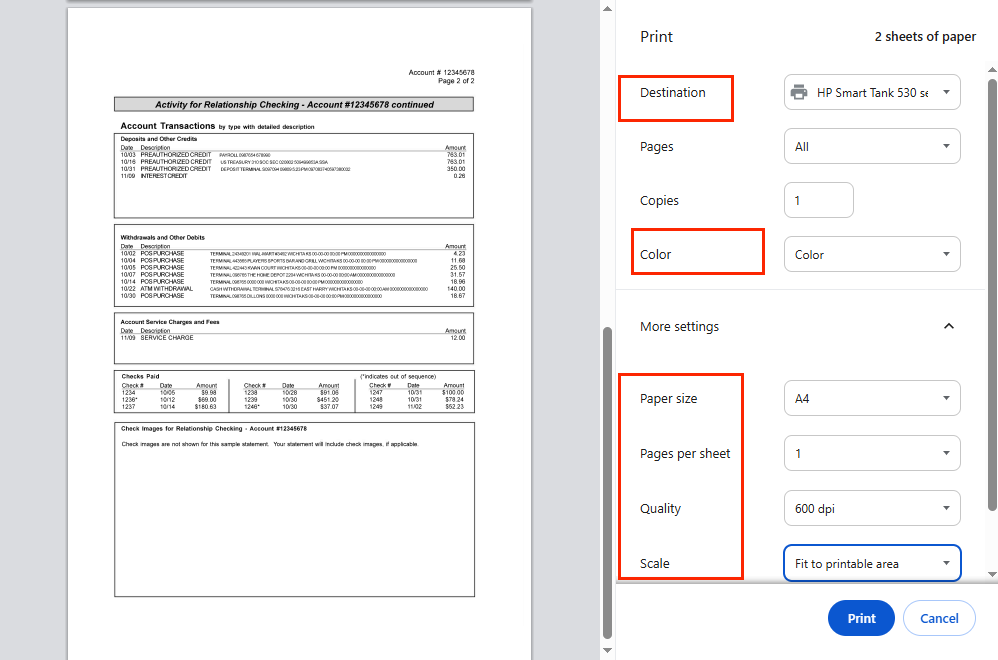
Useful Tips for Better Printing:
- Rather than printing directly from a webpage, you’d better use the official PDF version for printing.
- Check the PDF page orientation before printing.
- Select “Fit to Page” for printing.
- If color printing is unnecessary, printing in grayscale can save ink.
How to Print a Bank Statement from a Mobile Banking App
Similarly, most banking apps allow you to view and download statements from your mobile phone or tablet. You can access statements anywhere, even if your computer is not with you. Also, you don’t need to visit a branch. How to print bank statements from a mobile app? Follow the instructions below:
Step 1. Run your bank’s app on your phone and sign in securely.
Step 2. Next, locate the Statements or Documents section to access statements. Select the statement period you need and download it as a PDF file.
Step 3. Next, open the statement PDF on your phone, tap the Share or Menu icon, and select Print.
Step 4. Select your printer, customize the print settings, and hit Print to print the statement.
How to Print a Bank Statement from a Downloaded PDF
Sometimes, you already get a PDF copy of your bank statement. In that case, it is quite easy to print a bank statement. Below is how to print a PDF bank statement:
Step 1. Locate the PDF bank statement and open it with a PDF reader like JOPDF.
Step 2. Then, you can review the statement to ensure all pages are present.
Step 3. Click the Print icon or press Ctrl/Cmd + P to access the Print dialog.
Step 4. Select your printer and set the paper size to A4 or another size. Here, you can select to print the statement in grayscale or color. Also, tick the “Print on Both Sizes of Paper” checkbox as needed. Meanwhile, adjust other print settings as needed. Finally, click Print.
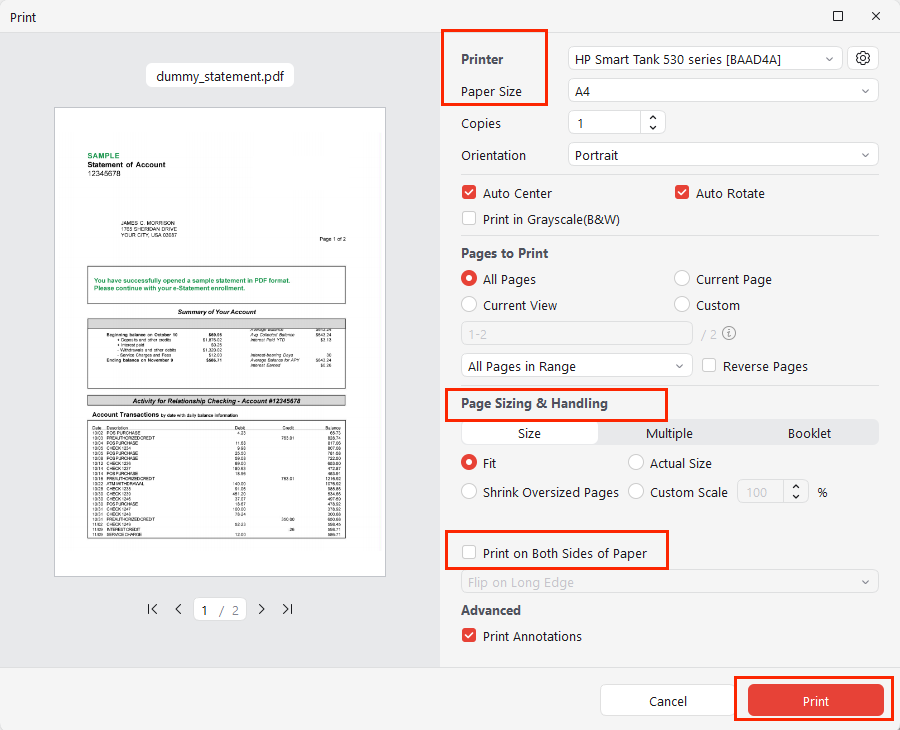
It is quite effective to print and edit bank statements in JOPDF. Here, I also want to recommend the useful print settings for you:
| Settings | Recommendation |
| Paper Size | A4 or Letter |
| Orientation | Auto |
| Scale | Fit to page |
| Color | Grayscale for savings |
| Double-Sided | Optional |
Before printing statements, you can make some necessary edits, such as removing unnecessary pages, merging multiple PDF statements, or redacting some transaction information. In those situations, a reliable PDF editor such as JOPDF can help you prepare PDF statements before printing.
How to Print Multiple Bank Statements at Once
Sometimes, you need several months or even years of statements for mortgage applications, tax preparation, or other purposes. In that case, you need to print multiple bank statements. How to print multiple bank statements at once? Here are two options for you.
The first one is to use a dedicated PDF tool to batch print PDF statements. The second is to merge the statements into a single PDF and then print it.
Option 1: Merge Statements into One PDF
The PDF merge feature of JOPDF allows you to combine multiple bank statement PDFs into a single PDF for batch printing. Moreover, JOPDF lets you print a bank statement double-sided. If you need, you can also use JOPDF to print PDFs as booklets.
How to print multiple bank statements at once? Follow the guidance below:
Step 1. Run JOPDF on your PC, click Batch Process under Popular Tools, and select Merge PDF. Then, click Add Files to import the statements you want to combine.
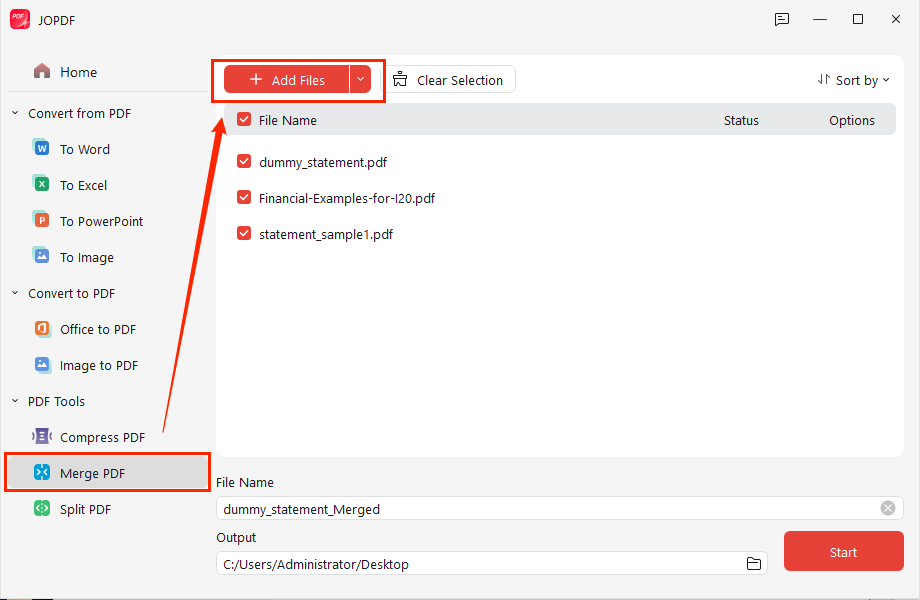
Step 2. Click the Start button to merge them into one.
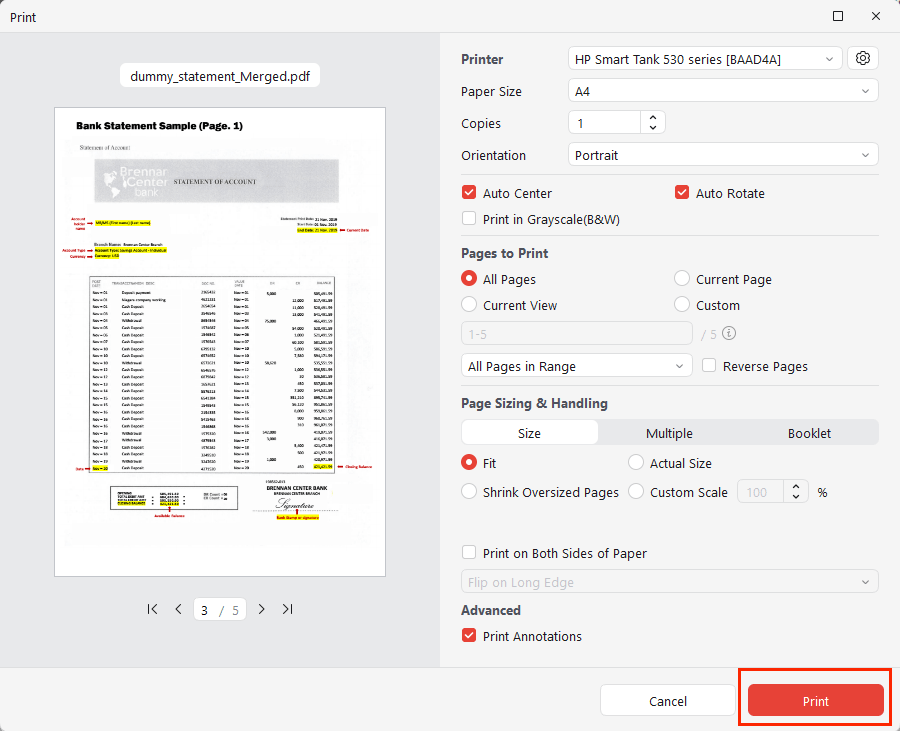
Step 3. When the combining process is done, the merged statement PDF file will open in JOPDF. Now, click the Print icon to enable the Print window. Here, you can select the target printer, set the page size, and adjust other printing settings. Finally, click Print.
Option 2: Use a PDF Batch Printing Tool
In addition, you can use a dedicated PDF batch printing tool, like SwifDoo PDF. It is a cost-effective alternative to Adobe Acrobat that offers viewing, editing, annotating, converting, and organizing features for PDFs. You can use it to print multiple PDFs at once. Below are the instructions:
Step 1. Run SwifDoo PDF and click Open to import one of the target bank statements.
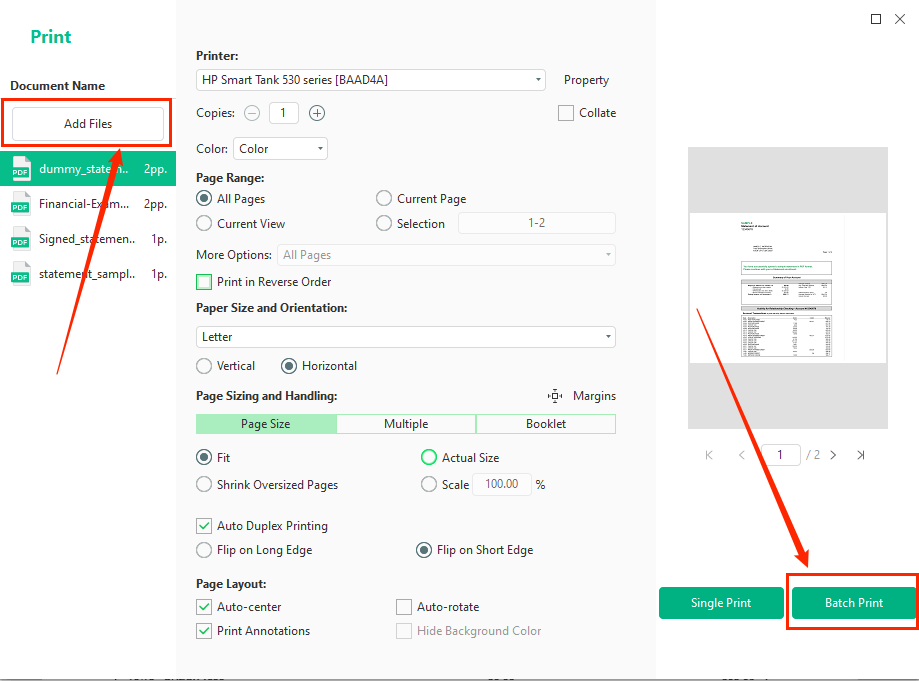
Step 2. Click the Print icon to access the print window. Here, click Add Files on the left panel to import other statements that you want to print together.
Step 3. In the Print window, select the printer, set the page size and paper handling, and adjust other print settings as needed. Finally, click Batch Print.
How to Print a Bank Statement Without Showing Transactions
Sometimes, you want to print bank statements without showing transactions. How to print bank statements without revealing every transaction? Here are two workable options for you to choose from:
Option 1: Request a Bank Letter
Many banks can provide account verification letters, balance confirmation letters, or proof of account ownership. Compared to statements, those documents contain less sensitive information. Hence, you don’t need to offer bank statements with transactions.
Option 2: Redact Sensitive Information
You can use a dedicated PDF editor to redact sensitive information in the bank statements. I have tested and picked up the following tools:
- SwifDoo PDF
- Adobe Acrobat Pro
- Wondershare PDFelement
- Foxit PDF Editor
Final Thoughts
How to print a bank statement? In this article, I have introduced effective methods for printing statements from online banking platforms, mobile apps, or downloaded PDFs. For occasional use, you can download the statement PDFs and use the built-in print feature. However, if you regularly work with multiple statements, a dedicated PDF tool such as JOPDF is necessary. By following the step-by-step guide above, you can quickly get a clean printed bank statement.
FAQs
Table of Contents

Your Best Free PDF Expert in PDF editing, compressing, converting, annotating, protect, organizing, and more.
Free DownloadWindows · macOS · Linux

Olivia
“Olivia is an editor at JOPDF, where she writes practical guides and insightful articles on managing PDFs—covering topics like editing, annotating, converting, and organizing files efficiently. Passionate about clear communication and digital productivity, Olivia enjoys spending her free time cooking, watching movies, and hiking to unwind and find inspiration for her writing.”