
Introduction :
Can I rotate a PDF without Adobe Acrobat? Of course, you can. How to rotate a PDF without Acrobat? Both desktop and online tools are available. You can use JOPDF to rotate PDFs for free. Also, you can use online PDF editors and Google Drive to rotate PDF files. In this comprehensive tutorial, I will walk you through the exact steps. Meanwhile, a quick comparison table is also included.
Rotate a PDF via Desktop Software Without Acrobat
If you need frequent use or need to handle large PDFs, a desktop PDF editor should be your choice. Which Adobe Acrobat alternative should be your choice? Here, I have picked up several reliable alternative PDF editors.
- JOPDF
- Foxit PDF Editor
- SwifDoo PDF
- PDFsam
- Wondershare PDFelement
Rotate PDF Pages for Free with JOPDF
Instead of recommending paid software, I’d like to introduce a free PDF editor, JOPDF. It can work on Windows, Mac, and Linux. As a PDF rotator, JOPDF enables you to rotate a PDF to landscape or portrait orientation. You can choose to rotate a specific page, multiple pages, or all pages as needed. Hence, it’s a good choice to rotate a PDF without Adobe Acrobat for free. Below are the exact steps for your reference.
Step 1. Click the button below to download and install this free alternative to Adobe Acrobat on your Windows or Mac PC. Also, you can visit its download center to download the Linux version.
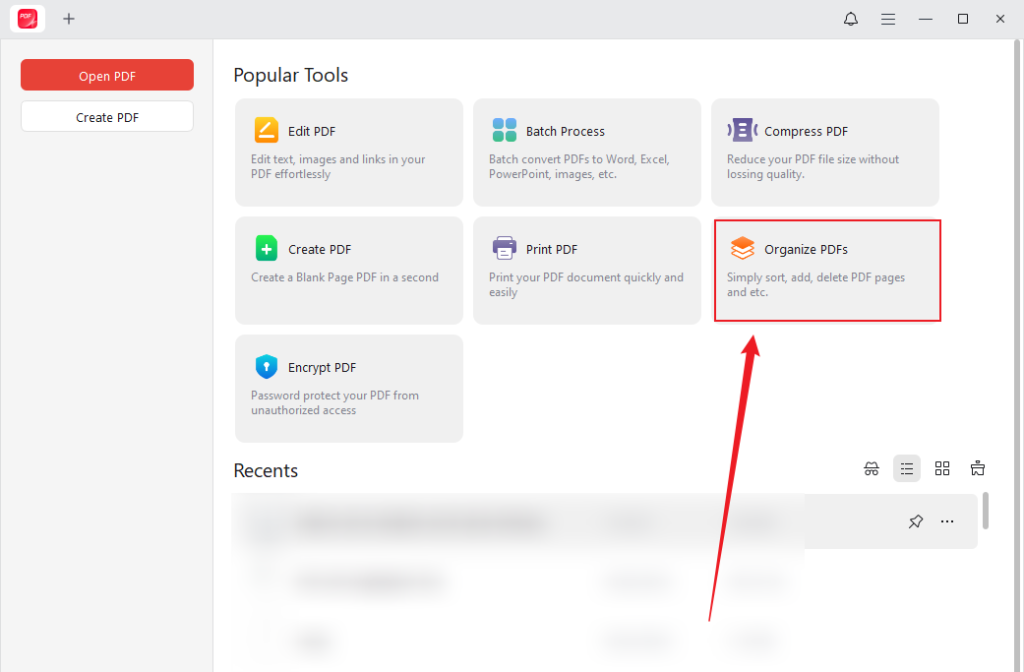
Step 2. Once the installation is over, run JOPDF. Click Organize PDFs under the Popular Tool section. Then, select the PDF you want to rotate without Acrobat and click Open to import it into JOPDF.
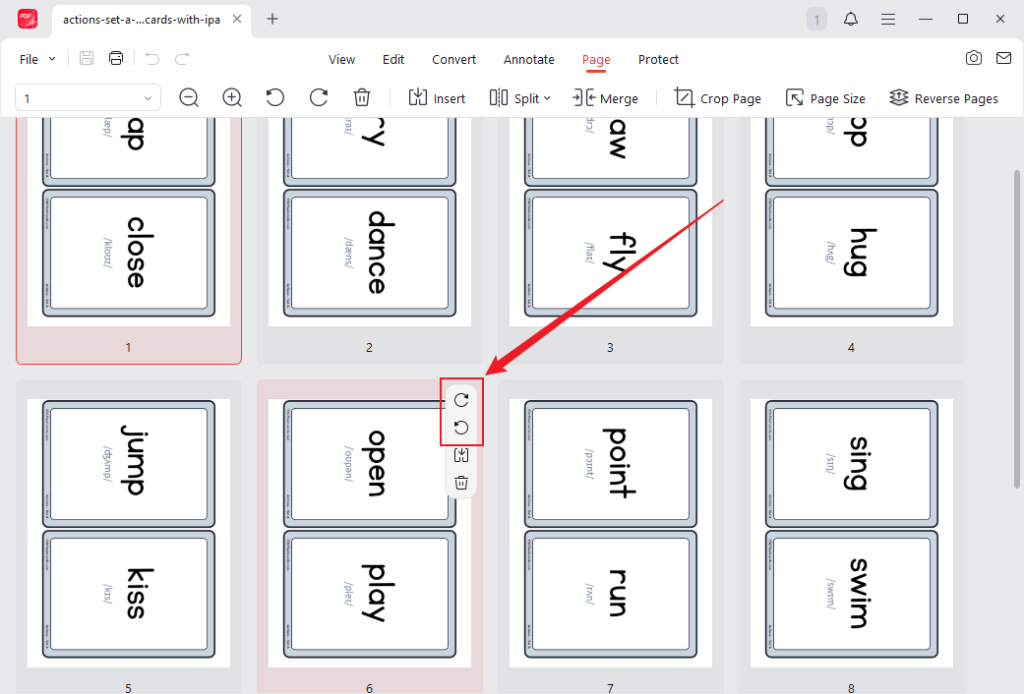
Step 3. Move the cursor over the page in the wrong orientation and click the Rotate icon. Each click rotates the page by 90 degrees.
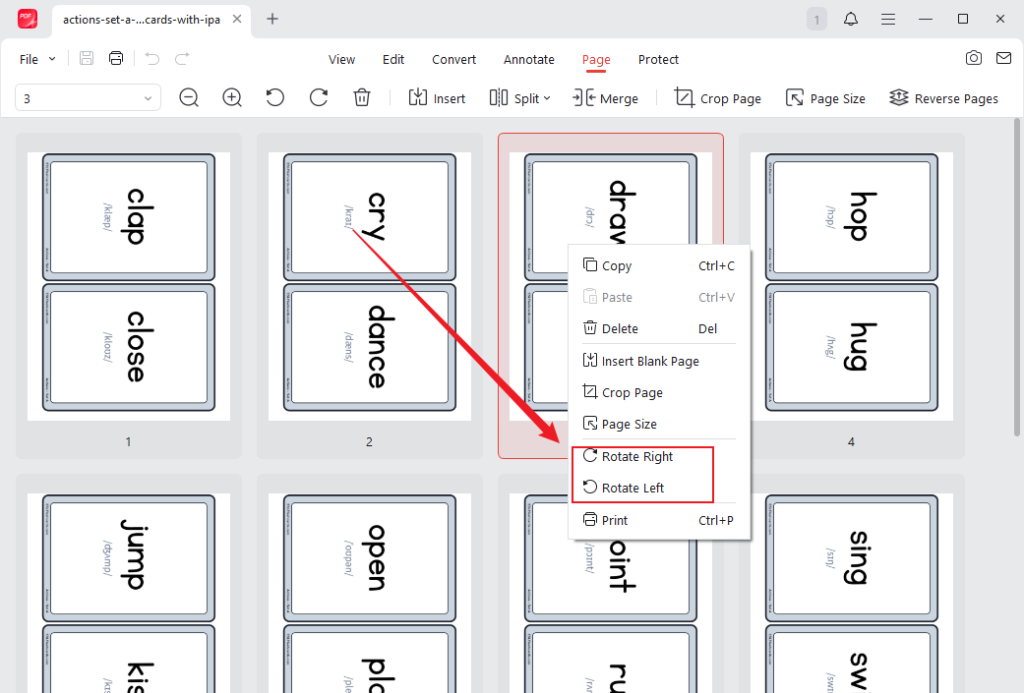
Or, right-click the target PDF page and click the Rotate Right or Rotate Left option.
If you need to rotate multiple or all pages in the PDF file, press Ctrl or Cmd to select the target pages or press Ctrl/Cmd + A to select all pages. Then, click the Rotate icon in the top toolbar to rotate the PDF pages.
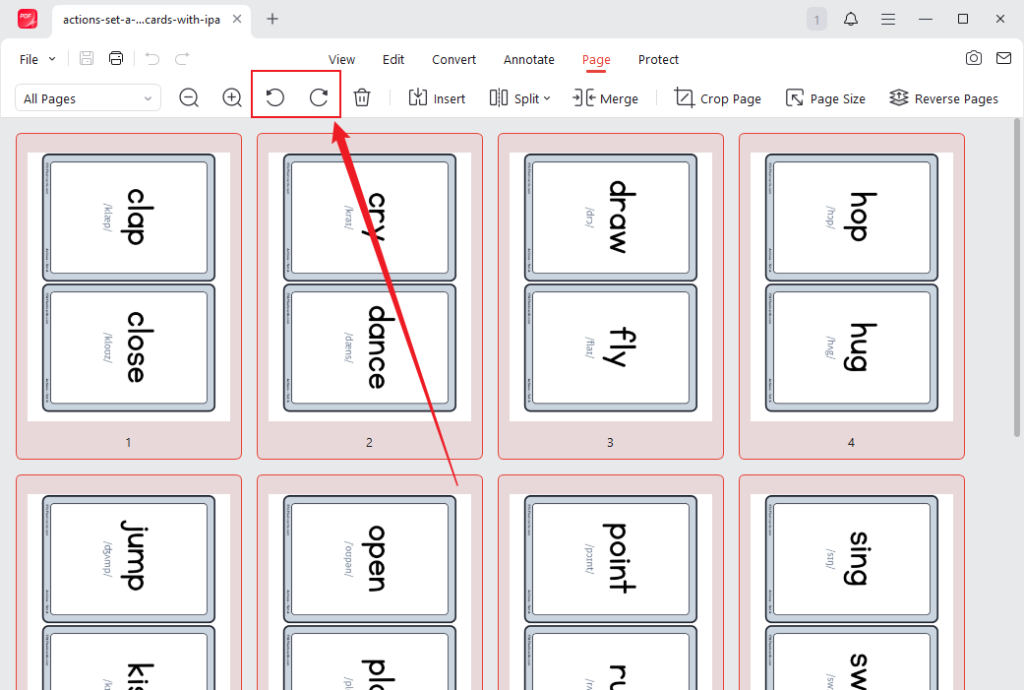
Step 4. Under the Page tab, you can also crop PDF pages, customize page size, and make other settings. If you need, you can also go to the Edit, Annotate, and Protect tab to modify the PDF file. Once done, click the Save icon to save the PDF file.
Other Features of JOPDF
Working as a free, reliable PDF editor, JOPDF offers many other useful features. Below are some outstanding features:
- Insert blank pages into a PDF
- Reduce PDF file size without losing quality
- Convert PDFs to and from Word, Excel, PowerPoint, and images
- Add signatures to a PDF
- Encrypt PDFs with passwords
- …
How to Rotate a PDF Online Without Adobe Acrobat
If you need a quick job without installing software, I also prepared online PDF rotators for you to choose from. These online tools allow you to perform PDF tasks easily and quickly. You can select any of them and try it out.
- Smallpdf
- iLovePDF
- PDFgear
- PDF24 Tools
- PDF2Go
Those online PDF editors are safe and reliable. If your PDF contains sensitive information, it’s better to use an offline tool like JOPDF. Smallpdf is a good tool to rotate a PDF online without Acrobat. In addition to rotating PDF pages, it allows you to flip or mirror PDF pages.
Step 1. Open your browser and visit Smallpdf’s Rotate PDF tool website.
Step 2. Locate the target PDF file and drag and drop it into Smallpdf. Or, click CHOOSE FILES to upload the file.
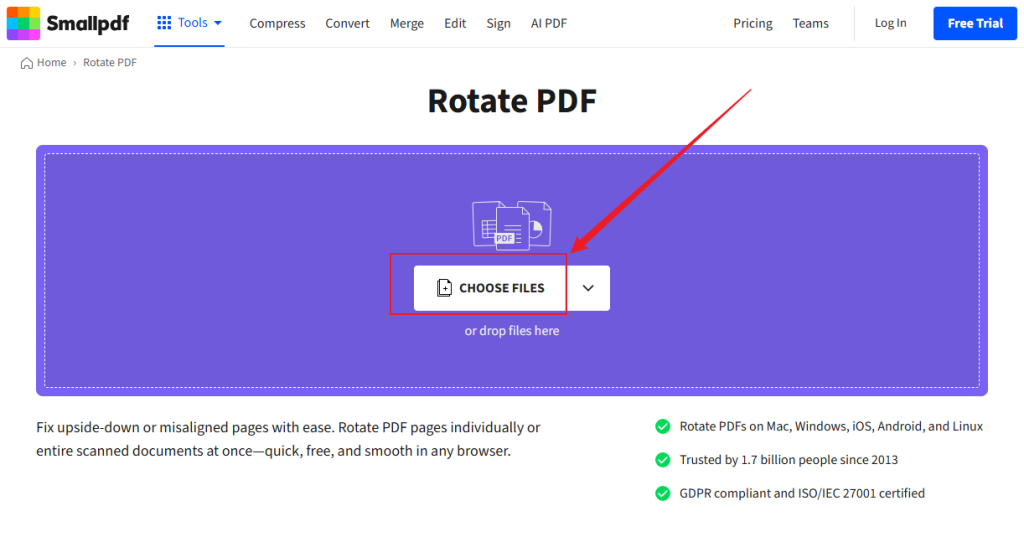
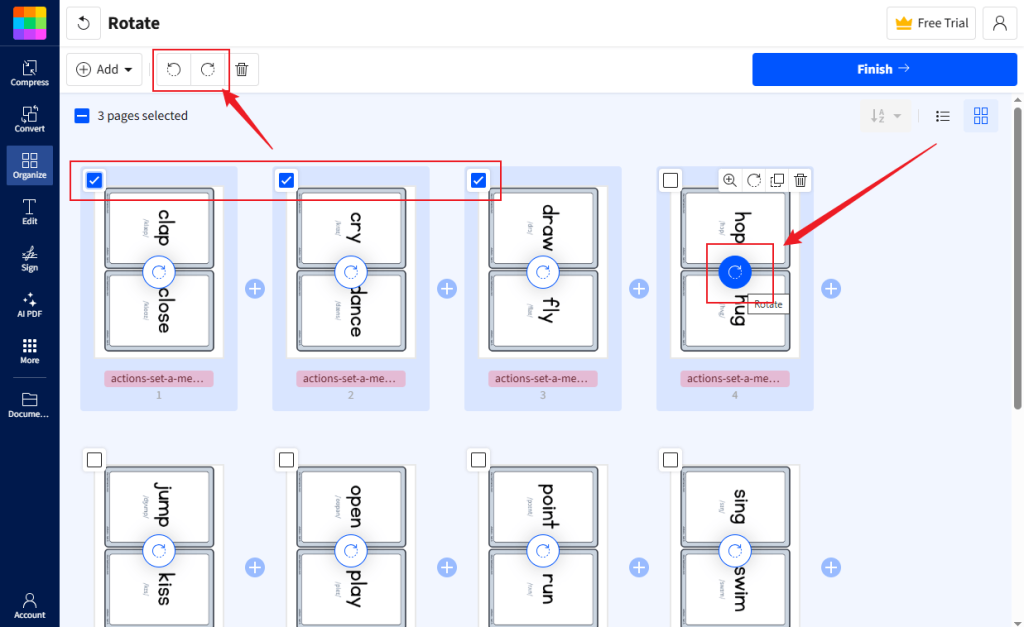
Step 3. Click the Rotate icon on the target page to rotate it. Or, click the checkboxes on target pages and click the Rotate icon to rotate multiple pages at once.
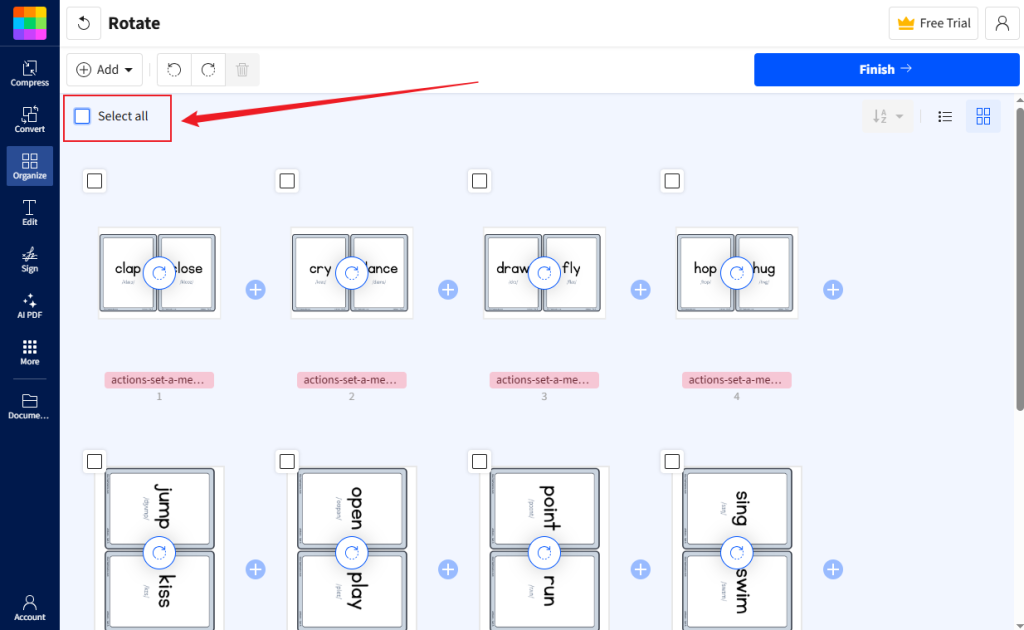
Also, if you need to rotate all pages, tick the Select all checkbox and click the Rotate icon.
Step 4. Next, click the Finish button in the upper right. Finally, click Download.
How to Rotate a PDF Using Google Drive
If you are conscious about privacy and need an online method, Google Drive is a good choice. How to rotate a PDF using Google Drive? Follow the steps below:
Step 1. Visit Google Drive and sign in with your Google account.
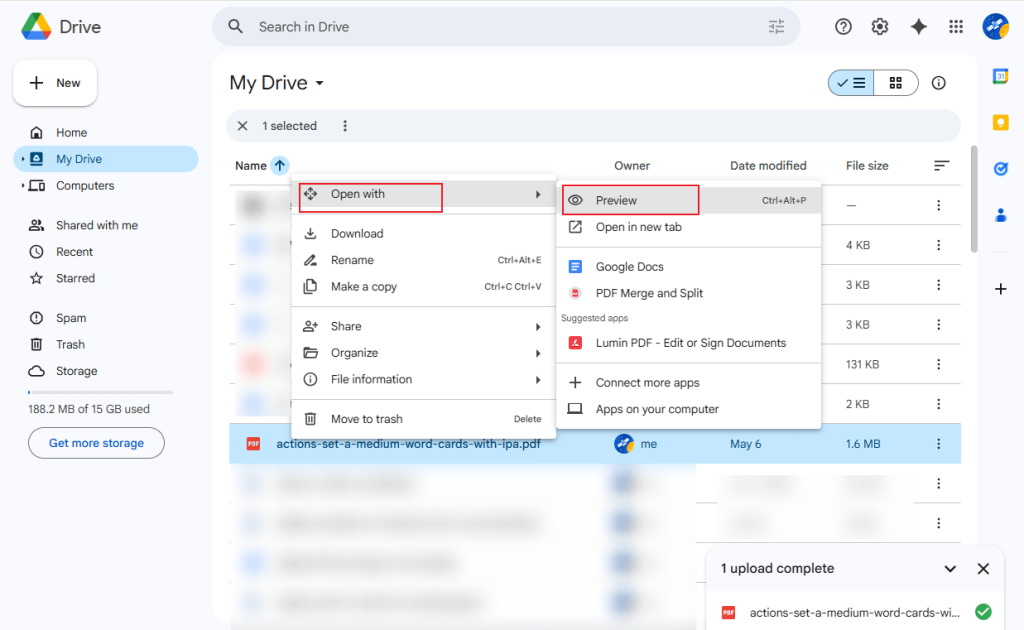
Step 2. Click + New and select File upload to upload the target PDF file. Once uploaded, right-click the file, move to Open with, and click Preview.
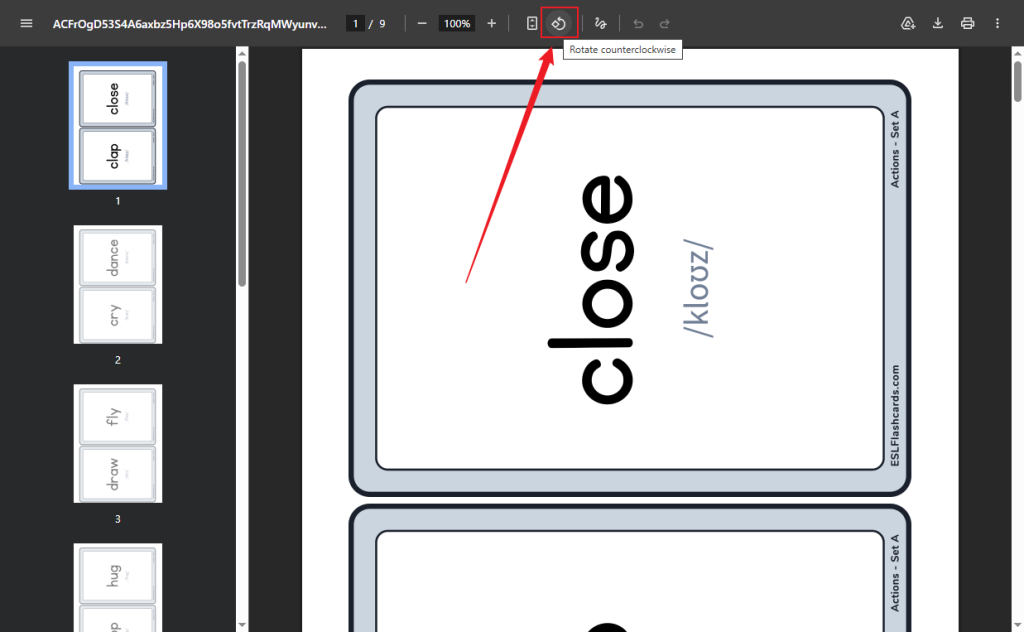
Step 3. Next, click the Print icon or press Ctrl/Cmd + P to enable the Print dialog. On the top toolbar, click the Rotate icon to rotate the PDF page.
Note
This method can only rotate all pages in a PDF file. It doesn’t support rotating a specific page.
Step 4. Finally, click the Download icon in the top right corner.
How to Rotate a PDF via Browser Tricks
As we know, browsers, such as Google Chrome and Edge, enable you to view and print PDFs. Surprisingly, you can use them to rotate a PDF. How to do that? I’ll show you the detailed steps.
Step 1. Locate the PDF file, right-click it, and choose to open it with your browser.
Step 2. The PDF will open in a browser. You can find a rotate icon in the top toolbar. Click the rotate icon to rotate the PDF file.
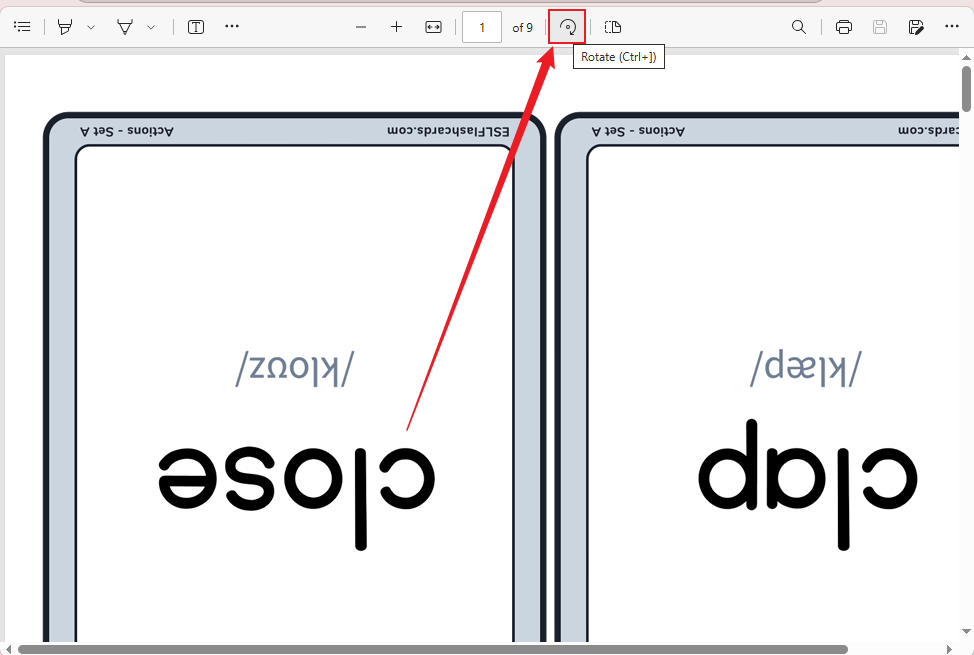
Step 3. At last, click the Save As icon to save the PDF with the new orientation.
A Quick Comparison: Which Method Should Try
To rotate a PDF file without Adobe Acrobat, there are both online and offline methods for you. Here, I prepare a quick comparison table for you to choose a suitable method to rotate a PDF without Acrobat.
| Method | Free? | Offline or Online | Selective Pages? | Limits | Best For |
| JOPDF | Yes | Offline | Yes | None | Offline power users |
| Smallpdf | Yes, with limited usage | Online | Yes | Daily tasks | Quick online edits |
| Google Drive | Yes | Partial | Whole Pages | Doesn’t support rotating selected pages; limited storage | Privacy-based online edits |
| Browser Trick | Yes | Yes | Whole Pages | Doesn’t support rotating selected pages | No extra tools |
Conclusion
It can be an easy task to rotate a PDF without Adobe Acrobat once you have chosen the right PDF rotator. How to rotate a PDF without Acrobat? For most people, a free and reliable PDF editor can be their first choice. So, JOPDF is worth a try. If you prefer speed, try an online tool. Whether you try which method, I hope this article can be helpful to you.
FAQs
Table of Contents

Your Best Free PDF Expert in PDF editing, compressing, converting, annotating, protect, organizing, and more.
Free DownloadWindows · macOS · Linux

Olivia
“Olivia is an editor at JOPDF, where she writes practical guides and insightful articles on managing PDFs—covering topics like editing, annotating, converting, and organizing files efficiently. Passionate about clear communication and digital productivity, Olivia enjoys spending her free time cooking, watching movies, and hiking to unwind and find inspiration for her writing.”



