
Introduction :
Sometimes, you may get a PDF file upside down or in the wrong orientation. How can you permanently or temporarily rotate a PDF in Adobe Acrobat Pro, Standard, or Reader? You are not alone. In this comprehensive article from JOPDF, you will learn the step-by-step guidance on how to rotate a PDF in Adobe desktop and online versions.
When your PDF appears sideways or upside down, rotating can improve readability, professionalism, and compatibility across devices. Can you rotate PDF pages in Adobe Acrobat Reader permanently? No, you can’t. You need to pay for Adobe Acrobat Pro or Standard to rotate PDFs permanently. You can also try Adobe Acrobat Online if you don’t want to install any software. If you need a free way to rotate PDF pages, consider JOPDF, a free alternative to Adobe Acrobat.
How to Permanently Rotate PDFs in Adobe Acrobat Pro/Standard
Adobe Acrobat is a professional and full-featured PDF editor for Windows and Mac. It supports rotating PDF pages permanently. Additionally, it offers other tools to help you organize PDF pages efficiently. For instance, you can use it to change a PDF to landscape or portrait, rearrange PDF pages, combine PDFs, or split a PDF. How to rotate a PDF in Adobe Acrobat? Check the exact steps below.
Step 1. Locate the PDF you need to rotate in Adobe, right-click it, and choose Open with Adobe Acrobat.
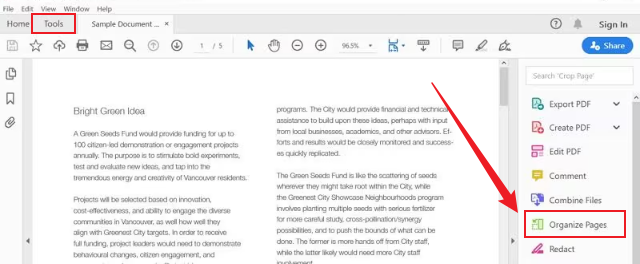
Step 2. Once the target PDF is open in Adobe Acrobat Pro or Standard, navigate to Tools and select the Organize Pages option.
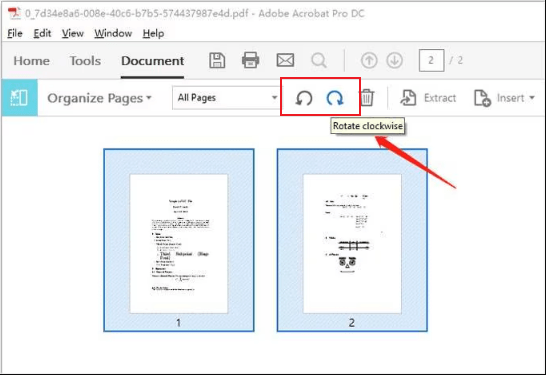
Step 3. In the thumbnail view, click the PDF page you need to rotate. If you need to rotate several pages at once, press Cmd or Ctrl to choose them. Next, click the Rotate Left or Rotate Right icon in the top toolbar. Then, you can find the PDF page rotates by 90 degrees.
Step 4. Next, exit Organize Pages mode. Finally, click File and click Save or Save As to save the modified PDF file.
In addition to the method mentioned above, there are alternative quick methods for you.
- Pages Panel: In the left navigation pane, click Pages to show thumbnails, select target PDF pages, and click the rotate button.
- Right-Click: Right-click on the target PDF page and select the Rotate Pages option.
How to Rotate a PDF in Adobe Acrobat Reader
Can you rotate a PDF in Adobe Acrobat Reader? Yes, you can. But it only allows you to rotate a PDF for viewing only. In other words, Adobe Acrobat Reader can only temporarily rotate a PDF. The rotation doesn’t change the saved file. How to do that? Follow the steps below.
Step 1. Open your target PDF file in Adobe Acrobat Reader.
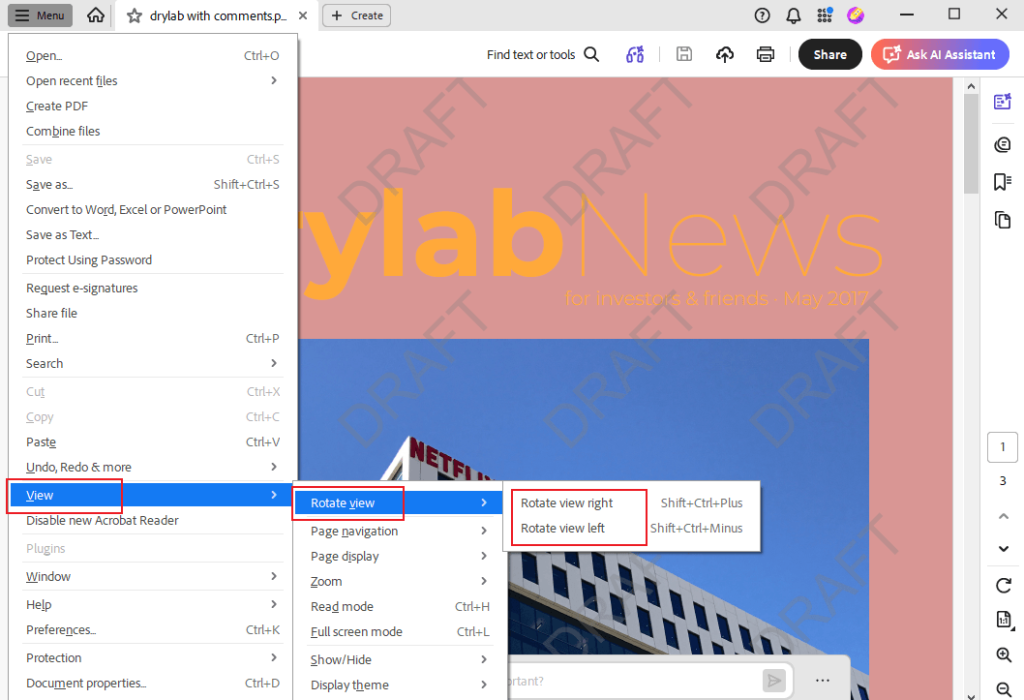
Step 2. Click Menu, move to View, hover over Rotate View, and select the Rotate view right or Rotate view left option.
Rotate a PDF Online in Adobe Acrobat
In addition to desktop versions, Adobe Acrobat also offers an online version. You can use it to rotate a PDF without installing software. How to rotate a PDF in Adobe Acrobat Online? Below is a step-by-step guide for you.
Step 1. Open any of your browsers and go to the Adobe Acrobat Online Rotate PDF tool.
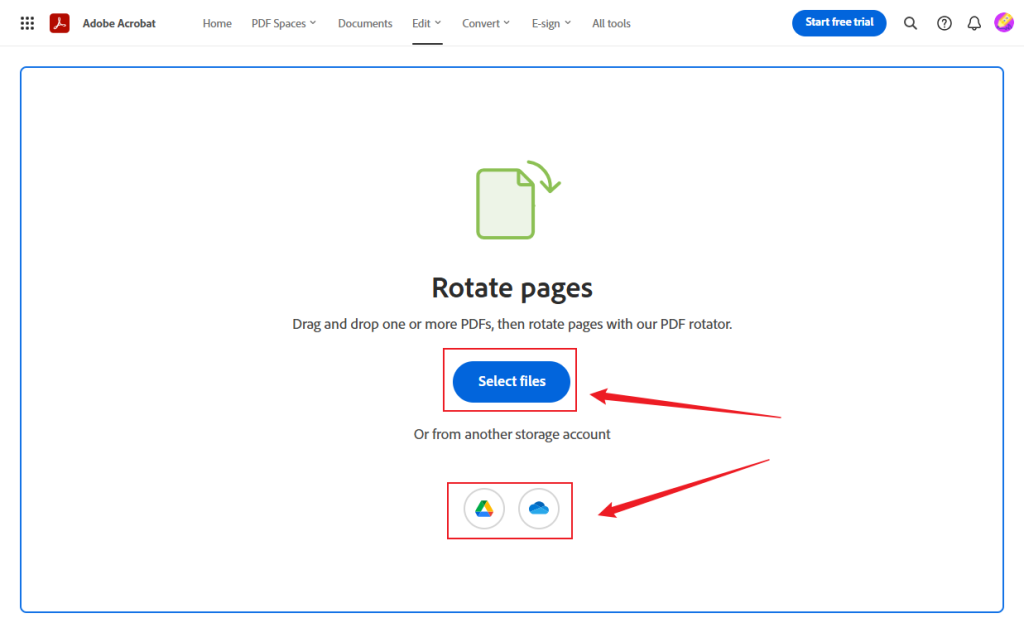
Step 2. Click the Select files button to import the target PDF document from your local storage. Alternatively, you can upload a PDF from Google Drive or OneDrive.
Step 3. When the file is uploaded, select All pages or a specific page to rotate. Then, click the Rotate Clockwise or Rotate Counterclockwise icon. Next, click Save to create a new rotated PDF file. Finally, download the PDF to your device.
How to Rotate a PDF for Free with JOPDF
To rotate a PDF permanently, you need to pay for Adobe Acrobat Pro or Standard. If you have a limited budget, a free or cost-effective alternative to Adobe Acrobat can be your choice. Among various Adobe Acrobat alternatives, I strongly recommend JOPDF.
JOPDF is a free PDF editor for Windows, Mac, and Linux. You can use it to rotate PDF pages with ease. Additionally, if you need, you can use it to extract pages from a PDF, delete PDF pages, and organize PDF pages. With its protection tools, you can password-protect PDFs from editing or printing. Also, you can use it to unlock PDFs if you’ve forgotten the password. When you handle a contract in PDF format, you can use JOPDF to electronically sign the file.
All in all, JOPDF is a trustworthy program to handle PDF files. You can install it on your device and explore its other useful features. Here, let’s learn how to rotate a PDF for free with JOPDF.
Step 1. After installing JOPDF on your Windows or Mac PC, launch it to get to its main interface.
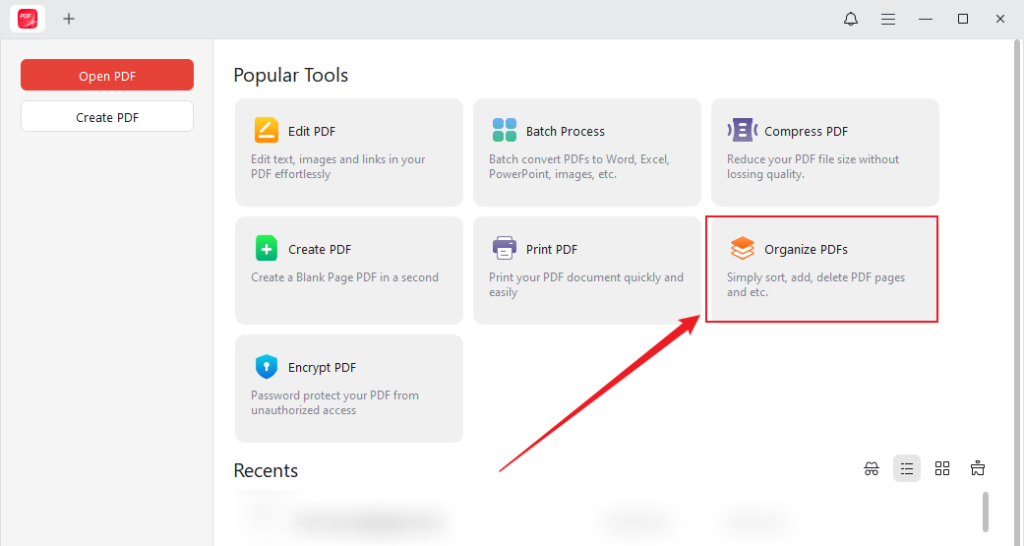
Step 2. Click the Organize PDFs option, select the target PDF file, and click Open to import it. Then, the PDF will appear under the Page tab.
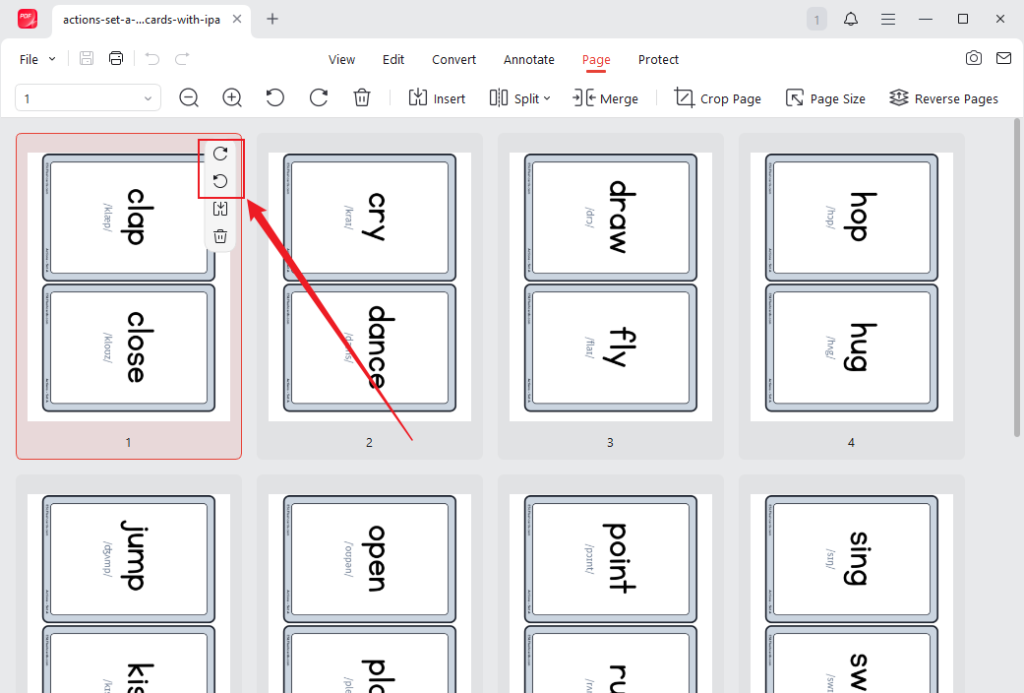
Step 3. Hover the cursor over the target page and click the rotate icon. Each click rotates the page by 90 degrees. Also, you can right-click on the target page and select the Rotate Right or Rotate Left option.
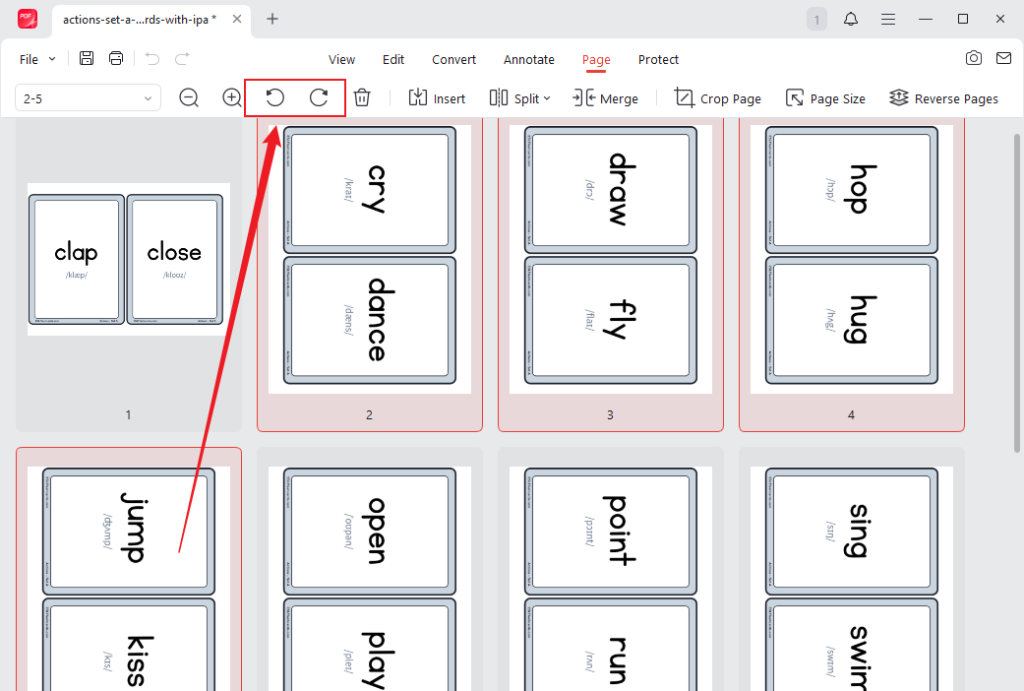
If you need to rotate multiple pages, hold Ctrl or Cmd and select the target PDF pages. Then, click the rotate icon in the top toolbar.
Tips
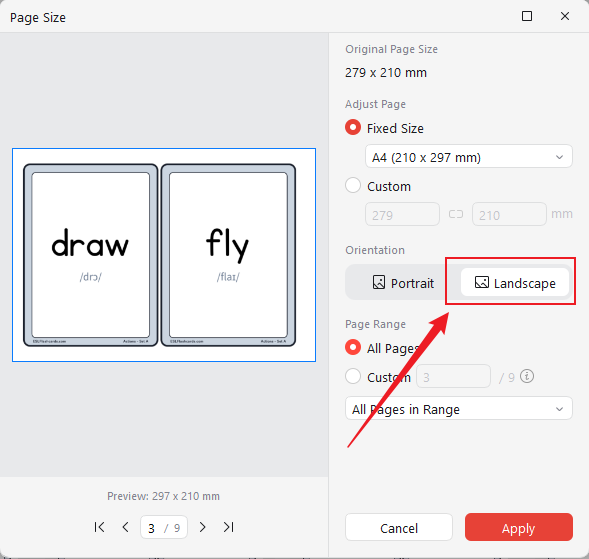
If you rotate the PDF pages from portrait to landscape, you’d better refresh the page setup. In JOPDF, click Page Size, change the Orientation to Landscape, and click Apply.
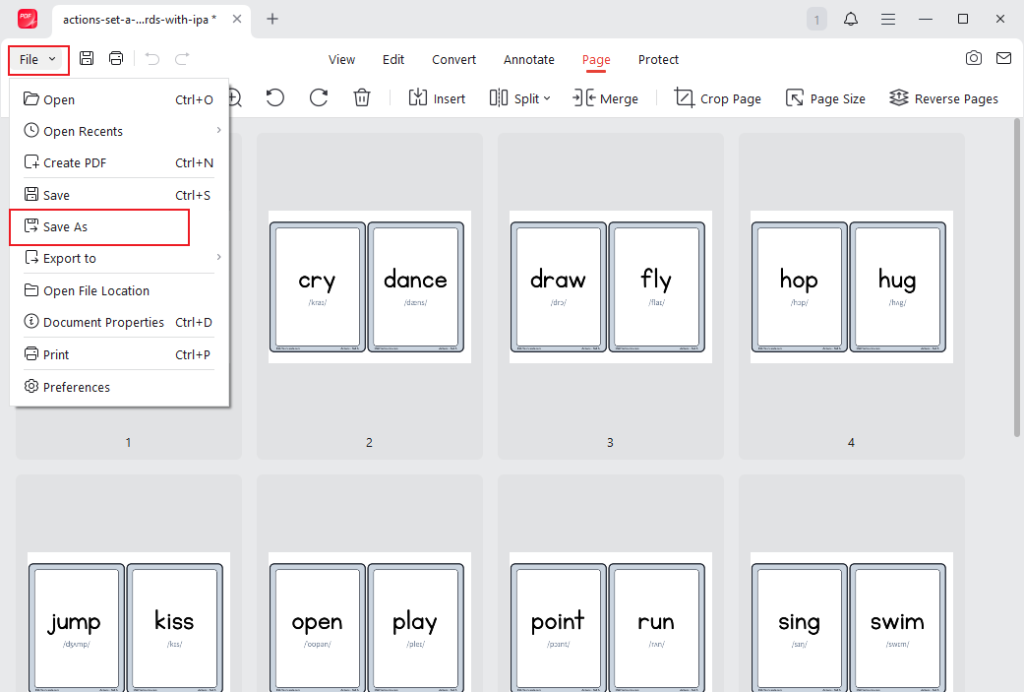
Step 4. Once done, click the Save icon to save the rotated PDF file. Or, click File and select the Save As option to create a new PDF file.
Final Words
Adobe Acrobat is known as an industry-leading PDF editor. You can use it to rotate, split, crop PDFs, or make other basic and advanced edits. To rotate PDF pages permanently in Adobe, you need to use the Adobe Acrobat Pro or Standard version. Its free version, Adobe Acrobat Reader, only allows you to rotate PDF pages for viewing only. How to rotate a PDF in Adobe? I offer step-by-step guidance. I hope this guidance is helpful to you. Alternatively, you can try JOPDF, which lets you edit and rotate PDFs for free. You can also use it to convert and compress PDF files.
FAQs
Step 1. Open the file in Adobe Acrobat Pro or Standard.
Step 2. Go to Tools > Organize Pages. Then, click the Select All checkbox at the top.
Step 3. Next, click the rotate icon to rotate the entire PDF file in Adobe.
Step 1. Click Organize PDFs to open the target PDF file.
Step 2. Hover over the target page and click the Rotate icon.
Step 3. Finally, save the rotated PDF file.
Table of Contents

Your Best Free PDF Expert in PDF editing, compressing, converting, annotating, protect, organizing, and more.
Free DownloadWindows · macOS · Linux

Olivia
“Olivia is an editor at JOPDF, where she writes practical guides and insightful articles on managing PDFs—covering topics like editing, annotating, converting, and organizing files efficiently. Passionate about clear communication and digital productivity, Olivia enjoys spending her free time cooking, watching movies, and hiking to unwind and find inspiration for her writing.”



