
![Guide on How to Delete Pages in Adobe Acrobat [Detailed Steps]](https://b.jopdf.com/wp-content/uploads/2026/04/how-to-delete-pages-in-adobe-acrobat.png)
Introduction :
Do you need to remove unwanted pages from a PDF? Adobe Acrobat is a powerful PDF editor. But for most new users, it’s difficult to know how to use this software. How to delete pages in Adobe Acrobat? You’re in the right place! In this JOPDF article, let’s discuss whether you can remove PDF pages in Adobe Acrobat for free and explore the exact steps to delete pages in Adobe Acrobat.
Can You Delete Pages in Adobe Acrobat for Free
Before diving into the steps for removing PDF pages, you may wonder, “Can you delete pages in Adobe Acrobat for free?” Hence, let’s discuss this question in this part.
- Adobe Acrobat Pro (paid version): full access to delete PDF pages
- Adobe Acrobat Reader (free version): cannot delete PDF pages
- Adobe Acrobat Online tools: limited free usage
We can draw the conclusion that you can’t delete PDF pages in Adobe Acrobat for free. If you need a free way to remove PDF pages, try JOPDF, a free PDF page remover for Windows, Mac, and Linux.
How to Delete Pages in Adobe Acrobat
It is one of the most reliable ways to remove pages from a PDF in Adobe Acrobat Pro. Here is the step-by-step guide on how to delete pages in Adobe Acrobat Pro.
Step 1. Launch Adobe Acrobat Pro on your PC and open the PDF file you want to remove pages from.
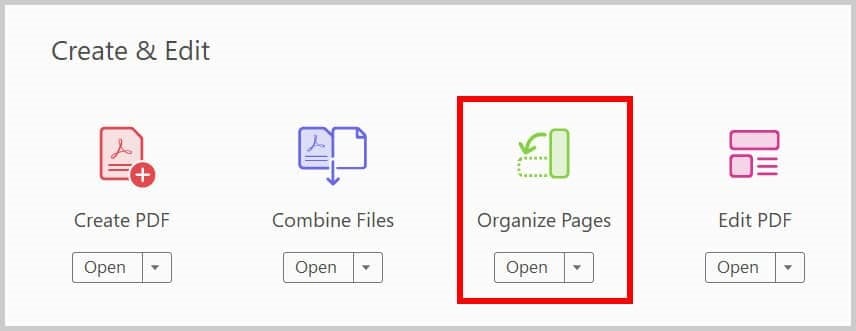
Step 2. Click Tools in the top menu and click the Organize Pages option.
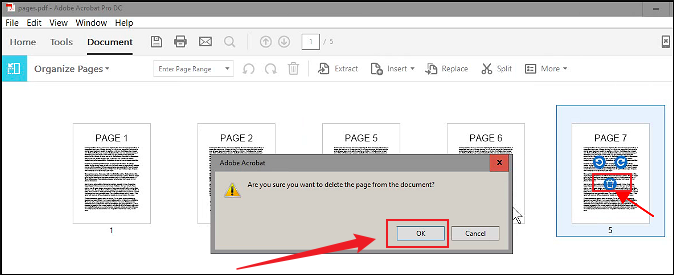
Step 3. Click the page thumbnail or hold Ctrl or Command to select multiple PDF pages. Next, click the trash can icon and click OK to confirm the operation.
Tips
If you only need to remove a specific PDF page, right-click it in Organize Pages or the Pages thumbnails panel, then click Delete.
Step 4. Finally, click File and choose Save or Save As to save the new PDF file.
Delete PDF Pages with Adobe Acrobat Online
Once you don’t want to install Adobe Acrobat, use its web version. In addition to working on PCs, Adobe Acrobat Online is available on Android and iOS. One thing you need to know is that this online tool has limited free usage and file size restrictions. If you don’t mind that, follow the steps below to delete PDF pages with Adobe Acrobat Online.
Step 1. Open any browser on your PC or phone and visit Adobe Acrobat Online. Then, sign in with your Adobe account.
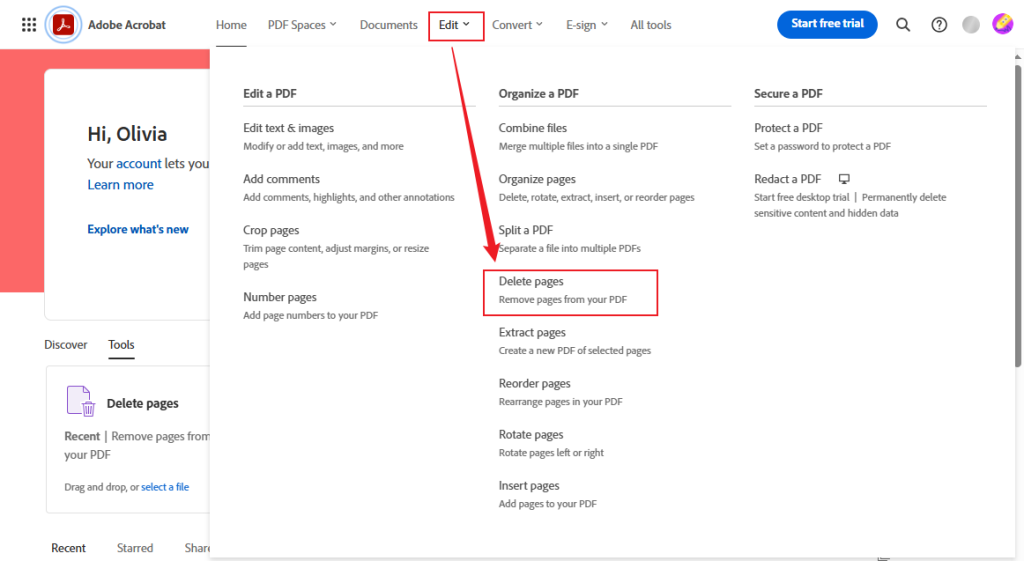
Step 2. Navigate to Edit in the top menu and select the Delete pages option from the list.
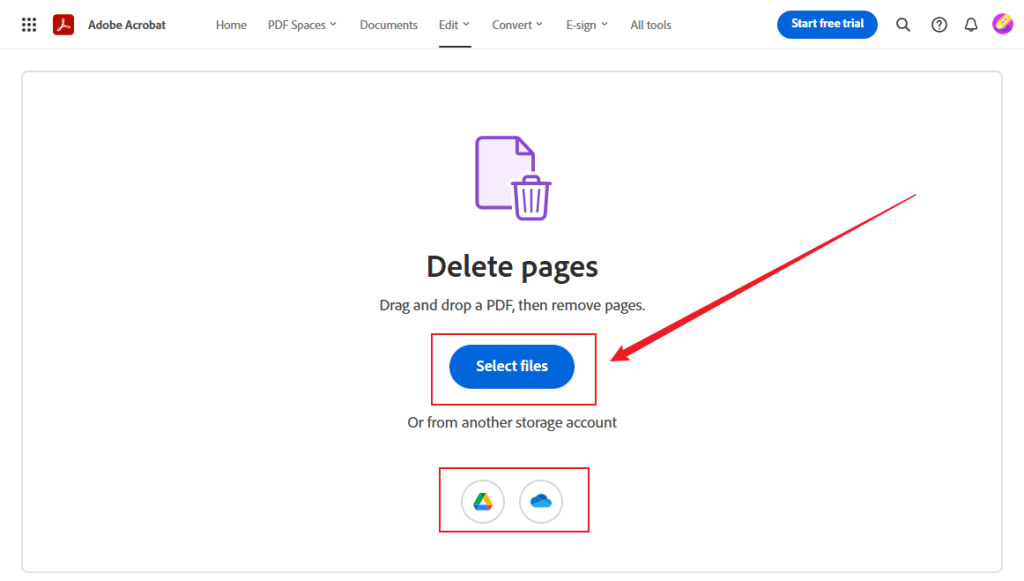
Step 3. Click Select files to upload your PDF file from the local storage. Meanwhile, you can choose to upload a PDF from Google Drive or OneDrive.
Step 4. Next, hover over the target PDF page and click the Delete icon to remove it. If you want to remove multiple PDF pages at once, select them and click the Delete icon in the bottom toolbar.
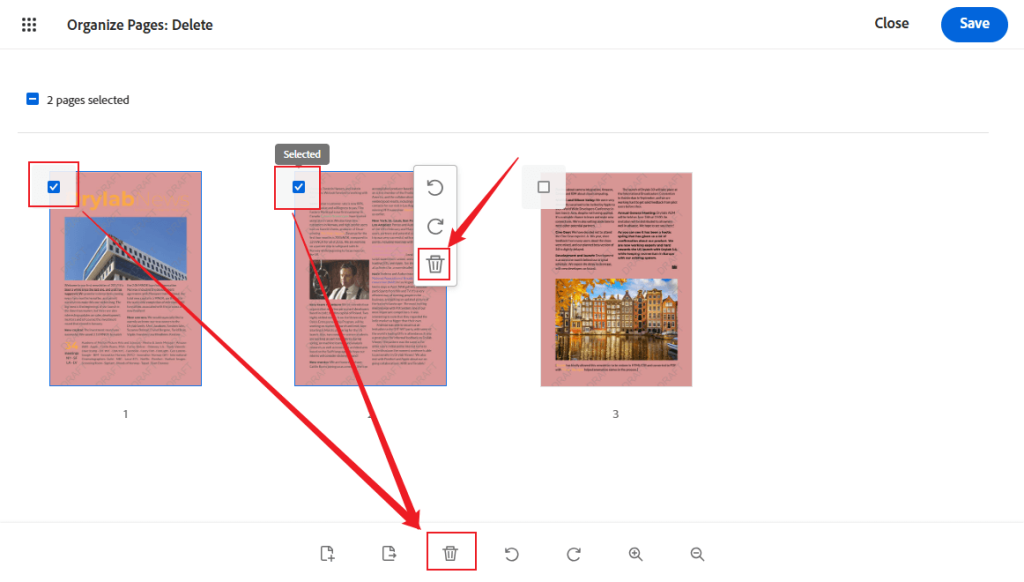
Step 5. Then click the Save button in the top-right corner. Finally, click the three-dot icon and click Download this file to save the PDF file.
Alternative Way to Remove PDF Pages for Free
In the content above, we have learned how to remove PDF pages in Adobe Acrobat. You need to pay expensive subscription fees for Adobe Acrobat Pro to access the full features. Or, use Adobe Acrobat Online to remove pages from a PDF with limited usage. In those cases, I recommend using JOPDF to edit and organize PDFs.
Introducing JOPDF
JOPDF is a completely free PDF page remover that lets you delete unwanted or blank pages from a PDF. You can delete one or multiple pages with ease. Additionally, JOPDF enables you to insert blank pages, resize PDF pages to A4, crop PDF pages, and organize PDF pages as needed. Below are some other highlighted features of JOPDF.
- Split a PDF page in half.
- Extract images from a PDF.
- Add attachments, links, or sticky notes to PDFs.
- Remove or add watermarks to a PDF for protection.
- Add electronic signatures to a PDF.
- Convert PDF to image, DOCX, PPTX, XLSX, or other formats.
- …
How to Delete PDF Pages for Free in JOPDF
Here, let’s see how to remove pages from a PDF for free in JOPDF.
Step 1. Click the button below to download this free PDF page remover and install it on your computer. Then launch it to get to its main interface.
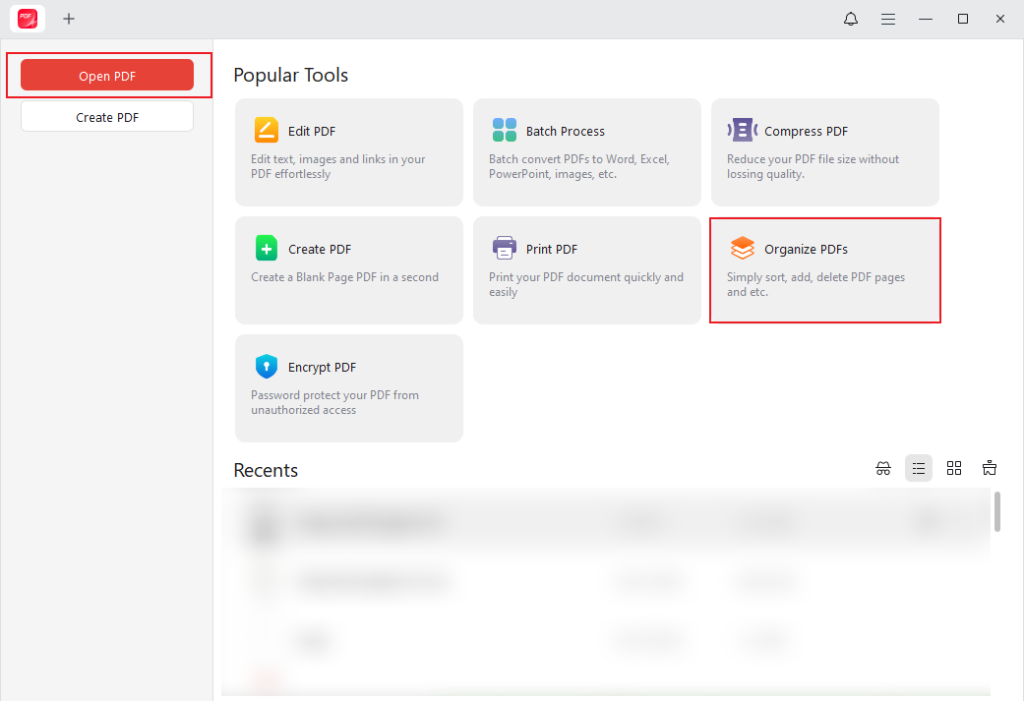
Step 2. Click Open PDF to import your PDF file and go to the Page tab. Alternatively, click the Organize PDF option and import your file.
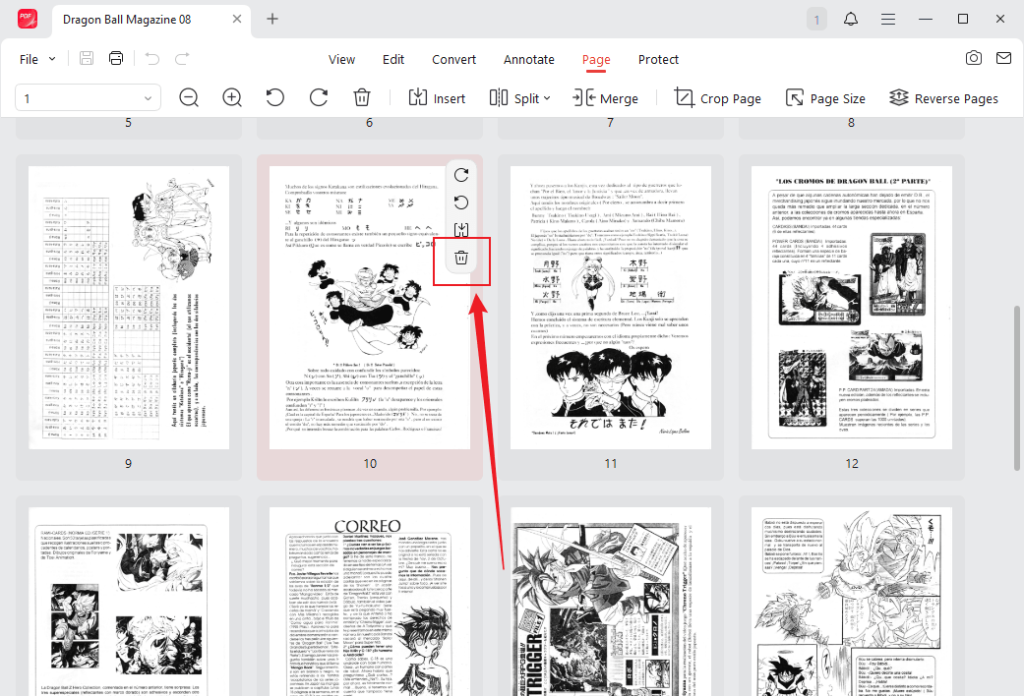
Step 3. Hover over the target PDF page and click the Delete icon to remove it.
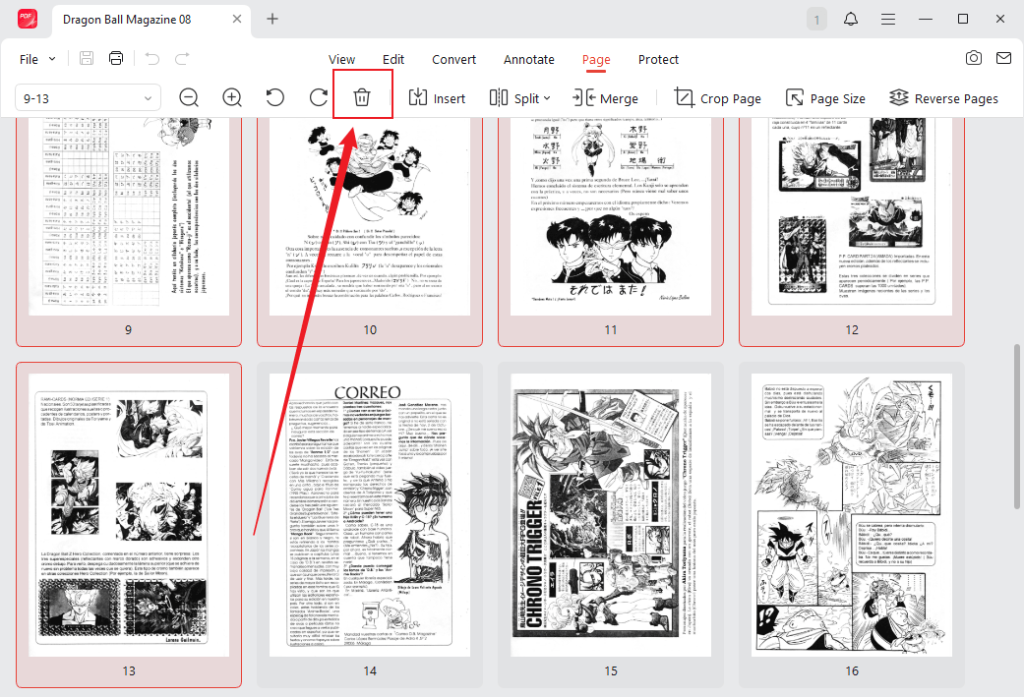
Meanwhile, you can use it to delete multiple pages at once. Press Ctrl or Cmd to select the target pages and click the Delete icon in the top toolbar. Next, click the Delete button to confirm the operation.
Step 4. If you need, you can click Merge to merge PDFs in JOPDF. Also, you can go to the Edit, Convert, Annotate, or Protect section to modify the PDF file.
Step 5. Finally, click the Save icon in the upper left corner to save it.
Final Words
How to delete pages in Adobe Acrobat? Both desktop and online versions can give you a hand. The Organize Pages tool of Adobe Acrobat Pro can help you delete pages from a PDF efficiently. Also, you can use its online version with limited usage. However, its free version, Adobe Acrobat Reader, doesn’t support removing pages from a PDF. In that case, you can try a free alternative to Adobe Acrobat. JOPDF is a good choice with many useful editing, organizing, annotating, and converting features.
FAQs
Launch JOPDF and click Organize PDF to import the target file.
Click the Crop Page option.
Click and drag the page edge to crop the PDF page and choose the target pages.
Next, click Apply to crop the pages and click Save to save the cropped PDF.
Table of Contents

Your Best Free PDF Expert in PDF editing, compressing, converting, annotating, protect, organizing, and more.
Free DownloadWindows · macOS · Linux

Olivia
“Olivia is an editor at JOPDF, where she writes practical guides and insightful articles on managing PDFs—covering topics like editing, annotating, converting, and organizing files efficiently. Passionate about clear communication and digital productivity, Olivia enjoys spending her free time cooking, watching movies, and hiking to unwind and find inspiration for her writing.”



