
Introduction :
It’s an easy task for Mac users to edit and organize PDFs with the built-in tool, Preview. You can use it to remove pages from a PDF without extra software. How to delete PDF pages in Preview? This JOPDF guide will walk you through the exact steps to delete pages from a PDF in Preview. If Preview isn’t enough, you can also find reliable and advanced alternatives to edit PDFs on Mac.
Delete PDF Pages in Preview
Now, let’s learn how to delete a page from a PDF in Preview. I’ll show you the exact steps. You can refer to it and have a try. Even if you are a beginner, you can learn how to do it.
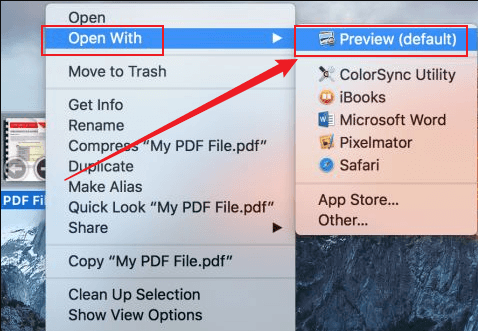
Step 1. Locate the target PDF and open it in Preview by double-clicking the PDF. If you haven’t set Preview as the default PDF viewer for Mac, right-click the PDF, click Open With, and select Preview. Then, the PDF will open in Preview.
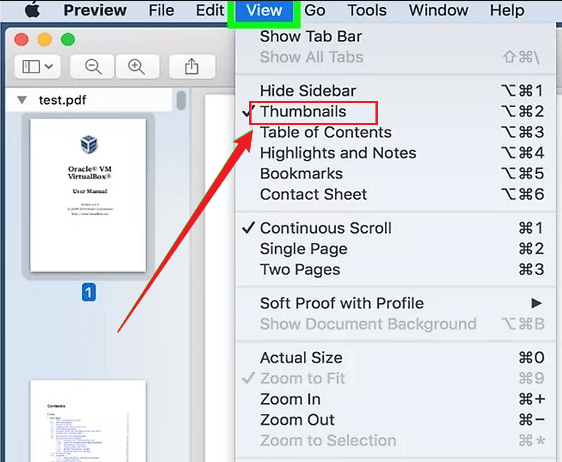
Step 2. Go to View > Thumbnails to show all page thumbnails on the left sidebar. Also, you can press shortcuts: Command + Option + 2.
Step 3. Select the page you want to remove from the PDF file and press the Delete key on the keyboard.
Step 4. Finally, save the updated PDF file by pressing Command + S.
Delete Multiple Pages at Once in Preview
In addition to removing a specific PDF page, Preview also allows you to remove multiple pages from a PDF at once. With this feature, you can handle large PDFs efficiently in Preview. Let’s see how to batch delete.
Step 1. Open your PDF file with hundreds of pages in Preview and then enable thumbnail view.
Step 2. Press Command to select scattered pages. Meanwhile, you can press Shift to select a continuous range.
Step 3. Then, press the Delete key to remove selected PDF pages.
Delete Pages from a Locked PDF
Can you delete pages from a locked PDF? Yes, you can as long as you know the password or can bypass the password protection.
How can you delete pages from a locked PDF in Preview? If you know the open and permission passwords, apply them and follow the steps above to remove pages from the PDF. If you don’t know the permission passwords, you can ask the file owner for permission passwords or use a reliable tool to remove the password from the PDF. Also, there is a workaround for you.
Step 1. Open the locked PDF in Preview and enter the open password.
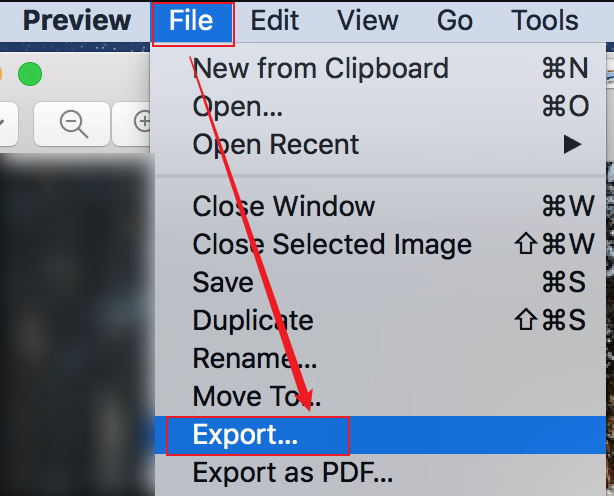
Step 2. Then, go to File > Export. In the export dialog, click the Permissions button and enter the permission password. Then, uncheck the Require password to open document checkbox and click Apply.
If you don’t have the correct password, you can try JOPDF to remove a password from a PDF on Mac. Click Open PDF to load the locked PDF file, switch to Protect, and select Decrypt. A window will pop up. You need to click the “Don’t have the permission password?” text and click Remove to unlock the PDF file.
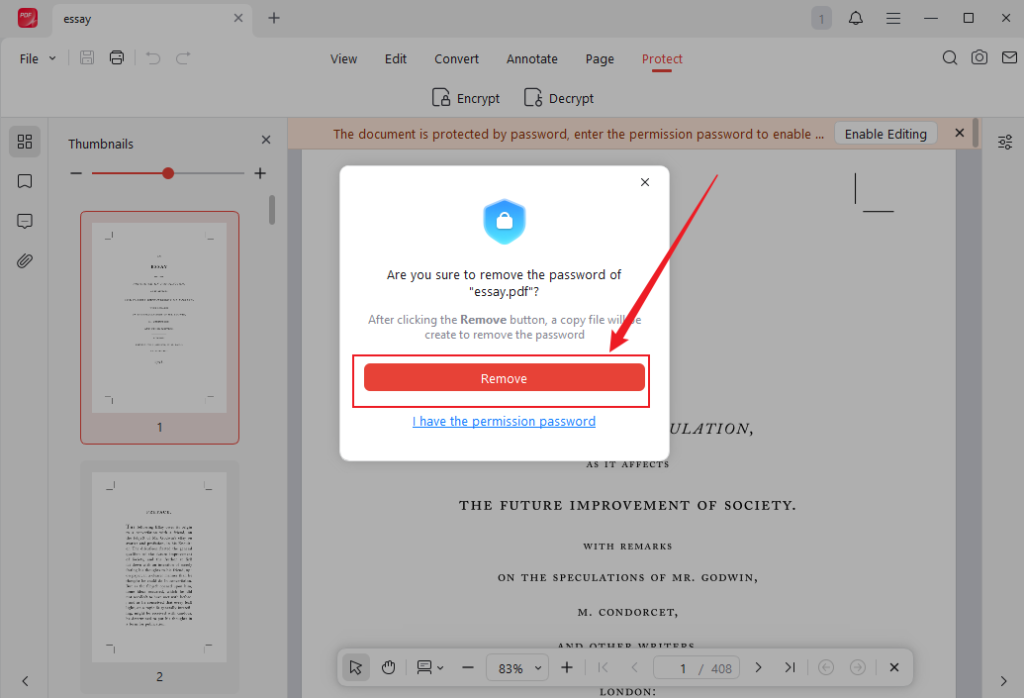
Step 3. Open the newly unlocked PDF in Preview and follow the steps above to remove PDF pages as needed.
Alternative Tools to Delete PDF Pages
While Preview is an excellent Mac PDF editor for basic editing, it has limitations. If you need more advanced features for PDFs, consider using alternatives. I have used and tested several PDF editors for Mac and picked up the following 4 good alternatives to Preview. Now, let’s check them one by one.
#JOPDF
From my perspective, JOPDF can be the best alternative to Preview. It has the same free and easy nature as Preview. Both of them are completely free PDF editors. JOPDF has all the features that Preview has. Additionally, JOPDF offers other advanced features for PDFs that Preview doesn’t have.
You can use JOPDF to edit images in a PDF, add or remove watermarks, or add signatures. What’s more, it enables you to password-protect PDFs from editing or printing. It has more features waiting for you to explore. You can download it and try it out.
To delete pages from a PDF in JOPDF, you can check the steps below:
Step 1. Download and install the best alternative to Preview on your Mac. Then launch this free PDF page remover.
Step 2. Click Open PDF to upload the target PDF and go to the Page tab. Alternatively, click Organize PDFs to import the target PDF, and the PDF will then appear under the Page tab.
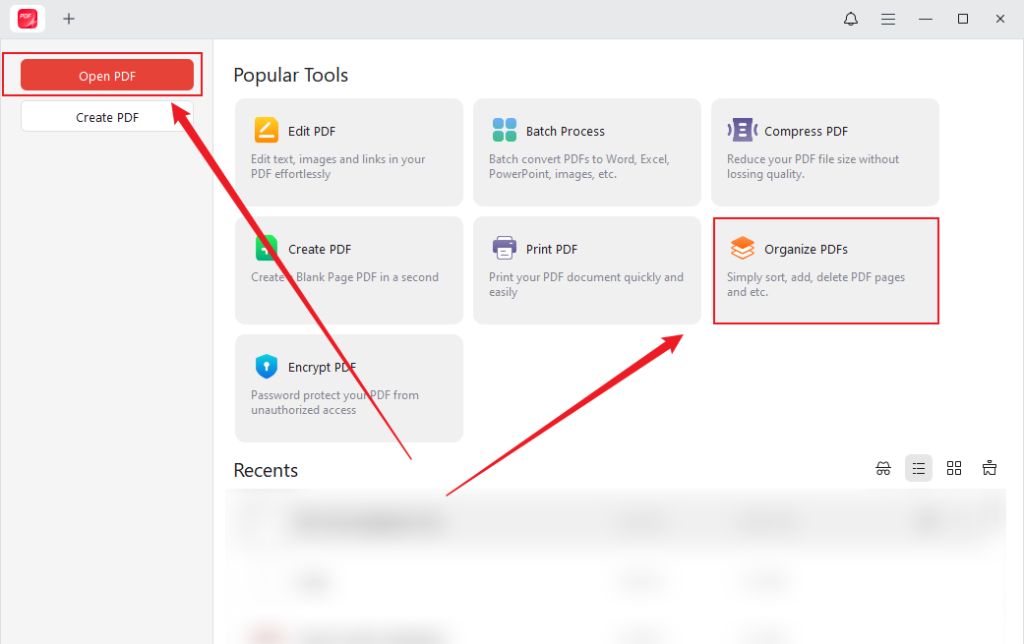
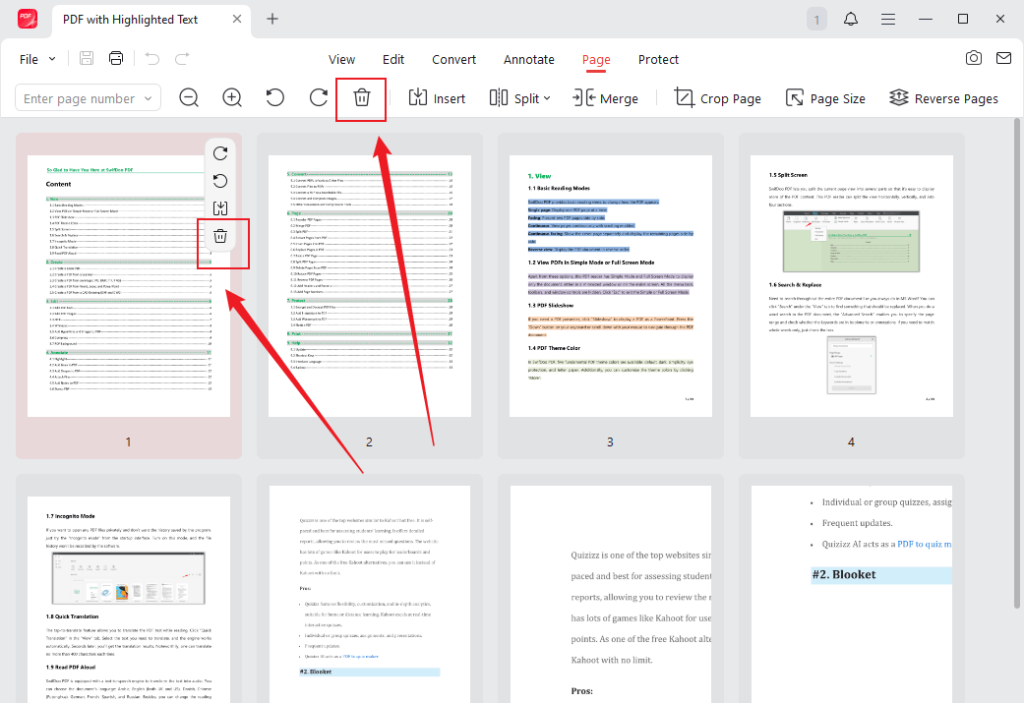
Step 3. Move the cursor over the target page, then click the Delete icon (a trash bin icon) to remove it from the PDF. Also, you can select multiple PDF pages and click the Delete icon in the top toolbar.
Step 4. Optionally, go to the Edit, Annotate, Convert, or Protect tab to modify the PDF file. Finally, save the PDF file.
#Adobe Acrobat
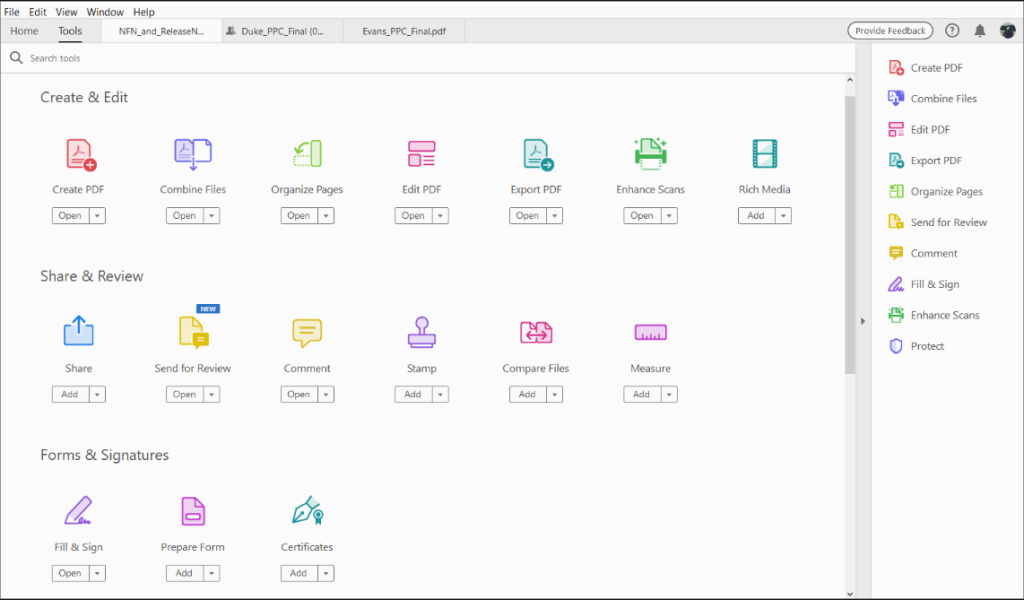
If you need a professional tool to handle PDFs, Adobe Acrobat is the best choice and is widely recognized as the industry-leading PDF editor. With OCR, you can use Adobe Acrobat to make a PDF editable and handle scanned PDFs. You can also use it to handle PDF forms effectively. In addition to the desktop versions on Windows and Mac, Adobe Acrobat offers an online version. Once you have a sufficient budget, try Adobe Acrobat.
#SwifDoo PDF
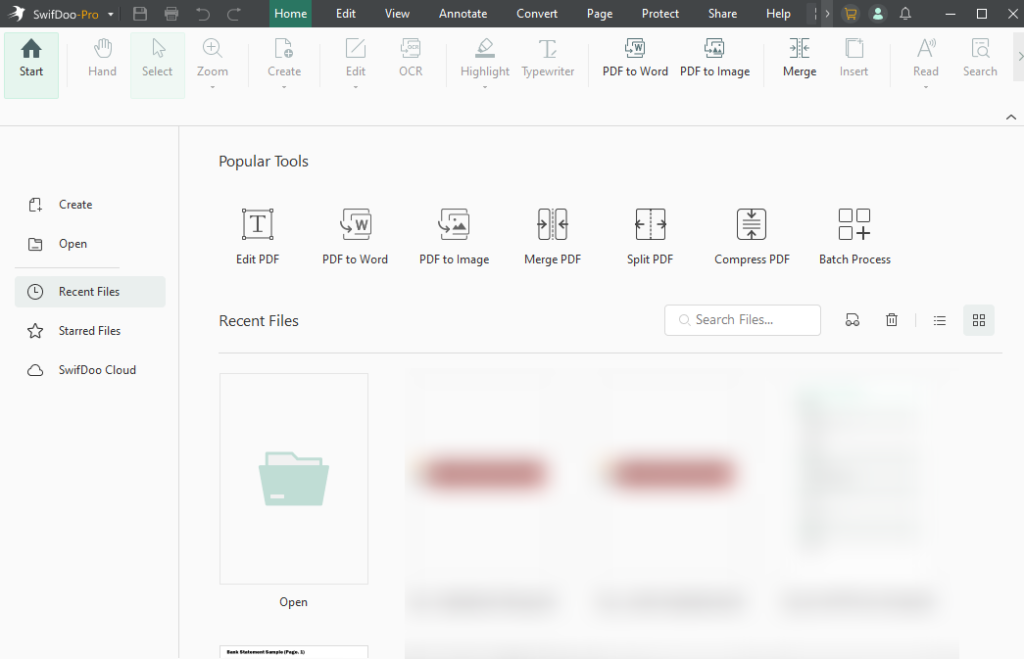
Working as a cost-effective alternative to Adobe Acrobat, SwifDoo PDF offers OCR to handle scanned or image-based PDFs. Its various editing and annotation tools can make your PDF workflow run smoothly. Additionally, it enables you to create and add digital signatures to a PDF to increase authentication. If you need, you can use SwifDoo PDF to convert and compress PDFs. In a word, SwifDoo PDF is a good alternative to Preview for editing and handling PDFs.
#Smallpdf
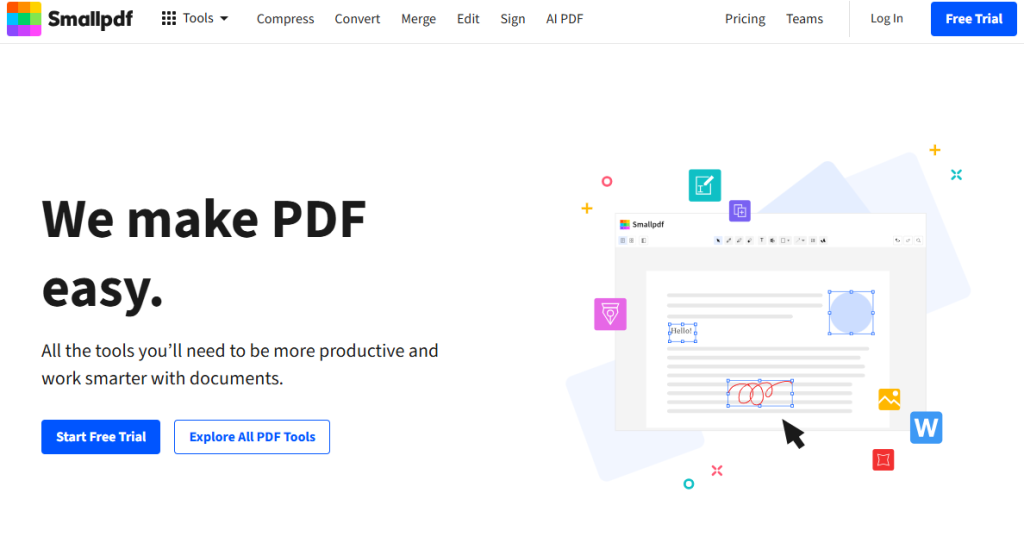
In addition to the aforementioned offline tools, since you might not want to install any software, I have also selected an online tool for you. Smallpdf is a safe online PDF page remover. Moreover, it offers additional editing, organizing, annotating, and protection features for PDFs.
Quick Comparison: Preview vs Other Tools
For a clear overview, you can refer to the comparison table below.
| Feature | Preview | JOPDF | Adobe Acrobat | SwifDoo PDF | Smallpdf |
| Free | ✅ | ✅ | ❌ | ❌ | ✅(limited features) |
| Delete pages | ✅ | ✅ | ✅ | ✅ | ✅ |
| Batch editing | ⚠️ Limited | ✅ | ✅ | ✅ | ✅ |
| Works offline | ✅ | ✅ | ✅ | ✅ | ❌ |
| Advanced editing | ❌ | Limited | ✅ | ✅ | Limited |
👉 Conclusion: Preview is perfect for quick edits, but tools like JOPDF offer more flexibility.
Final Thoughts
For most of us, Preview is the fastest and most convenient way to remove pages from a PDF on Mac. Follow the steps above, you can master how to delete PDF pages in Preview easily. However, if you run into limitations or need advanced features for PDFs, try alternative tools such as JOPDF, Adobe Acrobat, SwifDoo PDF, or the online service Smallpdf.
FAQs
The PDF is locked or restricted.
You are not in thumbnail view.
The PDF is opened in “View Only” mode.
Table of Contents

Your Best Free PDF Expert in PDF editing, compressing, converting, annotating, protect, organizing, and more.
Free DownloadWindows · macOS · Linux

Olivia
“Olivia is an editor at JOPDF, where she writes practical guides and insightful articles on managing PDFs—covering topics like editing, annotating, converting, and organizing files efficiently. Passionate about clear communication and digital productivity, Olivia enjoys spending her free time cooking, watching movies, and hiking to unwind and find inspiration for her writing.”



