![4 Ways to Embed a Video in a PDF [Proven Easy]](https://b.jopdf.com/wp-content/uploads/2025/10/embed-video-in-pdf.png)
Introduction :
Adding a video to a PDF can present the document in a more engaging and interactive way. Do you need to do that to make the video playable in the PDF, or share the file for a recipient to open the video? The problem is that most software doesn’t consistently support or handle videos in PDFs. That’s why this post offers workarounds. Learn the 4 proven ways to embed a video in a PDF for a good user experience on your demonstration or presentation.
Can You Embed a Video in a PDF?
It is possible to embed a video in a PDF, but video playback in the PDF may have issues. Many PDF readers don’t support media files and the videos often appear as images. Even if you can play and watch the video perfectly on your device, others may not be able to do so. Video playback in PDFs is affected by several factors, including the video format, the PDF viewer, the embed method, and the operating system.
Therefore, it’s recommended to add an MP4 to a PDF rather than other file formats with lower compatibility. You can flexibly choose to embed local videos or use the workaround to add videos as links. As a result, you can ensure your video is playable for everyone, especially when embedding online videos.
Way 1: Add a Video to a PDF with JOPDF
JOPDF for Windows and Mac lets you embed a video in a PDF for free, hassle-free. It has no sign-up requirement, no watermark, and no limitations. The best free PDF editor lets you add media files, such as videos and audio, as attachments for an offline presentation. You can easily insert images, text, blank pages, and annotations into documents. The application also lets you add password protection to prevent unwanted changes.
Here is how to add a video to a PDF for free using JOPDF.
Step 1: Download JOPDF and install it on your PC or Mac.
Step 2: Click the Open PDF button to select the PDF you want to add a video to, then open it.
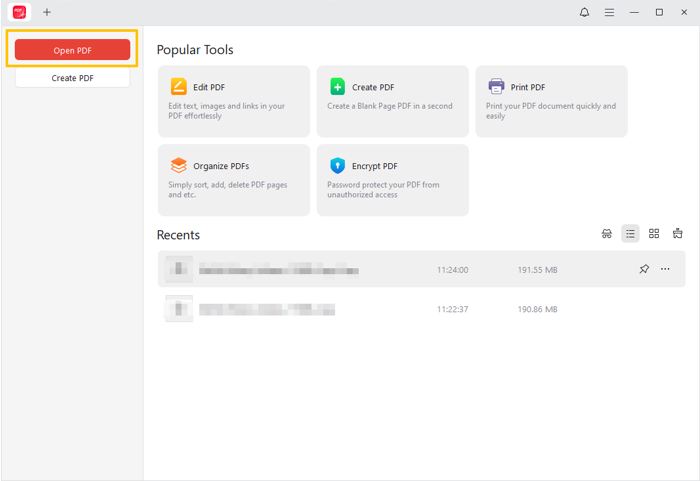
Step 3: Navigate to Annotate to choose the Attachment tool.

Step 4: Click on the PDF and select the video you want to embed in the PDF to import.
Step 5: Tap the paper clip icon that appears, then tap Open to play the video immediately.

A reliable alternative method to embed a video in a PDF is to embed the video link in the PDF. Often, you may have previewed everything fine, but the PDF recipients won’t open the PDF or video the same way you did. As explained before, most applications don’t support videos in PDFs, and they may show videos as static images. How do you embed a YouTube, Vimeo, or other online video in a PDF? Add hyperlinks to your PDF.
Step 1: Open your PDF file in JOPDF.
Step 2: Click Edit > Add Image to add a thumbnail image of a video.
Step 3: Go to Link > Add Link, draw around the image, and select Open a File.
Step 4: Add the video from your device, and adjust the link appearance.
Step 5: Apply the editing and settings, and save the file. When anyone gets the PDF, they can click on the image with the video link to watch the video.
Way 2: How to Embed a Video in a PDF with InDesign
You can insert a video into a PDF using Adobe InDesign. As a desktop publishing software, InDesign allows you to import PDF pages as images. A multi-page PDF requires you to click each InDesign page to place the PDF pages sequentially. Then, you can add elements on top of the pages. You can’t edit other content within the file. The video experience can still be inconsistent and may not work for other users using different devices.
Find out how to embed a video in a PDF in InDesign.
Step 1: Create an InDesign document with the same page size as the PDF.
Step 2: Press Cmd/Ctrl+D, choose Show Import Options to select and place a PDF on the InDesign document as an image.
Step 3: Drag and drop the video onto the PDF page, then draw a video frame so you can put the video in the PDF.
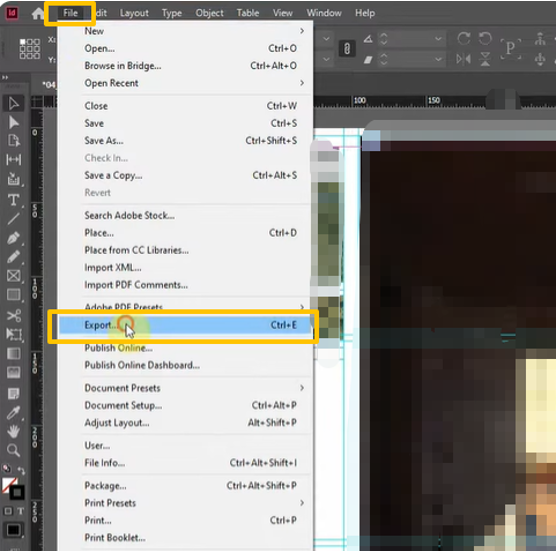
Step 4: Click File > Export, select Adobe PDF (Interactive) from the Save as type list, and click Export to embed the video in InDesign and create an interactive PDF.
Way 3: Embed Videos in PDF with Adobe Acrobat
Adobe Acrobat Pro is capable of embedding a video in a PDF. The industry-standard PDF software includes a comprehensive set of tools, despite the high subscription fees. It allows you to convert, compress, annotate, and sign PDFs. You can type text and add images to your PDF to make notes or comments. You can embed a video on your document page in Adobe directly as a multimedia element or as a clickable thumbnail link. Remember to use a compatible format, such as MP4.
Dive into how you can embed a video in a PDF document.
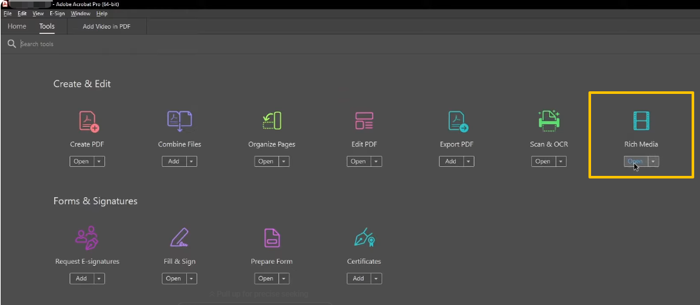
Step 1: Open the Tools panel in Adobe, and choose Rich Media.
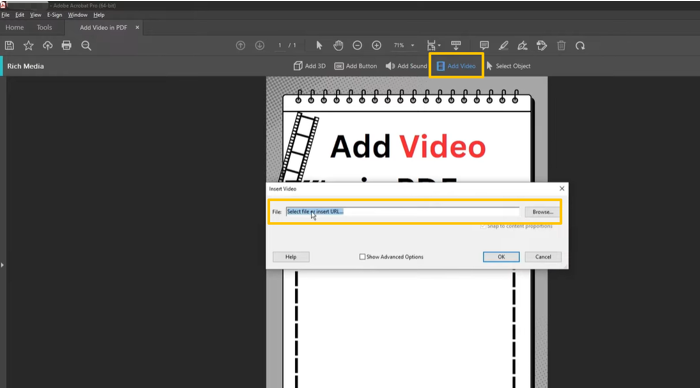
Step 2: Click Add Video, draw the video area, and click Browse to add a video to the PDF in Acrobat.
Step 3: Save the interactive PDF. Next time, open it in a PDF reader that supports interactive media, click the video, and trust this document to open it.
Way 4: Embed a Video in a PDF with Canva
Canva provides a way to insert a video in a PDF. The online graphic design and editing tool lets you upload and manipulate PDFs. It can convert a PDF into an editable design and let you add pictures, links, and other objects. It lets you share the edited PDF through a public link or download it for free.
Looking to add a video to a PDF file without Acrobat online for free? Explore the steps below.
Step 1: Upload the PDF in which you desire to embed and add a video online from the Canva PDF editor.
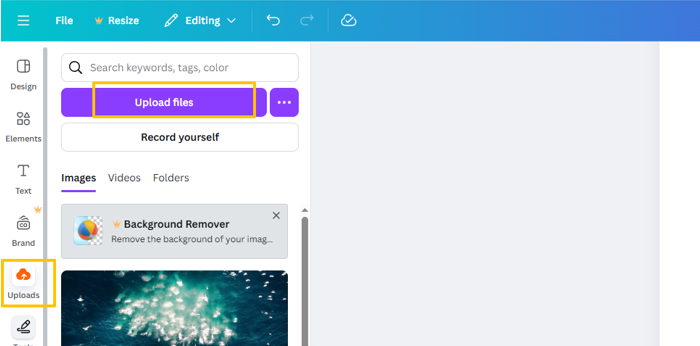
Step 2: Click Uploads > Upload files, and select your video thumbnail photo to add to the PDF.
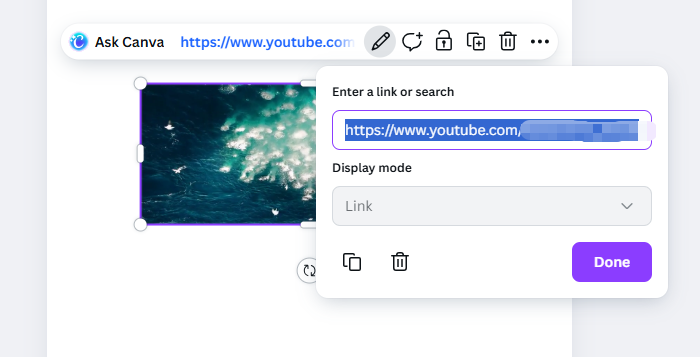
Step 3: Click the image, hit the More button, choose Link, enter the video link, and click Done.
Step 4: Go to the Download button at the top, select PDF Standard, and click Download. Once you’ve opened the PDF with the embedded video, click the video to play it in your browser.
The Bottom Line
Please note that video playback in a PDF file is mostly consistent only when you open the PDF in the same software on the same device where you embedded the video. Embedding online videos in PDFs for others to download is not the best experience. You should not ask about auto-play.
You can only make your PDF look good on your own, but there is no guarantee it will look good for someone else. This article has compiled the four practical ways to add a video in a PDF with a step-by-step tutorial. When needed, you can use a hyperlink to embed a hosted video that works across devices and systems.
FAQs
Table of Contents

Your Best Free PDF Expert in PDF editing, compressing, converting, annotating, protect, organizing, and more.
Free DownloadWindows · macOS · Linux

Selena
Staff Editor
“Selena is a staff editor working for JOPDF, passionate and committed to providing how-to and round-up articles. Over 8 years of specialized skills and experience in PDF solutions, hoping to help users ease their lives and solve whatever they encounter. "Work smarter, not just harder!"”