Introduction :
PDF files have become one of the most common formats for reading, editing, and sharing documents. Whether you’re a student highlighting essential textbook sections, a professional reviewing reports, or simply a reader marking passages in an eBook, a reliable PDF highlighter tool is essential. Highlighters make it easy to emphasize content, add annotations, and collaborate with others. In this JOPDF post, let’s explore six of the best PDF highlighter tools.
#Top 1. JOPDF (Best Free PDF Highlighter)
Supported OS: Windows, Mac
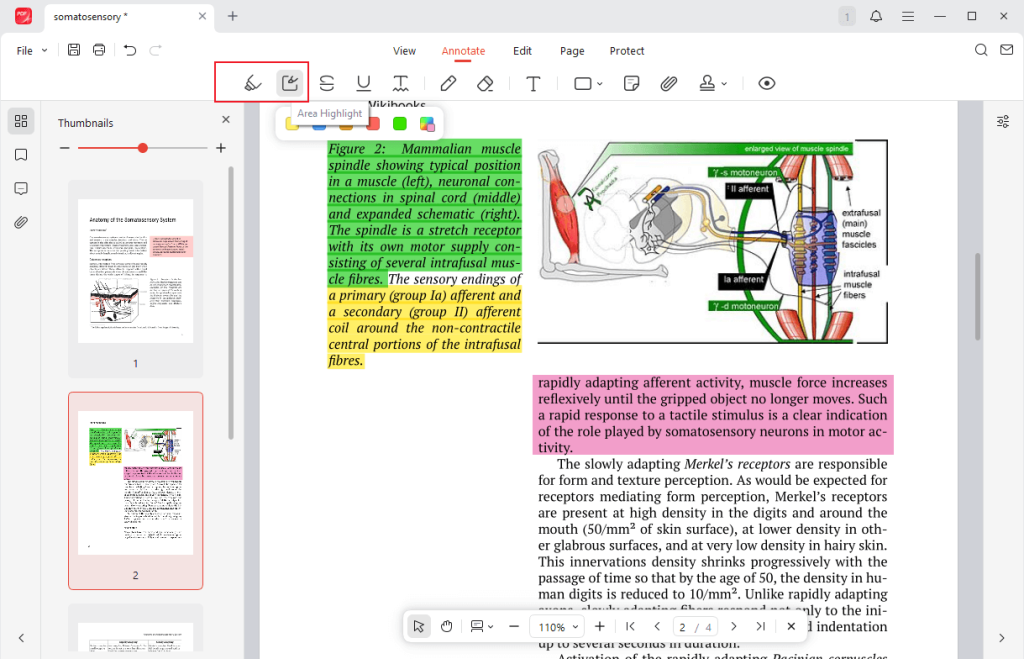
JOPDF is a completely free PDF highlighter that supports highlighting text, images, and other elements in PDFs tailored to your specific needs. Additionally, it enables you to add underlines or strikethroughs to PDFs, as well as add sticky notes and hyperlinks with ease. All in all, it is a good choice to highlight PDFs.
Other Key Features of JOPDF
- View PDFs in different viewing modes for a better viewing experience.
- Search and find words in PDFs with ease.
- Add or delete text in PDFs.
- Rearrange PDF pages.
- Insert and edit images in PDFs.
- Print PDFs as booklets.
- Edit and print a secured PDF.
- …
Pros of JOPDF
- An intuitive and user-friendly interface.
- Compatible with both Windows and Mac.
- A completely free program that requires no registration.
- A wide range of features to edit, annotate, print, or manage PDFs
- Suitable for beginners.
Cons of JOPDF
- Without OCR technology to handle scanned PDFs.
- Without features for PDF conversions.
Why JOPDF is Recommended?
First and foremost, what drew me in most is that JOPDF is a completely free PDF editor that doesn’t require registration. For someone like me with no budget, this advantage alone was enough to make me choose it. If you, like me, prefer free yet feature-rich tools, don’t miss out on JOPDF. Its intuitive and user-friendly interface allows anyone, including first-time users, to quickly master how to highlight PDFs.
#Top 2. SwifDoo PDF
Supported OS: Windows, Mac, Android, iOS
SwifDoo PDF is a feature-rich PDF tool that combines multiple functions for editing, annotating, converting, managing, and printing PDFs. With just this single software, you can handle almost all your PDF tasks. More importantly, it is a multi-platform PDF tool that can be used on both PCs and mobile phones. One of its annotation tools, the highlighter, enables you to highlight text and any area in PDF files.
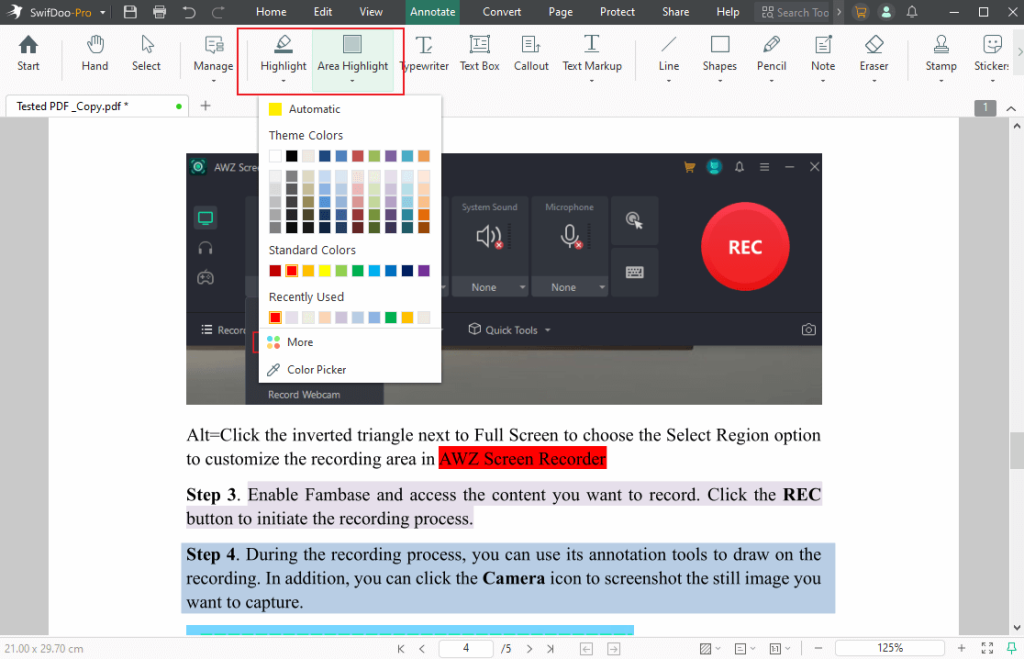
More Than a PDF Highlighter
- Provide various annotation tools to type, highlight, or draw lines on PDFs, add callouts, shapes, and more.
- Merge multiple PDFs into a single PDF.
- Compress PDFs to reduce their file size.
- Convert PDF to or from Word, PPT, Excel, CAD, etc.
- OCR PDFs.
- Extract PDF pages.
- …
Advantages of SwifDoo PDF
- It comes with a wide range of features for PDFs.
- An intuitive user interface.
- Compatible with both PC and phone operating systems.
- Provide AI-based features to rewrite or translate PDFs.
- Offer a 7-day free trial to enjoy its features.
Disadvantages of SwifDoo PDF
- It is not a completely free PDF editor.
- It takes some time to learn.
Why Do I Recommend SwifDoo PDF?
Although SwifDoo PDF isn’t free software, I still recommend using it for highlighting PDFs because it offers a 7-day free trial. If you need advanced features beyond highlighting to handle PDFs, SwifDoo PDF is definitely worth trying.
#Top 3. Adobe Acrobat Reader DC
Supported OS: Windows, Mac, Android, iOS
Undoubtedly, Adobe Acrobat Reader DC is the most widely used PDF tool worldwide. In one word, Adobe Acrobat Reader DC is a reliable PDF annotator that offers various powerful annotation tools, such as highlighting, underlining, and sticky notes. Highlighting PDFs with it is a piece of cake. It is known as a professional PDF editor owing to its robust set of features.
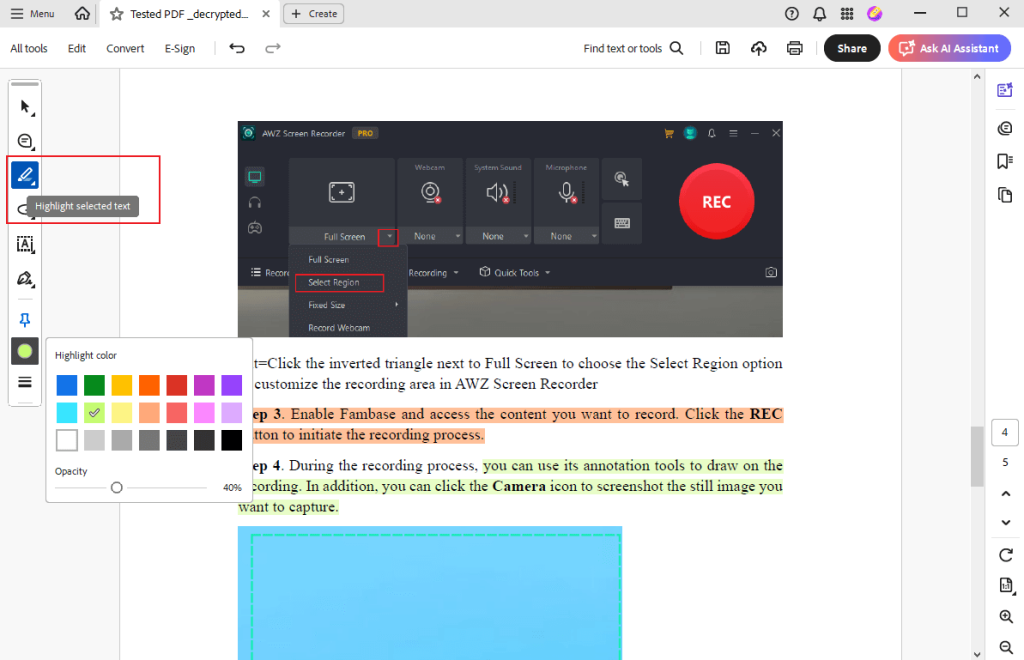
Other Highlights of Adobe Acrobat Reader DC
- Add comments, sticky notes, and drawing annotations.
- Can sync highlights across devices with Adobe Cloud.
- Support advanced editing and PDF form-filling.
- …
Pros of Adobe Acrobat Reader
- Ease highlighting with customizable colors.
- Integrate with Adobe Cloud for syncing across devices.
- It is a widely-trusted PDF tool.
Cons of Adobe Acrobat Reader
- Enjoy limited features in its free version.
- Slow performance or lag may occur on computers with limited processing power.
Why Adobe Acrobat Reader DC is Suggested?
Adobe Acrobat Reader DC is incredibly easy to use, even if you’re not a tech wizard. The first time I used it, I was genuinely amazed by its simple highlighting operation. Additionally, its color picker and opacity options make customization effortless, and the highlights remain crisp across all devices. For highlighting, it’s like a trusty pen that never runs dry.
#Top 4. Foxit PDF Reader
Supported OS: Windows, Mac, Linux, Android, iOS
Foxit PDF Reader is a lightweight yet powerful alternative to Adobe Acrobat Reader. In addition to highlighting PDFs, it offers other annotation tools, such as underlining and drawing. What’s more, owing to its cloud integration, Foxit PDF Reader is widely used by people who need to collaborate on work for PDFs.
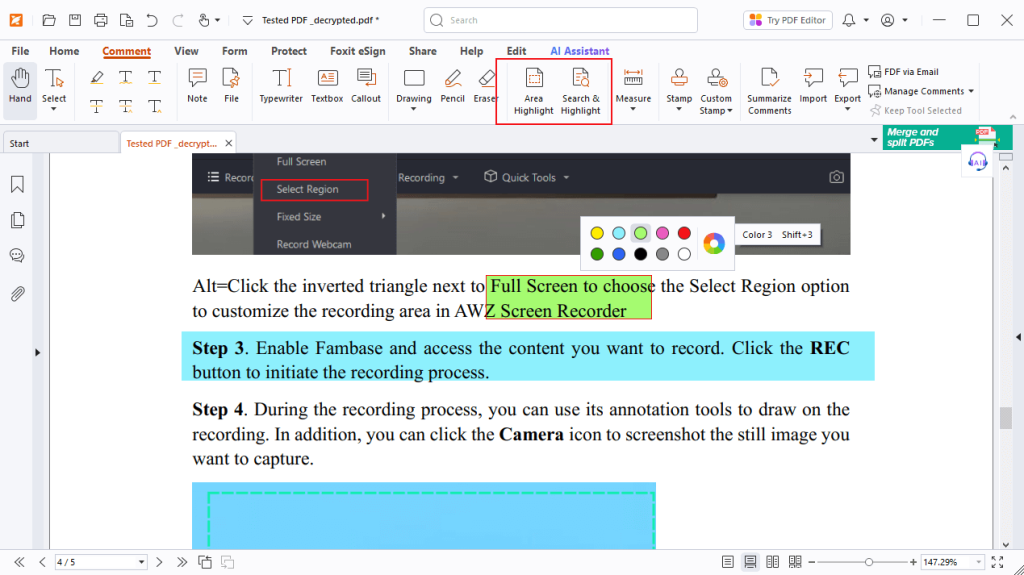
Other Useful Features of Foxit PDF Reader
- Draw, underline, or strikethrough PDFs.
- Fill interactive PDF forms.
- Convert scanned PDFs into editable and searchable PDFs.
- Integrate with cloud storage services, such as Google Drive and Dropbox.
Positives of Foxit PDF Reader
- Facilitate teamwork with strong integrations with cloud services.
- Provide multiple annotation tools.
- Strong collaboration and sharing options.
Negatives of Foxit PDF Reader
- Some advanced features are exclusive to the Pro version.
- Its UI may seem cluttered for some new users.
Why Is Foxit PDF Reader Recommended?
Why do I recommend Foxit PDF Reader for highlighting PDFs? One of the primary reasons is its lightweight design, speed, and robust annotation tools. With Foxit PDF Reader, you can easily highlight areas with customizable colors and opacity. It is really worth a try.
#Top 5. Smallpdf
Supported OS: Web-based (available in most browsers on PCs and phones)
Smallpdf is a browser-based PDF tool with a wide range of features for PDF documents. Highlighting is just one of its many features. In addition to highlighting PDFs, Smallpdf supports viewing, editing, compressing, converting, organizing, and protecting PDFs.
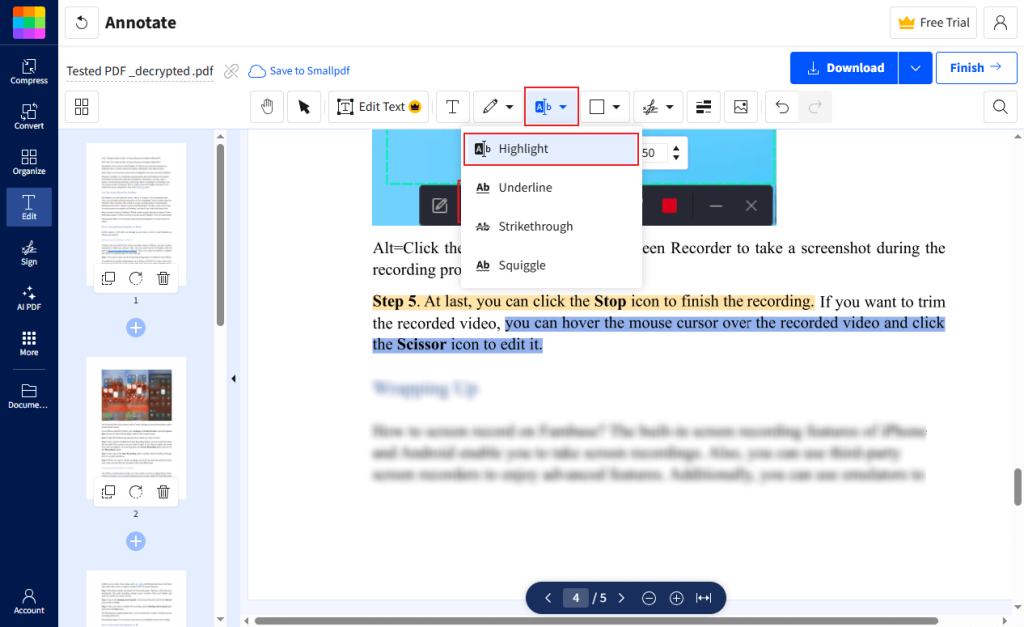
Other Features of Smallpdf
- Add signatures to PDF.
- Merge, split, or rotate PDFs.
- AI-based features for chatting with PDFs or translating PDFs.
- Convert PDF to or from various formats.
Pros of Smallpdf
- A user-friendly interface.
- Provide versatile PDF tools.
- Without downloading any software.
Cons of Smallpdf
- The free version has limited features.
- Require a table Internet connection.
Why is Smallpdf Worth Trying?
Smallpdf is a good choice if you don’t want to download any software or your device has limited storage space. Additionally, though the free version of Smallpdf has limited features, the PDF highlighting tool is fully available. In general, Smallpdf is a good PDF highlighter.
#Top 6. Kami
Supported OS: Web-based (works on any OS with a modern browser: Windows, macOS, Linux, ChromeOS); Android and iOS apps available
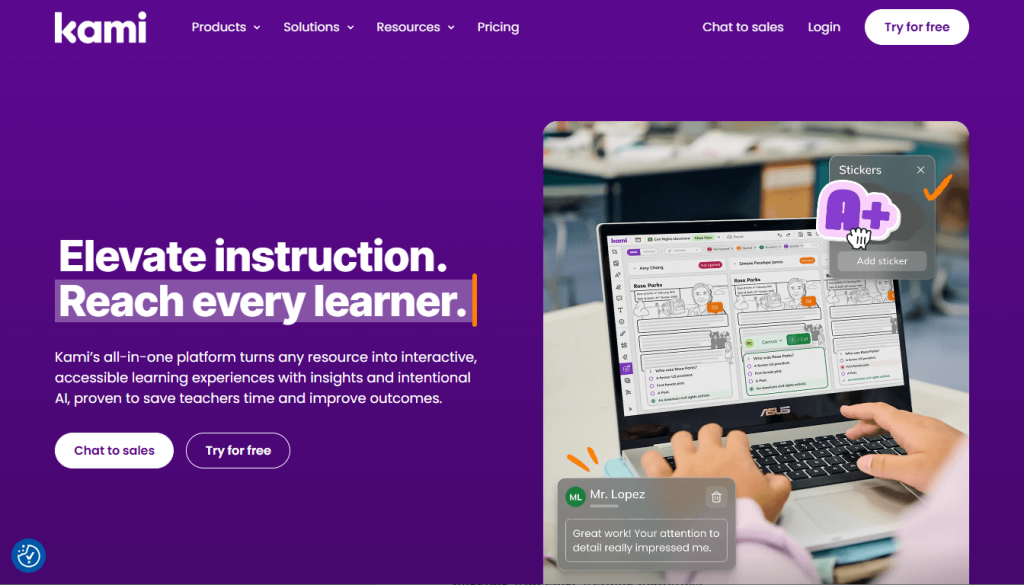
Kami is known as a web-based annotation tool that is widely used in education. You can use it to highlight any element, such as text, areas, and images, in a PDF effortlessly. Additionally, Kami allows for comments and real-time collaboration on PDFs, making it popular among teachers and students who need to work together on assignments.
Other Features of Kami
- Highlight, underline, and strikethrough text online.
- Real-time collaboration with team members.
- Support voice and video annotations.
- Integrate with Google Classroom and Microsoft Teams.
Upsides of Kami
- Ideal for remote teamwork.
- Without downloading or installing any software for PCs.
- It is cloud-based and works directly in browsers.
- Integrate with other working platforms.
Downsides of Kami
- Require a stable Internet connection.
- Only the paid plan has advanced features.
Why is Kami Worth a Try?
Compared to the other five PDF highlighters, Kami is an excellent PDF highlighter for teachers, students, or anyone who needs remote collaboration. What’s more, it can be accessed through any of the browsers on your devices. It offers various highlighting options, including text highlighters, freehand highlighters, and box highlighters, all available in a wide range of colors.
Conclusion
That’s all about the six best PDF highlighters. In the content above, I provide a brief introduction, key features, and the pros and cons of each. You can choose one from them based on your situation. The right tool can help you digest information faster, collaborate with others effectively, and keep your research or business documents well-organized. Now, pick one and start your seamless PDF work!
FAQs
Import the PDF first.
Go to Annotate and select the Highlight or Area Highlight option.
Choose a preferred color and highlight the target text or area.
Finally, save the highlighted PDF.
Table of Contents

Your Best Free PDF Expert in PDF editing, compressing, converting, annotating, protect, organizing, and more.
Free DownloadWindows · macOS · Linux

Olivia
“Olivia is an editor at JOPDF, where she writes practical guides and insightful articles on managing PDFs—covering topics like editing, annotating, converting, and organizing files efficiently. Passionate about clear communication and digital productivity, Olivia enjoys spending her free time cooking, watching movies, and hiking to unwind and find inspiration for her writing.”