![Guide on How to Print a Secured PDF [Windows/Mac/Online]](https://b.jopdf.com/wp-content/uploads/2025/10/how-to-print-a-secured-pdf.png)
Introduction :
Nowadays, PDF files are commonly used in our daily work and study life. For contracts, official documents, or other files containing sensitive content, it is recommended to save these files as PDFs. That’s because PDF has the ability to protect sensitive content through passwords or restrictions from viewing, editing, copying, or printing. What can you do if you really need to print protected PDFs for personal or professional use? Here’s a comprehensive guide on how to print a secured PDF on different OS.
If you have experienced the problem of failing to print a secured PDF, don’t worry. In the following content, I will walk you through how to print a password-protected PDF on Windows, Mac, and online. The tools I’ll cover include:
- JOPDF
- SwifDoo PDF
- Adobe Acrobat
- iLovePDF
Now, let’s get started! By the way, you should use the following methods to print protected PDF files only when legally permitted.
Most Recommended Way to Print a Secured PDF on Windows & Mac
Among the 4 PDF tools, I’d like to introduce JOPDF first, which is the tool I recommend most highly. One of the points that most attracts me is that JOPDF is a completely free PDF tool compatible with both Windows and Mac. You can use it to unlock and print password-protected PDFs for free. Additionally, if you need to revise or edit any content, JOPDF can assist you with its useful tools. For instance, it can add text to PDFs, insert images to PDFs, add or remove hyperlinks from PDFs, and more.
Now, let’s explore the steps to print a secured PDF file with JOPDF.
Step 1. Simply hit the button below to download and install this free PDF program.
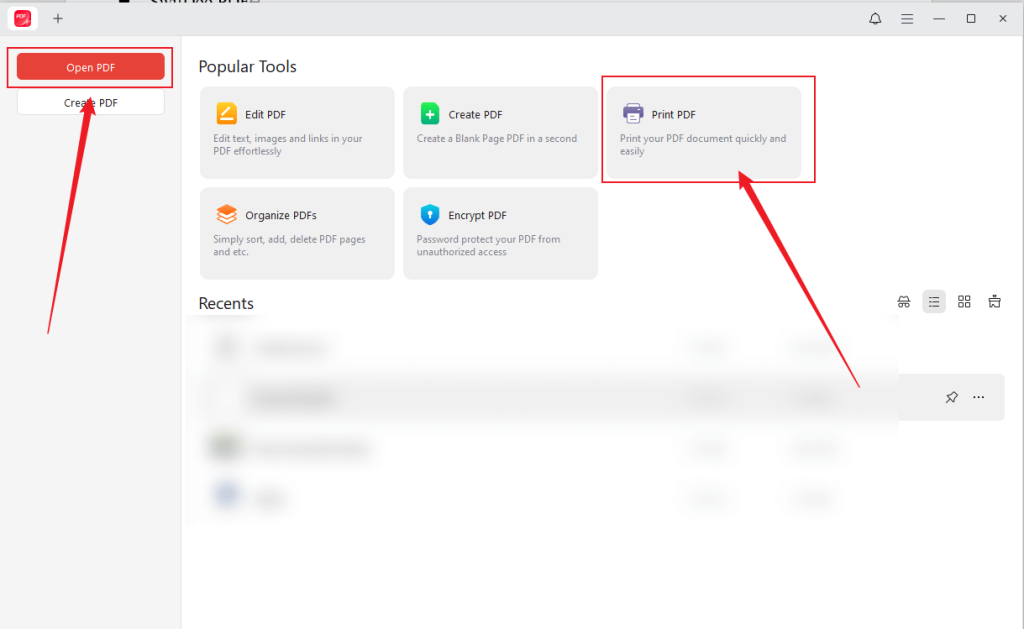
Step 2. Run JOPDF on your Windows or Mac PC and click Open PDF to upload the target password-protected PDF file. Alternatively, you can click the Print PDF option to import the target PDF.
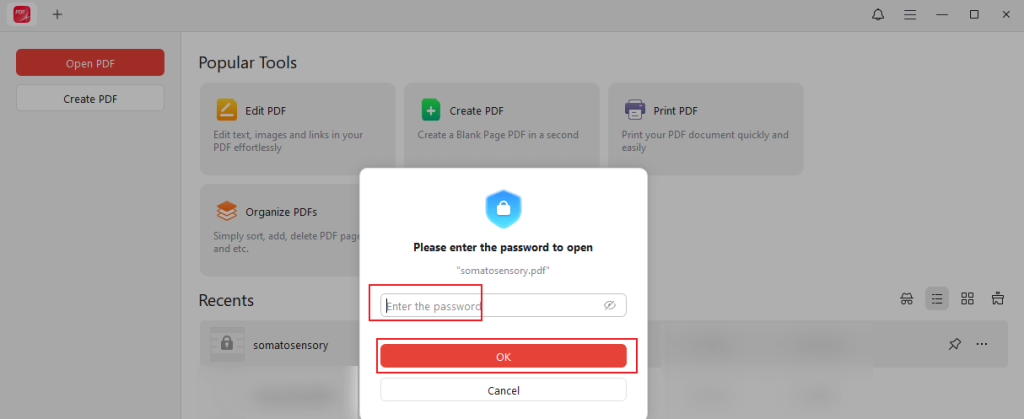
Step 3. A window will appear to request the password to access the PDF file if it is protected. Enter the open password and click OK.
Step 4. You can directly click the Print icon in the top left to access the Print window. If the PDF is protected from printing, switch to the Protect tab and click on Decrypt. If you know the permission password, enter the password and click the Decrypt button. If you don’t know, click “Don’t have the permission password?” and click Remove.
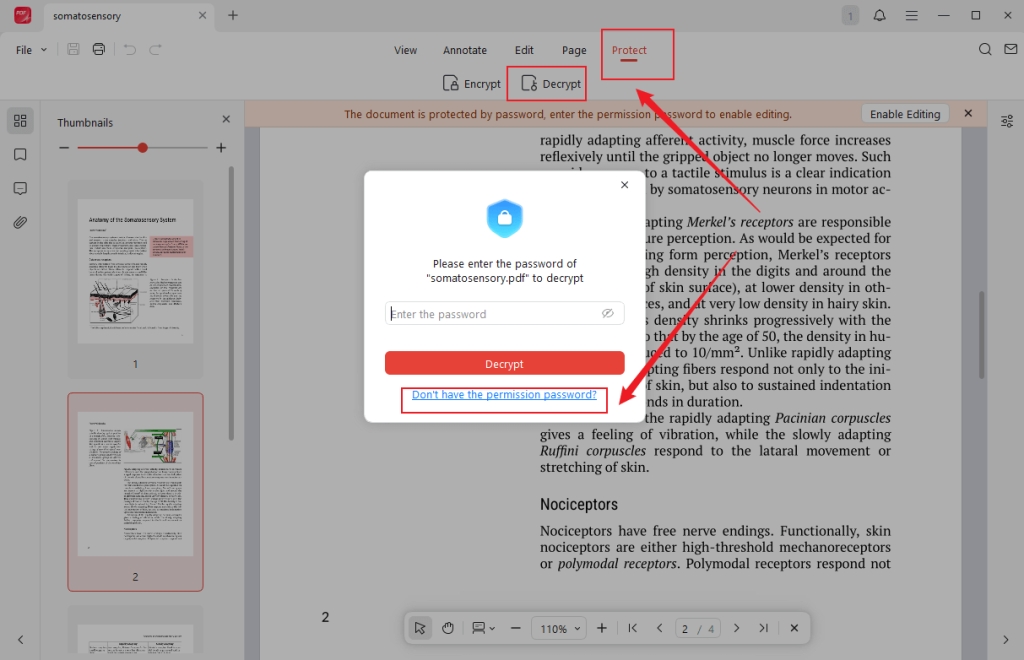
Step 5. Next, resave the decrypted PDF file. Then, the PDF will open in JOPDF automatically. Click the Print icon, select the printer, set the page size, and customize other print settings as needed. Finally, click Print.
Why Choose JOPDF?
JOPDF is a completely free PDF tool for both Windows and Mac. Thanks to its intuitive interface and easy operation, it is extremely suitable for beginners. What’s more, its various features can meet your most needs for PDF.
How to Print a Protected PDF on Windows
SwifDoo PDF is a lightweight yet robust PDF editor that has the feature to handle secured PDFs. It comes with various tools to edit, convert, annotate, print, and manage PDFs. With its intuitive interface, even if you are a beginner, you can also master how to use it easily.
Furthermore, SwifDoo PDF utilizes OCR technology to convert scanned PDFs into editable, searchable, and selectable documents. In that way, you can recognize text in PDFs with no hassle. Here, let’s check the steps to print a secured PDF using SwifDoo PDF.
Step 1. Download and install SwifDoo PDF from its official website and then launch it.
Step 2. Click Open to import the target protected PDF. Alternatively, right-click the protected PDF, move to Open with, and choose SwifDoo PDF.
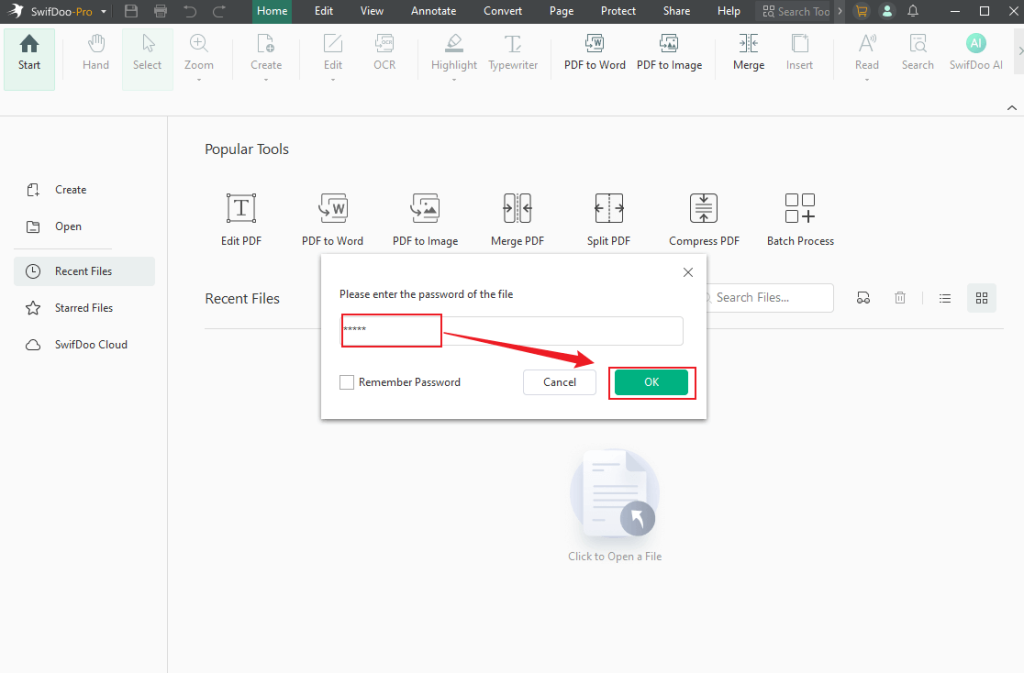
Step 3. If this PDF is password-protected from viewing, you need to enter the password to unlock it.
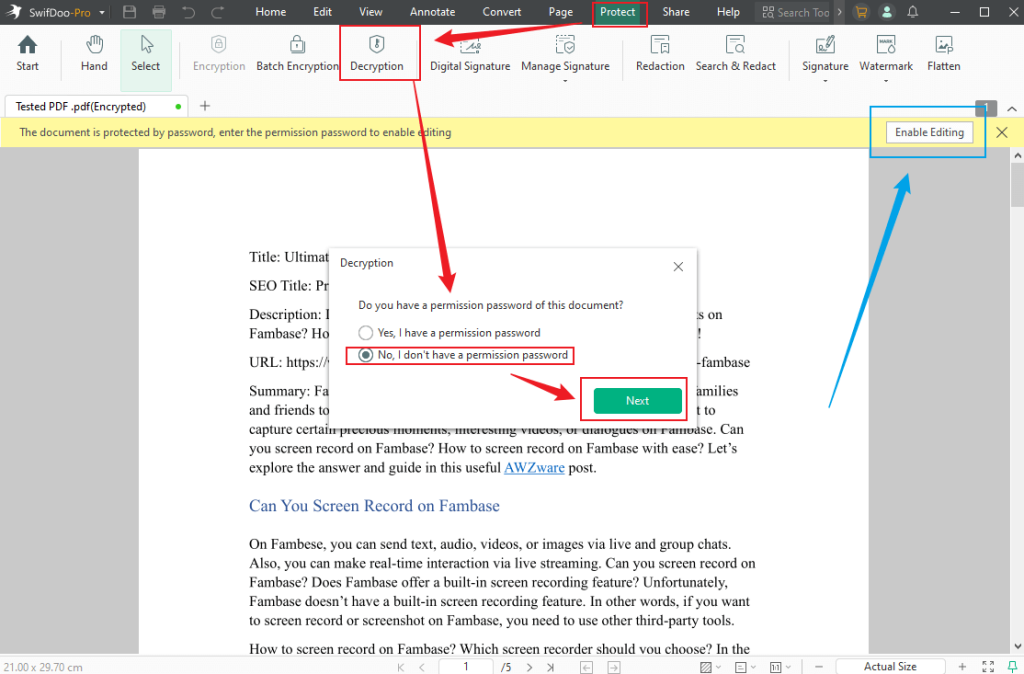
Step 4. A banner will appear at the top of the PDF file. You can click the Enable Editing button if you know its password. If you don’t know, go to Protect and click the Decryption option. Next, choose “No, I don’t have a permission password”, click Next, and click Remove to remove the permission password.
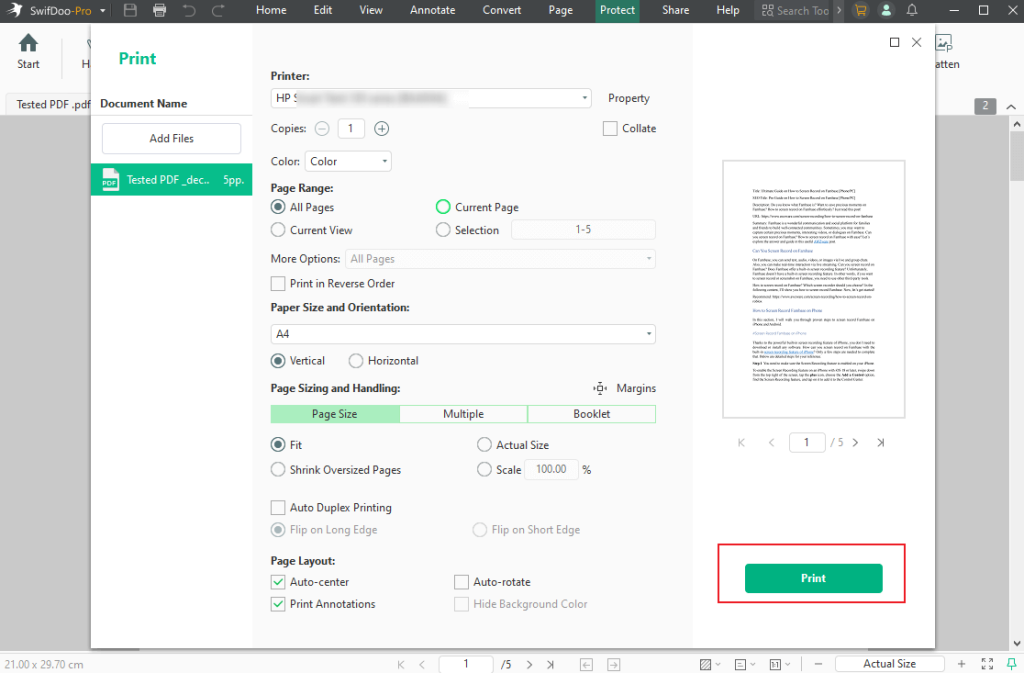
Step 5. Click the Print icon in the upper left or press Ctrl + P to enable the Print window. On this window, you can customize the print settings. Once OK, click the Print button.
Why choose SwifDoo PDF?
SwifDoo PDF is a simple, lightweight, and efficient tool. It’s a great choice for Windows users who don’t want a heavy application like Adobe Acrobat but still need professional features.
How to Print a Secured PDF on Mac
Adobe Acrobat can be regarded as the most professional PDF editor on the market, which is developed by Adobe, the creator of the PDF format itself. It provides a wide range of features to perform and handle various PDF tasks and issues. With it, you can print secured PDF documents efficiently. However, if you don’t have a sufficient budget to cover the expensive subscription fees of Adobe Acrobat, consider JOPDF.
Here’s how to print a password-protected PDF in Adobe Acrobat.
Step 1. First, ensure you have installed Adobe Acrobat and purchased a valid version of Adobe Acrobat Pro or Standard. Next, locate the target PDF file, right-click on it, and select Open with Adobe Acrobat.
Step 2. If prompted, enter the open password to unlock the PDF for viewing. Then, click File and choose the Properties option.
Step 3. In the Document Properties window, go to the Security tab, check the Security Method option, open the Security Method dropdown, and select the No Security option.
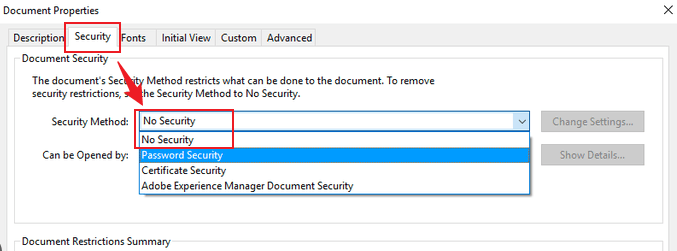
Step 4. Next, enter the permission password and click OK.
Step 5. Finally, you can go to File and select Print to print the PDF file in Adobe Acrobat.
Tips
If printing is allowed in the PDF file, you can try this way: go to File, click on Print, and set Save as PDF as the printer. Then, click Print to save the new PDF file. Later, open the unsecured PDF file and be ready to print it.
Why Adobe Acrobat is Recommended?
If you frequently work with PDFs in a professional environment, Adobe Acrobat is a reliable and secure option. Its advanced tools make it a top choice for businesses and professionals.
How to Print Password-Protect PDF Online
Once you don’t want to install any software, a reliable PDF tool is your best choice. Among various online PDF editors, I pick iLovePDF. It is a feature-rich online PDF tool that can be accessed via most popular browsers on both PC and mobile phones. iLovePDF offers many free tools to merge, split, convert, compress, or even unlock PDFs. Let’s refer the steps below to print a secured PDF file using iLovePDF.
Step 1. Visit the iLovePDF Unlock PDF tool website.
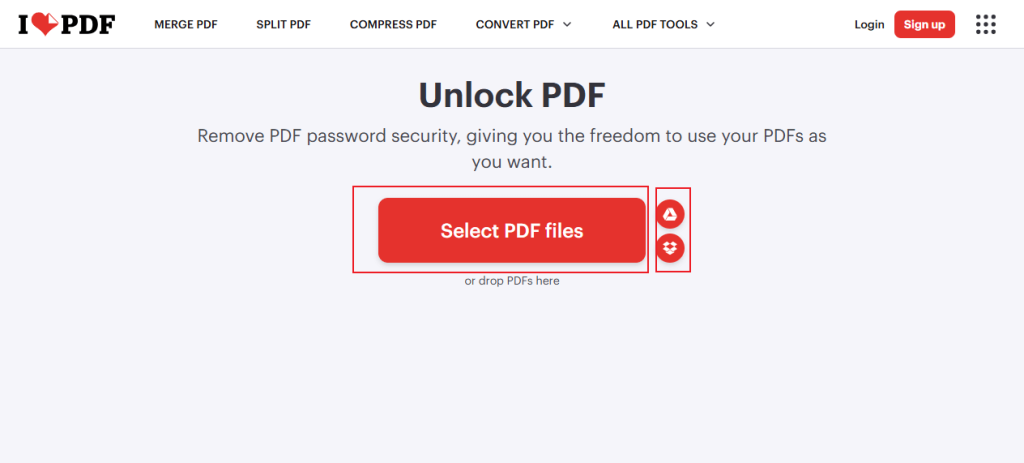
Step 2. Hit the Select PDF file button to upload the secured PDF from your local storage space. Alternatively, you can upload the PDF from Google Drive or Dropbox.
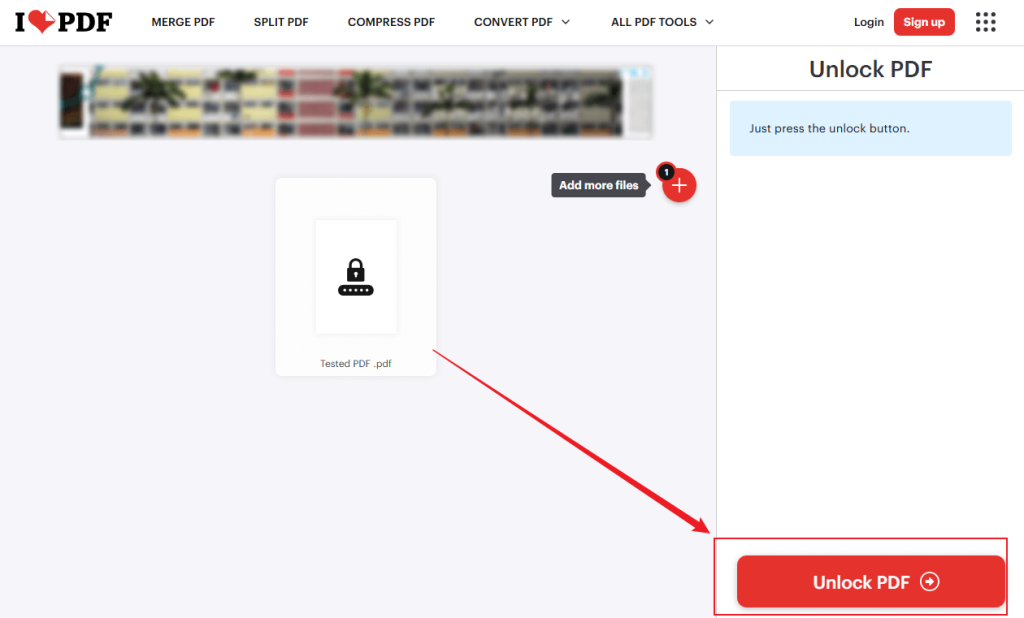
Step 3. Click the Unlock PDF button. If the PDF file is protected by an open password, you will need to enter it first and click Send. Later, the password will be removed.
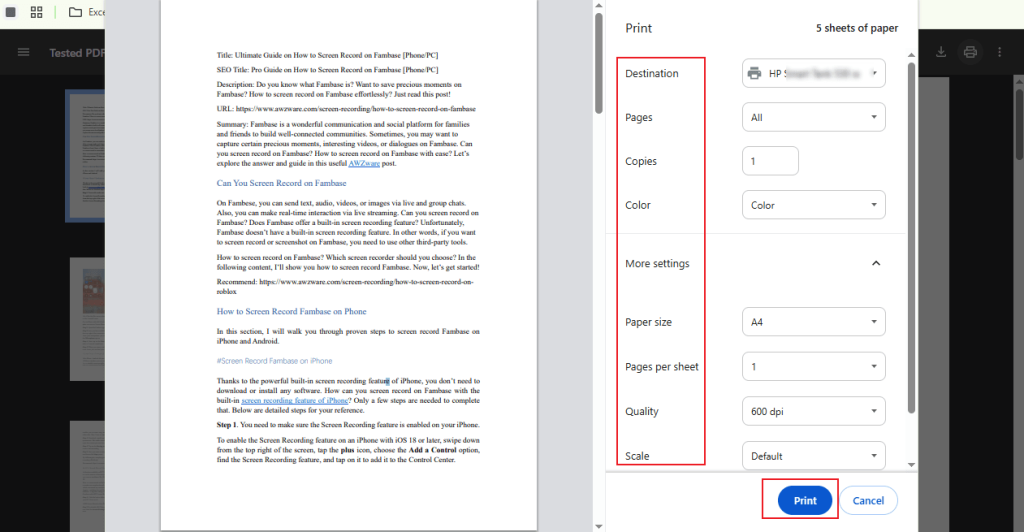
Step 4. Next, download it. You can open it in Google Chrome or your PDF viewer. Here, I take Google Chrome as an example to print the unlocked PDF file. Click the Print icon in the upper right, open the Destination list to choose your printer, personalize other print settings, and click Print.
Why iLovePDF is Suggested?
iLovePDF is convenient, fast, and works on any device with internet access. It’s ideal for users who prefer not to install software and only need to unlock and print occasionally.
To Sum Up
It is not complicated to print a secured PDF as long as you select a reliable and right tool. How to print a secured PDF on Windows, Mac, and online? JOPDF is my top recommendation because it’s free and practical. SwifDoo PDF and Adobe Acrobat are also worth a try if you’re willing to spend the money. If you don’t want to download or install any software, consider iLovePDF. With the right tool, you can unlock restrictions and print password-protected PDFs easily when you have legitimate access.
FAQs
Remove the printing restriction via JOPDF.
Screenshot the PDF and print the screenshot of the PDF image.
Convert the PDF to Word or other formats.
Table of Contents

Your Best Free PDF Expert in PDF editing, compressing, converting, annotating, protect, organizing, and more.
Free DownloadWindows · macOS

Olivia
“Olivia is an editor at JOPDF, where she writes practical guides and insightful articles on managing PDFs—covering topics like editing, annotating, converting, and organizing files efficiently. Passionate about clear communication and digital productivity, Olivia enjoys spending her free time cooking, watching movies, and hiking to unwind and find inspiration for her writing.”