Introduction :
Are you frustrated by the lengthy PDF file with numerous chapters? How can you quickly locate a specific word, sentence, paragraph, or page in PDFs? Scrolling through pages to find it is time-consuming and tedious. The best approach is to add bookmarks to the specific text or page. How to add bookmarks to PDF files with ease? This comprehensive post from JOPDF will introduce you to 4 excellent PDF editors and walk you through how to use them to add bookmarks.
Benefits of Adding Bookmarks to PDFs
Bookmarks in PDF documents serve as navigation aids, enabling you to quickly jump to specific pages, sections, headings, or even external links within the PDF, another document, or a webpage. What are the specific benefits of adding bookmarks to PDF files? The two primary key benefits are as follows:
- Enhanced navigation and accessibility: For large documents such as reports, manuals, or e-books, bookmarks allow you to instantly access specific sections without scrolling through pages. Moreover, bookmarks leverage the underlying structure of PDFs to provide a clear document outline, which facilitates reading PDF documents for specific groups, such as users with disabilities who rely on screen readers or keyboard navigation.
- Improved user experience: By adding bookmarks to PDF content, the reading experience has become significantly enhanced, making it more navigable and user-friendly.
Now let’s get back to the main topic. How to add bookmarks in a PDF file? Read the following content to learn 4 effective and easy ways.
How to Add Bookmarks to PDF Free with JOPDF
Supported OS: Windows, Mac
JOPDF is a completely free PDF editor that has a wide range of editing tools, supporting creating, editing, organizing, encrypting, and printing PDFs. Even if you are a beginner, you can quickly master how to use it thanks to its intuitive and user-friendly interface.
Introducing Key Features of JOPDF
- Add text and images in PDFs
- Add links to PDF and link PDF to web pages and files
- Insert, delete, and rearrange PDF pages
- Encrypt and decrypt PDFs
- Annotate PDFs by adding highlights, strikethroughs, stamps, and more
- …
Exact Steps to Add Bookmarks to a PDF for Free via JOPDF
Step 1: Download and install JOPDF on your Windows or Mac PC.
Step 2: Launch this free PDF editor and click Open PDF to import the lengthy PDF you want to add bookmarks to.
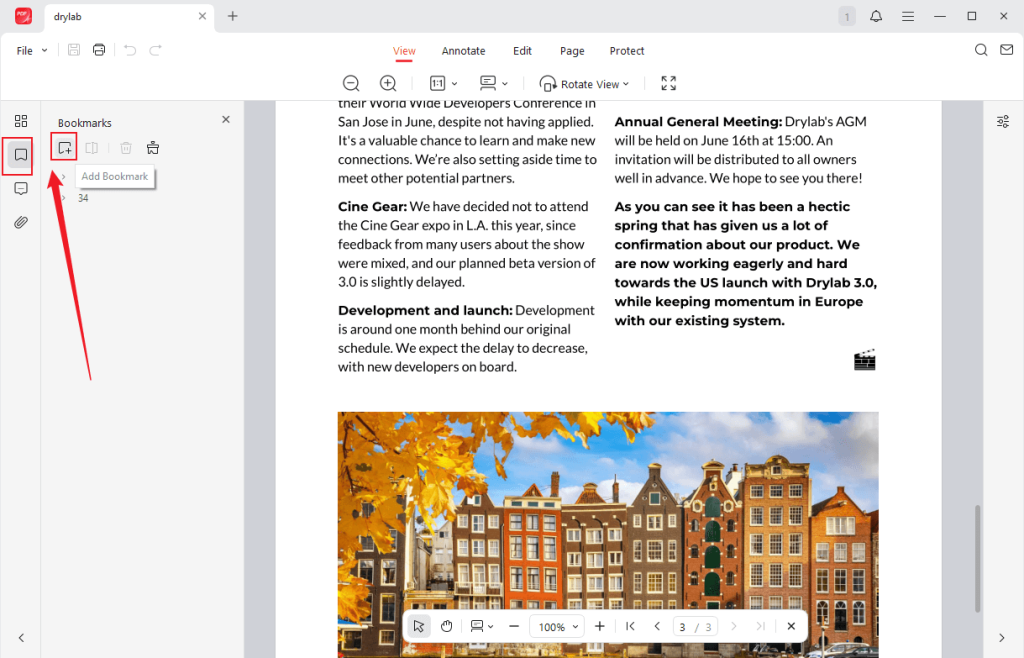
Step 3: Switch from the Thumbnails icon to the Bookmarks icon in the left sidebar. Locate the page you want to add a bookmark to and click the Add Bookmark icon. Alternatively, you can right-click on the page and select the Add Bookmark option.
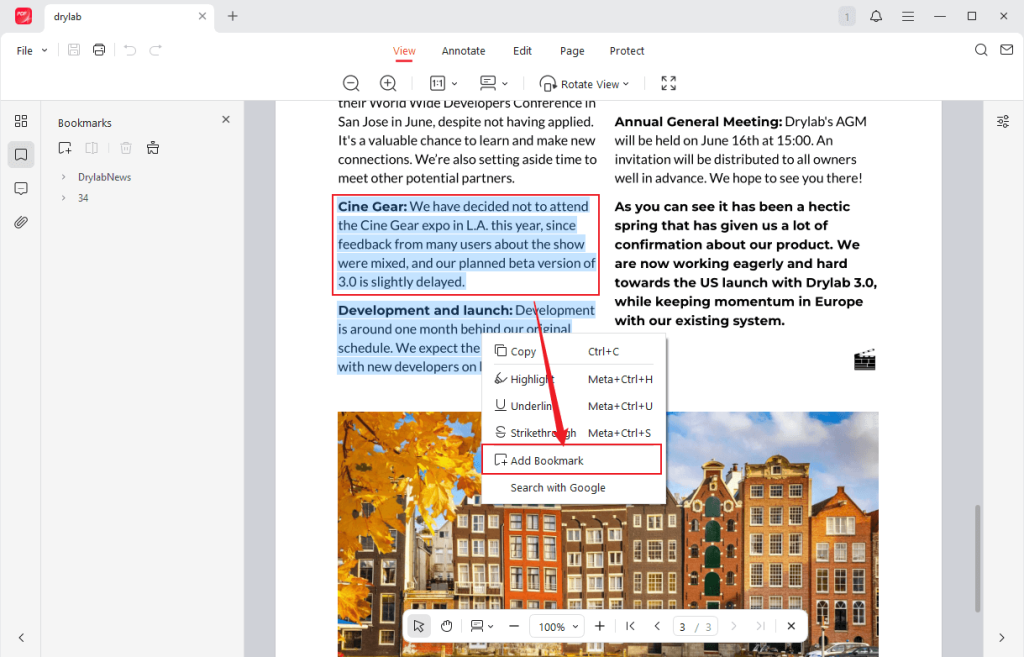
If you want to add a bookmark to a certain headline, text, or sentence, left-click the mouse to select it, right-click on it, and choose the Add Bookmark option.
Optionally, you can add a sub-bookmark under an already-created bookmark. On the Bookmark panel, right-click the already-added bookmark and click the Add Sub-bookmark option.
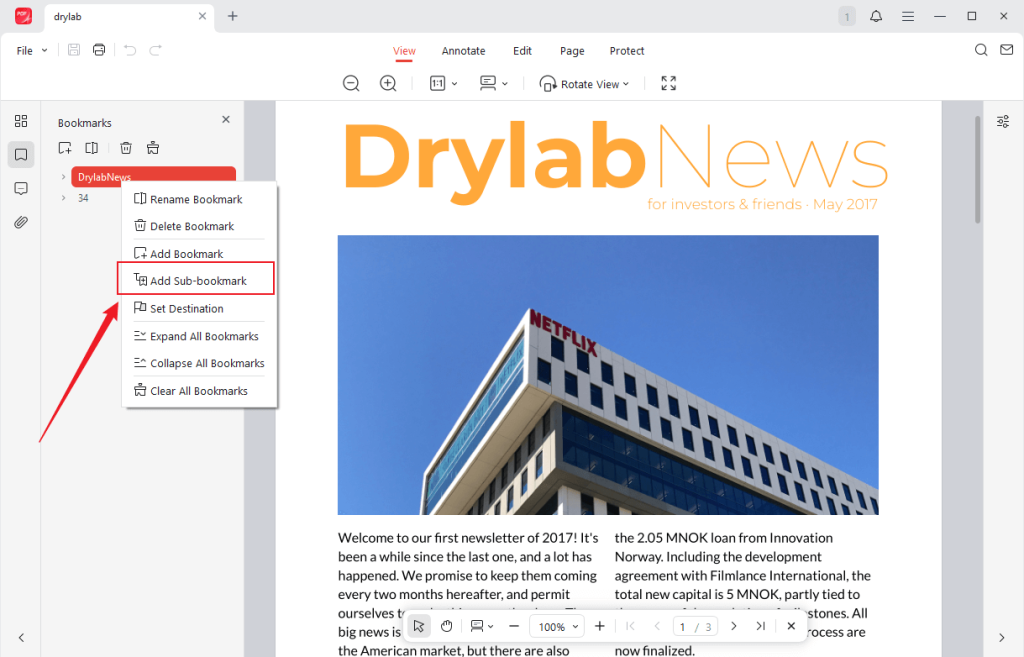
Step 4: After adding all bookmarks, click the Save icon to save the PDF file with bookmarks.
How to Add Bookmarks to a PDF in Adobe Acrobat
Supported OS: Windows, Mac, Android, iOS
Adobe Acrobat is a multifunction program for PDFs. With Adobe Acrobat, adding bookmarks to PDFs is a piece of cake. You should know that only the Adobe Acrobat Pro and Standard versions can enjoy the feature to add bookmarks. In other words, the feature for adding bookmarks is not available in Adobe Acrobat Reader. In the content below, let’s check the tutorial to learn how to add bookmarks to a PDF using Adobe Acrobat.
Step 1: Visit the official Adobe Acrobat website to download and install the software on your PC. Run this program and log in with your Standard or Pro account.
Step 2: Open the PDF file in Adobe Acrobat and go to the page or section where you want to add a bookmark. Next, click the Bookmarks icon in the right sidebar, and then the Bookmarks panel will appear. If the panel doesn’t appear, go to View > Show/Hide > Navigation Panels to toggle on the Bookmarks option.
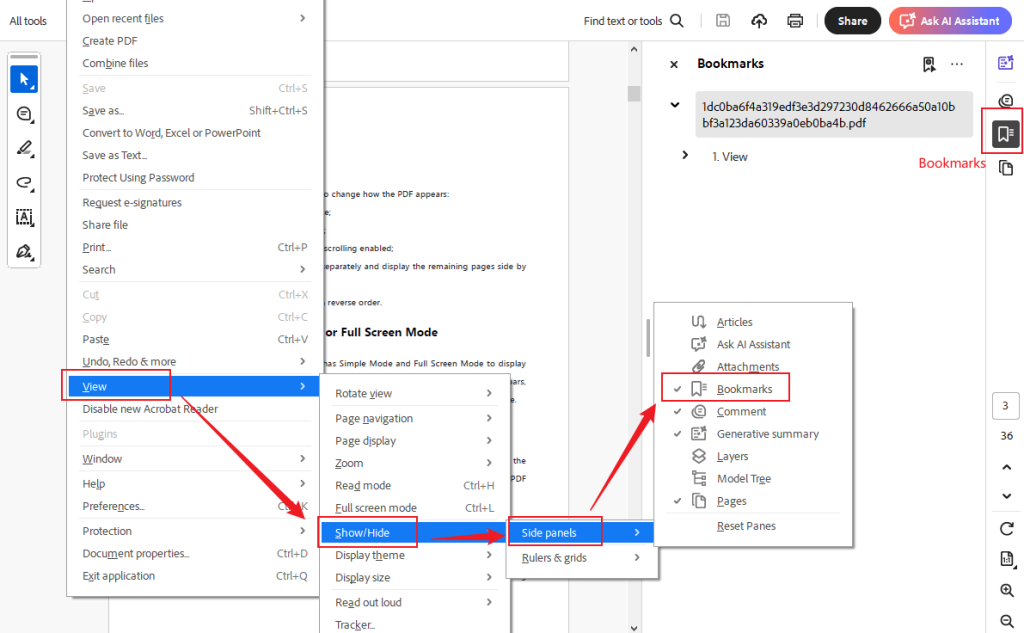
Step 3: Then click the New Bookmark option to add a bookmark to the page or section. Alternatively, you can right-click in the panel and choose the New Bookmark option. Give a name to the bookmark and press Enter.
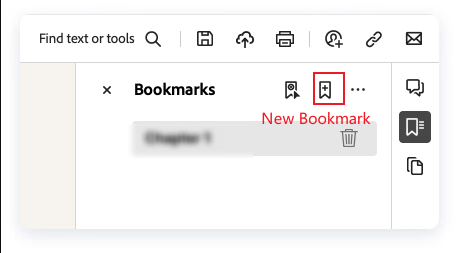
Additionally, Adobe Acrobat enables you to add a bookmark with a text selection. You need to choose the text in advance. Then, open the Bookmarks panel and choose the Bookmarks icon. Next, give a name to the bookmark and press Enter.
Step 4: Finally, go to File > Save to export the PDF file with bookmarks in Adobe Acrobat.
How to Add Bookmarks to a PDF Using Preview
Supported OS: Mac
Preview is a pre-installed program on Mac, designed to view and edit images and PDFs. It allows you to add page bookmarks for quick navigation in PDFs. However, it can’t bookmark selected text or add sub-bookmarks. If you only need to bookmark pages in a PDF, try Preview.
Follow me to explore how to add bookmarks to PDF in Preview on Mac.
Step 1: Locate your PDF file in Finder and double-click it to open it in Preview if you have set Preview as the default PDF viewer. If not, right-click the PDF file, move to Open With, and choose Preview.
Step 2: Navigate to the PDF page you want to bookmark.
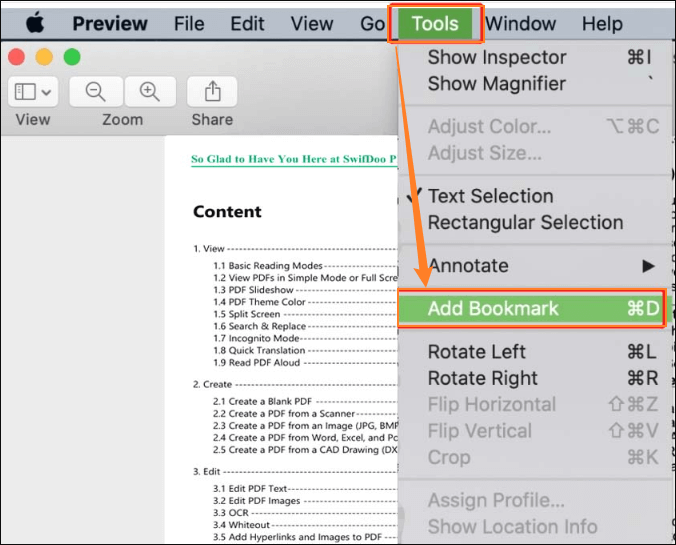
Step 3: Click the Tools option from the top menu and select the Add Bookmark option. Then repeat the operation to add more bookmarks. Finally, save the PDF file.
How to Add Bookmarks to PDF Online via Sejda
Supported OS: web-based tool for Windows, Mac, Linux, Android, and iOS
Sejda is a comprehensive PDF tool available in both web-based and desktop versions. It offers various features for editing, managing, and enhancing PDFs. Without a steep learning curve, Sejda is a good choice for beginners to add bookmarks to PDFs. Here’s how:
Step 1: Go to Sejda’s Create Bookmarks website first.
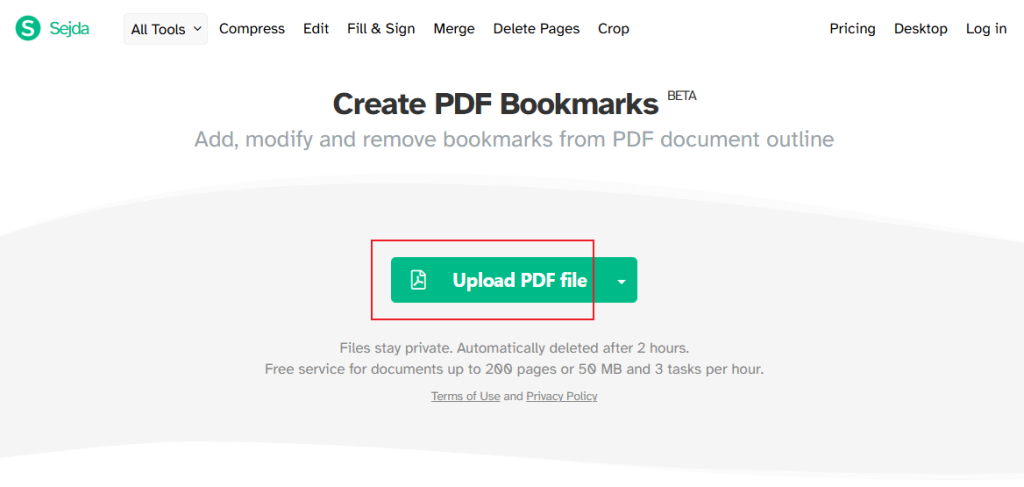
Step 2: Hit the Upload PDF file button to locate the target PDF and click Open to import it into Sejda.
Step 3: Once uploaded, Sejda will automatically add bookmarks to the PDF based on the headlines. You can also add another bookmark at the same level or a sub-bookmark. Click the added bookmark, type in the page number, open the Add list, and choose from the Add sibling before, Add sibling after, or Add child item option.
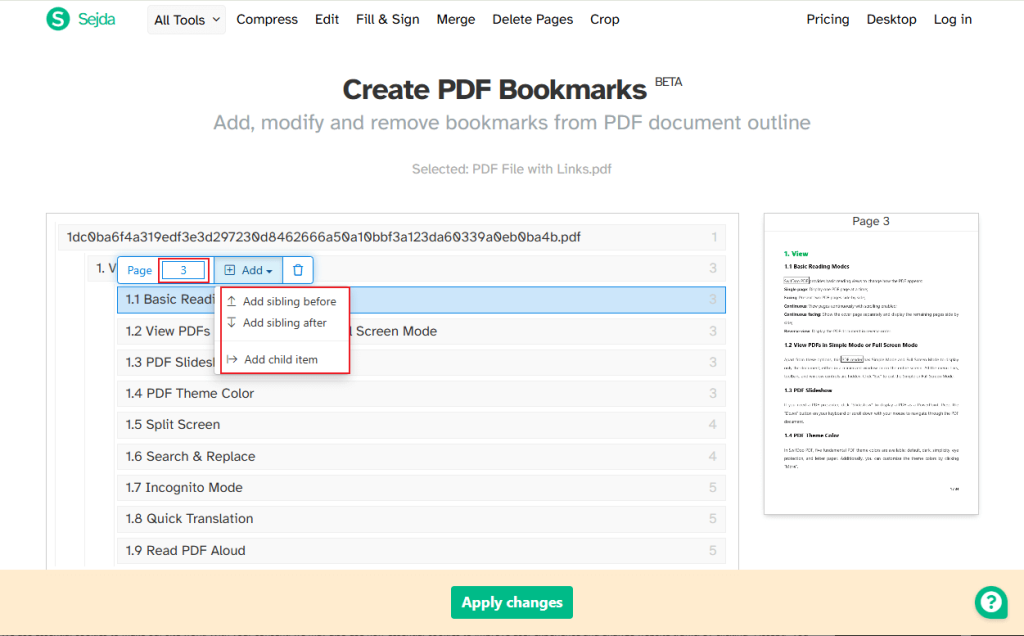
Step 4: Later, click the Apply changes button to start the process. Finally, click Download.
Bottom Line
By adding bookmarks, your PDF files can become navigational and provide a better viewing experience. In the content above, I have shown you how to add bookmarks to PDF files in 4 reliable ways, including both free and paid ways. You can make a choice based on your practical needs. Hopefully, this post can be helpful to you.
FAQs
Adobe Acrobat Reader (the free version) doesn’t support creating or adding bookmarks to PDFs.
The PDF file is protected or has other restrictions.
The PDF file with bookmarks is not saved properly.
You open the PDF file with bookmarks in other applications or PDF viewers.
The PDF file with bookmarks is damaged.
Table of Contents

Your Best Free PDF Expert in PDF editing, compressing, converting, annotating, protect, organizing, and more.
Free DownloadWindows · macOS

Olivia
“Olivia is an editor at JOPDF, where she writes practical guides and insightful articles on managing PDFs—covering topics like editing, annotating, converting, and organizing files efficiently. Passionate about clear communication and digital productivity, Olivia enjoys spending her free time cooking, watching movies, and hiking to unwind and find inspiration for her writing.”