![5 Free Ways to Find Font from PDF Quickly [2025 Latest]](https://b.jopdf.com/wp-content/uploads/2025/11/find-font-from-pdf.png)
Summary :
Sometimes, you need to update or modify the information in a PDF document, such as a catalog or brochure. You may wonder how to figure out what font is used in a PDF so you can add new content in the same font. Or, you want the font name to use in other files. Luckily, you can do that with PDF editing software or an online tool. This JOPDF article introduces five free font identifiers to help you quickly find fonts from a PDF.
Way 1: How to Find Fonts from PDF Using JOPDF
JOPDF is a completely free PDF editor application for Windows and Mac. It lets you easily find the font name or style from a PDF in just a few clicks. The program can make your PDF fully editable. So you can directly select, delete, or replace the text and images and add images to the PDF.. It also offers various annotation tools for PDFs, including drawing, highlighting, and note-taking.
Here is how to use the JOPDF font finder to find fonts from a PDF.
Step 1: Download and run the JOPDF software on Windows or Mac.
Step 2: Click the Open PDF button to select and open the PDF from which you want to find out the font.
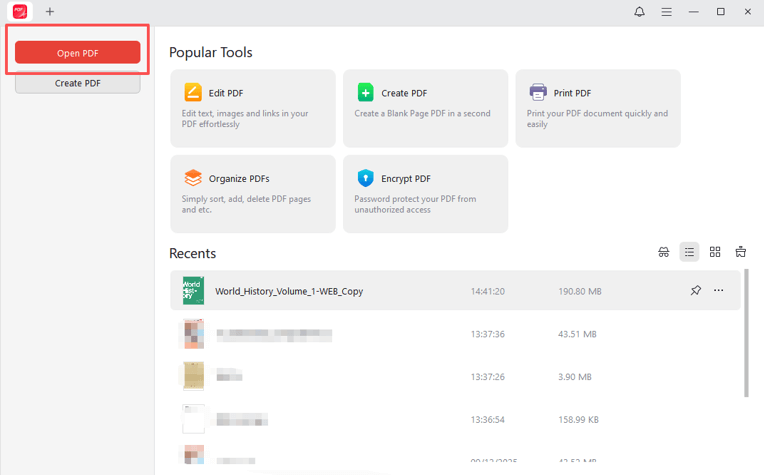
Step 3: Choose the Edit tab, and click the Edit All button to enter editing mode.
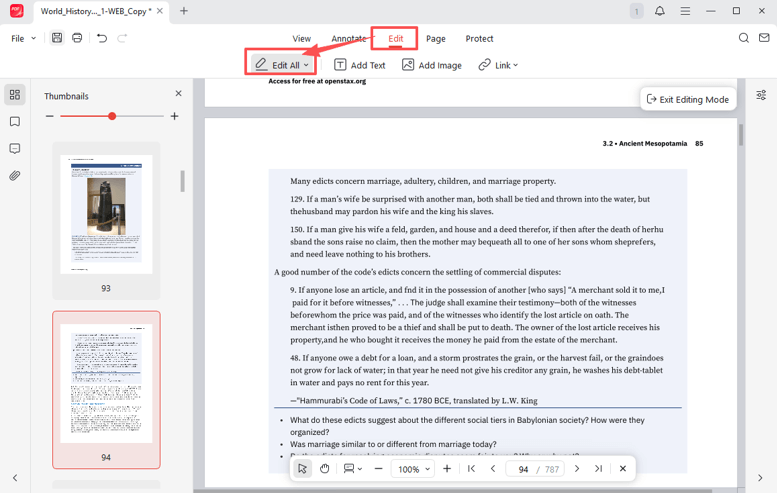
Step 4: Click into a text box, select the text, and you can find the font from the PDF file for free in the mini bar.
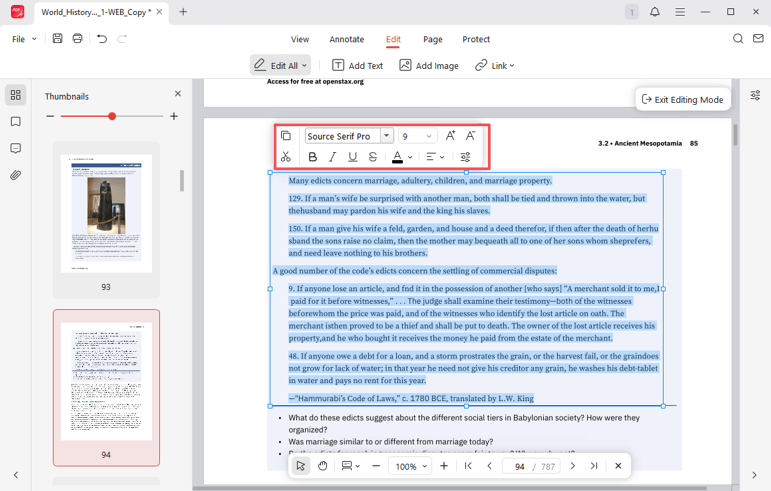
Step 5: You can check the font size and other properties, and make additions or changes as needed.
Way 2: Identify the Font from PDF Using Adobe Acrobat
Adobe Acrobat Reader or Pro DC is a PDF font finder that can identify and find fonts from a PDF document offline. It allows you to view the document properties, including font types and security details. The free version also enables you to print, comment, and sign PDFs. You can locate any text by advanced match search.
Look at how to find fonts or font families from a PDF using Adobe Acrobat Reader DC.
Step 1: Import your PDF into the software, and go to File > Properties.
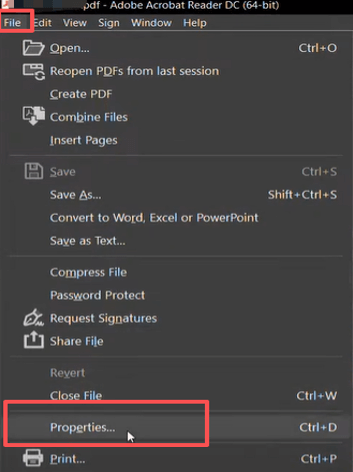
Step 2: Click the Fonts tab in the new window, and Adobe lists all the fonts in the PDF.
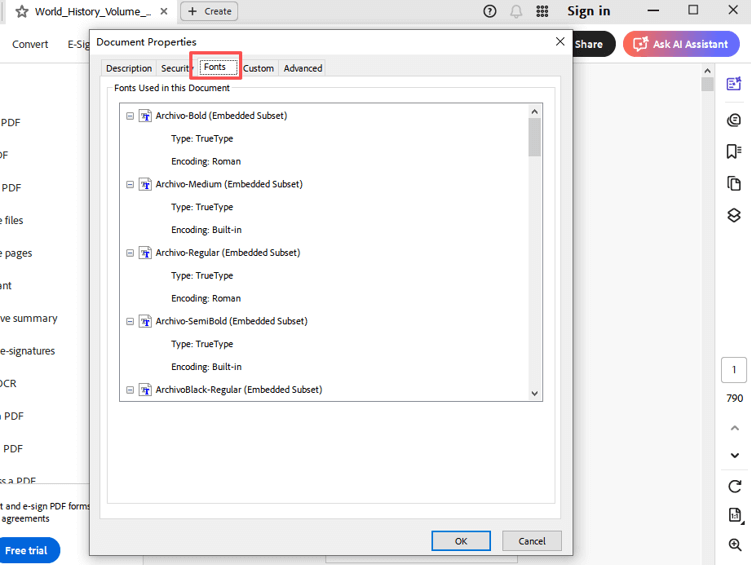
Step 3: Scroll down the fonts list to see all the fonts in the PDF, and you can identify an embedded font in a PDF through the Embedded Subset mark.
Step 4: If you need to know the font of specific text, go with the edit feature in the pro version.
Way 3: How to Find a Font from a PDF in LibreOffice Draw
LibreOffice Draw is one of the feasible ways to find fonts from a PDF. Included in an open-source Office suite, it is one of the best free PDF editors. It allows you to open, draw on, and manipulate a PDF file. If you don’t frequently handle PDFs with advanced features, it can be a valuable assistant.
Discover how to identify a font in a PDF with the LibreOffice Draw program.
Step 1: Click the file folder icon in the program to open your PDF.
Step 2: Select a block of text or a text box, and click Format > Character.
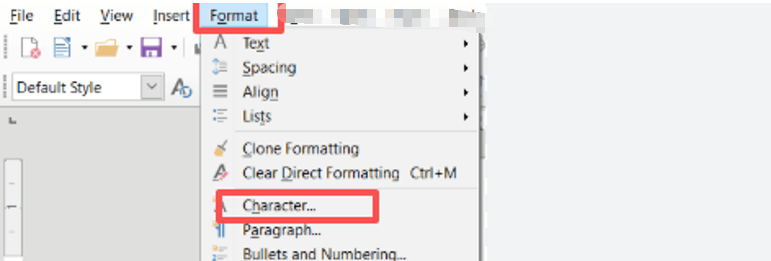
Step 3: The font detector will immediately identify the font style from the PDF, and the dialog box will display the font.
Way 4: Detect Font in PDF with Artwork Flow
When it comes to how to find and tell what font is used in a PDF, Artwork Flow is the go-to method. This online platform is AI-powered artwork management software. It allows you to identify or find fonts from a PDF file online for free, without requiring a sign-up. The online tool can automatically detect and list fonts, allowing you to select text to find the font style, name, family, and size.
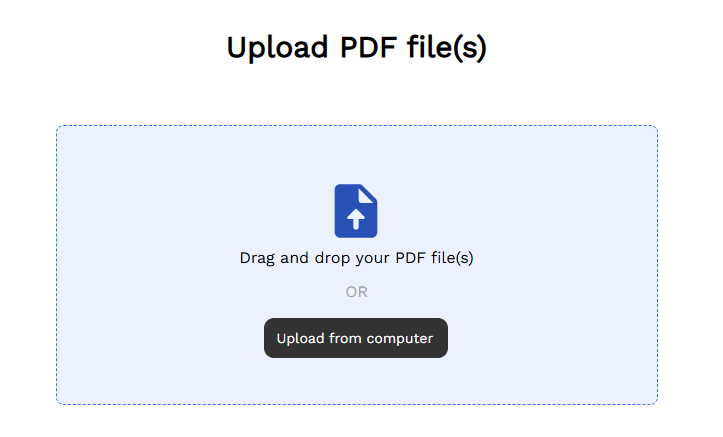
Step 1: Open the font finder and identifier online in your browser.
Step 2: Click the Upload from computer button to upload the PDF.
Step 3: Wait for the tool to analyze and process, and view the fonts on the right side.
Step 4: Click “Use Text Selector” and drag to select the text you want to start font finding and identifying from the PDF.
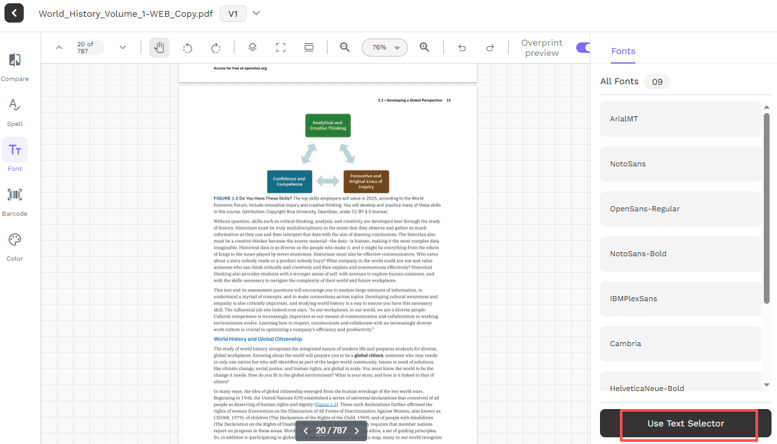
Step 5: Exit the text selection mode when you finish.
Way 5: Identify Fonts from a Scanned PDF with WhatTheFont
There is a free font recognizer that can identify a font from an image or PDF. The online WhatTheFont allows you to upload an image of your PDF and detect the font in the image. It usually provides multiple similar fonts that may match your document. You can compare and choose the right one.
Steps to find fonts from a PDF using WhatTheFont are as follows.
Step 1: Go to the online font identifier tool on the website.
Step 2: Click the up arrow to upload the screenshot of your PDF text.
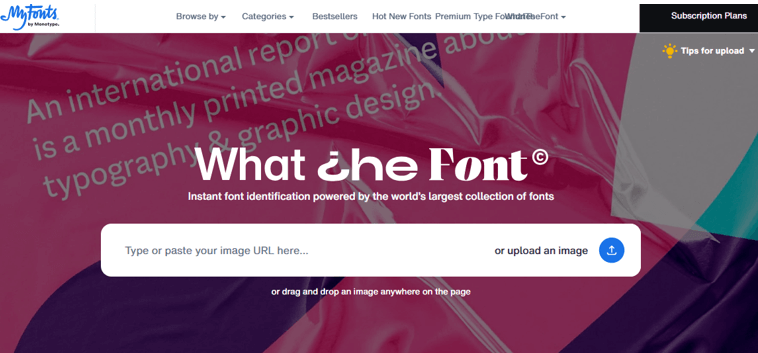
Step 3: Drag the text box over the target text, and click Identify font floating beside.
Step 4: The font finder will display the font match results, allowing you to find the font from the scanned PDF.
The Bottom Line
Are you trying to create a document with a font you like but have never seen? This article might be helpful with the five ways to find the font used in a PDF. The best simple way is to use a PDF text editor. When you select the text, you’ll find out what font a PDF file is written in instantly, just like how you check that in a Word document. There are also online font finders for PDFs and images to do you a favor.
Try them to find fonts from a PDF on your Mac, Windows, or even mobile. JOPDF even helps edit a locked PDF with the ability to remove the protection password.
FAQs
Table of Contents

Your Best Free PDF Expert in PDF editing, compressing, converting, annotating, protect, organizing, and more.
Free DownloadWindows · macOS · Linux

Selena
Staff Editor
“Selena is a staff editor working for JOPDF, passionate and committed to providing how-to and round-up articles. Over 8 years of specialized skills and experience in PDF solutions, hoping to help users ease their lives and solve whatever they encounter. "Work smarter, not just harder!"”
![Find Ways to Download Manga as PDF for Free [5 Proven Ways]](https://b.jopdf.com/wp-content/uploads/2026/04/download-manga-pdf.png)

![5 Best Free PDF Compressors in 2026 [Desktop and Online]](https://b.jopdf.com/wp-content/uploads/2026/04/best-free-pdf-compressor.png)
