![[Fixed] How to Strikethrough on Google Docs on Windows/Mac and Phone](https://b.jopdf.com/wp-content/uploads/2026/05/how-to-strikethrough-on-google-docs-jopdf.png)
Google Docs offers several ways to apply strikethrough, and the method that works best depends on your device. This guide on JOPDF covers every method, so you can find the right steps about how to strikethrough on Google Docs on Windows, Mac, iPhone, iPad, or Android. You’ll also learn how to undo strikethrough formatting, apply it in Google Sheets and Excel, and use it in PDF documents after exporting from Google Docs.
Summary :
Strikethrough Shortcuts Quick Reference Table
| Platform / Application | Shortcut |
| Google Docs (Windows/Chromebook) | Alt + Shift + 5 |
| Google Docs (Mac) | ⌘ + Shift + X |
| Google Docs (Android/iPhone/iPad) | Format icon (A) → Strikethrough |
| Google Sheets (Windows) | Alt + Shift + 5 |
| Google Sheets (Mac) | ⌘ + Shift + X |
| Excel (Windows) | Ctrl + 5 |
| Excel (Mac) | ⌘ + Shift + X |

JOPDF – The Best Free PDF Editor
 User Rating: 4.8
JOPDF Is a 100% free POF editor for Windows, macOS, and Linux. Edit text, add images, annotate, sign, and more. No limits, no ads, no subscriptions, Fast, simple, and powerful, take full control of your PDFs in seconds!
What Is Strikethrough and When to Use It
Strikethrough is a text formatting option that draws a horizontal line through the center of selected text. Unlike deleting, it keeps the original words visible while signaling that the content has been updated, replaced, or completed. This makes it essential for collaborative editing, where showing what changed is just as important as the final text.
Common use cases include:
- Tracking edits in documents shared with colleagues
- Crossing out finished items on checklists
- Marking outdated information during revisions
- Adding a layer of meaning in informal writing
In all these scenarios, knowing how to strikethrough on Google Docs makes your editing workflow clearer and more professional.
How to Strikethrough on Google Docs on Windows
For Windows and Chromebook users, the fastest way to apply strikethrough is the built-in keyboard shortcut. The menu-based method provides a reliable alternative when you prefer using the toolbar or don’t remember the key combination.
Method 1: Docs Strikethrough Shortcut
Step 1: Open your document in Google Docs and highlight the text you want to cross out.
Step 2: Press Alt + Shift + 5 on your keyboard. The selected text immediately appears with a line through the middle.
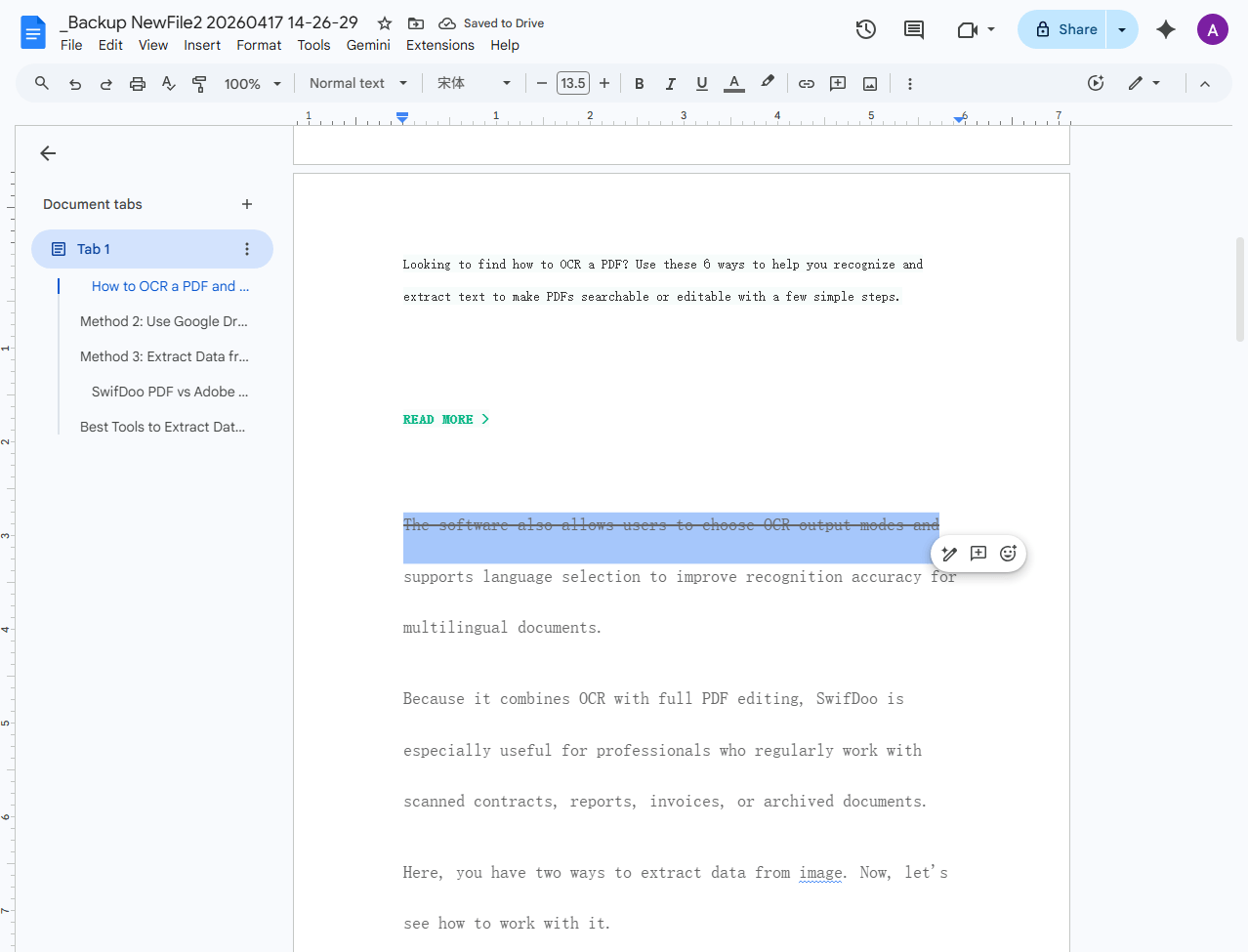
This is the standard docs strikethrough shortcut that works universally on Windows and Chromebook devices. The same shortcut toggles the formatting off. Select strikethrough text, press Alt + Shift + 5 again, and the line disappears.
Method 2: Format Tab
Step 1: Select the text in your document by clicking and dragging.
Step 2: Click Format in the top menu bar. A dropdown menu appears.
Step 3: Hover over Text to expand the submenu, then click Strikethrough.
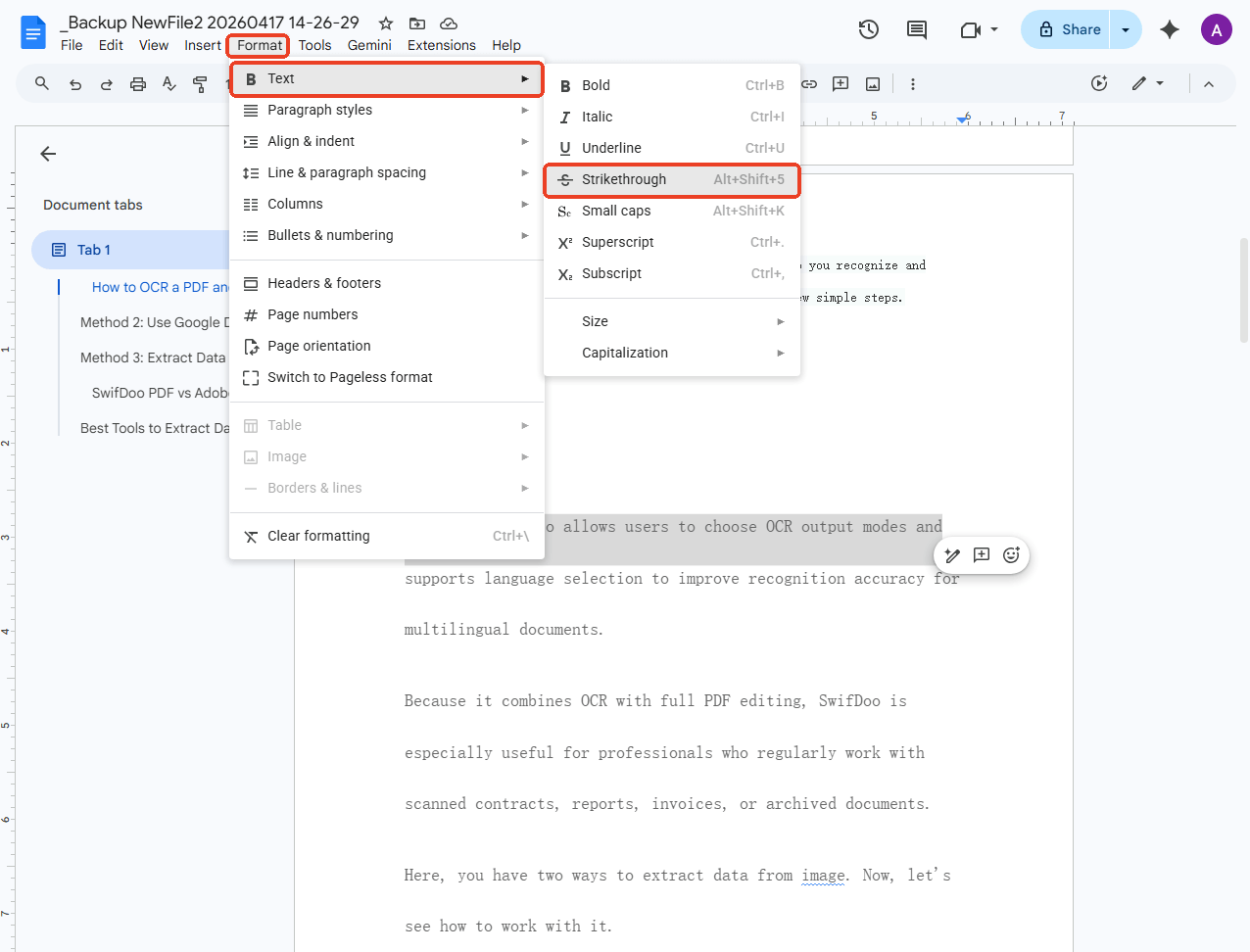
Both methods produce identical results. The shortcut is faster for frequent use. The Format tab path is more discoverable for new users learning how to strikethrough on Google Docs on Windows for the first time, and it provides access to other text formatting options like superscript, subscript, and capitalization in the same menu.
How to Strikethrough on Google Docs on Mac
Mac users follow the same menu structure as Windows, but the keyboard shortcut is different due to Apple’s keyboard layout. The Command key replaces Alt in most shortcuts, and you can follow this pattern to strikethrough on Google Docs on Mac.
Step 1: Highlight the text in your Google Docs document.
Step 2: Press ⌘ + Shift + X to apply strikethrough instantly.
This shortcut is specific to Mac. Like the Windows version, it functions as a toggle and you can press ⌘ + Shift + X to undo strikethrough in Google Docs.
If you switch between a Windows PC at work and a Mac at home, remember that the shortcuts differ: Alt + Shift + 5 on Windows versus ⌘ + Shift + X on Mac.
Alternatively, you can go to Format > Text > Strikethrough after selecting the text. The menu path is identical across Windows and Mac to strikethrough on Google Docs, so users who work on both operating systems can rely on the Format tab as a consistent, device-independent method.
How to Strikethrough on Google Docs on Phone (Android & iPhone)
The Google Docs mobile app supports strikethrough through the formatting toolbar. By the feature, you can strikethrough on Google Docs on iPhone and Android. The steps are the same for both system.
Step 1: Open the Google Docs app on your phone and navigate to the document you want to edit.
Step 2: Tap and hold on the text you want to strikethrough. The text highlights, and selection handles appear at both ends. Drag the handles to adjust the selected range if needed.
Step 3: Tap the Format icon in the top toolbar. This icon looks like the letter “A” with horizontal lines next to it.
Step 4: In the formatting panel that opens, tap the Strikethrough button. It shows as the letter “S” with a line through it.
To remove strikethrough on mobile, repeat the same steps. The mobile app does not have a keyboard shortcut, so this toolbar method is the only path to strikethrough on Google Docs on phone.
Tips
The iPad version of Google Docs uses the same app as iPhone, but the larger screen makes the formatting toolbar more visible and accessible. The process for how to strikethrough on Google Docs iPad mirrors the mobile steps, with the added benefit that the Format icon is easier to locate on a tablet display.
How to Undo Strikethrough in Google Docs
Strikethrough is toggle-based formatting. The same action that applies it also removes it, which means how to undo strikethrough in Google Docs is simply a matter of repeating what you did to apply it. Here are all three removal methods.
Method 1: Keyboard Shortcut
- Docs Strikethrough Shortcut on Windows: Select the strikethrough text and press Alt + Shift + 5.
- Docs Strikethrough Shortcut on Mac: Select the strikethrough text and press ⌘ + Shift + X.
The shortcut toggles the formatting off exactly the same way it toggled it on. If you accidentally apply strikethrough to the wrong text, just press the shortcut again without changing your selection.
Method 2: Format Tab
Select the text, go to Format > Text > Strikethrough, and click it to uncheck. The checkmark disappears, and the strikethrough formatting is removed.
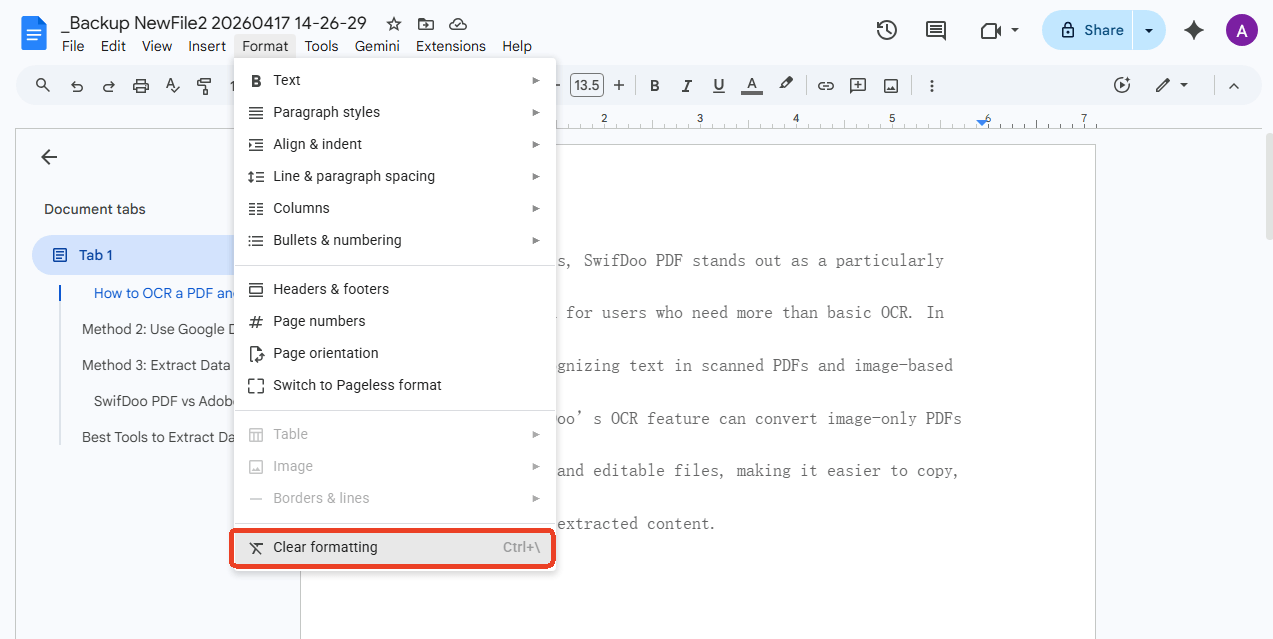
Method 3: Clear Formatting
Select the text, then go to Format > Clear formatting. You can also press Ctrl + (Windows) or ⌘ + (Mac). Be aware that this removes all formatting from the selected text, like bold, italic, font size, color, and strikethrough, not just the line through the text. Use this method when you want a clean reset rather than removing strikethrough alone.
How to Strikethrough in Google Sheets
Google Sheets uses a different menu structure than Google Docs, but the strikethrough feature is available and the shortcuts carry over. If you’re managing task lists, budgets, or project trackers in spreadsheets, knowing how to strikethrough on Google Sheets is just as useful as the Docs version.
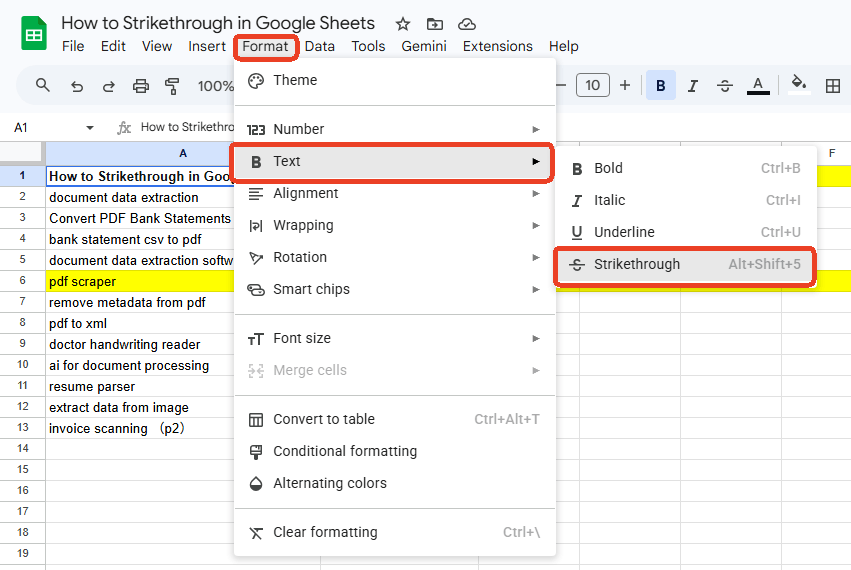
Step 1: Select the cell you want to strikethrough, or double-click into a cell and highlight specific text within it.
Step 2: Click Format in the top menu, then select Text > Strikethrough.
Shortcut: The same strikethrough keyboard shortcuts apply:
- Alt + Shift + 5 on Windows
- ⌘ + Shift + X on Mac
They work in Google Sheets exactly as they do in Google Docs.
Tips
Sheets applies strikethrough to the entire cell content by default unless you double-click into the cell and select specific text first. For task lists where each row represents one item, selecting the whole cell is usually what you want. For cells containing multiple pieces of information, double-click to strikethrough only part of the content.
How JOPDF Handles Strikethrough Annotation
A strikethrough applied in Google Docs will carry over when you export to PDF, because it becomes part of the text formatting. What Google Docs cannot do, however, is help you add strikethrough or other annotations to a PDF that you receive from someone else, or to a PDF you already exported and need to mark up further.
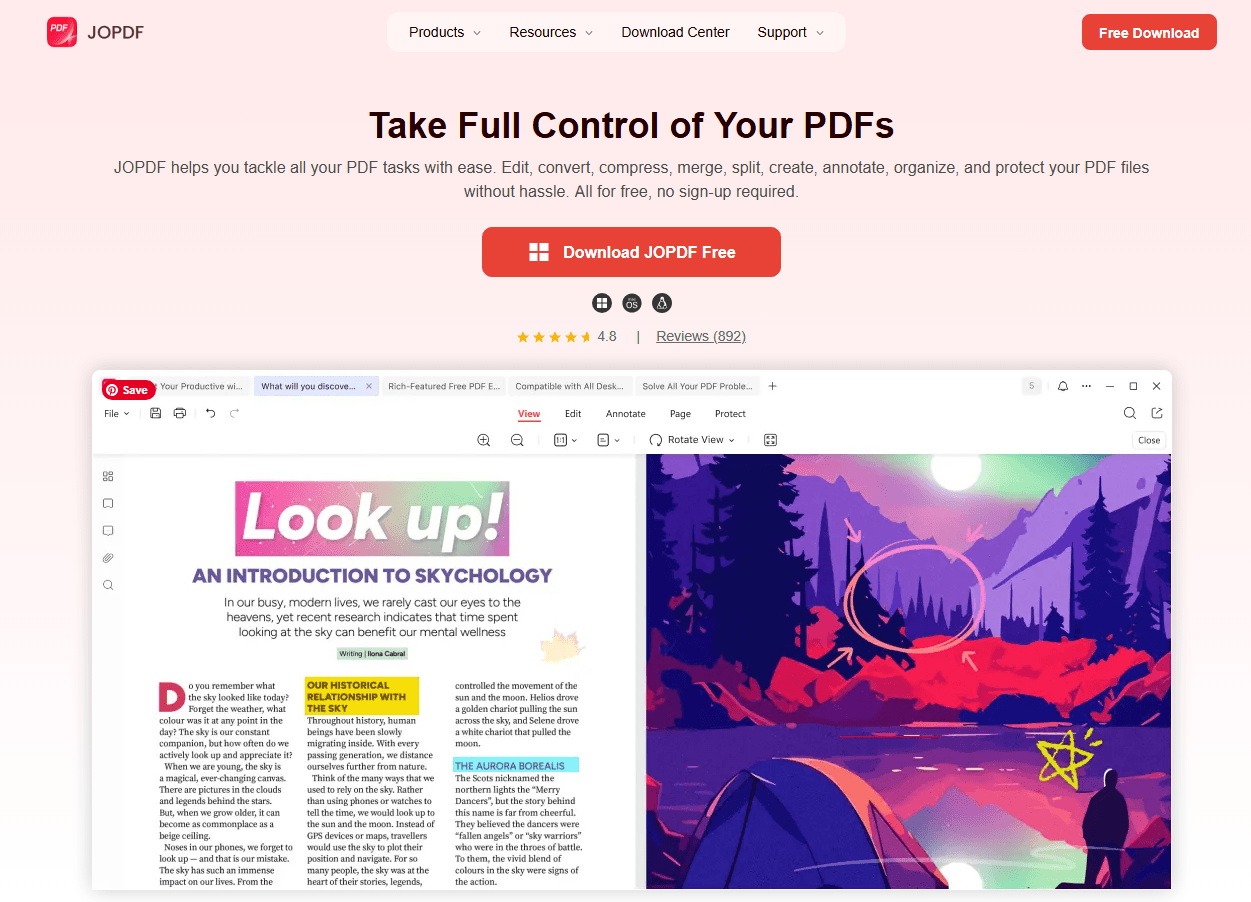
This is where JOPDF fills the gap. JOPDF is a free, cross-platform PDF editor that includes a full set of annotation tools, including strikethrough, designed for working with PDFs directly.
Unlike Google Docs, which requires an internet connection and a browser, JOPDF installs on your desktop and works offline. There is no account sign-up, no subscription, and no file upload to external servers. Everything stays on your local machine.
Tips
JOPDF is 100% free, with no feature paywalls, no watermarks, and no sign-up required.
How to Add Strikethrough to a PDF with JOPDF
Step 1: Download and install JOPDF. It runs on Windows, Mac, and Linux with the same interface and feature set across all platforms.
Step 2: Open your PDF in JOPDF. The file loads locally. There is no upload, no waiting for a cloud service to process your document.
Step 3: Navigate to the Annotate tab in the top toolbar. JOPDF organizes its tools into clear tabs: Edit, Convert, Compress, Annotate, and more.
Step 4: Select the Strikethrough tool from the annotation options. JOPDF provides over 15 annotation tools, including highlight, underline, strikethrough, sticky notes, and freehand drawing. You can show or hide all annotations with a single click.
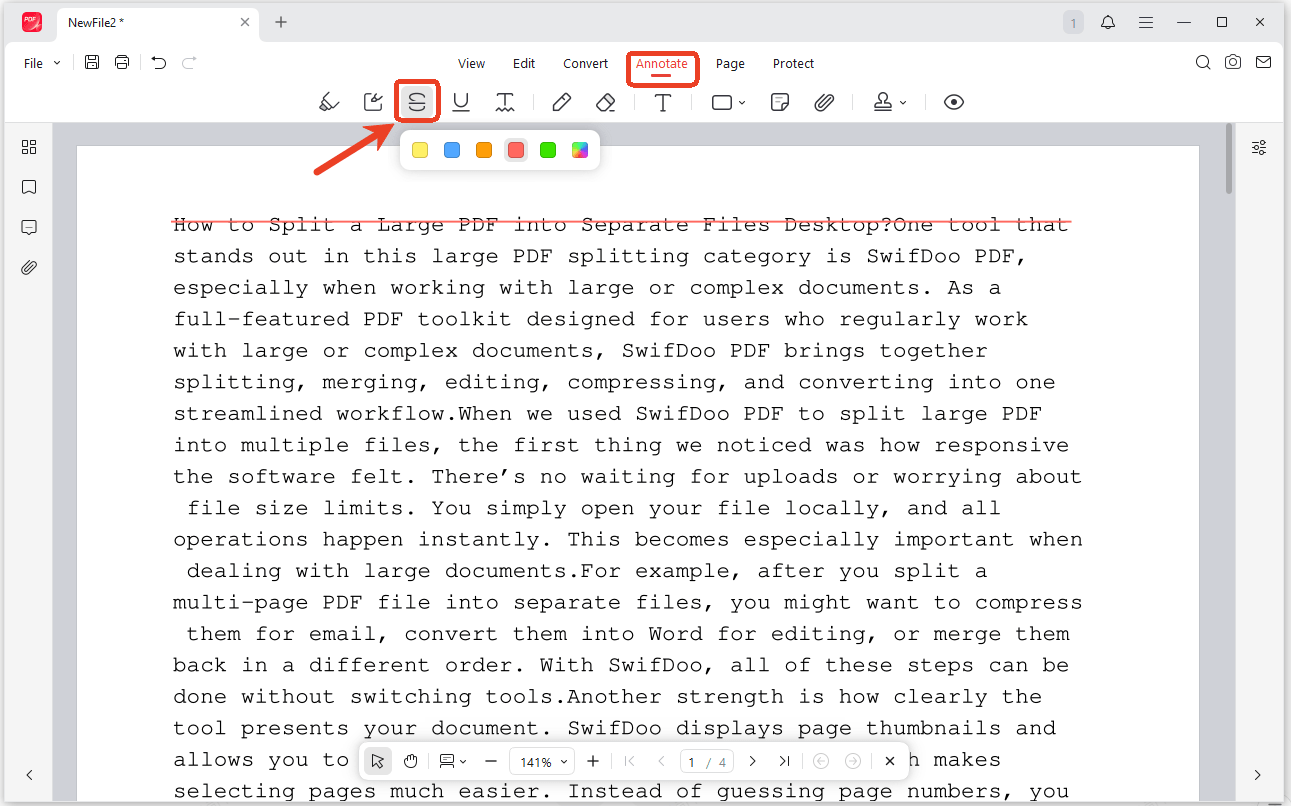
Step 5: Click and drag over the text you want to strikethrough. The line appears immediately, and you can adjust its position, color, or opacity using the properties panel if needed.
Step 6: Save the PDF. The strikethrough annotation is now embedded in the file and will display in any PDF reader, including browser viewers, Adobe Acrobat, and mobile PDF apps.
Unlike Google Docs, where strikethrough is a text formatting property tied to the characters themselves, strikethrough in a PDF is an annotation overlay.
When JOPDF’s strikethrough is more useful than Google Docs:
- Reviewing a PDF received from someone else: You cannot edit their Google Doc, but you can annotate the PDF they sent with JOPDF’s strikethrough tool.
- Marking up a scanned document: Google Docs cannot strikethrough text in a scanned image. JOPDF can because annotations sit on top of the page regardless of the underlying content.
- Keeping annotations separate from content: JOPDF’s annotations can be toggled on and off. This lets you show or hide all markup without altering the original document text, which is useful when presenting different versions of the same file.
- Working without internet access: Google Docs requires connectivity. JOPDF works fully offline, so you can review and annotate documents anywhere.
JOPDF’s annotation tools let you add strikethrough directly to the PDF without returning to Google Docs, re-editing, and re-exporting. This saves time and keeps your document pipeline simple.
Conclusion
Learning how to strikethrough on Google Docs is a one-minute skill that pays off across every kind of document work. The method depends on your device: Windows users have Alt + Shift + 5, Mac users have ⌘ + Shift + X, and mobile users on iPhone, iPad, or Android access strikethrough through the Format icon in the app toolbar. When your document moves beyond Google Docs and into PDF format, JOPDF picks up where the word processor leaves off. Download JOPDF for free to edit, annotate, and manage your PDFs on Windows, Mac, or Linux.
FAQs
The Docs strikethrough shortcut, like Alt + Shift + 5 on Windows or ⌘ + Shift + X on Mac, applies strikethrough instantly to any selected text without opening a single menu.
Yes. On desktop, use Format > Text > Strikethrough from the top menu bar. On mobile devices and iPads, select the text, tap the Format icon (A), and choose Strikethrough from the formatting panel.
Open the Google Docs app, tap and hold to select text, tap the Format icon (A) in the top toolbar, and tap the Strikethrough button. The steps are identical for how to strikethrough on Google Docs on iPhone and Android, both use the same Google Docs mobile app.
Table of Contents

Your Best Free PDF Expert in PDF editing, compressing, converting, annotating, protect, organizing, and more.
Free DownloadWindows · macOS · Linux

Anna
Editor
“Anna, Editor-in-Chief and PDF expert, delivers deep insights into PDF document technology trends. She is dedicated to helping readers optimize their digital lives. When not writing, Anna loves exploring local cafes and reading, blending her technical expertise with a love for storytelling.”