Introduction:
Calaméo is a fantastic platform for reading digital publications online. However, sometimes you may want to enjoy reading offline. Fortunately, you can use a Calameo PDF downloader to get the document. In this guide, we’ll explore the four best free tools.
⭐ Tip for PDF Reading:
A good PDF reader can make reading a more enjoyable experience. You can easily put a PDF in full screen, zoom in to view the details, and highlight content. If you don’t already have such a reader, then download JOPDF, which is 100% free and powerful.
4 Best Calaméo PDF Downloaders
How to save a document if a publisher turns off the download button on Calaméo? To help you fix this problem, we have tested and listed the four best tools to save these documents. Let’s get it on.
1. CalameoDownload.com
Address: https://calameodownload.com/
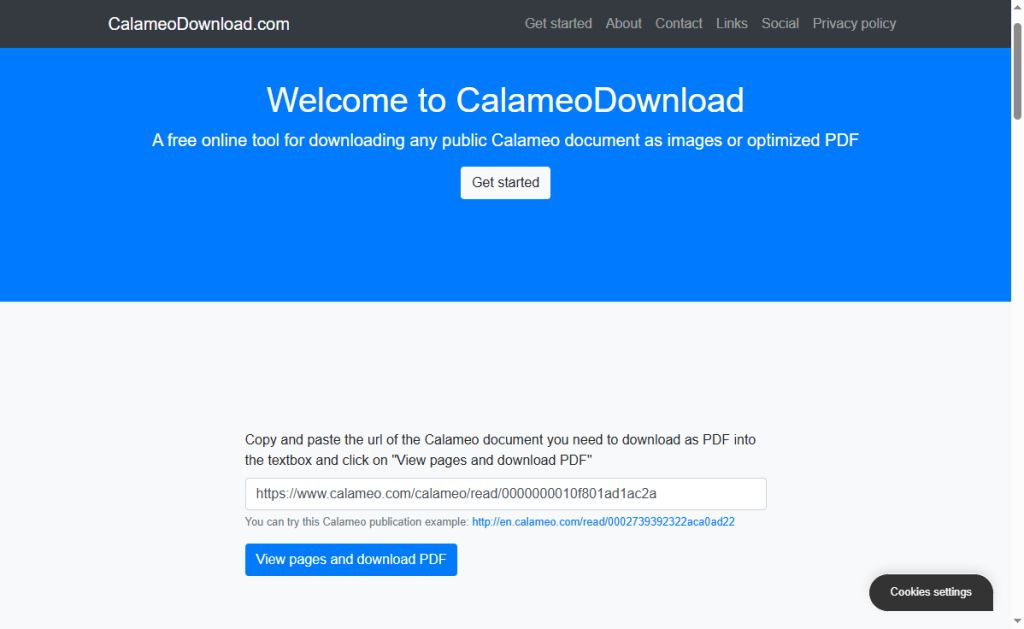
CalameoDownload.com is one of the most popular websites that can help you download Calameo PDF online. It is a simple website that extracts pages from a document and turns them into a file you can save on your computer or phone.
It lets you view all pages of the document as images before you save them. You can choose to download the whole file at once or save only the pages you want.
However, the final file you get from this website is usually an image-based PDF. This means the pages are saved like pictures. You cannot highlight or search for text right away unless you use special software later.
How to Use This Tool:
- Open the publication you want on Calaméo and copy its web link (URL) from the address bar.
- Go to CalameoDownload.com and paste the link into the big input box.
- Click the View pages and download PDF button.
- Wait for the pages to load, then click the download button to save your new PDF.
Pros
- You do not need to install any software or extensions.
- The user interface is very basic and easy to use.
- It works perfectly on both mobile phones and desktop computers.
Cons
- The website has many advertisements that can pop up while you use it.
- If Calaméo changes how its website works, this tool might stop working temporarily.
2. MyDocDownloader
Address: https://mydocdownloader.com/calameo-downloader
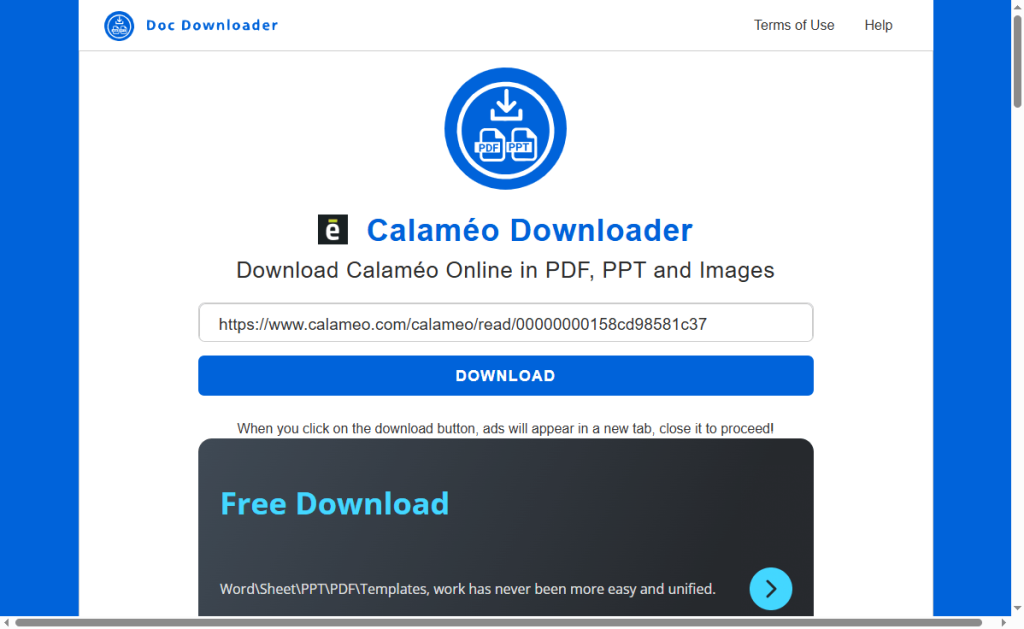
If you are looking for a flexible Calameo to PDF converter, MyDocDownloader is an excellent choice. This is an all-in-one website that works for many different document-sharing platforms. In fact, if you regularly read flipbooks online, you will love that it also functions as a reliable AnyFlip downloader and Flipsnack downloader.
Plus, it offers broad format support. This means it can try to convert the online document into different files rather than just standard PDFs.
How to Use This Tool:
- Go to Calaméo and copy the web address of the book you want to download.
- Open MyDocDownloader in your web browser.
- Paste the web address into the provided search box.
- Click the download button and wait for a while.
Pros
- It supports many different websites, not just Calaméo.
- It processes files quickly on its fast servers.
- You can customize your download settings easily.
Cons
- The ads on the site can be very annoying and intrusive.
- Very large books with hundreds of pages can take a long time to convert.
3. OKDEBRID
Address: https://okdebrid.com/document-downloader/calameo
OKDEBRID is another powerful tool to download PDF files from Calameo. It is a good choice if you want a high-quality Calameo PDF downloader.
The good thing is OKDEBRID has a very high success rate. It is designed to analyze the website’s code to find the highest-quality version of the file available.
How to Use This Tool:
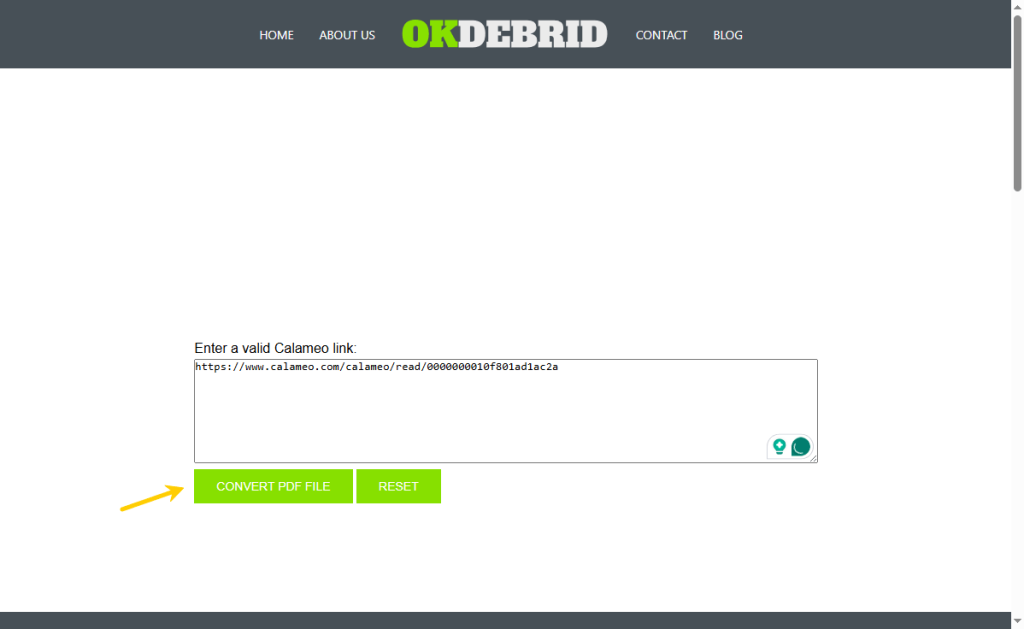
- Copy the link of the Calaméo publication you wish to save.
- Visit OKDEBRID Calameo website.
- Paste your link into the text box on the screen.
- Click the CONVERT PDF FILE button. Once the system finishes processing, click the final link to download your document.
Pros
- The download speed is usually very fast.
- The quality of the final images inside the PDF is excellent.
- It rarely fails, even on highly secure or restricted documents.
Cons
- It may ask you to fill out a captcha puzzle to prove you are a human.
4. Calameo PDF Downloader Extension (Firefox)
Address: https://addons.mozilla.org/en-US/firefox/addon/calameo-pdf-downloader/
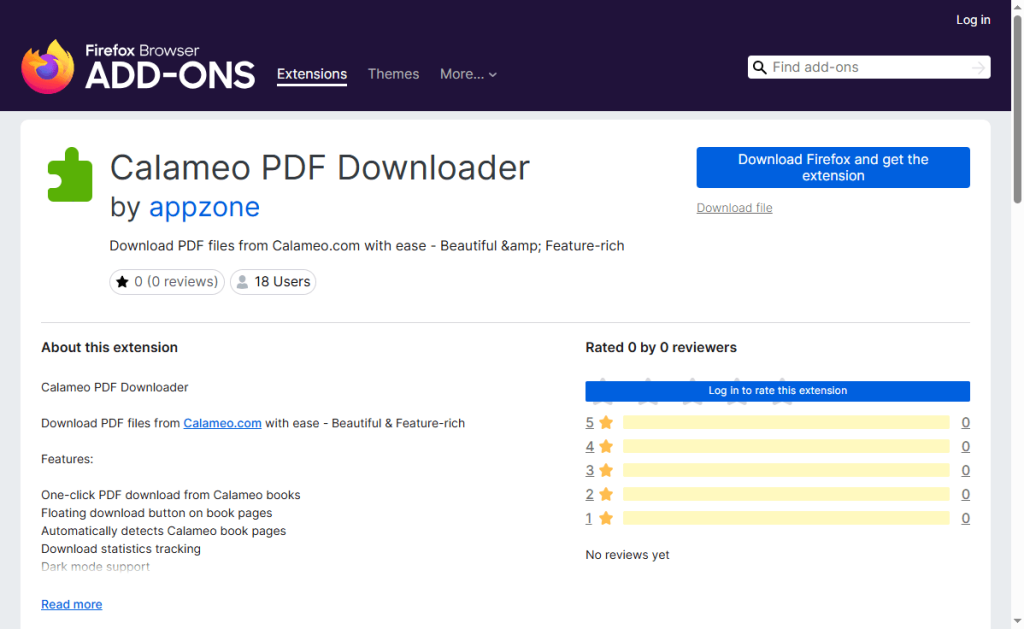
If you do not want to keep copying and pasting links into different websites, you can use a browser extension. This tool adds a helpful download button directly inside your browser window. You can click that button to download the page you are currently reading.
How to Use This Tool:
- Open Mozilla Firefox and search for the Calameo PDF Downloader extension in the Add-ons store.
- Click Add to Firefox to install it.
- Open any document on Calaméo that you want to save.
- Look for the new floating download icon created by the extension on your screen, click it, and wait for your PDF to save.
Pros
- It is incredibly convenient for people who download documents frequently.
- You never have to leave the Calaméo website to get your file.
- It includes a built-in dark mode to protect your eyes.
Cons
- It only works with Mozilla Firefox. It is not available for Google Chrome or Microsoft Edge yet.
How to Download PDF from Calaméo (Official Way)
Before using third-party tools, you should always check if the publisher allows you to download the file directly. This is the safest and best way to get a clean file with searchable text.
Here is how to download PDF from Calameo using the official method:
1. Go to the Calaméo website and log in to your free account. If you do not have an account, you will need to sign up first.
2. Find the magazine, book, or document you want to read and open it.
3. Look at the toolbar at the top right of the reading screen. If the publisher allows downloads, you will see a Download icon.
4. Click that icon. The original, high-quality file will immediately save directly to your computer or phone.
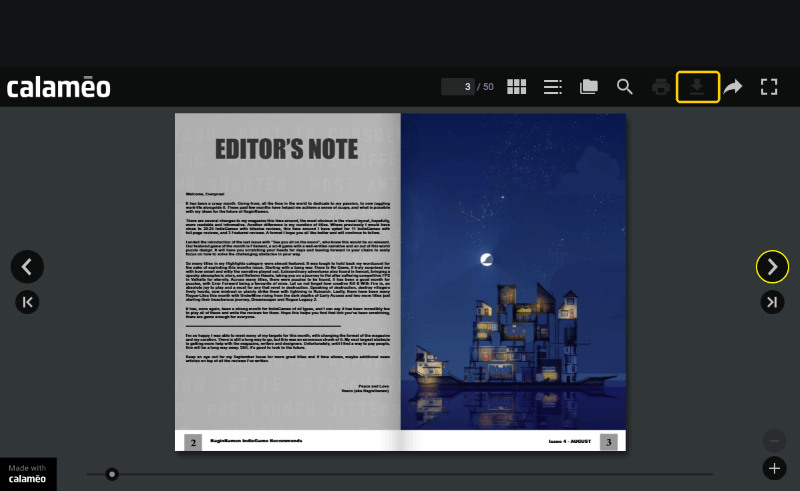
If that arrow icon is missing, greyed out, or says “Not Allowed,” it means the publisher turned off this feature. In that case, you must use one of the four downloader tools mentioned earlier in this article.
Bonus Tip: How to Easily Read, Edit, and Manage PDFs
How to enjoy PDF reading? Have a try on JOPDF. It is an amazing PDF reader and editor that works well on Windows and macOS.
The best part? It is incredibly easy to use, has no annoying ads, and is 100% free forever. You do not even need to sign up for an account or give your email address to use it.
Main Functions of JOPDF:
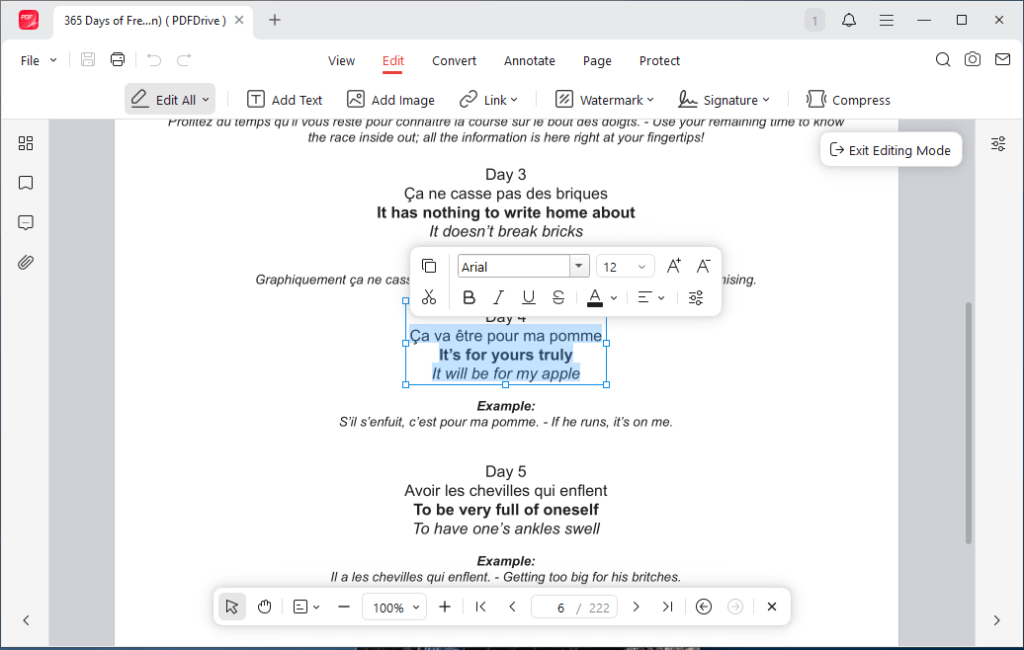
✅ Edit Text and Images Easily
You can modify text inside your PDFs just like you are using a regular Microsoft Word document. You can change words, fix typos, delete unwanted pages, or swap out images.
✅ Excellent PDF Highlighter and Annotator
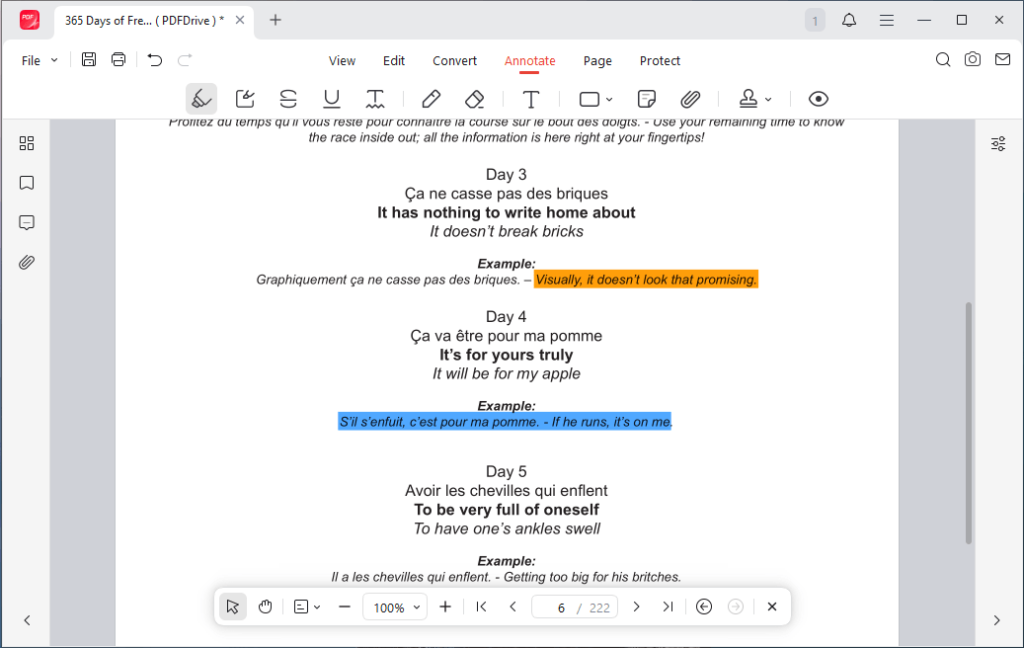
If you are downloading textbooks or magazines for research, JOPDF serves as a wonderful PDF highlighter. You can easily highlight key sentences, add sticky notes, draw shapes, and write comments anywhere on the page.
✅ Merge and Split Pages
If you download a long magazine but only want to save a few pages, you can use JOPDF to split the file. You can also merge multiple downloaded files together into one neat book.
✅ Compress Large Files
Calaméo downloads can be very large because they contain many images. JOPDF can shrink the file size without ruining the quality, making it easy to share with friends or save storage space.
JOPDF is a fast and free PDF editor that can handle a variety of tasks. Download JOPDF today and take total control of your reading!
Conclusion
Now you know how to use a Calaméo PDF downloader to get the PDF you need. When the official download button is missing, tools like CalameoDownload.com, MyDocDownloader, OKDEBRID, and the Firefox extension can help you.
After the download is complete, you can use the free JOPDF to read, highlight, and manage your collection effortlessly!
FAQs
Table of Contents

Your Best Free PDF Expert in PDF editing, compressing, converting, annotating, protect, organizing, and more.
Free DownloadWindows · macOS · Linux

Queena
Editor
“As a staff editor for JOPDF, Queena excels at guiding users to the optimal tools and solutions. When she's not analyzing the latest PDF solutions, she enjoys spending her free time playing with her four cats.”