Summary :
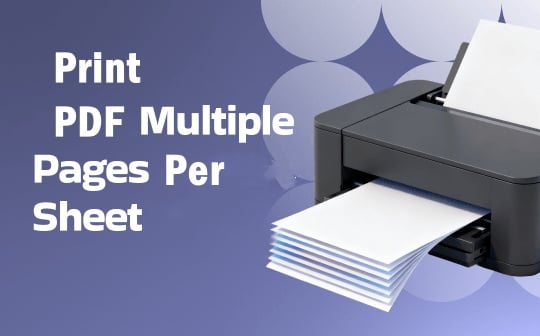
When you print a PDF document for sharing or distribution, always remember to save paper and money. So, how to print multiple pages on one sheet of paper with one copy? The printer driver and PDF reader usually control this. You can set the printing options to do that. There are many PDF applications available for this basic operation. We’ve selected 4 top easy methods and will walk you through the clear steps to print a PDF multiple pages per sheet next.
Print Multiple Pages on One Sheet on PDF with JOPDF
JOPDF is an elegant solution when you need to print 2 or multiple pages on one sheet of PDF. It is completely free, with no limitations or watermarks. You can print, edit, annotate, and password-protect documents in the freeware without signing up. The application offers a variety of printing options to meet all your daily work requirements. You can print in grayscale, in booklet format, or do more.
How to print a PDF multiple pages per sheet with JOPDF for Windows or Mac.
Step 1: Download JOPDF, install it, and launch it on your desktop.
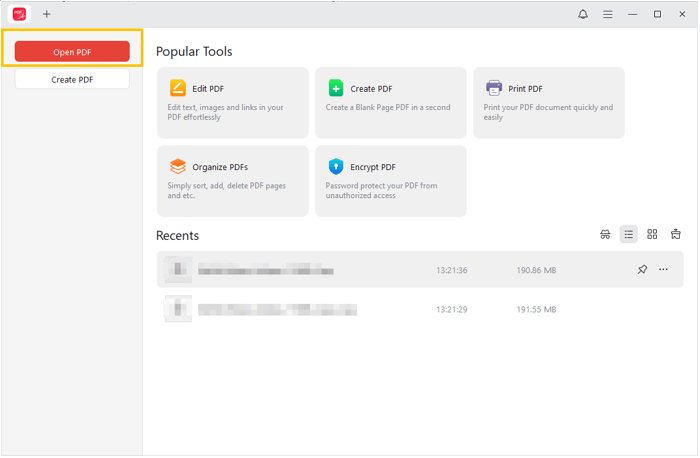
Step 2: Click Open PDF to import the PDF you want to print multiple pages per sheet.
Step 3: Click the printer button or select Print from the File drop-down menu.
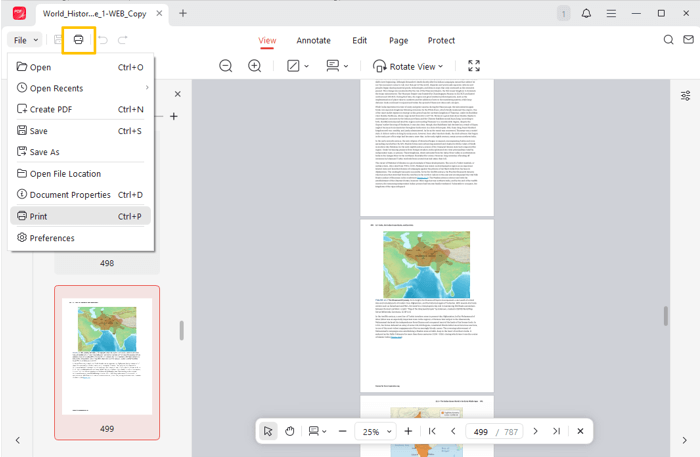
Step 4: Click Multiple under Page Sizing & Handling, enter the number in the Pages Per Sheet field, and select the correct printer.
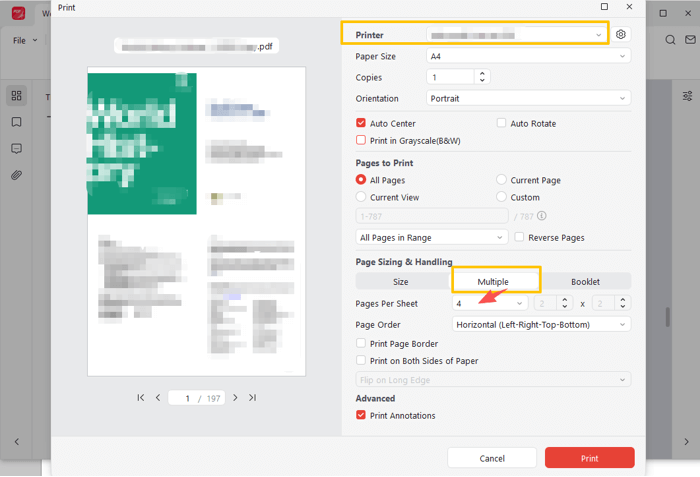
Step 5: Customize the page orientation, page size, printing order, and more options.
Step 6: Preview the result, then click Print to print the PDF multiple pages per sheet at once.
Tips
To print 2 or multiple pages on 1 sheet double-sided, check the box before Print on Both Sides of Paper and select flipping on the short or long edge. No matter how you print, we suggest you print several test pages to check that everything is ok (choose Custom in the Pages to Print section of the printer window, then specify the page ranges).
Print PDF Multiple Pages per Sheet with Adobe Reader
Adobe Acrobat Reader lets you print multiple pages on one sheet on a PDF for free on Windows or Mac. Adobe offers a free PDF reader with tiled printing support to tackle your simple document tasks. The software lets you print a PDF double-sided as a poster at a specific scale or in other forms. It can also sign and fill out PDFs.
Explore how to print a PDF multiple pages per sheet in Adobe Reader DC.
Step 1: Open a multi-page PDF file in the Adobe Reader.
Step 2: Choose File > Print to access the printing dialog box.
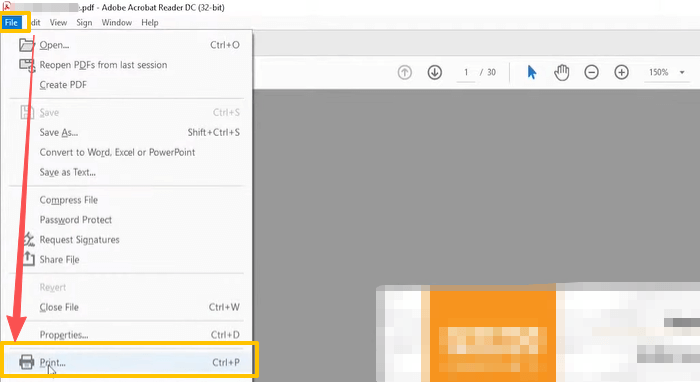
Step 3: Select your printer, choose the Multiple tab, and customize the number of pages per sheet.
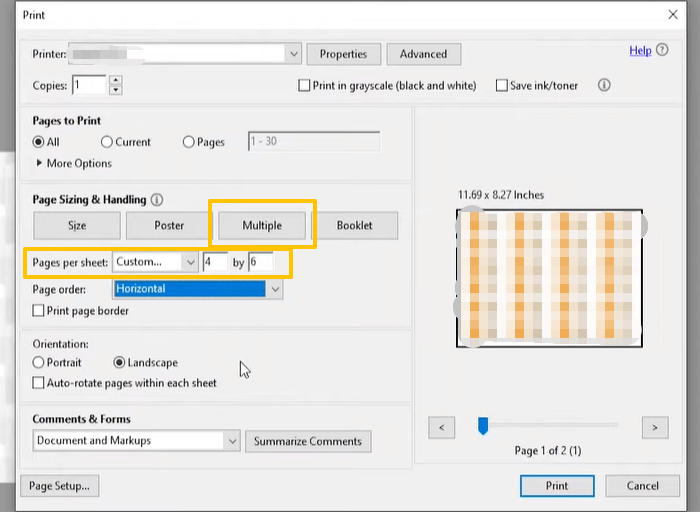
Step 4: Adjust the page parameters, such as the order and orientation.
Step 5: Start printing to print two or multiple pages on one sheet from the PDF.
Print Two Pages on One Sheet on PDF in Preview
The native Preview application on Mac can technically handle PDFs. It allows you to print a PDF multiple pages per sheet without third-party apps. Preview is designed to view and annotate PDFs and images instantly and conveniently. It even lets you export photos to PDFs. Combining it with the built-in Mac printer enables you to preview the printed pages. All you need to do is connect your physical printer to your device.
Learn how to print two or multiple PDF pages on one sheet using Preview.
Step 1: Right-click the PDF you desire to print multiple pages per sheet and choose Open with.
Step 2: Use Preview to open the file, and press Command + P.
Step 3: Select the connected printer, and click the drop-down under the Orientation section to select the Layout option.
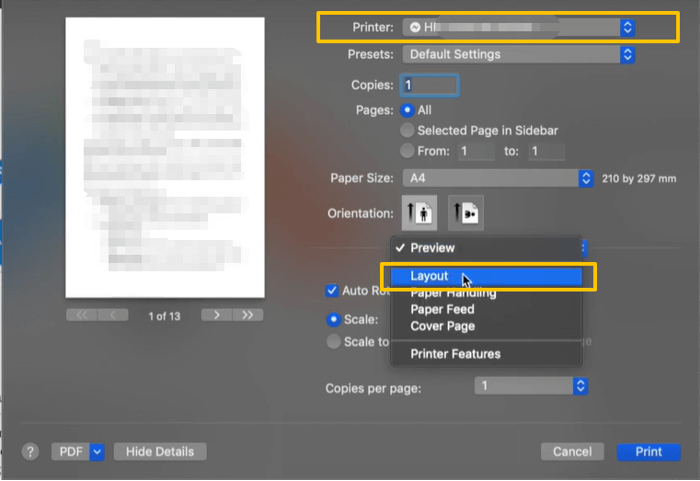
Step 4: In the expanded section, select the number of multiple pages per sheet, such as 2 or 4.
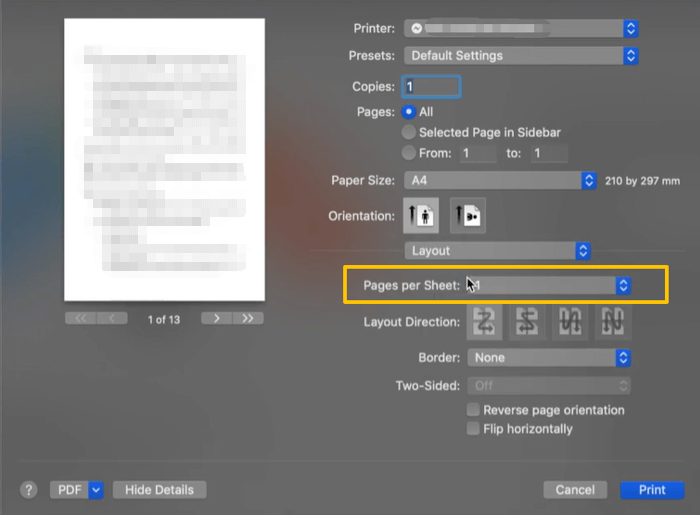
Step 5: Customize other printer settings, and click the Print button.
How to Print Multiple Pages on One Page PDF with Online2PDF
Online2PDF is one of the best online tools to print a PDF multiple pages per sheet. It is widely compatible with Mac, Windows, and even mobile phones. Better yet, the web app offers a cleaner interface than competitors. It is free, and registration is not required. But it cannot print a document directly; it only prepares the layout for printing. After downloading the PDF with multiple pages per sheet, you can start physical printing.
Dig into how to print multiple PDF pages on one page using the online tool.
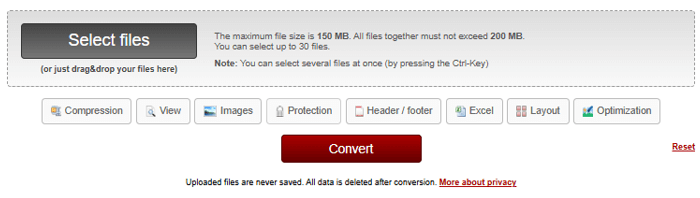
Step 1: Go to the Online2PDF site, and click Select files to upload your PDF.
Step 2: Choose the Layout tab, then click the drop-down below and select Multiple pages per sheet.
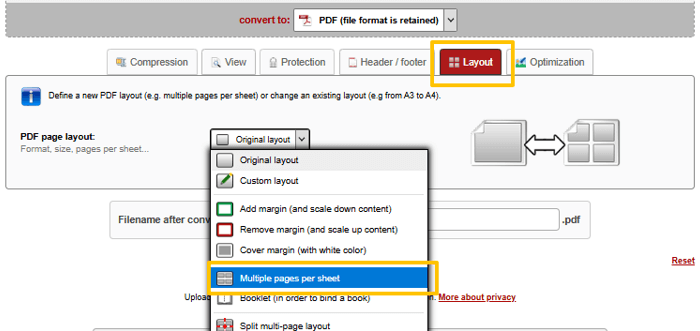
Step 3: Select how many pages per sheet, reading direction, page margin, and other options.
Step 4: Scroll down to click the Convert button to merge 2/4 pages into 1 1-page PDF online.
Step 5: Once the PDF download finishes, open the file folder and right-click it to start printing.
The Bottom Line
These four PDF solutions provide quick ways to print two or multiple pages on one sheet from a PDF in landscape or portrait mode. If your PDF won’t print that way, it’s recommended to open the Devices and Printers settings, select your printer, and open the Properties or preferences interface. Then, turn on specific options for your target printing type. Or check the connection between your printer and your computer, then try another printer.
There are many benefits when you print multiple pages of a PDF on one sheet, such as side-by-side page comparison, handouts, or notes. Download the free JOPDF for one-stop PDF addressing.
FAQs
Table of Contents

Your Best Free PDF Expert in PDF editing, compressing, converting, annotating, protect, organizing, and more.
Free DownloadWindows · macOS

Selena
Staff Editor
“Selena is a staff editor working for JOPDF, passionate and committed to providing how-to and round-up articles. Over 8 years of specialized skills and experience in PDF solutions, hoping to help users ease their lives and solve whatever they encounter. "Work smarter, not just harder!"”
![Solved! Microsoft Print to PDF Missing [Causes and 6 Fixes]](https://b.jopdf.com/wp-content/uploads/2026/02/microsoft-print-to-pdf-missing.png)