Introduction
Have a PDF that’s almost perfect, except for one outdated logo, an incorrect photo, or a distracting watermark? Don’t worry! This guide will show you exactly how to remove image from PDF. Whether you want to make it online or offline, you can find the method here.
Remove Image from PDF Offline
The most reliable and secure way to remove an image from a PDF is to use a desktop program. Your files are always on your computer, and there is no security risk involved. These tools can truly delete the image data, not just cover it up.
1. Use JOPDF
For users who prefer a professional and free tool, JOPDF is the perfect solution. It’s a completely free, full-featured PDF editor that can delete any object in a PDF, including images.
It is one of the best ways to remove image from PDF for free. It can also help you extract and replace images in PDF. Additionally, it features a clean interface with absolutely no learning curve.
Download and install the JOPDF software from its official website. Or, click the download button below.
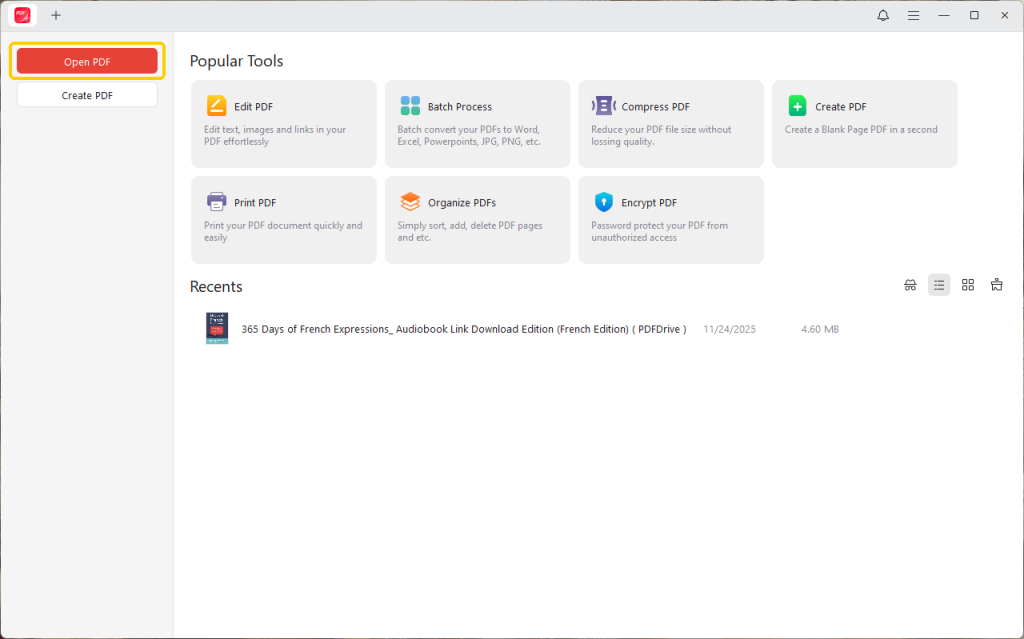
1. In JOPDF, Click Open PDF and select the document.
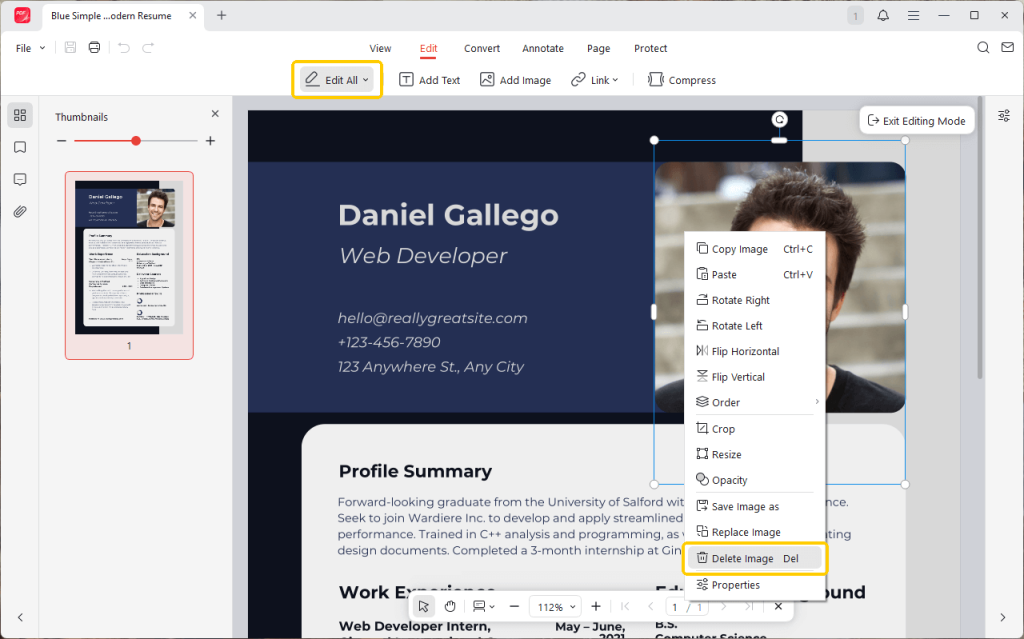
2. Then, go to Edit and choose Edit Image or Edit All.
3. Find the image you want to delete and right-click on it. Select the Delete Image option to make it.
4. Finally, click the Save button.
⭐ Best for: Anyone who wants to remove image from PDF for free. It is a good choice if you frequently work with PDFs and want a reliable, secure, powerful offline, and free PDF editor without any cost.
2. Use Adobe Acrobat Pro
Adobe Acrobat Pro is the industry standard solution for PDF editing. It is a paid tool and offers the most reliable and comprehensive set of tools. With its “Edit” function, you can directly interact with any object in the PDF, including the image.
1. Open the PDF file in Adobe Acrobat Pro.
2. In the right-hand tool pane, find and click on the Edit a PDF tool.
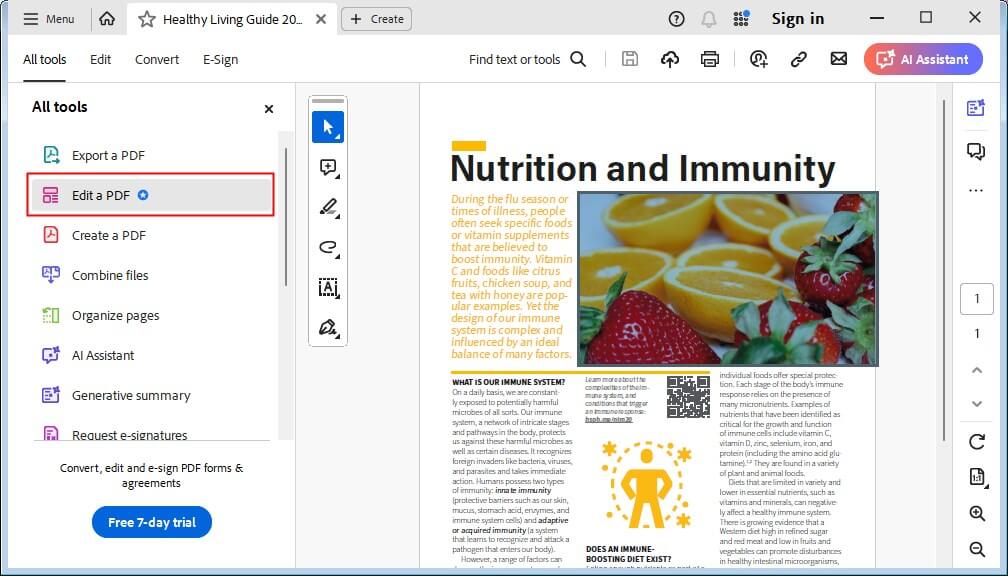
3. Select the unwanted images and press the Delete key on your keyboard.
4. Save the changes or save it as a new file.
⭐ Best for: Professional users who have a budget. This is the most reliable method to delete image from PDF for important, complex, or official documents.
Remove Image from PDF Online
If you need to delete image from PDF and don’t want to install any software, online tools are a great choice. However, for security reasons, it is not advisable to upload confidential or sensitive documents to any free online service websites.
1. Use iLovePDF
Want to remove picture from PDF online for free? iLovePDF can help. However, please note that these free online editors, like iLovePDF, typically can’t help delete elements.
Instead, they allow you to cover them up. It is a “white-out” method where you place a solid white shape over the image, effectively hiding it from view.
1. Open your browser and navigate to the iLovePDF website, and select the Edit PDF tool.
2. Click the Select PDF file button and upload your document.
3. Then, look for the Add shape tool in the top toolbar. Click it and select the Rectangle tool.
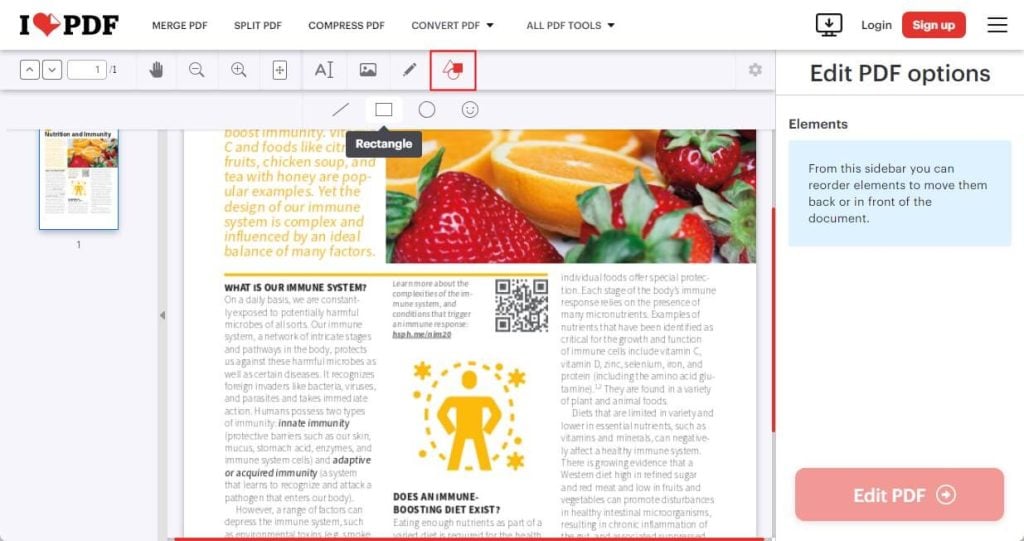
4. Drag your mouse to draw the rectangle that perfectly covers the image you want to hide.
5. Click the Fill color icon and select white. Next, click the Border color icon and select white.
6. The white box will now completely obscure the image underneath. Click the Edit PDF button, then download your new document.
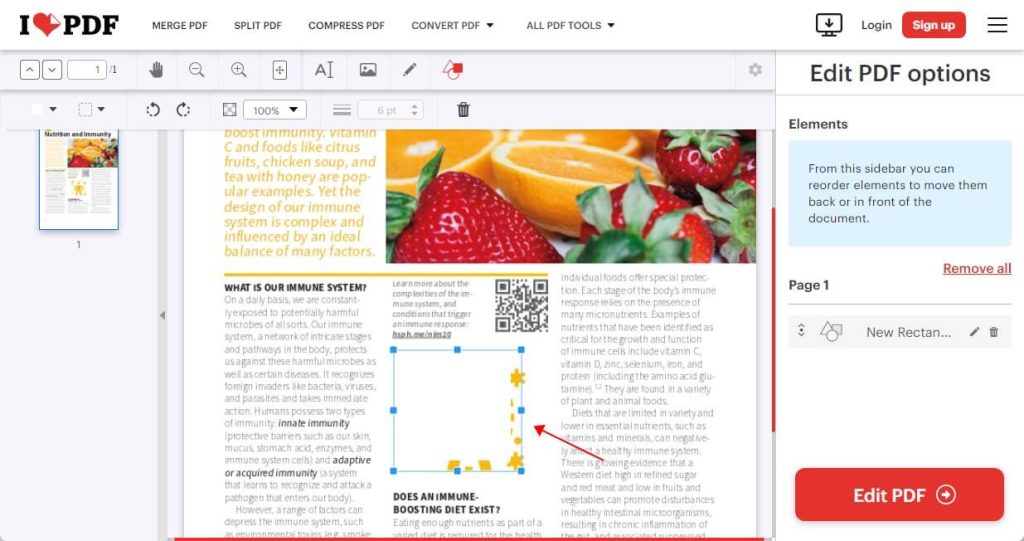
⭐ Best for: Quick, one-time fixes for non-sensitive documents where simply covering the image is sufficient. It’s the fastest solution since it requires no software installation.
2. Use Google Docs
Another way to remove an image from a PDF online for free is to use Google Docs. It can convert a PDF into an editable document. This process extracts all text and images, allowing you to delete them as you would in any word processor.
However, it works best for text-heavy, simpler layouts. Complex formatting, fonts, or layouts in the original PDF may shift during the conversion to Google Docs.
1. In a browser, log in to your Google Drive.
2. Click the + New button and select File upload to upload your PDF.
3. Once the PDF is in your Drive, right-click on the file, select Open with > Google Docs.
4. Find the image you want to remove, click on it, and press the Delete or Backspace key.
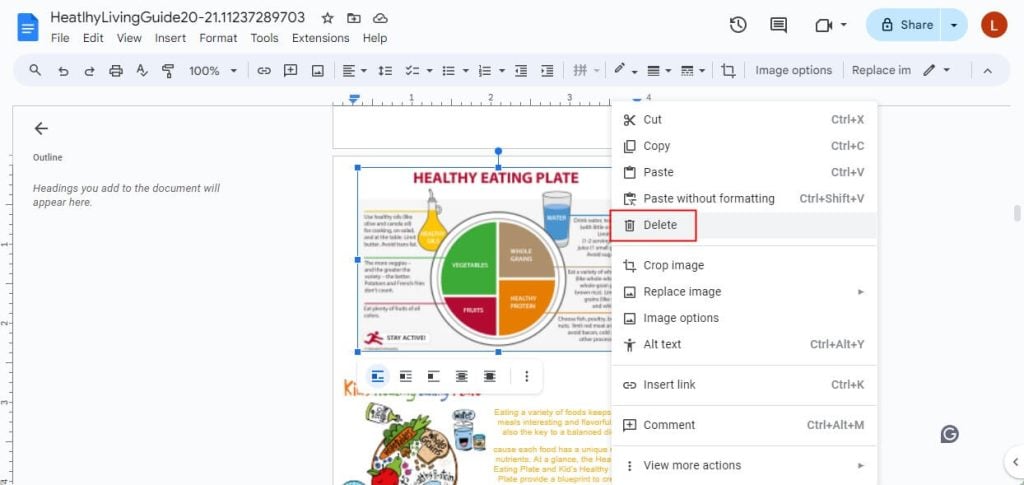
5. After you’ve deleted the image, you can re-save the file as a PDF. Go to File > Download > PDF Document (.pdf).
⭐ Best for: Users who are comfortable with Google Workspace and are working with documents where text content is more important than preserving the PDF layout.
Conclusion
That’s all about how to delete image from PDF. You no longer have to be stuck with an unwanted image, logo, or watermark in your PDF. A professional tool like JOPDF or Adobe Acrobat can help you permanently delete the images. You can also use online tools to hide the image. Just choose the right method according to your needs.
FAQs
Table of Contents

Your Best Free PDF Expert in PDF editing, compressing, converting, annotating, protect, organizing, and more.
Free DownloadWindows · macOS · Linux

Queena
Editor
“As a staff editor for JOPDF, Queena excels at guiding users to the optimal tools and solutions. When she's not analyzing the latest PDF solutions, she enjoys spending her free time playing with her four cats.”
![Find Ways to Download Manga as PDF for Free [5 Proven Ways]](https://b.jopdf.com/wp-content/uploads/2026/04/download-manga-pdf.png)

![5 Best Free PDF Compressors in 2026 [Desktop and Online]](https://b.jopdf.com/wp-content/uploads/2026/04/best-free-pdf-compressor.png)
