Introduction :
In the modern digital age, well-structured PDFs play an important role in ensuring clarity and professionalism. Whether you’re designing a report, e-book, or business document, knowing how to make all pages in a PDF the same size creates a consistent and refined viewing experience. In this article, we cover techniques to make all pages in a PDF the same size across devices. As a result, you can smoothly edit PDF pages and produce documents that look consistent and professional.
How to Make All Pages in a PDF the Same Size on Windows
If you’re using a PC, there are simple tools and software that let you make all PDF pages the same size on Windows 10 or 11, ensuring a consistent layout for printing, sharing, or editing. In this section, you’ll discover two methods to resize PDF pages and make them the same size on Windows 10 or 11: one using built-in tools and another free, reliable solution for any PDF.
Method 1. Make All PDF Pages the Same Size for Free Using JOPDF
JOPDF is a versatile tool that lets you print PDF to the same size, keeping your documents consistent and professional for online or print distribution. You can easily resize PDF pages to A4 or Letter Size for consistent formatting. The tool enables you to resize a PDF to change its page size or reduce its file size, keeping the content crisp and intact. Beyond resizing, you can combine PDFs or images into one PDF for easier handling. All in all, JOPDF is designed to simplify PDF management and ensure professional-looking documents.
Check out how to make all pages in a PDF the same size for free using JOPDF in a few clicks.
Step 1. Download and install JOPDF using the official website on your Windows or Mac computer.
Tap the Open PDF button to import your PDF file. Alternatively, you can upload the PDF file by dragging and dropping it.
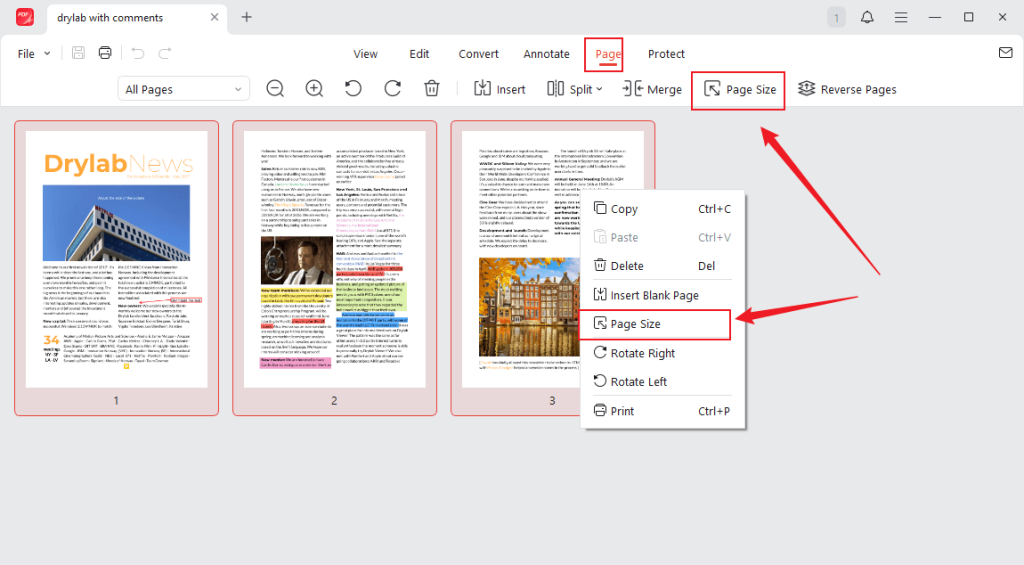
Step 2. From the top menu, choose the Page tab. Select any page, and from the secondary menu bar, click Page Size.
Another method is to right-click the PDF page and choose Page Size from the menu.
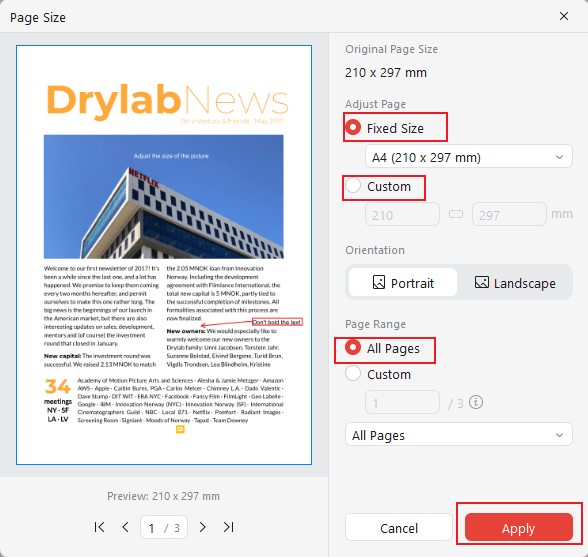
Step 3. Select the Fixed Size option, open this list, and choose A4 (210 x 297 mm) or another preferred size.
Alternatively, tick the Custom option to set a customized page dimension.
In the Page Range menu, choose All Pages to apply the change to the entire PDF. Then click Apply.
Step 4. After making all adjustments, hit Ctrl + S to save your resized PDF.
Tips
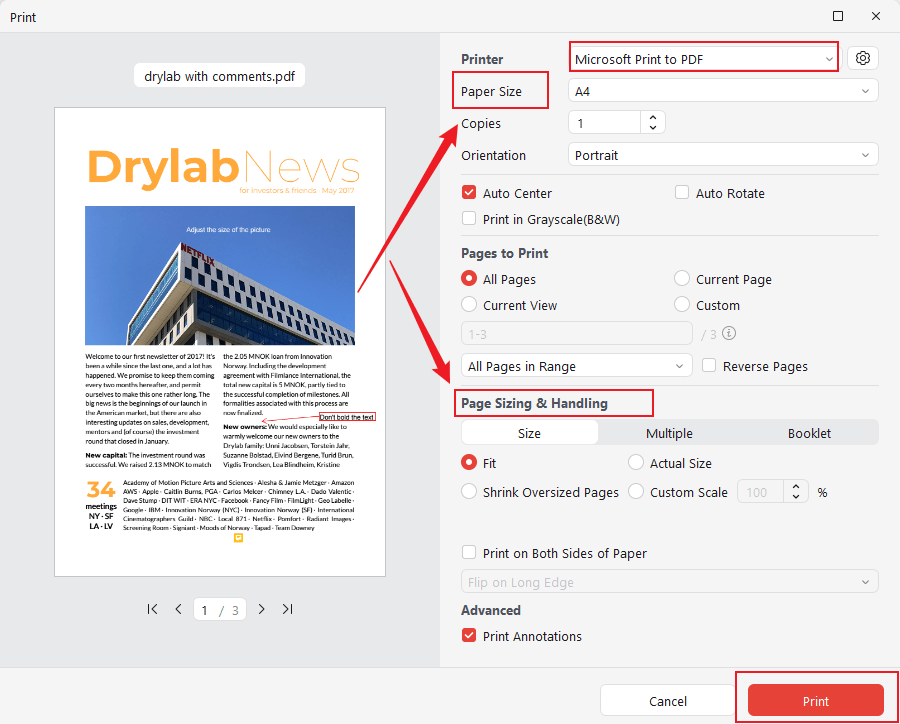
Additionally, JOPDF enables you to print a PDF to the same size. Press Ctrl/Cmd + P to enable the Print dialog and open the Paper Size list to choose the target page size. Then customize other page settings, such as orientation and page range. If you don’t want to get a physical PDF file, set Microsoft Print to PDF as the Printer.
Method 2. Resize PDF Pages to the Same Size Using Print to PDF
The built-in Print to PDF feature in Windows allows you to print PDF to the same size effortlessly. This allows you to standardize page dimensions without installing extra software. It’s quick, reliable, and works on both Windows 10 and 11 for consistent document formatting.
Find out the steps to resize PDF pages to the same size using Print to PDF in a few clicks.
Step 1. Open your PDF in any PDF viewer, such as Edge or Chrome.Then, open Print. Or, press the Ctrl+P keys.
Step 2. Select Microsoft Print to PDF as your Printer option.
Step 3. Select the paper size by clicking the Printer Properties or Preferences.Select A4 or Letter and hit OK.
After that, set the page scaling option. Under Page Sizing & Handling,select Fit and enable Auto-rotate and center.
Set the Orientation to Auto.
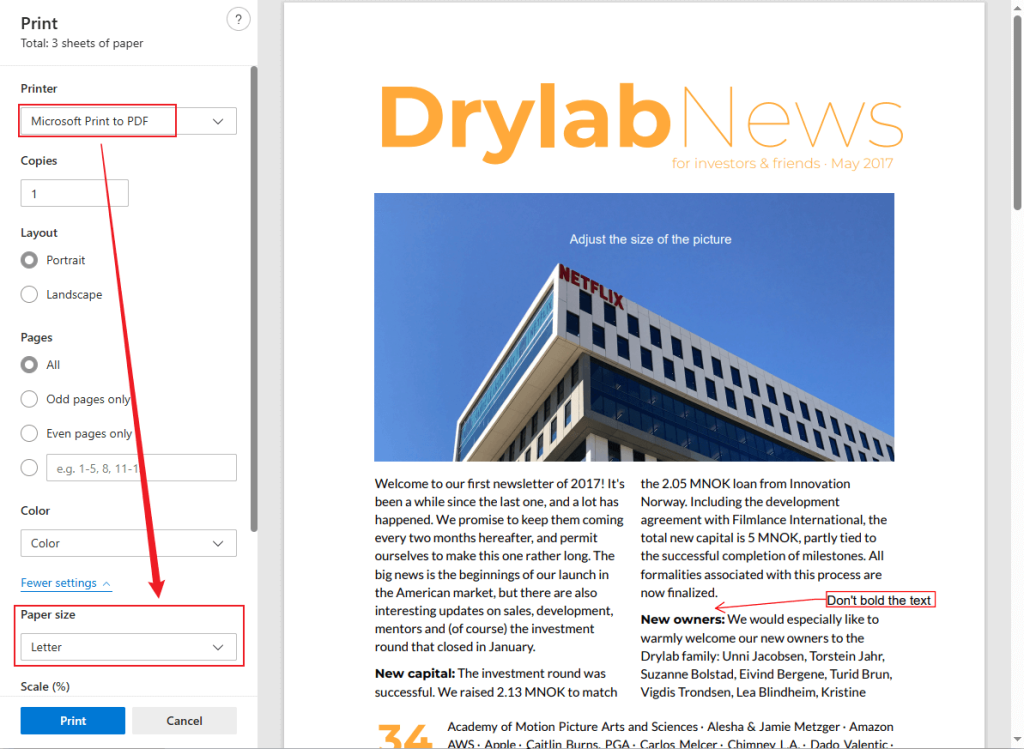
Step 4. After setting up all options, click Print to finalize. Finally, save the newly resized PDF document.
How to Make All PDF Pages the Same Size on Mac
Using a Mac, you can access easy, built-in options to resize all PDF pages, making your documents consistent and professional across devices.
Here, we’ll discuss two methods to make all PDF pages the same size on a Mac: one via the built-in Preview app and another using a credible desktop tool for more precise resizing.
Method 1. Make All Pages in a PDF the Same Size Using Mac Preview
Preview on Mac is a convenient, built-in app that lets you open and edit PDFs effortlessly. You can also convert PDF to Letter size, making it easy to standardize all pages without needing extra software.
Check out how to make combined PDF pages the same size using Preview on Mac in a few clicks.
Step 1. Access your PDF document in the Preview app. When viewing your file, go to File > Print (or press Command + P).
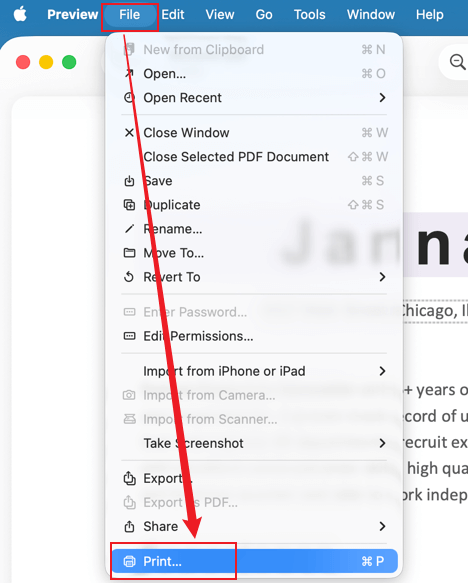
Step 2. In the Print dialog, tap the Show Details button.
Step 3. In Paper Size, choose a size that fits, like A4 or US Letter. Also, configure the Scale to Fit option.
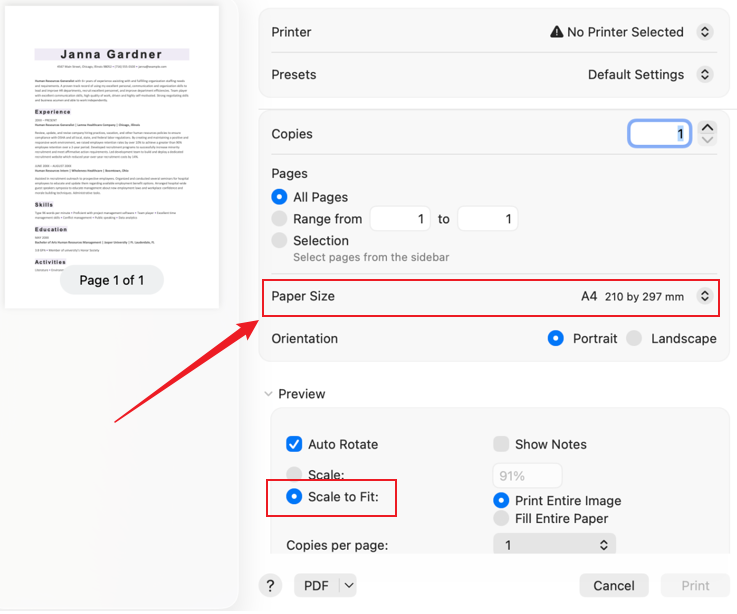
Step 4. Select Save as PDF in the PDF dropdown. And click Print.Now all pages will be saved in a new PDF at the same paper size.
Method 2. Make All PDF Pages the Same Size in Adobe Acrobat
Adobe Acrobat is a professional PDF editor widely used for creating, editing, and managing documents. You can quickly resize a PDF in Adobe Acrobat using its advanced tools, keeping all pages the same size for a uniform layout. Its resizing tools let you adjust page dimensions precisely, whether you need to standardize for printing or digital distribution.
Learn how to make combined PDF pages the same size using Adobe Acrobat on Mac in a few clicks.
Step 1. Download and open Adobe Acrobat. Navigate to the Tools menu at the top left corner. Find the Print Production option.
Step 2. After adding the Print Production feature, click Open, and a toolbar will open on the right side of the document.
Step 3. Next, navigate to the Preflight menu. As soon as a new menu opens, you must change three things:
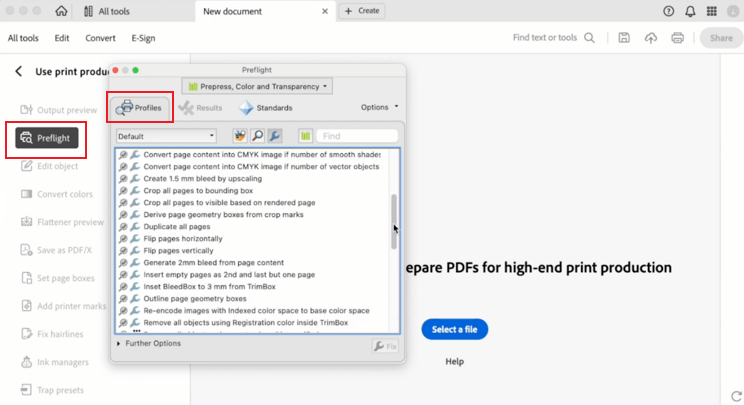
a. Click the drop-down menu to change from Essentials to Adobe 2015.
b. Hit the Wrench icon.
c. Move down the page until the “Scale” section appears. Check under the Pages heading to locate it.
Step 4. Once there, you can double-click the Scale pages to the specified size. If you know the settings you wish, you can input them there. If not, you can use the default ones.
How to Make All PDF Pages the Same Size Online
With online PDF tools, you can quickly and conveniently resize all PDF pages to the same size from any device, without needing to install anything. They work especially well for quick changes, small PDFs, or mobile access, giving a hassle-free method to standardize your documents.
Online Tools for Your Choice:
- PDF2Go
- Smallpdf
- iLovePDF
- Sejda
- Soda PDF
- PDF Candy
If you’re wondering how to make all PDF pages the same sizeonline, PDF2Go provides a fast and reliable solution. It comes with a straightforward interface for resizing PDF pages and tweaking page layouts. In addition, PDF2Go guarantees uniform page layouts directly from your browser, without needing to install software.
Here’s how to make all PDF pages the same size online using PDF2Go in a few clicks.
Step 1. Access PDF2Go on your web browser. Once opened, go to the All tools menu at the top and select Change Page Size under the Improve PDF Files section.
Step 2. Drop your files directly into the program. Or, click Choose file to upload the PDF you wish to resize the pages of.
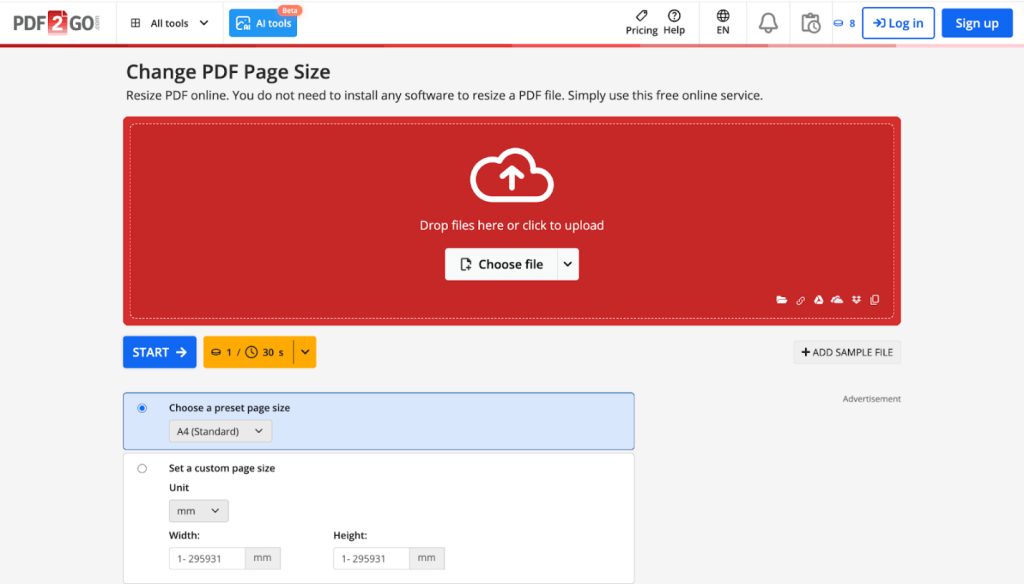
Step 3. Once your file is added, you can start the task or add more files. You can also choose a preset page size from the drop-down menu or set a custom page size.
Step 4. After configuring the settings, click Start. PDF2Go will process your file in a few moments. Click the Download button to save it to your local storage.
A Quick Wrap Up
Knowing how to make all pages in a PDF the same sizecan save time, improve document professionalism, and ensure consistent formatting across devices. Whether you use JOPDF, Adobe Acrobat, online tools like PDF2Go, or built-in solutions, there are reliable methods for every need. By applying these techniques, you can effortlessly standardize your PDFs for printing, sharing, or archiving.
FAQs
Table of Contents

Your Best Free PDF Expert in PDF editing, compressing, converting, annotating, protect, organizing, and more.
Free DownloadWindows · macOS · Linux

Olivia
“Olivia is an editor at JOPDF, where she writes practical guides and insightful articles on managing PDFs—covering topics like editing, annotating, converting, and organizing files efficiently. Passionate about clear communication and digital productivity, Olivia enjoys spending her free time cooking, watching movies, and hiking to unwind and find inspiration for her writing.”
![How to Combine PDFs in Preview in 2026 [2 Best Ways]](https://b.jopdf.com/wp-content/uploads/2026/03/how-to-combine-pdfs-in-preview.png)
![How to Compress a PDF on Mac [4 Best Ways and Practical Tips]](https://b.jopdf.com/wp-content/uploads/2026/03/how-to-compress-a-pdf-on-mac.png)

