Introduction
Knowing how to edit a PDF resume lets you customize applications, correct mistakes, and work more efficiently. In this article, you’ll discover 4 practical methods to edit your PDF resume efficiently, without any cost. Let’s get started now.
1. Free and Professional Way to Edit a PDF Resume: JOPDF
⭐ Best For: Professionals needing a free, reliable PDF editor on Mac or Windows to edit resumes, images, and pages.
JOPDF is a robust desktop tool that allows professional PDF editing. As one of the best free PDF editor, it lets users easily modify text, enhance resumes, add visuals, annotate files, and arrange pages.
It runs seamlessly on all devices, making it perfect for anyone looking for how to edit a PDF resume on Mac/Windows without complicated software. With a clean interface and secure cloud processing, JOPDF delivers fast, accurate, and professional-level PDF editing results.
💎 Key Features of JOPDF
- Allows you to easily edit images in PDF files, including resizing and moving them.
- Allows you to edit text in PDFs while keeping the original layout intact.
- Add, remove, or rearrange pages with precision.
- Convert, compress, and merge PDF files for better organization.
- Protect and print PDFs in grayscale and more in high quality.
- Annotate PDFs with highlights, comments, and shapes.
Click the download button to get JOPDF and give it a try!
Step 1. Launch JOPDF. Go to Edit PDF and select your resume.
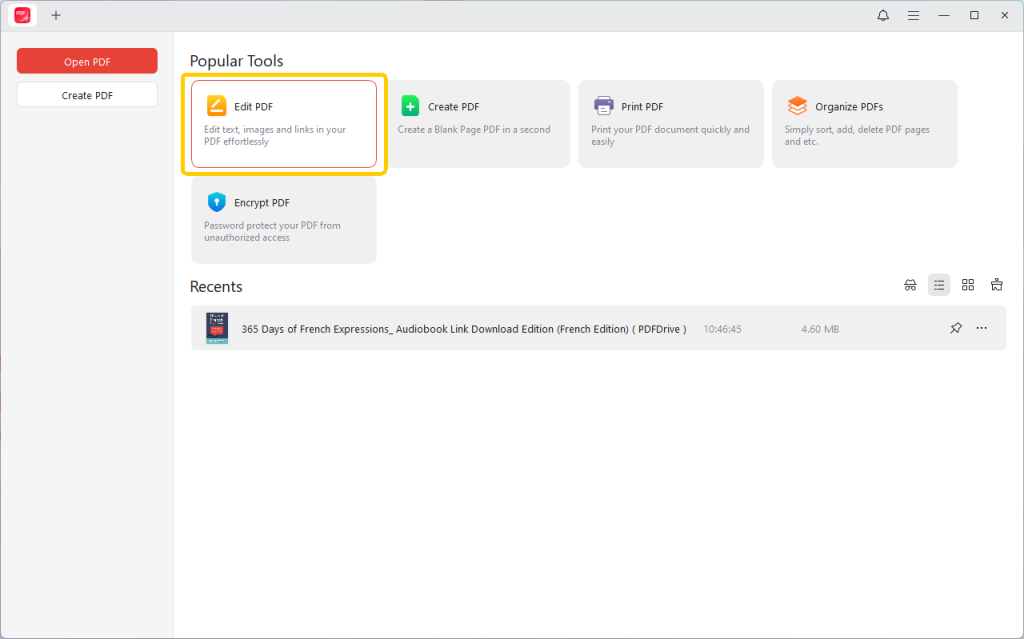
Step 2. Click Edit All and you will be able to edit the text and images in the document.
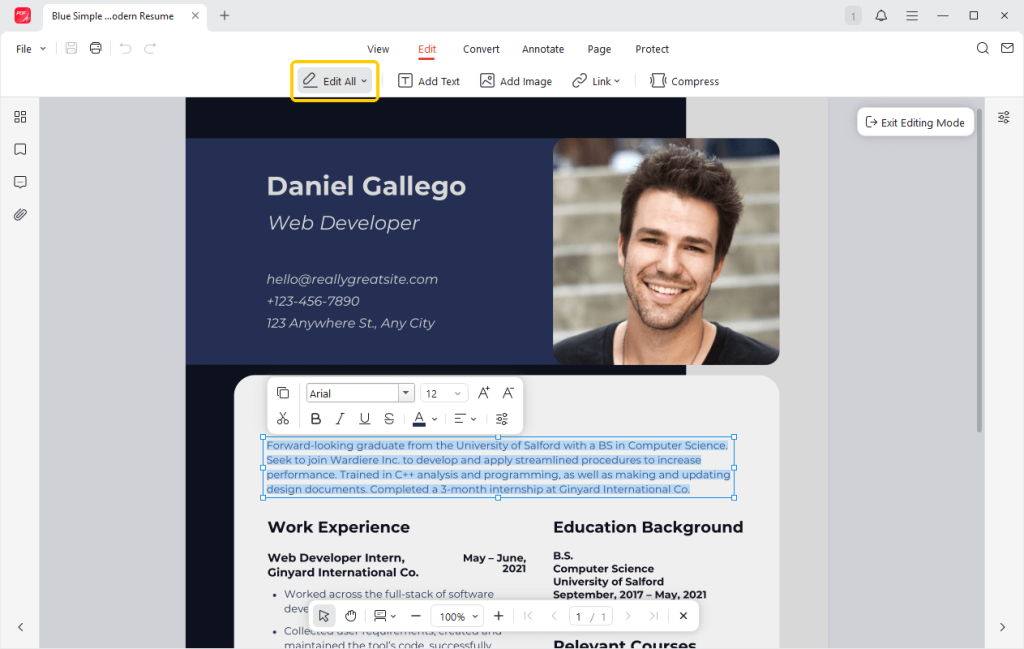
Step 3. If you want to add new objects, please select Add Text or Add Image.
Step 4. If needed, you can also compress the resume to make it smaller for email or add password protection.
Step 5. When OK, click the Save button.
🔶 Advantages of JOPDF
- Completely free to use with no hidden costs.
- Works seamlessly on Mac and Windows computers.
- Offers a user-friendly design, making it simple for anyone, from novices to experts.
- Fast editing with high-quality output.
- No ads, no watermark, and no sign-up required.
- An excellent choice for resumes, work-related documents, and professional PDF editing.
2. How to Edit a Resume for Free in Canva
⭐ Best For: Those who want a simple, intuitive design platform to modify PDF resumes, personalize layouts, and include visuals.
Canva is a user-friendly online design tool that makes it easy to write on a PDF without technical skills. It lets you upload PDFs and effortlessly modify text, rearrange layouts, insert elements, and change fonts.
With its drag-and-drop interface and free features, Canva is ideal for quick PDF edits, especially resumes, forms, and documents that need a polished, professional look.
Follow these steps to understand how to edit a PDF resume in Canva in just a few clicks.
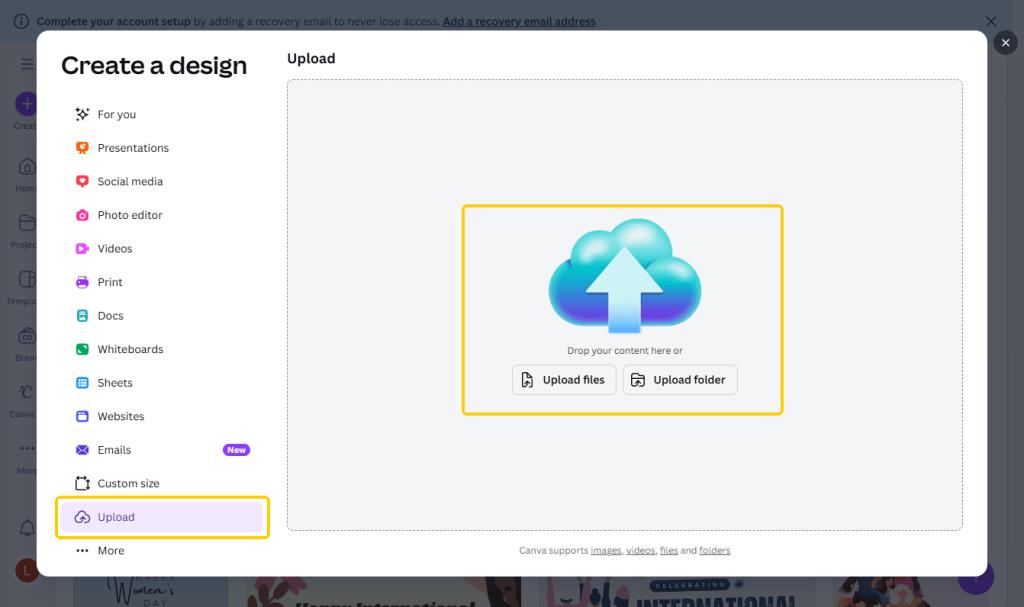
Step 1. Open the Canva homepage and click the +Create tab in the left-hand menu. In the Create a Design window, click Upload to bring your PDF resume into Canva.
Step 2. Your PDF resume will show up in Projects as soon as it’s uploaded. Click on the file to open it in the editor.
Step 3. Change any parts of your resume that need updating.
- Text. Click on a text box to edit the words, change the font, size, color, or alignment using the toolbar.
- Elements. Add new shapes, icons, lines, tables, etc., to your resume.
- When text is flattened and uneditable, simply add a new text box to make changes.
Step 4. After finishing your edits, download the updated PDF by clicking the Share button at the top-right.
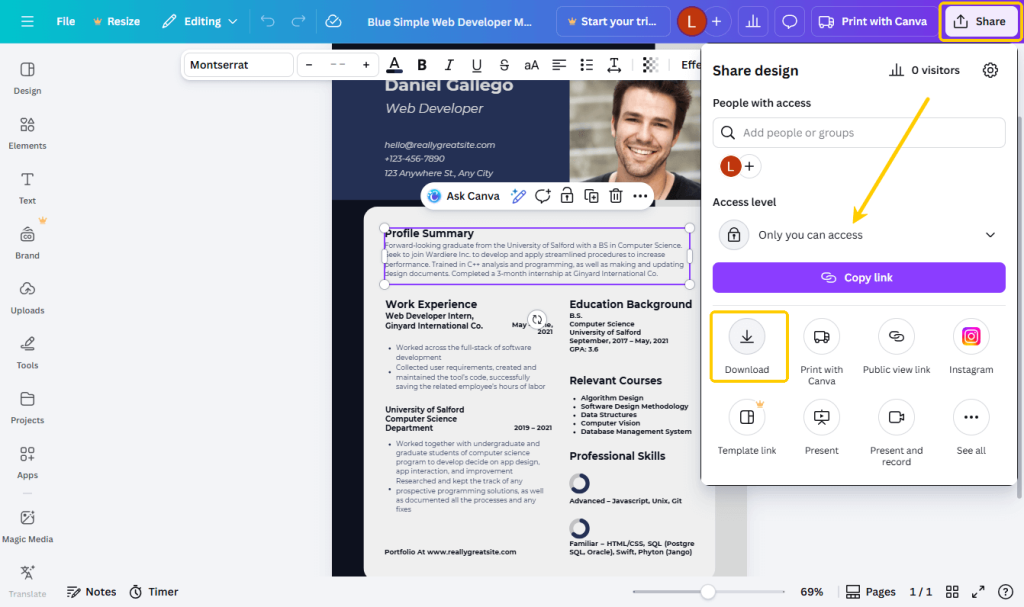
Press Download and select your preferred format: PDF Standard for sharing digitally or PDF Print for printing.
Finally, click Download again to confirm your choice.
3. How to Edit a Resume with Google Docs
⭐ Best For: Anyone wanting to transform PDFs into editable documents for quick text and formatting updates.
Google Docs, a free online word processor, enables straightforward editing of PDF files. By converting a PDF to an editable file, you can easily update text, adjust layouts, and modify content directly online.
As a result, Google Docs is a convenient solution for quick PDF edits, especially for minor text changes without installing software.
Discover how to edit a PDF resume for free using Google Docs in a few clicks.
Step 1. Begin by uploading your PDF resume to Google Drive.
Step 2. Right-click the PDF document. Next, choose Open with Google Docs to turn your PDF into an editable document.
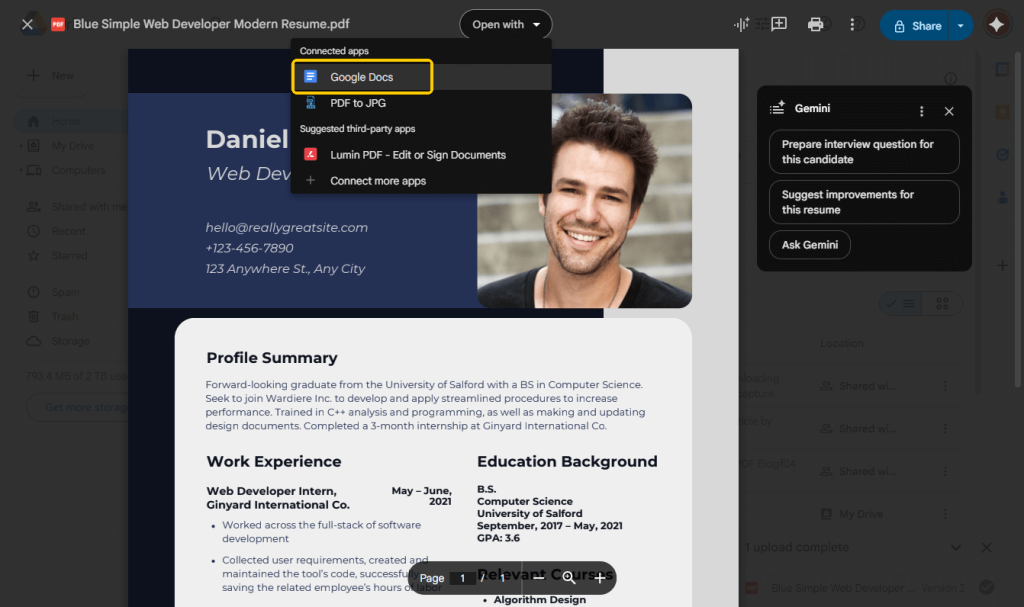
Step 2. Once your PDF resume opens in Google Docs, perform the necessary edits.
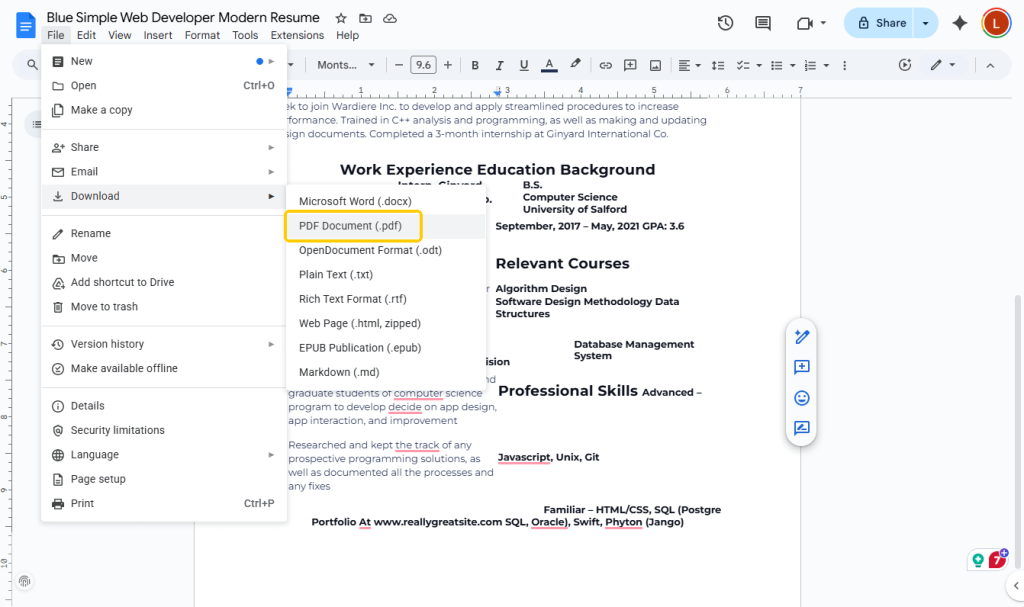
Step 3. When you finish editing, navigate to the File tab in the top menu bar.
Tap the Download icon in the dropdown menu. And select PDF document (.pdf). This will save and download your PDF resume as a new PDF.
4. How to Edit a Resume Using Microsoft Word
⭐ Best For: Anyone preferring a well-known program to turn PDFs into Word documents for easy editing.
Microsoft Word offers a practical way to edit PDF files by converting them into editable documents. This functionality makes it simple to revise content, change formatting, and delete text from PDF.
With familiar editing controls, users can efficiently update resumes. However, if the PDF format is rather complex, then there might be issues with the file format.
Explore how to edit a PDF resume for free using Microsoft Word in a few clicks.
Step 1. Launch Microsoft Word. Press File, tap Open, and then Browse to add and select your PDF resume file.
Step 2. Word will display a message indicating that it will convert the PDF to an editable Word document. Tap OK to proceed.
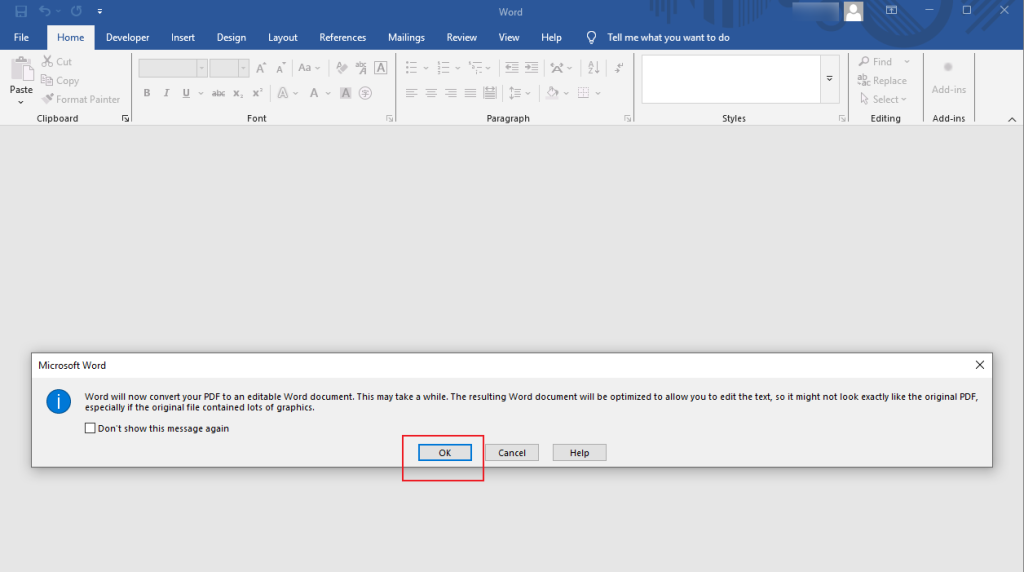
Step 3. After opening the PDF, select text to revise it, and add or delete any necessary content. Also, right-click images for basic edits.
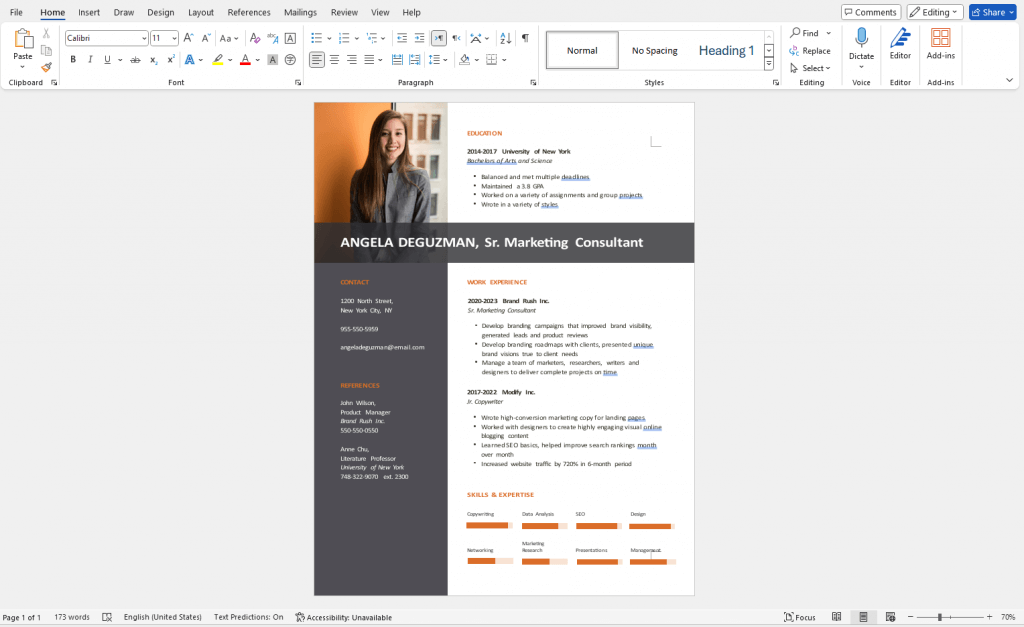
Step 4. After performing the necessary edits, finally, save your changes.
Go to File and click Save As, select PDF from the “Save as type” dropdown, and click Publish.
Final Wrap Up
Editing a resume doesn’t have to be expensive or complicated. The right resources make it easy and convenient for everyone to learn how to edit a PDF resume quickly.
No matter if it’s JOPDF, Canva, Google Docs, or Microsoft Word, each delivers reliable PDF editing for free. Use these tools to keep your resume up to date, tailored, and job-ready with minimal effort. Hope this guide is helpful!
FAQs
Table of Contents

Your Best Free PDF Expert in PDF editing, compressing, converting, annotating, protect, organizing, and more.
Free DownloadWindows · macOS · Linux

Queena
Editor
“As a staff editor for JOPDF, Queena excels at guiding users to the optimal tools and solutions. When she's not analyzing the latest PDF solutions, she enjoys spending her free time playing with her four cats.”
![How to Combine PDFs in Preview in 2026 [2 Best Ways]](https://b.jopdf.com/wp-content/uploads/2026/03/how-to-combine-pdfs-in-preview.png)
![How to Compress a PDF on Mac [4 Best Ways and Practical Tips]](https://b.jopdf.com/wp-content/uploads/2026/03/how-to-compress-a-pdf-on-mac.png)

