Introduction
Just finished your PDF file, only to find glaring typos or outdated information? It’s a common frustration, but you’re not stuck. This guide will show you how to delete text from PDF using professional and free tools.
Part 1. Why Is It Hard to Remove Text from PDF?
The primary reason PDF files are difficult to edit directly lies in their design philosophy. The PDF is created to be a digital snapshot of a document. Its main purpose is to ensure the document looks the same on any device. It prioritizes viewing consistency over editability.
Generally, there are two main types of PDFs:
🟡 Text-Based PDFs: These are created from a PDF editor, a word processor, or software. They contain a hidden text layer, which is why you can select, copy, and search for words. In this case, you can use a professional editor to access this layer to delete text directly.
🟡 Image-Based PDFs: The document is one flat image. To edit the text in the PDF, you first need a tool with Optical Character Recognition (OCR) to recognize the text. Or, you can use the write-out or redact tool to cover the text.
Part 2. Professional Ways to Delete Text from PDF
Professional PDF tools like JOPDF and Adobe Acrobat are the best choice if you want a reliable solution. They offer advanced features for true text removal and secure redaction!
💡True Deletion vs. Secure Redaction
Before diving into the tools, it’s important to understand two key concepts.
🔸 True Deletion:
It’s just like editing in a word processor and is the best way to maintain a document’s professional appearance. In this case, JOPDF can help you.
🔸 Secure Redaction:
This is a good option for sensitive information. It will permanently remove the text and its data from the document’s code. Once a file is saved after redaction, the information is unrecoverable. To this end, Adobe Acrobat can achieve this.
Next, let me show you the detailed steps.
1. Delete Text from PDF for Free with JOPDF
JOPDF is a comprehensive and user-friendly desktop program that provides a powerful set of editing tools. It lets you easily select and delete text from a PDF file.
With JOPDF, you can easily correct errors or update information while maintaining your document’s original formatting.
1. Download and install JOPDF on your computer. It is available on Windows and macOS.
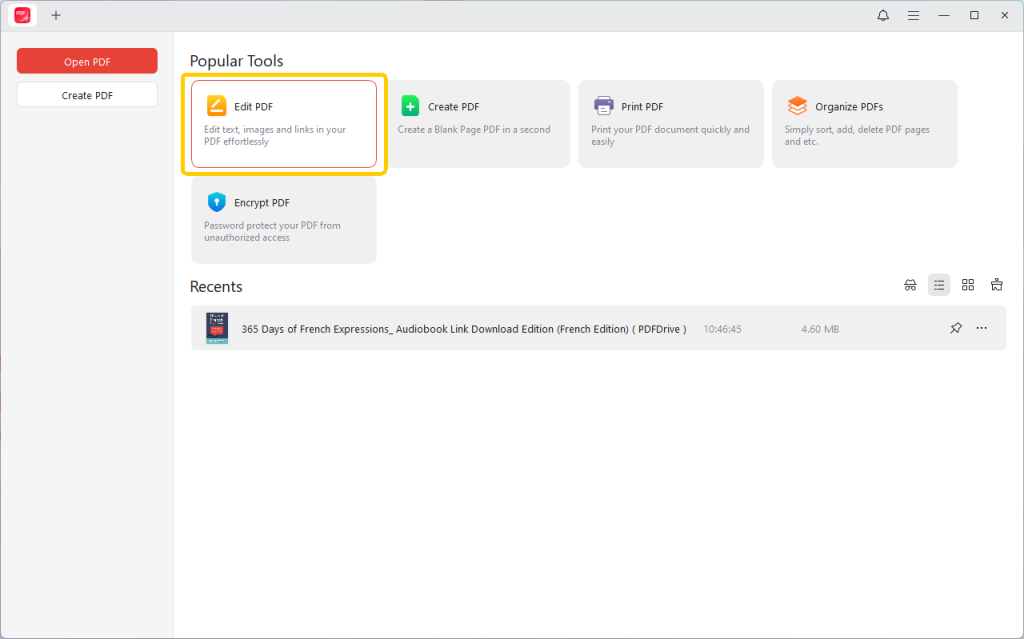
2. Open JOPDF. Click the Edit PDF option and open your PDF file.
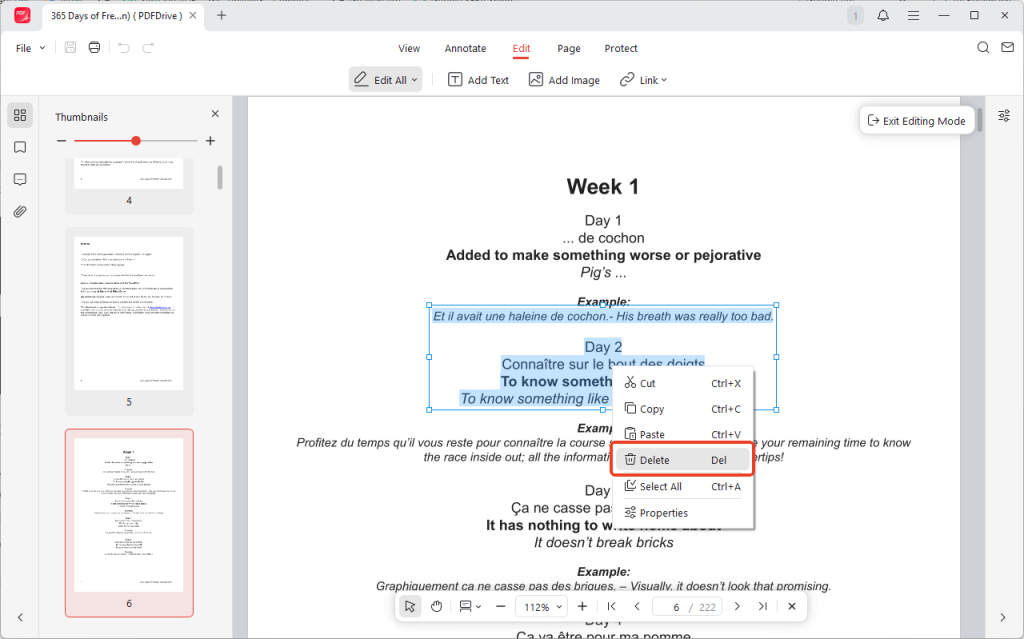
3. Next, click on the text you wish to remove. A bounding box will appear around the paragraph.
4. Select the specific words or sentences and press the Delete or Backspace key on your keyboard.
5. Finally, click the Save button at the top left corner.
🏆 Best for: Professionals and frequent users who need a powerful, full-featured and free PDF editor without the high subscription cost of Adobe Acrobat.
2. Use Adobe Acrobat
Adobe Acrobat Pro is the industry-standard solution for PDF. It offers the most robust and reliable toolset available. With its “Edit PDF” function, you can remove unwanted text. For sensitive documents, you can use the redaction tool to erase text in PDF.
Many users want to know how to delete text in a PDF in Adobe Reader. However, this free software does not support PDF editing. To access editing tools, you need to upgrade to the Pro version. Looking for a free method? Then you can check out the JOPDF above.
1. Open your document in Adobe Acrobat Pro.
2. In the right-hand tool pane, select Edit PDF. Acrobat will automatically detect all the text and image elements.
3. Click inside the text box you want to edit. Now, you can select and delete the text.
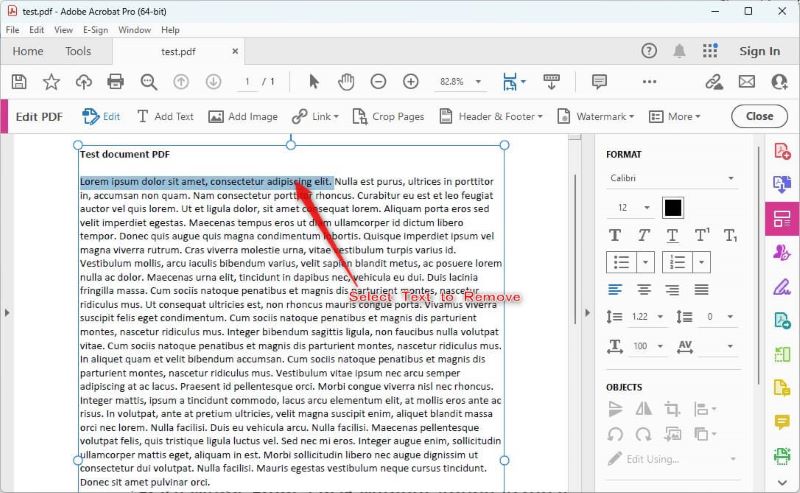
4. For sensitive data, select the Redact tool from the menu, mark the text for redaction, and click Apply.
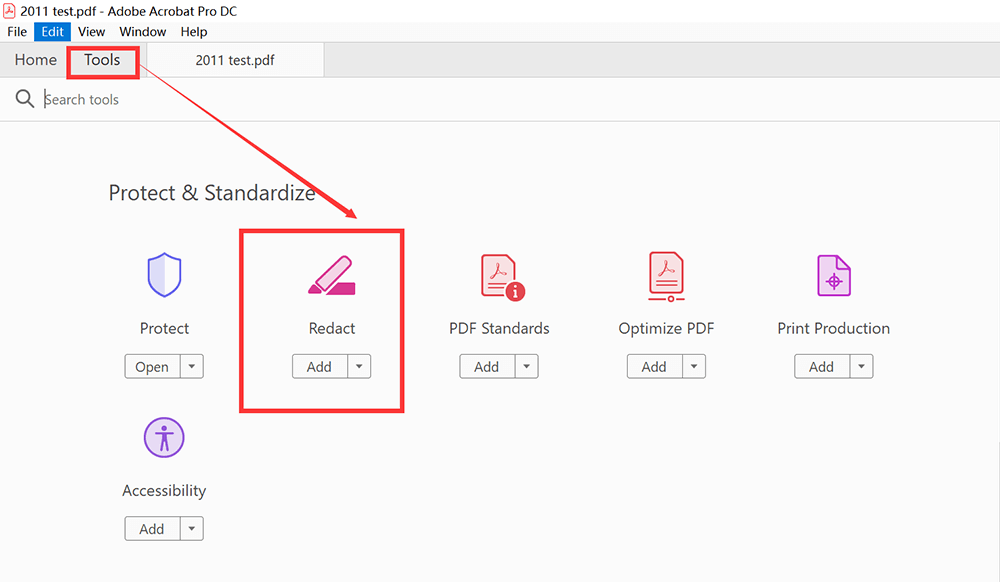
5. Finally, click the Save button to save the changes.
🏆 Best for: Corporate environments, legal professionals, and anyone who requires flawless editing, advanced security features, and the most reliable PDF handling available.
Part 3. Other Proven Ways to Delete Text from PDF
If you don’t want to download a PDF editor, you can still accomplish the task with these accessible and free methods.
1. Remove Text from PDF Online for Free
Using an online PDF editor is a quick solution that requires no software installation. Smallpdf is a popular service that offers a suite of PDF tools, including a simple editor. You can use the Add Shape tool to add a rectangle to cover the text.
1. Open a browser and go to the Smallpdf online editor (https://smallpdf.com/edit-pdf).
2. Click Choose Files to upload your PDF.
3. Select the Shape tool and choose the Rectangle.
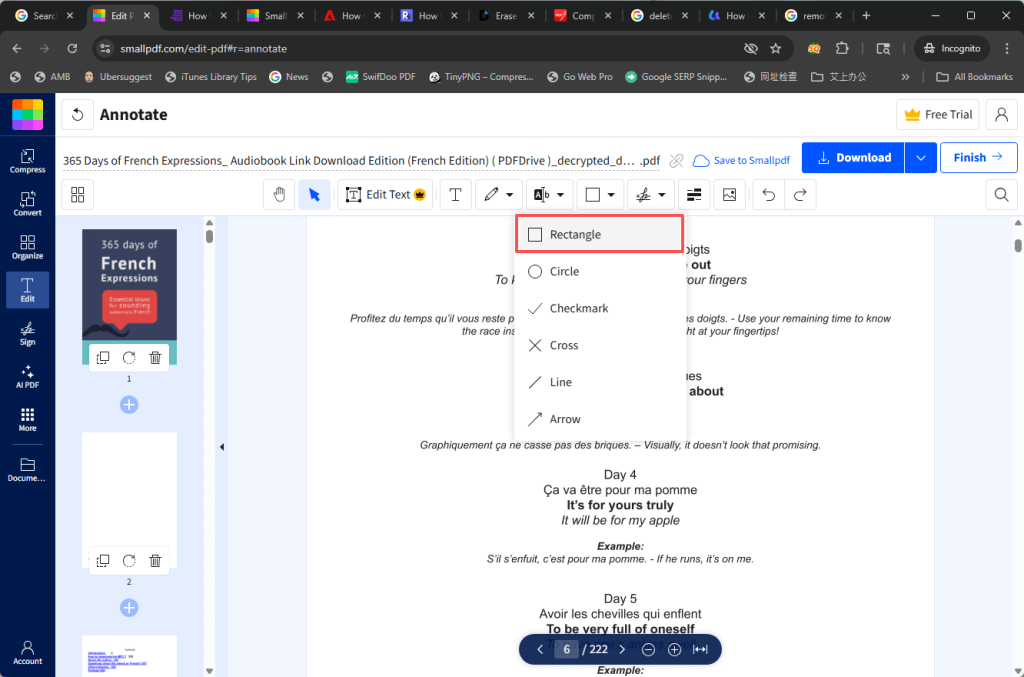
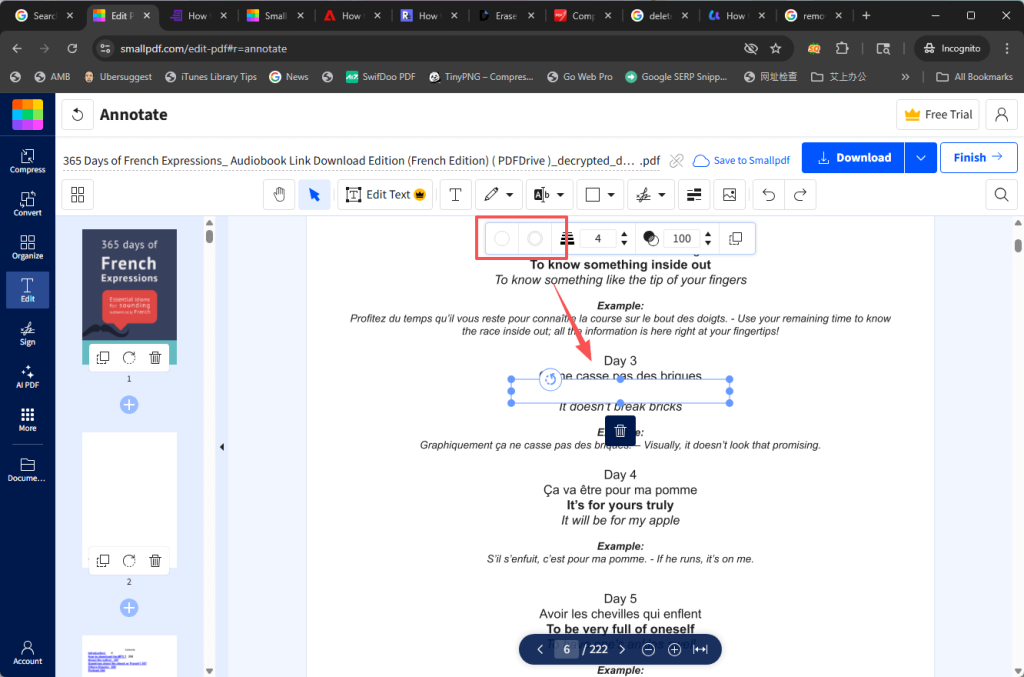
4. Set both the fill and border color to white.
5. Carefully draw the white box over the text you wish to hide.
6. When OK, click the Download button to save the PDF to your computer.
🏆 Best for: Quick, one-off tasks with non-sensitive information, especially when you are on a computer where you cannot install software.
2. Use Microsoft Word
For a PDF that is mostly text or purely text-based, you can use Microsoft Word to accomplish the task. It can convert your PDF into an editable Word document, allowing you to delete text freely before saving it back to the PDF format. Follow the steps below to remove text from PDF.
1. Launch Microsoft Word. Go to File > Open and select the PDF you want to edit. Click OK on the pop-up message.
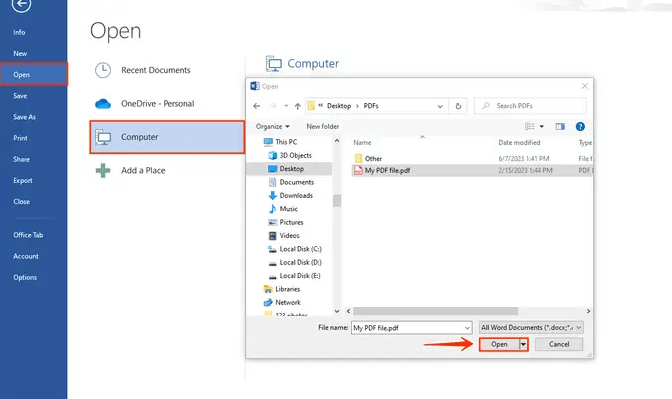
2. Locate the text you want to remove and delete it.
3. Once you are finished, go to File > Save As. In the “Save as type” dropdown menu, choose PDF and click Save.
🏆 Best for: Users who already have Microsoft Office and need to edit text-based document with simple layouts. Be aware that complex formatting may sometimes shift during conversion.
3. Use Preview to Erase Text in PDF on Mac
For Mac users, a PDF tool is already built into the operating system: Preview. While it doesn’t offer true text deletion, its markup tools provide a quick and easy way to “white out” or cover text you want to remove.
1. Open your PDF file in Preview. Then, click the “Show Markup Toolbar” button (the icon looks like a pen tip).

2. Select the Shapes tool and choose the rectangle.
3. Click the “Fill color” and “Border color” options and set both to white.
4. Draw a rectangle over the text you wish to hide.
5. To make the change permanent, go to File > Export as PDF… and save it as a new file.
🏆 Best for: Mac users who need a fast, simple, and free way to hide information without downloading any third-party applications.
Conclusion
That’s all about how to remove text from PDF. The best method depends on your specific needs. If you want true deletion, then a professional tool like JOPDF is the way to go.
Hope you can now delete text from a PDF and ensure your documents are accurate, professional, and exactly as you need them to be.
FAQs
Table of Contents

Your Best Free PDF Expert in PDF editing, compressing, converting, annotating, protect, organizing, and more.
Free DownloadWindows · macOS · Linux

Queena
Editor
“As a staff editor for JOPDF, Queena excels at guiding users to the optimal tools and solutions. When she's not analyzing the latest PDF solutions, she enjoys spending her free time playing with her four cats.”
![How to Combine PDFs in Preview in 2026 [2 Best Ways]](https://b.jopdf.com/wp-content/uploads/2026/03/how-to-combine-pdfs-in-preview.png)
![How to Compress a PDF on Mac [4 Best Ways and Practical Tips]](https://b.jopdf.com/wp-content/uploads/2026/03/how-to-compress-a-pdf-on-mac.png)

