Introduction :
It is a frustrating thing to encounter a PDF file that cannot be copied. If you’re struggling with this problem, you’re not alone. Many people face this issue when working with research papers, contracts, ebooks, or scanned documents. How to copy text from PDF that cannot be copied? In this JOPDF guide, let’s explore why some PDFs don’t allow text copying and walk through practical solutions.
Why Can’t You Copy Text from PDF?
It is helpful to understand why copying text from a PDF might be restricted. Understanding the causes can guide us to the most effective solutions. Generally, the causes can fall into three categories. Let’s check them one by one.
#The PDF is Scanned or Image-based
If your PDF file is created from a scanner or an image, the text in the PDF cannot be selected or edited until the OCR technology is applied.
#The PDF Has Security Restrictions
Some PDF creators prefer to password-protect their PDFs to prevent copying, editing, or printing of the content. In that case, you can’t copy the PDF until you have the right permission password.
#The PDF is Corrupted or Poorly Formatted
Sometimes the issue lies in how the PDF was created. If the text is improperly embedded or encoded, copying results in scrambled characters.
Then, let’s learn how to resolve the PDF file cannot be copied issue!
Method 1. Remove PDF Restrictions on Copying
Whether you’ve forgotten your password or don’t know it, when you need to legitimately copy text from a restricted PDF, you can use a reliable password removal tool to bypass copying restrictions. Please pay attention! You can only use this method for legal purposes and do not infringe on someone else’s copyright of the PDF file.
PDF Restriction Removers
There are both offline and online PDF editors that can help you remove PDF restrictions on copying. I have picked up 5 reliable and useful ones. Here is a list for your reference:
- JOPDF: A 100% free PDF editor that can remove restrictions from PDFs with or without knowing passwords.
- Adobe Acrobat Pro: Allows you to modify permissions if you have the password.
- SwifDoo PDF: A cost-effective alternative to Adobe Acrobat that can edit and remove restrictions.
- Smallpdf: A web-based PDF editor to unlock PDF across platforms.
- iLovePDF: An online tool to remove permission passwords of PDFs.
How to Remove PDF Restrictions on Copying
Among the above 5 recommended PDF restriction removers, I strongly recommend JOPDF. It is a completely free PDF editor compatible with both Windows and Mac. You can use it to unlock PDFs for efficient copying, printing, and editing. Additionally, it enables you to copy text from PDFs with ease. More importantly, JOPDF comes with various basic and advanced features for editing PDFs. Therefore, I use JOPDF as an example to demonstrate how to remove PDF restrictions on copying.
Step 1. Get the installer of JOPDF by clicking the button below. Then install it on your PC.
Step 2. Launch JOPDF and be ready to use it without registration. Click the red Open PDF button to import the PDF that cannot be copied.
Step 3. If you know the permission password, click the Enable Editing button, enter the password, and then click OK.
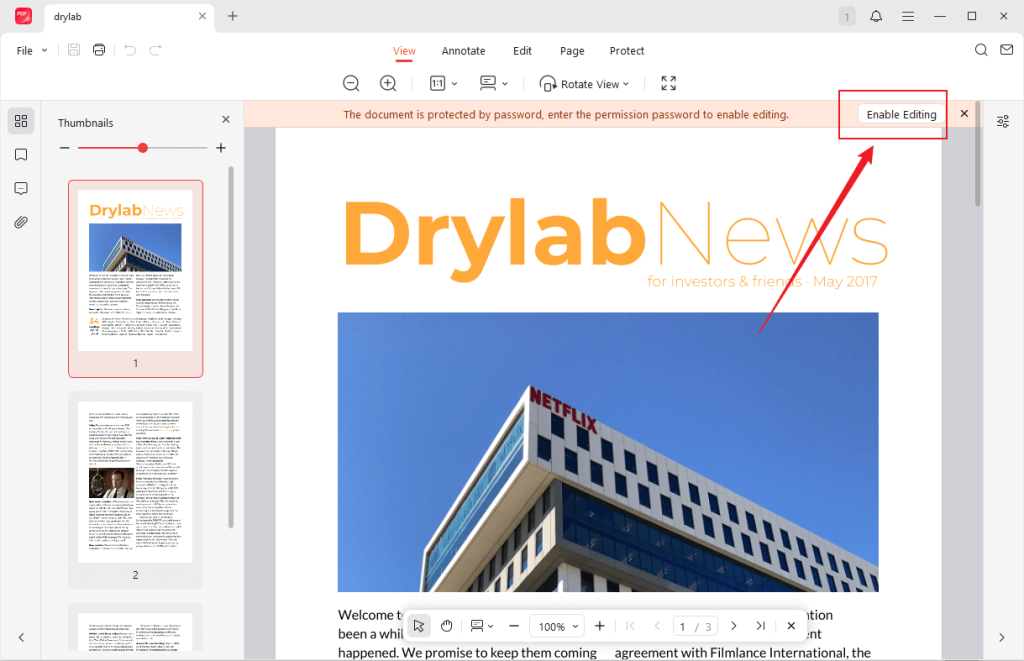
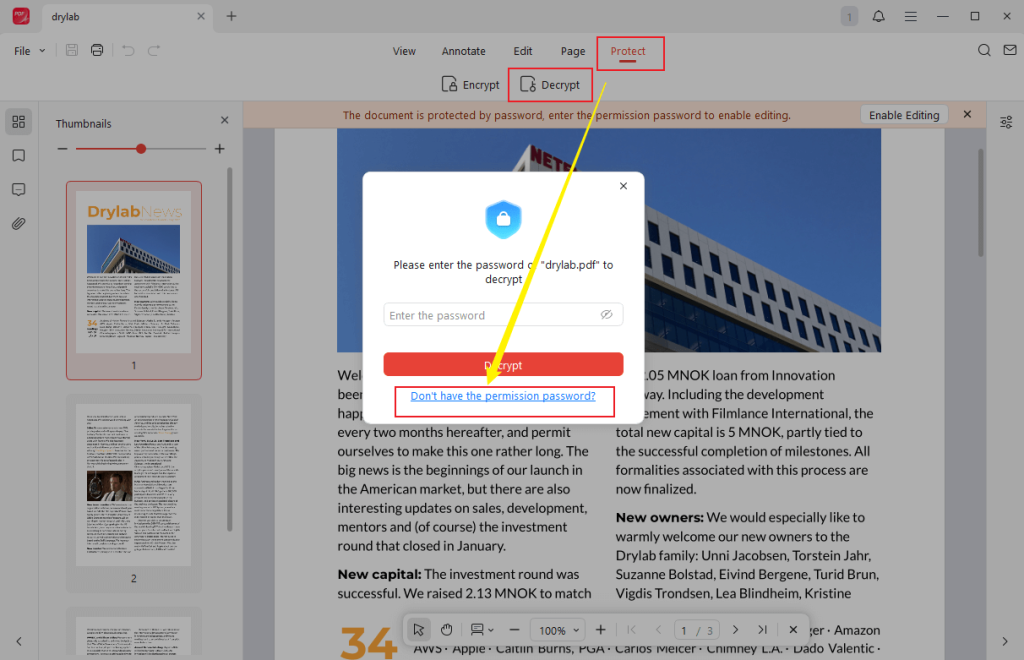
It’s okay if you don’t know the password. Click the Protect tab from the above 5 tabs and hit the Decrypt option. A window will appear, click the “Don’t have the permission password?” option and click the Remove button. Next, rename the unlocked PDF file, choose a folder to save it, and click Save. Then the unlocked PDF will open in JOPDF automatically.
Step 4. Now, you can use the cursor to choose the text you want to copy. Right-click to select the Copy icon or press Ctrl + C (Command + C for Mac) to copy the text.
Method 2. Convert the PDF to Other Formats
The second method you can try is to convert the PDF to a more editable format, like Word or plain text. After conversion, you can turn the PDF that cannot be copied into one that can be copied. How to convert a PDF to Word or other formats? Keep reading!
Useful PDF Converters
Here, I listed several PDF converters that can help you change PDFs into more editable formats.
- Wondershare PDFelement: A paid but powerful cross-platform PDF converter.
- Adobe Acrobat Pro: An industry-standard PDF converter.
- SwifDoo PDF: A cost-effective way to convert PDF to Word, Excel, PPT, or more formats.
- SwifDoo PDF Online Converter: A free online way to convert PDF files.
- PDF2GO: A robust online PDF converter.
How to Convert PDF to Word
If you have sufficient budget, you can try Wondershare PDFelement, Adobe Acrobat Pro, or SwifDoo PDF. If not, consider SwifDoo PDF Online Converter or PDF2GO. In this section, I’d like to take PDF2GO as an example to show you how to convert a PDF to a Word document for copying.
Step 1. Visit the official website of PDF2GO and select the PDF to Word option.
Step 2. Click Choose File to import the PDF that cannot be copied from your local storage space. Also, you can open the Choose File list to upload the PDF from Dropbox, Google Drive, or OneDrive.
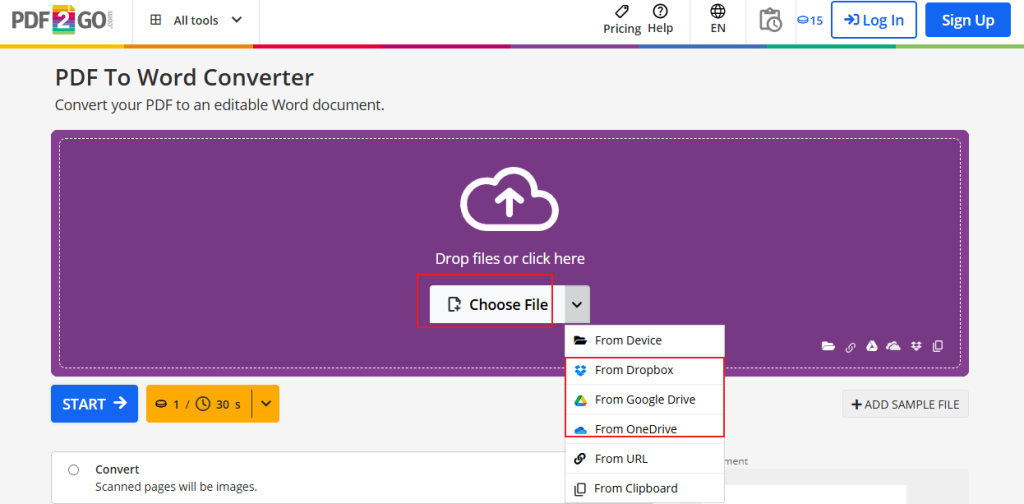
Step 3. Once the PDF file is uploaded, click the Start button to initiate the conversion process. When the process is finished, download the file, open it, and copy the text you want to copy.
Method 3. Use OCR on Scanned PDFs
If the “PDF cannot be copied” issue is caused by a scanned or image-based PDF, OCR is the solution. You can use a PDF editor with OCR to make the scanned or image-based PDF content into selectable text.
PDF Editor with OCR
- SwifDoo PDF: A powerful PDF editor with OCR, which offers a 7-day free trial.
- Adobe Acrobat Pro: A professional tool to OCR PDFs, but it requires a steep learning curve.
- Google Drive: Built-in tool to OCR PDFs, but it has limited features for PDFs.
- Smallpdf: Easy to convert scanned PDFs into searchable and selectable text documents.
How to OCR a PDF to Make It Selectable and Copyable
SwifDoo PDF is worth trying to make a PDF selectable and copyable. It enables you to OCR PDFs in various languages, ranging from English and German to French and Japanese. Additionally, from the above two methods, we can know that SwifDoo can also unlock PDFs and convert PDFs. Therefore, SwifDoo PDF is highly recommended. Let’s see how to OCR a PDF using SwifDoo PDF.
Step 1. Download SwifDoo PDF from its official website and then install this program on your PC.
Step 2. Hit Open to import the PDF that cannot be copied, and click the OCR option.
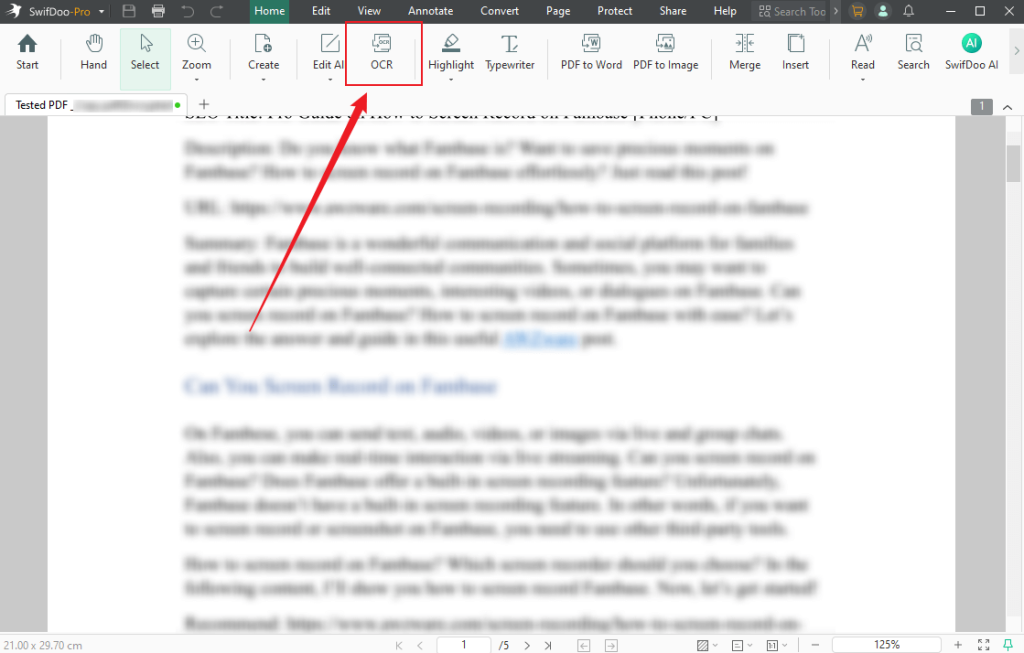
Step 3. A pop-up will appear. You can customize the output and the PDF pages you want to OCR. Then, click Apply.
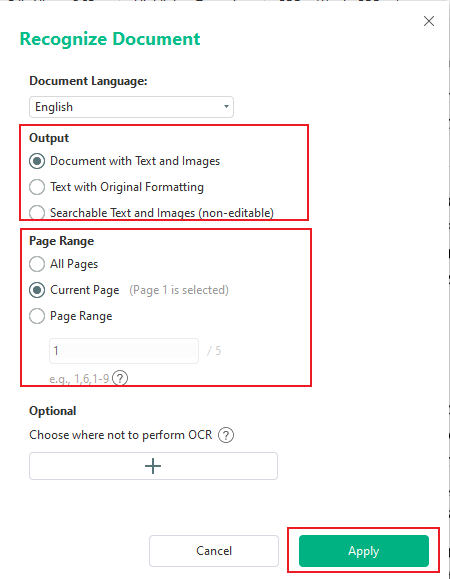
Step 4. Once finished, you can easily copy text from the PDF file.
Bottom Line
Sometimes, when your PDF file is restricted, scanned, or simply misformatted, the PDF may not be copied. How to copy text from PDF that cannot be copied? You can use a remover tool to remove the PDF restrictions on copying, use a PDF converter to convert the PDF to a more editable format, or utilize a PDF editor to OCR the PDF. By the way, always prioritize ethical and legal considerations, ensuring you have permission to access and use the content.
FAQs
Table of Contents

Your Best Free PDF Expert in PDF editing, compressing, converting, annotating, protect, organizing, and more.
Free DownloadWindows · macOS · Linux

Olivia
“Olivia is an editor at JOPDF, where she writes practical guides and insightful articles on managing PDFs—covering topics like editing, annotating, converting, and organizing files efficiently. Passionate about clear communication and digital productivity, Olivia enjoys spending her free time cooking, watching movies, and hiking to unwind and find inspiration for her writing.”
![Find Ways to Download Manga as PDF for Free [5 Proven Ways]](https://b.jopdf.com/wp-content/uploads/2026/04/download-manga-pdf.png)

![5 Best Free PDF Compressors in 2026 [Desktop and Online]](https://b.jopdf.com/wp-content/uploads/2026/04/best-free-pdf-compressor.png)
