![[2026 Latest] How to Combine PDFs on Mac: 4 Best Ways!](https://b.jopdf.com/wp-content/uploads/2026/01/how-to-combine-pdfs-on-mac.png)
Introduction :
In today’s digital world, managing several documents efficiently is essential, and mastering how to combine PDFs on Mac can save time and avoid clutter. Whether you’re dealing with invoices, research files, or vital paperwork, reliable PDF mergers bring all your files into one seamless document. This article will show you four effective ways to merge multiple PDFs on a Mac.
Before you learn how to combine two PDFs into one on Mac, let us look at the main reasons why this might be necessary. With these benefits, you can easily handle PDFs in a fast yet efficient way to stay organized and save time.
- Keep files organized: Merge your PDFs into one clean, simple-to-handle document.
- Easy sharing: Deliver one file instead of multiple separate attachments.
- Simplify printing: Print your entire document in one go.
- Professional look: A combined PDF presents a professional appearance.
- Better storage: Combine PDF files on Mac to reduce clutter and store files efficiently.
To combine PDFs into a single file on a Mac and edit them for free, JOPDF is an excellent choice. It comes with more advanced features than Preview and other common Mac PDF editors, making PDF management easier and more efficient. You can begin using this free PDF editor and merger today. In the following sections, I’ll show you its key features and usage step by step.
How to Combine PDFs in Preview
Preview is the native PDF and image viewer on Mac that lets users merge PDFs on Mac for free without installing anything. It also lets you combine images into one PDF, making it simple to create organized, single documents from multiple files. With its simple drag-and-drop interface, Preview is a quick and convenient option for basic PDF merging tasks.
Follow these steps to see how to combine PDF files in Preview on Mac.
Step 1. Open the first (main) PDF in the Preview app. Then navigate to View and hit Thumbnails to see the sidebar with page previews.
Step 2. From the thumbnails in the sidebar, choose the page where you want to insert the second PDF.
Step 3. Choose Edit > Insert > Page from File.
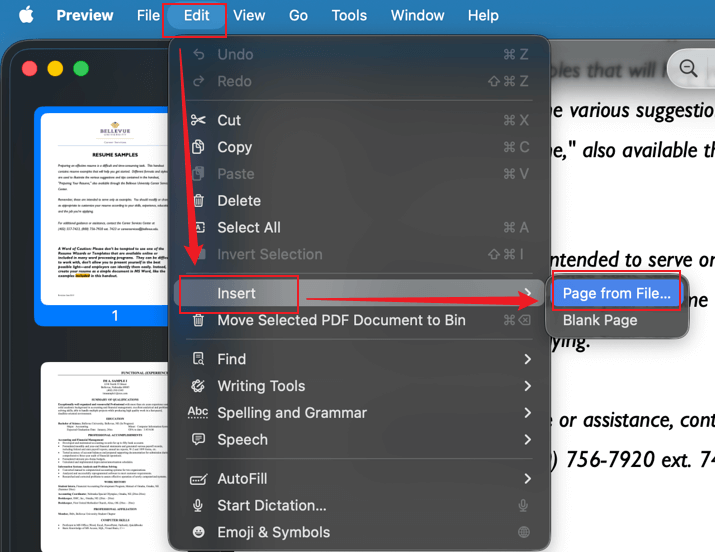
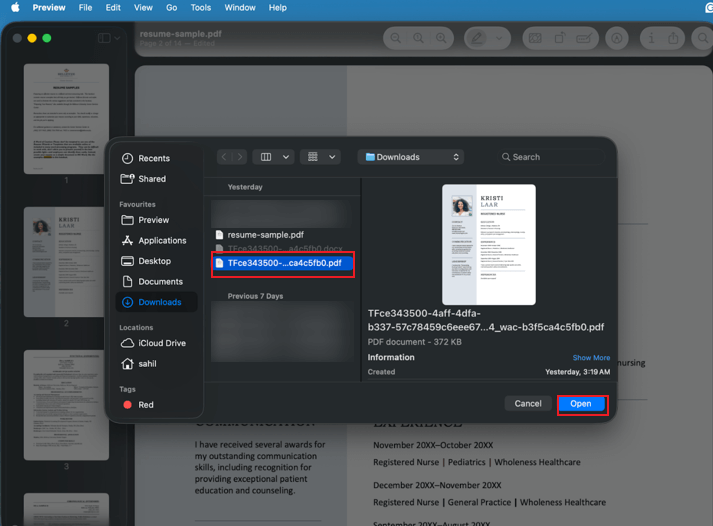
Step 4. Select the second (other) PDF you want to add and click Open.
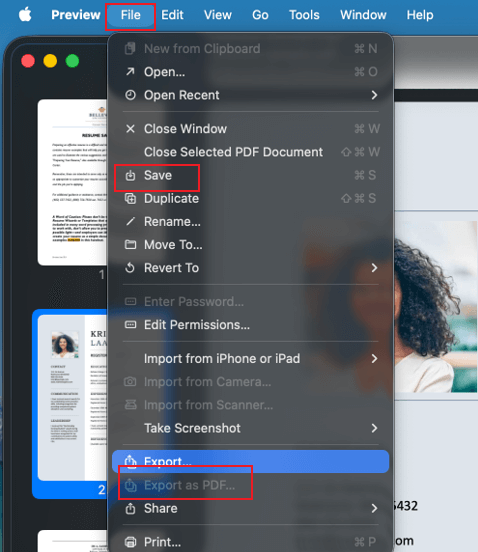
Once merged, save the combined PDF by clicking File > Save or File > Export as PDF.
To combine part of a PDF with another, you must follow the steps below:
- Open both PDF files and hit View, then click Thumbnails.
- Tap and hold the Command key, and then select the thumbnails you wish to add to the first PDF.
- Drag your chosen thumbnails into the sidebar of the first (main) PDF and drop them where you’d like them to go.
Note. This method is useful when youonly want to add PDF pages to your document.
How to Combine PDFs on Mac for Free Using JOPDF
JOPDF is one of the best free PDF editors for users looking for a dependable tool to combine multiple PDF files into one document fast. Offering a seamless way to merge PDF files on Mac and Windows, JOPDF lets you reorder files in just a few clicks for a well-structured PDF.
As a free, professional Adobe Acrobat alternative, JOPDF provides advanced features like editing, splitting, and organizing PDFs while keeping the process simple and efficient. If you want a reliable, secure, and fast tool for combining multiple PDFs, JOPDF is a top choice.
Let us see step by step how to combine PDF files on Mac using JOPDF for free.
Step 1. Acquire JOPDF from the official website on your Mac. Once installed, launch the program.
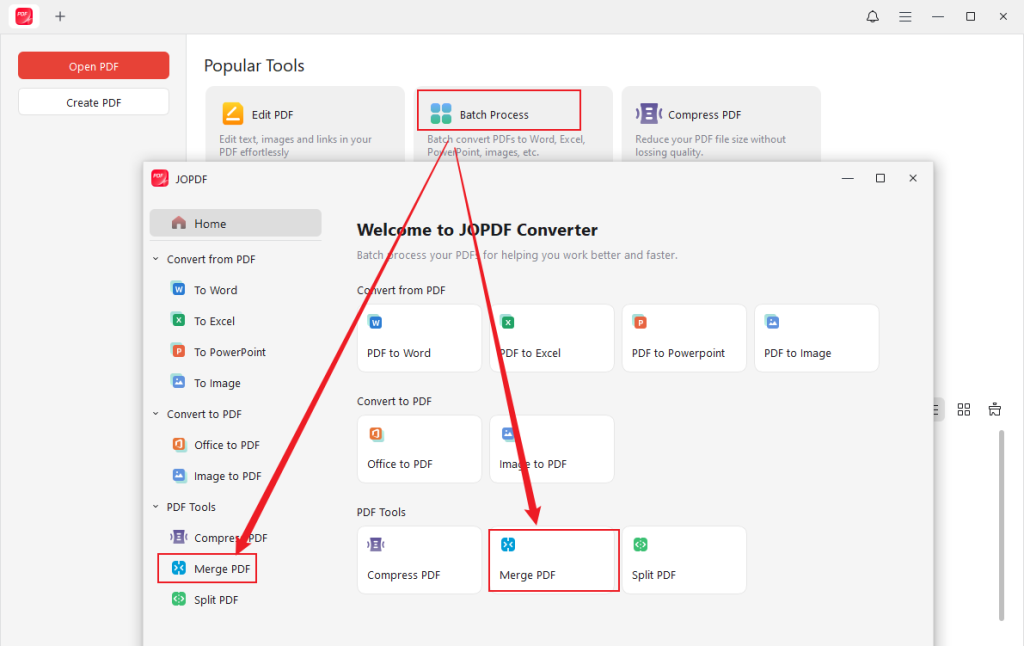
Step 2. Navigate to Batch Process under Popular Tools and then select Merge PDF. Then press the +Add Files button to upload all the PDF files you want to combine into one PDF.
Tips
You can also open a PDF file with JOPDF first. Then go to Page > Merge PDF and add the PDF documents you want to combine.
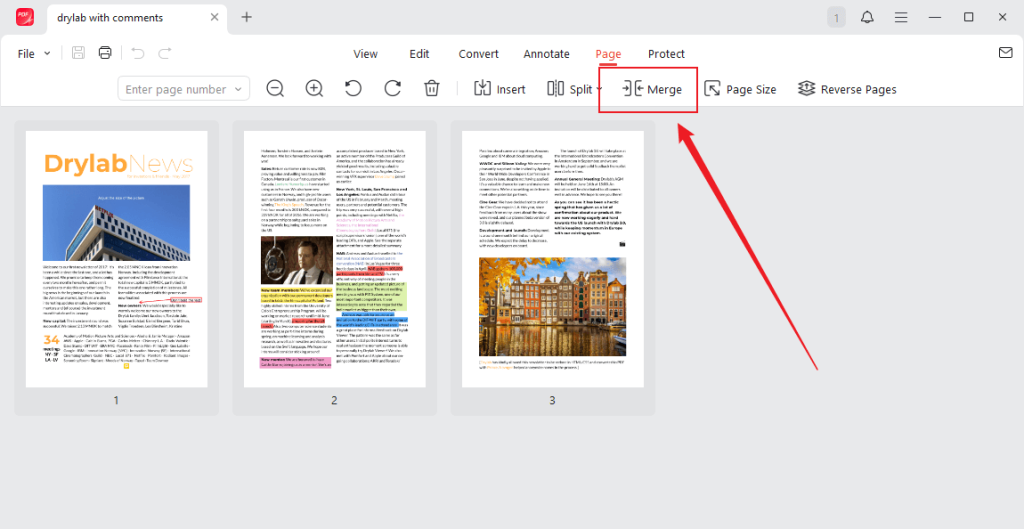
Similarly, you can drag the PDF files to reorder them so the merged PDF matches your preferred sequence.
Step 3. Tap Start in the lower right corner. Within a few moments, your combined PDF will be ready.
How to Merge PDFs on Mac via Finder Quick Actions
In addition to the practical methods above, Finder’s Quick Actions allows you to combine multiple PDFs into one on Mac quickly. It is a built-in feature that does not require any extra software to function. This method is fast, convenient, and excellent for merging documents directly from your desktop or folders.
Check out the steps on how to combine multiple PDFs into one on Mac using the Finder Quick Actions.
Step 1. Tap the Finder icon in your Dock to launch a Finder window.
Step 2. Navigate to the PDF files you want to combine. Click to select the first file, then hold the Command (⌘) key and click to select additional files. Or click and drag to select a group of PDF files.
Step 3. With your files selected, right-click (or control-click) on any of the highlighted files. A menu will pop up.
Step 4. In the contextual menu, hover over ‘Quick Actions‘ and then click ‘Create PDF.’ Finder will start combining your selected PDFs into one document.
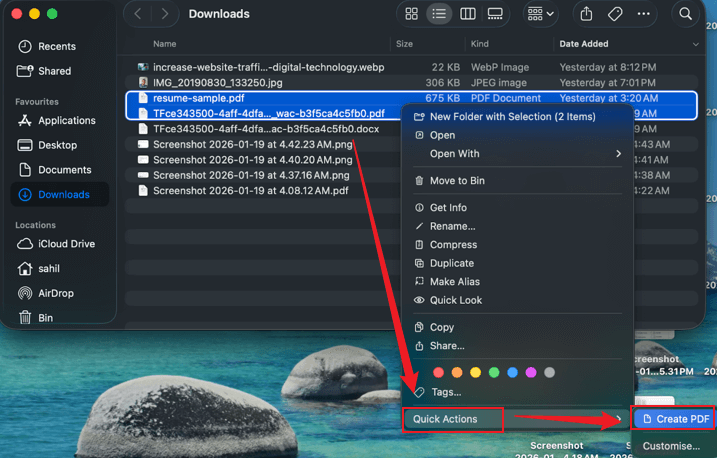
As a result, a new PDF will appear in the same folder, containing all your selected (original) files merged in the order you selected them.
How to Combine PDF Files on Mac with Online Smallpdf
For users seeking web convenience, Smallpdf is a go-to online PDF combiner for quickly and easily merging files. With this tool, you can combine PDF files without Adobe Acrobat, making it a perfect solution for users who want a fast, browser-based method.
Learn the quick process to combine PDFs on Mac online using Smallpdf.
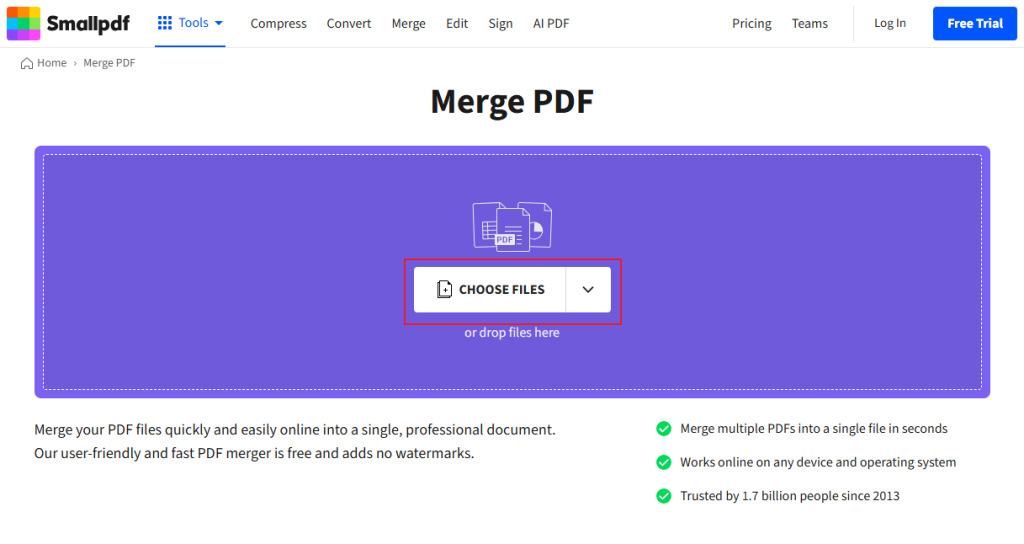
Step 1. Access the Smallpdf website directly from your web browser. Go to the Merge PDF tool on the main page.
Step 2. Click Choose Files to browse your Mac, Dropbox, Google Drive, or OneDrive and select all the PDF files you wish to add.
Alternatively, drag your PDF files straight into the upload area for faster access.
Step 3. Click and drag the thumbnails of your PDFs to put them in the proper order for your final document.
Step 4. Once you are clear on the order settings, hit the Finish button in the top-right corner.
After Smallpdf finishes processing every file, click the Download button to save the combined PDF to your Mac.
Other Recommended PDF Mergers for Mac
When the recommended built-in tools or online solutions don’t entirely fulfill your needs, using third-party options can help. Here are some trusted Mac PDF mergers that provide simple and efficient document management. These programs help you combine PDF files on Mac via different tools and workflows to match your needs.
Here is a list of some recommended PDF combiners for Mac:
- SwifDoo PDF
- PDF Merger Mac
- PDFsam
- Mailvita PDF Merge for Mac & Windows
- Nitro PDF Pro
- PDF Expert
- VeryPDF PDF Merger for Mac
Wrapping Up
Learning how to combine PDFs on Mac helps you manage documents more efficiently, whether for work or personal use. With built-in tools, online alternatives, and dedicated software accessible, you can opt for several reliable free PDF mergers for Macaccording to your needs. Choose the method that works best for you and begin keeping your PDFs organized today.
FAQs
Table of Contents

Your Best Free PDF Expert in PDF editing, compressing, converting, annotating, protect, organizing, and more.
Free DownloadWindows · macOS · Linux

Olivia
“Olivia is an editor at JOPDF, where she writes practical guides and insightful articles on managing PDFs—covering topics like editing, annotating, converting, and organizing files efficiently. Passionate about clear communication and digital productivity, Olivia enjoys spending her free time cooking, watching movies, and hiking to unwind and find inspiration for her writing.”
![How to Combine PDFs in Preview in 2026 [2 Best Ways]](https://b.jopdf.com/wp-content/uploads/2026/03/how-to-combine-pdfs-in-preview.png)
![How to Compress a PDF on Mac [4 Best Ways and Practical Tips]](https://b.jopdf.com/wp-content/uploads/2026/03/how-to-compress-a-pdf-on-mac.png)

