Summary :
It is often tricky to deal with multiple PDF files. When talking about combining multiple PDFs into a single file, Adobe Acrobat is the first software that comes to many people’s minds. However, Acrobat is expensive and heavy. Luckily, it’s possible to combine PDFs without Adobe Acrobat Pro/Standard. There are plenty of alternative free PDF editors available to save your cost and avoid tedious manual content merging. This JOPDF tutorial teaches you how to combine PDF files without Acrobat using three easy tricks for different devices.
How to Combine PDF Files without Acrobat Using JOPDF
If you are looking up how to combine PDF files without Adobe, JOPDF can handle it offline. JOPDF for Windows and Mac is a lightweight editor that provides higher reliability and privacy. It is free, simple to use, and unlimited, having no file size limit or watermark. While less feature-rich than Adobe, it can also split, compress, and convert PDFs, and combine JPGs into one PDF.
How to combine PDF files without Acrobat for free with JOPDF
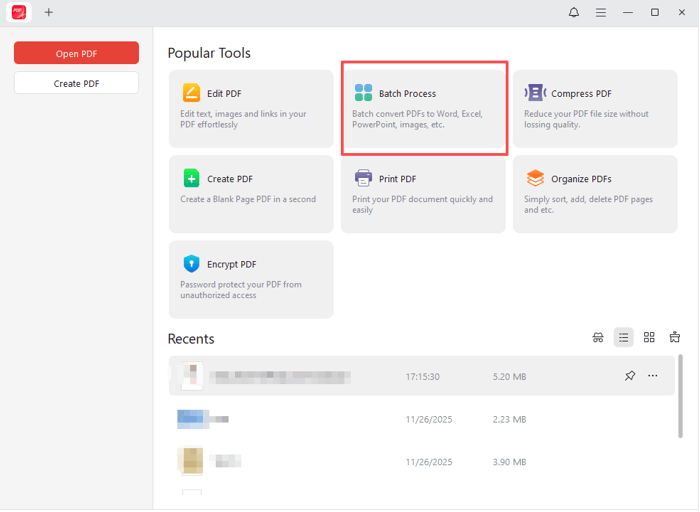
Step 1: Download the JOPDF desktop application and launch it. Click the Batch Process option.
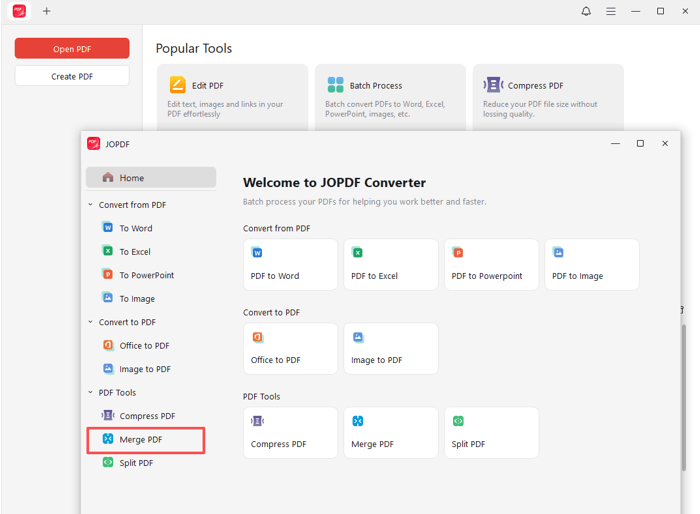
Step 2: Select the Merge PDF tool in the pop-up window, and add all the PDF files you want to combine.
Step 3: Arrange the PDF combining order, and specify your output location and file name.
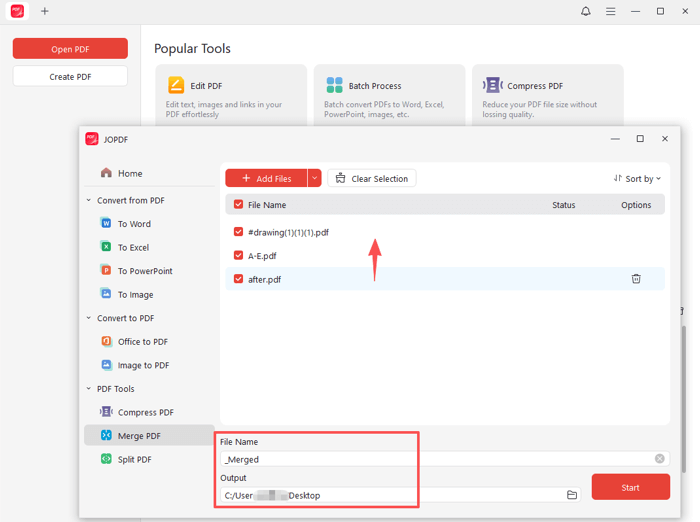
Step 4: Press the Start button to merge the PDF files without Adobe Acrobat without losing quality.
JOPDF is where to safely merge a PDF with another, since Windows has no local way. Download the free software!
How to Combine PDF Files without Adobe in Preview
If you need to combine PDF files without Acrobat or other third-party apps, is there a secure way to do so? When you have confidential PDF documents or don’t have the paid Acrobat version on a Mac, look at Preview. The built-in application on macOS solves your basic PDF and image viewing and editing needs. It lets you split and merge PDF files locally. You can also redact, sign, and annotate a PDF with it.
How to combine PDF files without Adobe Acrobat Pro or Standard on Mac using Preview
Step 1: Open Spotlight Search, then search for and open the Preview app.
Step 2: Select the PDF you need to combine, then open it in Preview.
Step 3: Click View > Thumbnails to open the thumbnail sidebar.
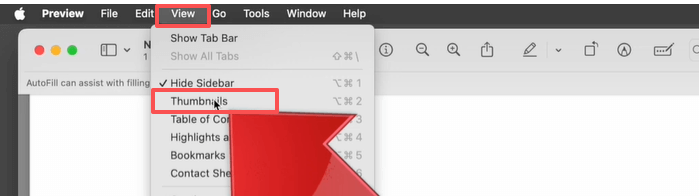
Step 4: Open Finder, select another PDF, and drag it into the thumbnail sidebar to combine the two PDF files without Adobe Acrobat.
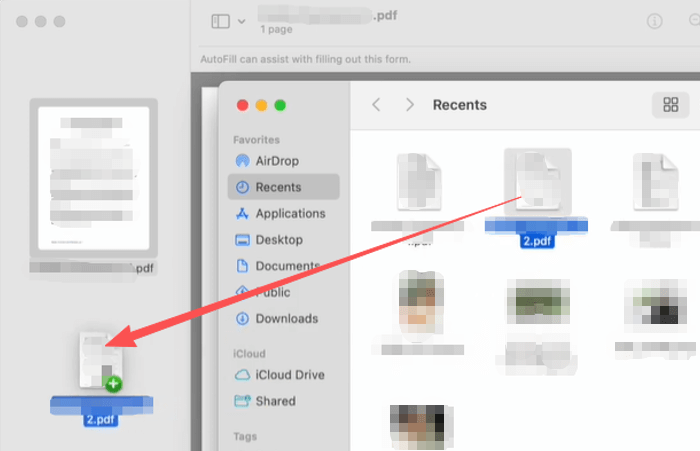
After you combine PDF files without Acrobat, you can rearrange the PDF pages in a proper order.
Step 5: To make multiple PDFs into one without Acrobat, repeat dragging more PDFs to the thumbnails.
Combine PDFs without Adobe Acrobat Using Xodo
If you would prefer to combine PDFs without Acrobat without software download, try an online PDF editor. Xodo includes a bunch of useful tools, including the ability to edit existing text in a PDF. It allows you to preview the uploaded PDFs before combining and reordering the files to be merged. Free users can perform one task and download the merged PDF for free per day. There is no need to sign in for an account.
How to combine PDF files without Acrobat with the online free Xodo
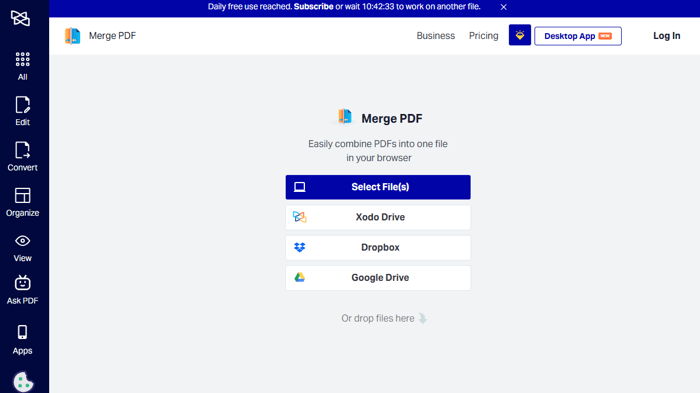
Step 1: Open the Merge PDF tool from xodo.com and upload your PDF files.
Step 2: Drag the PDF files to determine the merging order, and click the Merge button.
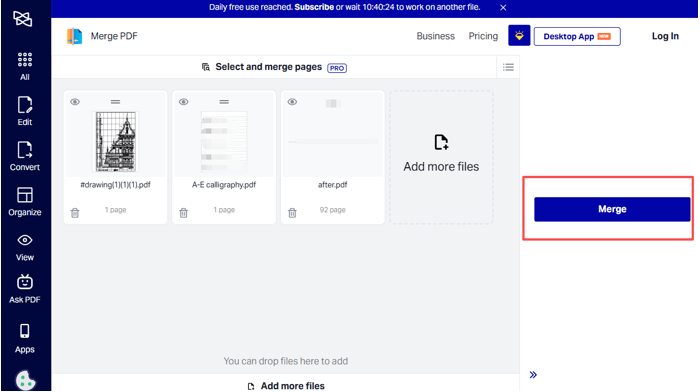
Step 3: Wait seconds for Xodo to merge the PDFs without Adobe, and then download and save the merged file.
Combine Password-protected PDFs without Acrobat
Are you going to combine PDF bank statements, invoices, labels, or other documents to improve your workflow for sharing and printing? The three free offline and online methods above are your lifesavers. However, what if these PDFs are protected against editing? No worries, JOPDF also lets you combine PDF files without Acrobat.
Step 1: Download and open JOPDF, and drop your PDFs into it.
Step 2: If there is an open password, enter the password in the pop-up window.
Step 3: Go to Protect > Decrypt, and type the permission password. If you forgot it, read the FAQ section.
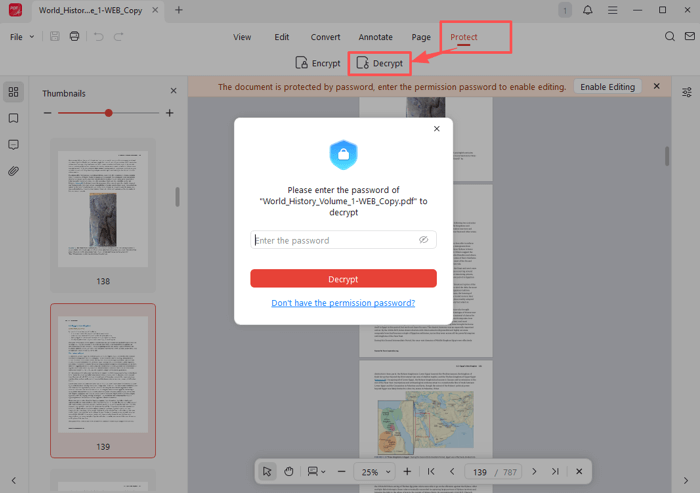
Step 4: Click the Decrypt button to remove the password from the PDF. Repeat to remove the protection from all the PDFs.
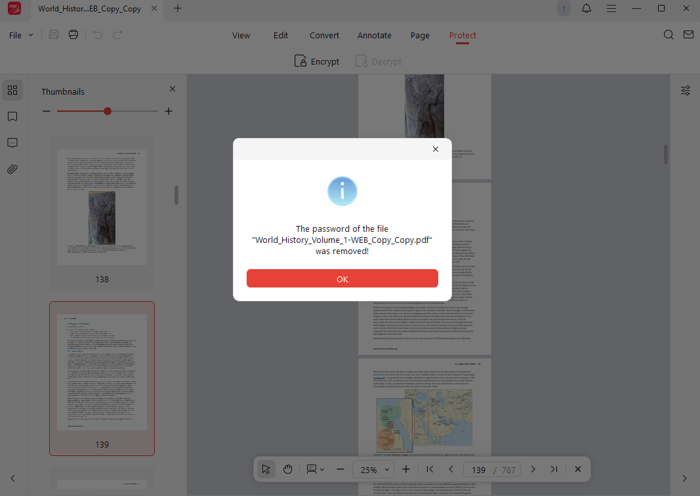
Step 5: Save the unprotected PDFs. Then choose Convert > Batch Process> Merge PDF.
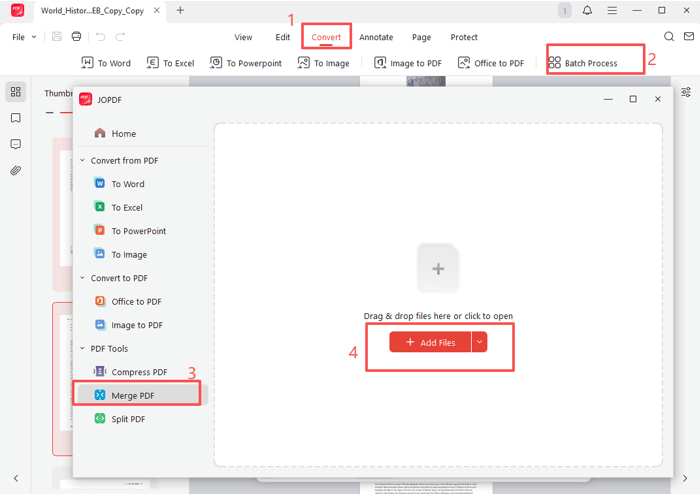
Step 6: Add the PDFs, arrange them in your preferred order, and click the Start button to combine them into one.
Conclusion
Processing PDFs is a known challenge. However, it’s no longer a pain to combine PDF files into one without Adobe Acrobat. Use the three PDF editing apps to enhance your smart and automation skills. JOPDF and the Mac-native Preview let you get rid of expensive subscriptions and security risks. For non-important documents, the online Xodo is also worth a shot.
FAQs
Table of Contents

Your Best Free PDF Expert in PDF editing, compressing, converting, annotating, protect, organizing, and more.
Free DownloadWindows · macOS · Linux

Selena
Staff Editor
“Selena is a staff editor working for JOPDF, passionate and committed to providing how-to and round-up articles. Over 8 years of specialized skills and experience in PDF solutions, hoping to help users ease their lives and solve whatever they encounter. "Work smarter, not just harder!"”
![How to Combine PDFs in Preview in 2026 [2 Best Ways]](https://b.jopdf.com/wp-content/uploads/2026/03/how-to-combine-pdfs-in-preview.png)
![How to Compress a PDF on Mac [4 Best Ways and Practical Tips]](https://b.jopdf.com/wp-content/uploads/2026/03/how-to-compress-a-pdf-on-mac.png)

