![Proven and Quick Ways to Extract Images from PDF [Detailed Steps]](https://b.jopdf.com/wp-content/uploads/2025/10/extract-images-from-pdf.png)
Introduction :
PDF documents can contain text, images, links, and other elements, which are widely used for sharing documents owing to their ability to maintain formatting across different devices and platforms. Sometimes, you need to extract images from PDFs for presentations or other purposes. It seems difficult to separate images from PDF files. Don’t worry, after reading this JOPDF post, you can learn multiple useful ways to extract images from PDF.
Option 1. Extract Images from PDF with PDF Editors
At the beginning, I’d like to introduce you to saving images from PDFs using PDF editors. Now, let’s check them one by one.
Method 1. Use JOPDF
JOPDF is a user-friendly and completely free PDF editor compatible with both Windows and macOS. To use it, you don’t need to register. It enables you to extract an image from a PDF and save the image in PNG or JPG format. Before extracting images, you can use its editing features to edit them. JOPDF allows you to crop, rotate, flip, resize, transparentize, and replace images.
Serving as a PDF editor, JOPDF enables you to add images to PDFs, edit text in PDFs, add bookmarks to PDFs, and make other edits for PDFs. You can refer to the following guidance to learn how to extract an image from a PDF using JOPDF.
Step 1. Click the download button below to download and install this free PDF image extractor. Then launch it.
Step 2. On the main interface, click Open PDF to import the PDF from which you want to extract an image. Then, click the Edit tab from the top menu.
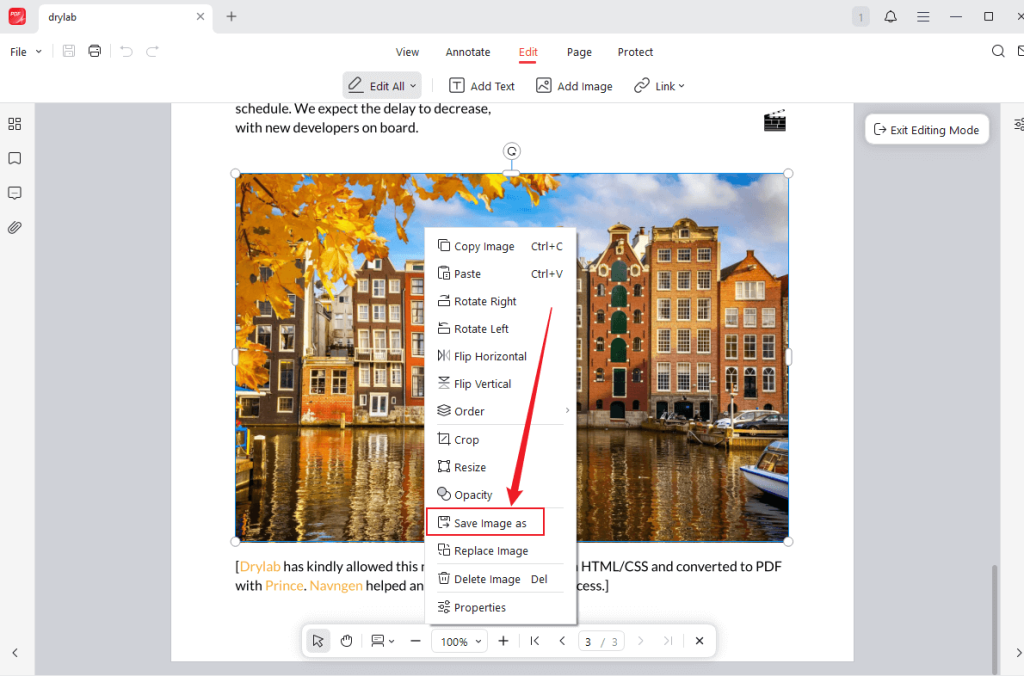
Step 3. Click on the image you want to extract and select the Save Image as option. Alternatively, right-click on the image and choose the Save Image as option from the list.
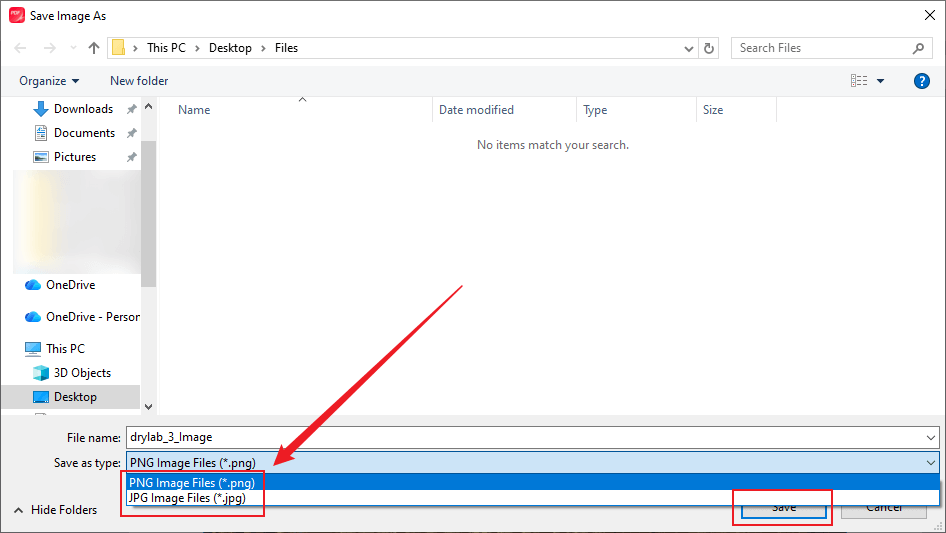
Step 4. Next, the Save Image As window will appear. Name the image, select a folder to save it, open the Save as type list to choose the desired image format, and then click Save. If you want to extract multiple images, repeat the above operation.
Method 2. Use Adobe Acrobat Pro
Adobe Acrobat, a professional PDF image extractor, provides straightforward built-in tools to extract images from PDFs, either individually or in bulk. It is quite convenient to extract all images in a PDF at once using Adobe Acrobat. However, please note that this feature is only available in the paid Pro version, not in the free Adobe Acrobat Reader version.
Step 1. Run Adobe Acrobat Pro and open your PDF file within it.
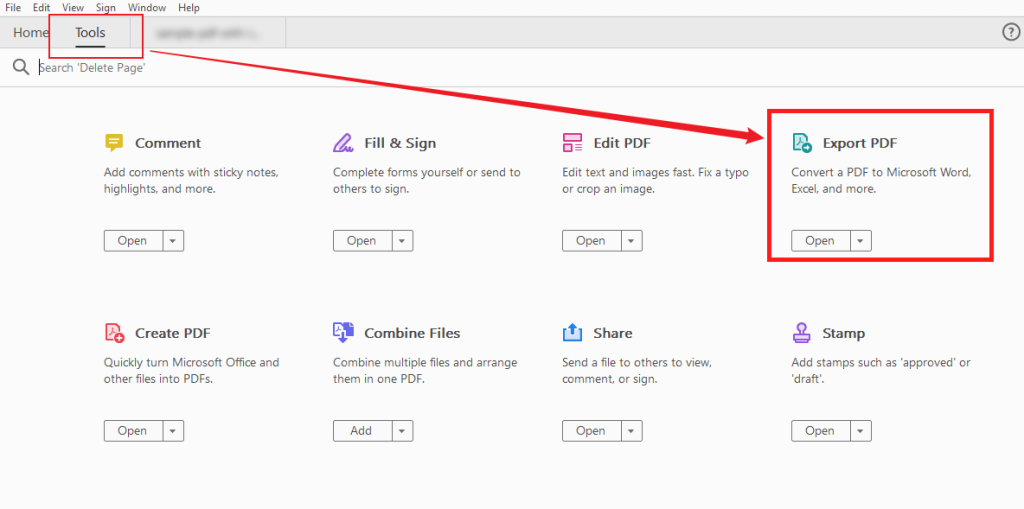
Step 2. Click Tools from the top toolbar and choose the Export PDF option under the Document Processing section.
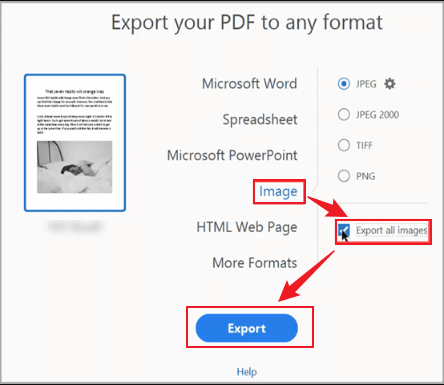
Step 3. Open the Convert to dropdown, select the Image option, and choose your preferred format. Then check the Export All Images checkbox and click the Export button. Next, choose the destination folder for those extracted images, click Settings to adjust image quality and size, and click the Save button.
If you only need to extract a single image from a PDF, follow this guide: Choose Edit PDF from Tools, click and drag to select the image, right-click on it, and select Copy Image. Next, paste the copied image into any image editor, like Microsoft Paint or Photoshop, and then save the pasted image.
Method 3. Use Preview
If you are a Mac user and don’t want to download any software, Preview can be your first choice, as it is pre-installed on your Mac. Preview is a useful tool for viewing, editing, annotating, and printing images and PDFs. To extract an image from a PDF using Preview on a Mac, follow these steps:
Step 1. If you have set Preview as the default PDF viewer, double-click on the target PDF to open it in Preview. If not, right-click the PDF and choose Open With Preview.
Step 2. Click the Markup Toolbar (a pen icon) in the upper right to enable selection tools and then click and drag the cursor to select the target image in the PDF. Alternatively, select the Rectangular Selection option from Tools to select the image if it is embedded.
Step 3. Once the image is selected, press Command + C to copy the image. Next, click File and select the New from Clipboard option to paste the copied image. Finally, click File, choose Save, and select PNG or JPEG to save the extracted image.
Option 2. Extract Images from PDF with Smallpdf Online
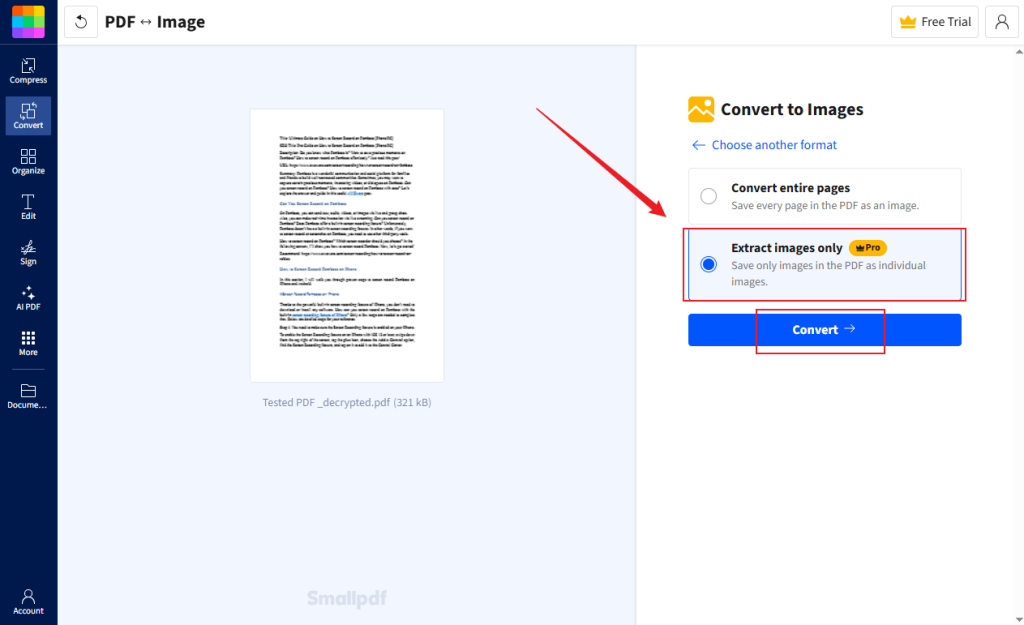
Alternatively, you can use online ways to extract images from PDFs efficiently. Smallpdf is worth trying. In addition to converting the whole PDF page into an image, it can only extract images from the PDF. As an online tool, Smallpdf is popular due to its simple and user-friendly interface. Let’s see how to extract images from a PDF document using Smallpdf.
Step 1. Go to Smallpdf’s official website and choose the PDF to JPG option under the Tools list.
Step 2. Hit CHOOSE FILES to import your PDF file.
Step 3. Select the Extract images only option and click Convert to start the extraction process.
Option 3. Extract Images from PDF in Photoshop
Adobe Photoshop is a professional raster graphics editor that can work on Windows, macOS, iPadOS, iOS, and Android. In addition to handling images, it also supports working with PDF documents. You can use it to extract images from PDFs effectively. Below are detailed steps:
Step 1. Launch Adobe Photoshop first, then click File and select Open to import your PDF file.
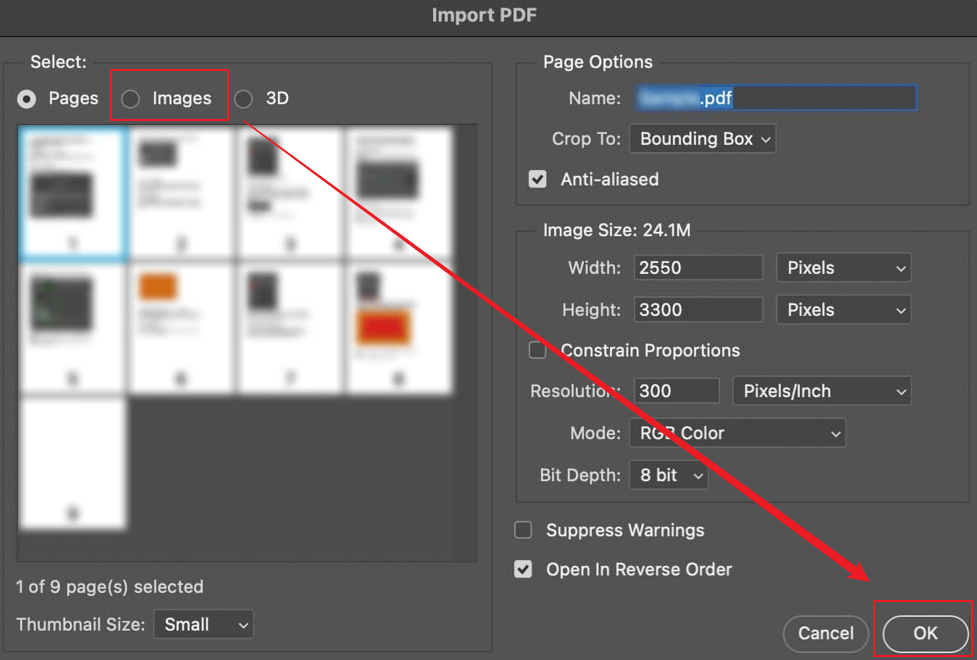
Step 2. Then, in the Import PDF window, click the Images option to display all images but not PDF pages.
Step 3. Click the target image thumbnail and click OK to open it within Photoshop.
Step 4. Finally, click File, move to Export, select Export As, and choose a preferred image format.
Option 4. Extract Images from PDF via Screenshotting
There is also a workaround to extract an image from a PDF file using a screenshot tool. You can use the built-in screenshot tool on your device to capture a screenshot of the image in a PDF and then save the screenshot as an image. Here, I will use Windows and Mac as examples.
# For Windows
Step 1. Press Win + Shift + S to enable the snipping toolbar and then choose the screenshot mode (Rectangular, Freeform, Window, or Fullscreen)
Step 2. After selecting the screenshot mode, select the image as the area to capture as a screenshot.
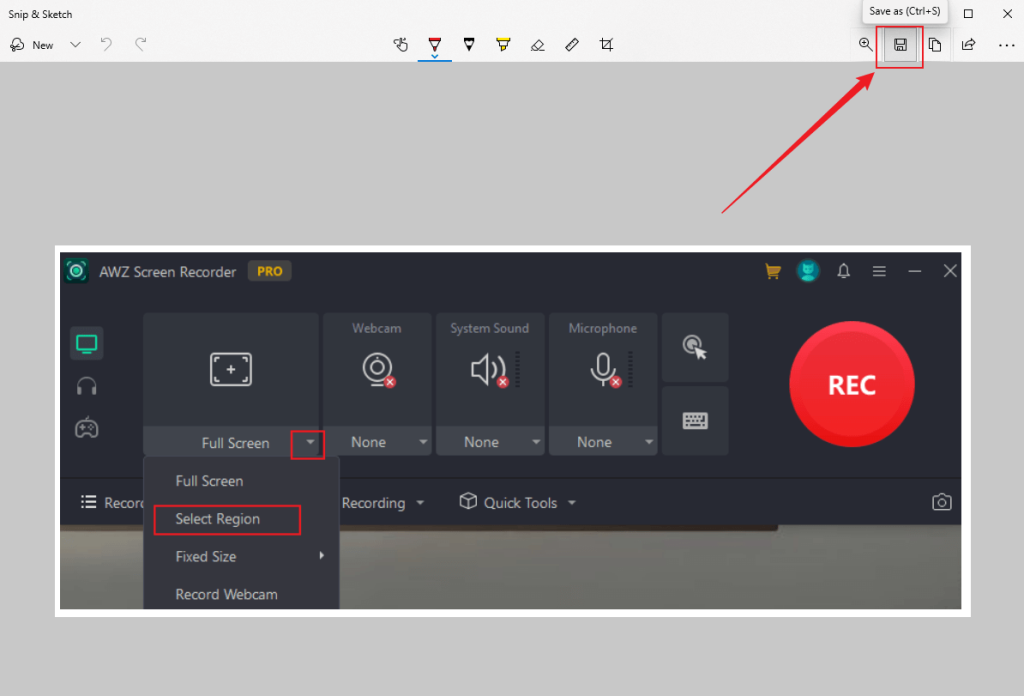
Step 3. A notification about the screenshot will prompt you to open it in Snip & Sketch.
Step 4. Press Ctrl + S to save the image.
# For Mac
There are different shortcut keys for taking a screenshot on a Mac. Once you take a screenshot, the screenshot image will be saved as a PNG image automatically on the desktop.
- Capture the entire screen: Press Command + Shift + 3
- Capture a selected area: Press Command + Shift + 4
- Capture a specific window: Press Command + Shift + 4 and then press the Spacebar key.
To Wrap Things Up
How to extract images from PDF documents? This problem may seem difficult, but it’s actually quite simple once you’ve read this article. You can use third-party PDF editors (such as JOPDF, Adobe Acrobat Pro, and Preview), online PDF image extractors, Adobe Photoshop, or the built-in screenshot features of your devices to extract images from a PDF file. Now, it’s your time to choose a method from the above and have a try!
FAQs
Table of Contents

Your Best Free PDF Expert in PDF editing, compressing, converting, annotating, protect, organizing, and more.
Free DownloadWindows · macOS · Linux

Olivia
“Olivia is an editor at JOPDF, where she writes practical guides and insightful articles on managing PDFs—covering topics like editing, annotating, converting, and organizing files efficiently. Passionate about clear communication and digital productivity, Olivia enjoys spending her free time cooking, watching movies, and hiking to unwind and find inspiration for her writing.”
![How to Combine PDFs in Preview in 2026 [2 Best Ways]](https://b.jopdf.com/wp-content/uploads/2026/03/how-to-combine-pdfs-in-preview.png)
![How to Compress a PDF on Mac [4 Best Ways and Practical Tips]](https://b.jopdf.com/wp-content/uploads/2026/03/how-to-compress-a-pdf-on-mac.png)

