Introduction :
Sometimes, you need to resize your PDF file into the standard U.S. Letter size (8.5 × 11 inches). Whether the PDF file is created in A4. Legal, or another custom dimension, it is essential to resize it for consistent formatting, clean printing, or professional presentation. How can you convert PDF to Letter size? In this comprehensive post, I will walk you through five effective methods.
Letter size (8.5 × 11 inches), as one of the standard document sizes, is widely used in the United States, Canada, and parts of Latin America. Why need to convert a PDF to Letter size? If your PDF is formatted in A4 or Legal, the margins and layout often shift when printed. However, if you resize a PDF to Letter size, it can ensure clean and consistent printing, better compatibility with U.S. printers, proper alignment and margins, and accurate layout for forms, contracts, and reports. Now, let’s explore the best way to resize a PDF to the letter dimension.
Method 1. Convert PDF to Letter Size for Free with JOPDF
Want to resize PDFs to Letter size (8.5 × 11 in) for free? If so, try JOPDF, a completely free PDF editor available on both Windows and Mac. It lets you convert a PDF to letter size in a few clicks. Before converting, you can use its set of editing features to refine your PDFs. For instance, rearrange PDF pages, insert logos into PDFs, password-protect PDFs, and change PDFs to landscape. How to convert a PDF to Letter size for free in JOPDF? Below are the exact steps.
Step 1. Download and install JOPDF on your Windows or Mac PC by clicking the corresponding button below.
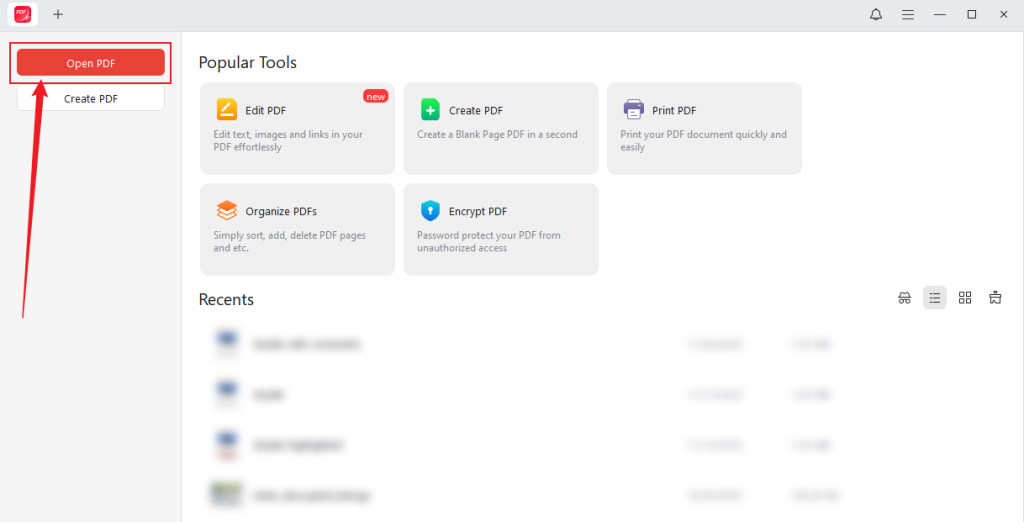
Step 2. Click Open PDF to locate your PDF file and click Open to import it into JOPDF.
Step 3. (Optionally) go to the Annotate, Edit, Page, or Protect tab to refine your PDF as needed.
Step 4. Press Ctrl + P for Windows or Command + P for Mac to access the Print dialog. Open the Paper Size list and click the Letter option. Then customize the other printing settings as you like. In the left preview section, you can check the PDF file.
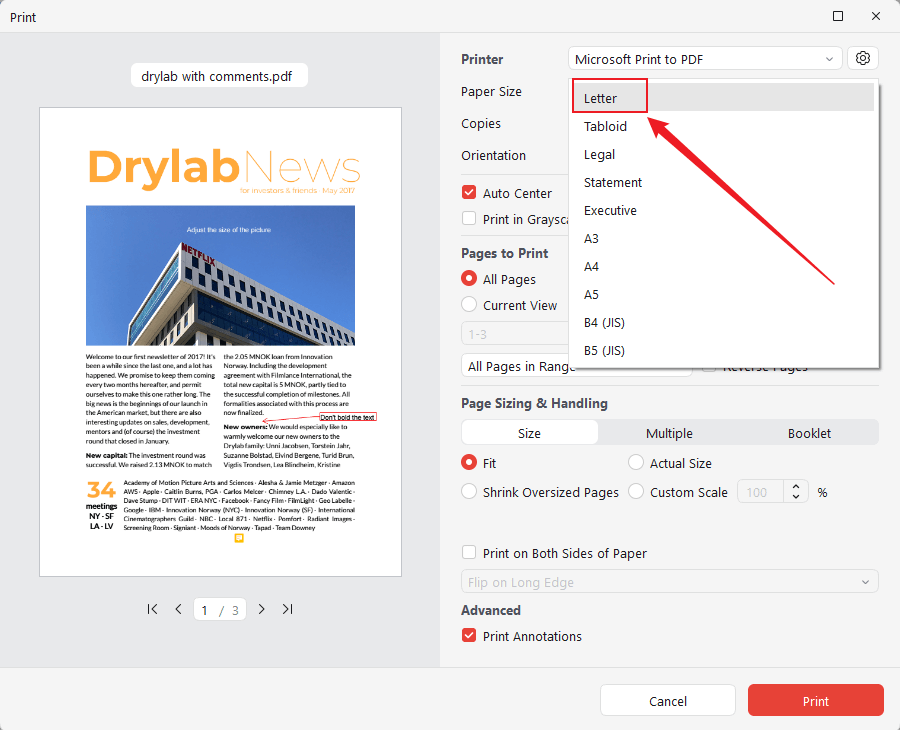
Step 5. If you only want to save the PDF file in Letter size as a digital PDF, set Microsoft Print to PDF as the Printer. Or if you want to print the PDF on paper, choose your physical printer and click Print.
Pros of JOPDF
- Completely free PDF editor without registration required.
- Available on both Windows and Mac.
- User-friendly and intuitive interface.
- Reliable viewing and printing.
- Basic and advanced PDF editing features are included.
- Multi-language support.
Cons of JOPDF
- No mobile or web version.
- Without cloud integration.
Method 2. Convert PDF to Letter Size Using Microsoft Print to PDF
Fortunately, if you are a user of Windows 10 or 11, you have the opportunity to use its built-in virtual PDF printer, Microsoft Print to PDF, to scale documents. It enables you to print any documents or webpage directly to a PDF file with customizable printing settings. There, you can resize a PDF to Letter size, A4, or other sizes. How can you convert a PDF to Letter size using Microsoft Print to PDF? Check the exact steps below.
Step 1. Open your PDF file in your browser or any PDF viewer on your PC.
Step 2. Press Ctrl + P to open the Print dialog, and then open the Printer list to select the Microsoft Print to PDF option.
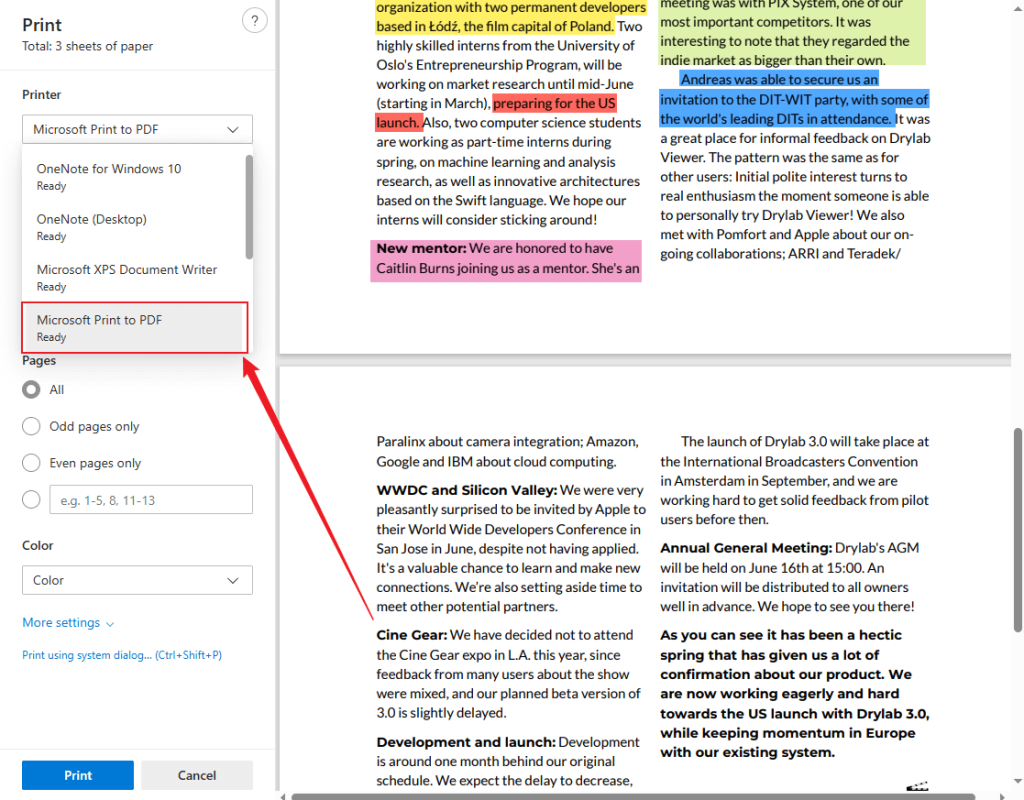
Step 3. Click to expand the More settings section. Open the Paper size list and click the Letter option. Meanwhile, adjust other necessary print settings.
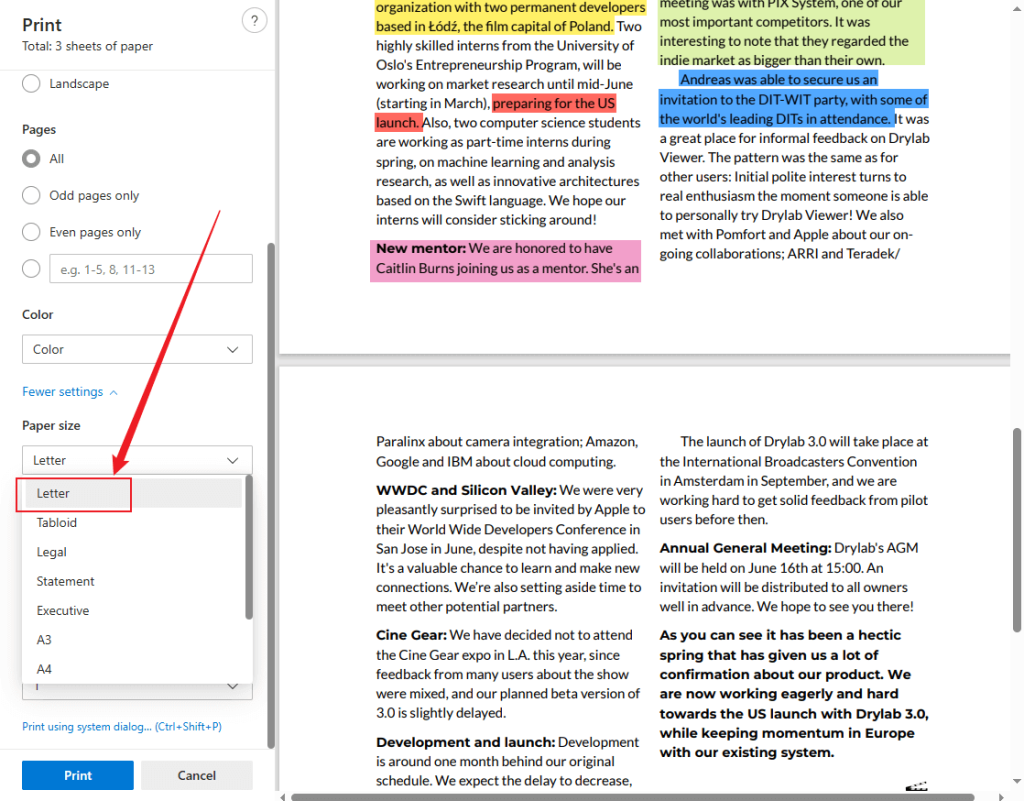
Step 4. Finally, click the Print button.
Pros
- Completely free and built-in.
- Support any app that can print.
- Preserve formatting and layout well.
- Support different paper sizes and orientations.
Cons
- Limited advanced PDF features.
- No editing capacities.
Method 3. Resize PDF to 8.5 × 11 in Adobe Acrobat Pro
Adobe Acrobat is a professional PDF editor for Windows, Mac, and mobile devices. Its Pro version offers the most reliable and precise methods for resizing a PDF to US Letter size (8.5 × 11 inches). Additionally, Adobe Acrobat Pro has features for reordering PDF pages, creating fillable forms, making scanned documents searchable and editable, and more. Simply follow the steps below to resize a PDF to 8.5 × 11 in Adobe Acrobat Pro.
Step 1. Run Adobe Acrobat Pro and open the PDF you need to resize.
Step 2. Click Tools and select the Organize Pages option. Then, you can see all thumbnails of all pages.
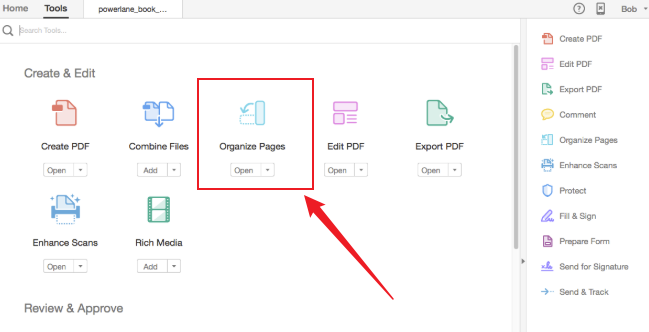
Step 3. In the top toolbar, click the Crop Pages option. Or right-click on any thumbnail and choose the Crop Pages option.
Step 4. Under Page Sizes, select the US Letter option from the dropdown. Open Page Ranges to choose All to resize all PDF pages. Then, adjust other settings in the Crop Pages dialog and click OK.
Step 5. At last, click File and Save or Save As to save the PDF file in US Letter size.
Pros
- Provide extremely powerful editing features.
- Accurate and precise resizing.
- Full OCR with high accuracy.
- Integrate with Google Drive, Dropbox, OneDrive, and Microsoft 365.
- Advanced creation and conversion features.
Cons
- Require an expensive subscription.
- Consume a large amount of resources.
Method 4. How to Convert PDF to Letter Size in Preview
If you are a Mac user, you must know Preview, macOS’s built-in program. Most of the time, you use it for viewing images and PDFs. Surprisingly, Preview can help you convert PDFs to US Letter size. Before resizing, it enables you to edit PDF text on a Mac with ease. Below are detailed steps for your reference.
Step 1. If you have set Preview as the default PDF viewer for your Mac, double-click the PDF to open it in Preview. If not, right-click the PDF and select the Open With Preview option.
Step 2. Click File and choose Print. Expand the Paper Size dropdown and select US Letter. Next, open the Scale list to adjust other settings as needed.
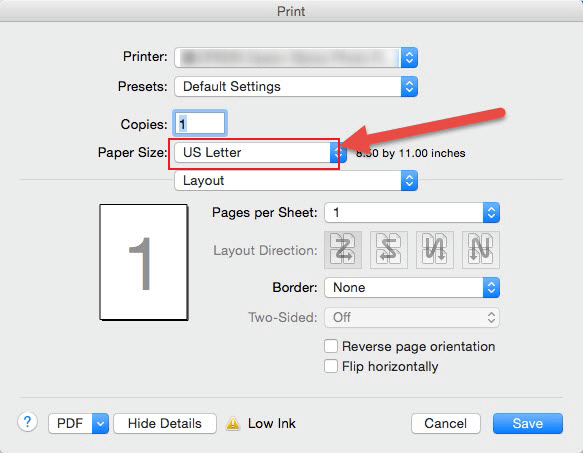
Step 3. Click the PDF button in the bottom left and choose Save as PDF.
Pros
- Completely free and pre-installed on Macs.
- Basic editing features for PDFs.
- Easy page management.
- Combine PDF documents.
- Print PDFs on Mac.
Cons
- Only available on Mac.
- No batch processing.
Method 5. How to Resize a PDF to 8.5 × 11 Online via PDF2Go
If you prefer fully functional online tools, PDF2Go is a good choice. Without downloading or installing any software, PDF2Hp enables you to edit, compress, protect, or convert PDFs. Being a PDF editor, it supports rotating, signing, redacting, watermarking, and resizing PDFs. It is a piece of cake to resize PDFs to Letter size using PDF2Go. Now, let’s learn the guide on how to resize a PDF to Letter size online via PDF2Go.
Step 1. Open Chrome or another browser on your PC and visit the PDF2Go’s Resize PDF website.
Step 2. Expand the list under “Choose from a preset” and scroll down to select Letter.
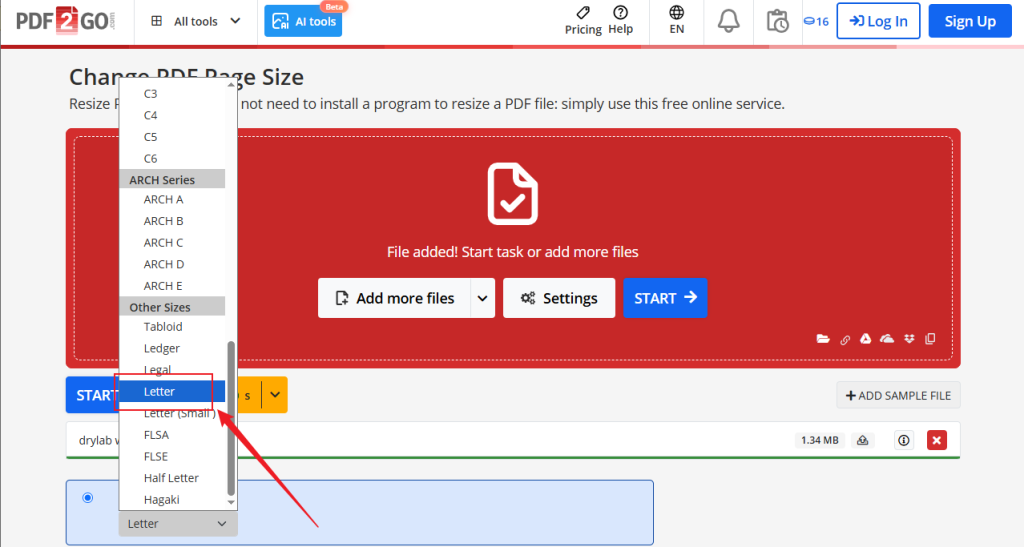
Alternatively, tick “Set custom page size” and select inches as the Unit. Type 8.5 into the Width box and 11 into the Height box.

Step 3. Click the START button to activate the process. Once finished, download the new PDF file.
Pros
- No software installation required.
- User-friendly interface.
- Offer a wide range of PDF tools.
- Support customizing the width and height of PDF pages.
- Cross-platform and integrations.
Cons
- Require a constant internet connection.
- Limited features in its free version.
Conclusion
Converting PDFs to Letter size is essential for accurate printing and consistent formatting, especially if you are in the United States. Whether you need desktop PDF editors, built-in system functions, or online tools, this post can satisfy your needs. By following the guidance above, you can quickly resize PDFs to the standard 8.5 × 11-inch format without sacrificing quality. That’s all about how to convert a PDF to Letter size. Hopefully, this post can be helpful to you.
FAQs
Letter: 8.5 × 11 in (used in the U.S.)
A4: 8.27 × 11.69 in (used internationally)
Table of Contents

Your Best Free PDF Expert in PDF editing, compressing, converting, annotating, protect, organizing, and more.
Free DownloadWindows · macOS · Linux

Olivia
“Olivia is an editor at JOPDF, where she writes practical guides and insightful articles on managing PDFs—covering topics like editing, annotating, converting, and organizing files efficiently. Passionate about clear communication and digital productivity, Olivia enjoys spending her free time cooking, watching movies, and hiking to unwind and find inspiration for her writing.”
![How to Combine PDFs in Preview in 2026 [2 Best Ways]](https://b.jopdf.com/wp-content/uploads/2026/03/how-to-combine-pdfs-in-preview.png)
![How to Compress a PDF on Mac [4 Best Ways and Practical Tips]](https://b.jopdf.com/wp-content/uploads/2026/03/how-to-compress-a-pdf-on-mac.png)

