![Exact Steps to Combine PDFs in Adobe Acrobat [Desktop/Online]](https://b.jopdf.com/wp-content/uploads/2026/01/adobe-combine-pdf.png)
Introduction :
In many workflows, you need to merge multiple documents into one—whether it’s contracts, invoices, reports, study material, or scanned pages. Combining PDFs improves organization, sharing, storage, and printing efficiency. That’s why users often look for reliable ways to Adobe combine PDF files. In this JOPDF article, we’ll explain how to combine PDF files with or without Adobe Acrobat using simple, effective methods.
Adobe Acrobat is a complete PDF editor for Windows and Mac. The tool’s strong functionality helps users create, edit, convert, safeguard, and manage PDFs effortlessly. It ensures accuracy, security, and efficiency when working with PDF files. The Adobe Acrobat PDF mergeris one of the most powerful and dependable tools available, so before using it, you should recognize its ability to handle PDF documents professionally and seamlessly.
Main Features of Adobe Acrobat:
- Helps combine images into one PDF.
- Rearrange PDF pages, and also reorder, delete, rotate, or extract PDF pages as needed.
- Edit text, images, and pages within PDFs.
- Quickly combine many PDFs into a single PDF document.
- Easily transform PDFs into Word, Excel, PowerPoint, and other formats.
- Add passwords, permissions, and digital signatures.
- Compress PDFs to make them smaller while maintaining original quality.
- Add annotations, comments, and highlights, and collaborate on PDF documents.
How to Combine PDF Files in Adobe Acrobat Desktop
Combining several PDFs into a single file helps keep documents organized and easy to share. You need an Adobe Acrobat Pro or Standard version installed on your system to merge documents on the desktop. This method is ideal for users who want full control over file order, layout, and advanced PDF management features.
Learn how to merge PDFs in Adobe Acrobatwith just a handful of clicks.
Step 1. Download and install Adobe Acrobat Pro on your Windows or Mac system for professional PDF management.
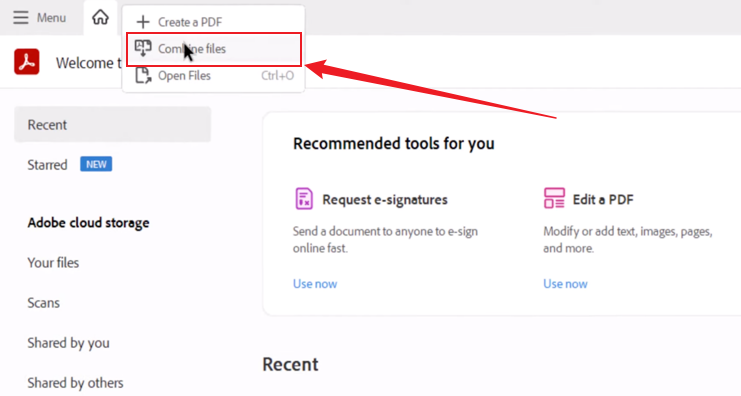
Open the program, and when you enter the main interface, hover the cursor over the +Create button in the top menu bar.
Step 2. Click the +Create button, then select Combine files from the menu that opens.
Step 3. As soon as the Combine Files screen appears, select the Add Files button in the centre. Now, locate and select the PDF files you need to combine in the Add Files dialog box.
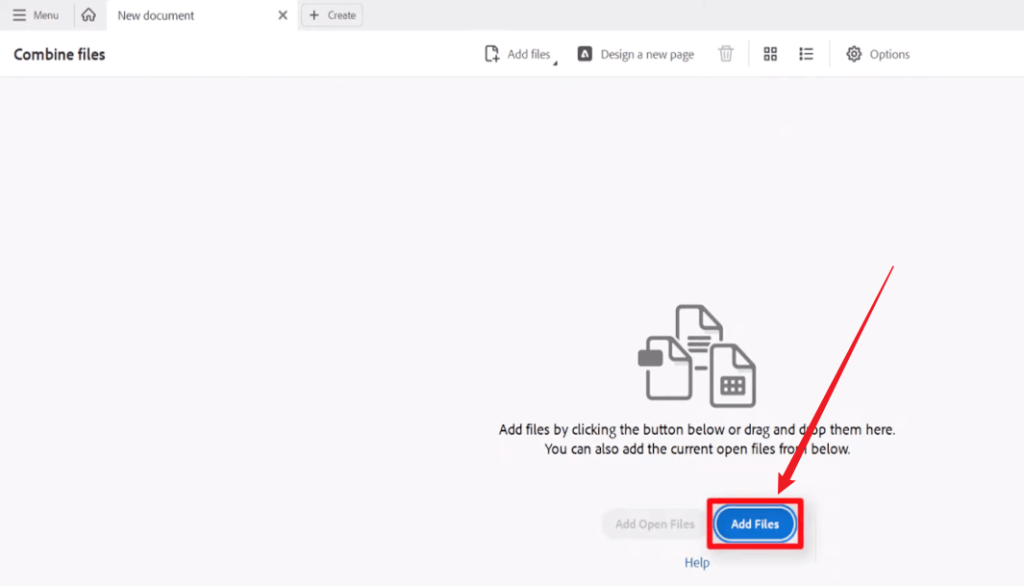
Next, select the Open button on a PC or the Add Files button on a Mac.
Step 4. Once opened, select the Combine button at the upper-right corner. The combined files will open as a single PDF called Binder1, Binder2, etc.
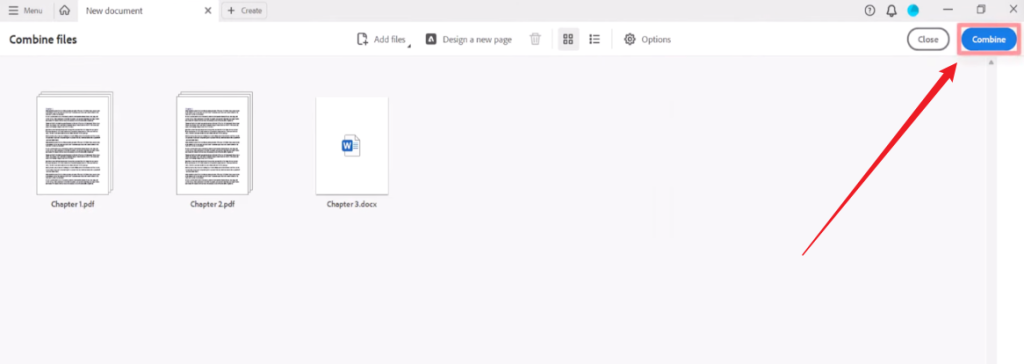
Note. If needed, you can select the Pages tab to open the Pages pane and reorganize the pages.
Step 5. After combining your PDF files, select the Menu option in the top-left corner, then choose Save or Save as… on your PC.
Or, when using a Mac, click File and then choose Save to complete the process.
How to Merge PDFs Using Adobe Acrobat Online
Using Adobe Acrobat Online, you can manage PDFs quickly and conveniently from your web browser without installing software. The Adobe Acrobat online merge PDF tool makes it easy to combine multiple PDFs in moments while maintaining their original quality. Along with merging, it also allows you to convert PDF to PPT, making the tool handy for routine document needs. It serves as an ideal choice for users seeking fast, accessible, and dependable PDF tools online.
Learn how to combine PDF files in Adobe Acrobat Online tool in just a handful of clicks.
Step 1. Open your web browser and go to the Adobe Acrobat online merge PDF tool. Sign in with your login details to continue.
Step 2. Click the Select Files button to import the PDF files you wish to merge.
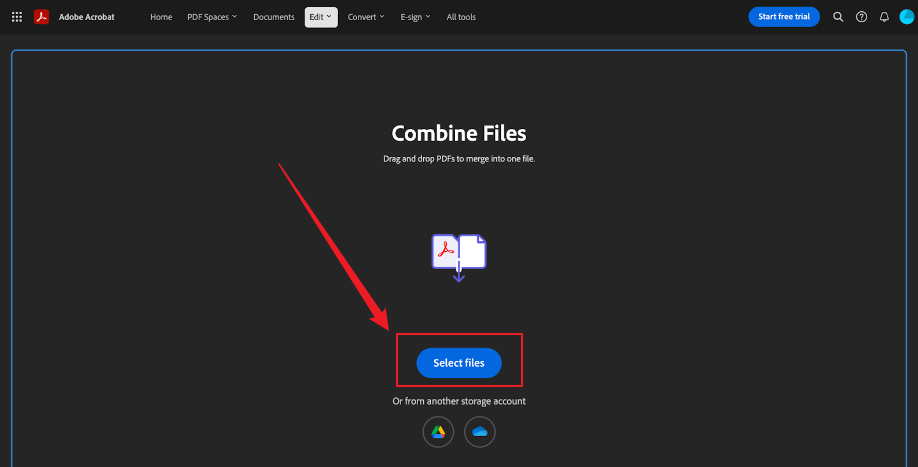
Note. You can also drag and drop PDF files to combine them into a single document.
Step 3. Move the files by dragging to set them in your preferred order.
Step 4. Once all PDFs are arranged, click Merge (or Combine Files) to combine the documents.
After that, name your file and select Save to download the combined PDF to your computer.
How to Combine PDFs Without Adobe
If you don’t have access to Adobe tools or if you find it expensive with a complex interface and learning curve, there are several reliable Adobe Acrobat alternatives available for everyday PDF tasks. Here, we’ll walk you through two simple desktop applications and online solutions that make it straightforward to understand how to combine PDFs without Adobe. They are perfect for fast merging, simple editing, and affordable document management.
How to Combine PDFs on Windows and Mac for Free
For users looking for a simple and reliable solution, JOPDF is highly recommended, making it easy to learn how to combine PDFs on Mac and Windows for free. Using JOPDF, it’s possible to reorder files and produce a neatly structured PDF. In addition to merging, JOPDF lets you compress PDFs to reduce file size, helping documents become easier to share and manage. Its simple and intuitive interface allows even beginners to complete PDF tasks quickly and efficiently.
Discover how to combine PDFs on Windows and Macusing JOPDF in just a handful of clicks.
Step 1. Get JOPDF from the official site and install it on your Windows or Mac computer. After installation, open the program.
Step 2. Navigate to Batch Process under Popular Tools and then select Merge PDF.
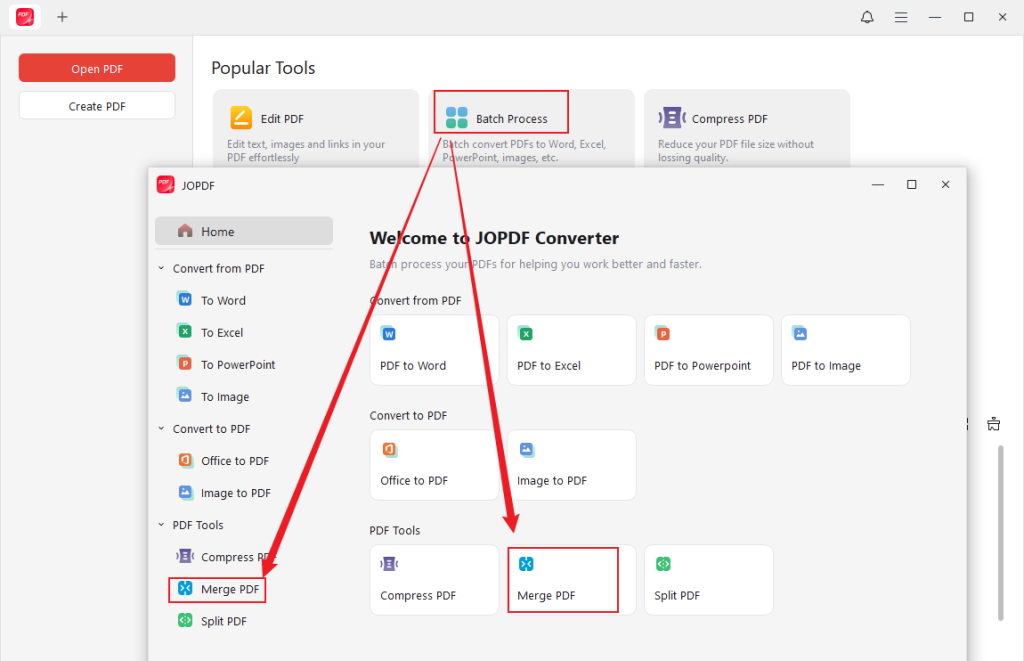
Step 3. Then press the +Add Files button at the top of the screen to upload all the PDF files you wish to combine into a single, merged PDF.
Tips
You can also open a PDF file with JOPDF first. Then go to Page > Merge PDF and add the PDF documents you want to combine.
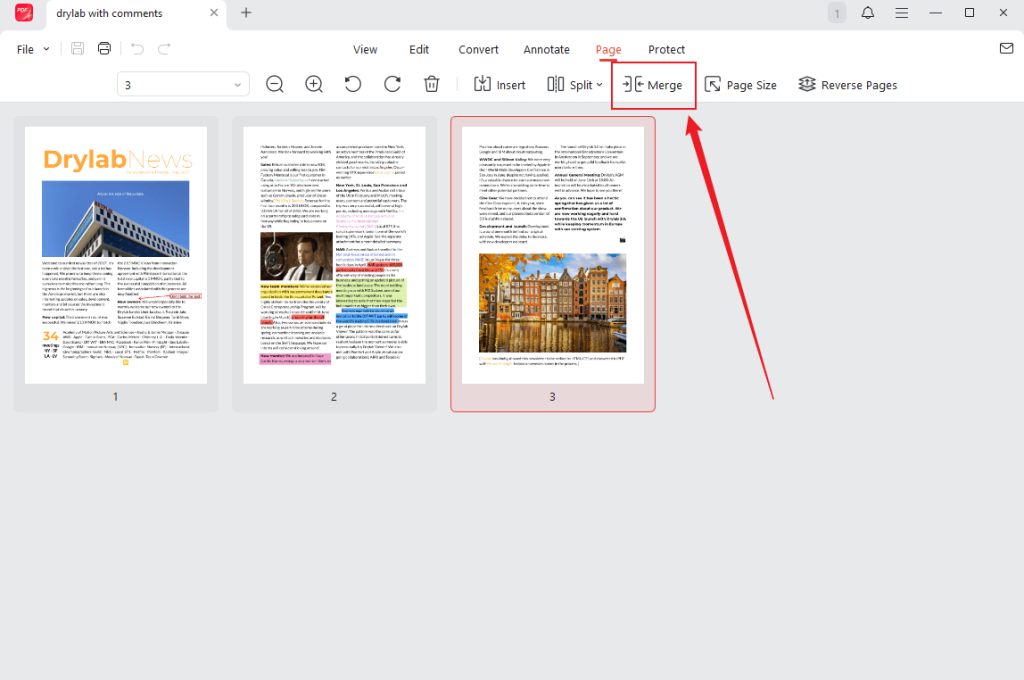
Similarly, you can drag the PDF files to reorder them so the merged PDF matches your preferred sequence.
Step 4. Change both the file name and the output destination at the bottom of the interface. Then, click Start in the lower right corner of the screen.
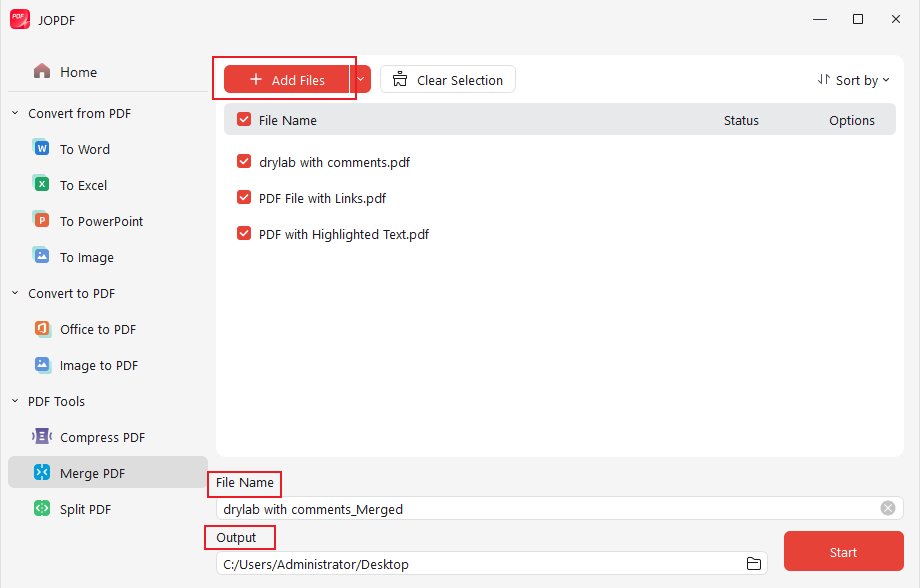
Within a few moments, your combined PDF will be ready.
How to Combine PDF Files Online
Merging PDFs through online tools is a fast and convenient way to combine files without software installation. iLovePDF is a well-known online tool that allows you to quickly upload and merge PDFs in a few clicks, making it perfect for smooth, browser-based PDF management. Its easy-to-use interface allows anyone to merge PDFs quickly and efficiently in minutes.
Here’s an easy way to learn how to combine PDF files without Adobe online using iLovePDF.
Step 1. Access iLovePDF on your web browser. Then, hover your cursor over the Merge PDF tool and click it.
Step 2. Press Select PDF files to import PDFs from your computer, Google Drive, or Dropbox.
Alternatively, drop your PDFs you wish to combine directly into the program’s interface.
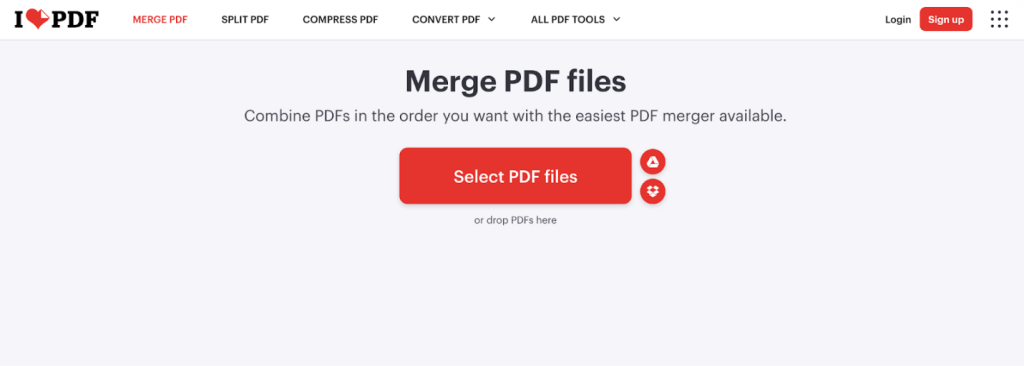
Step 3. After all PDFs have been added, organize them in your preferred order by dragging each thumbnail to the correct position.
Step 4. Click Merge PDF to join all the files you have imported. After the merging process is complete, press the Download button to store the merged PDFs on your computer or device.
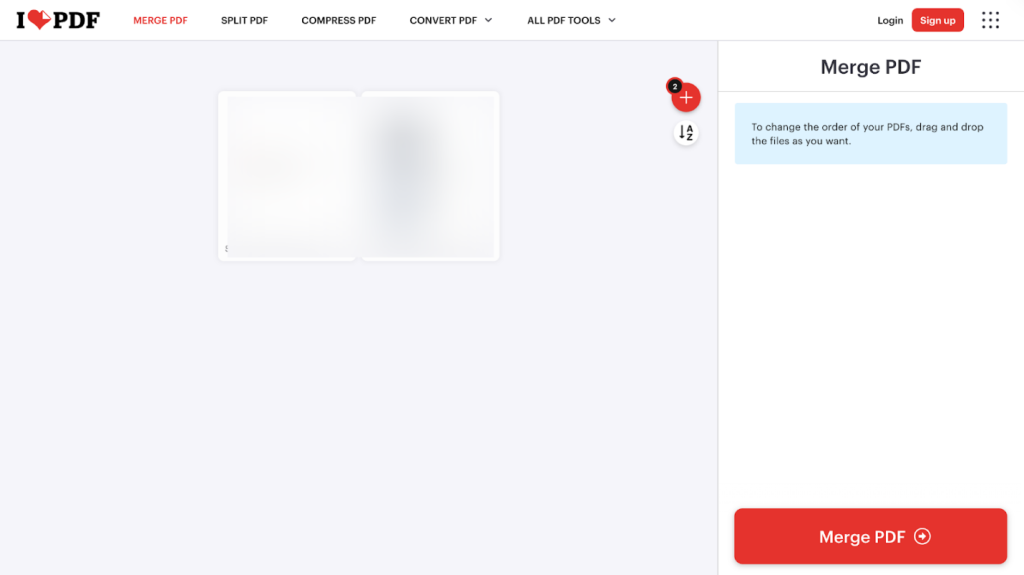
You can also choose to save the merged PDF file to Google Drive, Dropbox, as a link, etc.
A Quick Wrap Up
In essence, mastering how to combine PDF files in Adobe Acrobat helps you keep your workflow efficient and well-organized. The Adobe Acrobat PDF merger offers robust desktop features, enabling precise control over file order, layout, and editing. At the same time, free alternatives and online tools make it simple to merge PDFs without Adobe, providing quick, accessible solutions for anyone. With the right method, managing, organizing, and sharing multiple PDFs has never been easier or more efficient.
FAQs
a. Online PDF mergers – Online tools like iLovePDF, Smallpdf, and PDF24 let you upload several PDFs, set their order, and merge them right in your browser, with no installation required.
b. Free software/alternatives – Tools like JOPDF and PDFsam Basic let you merge PDF files on both Windows and Mac without any cost.
c. Built in OS tools – Using Preview on Mac, you can open several PDFs, combine them into one file, and save the merged document.
On Windows 10 and 11, Microsoft Print to PDF allows you to combine multiple files by printing them into a single PDF.
All of these methods let you merge PDFs without Adobe at no cost, making it easy to organize and share your documents.
Table of Contents

Your Best Free PDF Expert in PDF editing, compressing, converting, annotating, protect, organizing, and more.
Free DownloadWindows · macOS · Linux

Olivia
“Olivia is an editor at JOPDF, where she writes practical guides and insightful articles on managing PDFs—covering topics like editing, annotating, converting, and organizing files efficiently. Passionate about clear communication and digital productivity, Olivia enjoys spending her free time cooking, watching movies, and hiking to unwind and find inspiration for her writing.”
![How to Combine PDFs in Preview in 2026 [2 Best Ways]](https://b.jopdf.com/wp-content/uploads/2026/03/how-to-combine-pdfs-in-preview.png)
![How to Compress a PDF on Mac [4 Best Ways and Practical Tips]](https://b.jopdf.com/wp-content/uploads/2026/03/how-to-compress-a-pdf-on-mac.png)

