Introduction :
Microsoft Excel is widely used in work and study as it is ideal for data processing and calculation. However, if you need to share, print, or archive those spreadsheets, PDF is a better format than XLSX or CSV, as it preserves the original layout and formatting. How to convert XLSX to PDF without losing formatting? In this JOPDF post, I will introduce you to the top 5 XLSX-to-PDF converters and walk you through how to use them to convert XLSX files to PDF.
The layout, formatting, or other content in the XLSX files may differ if the viewer’s software, version, or settings are different. Also, you need to use Microsoft Excel or compatible programs to view the content in XLSX files accurately. To avoid those situations, PDF is the ideal choice, which can maintain the original formatting and offers universal compatibility and accessibility. Moreover, PDF is better for printing and distributing. Now, let’s explore how to transform XLSX files into PDF documents.
5 Best XLSX to PDF Converters
In this section, I will recommend to you 5 excellent XLSX-to-PDF converters. If you only want to know the exact steps, jump to the next part for a detailed tutorial. Now, let’s learn about the 5 best PDF converters.
#1. JOPDF – Best Free XLSX to PDF Converter
🌟Best For: Beginners and professionals who need free and accurate XLSX to PDF conversions on Windows and Mac.
Among the PDF converters I tested, I prefer JOPDF the most. As the best free XLSX to PDF converter, JOPDF enables you to convert an XLSX file to PDF without registration, ads, or hidden costs. Moreover, it is quite friendly to newcomers, as its interface is quite intuitive and user-friendly. Furthermore, JOPDF enables you to batch convert XLSX to PDF efficiently.
What’s more, JOPDF is a comprehensive PDF converter, enabling you to convert Word, PowerPoint, and images to PDF. Surprisingly, it supports PDF to Excel, Word, PowerPoint, and image conversions. Beyond a PDF converter, JOPDF offers capacities for editing, organizing, protecting, and annotating PDFs.
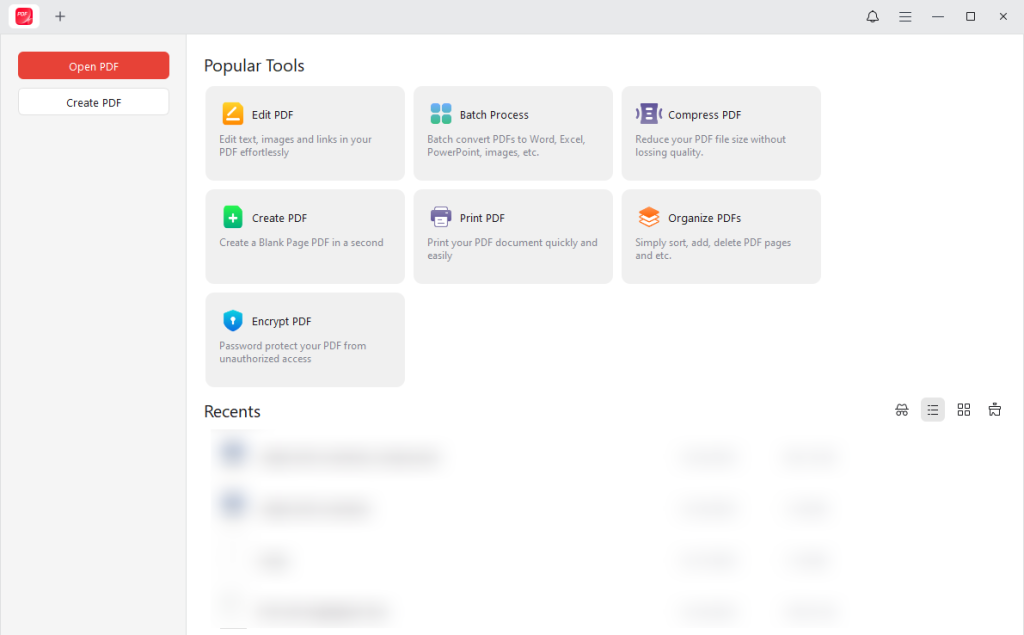
Other Main Features of JOPDF:
- Convert Excel (CSV or XLSX) to PDF
- Make a PDF smaller to email
- Print PDFs without margins
- Extract images from PDFs
- Password-protect PDFs from editing, printing, or copying
- Combine multiple PDFs into a single PDF
#2. Microsoft Excel
🌟Best For: Someone who has Microsoft Excel installed and does not need extra editing for PDFs.
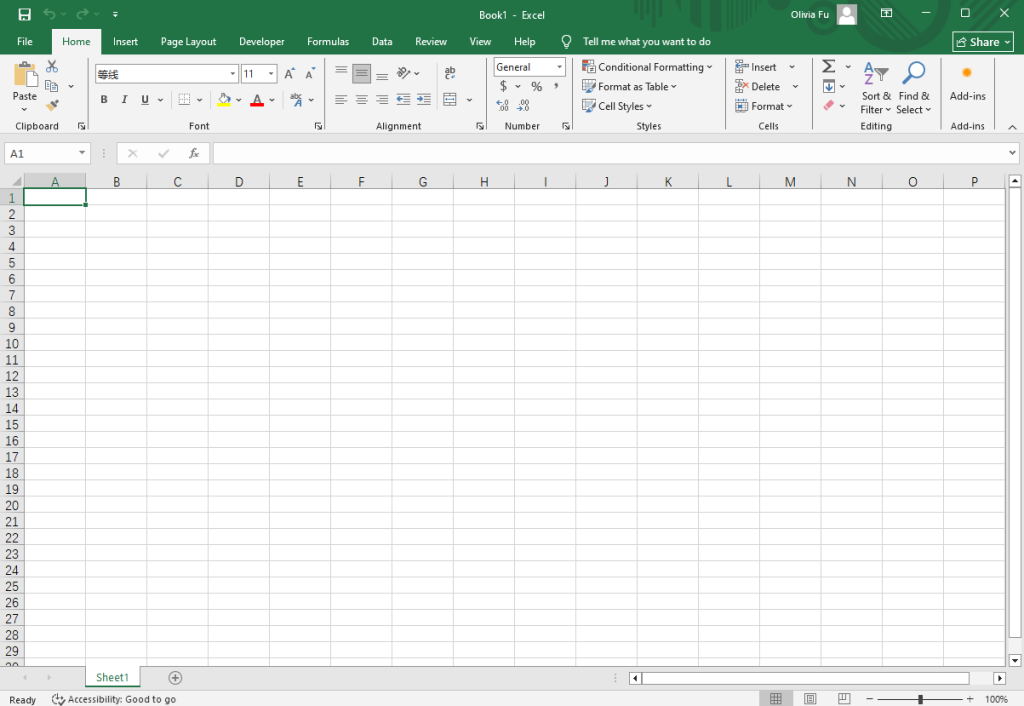
As a spreadsheet program, Microsoft Excel uses a grid of columns and rows to manage data efficiently. It usually saves spreadsheets in XLSX, CSV, or XLSM format. Microsoft Excel offers many functions for calculations, statistics, financial analysis, and logical operations. In addition to handling and creating XLSX files, Microsoft Excel enables you to convert and save XLSX files as PDF without third-party software.
However, Microsoft Excel offers limited PDF editing options after export and no advanced PDF security settings. If you need to edit and secure the spreadsheet in PDF, you need a third-party PDF editor.
#3. Google Sheets
🌟Best For: Users who don’t want to install any software or only need to handle simple XLSX files.
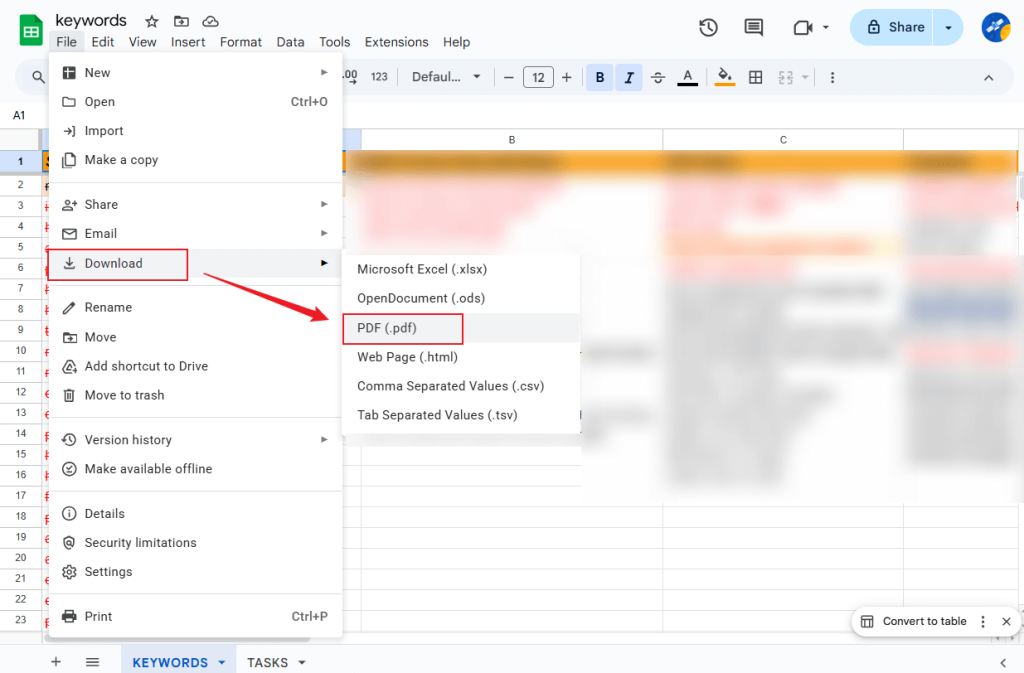
Google Sheets is a web-based spreadsheet application that supports opening, editing, and exporting XLSX files. You can use it as an online XLSX to PDF converter by uploading XLSX files to Google Drive and then downloading them as PDFs. Additionally, Google Sheets supports read-time collaboration and sharing files via links and email.
Though Google Sheets supports converting XLSX files to PDF, it is not a professional converter. Hence, if your XLSX files are too complex, the conversion may not be perfect.
#4. Adobe Acrobat
🌟Best For: Users who require professional conversions and have a sufficient budget.
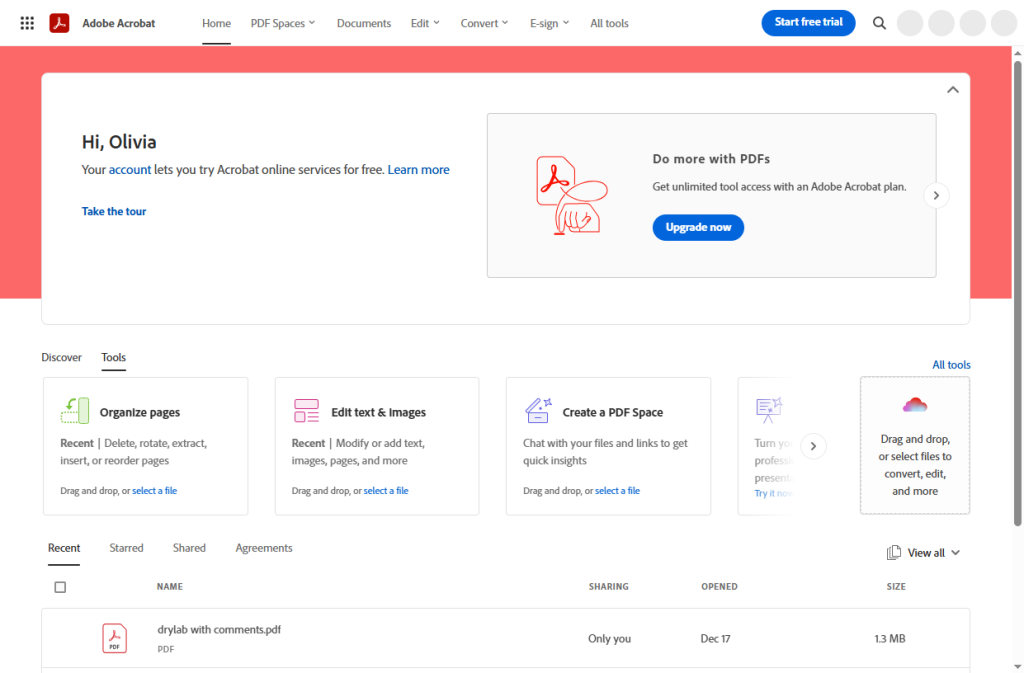
If you often come into contact with PDF files, you must be no stranger to Adobe Acrobat. It can be regarded as the industry-leading PDF editor with a wide range of basic and advanced features for creating, converting, editing, and securing PDFs. It enables you to convert Microsoft Excel files (XLSX) into high-quality and reliable PDF documents. To your surprise, Adobe Acrobat is available in two main forms for XLSX to PDF conversions, including:
- Adobe Acrobat Pro: a desktop paid application for Windows and macOS.
- Adobe Acrobat Online: web-based PDF tool
Adobe Acrobat enables you to convert XLSX to PDF without losing formatting. Also, it can handle complex Excel files. Like JOPDF, Adobe Acrobat supports batch XLS to PDF conversion. If you need a free alternative to Adobe Acrobat, try JOPDF.
#5. iLovePDF
🌟Best For: Beginners who prefer online converters and have no budget.
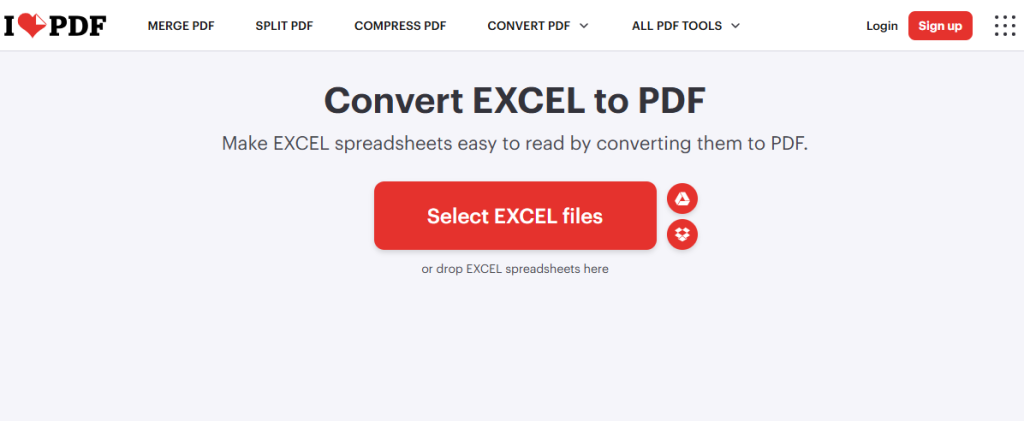
iLovePDF is an online PDF tool that can convert PDFs to and from Excel, Word, PPT, or images. You can use it on Windows, Mac, Linux, iOS, and Android. In addition to uploading files from local storage, it also enables you to upload from Google Drive and Dropbox, as it integrates with them. As an online XLSX to PDF converter, iLovePDF has an edge in its intuitive interface and simple operation.
However, the free version of iLovePDF has usage restrictions and ads.
How to Convert XLSX to PDF for Free on PC
Option 1. Convert XLSX to PDF for Free via JOPDF
Here, let’s learn how to convert XLSX files to PDFs for free using JOPDF. You can use it on both Windows and Mac computers.
Step 1. Click the button below to download this free JOPDF XLSX-to-PDF converter and install it on your Windows or Mac PC.
Step 2. Launch it and get to its main interface, click the Batch Process option, and select the Office to PDF option under the Convert to PDF section.

Step 3. Click + Add Files to import your XLSX files, specify a folder to save the converted file, and click Start to activate conversions.
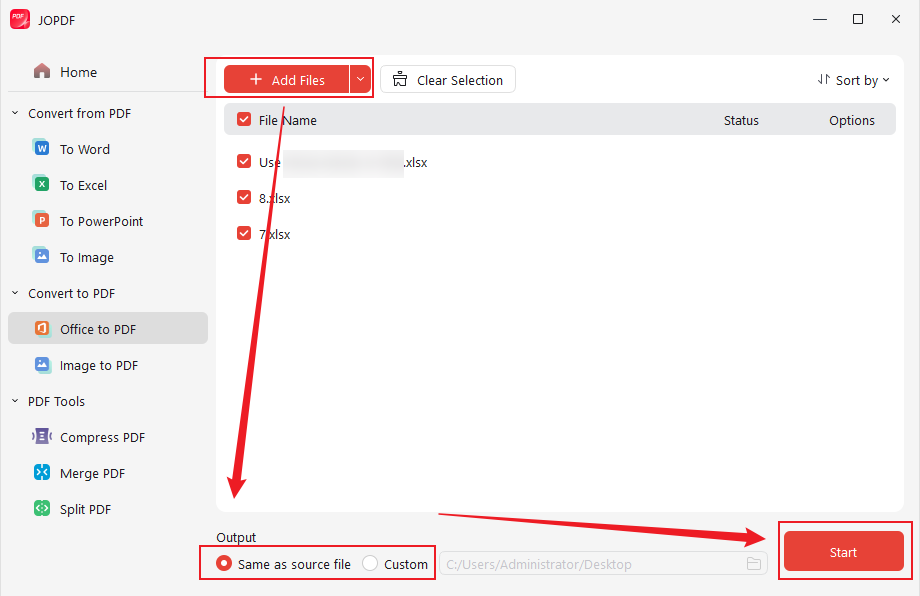
When the conversions are finished, click the File icon to open the PDF in JOPDF for viewing or editing. Or, you can click the Folder icon to locate it.

Option 2. Export and Save XLSX File as PDF in Microsoft Excel
If you have installed Microsoft Excel and have no need for PDF editing, try Microsoft Excel.
Step 1. Launch Microsoft Excel and click Open to open your XLSX file.
Step 2. Click File and choose the Save or Save As option.
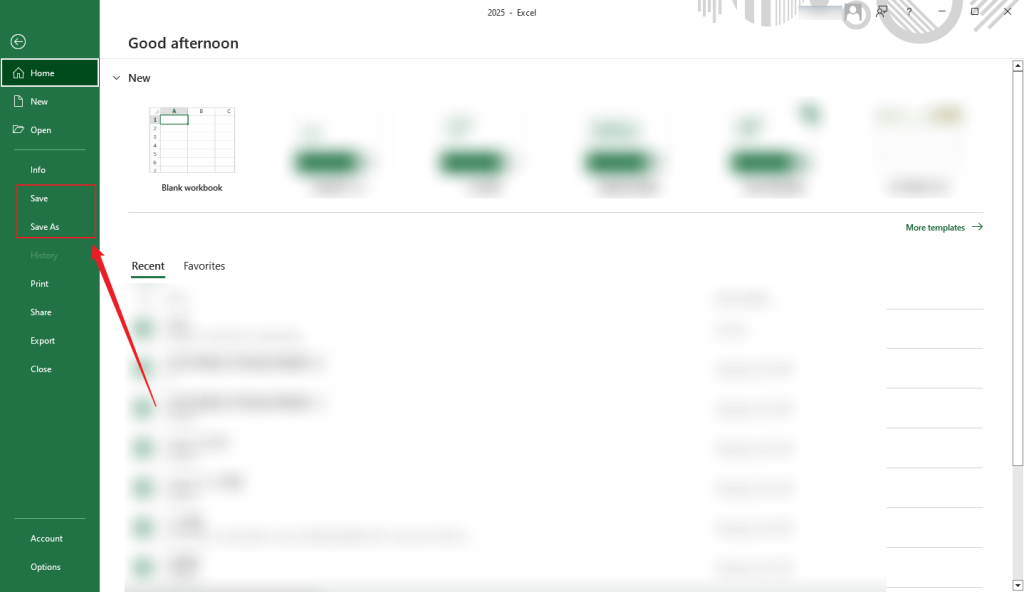
Step 3. Next, choose a folder to save the final file and give it a name. Then, open the Save as type dropdown and click PDF. Finally, click Save.

How to Convert XLSX to PDF Online
To convert XLSX files to PDFs online, iLovePDF is my first choice. Here, let’s take iLovePDF as an example and learn the exact steps to transform an XLSX file into a PDF online using iLovePDF.
Step 1. Open your browser and visit iLovePDF’s official website.
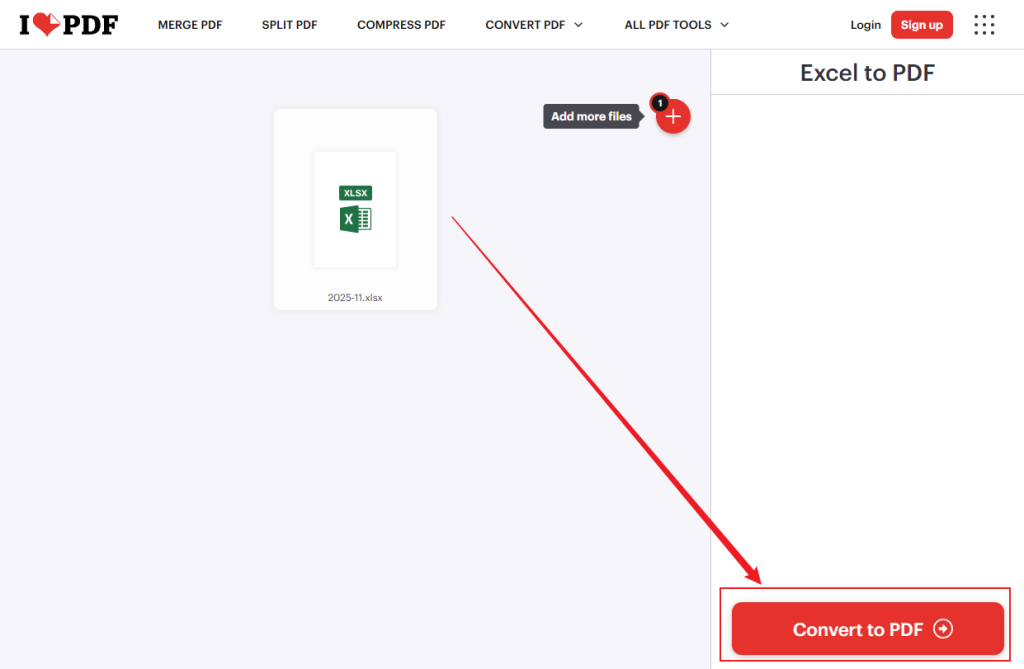
Step 2. Select the Excel to PDF option and click the Select EXCEL files button to import your target XLSX file.
Step 3. When the XLSX file is uploaded, click the Convert to PDF button. Once the process is over, download the PDF file.
Quick Wrap Up
In our daily work and study, we need to turn XLSX files into PDFs for universal compatibility and better security. How to convert XLSX files to PDFs? In the content above, I introduced the 5 best XLSX-to-PDF converters for your choice. Additionally, I provided a comprehensive guide on how to convert XLSX to PDF on Windows, Mac, and online. Among them, I extremely recommend JOPDF. Now, it’s your time to have a try!
FAQs
Step 1. Open the XLSX file in Microsoft Excel.
Step 2. Go to File > Save As to choose the saving path.
Step 3. Name the converted file and select PDF as the output format.
Step 4. Finally, click Save.
Table of Contents

Your Best Free PDF Expert in PDF editing, compressing, converting, annotating, protect, organizing, and more.
Free DownloadWindows · macOS · Linux

Olivia
“Olivia is an editor at JOPDF, where she writes practical guides and insightful articles on managing PDFs—covering topics like editing, annotating, converting, and organizing files efficiently. Passionate about clear communication and digital productivity, Olivia enjoys spending her free time cooking, watching movies, and hiking to unwind and find inspiration for her writing.”