![6 CSV to PDF Converters in 2026 [Top Offline and Online Finds]](https://b.jopdf.com/wp-content/uploads/2026/03/csv-to-pdf-converter.png)
Introduction :
CSV files are basic, commonly used formats for organizing tabular data, yet they typically offer little in terms of visual layout or presentation quality. Using a CSV to PDF converter allows you to turn plain data into polished, easy-to-read documents for professional use. When you convert CSV to PDF, you achieve improved formatting, enhanced security, and easy accessibility across all devices. This guide highlights six top tools to help you efficiently convert a CSV file to PDF, whether online or offline.
What Is a CSV to PDF Converter?
A CSV to PDF converter helps turn plain CSV files into professional, well-presented PDF documents. The tool converts a CSV spreadsheet to PDF, ensuring that all rows and columns are neatly organized and visually clear. As a result, the data becomes easy to view, distribute, and present while preserving its layout and structure.
1. Best CSV to PDF Converter for Fast Conversions: JOPDF
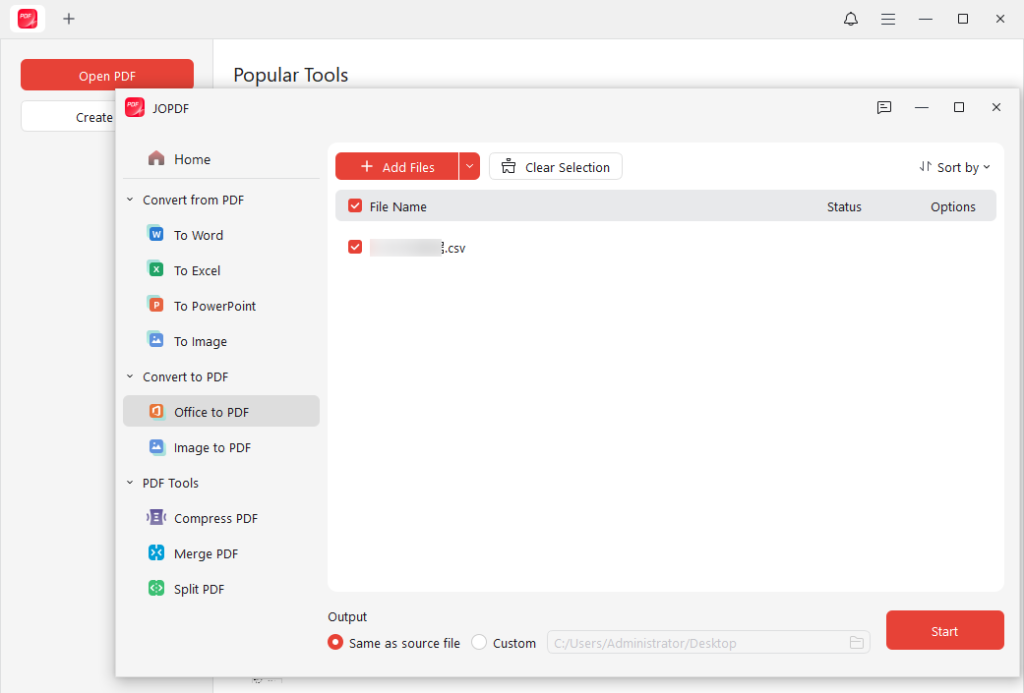
As the best free CSV to PDF converter, JOPDF ensures efficient, reliable performance for routine file conversions. It simplifies batch CSV conversion, making it easy to process numerous files quickly and efficiently. The tool delivers clean, well-structured PDF outputs while keeping the process simple and efficient. JOPDF provides a user-friendly experience and useful tools at no cost, making it perfect for fast file conversions.
Other Key Features of JOPDF:
- Serving as the best PDF converter, it allows users to convert a wide range of file types in addition to CSV.
- Supports batch CSV conversion for handling multiple files efficiently.
- The platform supports a variety of PDF tools in one place, such as editing, annotating, compressing, and more.
- Allows you to combine PDFs on Windows, Mac, and Linux for better document management.
- Supports over 15 annotation tools to cover the markup needs.
- Organize, protect, merge/split, read, and print PDFs hassle-free.
Pros
-
Free to use with useful features available at no cost.
-
Delivers speedy and consistent conversions, preserving clear and tidy formatting.
-
Includes options to batch compress PDF files to reduce file size.
-
Does not contain annoying ads or any watermarks and does not require a sign-up.
-
Offers an easy-to-navigate, intuitive interface that suits both novices and first-time users.
Cons
-
Ideal for simple PDF edits and standard document tasks.
-
Not available as a mobile app or online tool.
Pricing: 100% free software.
2. Best Tool to Convert CSV File to PDF with Formatting: Microsoft Excel
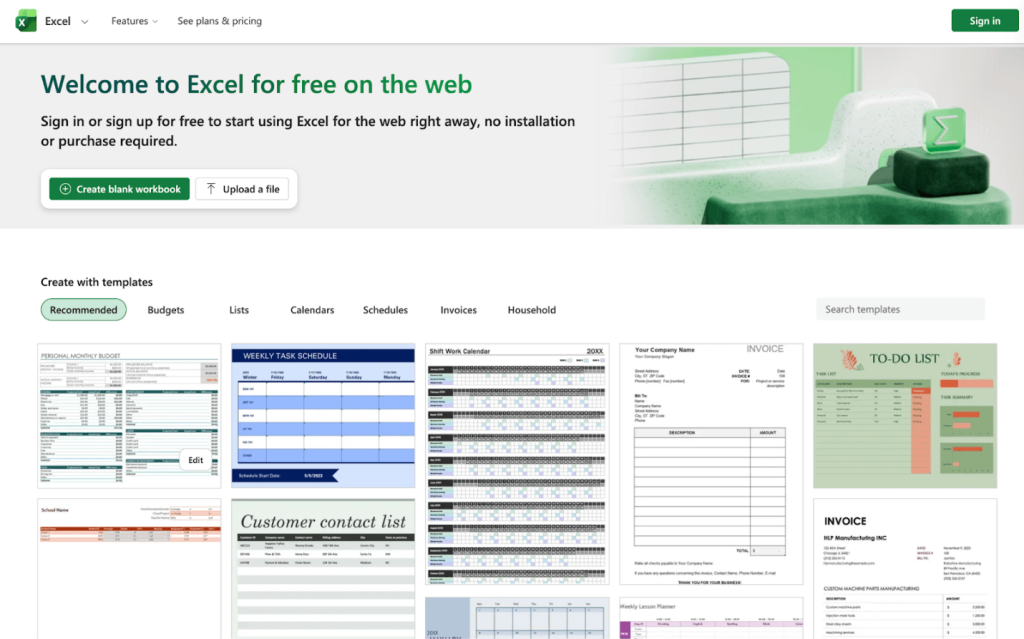
Microsoft Excel acts as another powerful CSV to PDF converter. You can convert CSV file to PDF using this tool, taking advantage of advanced formatting and tailored layout features. It allows users to create professional reports and effortlessly save Excel as a PDF, delivering polished, presentation-ready documents. With flexible tools for styling tables and data visualization, it is ideal for creating high-quality business documents.
Other Key Features of Microsoft Excel:
- Enables formatting of raw CSV data—including fonts, colors, and cell sizes—before exporting to PDF.
- Features customizable page layouts, allowing you to set margins, orientation, and scaling.
- Export to PDF via Save As, Print to PDF, or Export menus.
- Allows users to see how the CSV data will look in the PDF.
Pros
-
No extra software cost if Microsoft Office is already installed.
-
Maintains data integrity without changing raw data.
-
Allows formatting of headers, footers, and page breaks before conversion.
-
Simple, user-friendly, and familiar interface.
Cons
-
Cannot convert multiple CSV files at once.
-
Large files may lag, and raw data may not fit properly on pages without significant manual formatting.
-
Requires manual intervention for every file, making it unsuitable for automated workflows.
-
Data truncation, date formatting issues, or encoding errors can occur if not checked.
Pricing: Free (if installed). With Microsoft 365 Personal, you get 1TB storage and premium features for 1 user at US$99.99/year or US$9.99/month.
3. Best Free CSV to PDF Converter Online: Google Sheets
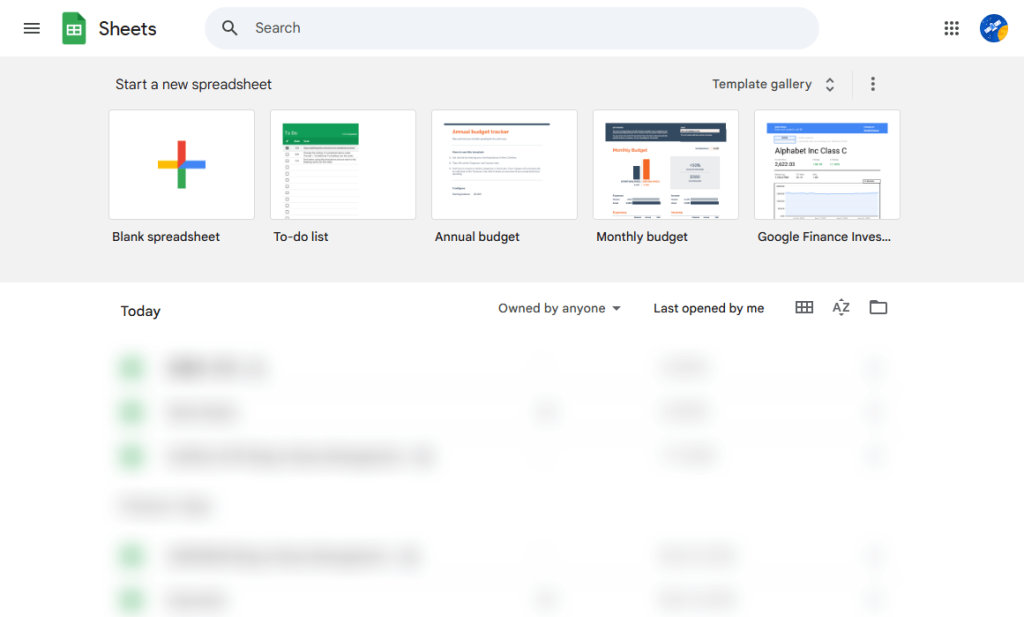
Google Sheets acts as a free CSV to PDF converter that lets you manage and format data conveniently right in your browser. You can effortlessly convert CSV to PDF online, ensuring quick access and convenience without installing any software. Its robust cloud integration, easy sharing options, and straightforward formatting tools make it perfect for fast conversions.
Other Key Features of Google Sheets:
- Customize cell formatting, dimensions, and alignment before performing the conversion.
- Provides customizable options for paper size, layout orientation, and scaling adjustments.
- Provides options to export the current sheet, the entire workbook, or selected cells.
- Operates entirely in a browser, saving files directly to Google Drive.
- Enables adding page numbers or titles.
Pros
-
No licensing fees or software installation required.
-
Enables editing, filtering, and rearranging data before final export.
-
Print preview provides a way to confirm the table layout and avoid missing columns in the final PDF.
-
Multiple users can edit the data before conversion.
Cons
-
Not ideal for high-volume batch processing; requires manual opening of CSVs.
-
CSVs are plain text; complex formatting from previous spreadsheets might be lost.
-
Large strings, date formats, or currency symbols may misalign or alter during formatting.
-
Very large datasets can be difficult to manage within a browser-based spreadsheet.
Pricing: Completely free to use.
4. Best Online CSV File to PDF Converter: CloudConvert
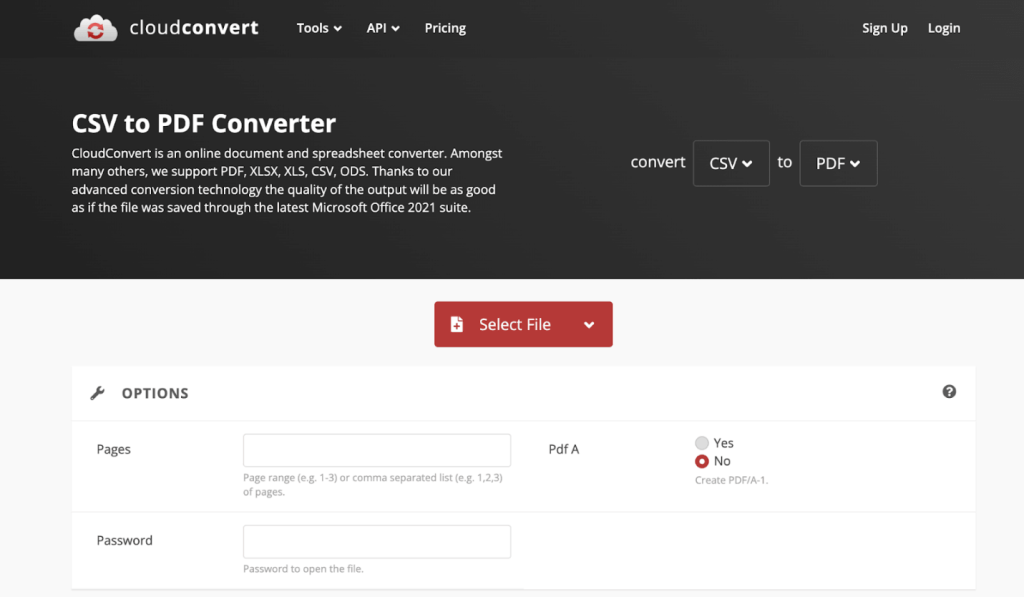
CloudConvert is a flexible online CSV to PDF converter that handles numerous file formats and produces high-quality PDF output. You can upload files from both local storage and the cloud, then batch convert Excel to PDF effortlessly. Thanks to fast processing and configurable features, it’s ideal for effective online conversions.
Other Key Features of CloudConvert:
- Allows adjustment of file encoding, delimiters (e.g., CSV to comma-separated), font size, and page orientation/margins before converting to PDF.
- Directly import/export files from Google Drive, Dropbox, and OneDrive.
- Allows you to convert bulk files and documents simultaneously.
- Supports integration into custom applications and websites.
- Files are removed automatically after conversion for added safety.
Pros
-
Provides a straightforward interface with user-friendly drag-and-drop capabilities.
-
Delivers clean and precise formatting for PDFs.
-
Supports a wide range of formats—200+ in total—beyond CSV and PDF, including XLSX, XLS, and ODS.
-
Enables high-quality conversions with a trusted and well-reviewed cloud-based service.
Cons
- Only allows 25 conversion minutes per day, which may be limiting for heavy users.
- Requires a stable internet connection.
- Large, complex CSV files might cause timeouts.
Pricing: Free version with limitations. The subscription price starts at US$10.00/month, and the package plan is available for US$10.00 for 500 conversion credits.
5. Best Professional PDF Tool After CSV Conversion: Adobe Acrobat
Adobe Acrobat is a top professional PDF editor renowned for its powerful tools for editing, formatting, and organizing documents. By simplifying the CSV to PDF workflow, it allows for easy conversion, refinement, and protection of documents. It provides tools for annotation, merging, and password protection, making your PDFs fully professional and business-ready.
Other Key Features of Adobe Acrobat:
- Converts CSV (structured data) to PDF while attempting to maintain formatting.
- Offers fast, online conversion tools that work in seconds.
- Provides comprehensive editing tools to refine the document after conversion.
- Enables annotation of files, password protect PDFs, encryption, and redaction capabilities.
- Allows for easy conversion from CSV/Excel to PDF for sharing or archiving.
Pros
- Widely used industry standard for accurate conversions.
- Not just a converter; it includes robust editing, signing, and organization tools.
- Accessible across desktop, web, and mobile platforms.
- Supports strong tools to handle sensitive data.
Cons
- Subscription-only model makes it pricey compared to free alternatives.
- Can be overwhelming for casual users.
- The software may feel “heavy,” resulting in delays or reduced responsiveness when handling large documents.
- Some reports of crashes, though usually rare.
- Does not offer advanced tools to reformat the CSV structure before conversion.
Pricing: Adobe Acrobat Reader is free with limitations. Acrobat Standard starts at US$14.99/month, and Acrobat Pro starts at US$19.99/month.
6. Best All-in-One Online PDF Toolkit: Smallpdf
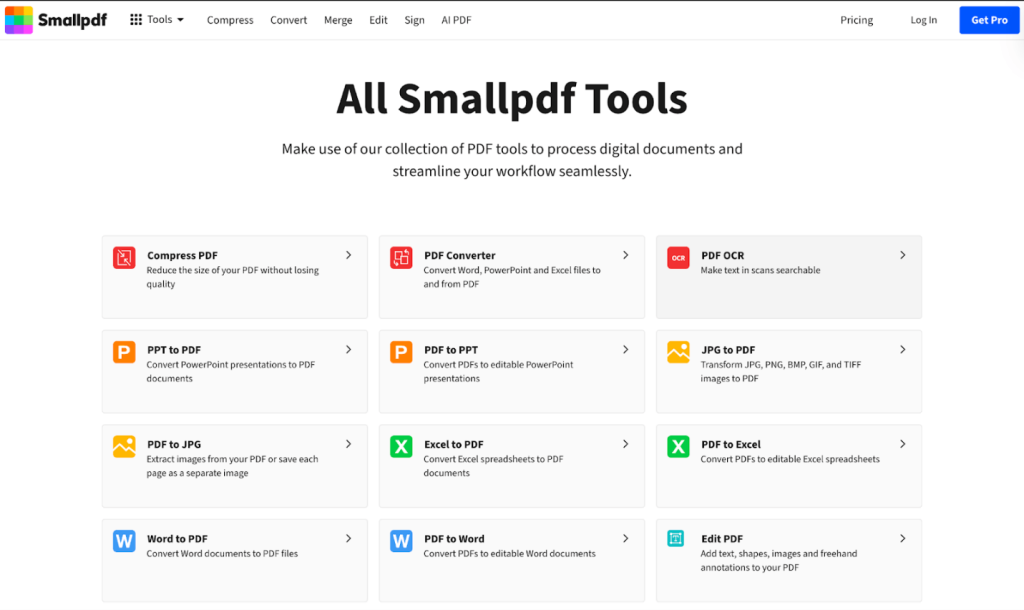
Smallpdf allows you to convert CSV to PDF online efficiently, while also giving access to a complete suite of PDF utilities. It’s ideal for fast conversions and also lets you compress, merge, and manage PDFs—all within a single platform.
Other Key Features of Smallpdf:
- Quickly converts CSV files to PDF within a clean interface.
- Allows users to merge, split, or compress PDFs immediately after conversion.
- Seamlessly convert HEIC to PDF and more file formats like Word, Excel, PowerPoint, and images.
- Uses TLS encryption for file transfers and automatically deletes files after processing.
- Direct integration for saving converted files to Google Drive or Dropbox.
- Works on Windows, Mac, and Linux, as well as on mobile devices via web browsers.
Pros
- Offers a straightforward, intuitive layout suitable for users with no technical experience.
- Efficient servers offer quick turnaround times for documents.
- Provides extensive tools for managing PDFs, including editing, signing, and compressing.
- Features browser-based access as well as a convenient Chrome extension.
Cons
- The free version is limited in daily usage, necessitating a subscription to unlock all features.
- Complex CSV data sometimes causes layout glitches, missing columns, or incorrect date/number formatting.
- Requires a stable internet connection.
- Occasional users may find the subscription pricing to be high.
- Potential for slow performance with very large files.
Pricing: Free version available with limitations. The subscription for the Pro version starts at US$12/month.
Quick Comparison Table: Best CSV to PDF Converters
The following chart compares the top CSV to PDF converters based on functionality, batch support, and best‑fit scenarios. Refer to this table to pick the ideal tool based on your priorities, whether that’s speedy offline conversions, online convenience, or professional formatting.
| Tool | Conversion Type | Batch Conversion | Formatting Control | Free Plan | Best For |
| JOPDF | Offline | Yes | Basic | Yes | Simple, quick, and free conversions. |
| Microsoft Excel | Offline | Limited | Advanced | Yes | Professional documents and reports with formatting |
| Google Sheets | Online | Limited | Basic | Yes | Quick online conversion and collaboration |
| CloudConvert | Online | Yes | Moderate | Yes | Flexible online conversions from many formats. |
| Adobe Acrobat | Offline/online | Yes | Advanced | No (Adobe Reader is free). | Professional editing and secure PDFs. |
| Smallpdf | Online | Limited | Moderate | Yes | All-in-one online PDF toolkit. |
A Quick Wrap Up
Getting your hands on the right CSV to PDF converter can simplify sharing your data and make your presentations look more professional. Whether it’s to convert CSV to PDF swiftly online, carry out batch conversions, or create well-formatted reports, there’s a solution for every task. Free tools like JOPDF and Google Sheets and robust platforms like Adobe Acrobat all deliver valuable, distinct benefits. Selecting the right tool for your needs allows you to manage CSV to PDF conversions smoothly and productively.
FAQs
1. If you want a quick and free option, online tools like Google Sheets or Smallpdf work well.
2. Desktop tools like Microsoft Excel and Adobe Acrobat are perfect for detailed formatting and professional-quality reports.
3. JOPDF or CloudConvert are solid picks for simple batch conversions at no cost.
Table of Contents

Your Best Free PDF Expert in PDF editing, compressing, converting, annotating, protect, organizing, and more.
Free DownloadWindows · macOS · Linux

Olivia
“Olivia is an editor at JOPDF, where she writes practical guides and insightful articles on managing PDFs—covering topics like editing, annotating, converting, and organizing files efficiently. Passionate about clear communication and digital productivity, Olivia enjoys spending her free time cooking, watching movies, and hiking to unwind and find inspiration for her writing.”