Summary :
Converting Word files to PDF keeps the layout consistent, ensures compatibility across devices, and makes them appear more professional. This article explains how to convert Word to PDF on Mac through four simple and cost-free techniques.
1. The Professional Way to Convert Word to PDF on Mac: JOPDF
JOPDF is a trusted tool designed for easy, seamless document conversion. It lets you batch convert Word to PDF on Mac quickly, keeping all formatting, fonts, and images intact.
In addition, it provides secure file handling, making it perfect for professional, academic, or business documents. The good thing is that you can edit the document without effort after conversion.
Let us see how to convert Word to PDF on Mac for free with JOPDF in just a few clicks.
Step 1. Get JOPDF and open it on your Mac computer.
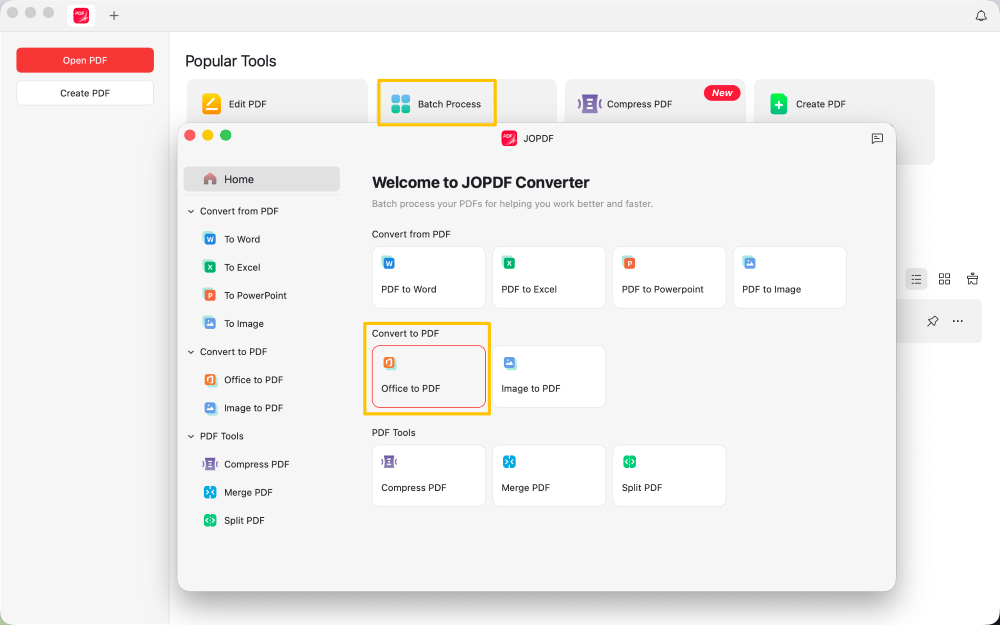
Step 2. On the home interface, click Batch Process under Popular Tools. And select Office to PDF.
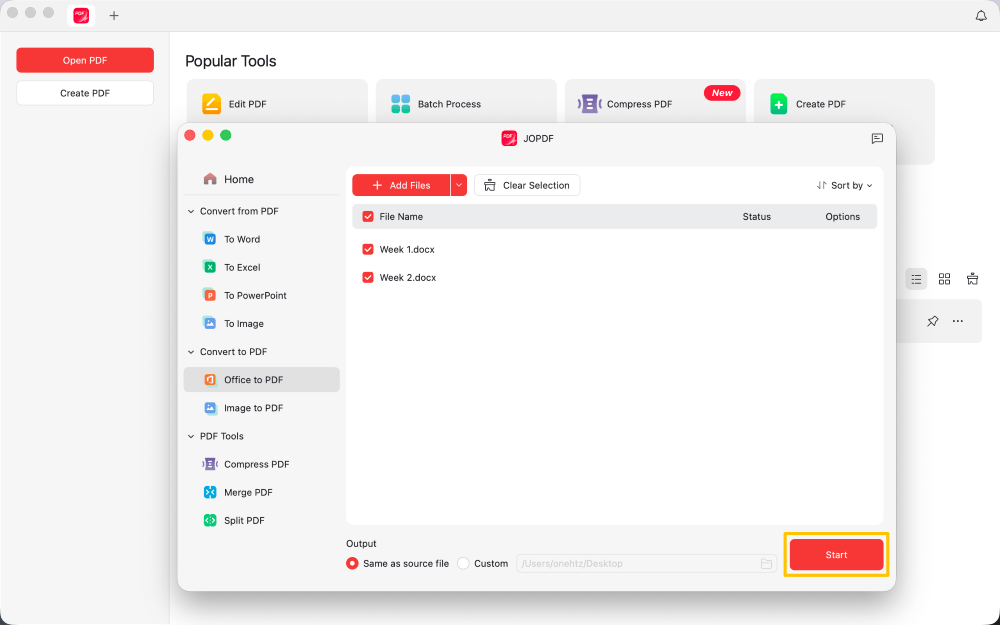
Step 3. Now, hit +Add Files to load all Word documents you wish to convert. Alternatively, drag and drop the document into the window.
Step 4. Now, in the Output section below, select a location. And click Start. Wait a few moments, and JOPDF will instantly convert your file into an editable PDF.
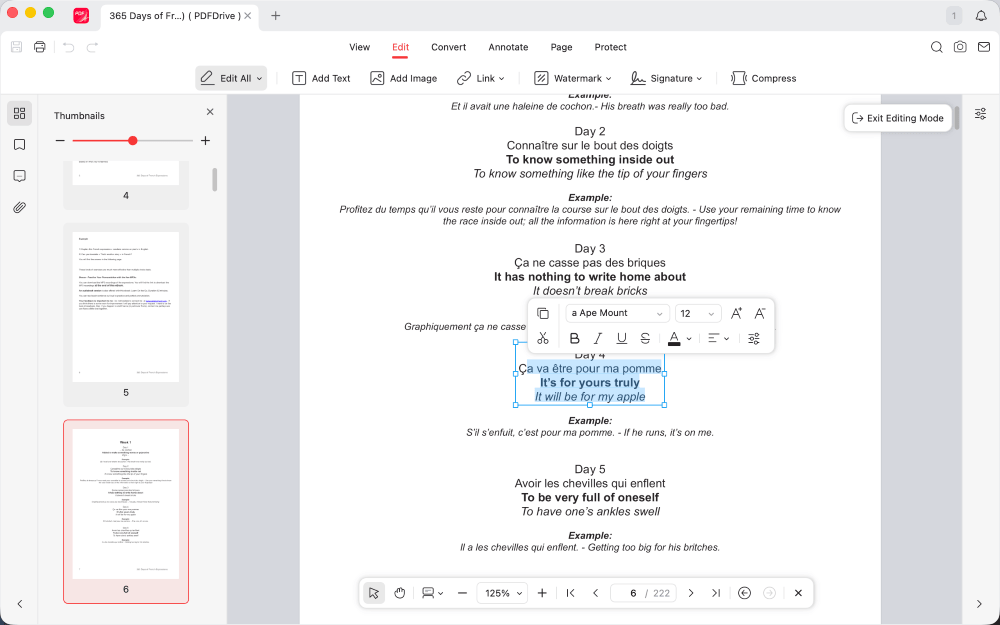
After converting your Word documents, JOPDF lets you edit PDFs directly, making it an all-in-one solution for Mac users seeking the best PDF editor for Mac. You can add annotations, adjust text and images, and maintain full flexibility.
Download JOPDF to effortlessly convert, edit, and organize PDFs, and learn why so many Mac users prefer it for professional tasks.
2. Export Word to PDF on Mac Using Microsoft Word
Mac users can convert Word files to PDF without relying on third-party tools. Microsoft Word on Mac has an export function that lets you save your documents directly in PDF format.
Let’s check out the steps.
Step 1. Open the Word document on your Mac, using the appropriate Microsoft Office program.
Step 2. Tap the File tab in the upper-left corner.
Step 3. Next, select the Save As… button from the dropdown menu. Alternatively, you can save a file by selecting the Save icon in the ribbon.
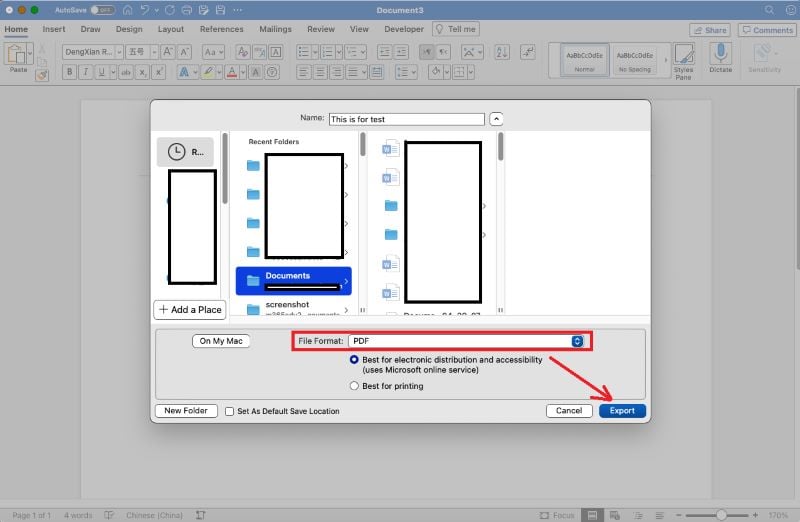
Step 4. In the Save As box, type a name for the file. Then, in the File Format box, select PDF as the format. And click Export.
3. Change Word to PDF on Mac with the Print Feature
Another simple way to convert Word documents to PDF on a Mac is by using the Print feature. This method works in virtually any application, not just Word, and lets you “print” your document as a PDF.
Learn how to convert Word to PDF on Mac through the Print option.
Step 1. Open the Word document you wish to convert to PDF on your Mac.
Note: If Microsoft Office is not installed, the Pages app will open the Word document.
Step 2. Go to the File tab, then choose Print. Or press Command + P to access the Print window.
Click the PDF button, then choose Save as PDF.
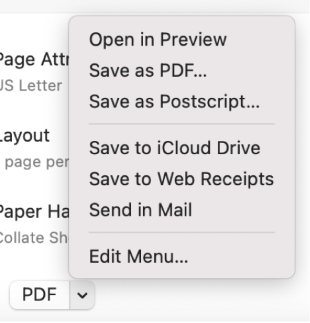
Step 3. Then, select a name and folder where the PDF will be saved. If desired, you can choose the folder where the file will be saved.
Step 4. Click Print. And your Word document will be converted into a PDF.
4. Convert Word to PDF on Mac via Quick Actions
Using Quick Actions in Finder, Mac users can effortlessly turn Word files into PDFs. This native feature lets you right-click a Word document and create a PDF without opening it.
Let us find out how to use Quick Actions to convert Word to PDF.
Step 1. On your Mac, click the Finder icon in the Dock to open a Finder window.
Step 2. Using Finder, select the Word document(s) you want to turn into PDFs.
Step 3. Right-click or hold Control and click the selected Word files.
Step 4. Next, choose Quick Actions from the context menu. And click Create PDF.
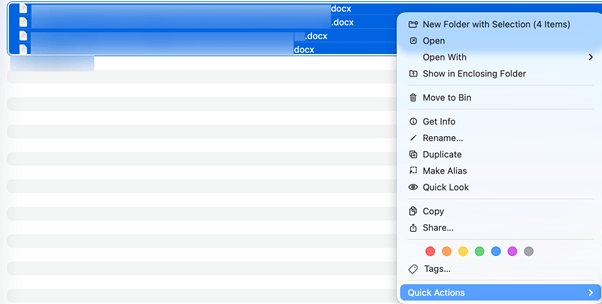
A new PDF version will appear in the same folder with a similar name.
Final Thoughts
Once you know how to convert Word to PDF on Mac you can do it in just a few clicks.
Whether you choose Microsoft Word, the Print feature, Quick Actions, or the free and reliable tool JOPDF, each provides a convenient solution.
Pick the method that suits you and easily create secure, shareable, professional PDFs. If you want to edit the PDF document, too, then JOPDF is the best way to go! It is not only a PDF converter but also an editor.
FAQs
Table of Contents

Your Best Free PDF Expert in PDF editing, compressing, converting, annotating, protect, organizing, and more.
Free DownloadWindows · macOS · Linux

Queena
Editor
“As a staff editor for JOPDF, Queena excels at guiding users to the optimal tools and solutions. When she's not analyzing the latest PDF solutions, she enjoys spending her free time playing with her four cats.”
![6 Must-Know Bank Statement Converters in 2026 [Full Review]](https://b.jopdf.com/wp-content/uploads/2026/03/bank-statement-converter.png)
