![5 Best Ways to Combine HEIC to PDF [Windows/Mac/iOS/Online]](https://b.jopdf.com/wp-content/uploads/2026/03/combine-heic-to-pdf.png)
Introduction :
HEIC (High Efficiency Image Container) is a contemporary image format favored by Apple devices, delivering high-resolution images in reduced file sizes. However, since HEIC files are not universally supported, many users choose to combine HEIC to PDF for convenient sharing, printing, and documentation. Knowing how to combine HEIC files into one PDF is crucial for managing documents efficiently in both business and personal situations. In this article from JOPDF, we will discuss the five best ways to do it.
Combine HEIC to PDF for Free with JOPDF
Supported OS: Windows, Mac, and Linux
JOPDF is a powerful, easy-to-use tool that lets you combine and convert HEIC to PDF for free on Windows, Mac, and Linux. Recognized as a reliable free HEIC to PDF converter, JOPDF also allows you to merge several other image formats into a single, well-organized PDF in just a few clicks. With support for batch convert HEIC to PDF, JOPDF helps save time when handling large numbers of files. Its simple interface and fast processing make it ideal for both personal and professional use.
Let us see how to combine HEIC files into one PDF for free using JOPDF in just a handful of clicks.
Step 1. Download JOPDF on your Windows or Mac computer. And launch it.
Step 2. Go to Batch Process under Popular Tools.Then choose Image to PDF under the Convert to PDF section in the left panel.
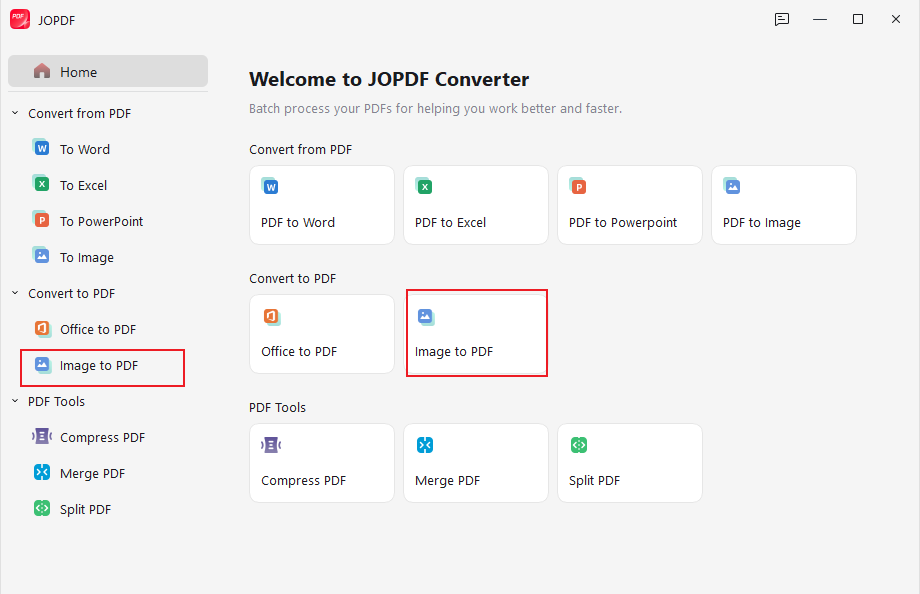
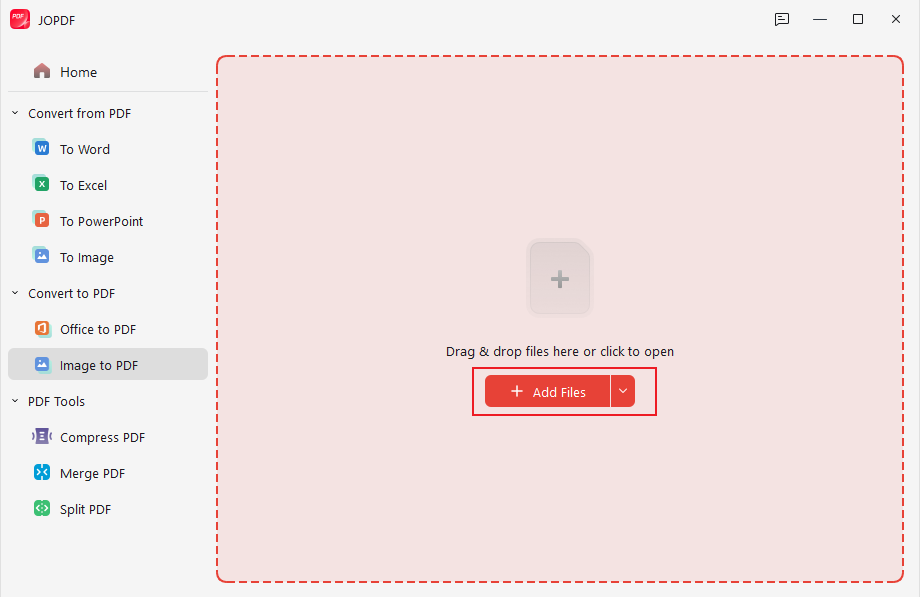
Step 3. When the window appears, select +Add Files to upload the HEIC files you wish to merge into a single PDF.
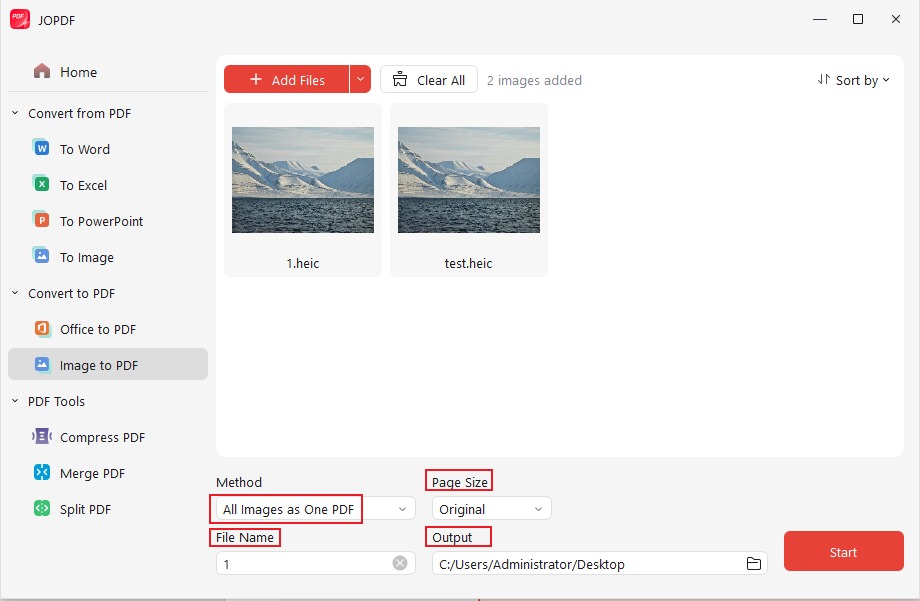
Step 4. In the Method section below, choose All Images as One PDF. Also, select the Page Size and File Name. Then, pick an Output folder for safe storage.
Once all the settings are configured, click Start to begin conversion.
In addition to combining and converting HEIC to PDF, JOPDF can help you do the following.
- Extract images from a PDF while preserving original quality and resolution
- Merge multiple PDF files into a single, organized document
- Split large PDFs into smaller, manageable files
- Convert PDF to JPG, PNG, BMP, and TIFFfor flexible image output options
- Compress PDF files to reduce size without significant loss of quality
- Quickly process all PDF-related tasks with a clean, user-friendly interface
Merge HEIC to PDF Using SwifDoo PDF
Supported OS: Windows, Mac, iOS, Android, and Web services (online).
SwifDoo PDF provides an all-in-one PDF platform that streamlines merging photos and documents for seamless use on computers and smartphones. With a clean and simple layout, you can efficiently merge multiple HEIC files into a single PDF for better organization and distribution. You can also create a PDF from images with just a few clicks, streamlining your workflow. In addition, it supports options to convert HEIC to JPG, PNG, or other image formats for broader compatibility
Learn how to merge HEIC to PDF using SwifDoo PDF.
Step 1. Download SwifDoo PDF on your Windows or Mac computer. Then launch it.
Step 2. On the main interface, click the Convert tab, then select Image to PDF in the secondary bar.
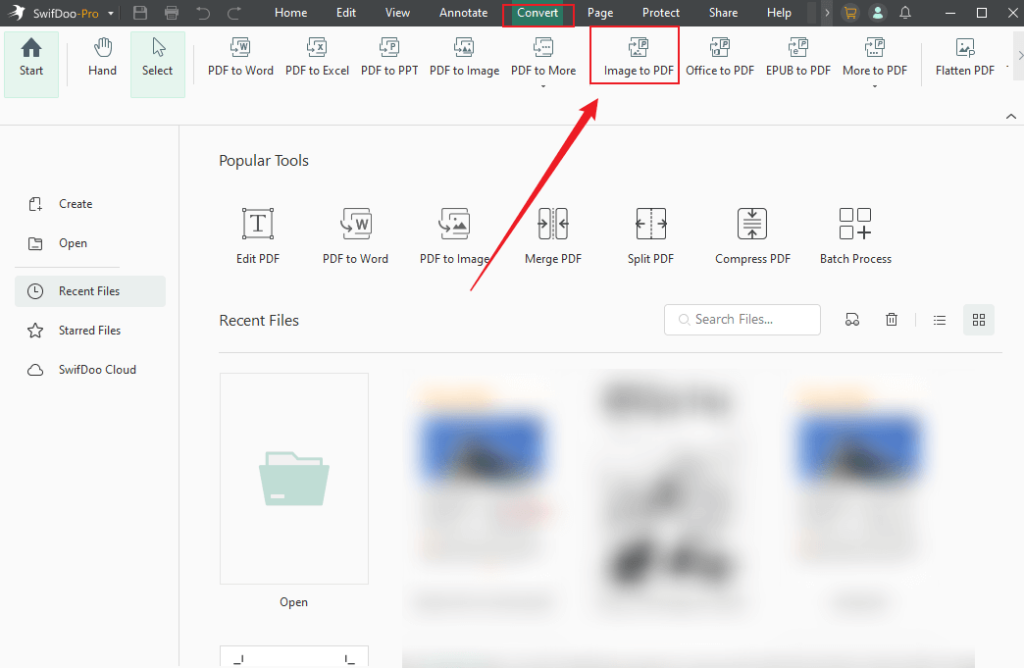
Step 3. Next, press Open to add your selected HEIC files to the software. Alternatively, you can drag the HEIC photos straight into the upload area.
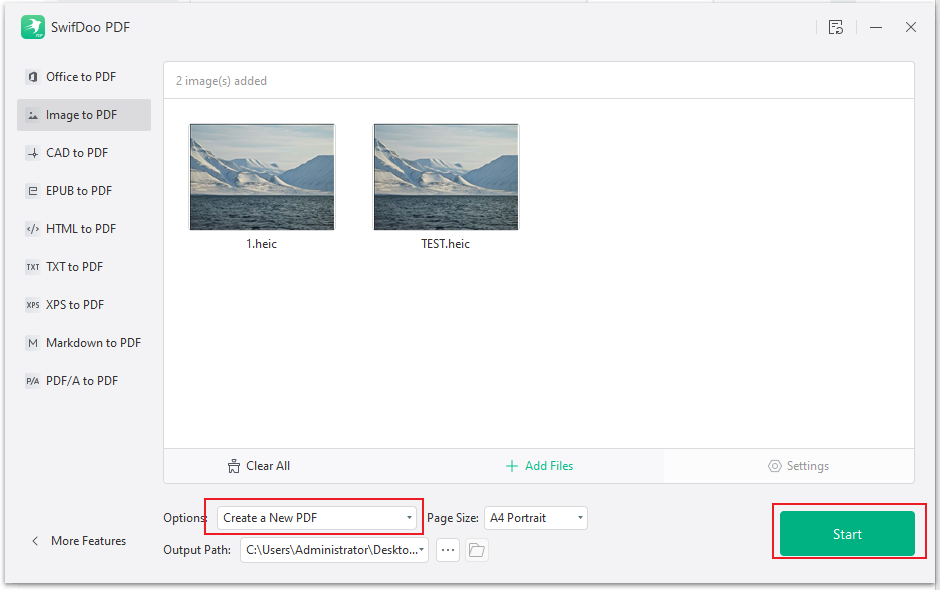
Step 4. Click Create a New PDF in the Options menu to turn the selected HEIC files into a single PDF.
If needed, you can set the PDF page size as the original or customize it. Then, tap Start.
Combine HEIC to PDF Using Mac Preview
Supported OS: Mac (built-in app).
Preview is the built-in image and PDF viewer on macOS that offers simple yet effective file management tools. It enables users to easily combine images into one PDF without needing any third-party applications. You can easily rearrange thumbnails and combine HEIC files into a PDF in just a few clicks. Its seamless integration with macOS makes it a convenient option for quick and secure file merging.
Check out how to combine HEIC files into a PDF using Preview on Mac.
Step 1. Locate the HEIC images in Finder. Tap Command and select all the HEIC images for conversion.
Step 2. Right-click on the chosen images, choose Open With, then open with Preview for editing or combining.

Step 3. Once the images are opened, navigate to the top toolbar and click the File tab. Next, choose Export as PDF…
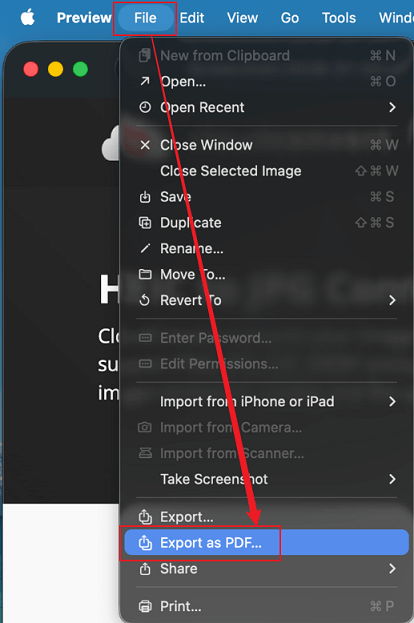
Step 4. In the next interface, select the destination folder for the converted images, then click Save.
Combine HEIC Files to PDF with Smallpdf
Supported OS: Windows app, mobile app (iOS and Android), and web services.
Smallpdf is a widely used online tool that allows you to merge multiple HEIC to a PDF quickly and easily, without any complex steps. The drag-and-drop layout allows effortless uploading, arranging, and combine images into a single, organized document quickly. Beyond merging, Smallpdf also provides robust conversion tools, enabling you to convert HEIC and other image formats to PDF, as well as transform PDFs into editable documents or different image formats for added flexibility.
Let us learn how to combine HEIC files into a single PDF using Smallpdf.
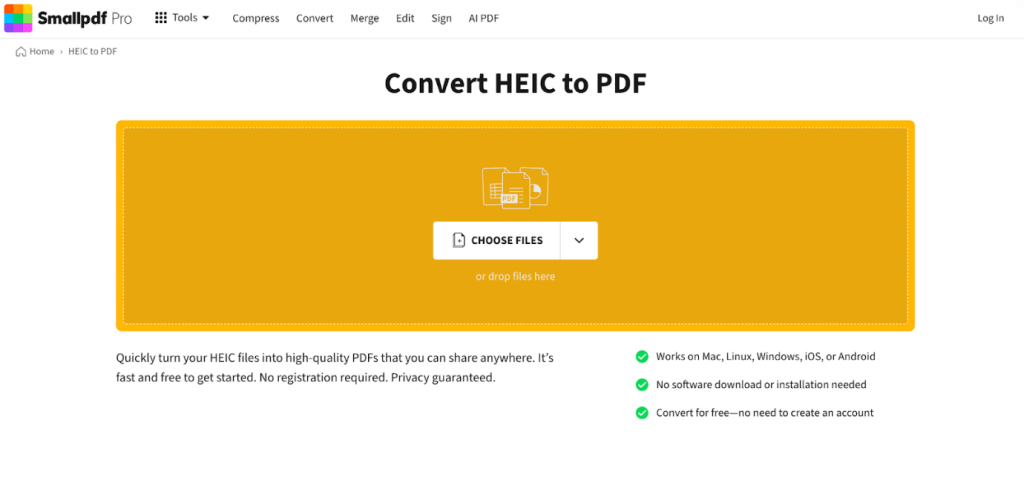
Step 1. Open your web browser. Navigate to the Smallpdf HEIC to PDF converter.
Step 2. Click Choose Files. Then command-click to selectand upload all the HEIC images.
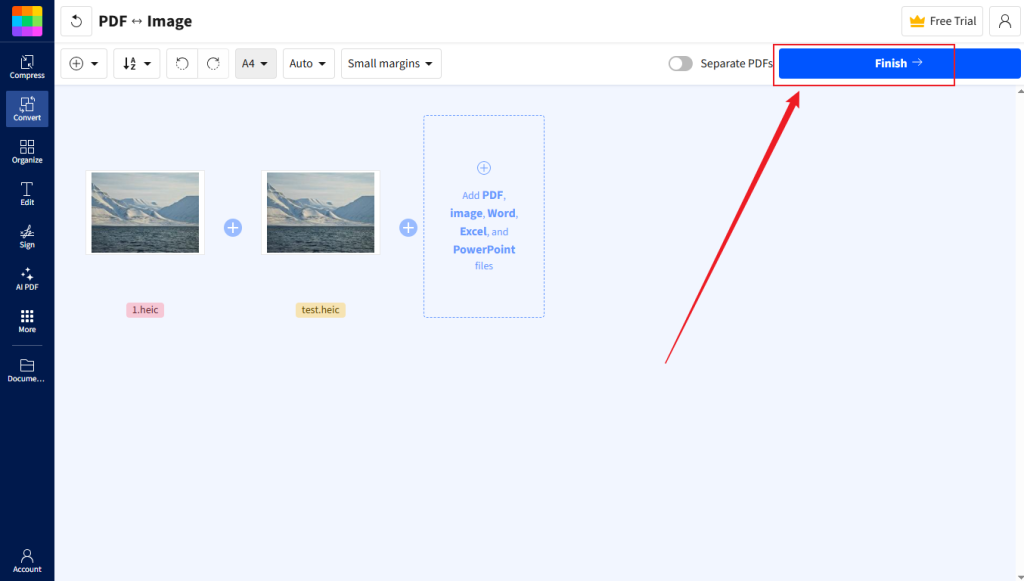
Step 3. Set the order and click Finish.
Step 4. Tap Download to save the merged documents to your local storage.
Merge HIECs to PDF on iPhone via Photos
Supported OS: iPhone (built-in) app.
You can easily combine HEIC to PDF on iPhone using the built-in Photos app, without needing any third-party software. By selecting your HEIC images and using the Share menu, you can create a single PDF directly on your device, making it quick and convenient for sharing, printing, or archiving on the go.
Find out how to merge HEICs to PDF on iPhone via the Photos app.
Step 1. Open the Photos app on your iPhone. And locate the HEIC images you wish to convert.
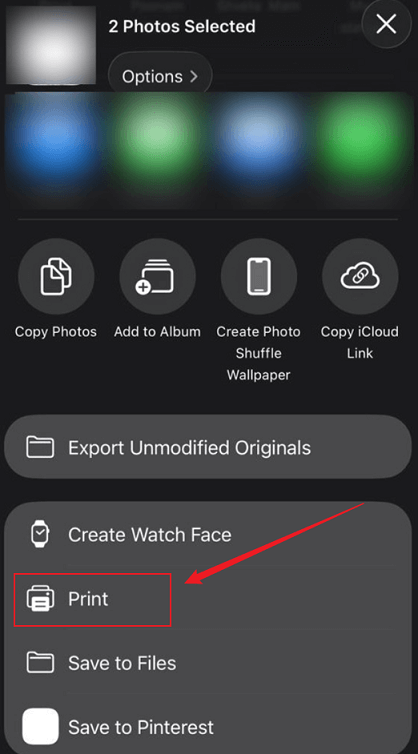
Step 2. Next, tap the Share icon (a square with an upward-pointing arrow) at the bottom of your screen. Scroll down and click Print to open the Printer Options screen.
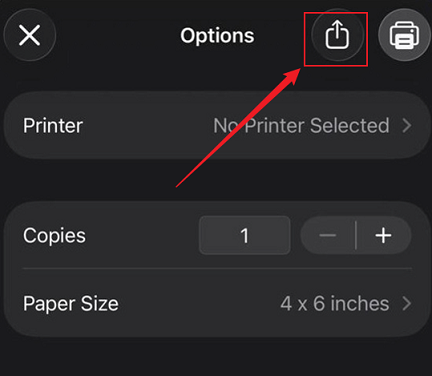
Step 3. In the Printer Options screen, use a two-finger gesture to “pinch” and zoom in on the photo preview, effectively converting it to a PDF.
Tap the Share icon again (the square with an arrow pointing up). And choose where to save the PDF file.
Wrapping Up
Whether on Windows, Mac, iPhone, or online tools, combining HEIC files into a PDF is now quick and straightforward. Learning how to combine HEIC to PDF helps simplify image management, printing, and sharing. Applications like JOPDF, SwifDoo PDF, Smallpdf, along with native apps like Preview and Photos, deliver reliable cross-platform functionality. Selecting the method that suits your workflow makes managing HEIC files easy and stress-free.
FAQs
1. On Windows or Mac. You can use desktop tools like JOPDF or SwifDoo PDF to batch-merge HEIC files with full control over the order and quality.
2. On Mac. The built-in Preview app allows quick merging without installing software.
3. For mobile users. The iPhone Photos app can create PDFs directly from selected images.
4. Online assistance. Smallpdf provides a fast, platform-independent way to combine HEIC images into a single PDF.
Table of Contents

Your Best Free PDF Expert in PDF editing, compressing, converting, annotating, protect, organizing, and more.
Free DownloadWindows · macOS · Linux

Olivia
“Olivia is an editor at JOPDF, where she writes practical guides and insightful articles on managing PDFs—covering topics like editing, annotating, converting, and organizing files efficiently. Passionate about clear communication and digital productivity, Olivia enjoys spending her free time cooking, watching movies, and hiking to unwind and find inspiration for her writing.”
![Batch Convert Word to PDF on Windows/Mac [Free & Paid]](https://b.jopdf.com/wp-content/uploads/2026/03/batch-convert-word-to-pdf.png)
![How to Combine Screenshots into One PDF [Windows, Mac, and Mobile]](https://b.jopdf.com/wp-content/uploads/2026/03/how-to-combine-screenshots-into-one-pdf.png)
