![Batch Convert Word to PDF on Windows/Mac [Free & Paid]](https://b.jopdf.com/wp-content/uploads/2026/03/batch-convert-word-to-pdf.png)
Summary :
Microsoft Word documents can vary across devices. To maintain formatting, improve accessibility, and safeguard content, many users need to batch convert Word to PDF. In this article, we’ll show free and paid ways on Windows and Mac.
1. Batch Convert Word to PDF for Free on Windows and Mac
For those who need to convert multiple Word documents to PDF for free, JOPDF works well. This reliable, user-friendly solution helps manage PDFs efficiently.
As the best PDF editor for Mac and Windows, you can quickly edit, convert, compress, merge/split, manage, and optimize files without any steep learning curve. Despite being free, the tool has no ads, no watermarks, and no sign-up required.
One of its key features is its Convert tool. It allows you to upload multiple Word files at once, then convert them into high-quality PDFs or other formats in a few clicks. JOPDF preserves the original formatting, layout, images, and fonts. As a result, your documents maintain a professional appearance.
Here’s an easy method to batch convert Word to PDF for free using JOPDF in a few clicks.
Step 1. Obtain JOPDF on your Windows or Mac computer.
Step 2. Once launched, enter the home interface. And click Batch Process under Popular Tools. Then, click Office to PDF.
Step 3. Next, press the +Add Files button to add your Word documents to the converter window.
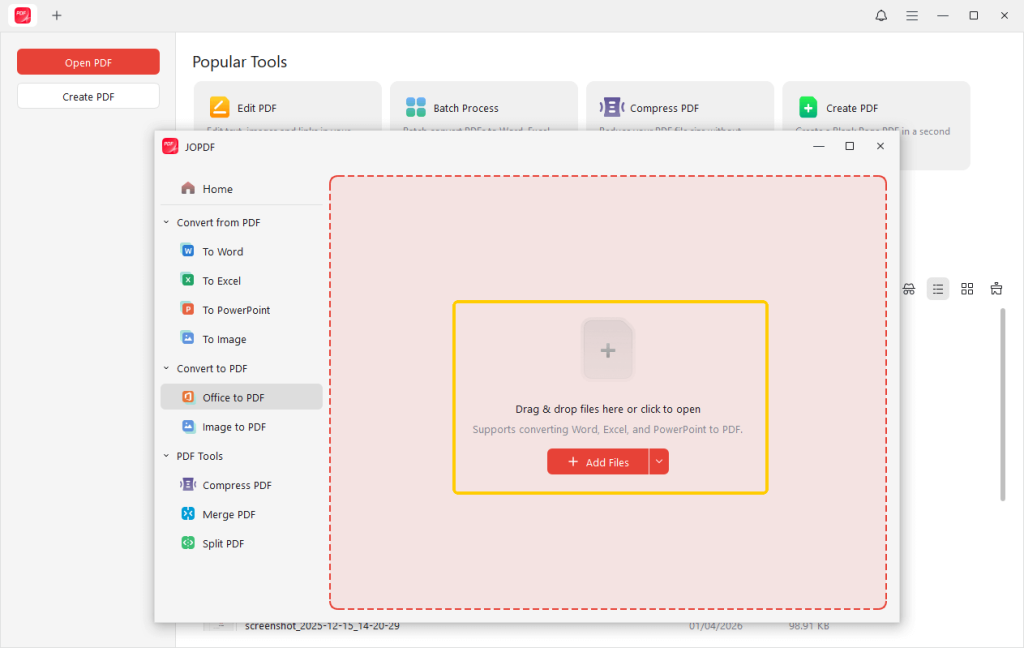
Another method is to drag and drop the files straight into the window.
Step 4. Select an Output location at the bottom and click Start to begin the conversion.
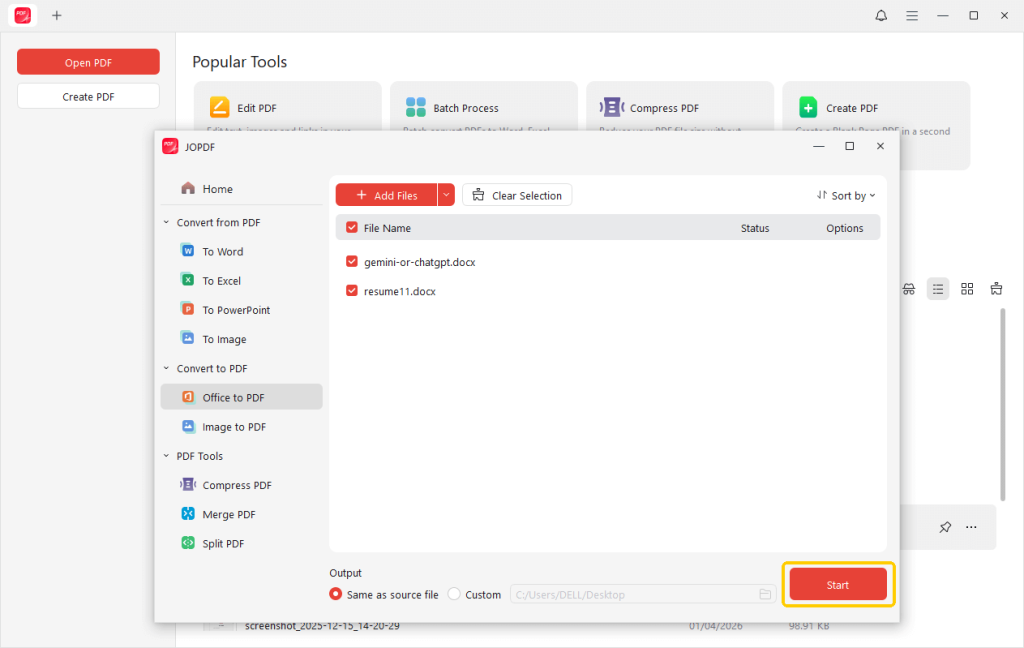
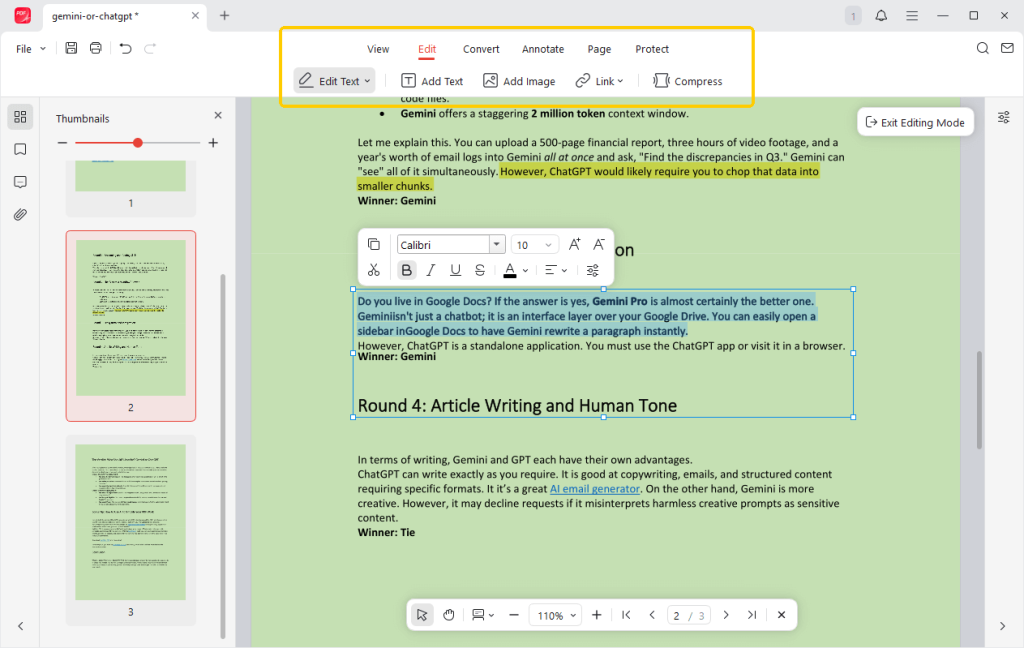
Wait for a few moments, and you will get an editable PDF. You can open it in JOPDF and make any edits.
See how easy it was to convert Word to PDF in batch. JOPDF also provides various tools to help you edit, organize, merge, split, and manage PDFs easily.
It provides an all-in-one solution for efficiently managing your document needs. Get JOPDF today and try it to simplify all your tasks!
2. Convert Word to PDF Using Adobe Acrobat Pro
For professionals, Adobe Acrobat Pro is a good choice. It lets you convert single or multiple Word files into PDFs while keeping all formatting and layout intact.
Check out how to convert Word to PDF in batch with Adobe Acrobat Pro in a few clicks.
Step 1. Download and open Adobe Acrobat Pro on your Windows or Mac computer.
Tips
Verify the conversion settings and ensure they match your batch requirements.
Step 2. Navigate to the menu bar. Then, choose File, go to Create, and select Create Multiple PDF Files.
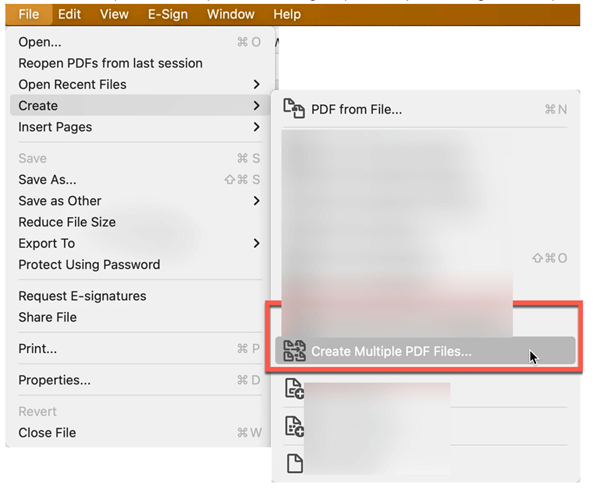
Step 3. Use Add Files or Add Folders to choose the Word documents you want to convert.
Step 4. Finally, click OK. Then, fill out the Output Options dialog box to select a storage location. And click OK again to begin the conversion.
The steps may appear quick. However, it’s worth remembering that Adobe Acrobat Pro, however, requires a paid subscription. Otherwise, you won’t be able to access its full features, such as advanced conversion and editing.
If you want to convert and edit PDFs on Mac/Windows for free, JOPDF is worth using. It lets you remove passwords and edit PDFs easily without a subscription, making it a practical option for budget-conscious users.
3. Batch Convert Word to PDF on Mac
These native macOS features let you quickly and efficiently convert multiple Word documents to PDFs. It preserves the original formatting and layout, making it a convenient and free solution for managing bulk document conversions without installing additional software.
Let us find out the quick process to convert multiple Word documents to PDF on Mac.
Step 1. Open Finder on your Mac. And navigate to the folder containing your Word documents (.doc or .docx).
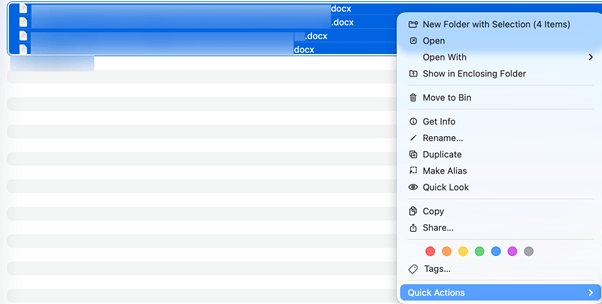
Step 2. Highlight all the Word documents you wish to convert. You can click and drag to select, or hold down the Command key while clicking individual files.
Step 3. Then, right-click (or Control-click) on the highlighted files.
Step 4. Select Quick Actions from the context menu, then choose Create PDF.
macOS Preview also allows you to view and annotate PDFs; however, its editing capabilities are limited. You cannot edit or delete text from a PDF—only add new text, shapes, or comments.
For those needing more editing options, including changing or removing original content, JOPDF provides a practical and efficient solution.
A Quick Wrap Up
That’s all about how to batch convert Word to PDF. You choose from JOPDF, Adobe Acrobat Pro, or Mac Quick Actions based on your needs.
Choosing the right method makes managing and sharing your documents faster and more efficient. If you also want to edit the document after conversion, JOPDF is the best option!
FAQs
Table of Contents

Your Best Free PDF Expert in PDF editing, compressing, converting, annotating, protect, organizing, and more.
Free DownloadWindows · macOS · Linux

Queena
Editor
“As a staff editor for JOPDF, Queena excels at guiding users to the optimal tools and solutions. When she's not analyzing the latest PDF solutions, she enjoys spending her free time playing with her four cats.”
![5 Best Ways to Combine HEIC to PDF [Windows/Mac/iOS/Online]](https://b.jopdf.com/wp-content/uploads/2026/03/combine-heic-to-pdf.png)
![How to Combine Screenshots into One PDF [Windows, Mac, and Mobile]](https://b.jopdf.com/wp-content/uploads/2026/03/how-to-combine-screenshots-into-one-pdf.png)
