Summary :
Excel spreadsheets are essential for data organization. When spreadsheets are shared, their formatting might break, or data could be altered. That’s why many users need to batch convert Excel to PDF. Here, we highlight three efficient methods.
1. Batch Convert Excel to PDF for Free on Windows and Mac
JOPDF is a versatile tool that lets you convert Excel to PDF for free, with easy file management on both Windows and Mac. With an easy-to-navigate interface and consistent performance, it serves the needs of individuals and organizations alike.
One notable feature is the conversion tool that allows you to batch convert Excel to PDF reliably and quickly. It preserves original formatting, layouts, and data integrity during the process. Users can process several Excel files simultaneously, saving time and producing consistent, high-quality PDFs.
Discover how to convert multiple Excel files to PDF using JOPDF in just a few simple clicks.
Step 1. Download the JOPDF software on your Windows or Mac computer. Then install and launch the software.
Step 2. From the main interface, select Batch Process under Popular Tools. After that, click “Office to PDF” from the Convert to PDF options.
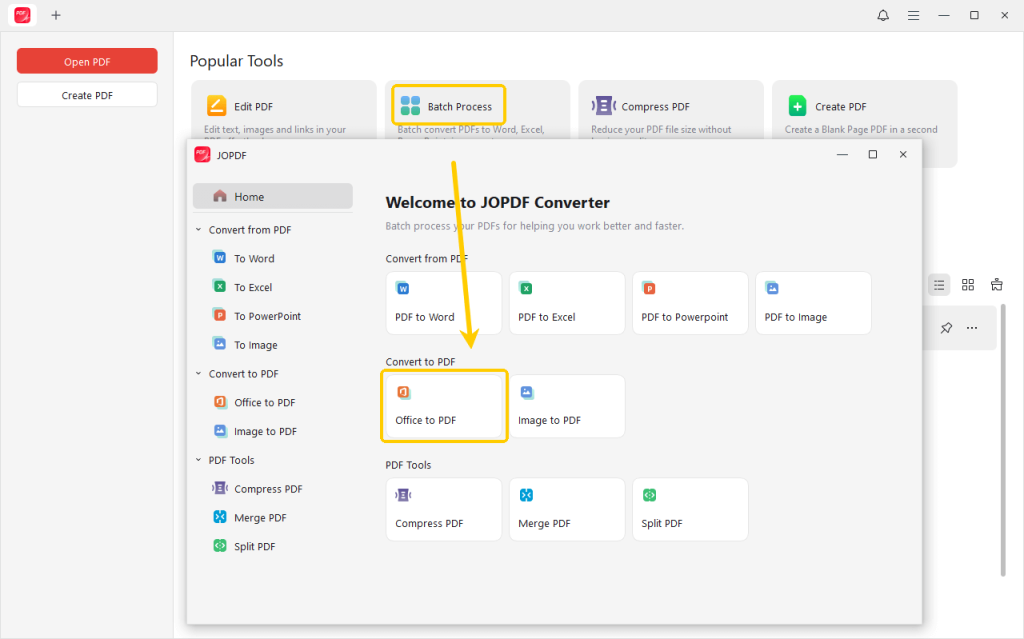
Step 3. Next, hit +Add Files to include the Excel files you want to convert.
Step 4. Next, choose an output location to save the file. And click the Start button.
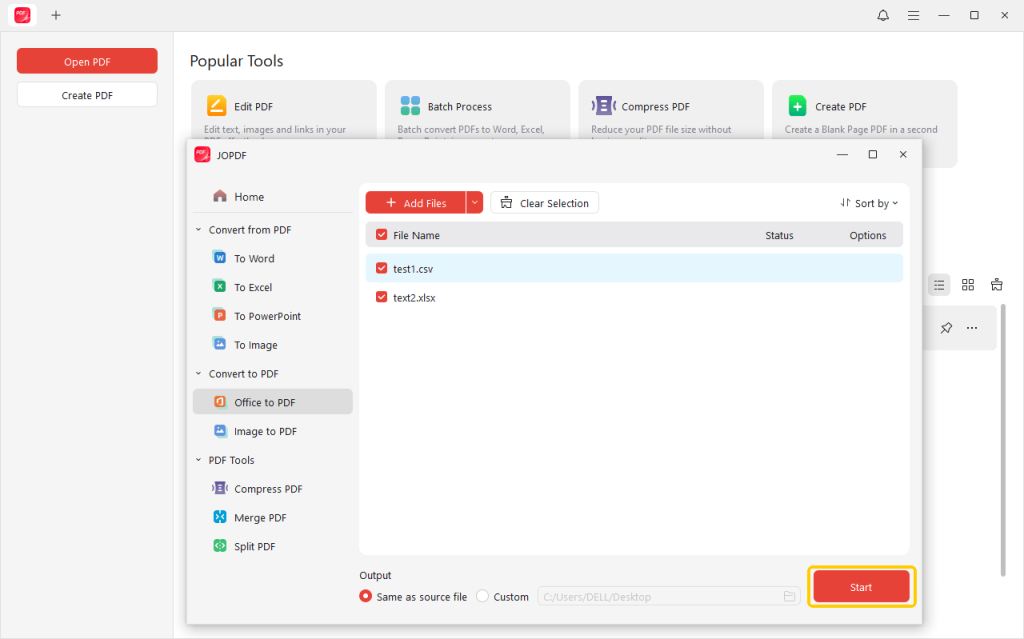
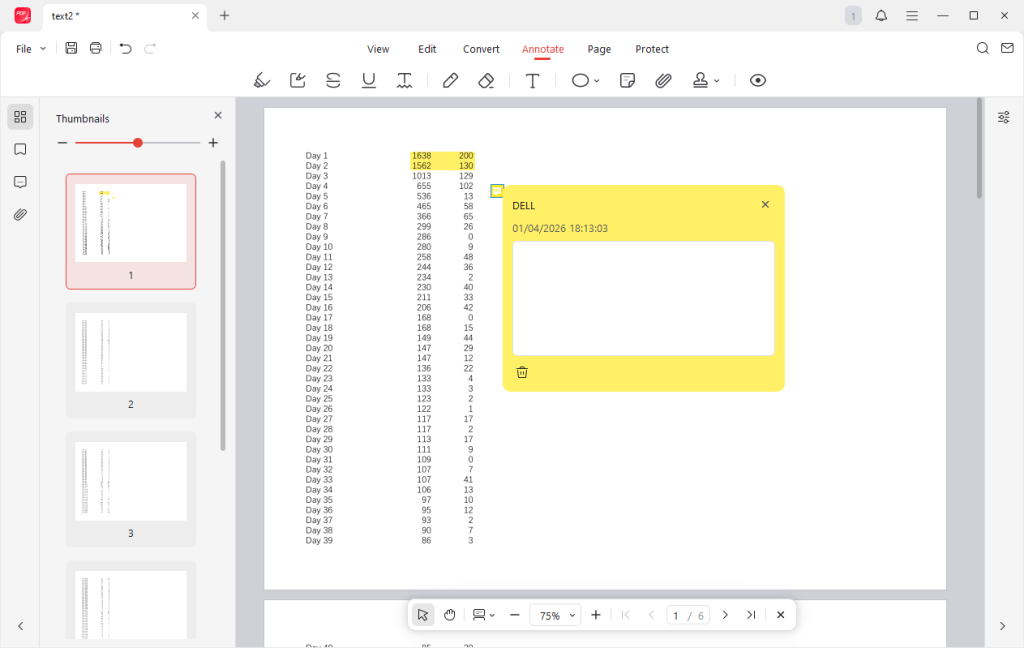
With JOPDF, your Excel file is immediately turned into a polished PDF document.
In addition to converting files, JOPDF offers various tools for efficiently editing and managing PDFs. You can annotate a PDF, insert comments and highlights, or make adjustments quickly.
It enables you to merge converted PDFs into one file, streamlining both organization and sharing. Download JOPDF today to streamline your PDF workflow!
2. Batch Convert Excel to PDF with Adobe Acrobat Pro
Adobe Acrobat Pro is a comprehensive solution for creating, editing, and managing PDF files. It provides robust and dependable conversion tools that let you bulk convert Excel to PDF with precision.
Users can convert multiple Excel files at once while preserving original formatting, tables, charts, and layouts. It delivers fast, secure, and high-quality PDFs on both Windows and Mac.
Learn how to convert multiple Excel files to PDF with Adobe Acrobat Pro in just a few steps.
Step 1. Download and open Adobe Acrobat Pro on your Windows or Mac computer. Review your conversion settings to make sure they match your batch preferences.
Step 2. Choose File, click Create, and choose Create Multiple PDF files.
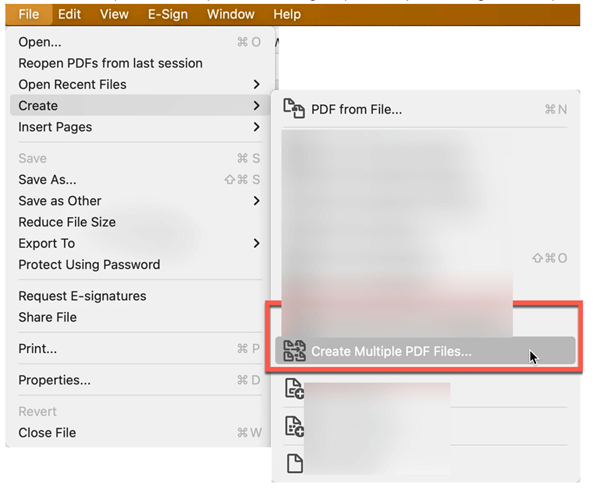
Step 3. Pick Add Files and then use the dropdown menu at the top of the window to indicate whether you’ll be choosing files or folders. Then, select your Excel files or folders for conversion.
Step 4. Finally, click OK, then fill out the Output Options dialog box. And click OK again.
Although Adobe Acrobat is powerful, it requires a paid subscription, which may not suit budget-conscious users. If you’re looking for a free PDF editor to convert PDFs and make edits without ongoing charges, JOPDF is a better option.
3. Batch Convert Excel to PDF Using an Online Converter
Online solutions make it easy to batch-convert Excel without downloading any software. They work directly in your browser on any device, making them highly accessible.
For example, iLovePDF allows users to upload and batch export Excel to PDF at once for bulk conversion. It preserves formatting, processes files quickly, and delivers ready-to-download PDFs in just a few clicks.
Discover how to convert multiple Excel files to PDF easily using iLovePDF in a few clicks.
Step 1. Open your web browser. Then go to the iLovePDF Excel to PDF converter.
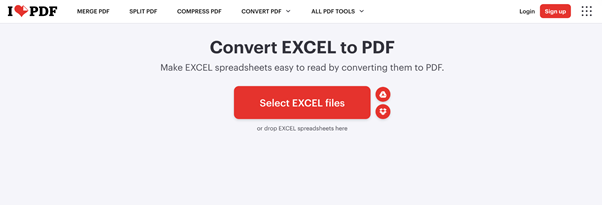
Step 2. Click Select Excel files to bring in all Excel files you wish to convert from local storage or cloud drives like Google Drive and Dropbox. Alternatively, drop Excel files directly in the conversion window.
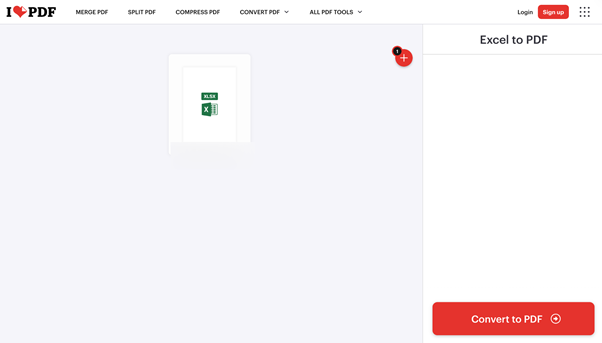
Step 3. After adding all Excel files, click Convert to PDF. iLovePDF will automatically convert your Excel files to PDF within a few moments.
Step 4. Hit Download PDF to save the newly converted PDFs to your device.
Quick Wrap Up
Choosing how to batch convert Excel to PDF depends on your needs, budget, and required features. A trusted tool helps you save time, manage documents efficiently, and produce Excel files as clean, shareable PDFs.
Whether you choose a free desktop tool like JOPDF, professional software like Adobe Acrobat, or an online converter like iLovePDF, each ensures formatting is preserved, security is improved, and file sharing is easier.
FAQs
Table of Contents

Your Best Free PDF Expert in PDF editing, compressing, converting, annotating, protect, organizing, and more.
Free DownloadWindows · macOS · Linux

Queena
Editor
“As a staff editor for JOPDF, Queena excels at guiding users to the optimal tools and solutions. When she's not analyzing the latest PDF solutions, she enjoys spending her free time playing with her four cats.”
![Batch Convert Word to PDF on Windows/Mac [Free & Paid]](https://b.jopdf.com/wp-content/uploads/2026/03/batch-convert-word-to-pdf.png)
![5 Best Ways to Combine HEIC to PDF [Windows/Mac/iOS/Online]](https://b.jopdf.com/wp-content/uploads/2026/03/combine-heic-to-pdf.png)
![How to Combine Screenshots into One PDF [Windows, Mac, and Mobile]](https://b.jopdf.com/wp-content/uploads/2026/03/how-to-combine-screenshots-into-one-pdf.png)
