Introduction
Knowing how to make PDF full screen is essential for professional presentations and immersive reading. This guide shows you 4 ways to maximize your viewing experience.
Part 1. 4 Free Ways to Make PDF Full Screen
If you want to view a PDF file in full-screen mode, some PDF readers can assist you. Check out four easy, free methods to get it done.
1. Use JOPDF to Full Screen PDF
JOPDF is a powerful, completely free PDF reader and editor. It offers multiple PDF viewing modes so that you can enjoy PDFs in any situation. With just one click, you can enter full-screen mode—it’s incredibly simple and fast.
Check to learn how to present a PDF in full screen:
1. First, download and install JOPDF.
2. Open your PDF document using the “Open PDF” button or by dragging it into the application.
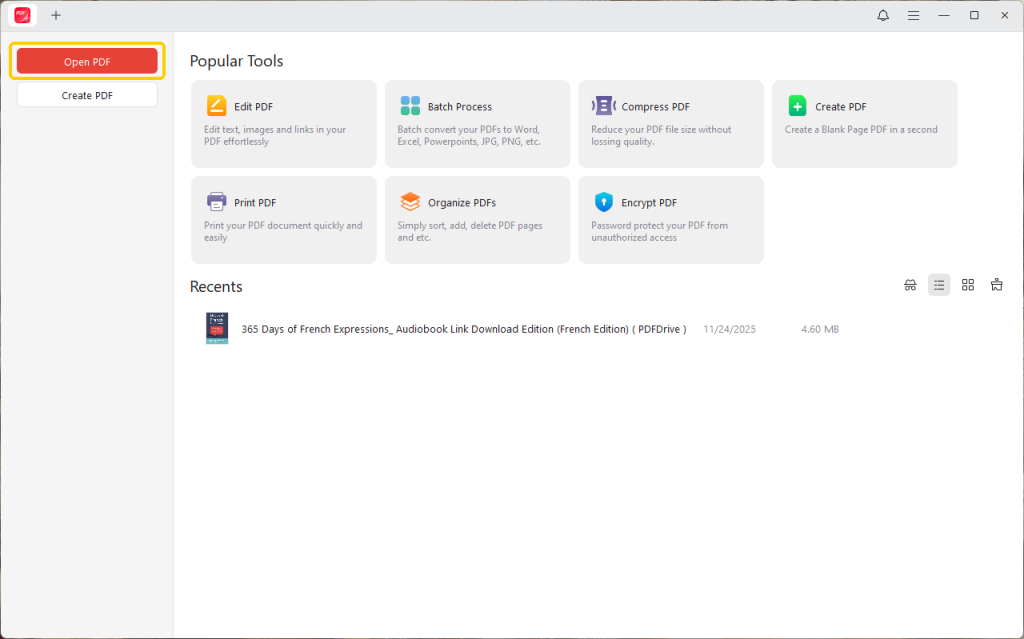
3. Click the Full-screen Read button or press F11 to go to the full screen.
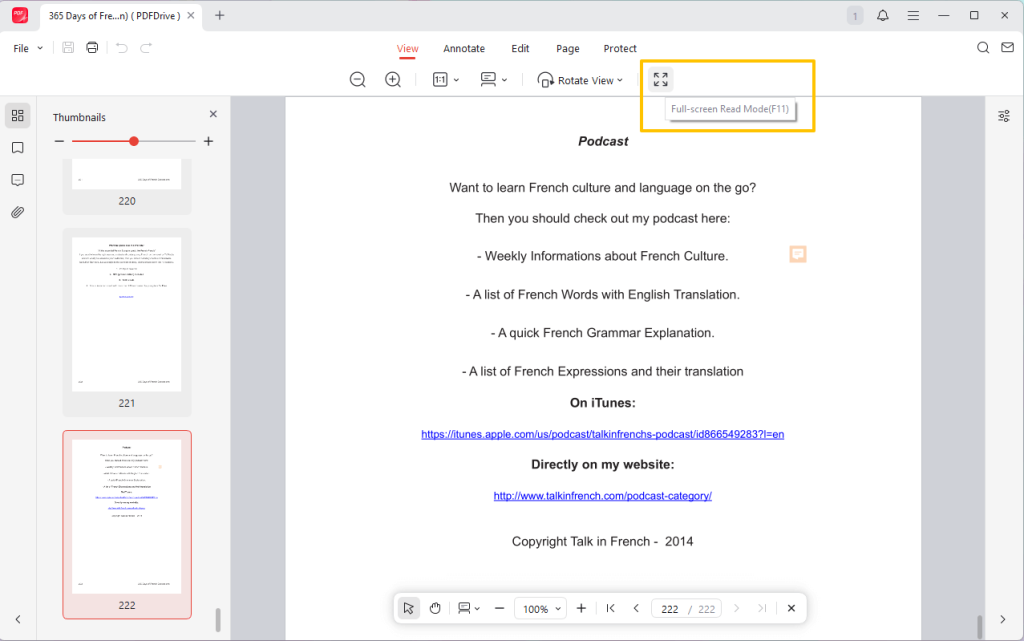
3. If needed, you can use the control panel to adjust the page size and other things.
4. To exit the full-screen mode, please press the Esc (Escape) key on your keyboard.
What makes JOPDF a great option is that it also provides many other features. It not only lets you have a seamless reading experience but also can help you edit, annotate, and password-protect PDFs.
In a word, it’s an excellent choice if you need an all-in-one tool. Try it now!
2. Use Adobe Acrobat Reader
Adobe Acrobat Reader is the global standard for free PDF viewing. Its “Full Screen Mode” feature can help you conduct presentations.
However, this free software only allows you to view PDFs and add simple annotations. If you require more features, then JOPDF mentioned above would be a better choice.
1. Open your document in Adobe Acrobat Reader.
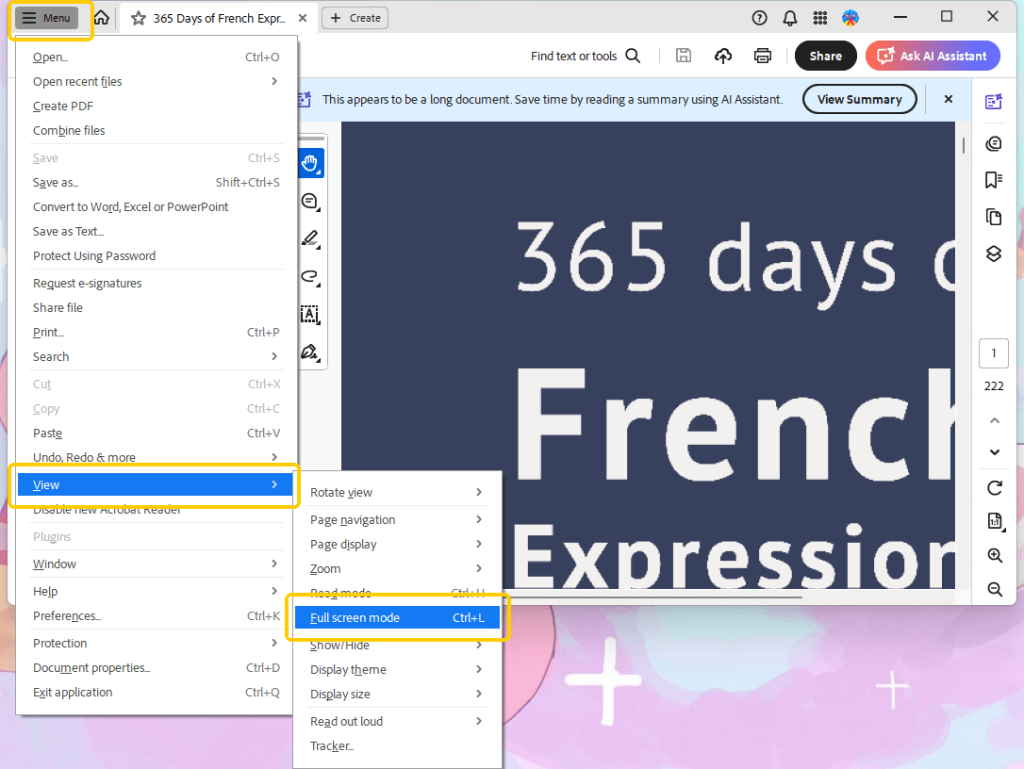
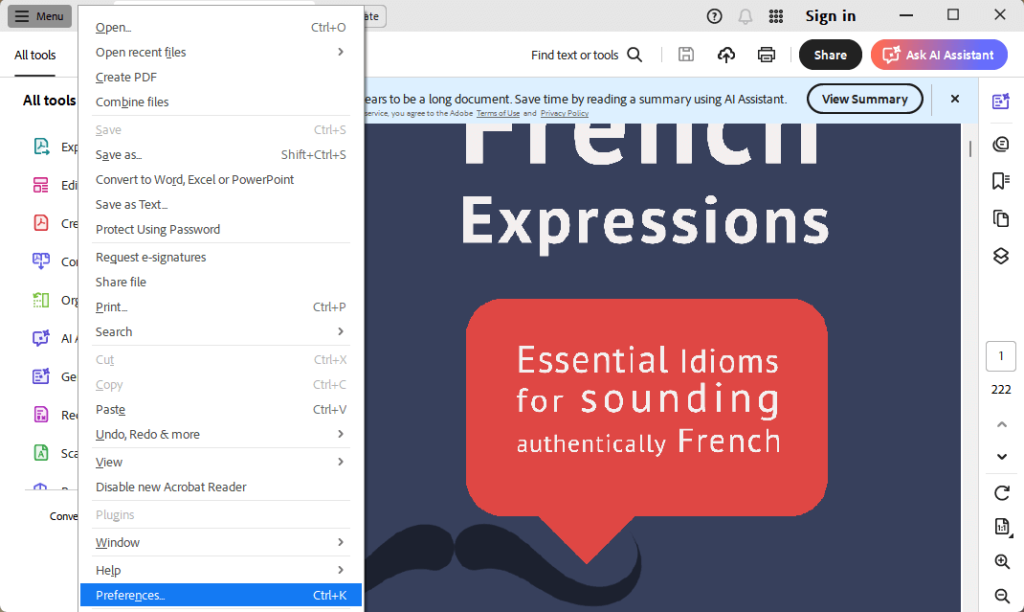
2. Go to the View Menu: Click on Menu and select View.
3. Then select “Full screen mode” to view a PDF in full-screen mode.
3. Use a Browser (Chrome, Edge, Firefox)
Another easy way to view a PDF in full screen is to use the browser. Google Chrome, Microsoft Edge, and Firefox, all have built-in PDF viewers. This method is a good choice if you do not want to download any software.
1. Simply drag your PDF file into an open browser tab.
2. You have two options to present a PDF in full screen:
- Method A (Browser Full Screen): Press the F11 key on your keyboard (or Cmd+Shift+F on a Mac). This makes the entire browser window full screen, including your tabs and address bar.
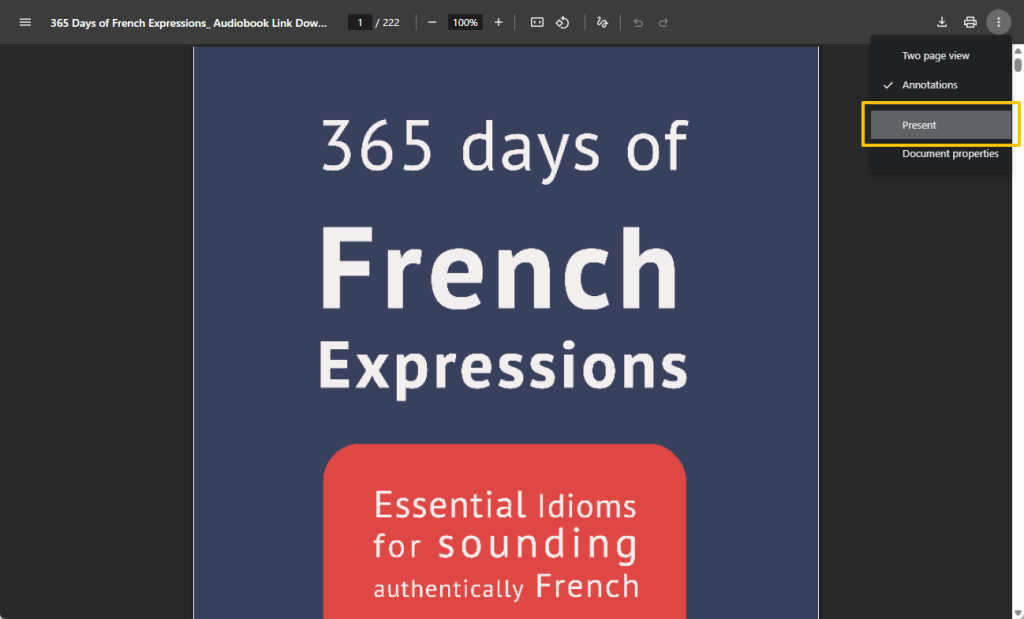
- Method B (PDF-Specific Full Screen): Click the three-dot icon, then select the “Present” or “Full Screen” option to display only the PDF content.
3. To exit either mode, press the Esc key.
4. Use Mac Preview
How to make a PDF in full screen on a Mac computer? Preview app, the default tool for viewing images and PDFs, is the answer.
1. Double-click your PDF file to open it in Preview.
2. Use the Green button or Menu Bar to enter full screen:
- Click the Green Button: Click the green “maximize” circle in the top-left corner of the window.
- Use the Menu Bar: Go to the “View” menu at the top of your screen and select “Enter Full Screen.”
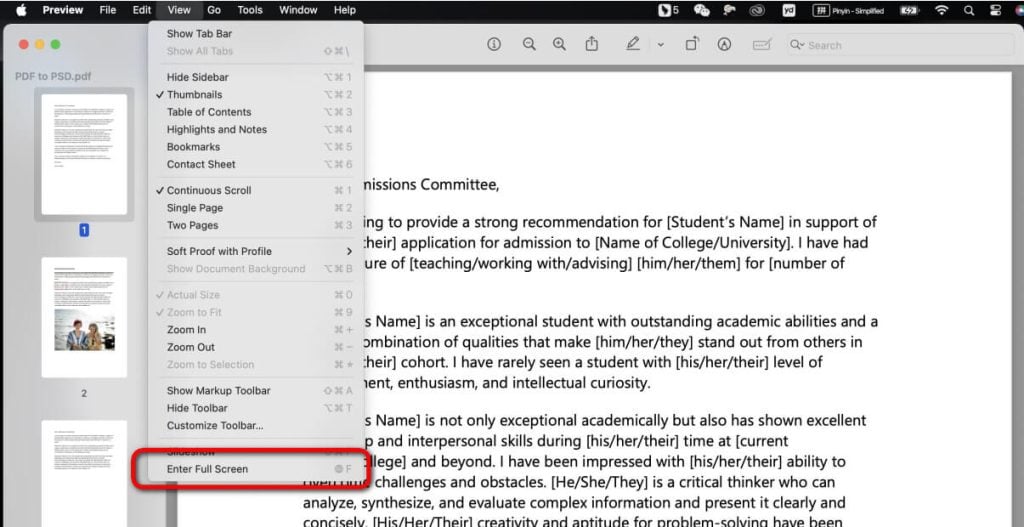
3. To exit this mode, move your cursor to the very top of the screen to make the menu bar reappear and click the green button again. You can also press Cmd+Control+F.
Part 2. PDF Full Screen Shortcut Key
For the fastest, most efficient way to toggle your view? Then, you need to know the PDF full screen shortcut key.
In most desktop PDF applications, including Adobe Acrobat Reader, and many others, the universal shortcut is:
- Windows: Ctrl + L
- Mac: Command + L
However, this PDF full screen shortcut key does not work in web browsers and some PDF readers. In JOPDF and browsers, you should press F11.
Pressing this key combination instantly switches you into a clean, presentation-ready full-screen mode. Pressing it (or Esc) again just as quickly exits the mode.
Part 3. How to Make a PDF Always Open in Full Screen
What if you are creating a PDF presentation or a digital portfolio and want it to always open in full-screen mode for your recipient? In this case, you can use the paid Adobe Acrobat Pro to achieve the goal.
Here are the steps to let the PDF go full screen:
1. Open the document you want to configure in Adobe Acrobat Pro.
2. Go to “File” > “Properties” or press Ctrl+D/Cmd+D.
3. A “Document Properties” window will pop up; click the “Initial View” tab at the top.
4. Look for the “Window Options” section and check the box that says “Open in Full Screen Mode.”
5. Click “OK” to close the properties window, and then save the file (File > Save) for the changes to take effect.
Now, when anyone opens that specific file in a compatible viewer like Adobe Reader, it will automatically launch directly into PDF full screen mode, providing a professional, slick experience.
Conclusion
That’s all about how to make a PDF in full screen. You can use the universal PDF full screen shortcut key (Ctrl+L), a tool like JOPDF, or the built-in features of your browser. However, if you also want to make some edits for free, JOPDF is the best choice. It provides many editing tools.
All of them can help you view a PDF in full screen without the clutter of toolbars and menus. Choose the method that best suits your needs!
FAQs
Table of Contents

Your Best Free PDF Expert in PDF editing, compressing, converting, annotating, protect, organizing, and more.
Free DownloadWindows · macOS · Linux

Queena
Editor
“As a staff editor for JOPDF, Queena excels at guiding users to the optimal tools and solutions. When she's not analyzing the latest PDF solutions, she enjoys spending her free time playing with her four cats.”