Introduction
You double-click an important invoice, a contract, or a lengthy research paper, expecting it to open in a professional PDF reader. However, it opens in the browser. Don’t worry anymore! This guide will show you how to change default PDF viewer on Windows, Mac, Android, and iPhone.
Although web browsers can display PDF files, their reading mode is rather limited. Moreover, the browser is helpless if you need to annotate the text, sign the document, or correct errors.
If you are still looking for a free and powerful PDF reader, we recommend JOPDF, a popular Adobe Acrobat alternative. This lightweight PDF reader offers a variety of reading modes and editing features. We will show you how to set it as your preferred application.
Part 1: How to Change Default PDF Viewer on Windows 10 & 11
Windows has been widely criticized for constantly trying to force users back to Microsoft Edge. However, changing your default setting is straightforward if you know where to look. Check the details.
The Best Viewer for Windows: JOPDF
It is pointless to switch to a slow, cumbersome reader. Before you follow the steps below, click the button below to download the best PDF reader for Windows, JOPDF.
Unlike Edge, JOPDF allows you to edit text, annotate documents, and convert PDFs to other formats. All functions are free! There is no reason not to give it a try.
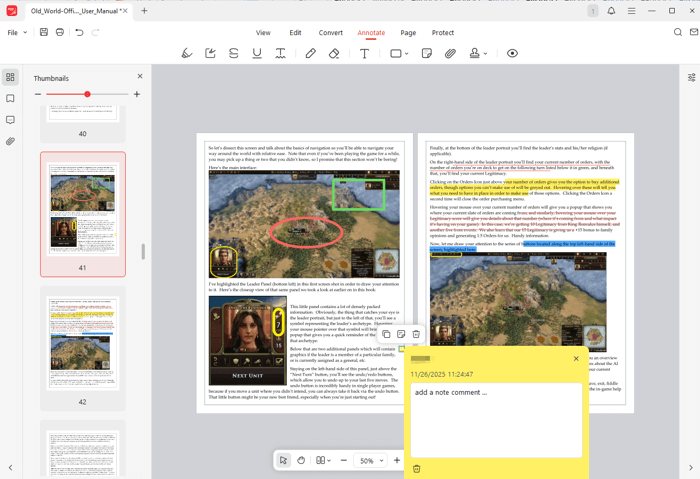
Steps to change default PDF viewer on Windows:
- Locate any PDF file and right-click it.
- Click Open with and then select Choose another app from the sub-menu.
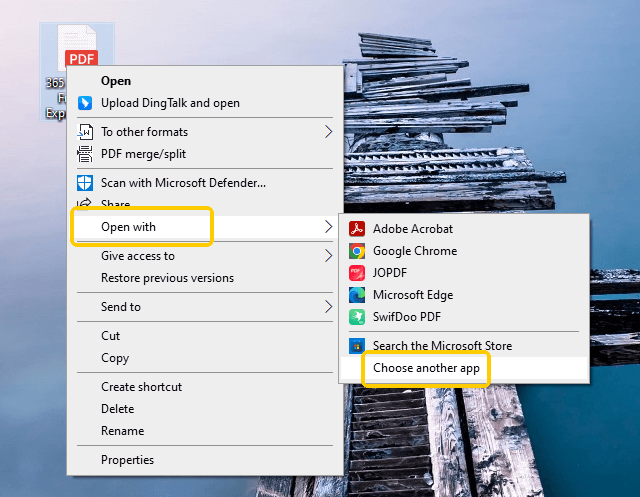
- A window will pop up; find the checkbox at the bottom labeled “Always use this app to open .pdf files.” Check it.
- Find and select JOPDF in the list. If you don’t see it, click “More apps” or “Look for another app on this PC” to locate it.
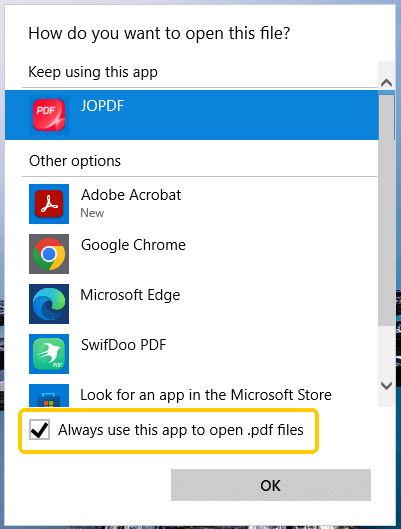
- Click OK to confirm.
Part 2: How to Change Default PDF Viewer on Mac
You can easily open a PDF on a Mac with the default viewer, Preview. However, Preview lacks advanced editing features and often struggles with complex forms.
If you want a more powerful one, please try JOPDF. It provides a cleaner interface for reading and more robust tools for organizing pages than the native Apple Preview app. Get JOPDF PDF and see how to set it as the default PDF viewer.
- Right-click (or Control + Click) on the PDF thumbnail. From the menu, select the Get Info option.
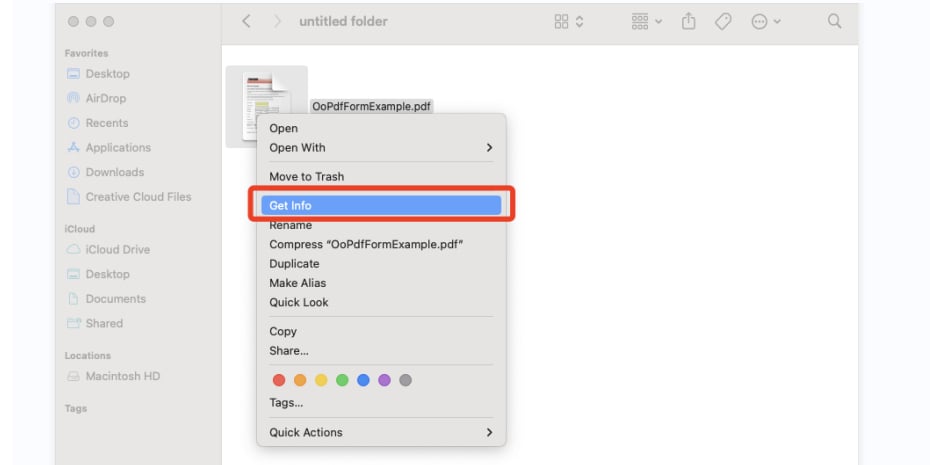
- Then, look for a section labeled “Open with:“. If the list is collapsed, click the small arrow to expand it.
- Click the dropdown menu. Select the app you want to use.
- Changing the dropdown only affects this single file. To make it permanent for everything, please click the Change All button directly below it.
- A pop-up will ask, “Are you sure you want to change all similar documents to open with the application JOPDF?” Click Continue.
Part 3: How to Change Default PDF Viewer on Android
On an Android phone, once you tap “Always” on an app, Android remembers that choice forever. If you accidentally set Google Drive or a browser as your default, it can be annoying to open files. Here is how to reset it.
Step 1. Clear the Old Default
First, you have to make Android “forget” your previous choice.
- Open your phone’s Settings and go to Apps.
- Tap See all apps or Manage apps.
- Find and tap the app that is currently opening your PDFs.
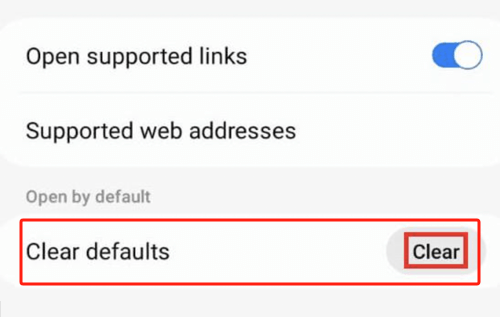
- Scroll down to the section labeled Open by default or Set as default.
- Tap the button that says “Clear defaults.” (If this button is grayed out, it means that the app is not currently the default, so try a different app.)
Step 2. Set the New Default
Now that the preference is cleared, you can set a new one.
- Open your File Manager or Downloads folder.
- Tap on any PDF file.
- Your phone will now pop up a menu at the bottom asking, “Open with?“
- Select your preferred PDF reader app.
- Tap Always.
Part 4: How to Change Default PDF Viewer on iPhone/iPad
In the latest version of iOS, Apple has added the Preview app to help users view PDFs on iPhone. However, it also lacks advanced features, and that is why you switch to another app.
However, iOS is more restrictive than Android or Windows. Apple does not currently allow users to set a system-wide default PDF viewer. At present, you can use the Share feature as a simple workaround to view and edit files in your preferred app.
- Tap the PDF to open it in the default iOS Preview.
- Look for the “Share” icon and tap it.
- Tap the icon for your preferred PDF reader.
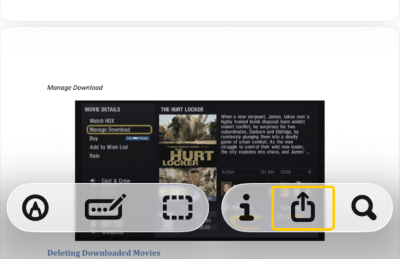
This will instantly import a copy of the file into that app, allowing you to use all the advanced editing and signing features that the default iOS preview lacks.
Conclusion
That’s all about how to change default PDF viewer. Changing your default PDF reader takes just two minutes, yet it can save you hours of frustration over the course of a year. When viewing important documents, you shouldn’t have to endure the limited functionality and clunky experience of web browsers.
And for the best desktop experience, we highly recommend downloading JOPDF and setting it as your default. JOPDF can easily zoom in on a PDF to meet your needs. In addition, it offers various editing tools, ensuring you always have the right tools at your fingertips.
FAQs
Table of Contents

Your Best Free PDF Expert in PDF editing, compressing, converting, annotating, protect, organizing, and more.
Free DownloadWindows · macOS · Linux

Queena
Editor
“As a staff editor for JOPDF, Queena excels at guiding users to the optimal tools and solutions. When she's not analyzing the latest PDF solutions, she enjoys spending her free time playing with her four cats.”