Summary :
If you are wondering how to sign a PDF without Adobe Acrobat, this guide will show you exactly what to do. We will cover the best free computer programs, built-in tools, and websites to get your paperwork done fast.
1. The Best Way to Sign a PDF Without Adobe for Free: JOPDF
If you want the most professional and easy-to-use tool, your best choice is to download a professional computer program. When people ask, “How to sign a PDF without Adobe for free?” our top recommendation is always JOPDF.
JOPDF is an incredible Adobe Acrobat alternative. It can handle all your PDF needs without the high price. Actually, it’s 100% free. One of its best features is the electronic signature tool.
At present, JOPDF fully supports electronic signatures. It gives you three different ways to sign your documents:
- Draw: You can use your computer mouse or your laptop trackpad to draw your signature directly on the screen.
- Type: If you do not want to draw with a messy mouse, you can simply type your name. JOPDF also lets you convert your typed text into a beautiful font tailored to your needs.
- Add an Image: If you already have a clear picture of your real signature saved on your computer, you can easily upload it. The software will stamp it perfectly onto the PDF.
Check to learn how to sign a PDF using JOPDF:
1. Download and install the program on your computer.
2. Launch the JOPDF program and open the PDF document you need to sign.
3. Look at the menu at the very top of your screen. Go to Edit, and select the Signature button. Then, select Create Signature.
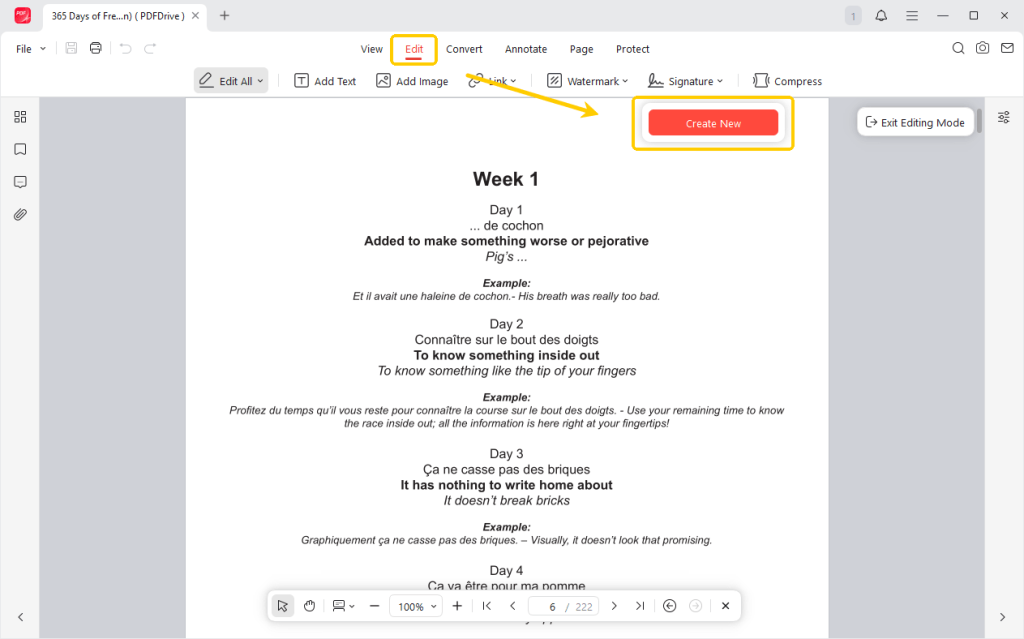
4. Choose an option, edit the signature, and click Create to continue.
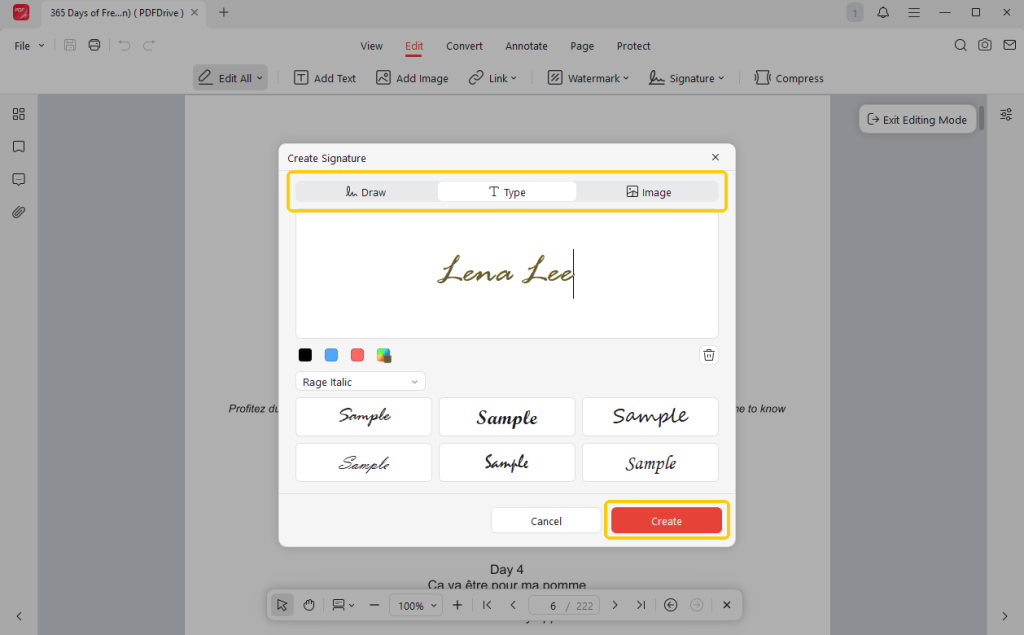
5. Once you create the signature, your mouse pointer will carry it. Move your mouse to the correct blank line in the document, then click once to drop the signature in place. You can drag to make your signature bigger or smaller.
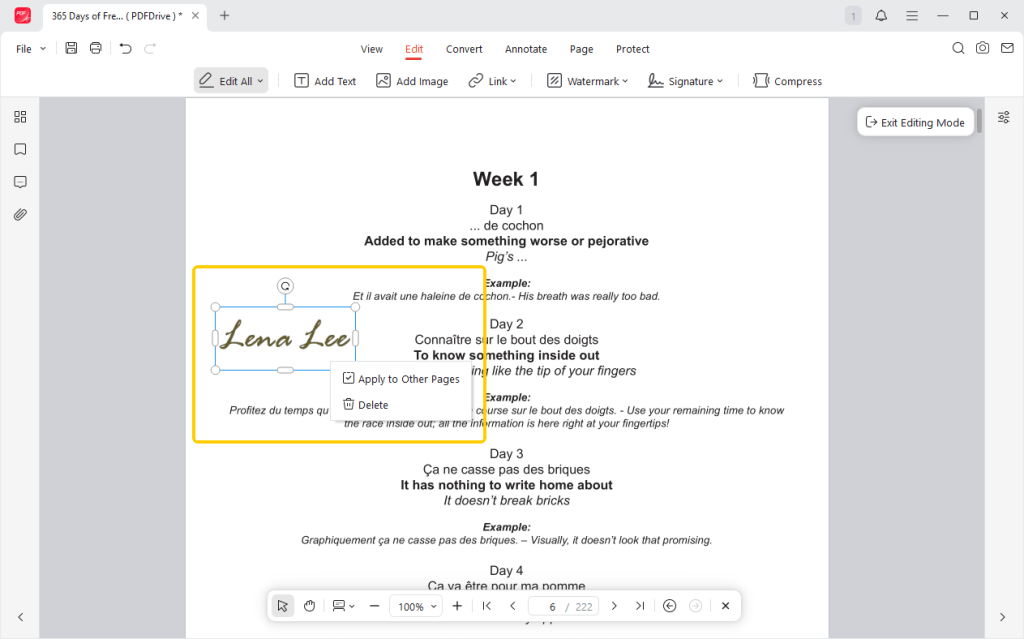
6. Click the Save button, and that’s it.
JOPDF is much more than just a signing tool. Many people consider it the best free PDF editor because it offers many other great features.
You can use it to fix typos in the text, highlight important paragraphs, merge multiple pages together, or delete blank pages. We highly recommend that you download and try JOPDF today to simplify your digital paperwork!
2. Use Preview to Sign a PDF
If you use an Apple Mac computer, you already have a fantastic signature tool built in. You do not need to download anything.
The default program that opens PDFs on a Mac is called “Preview,” and it can also help you edit a PDF in Preview, including adding signatures.
How to sign a PDF without Acrobat but using Preview:
1. Double-click your PDF file. It should automatically open in the Preview application.
2. Look near the top right corner of the window. Click the icon that looks like a marker pen tip. This opens a new row of editing tools.
3. In this new toolbar, look for the small icon that looks like a cursive signature. Click it, and then click Create Signature.
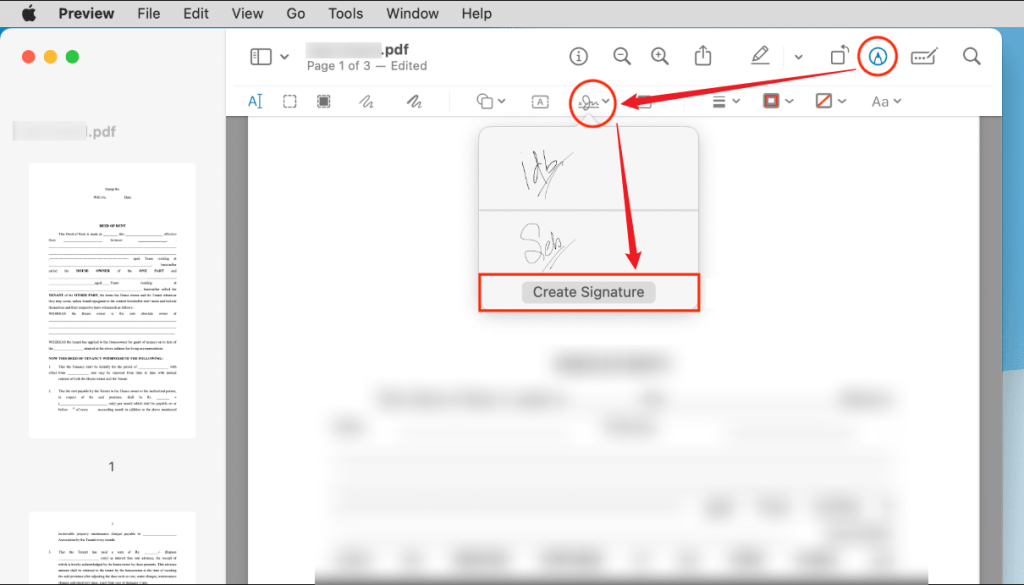
4. Next, Preview gives you two very cool options to capture your name.
- Trackpad: You can use your finger to trace your signature directly on your Mac’s glass trackpad.
- Camera: This is the best trick. You can sign your name on a real piece of blank, white paper using a dark black pen. Then, hold that piece of paper up to your Mac’s webcam. The computer will magically scan your signature and turn it into a clear digital file!
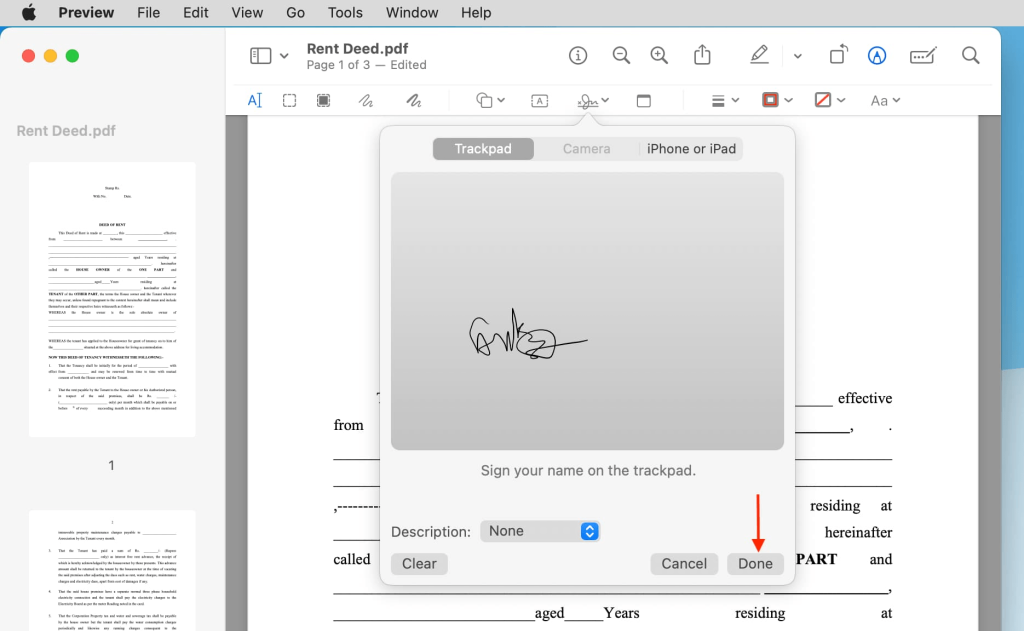
5. Once you save your signature, click the signature icon again to select it. It will appear in the middle of your document. You can drag it to the right spot and resize it. Finally, save your document by clicking File > Save.
Preview is a good tool, but it is not perfect. Why? That’s because it lacks an actual editing feature. For example, you cannot change the existing text. If you want to easily edit a PDF on Mac without limits, please try JOPDF!
3. Sign a PDF in Browser (Chrome, Edge, Firefox)
Sometimes people ask, “How do I sign a PDF without Adobe if I cannot install new software?” Maybe you are using a work computer that is locked by the IT department. Do not worry. You can actually use your everyday internet browser to sign a document quickly.
Modern web browsers have built-in PDF viewers. While they do not have advanced typing tools, they do have basic drawing pens that work perfectly in a pinch.
See how to sign a PDF without Adobe Acrobat, but in a browser:
Google Chrome:
1. Right-click the PDF, and choose Open With. Then select Google Chrome.
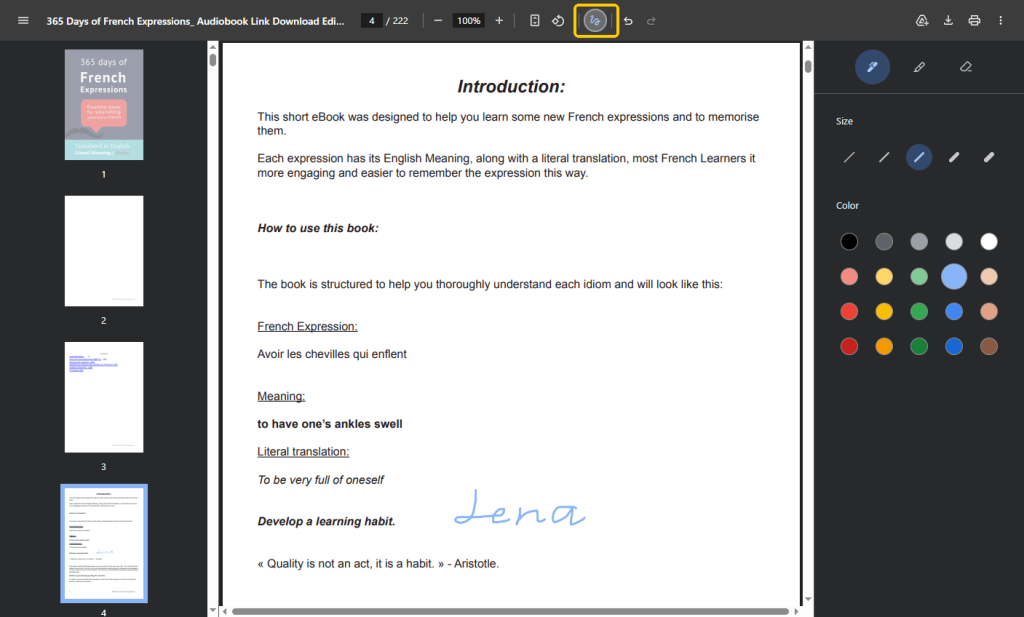
2. Look at the top of the screen and click the Draw button.
3. Choose your ink thickness and color.
4. Use your mouse to carefully draw your handwritten signature on the line.
5. When OK, click the Download button to save the newly signed file.
Microsoft Edge:
1. Right-click your PDF, and select Open With, then click Microsoft Edge.
2. Click the Draw button located on the top toolbar.
3. Use your mouse to scribble your signature onto the document.
4. Click the Save or Save as icon to save your work.
Mozilla Firefox:
1. Right-click and open the PDF in your Firefox browser.
2. Look for the Draw button.
3. Adjust the color and thickness.
4. Use your mouse to sign the document, and then click the download button to save the updated PDF to your computer.
4. Use an Online Tool (Smallpdf)
If you just want a very fast solution to sign a PDF without paying for Adobe Acrobat, you can use a free online website. One of the most popular and trusted websites for this is called Smallpdf.
Check to learn how to sign a PDF electronically without Adobe in just a few clicks:
1. Open your web browser and go to the Smallpdf website (https://smallpdf.com/sign-pdf).
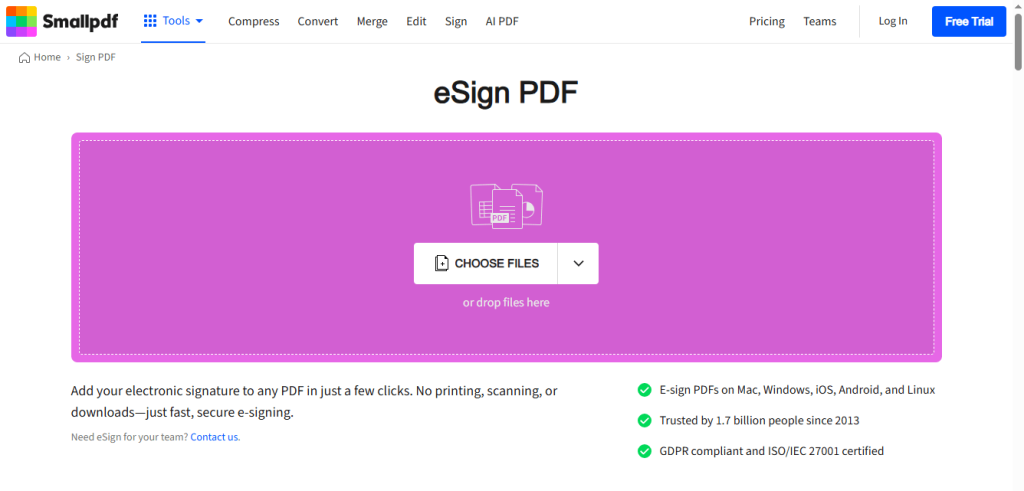
2. Click the big button to upload your file, or simply drag the PDF from your computer and drop it onto the webpage.
3. Select Sign myself to continue. Then, click Signatures and choose to draw your name, type it, or upload a picture.
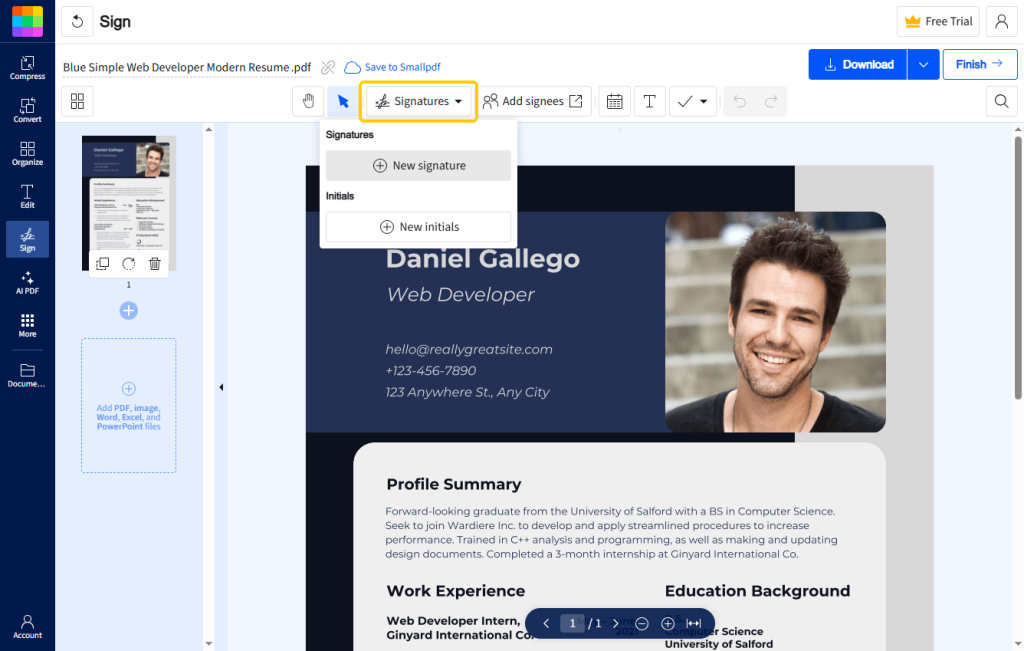
4. Adjust and place your signature as needed. on the correct line.
5. Click FINISH and download the final, signed PDF directly to your computer.
❗ ❗ ❗ A warning about online tools
Online tools are very fast and convenient. However, you must upload your document to the internet. If your document contains highly sensitive information, such as bank account numbers or private medical data, it is much safer to use an offline tool like JOPDF to protect your privacy.
Conclusion
That’s all about how to sign a PDF without Adobe for free. Just choose the right tool according to your needs.
If you are on an Apple Mac, the built-in Preview app is a wonderful option. If you are in a rush, your web browser or an online tool can get the job done quickly.
However, if you want the safest and most professional experience, JOPDF is the best choice. It gives you complete control over your signatures and helps you manage all your important files with ease.
FAQs
Table of Contents

Your Best Free PDF Expert in PDF editing, compressing, converting, annotating, protect, organizing, and more.
Free DownloadWindows · macOS · Linux

Queena
Editor
“As a staff editor for JOPDF, Queena excels at guiding users to the optimal tools and solutions. When she's not analyzing the latest PDF solutions, she enjoys spending her free time playing with her four cats.”