![[WATCH] Why Can’t I Print a PDF – Causes and Solutions](https://b.jopdf.com/wp-content/uploads/2025/12/why-cant-i-print-a-pdf.png)
Introduction :
Printing PDFs ensures you can provide official documents, complete necessary forms, and retain printed records. When you urgently need a hard copy and suddenly think, “Why can’t I print a PDF?”, the disruption can be incredibly frustrating. Users often struggle because a PDF won’t print, even though nothing seems wrong. This article examines the typical reasons for this problem and offers actionable solutions to resolve it.
Why Can’t I Print a PDF?
When a PDF won’t print, people frequently ask themselves, “Why won’t my PDF print?” This section explains the most common causes behind printing failures and what might be stopping your file from printing.
#1. The PDF Is Damaged.
A corrupted or partially downloaded file can prevent printing. Printing errors often result from the system’s inability to handle defective parts of the PDF.
#2. The PDF Has Restrictions or Security Settings.
Printing and editing are restricted in some PDFs due to security settings. The PDF will not printwhile the security restrictions remain in place, pending modification by the document owner.
#3. Your Printer Drivers Are Outdated or Incorrect.
Old or incompatible printer drivers can’t correctly interpret PDF data. Printing failures due to driver miscommunication are often resolved by updating or reinstalling the drivers.
#4. Print Spooler Errors (Windows).
A stuck or malfunctioning print spooler can block PDF jobs from processing. Restarting the spooler clears the queue and restores normal printing operations.
#5. Issues with Your PDF Viewer.
Outdated or buggy PDF software may fail to send the file correctly to the printer. The problem is usually fixed by switching to another PDF viewer or updating your current software.
#6. Your Printer Has Insufficient Memory.
Large or complex PDF files overload low-memory printers. In such cases, the printer won’t print PDF until either memory is available or the printing job is simplified.
How to Fix the “PDF Won’t Print” Issue
Once you’re aware of the causes, handling the PDF won’t print problem is much simpler. Applying the proper steps restores consistent and hassle-free printing in just minutes.
Below are some foolproof and efficient solutions to get your documents printed again without hassle.
Fix 1. Check and Unlock Printing Permissions
Sometimes a PDF won’t print because printing is restricted, so you need to unlock permissions. This is particularly important when you need to remove password from PDFs to access the content. Removing these protections ensures smoother printing and is particularly helpful when working with documents received from external or unfamiliar sources.
For secure and efficient handling of locked PDFs, JOPDF is a reliable tool. It is a reliable tool designed to remove printing restrictions without altering your file’s content. This tool is especially useful for removing passwords from protected PDFs while keeping the document intact. Additionally, JOPDF makes it straightforward to print a secured PDF, giving you easy and complete access.
Let’s see how to unlock a PDF for printing using JOPDF in a few clicks.
Step 1. Get JOPDF, a free PDF editor, by downloading and installing it on your Windows or Mac computer.
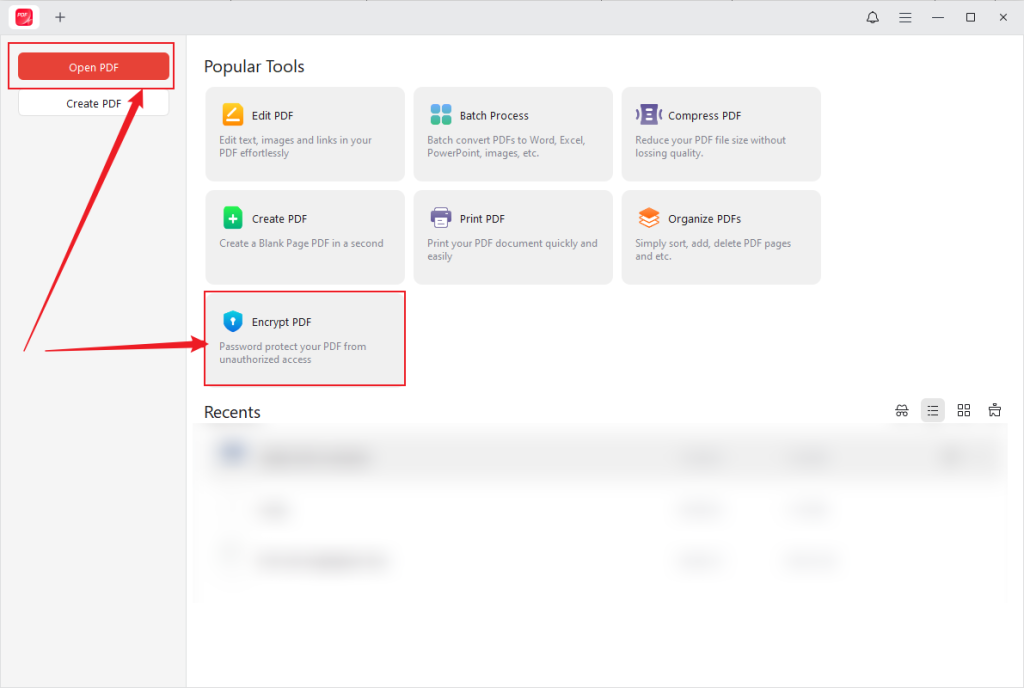
Step 2. Open JOPDF and load the PDF from which you want to remove the password.
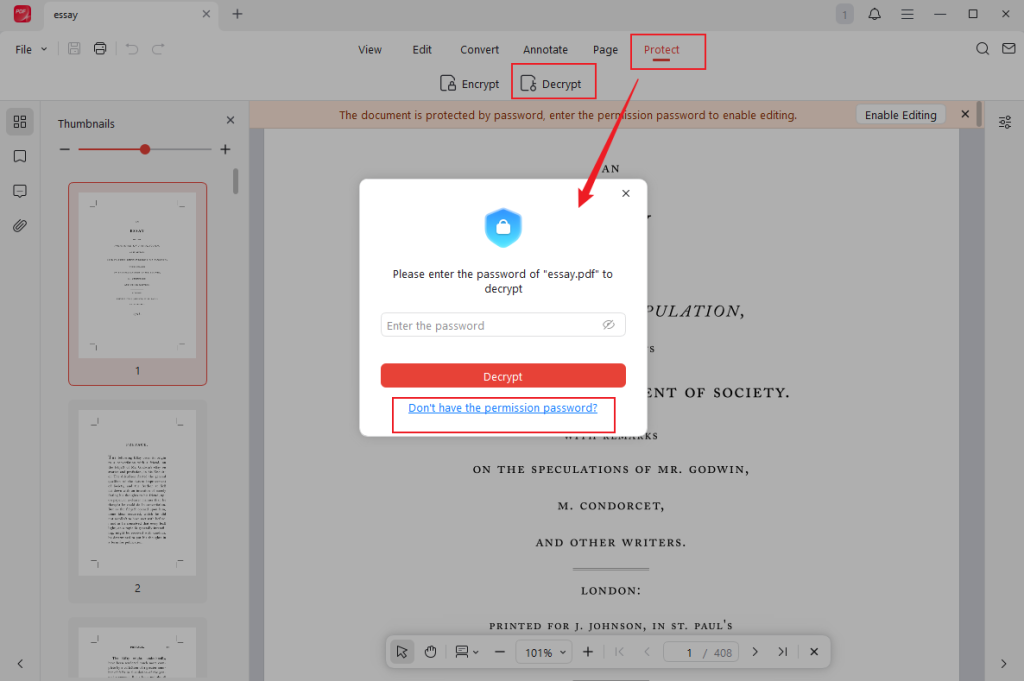
Step 3. Click Protect in the top menu bar. And then select Decrypt from the secondary menu bar.
Step 4. Enter your password when prompted and click on Decrypt.
Tips
If you don’t have the password, click Don’t have the permission password.
Proceed by following the instructions displayed to remove the PDF’s permissions password.
Fix 2. Update Your Printer Driver
If printer drivers are not up to date or are corrupted, PDF print jobs may not complete successfully. A driver update provides guaranteed printer compatibility, smooth performance, and fast fixes for frequent printing issues. This quick solution improves your printer’s reliability for printing any kind of document.
Let’s see how to update your printer driver on Windows and Mac computers, respectively.
#Windows 10/11
Step 1. Right-click the Windows icon, then select Device Manager from the pop-up menu.
Step 2. Double-click Print queues to expand this category.
Step 3. Find and right-click on your printer. And click Update driver.
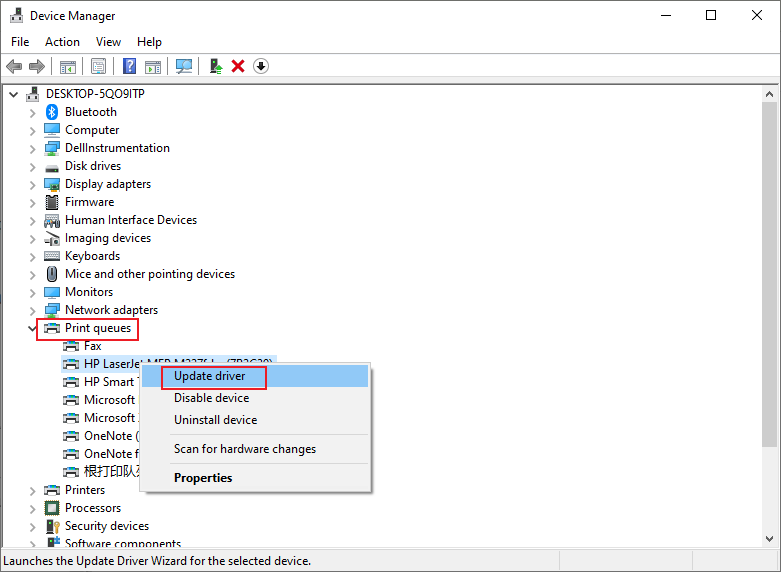
Step 4. In the next window, select a way to update the driver. Click Search automatically for drivers to update the driver automatically.
Alternatively, click Browse my computer for drivers to manually locate and install a driver.
#Mac
Step 1. Click the Apple menu and navigate to System Settings (or System Preferences). After this step, select Printers & Scanners from the menu.
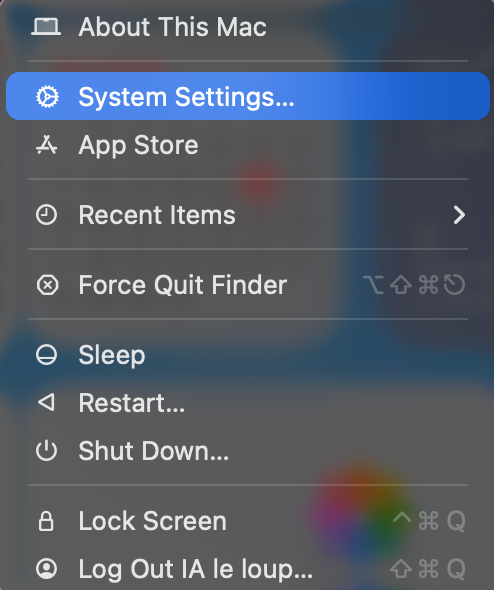
Step 2. Click the + button to add a printer. You can also look in your printer’s settings for an update option, as drivers are often included with macOS updates.
Another option is to update your printer driver manually through the manufacturer’s website. Here, you must visit your printer’s brand website, such as HP, Canon, or Epson. Search for your specific printer model and download the latest macOS driver for your OS version (don’t use old CD drivers). Lastly, open the downloaded .dmg file and run the installer, following the on-screen prompts.
Fix 3. Clear Your Print Spooler (Windows Only)
A clogged or frozen print spooler can stop your PDF from reaching the printer, even when everything else seems fine. Clearing the spooler removes stuck jobs and refreshes the printing system. This quick reset often restores everyday printing and helps ensure your documents process smoothly on Windows devices.
Learn how to clear the Printer Spooler on Windows.
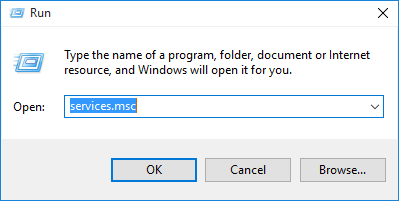
Step 1. Press Win + R keys and type services.msc. Then, press Enter.
Step 2. Right-click Print Spooler and select Stop from the dropdown menu.
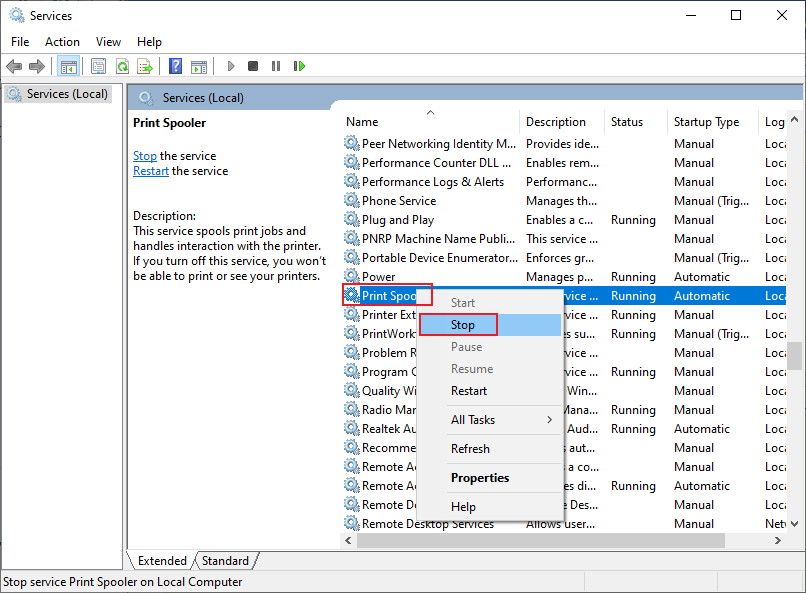
Step 3. Now, navigate to “C:\Windows\System32\spool\PRINTERS”.
Step 4. Delete all files in this folder. Then, go back to the Services window and restart the Print Spooler service.
Fix 4. Flatten the PDF
Flattening a PDF turns all interactive elements, such as annotations, layers, and form fields, into one consolidated layer. In this way, you can make a PDF non-editable. This process removes complex elements that can be difficult for many printers to interpret. Flattening a PDF is an effective solution for the PDF not printing problem. Converting the file into a static format allows printers to process it more efficiently.
Check out these tools that allow you to flatten PDFs.
- Adobe Acrobat
- PDFsam
- Foxit PhantomPDF
- Smallpdf
- Sejda
Fix 5. Print the PDF as an Image
A PDF not printing issue usually occurs because your printer struggles to interpret certain complex elements. Printing the PDF as an image bypasses these processing errors by converting every page into a simple graphic. This method removes problematic layers, fonts, or vector objects that may block printing. While the print quality may be a bit lower, the job completes reliably.
Learn how to print a PDF as an image using Adobe Acrobat.
Step 1. Open Adobe Acrobat on your computer.
Step 2. Select Print this file from the top bar.
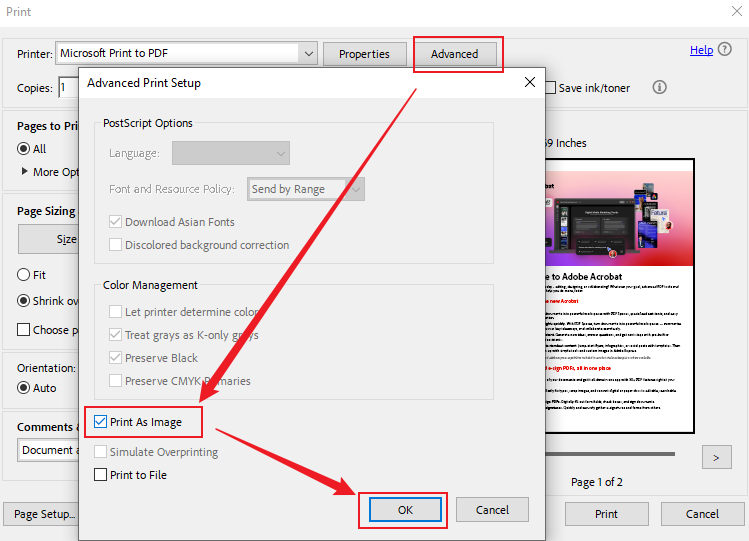
Step 3. In the Print dialog box, select Advanced at the top.
Step 4. Select Print as Image, then click OK. Then, select Print.
Fix 6. Repair or Reinstall Your PDF Reader
A malfunctioning or outdated PDF reader can prevent documents from printing correctly, causing frustration and wasted time. Repairing or reinstalling the software restores its components, fixes corrupted files, and guarantees printer compatibility. This solution often resolves stubborn issues that other fixes cannot. This provides a dependable method to restore smooth printing and fix errors when PDFs won’t print.
Wrapping Up
Experiencing printing issues can be frustrating, leaving you wondering, “Why can’t I print a PDF file; PDF won’t printing?” From damaged documents to printer or software problems, several factors can cause a PDF won’t printing. Applying these solutions—updating drivers, clearing the spooler, and unlocking permissions—after understanding the causes ensures smooth printing and document accessibility.
FAQs
Common reasons your PDF won’t print are.
1. The PDF is damaged or corrupted.
2. Security settings or restrictions prevent printing.
3. Outdated or incorrect printer drivers.
4. Print spooler errors (Windows).
5. Internet connection problems.
6. Issues with your PDF viewer.
7. Printer has insufficient memory.
Here are some reasons adding to the misery.
1. The PDF contains hidden or white-on-white content.
2. Printer settings or page scaling issues.
3. Wrong print settings or a jammed printer.
4. Outdated or corrupted printer drivers.
5. PDF viewer glitches or compatibility issues.
6. Bad file download.
7. Layers or transparency in the PDF causing printing errors.
8. Corrupted or damaged PDF file.
First, try canceling the job from the printer's queue window (Devices & Printers > Open Queue). Then, restart the printer and PC.
If that fails, stop the Print Spooler service in services.msc. After that, manually delete files in C:\Windows\System32\spool\PRINTERS. And then restart the Spooler service to clear the queue.
Table of Contents

Your Best Free PDF Expert in PDF editing, compressing, converting, annotating, protect, organizing, and more.
Free DownloadWindows · macOS · Linux

Olivia
“Olivia is an editor at JOPDF, where she writes practical guides and insightful articles on managing PDFs—covering topics like editing, annotating, converting, and organizing files efficiently. Passionate about clear communication and digital productivity, Olivia enjoys spending her free time cooking, watching movies, and hiking to unwind and find inspiration for her writing.”
![How to Print Selected Area in PDF in 2026 [4 Best Ways]](https://b.jopdf.com/wp-content/uploads/2026/03/how-to-print-selected-area-in-pdf.png)
![Adobe Print to PDF Not Working [Reasons and Solutions]](https://b.jopdf.com/wp-content/uploads/2026/03/adobe-print-to-pdf-not-working.png)
