Introduction :
PDF is a standard format for sending documents while maintaining the original formatting, fonts, and design. However, sometimes, users need to print large visuals like charts, presentations, or banners, which makes learning how to print poster size in PDF very useful. In this article from JOPDF, we will discuss four simple ways to print poster-size PDFs on Windows and Mac using reliable desktop, built-in, and online tools.
Introducing Poster Sizes
Poster sizes refer to large printing formats designed for advertisements, presentations, design displays, and educational charts. Using the right poster size helps keep your content clear, readable, and visually appealing when printed from a PDF.
What Does Poster or Tile Printing Mean?
Poster printing, sometimes referred to as tile printing, separates a large PDF page into smaller sheets that can be printed on standard paper sizes like A4 or Letter. Once printed, the pages can be arranged and assembled to create a single large poster-sized document.
Common Poster Size
In general, poster sizes change depending on your project, where it will be displayed, and printing requirements. Below are some commonly used poster sizes:
| Poster Size | Typical Purpose (Use Cases) |
| A3 (11.7 in × 16.5 in) | Handouts, small displays (small posters) |
| A2 (16.5 in × 23.4 in) | Indoor posters, artwork (presentations) |
| A1 (23.4 in × 33.1 in) | Conference/academic posters (large displays) |
| A0 (33.1 in × 46.8 in) | Professional engineering or exhibition posters |
| 11 in x 17 in | Small poster |
| 18 in x 24 in | Event marketing posters/event posters |
| 24 in x 36 in | Standard large/advertising posters |
| 36 in x 48 in | Large presentations/conferences |
What You Need Before Printing
Before printing your poster, make sure you prepare the following:
- A high-resolution image or design file.
- The correct poster size and layout.
- Proper page orientation (portrait or landscape).
- Adequate margins and bleed settings.
- A printer that supports the format and suitable printing paper.
- Enough printer ink or toner to complete large prints.
How to Print Poster Size in PDF Using JOPDF
JOPDF’s built-in poster printing feature makes it straightforward to print a PDF poster. It enables you to scale large designs and automatically split them into multiple pages through tile printing. This makes it easier to print large posters on standard printers and lets you assemble them into a full-size poster.
Why Use JOPDF for Poster Printing
JOPDF provides a convenient and reliable method for creating large posters from PDFs. You can print to PDF to Tabloid (11 x 17 in poster size) to produce clearer, larger prints suitable for posters. It also lets you adjust tile scale so that large images can be divided and printed accurately across multiple pages. In addition, JOPDF allows users to print PDFs on Mac, Windows, and Linux, making it a flexible tool for different systems.
Other Main Features of JOPDF:
JOPDF also offers several helpful features that make PDF management easier:
- Easily convert PDFs to Letter, A4, or other paper sizes for flexible printing and document use.
- Manage PDFs more efficiently by editing, annotating, compressing, merging, and splitting documents.
- Convert PDF files to/from other file formats, such as Excel, Word, and PowerPoint.
- Quickly make all PDF pages the same size to ensure a consistent layout throughout your document.
- Read, protect, and print PDFs without losing format and quality.
- Works as the best PDF converter for quickly transforming and preparing PDF files for printing or sharing.
Print Poster Size in PDF with JOPDF
Let’s learn how to print poster size in PDF with JOPDF in just a handful of clicks.
Step 1. Download and install JOPDF on your Windows or Mac PC. Just click the corresponding button below to get it.
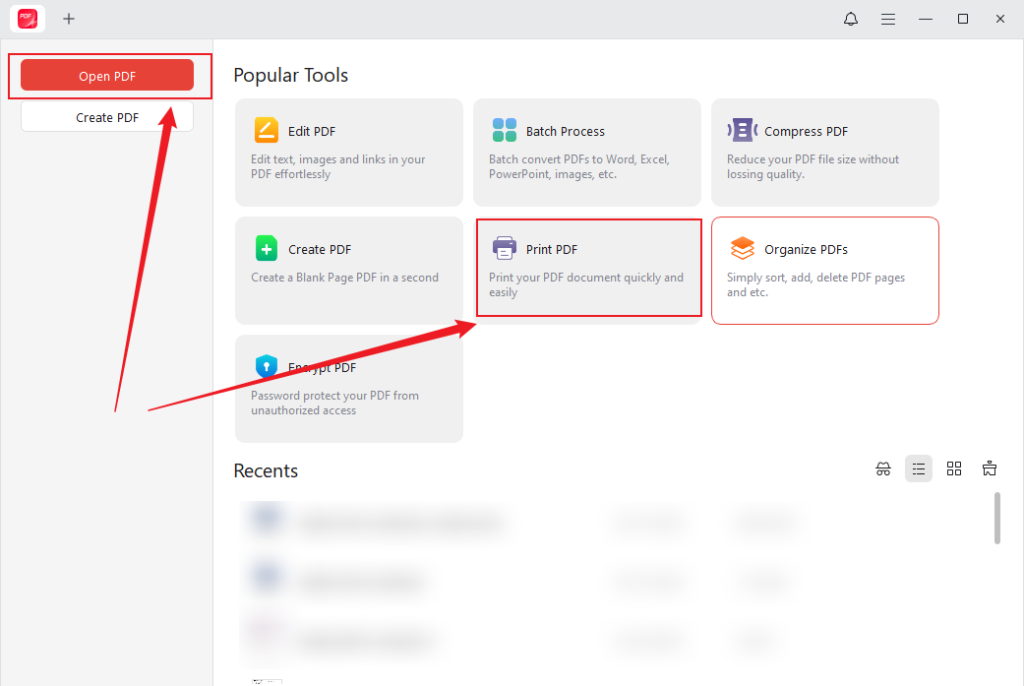
Step 2. Once opened, tap Open PDF to find your file, then tap Open to upload it to the program. If you don’t need to edit the PDF, directly click the Print PDF option.
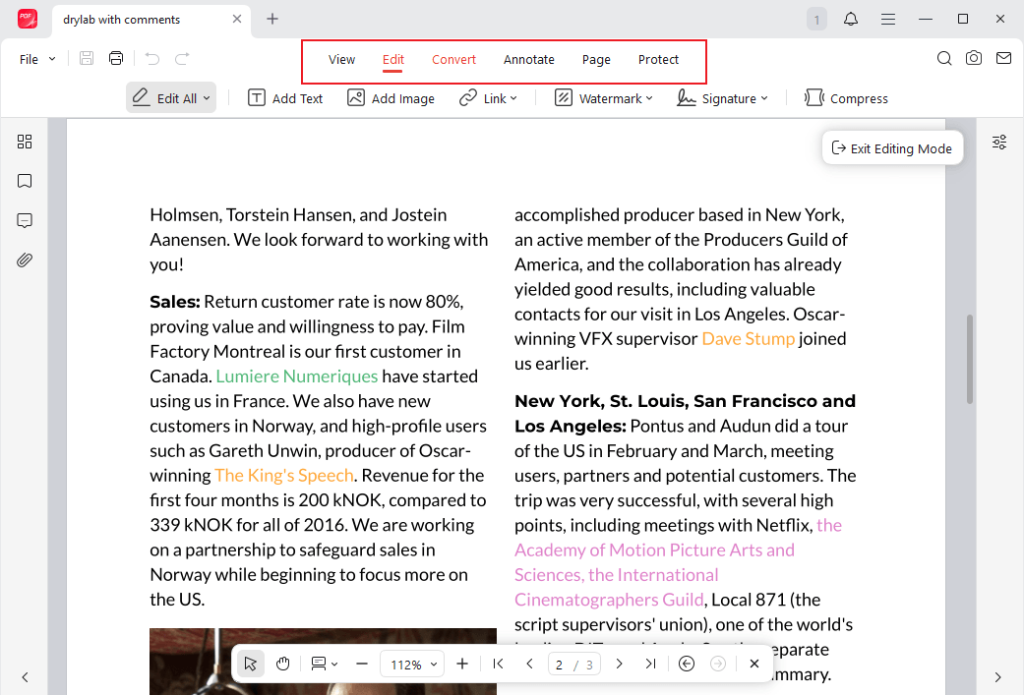
Step 3 (Optional). Go to the Annotate, Edit, Page, or Protect tab to refine your PDF as needed.
Step 4. Press Ctrl + P on Windows or Cmd + P on Mac to access the Print dialog. Open the Paper Size list and select the appropriate option for your needs, such as Letter, Tabloid, Legal Statement, A3, A4, A5, etc.
Then customize the other printing settings as you like. In the left preview section, you can check the PDF file.
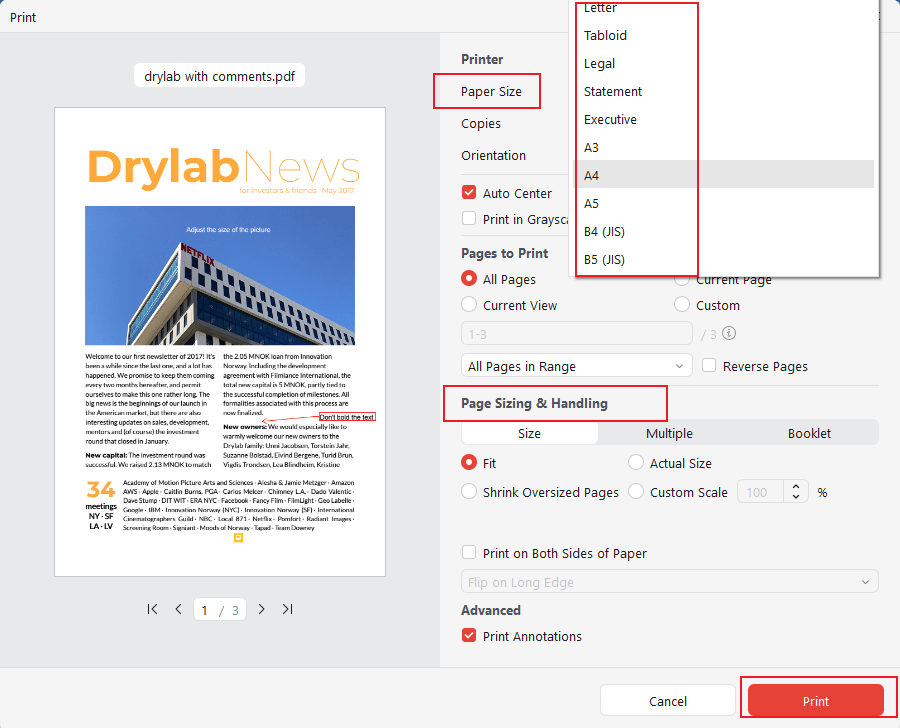
Step 5. If you only want to save the PDF file as a digital PDF, set Microsoft Print to PDF as the Printer.
Or if you want to print the PDF on paper, choose your physical printer and click Print.
How to Print Poster Size in PDF with Adobe Acrobat
Adobe Acrobat Reader is a highly used tool for viewing, editing, and printing PDF files on different devices. You can quickly make a poster or tile printing with Adobe Acrobat Reader to split large designs across multiple pages. It also allows you to print a PDF without margins, helping you create cleaner and more accurate poster prints.
Let us see how to print a poster size in PDF with Adobe Acrobat.
Step 1. Download and set up Adobe Acrobat on your Windows or Mac computer.
Step 2. Once launched, open the document and select Print this file from the global bar.
Step 3. Select Poster under the Page Sizing & Handling section in the Print dialog box.
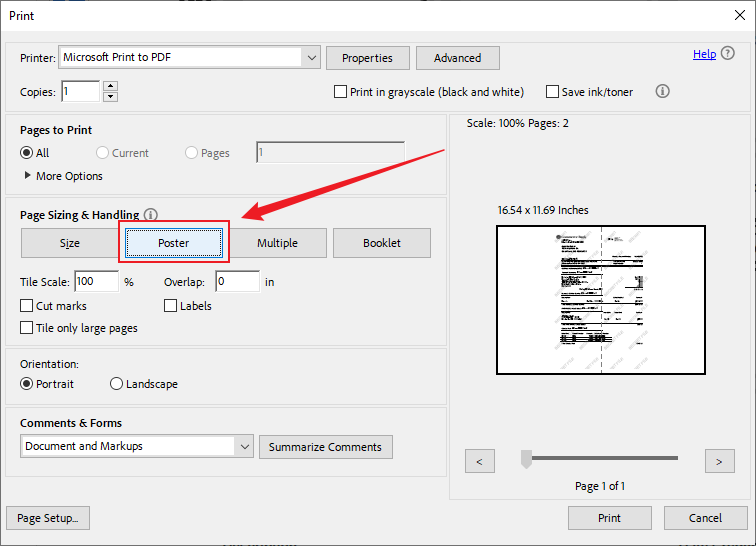
Step 4. Next, set the following options as needed.
- Tile Scale. Adjust the page scaling percentage.
- Overlap. Specify how much each tile overlaps adjacent tiles.
- Cut marks. Add guide marks to each page for trimming overlapping areas.
- Labels. Include the filename and page number on each tile.
- Tile only large pages. Apply tiling only to pages larger than the paper size.
Once everything is set, click Print.
Print Poster Size in PDF with Online Canva
Canva is a widely used design platform that lets users create and edit graphics, documents, and posters right in a web browser. It is considered one of the best free PDF editors for simple editing, resizing, and exporting designs. With Canva, you can design large posters, export them as PDFs, and easily prepare them for poster or tile printing.
Let’s see how to print a poster-sized PDF using Canva online.
Step 1. Access Canva on your web browser. And sign in with your credentials.
- For New Designs. Once on the main interface, click the +Create icon in the left sidebar. In the Create a design window, scroll down and select Custom size at the bottom.
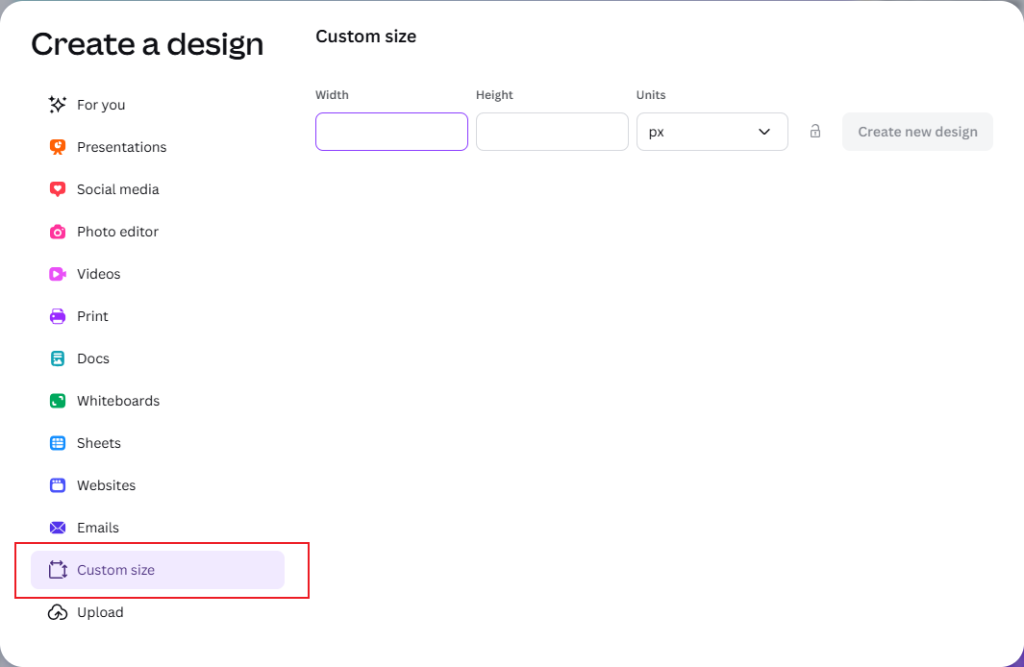
Now, change the Units to inches and then input the desired Width and Height dimensions.Then, click Create new design.
- For Existing Designs. Click Resize & Magic Switch (top left). Enter your new dimensions and select Copy & resize to preserve your original work.
Note. Direct resizing requires a Canva Pro account; free users may need to copy and paste elements into a new custom-sized design.
Step 2. Export as a high-quality PDF.
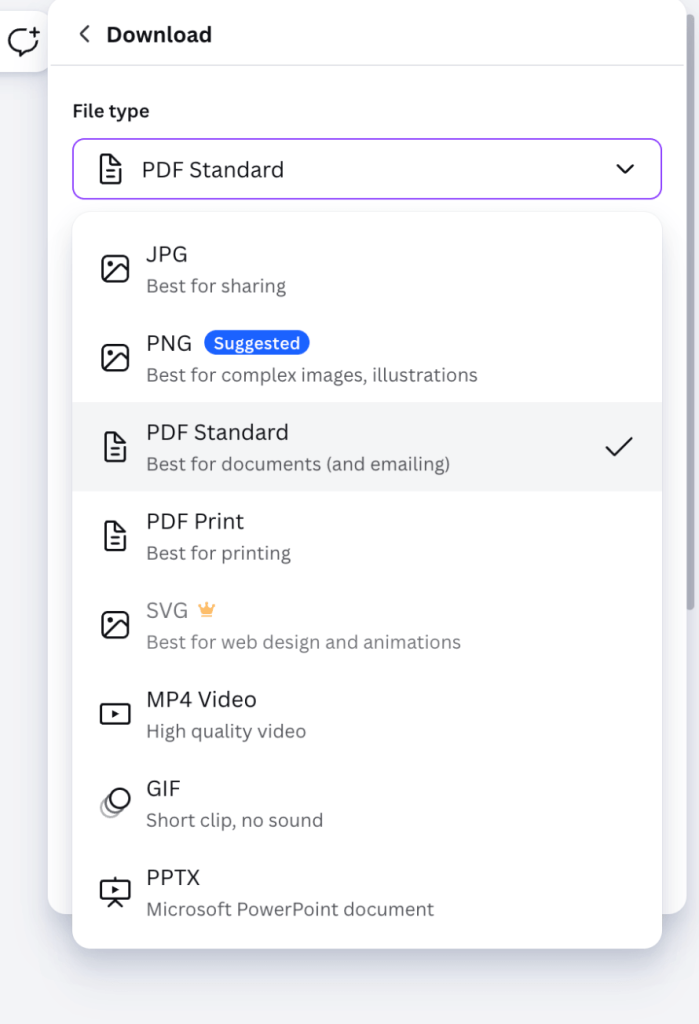
Click Share in the top right corner. And select Download.
Open the File type dropdown and choose PDF Print.
Optional Settings for Best Quality.
- Crop marks and bleed. Check this if you need professional trimming.
- Flatten PDF. Check this to help ensure all layers and fonts print correctly.
- Color Profile. Select CMYK if you have Canva Pro, as this is the standard for professional printers. Free users are limited to RGB
Step 3. Once downloaded, open the file in a reliable PDF viewer such as JOPDF or Adobe Acrobat.
Step 4. Go to the Print option, select the page settings, and click Print.
How to Make Poster Printing in Mac Preview
Preview is the built-in PDF and image viewer on macOS that offers several basic document tools. It allows users to compress a PDF on Mac for easier sharing and storage. You can also use it to print poster size in PDF on a Mac through the standard printing settings.
Learn how to make a poster printing in Mac Preview in a few clicks.
Step 1. Open the PDF file or image you want to print in Finder. If you need to print more than one file, open all of them in Preview.
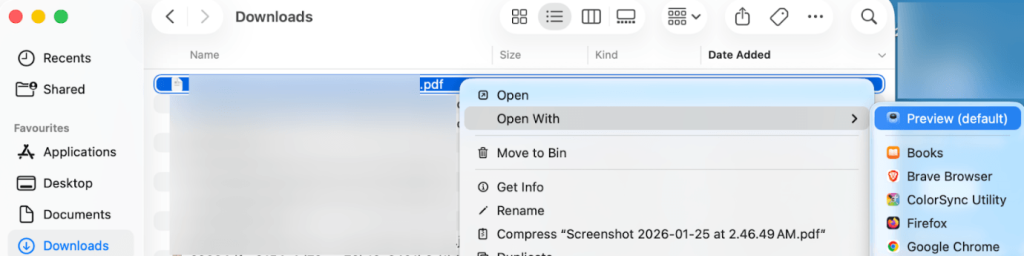
Step 2. Then, go to “View” in the top toolbar and choose “Thumbnails” in the dropdown menu. And then Command-click the thumbnails of the pages you want to print.
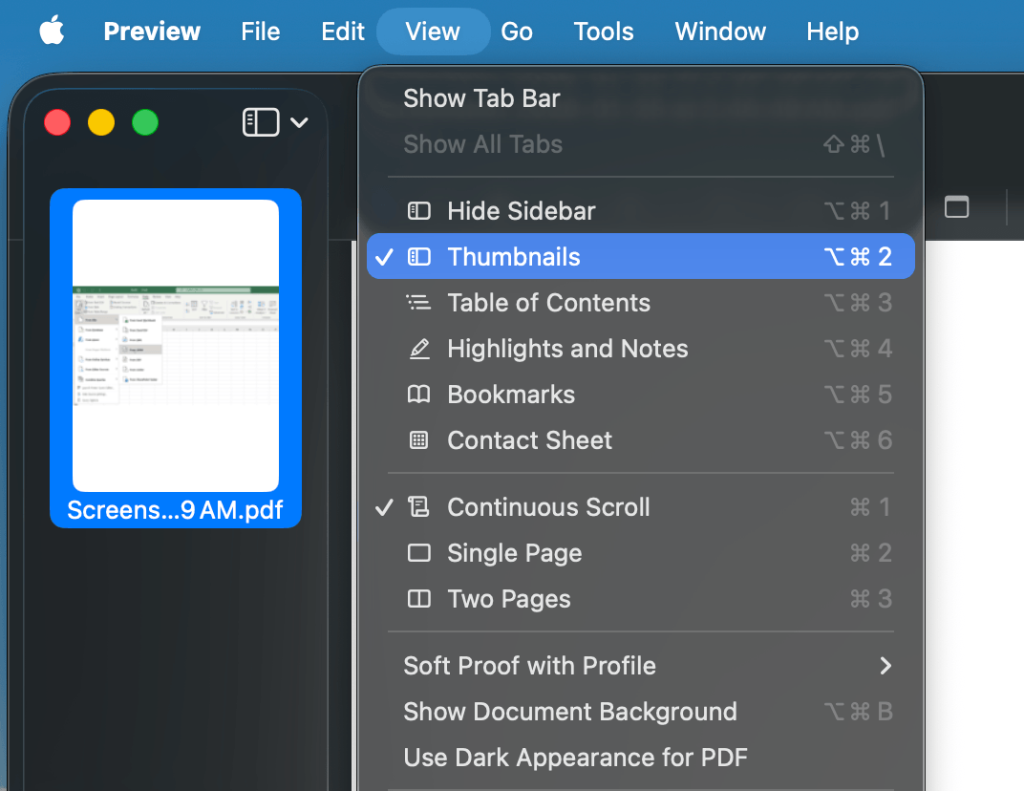
Note. This is for if you only want to print a select few pages.
Step 3. Next, go to “File” in the top toolbar and choose “Print…”
Note. If you do not see the options, click on “Show Details”. To print the same image or page multiple times, click on “copies per page” and then choose a number.
Step 4. Select the Paper Size depending on your needs. Also, to scale an image, click “Scale” under the Preview section, then enter a percentage.
Note. If you need to print only selected thumbnails, go to “Select Pages” in the sidebar. Choose a scale to fit if you need to fill as much of the paper as possible.
Step 5. After configuring all the necessary settings and options, click on “Print.”
Best Tools to Print Poster Size in PDF
You’ve seen all the desktop and online tools with their detailed working to help you print poster size in PDF. These tools include multiple features, including poster mode, tile scaling, and overlap control. Deciding which one to use depends on your device, printing needs, and editing requirements.
The following table will guide you in selecting the best tool for your requirements.
| Tool | Poster Mode | Overlap Control | Best For | Free or Paid |
| JOPDF | Yes | Yes | Poster and tile printing with adjustable scaling. | Free |
| Adobe Acrobat Reader | Yes | Yes | Reliable poster printing from PDFs | Free |
| Canva | Limited | No | Designing posters and exporting print-ready | Free/Paid |
| Preview | Limited | No | Basic PDF viewing and printing on Mac | Free |
Final Words
Learning how to print poster size in PDFallows you to create large visuals even with a standard printer. With appropriate tools, settings, and preparation, producing high-quality posters from PDFs is quick and straightforward. By using software like JOPDF, Adobe Acrobat Reader, Canva, or Preview, you can effortlessly break large designs into several printable pages. Each tool offers different features for poster or tile printing depending on your needs and device.
FAQs
#A0 (841 × 1189 mm / 33.1 × 46.8 in) is ideal for billboards, large exhibitions, and high-impact displays.
#A1 (594 × 841 mm / 23.4 × 33.1 in) is popular for rooms, shops, and event promotions.
A1 is exactly half the size of A0, making scaling easy.
The decision between A1 and A0 relies on space, how visible you want the poster to be, and your printing options. If you’re printing on a standard printer, you’ll usually use tile printing to assemble these sizes from smaller sheets.
1. JOPDF. Excellent for true poster/tile printing with scaling and overlap controls.
2. Adobe Acrobat Reader (Free version). Lets you print PDFs and use basic poster printing options.
3. Canva. Great for designing and exporting large posters, then printing via tile settings.
4. Preview (Free on Mac). Simple printing tools with basic scaling options.
If you want the most control for large-format and tiled printing, JOPDF is often the easiest fully free choice.
Table of Contents

Your Best Free PDF Expert in PDF editing, compressing, converting, annotating, protect, organizing, and more.
Free DownloadWindows · macOS · Linux

Olivia
“Olivia is an editor at JOPDF, where she writes practical guides and insightful articles on managing PDFs—covering topics like editing, annotating, converting, and organizing files efficiently. Passionate about clear communication and digital productivity, Olivia enjoys spending her free time cooking, watching movies, and hiking to unwind and find inspiration for her writing.”
![How to Print Selected Area in PDF in 2026 [4 Best Ways]](https://b.jopdf.com/wp-content/uploads/2026/03/how-to-print-selected-area-in-pdf.png)
![Adobe Print to PDF Not Working [Reasons and Solutions]](https://b.jopdf.com/wp-content/uploads/2026/03/adobe-print-to-pdf-not-working.png)
![Solved! Microsoft Print to PDF Missing [Causes and 6 Fixes]](https://b.jopdf.com/wp-content/uploads/2026/02/microsoft-print-to-pdf-missing.png)
